> For the complete documentation index, see [llms.txt](https://docs.platform.softwareone.com/llms.txt). Markdown versions of documentation pages are available by appending `.md` to page URLs; this page is available as [Markdown](https://docs.platform.softwareone.com/extensions/adobe-vip-marketplace/set-up-your-account/migrate-from-adobe-vip.md).
# Migrate from Adobe VIP
Move your Adobe VIP account to Adobe VIP Marketplace.
You can move your Adobe VIP account to Adobe VIP Marketplace by placing a migration order in the SoftwareOne Marketplace. This helps you manage your existing Adobe subscriptions, buy new licenses, and renew automatically in the SoftwareOne Marketplace.
Your company details and your active Adobe subscriptions are taken from your VIP account, so you don't need to enter them again.
### Prerequisites
Before you start, make sure you have the following:
* An Adobe VIP account. Accounts under other Adobe licensing programs, such as CLP, TLP, or ETLA, cannot be migrated.
* Your **Adobe VIP membership number**. You can find it in the Adobe Admin Console.
* An [active licensee](/modules-and-features/settings/licensees/licensee-states.md) or permission to [create a new licensee](/modules-and-features/settings/licensees/create-licensees.md).
### Migrate your Adobe VIP account
{% stepper %}
{% step %}
**Start the order**
To start the order:
1. Go to **Catalog** > **Products**.
2. Select the Adobe product, for example, **Adobe VIP Marketplace for Commercial**.
3. Select **Buy now**.
{% endstep %}
{% step %}
**Set up the migration and place the order**
In the guided purchase flow, complete the following steps:
1. **Select agreement** – Select **Create agreement**.
2. **Select licensee** – Select a licensee, then select **Next**. You can also [create a new licensee](/modules-and-features/settings/licensees/create-licensees.md).
3. **Adobe account setup** – Choose **Migrate Adobe VIP account**, then select **Next**.
4. **Adobe VIP membership number** – Enter your membership number, then select **Next**.
5. **Select items** – Review your active subscriptions, which are added automatically. Don't add or remove items, or change quantities. Then select **Next**.
6. **Details** – Provide reference details for the order, then select **Next**.
7. **Review order** – Review the order details, go through the terms and conditions, then select **Place order**.
8. **Summary** – Review your order summary, then select **View details** to open the order details page, or select **Close**.
{% endstep %}
{% endstepper %}
### If SoftwareOne prepared a draft order for you
If your SoftwareOne representative created a draft migration order for you, complete it to accept the terms of VIP Marketplace and activate your agreement.
To complete your draft order:
1. Do one of the following:
* Select the link in the email from SoftwareOne. If you are signed in, the details page of your draft order opens.
* Go to the [Orders](/modules-and-features/marketplace/orders.md) page and select the Adobe order in **Draft** status.
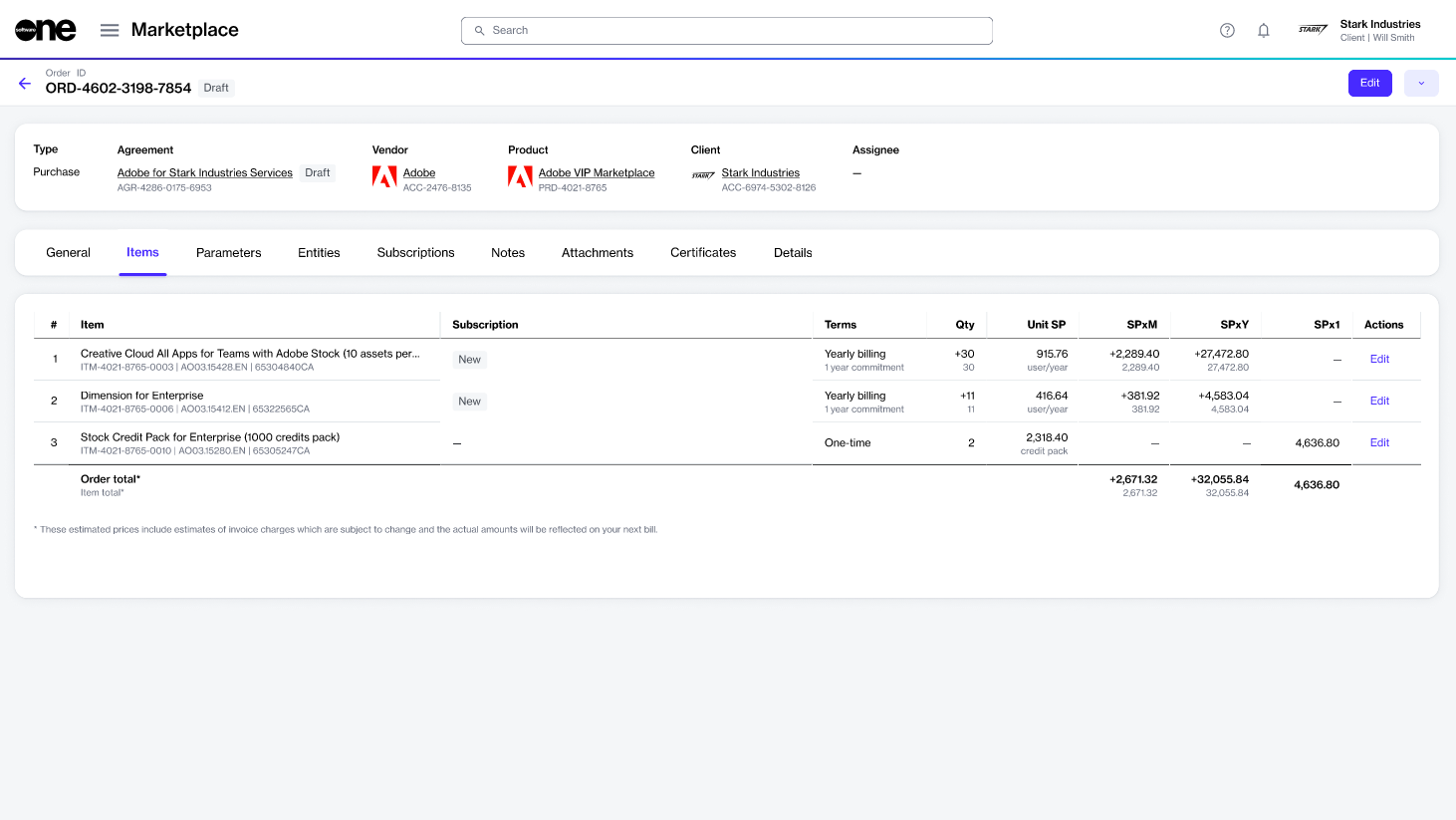
2. Select the **Items** tab, then select **Edit** to start the purchase wizard.
Items tab of your draft order
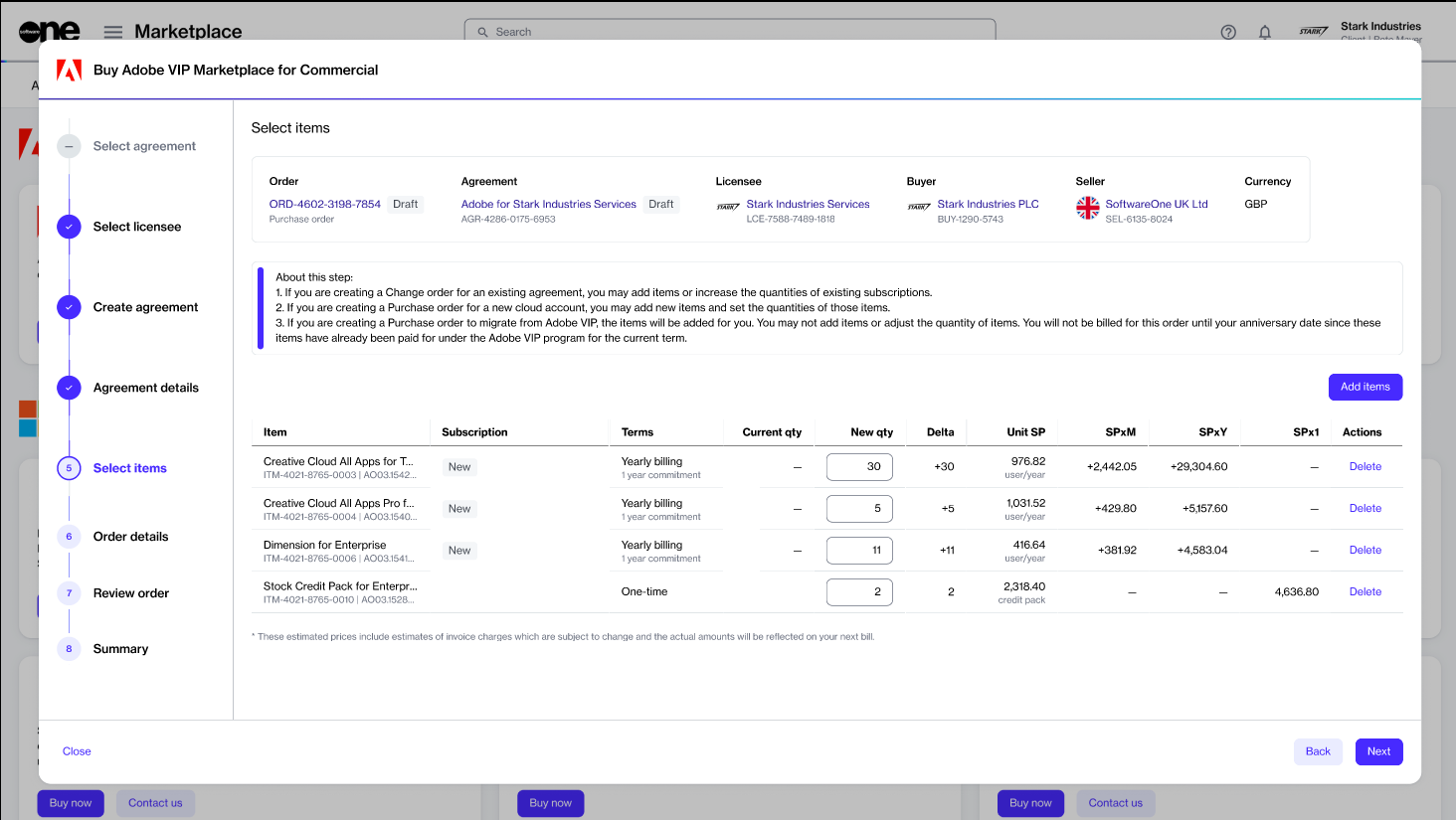
3. **Select items** – Review the items, quantities, and prices, then select **Next**. You cannot add items or change quantities in a draft order.
Select Items section
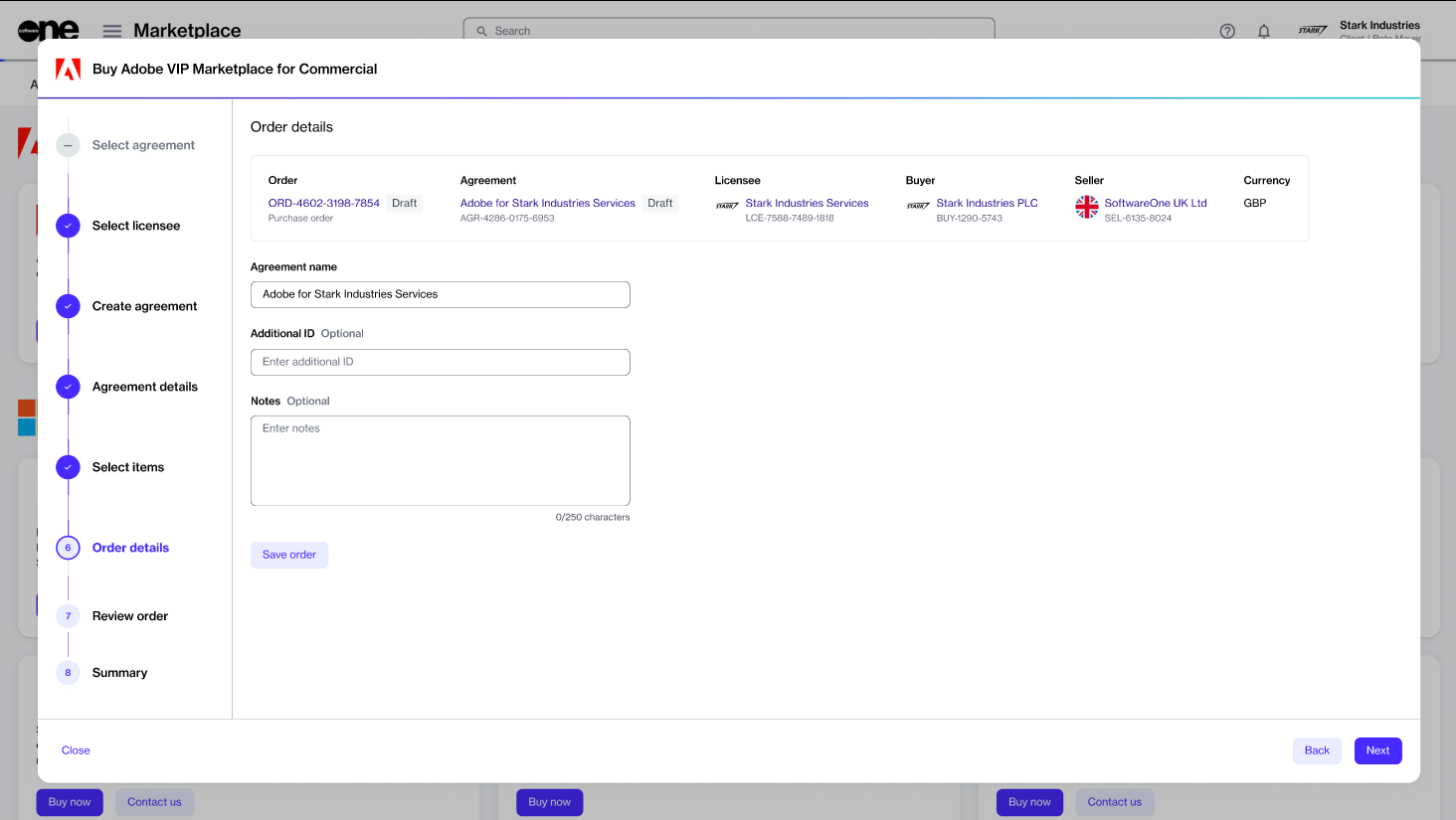
4. **Order details** – Update the agreement name and other details as needed, then select **Next**.
Order details section
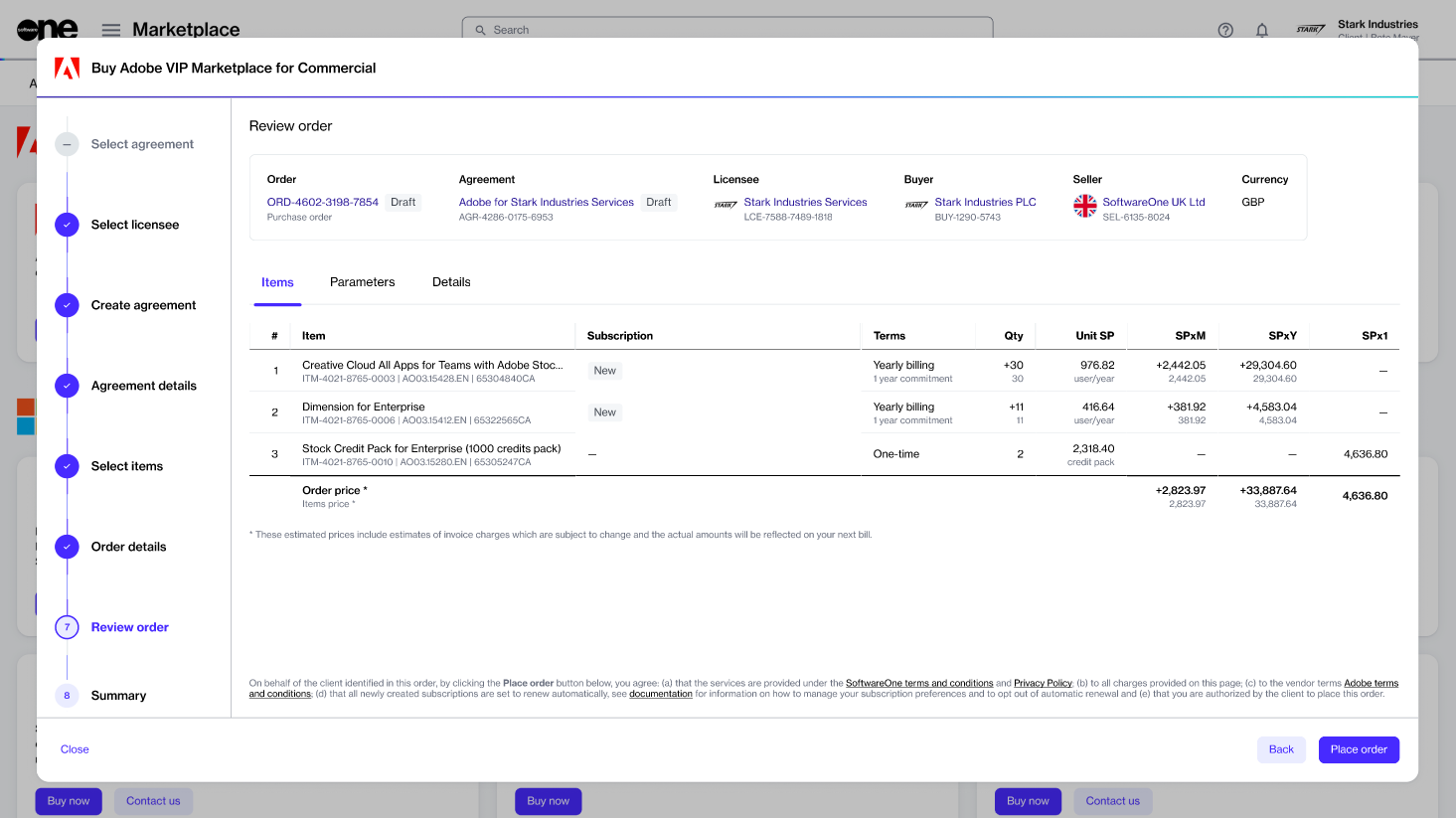
5. **Review order** – Read the terms, then select **Place order**.
Review order section
### Next steps
Your migration order is submitted for processing. When it completes, your VIP Marketplace agreement is active, and you can manage your subscriptions in the SoftwareOne Marketplace.
* Your anniversary date stays the same as it was under VIP.
* Auto-renewal is turned on for all your migrated subscriptions. Check your subscriptions, and turn auto-renewal off for any that you don't want to renew. For more details, see [Change Adobe subscription auto-renewal](/extensions/adobe-vip-marketplace/manage-subscriptions/change-adobe-subscription-auto-renewal.md).
* Orders you placed in Adobe VIP can no longer be returned after you migrate.
* To add licenses or products, place a change order after the migration completes. For more details, see [Add products to your Adobe agreement](/extensions/adobe-vip-marketplace/manage-subscriptions/add-products-to-your-adobe-agreement.md).
If the order shows a message about your membership number, see [Common error messages](/extensions/adobe-vip-marketplace/common-error-messages.md).
### Related tasks
{% content-ref url="/spaces/Z5DNbniz33mXCZoO62Rm/pages/5T0GxdEgwjhG0l9LYDo9" %}
[Set up a new Adobe agreement](/extensions/adobe-vip-marketplace/set-up-your-account/set-up-a-new-adobe-agreement.md)
{% endcontent-ref %}
{% content-ref url="/spaces/Z5DNbniz33mXCZoO62Rm/pages/nDivgtU4X7jIgkOuyhAK" %}
[Transfer your Adobe account to SoftwareOne](/extensions/adobe-vip-marketplace/set-up-your-account/transfer-your-adobe-account-to-softwareone.md)
{% endcontent-ref %}
---
# Agent Instructions
This documentation is published with GitBook. GitBook is the documentation platform designed so that both humans and AI agents can read, navigate, and reason over technical content effectively. Learn more at gitbook.com.
## Querying This Documentation
If you need additional information that is not directly available in this page, you can query the documentation by asking a question.
Perform an HTTP GET request on the following URL with the `ask` and `goal` query parameters:
```
GET https://docs.platform.softwareone.com/extensions/adobe-vip-marketplace/set-up-your-account/migrate-from-adobe-vip.md?ask=&goal=
```
`ask` is the immediate question: it should be specific, self-contained, and written in natural language.
`goal` is what the user is ultimately trying to achieve, the reason they need the answer. Sharing it helps GitBook give you a better, more relevant answer. A goal is most helpful when it describes the outcome the user wants rather than restating the question. For example, with `ask=how do I create an API token`, a goal like `automate deployments from our CI pipeline` lets GitBook tailor the answer to that use case.
The response will contain a direct answer to the question and relevant excerpts and sources from the documentation.
Use this mechanism when the answer is not explicitly present in the current page, you need clarification or additional context, or you want to retrieve related documentation sections.