# Add an Azure MCA Account
The Client Portal supports both legacy Enterprise Agreement and modern [Microsoft Customer Agreement](https://learn.microsoft.com/en-us/azure/cost-management-billing/understand/mca-overview) models. This topic describes how to add an Azure MCA account to the Client Portal. For information on adding an EA or MPSA account, see [Activating an Azure EA or MPSA account](https://docs.platform.softwareone.com/extensions/cloud-tools/cloud-tenant-setup/azure-onboarding/activate-an-azure-ea-or-mpsa-account).
## Before you begin
Before adding an MCA account to the Client Portal, make sure your account has the correct billing account type set up. You can verify the account type in the [Azure Portal](https://portal.azure.com).
To verify, select **Cost Management + Billing** and then navigate to **Settings** > **Properties**. The account type is displayed in the right pane.
## Assigning the Billing Account Reader role (Azure Portal)
To assign the **Billing account reader** role to the Client Portal through Azure:
1. In the [Azure Portal](https://portal.azure.com), search for **Cost Management + Billing**.
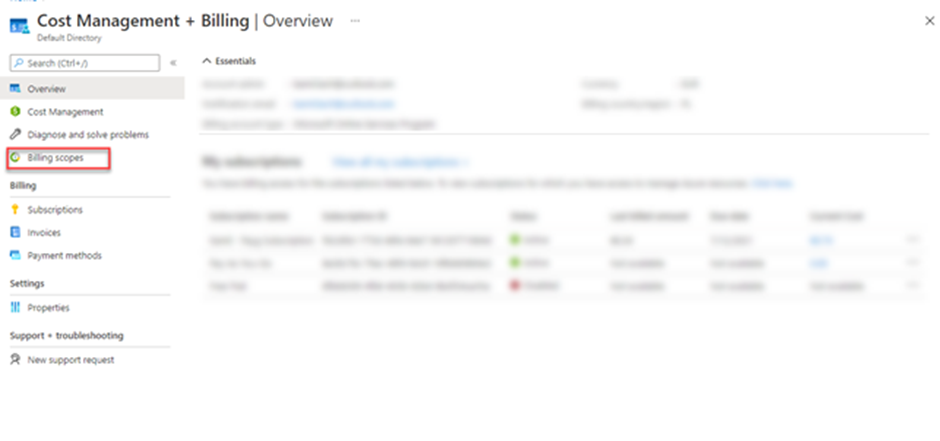
2. In the left navigation pane, select **Billing scopes** and then select your MCA billing scope.
Billing scopes
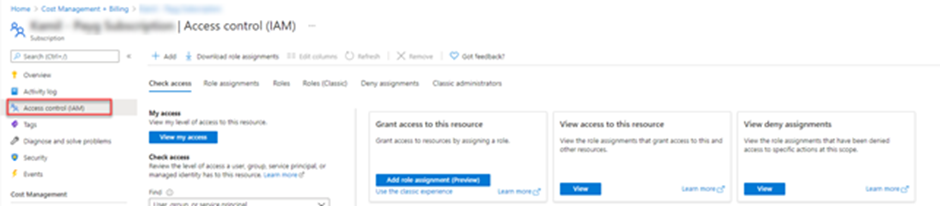
3. Select **Access Control (IAM)** to start assigning permissions.
Access Control (IAM)
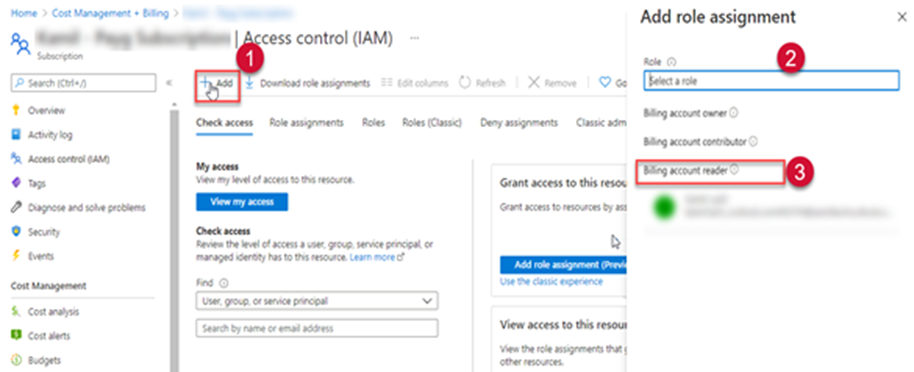
4. On the **Access Control (IAM)** tab, select **Add > Add role assignment**. The **Add role assignment** pane opens. From the **Role** list, select the **Billing account reader** role.
Add role assignment
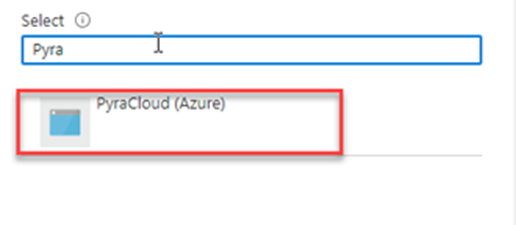
5. For **Members**, select **SoftwareOne Cloud Consumption** (formerly PyraCloud Azure) application to give access to the Client Portal.
Select members
6. Select**Save**. Your MCA billing data will be synchronized with the Client Portal after 24 hours.
## Next steps
After assigning permissions to the billing account, you can add the tenant to the Client Portal via **Cloud tenant setup**, found under **Cloud tools** in the main menu.
For instructions on how to add the tenant, see [Activate your cloud account](https://docs.platform.softwareone.com/extensions/cloud-tools/cloud-tenant-setup/activate-an-azure-ea-or-mpsa-account#activate-your-cloud-account).