> For the complete documentation index, see [llms.txt](https://docs.platform.softwareone.com/llms.txt). Markdown versions of documentation pages are available by appending `.md` to page URLs; this page is available as [Markdown](https://docs.platform.softwareone.com/extensions/microsoft-cloud-solution-provider/additional-resources/perpetual-software/order-additional-perpetual-software-licenses.md).

# Order additional perpetual software licenses

If you already have an agreement for a perpetual software product and want to add more one-time software items to the same agreement, you can do so by creating a change order.&#x20;

This tutorial describes how to create a change order by adding a one-time item called *Windows Server 2025*.&#x20;

### Prerequisites <a href="#howtoorderamicrosoft365subscriptionforanexistingmicrosofttenant-prerequisites" id="howtoorderamicrosoft365subscriptionforanexistingmicrosofttenant-prerequisites"></a>

Make sure that the required agreement is currently active.&#x20;

### Order additional perpetual software licenses <a href="#implementation" id="implementation"></a>

{% stepper %}
{% step %}
**Start from the agreement**

To open the agreement:

1. Go to **Marketplace** > **Agreements**.
2. Select the required agreement.
3. On the agreement details page, select **Buy more**.
   {% endstep %}

{% step %}
**Add the items to your order**

In the **Select items** step, do the following:&#x20;

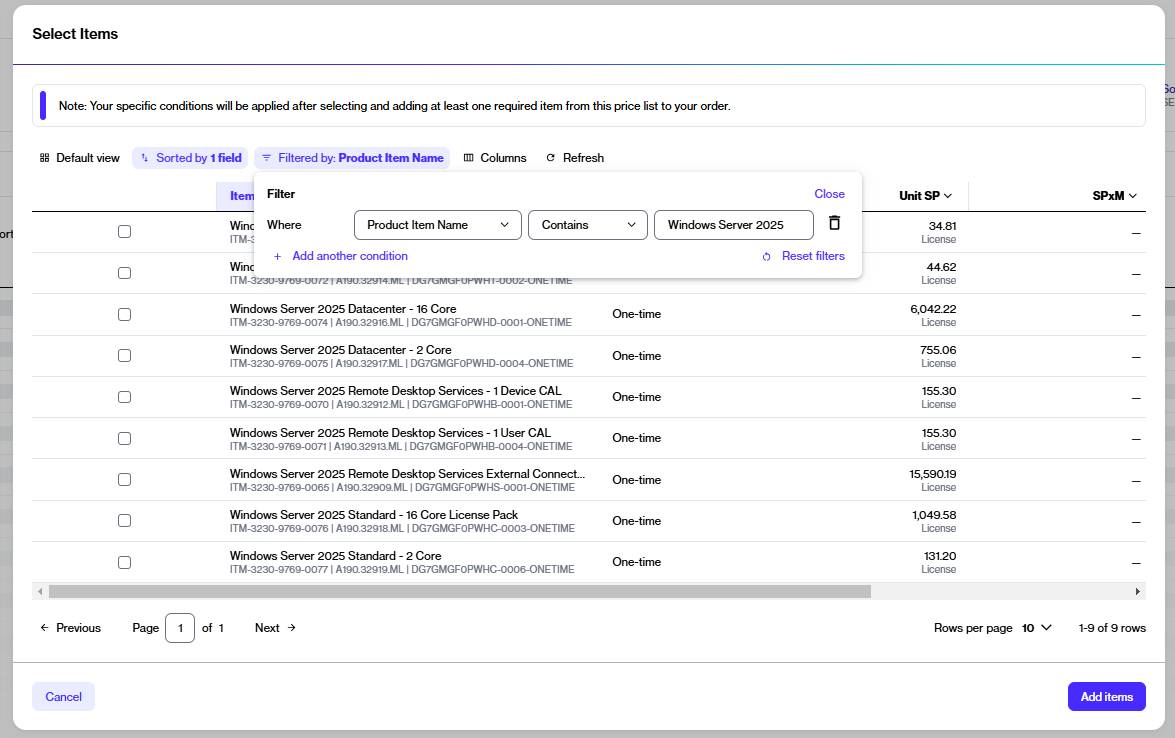
1. Locate the item (for example, *Windows Server 2025).* If required, use the following filters:
   1. Select <img src="data:image/png;base64,iVBORw0KGgoAAAANSUhEUgAAAGAAAABgCAYAAADimHc4AAAAAXNSR0IArs4c6QAAActJREFUeF7t2TFOQ0EQBFF8UgISjkRCwElBpASg0Y5VtnmOZ6e9Vb+Db1+efFIClzRd+BMB8UNAAAExgTheAwiICcTxGkBATCCO1wACYgJxvAYQEBOI4zWAgJhAHK8BBMQE4ngNICAmEMdrAAExgTheAwiICcTxGnBvAp5fXj/j73zT8R/vb6OHejT8fXMCfvdPQNwPAgiICcTxGkBATCCO14BHFxDf7+Hix+8BD0cgvhABBMQE4ngNICAmEMdrAAExgTheAwiICcTxGkBATCCOv3oD7v0vzOmvm1OfBPxBjIDpI7U8T8Ay0Ok6AqbElucJWAY6XUfAlNjyPAHLQKfr7l7A9ML/bf7q7wH/Dej0vgRMiS3PE7AMdLqOgCmx5XkCloFO1xEwJbY8T8Ay0Ok6AqbElucJWAY6XUfAlNjyPAHLQKfrbl7A6X/K1/4xbQr85zwBpwQPzxNwCPD0OAGnBA/PE3AI8PQ4AacED88TcAjw9DgBpwQPz9+8gMP73fxxAmJFBBAQE4jjNYCAmEAcrwEExATieA0gICYQx2sAATGBOF4DCIgJxPEaQEBMII7XAAJiAnG8BhAQE4jjNYCAmEAcrwEExATi+C97b2BhPsA2DAAAAABJRU5ErkJggg==" alt="" data-size="line"> **Filter**.
   2. Select **Add another condition**, then do the following:

      1. Select **Product Item Name**.
      2. Set the filter to **Contains**.
      3. Type the name of the required item (in this case, *Windows Server 2025*).
      4. **Close** the filter box.

      <div data-with-frame="true"><figure><img src="/files/SCMdek7U45nIK3hYz7cZ" alt=""><figcaption><p>The available filter options in the table.</p></figcaption></figure></div>
2. Select the item name (for example, *Windows Server 2025)*, then select **Add items** to add it to the order.
3. In the **New qty** field, adjust the license quantity, then select **Next**.
   {% endstep %}

{% step %}
**Complete the remaining steps to submit your order**

1. **Details** – Provide any additional IDs for the order and the agreement, then select **Next**.
2. **Review order** – Read the terms and conditions for the order and verify your order details. Select **Place order** to submit your order.
3. **Summary** – Select **View order** to open the order details page or select **Close**.
   {% endstep %}
   {% endstepper %}

### Next steps <a href="#next-steps" id="next-steps"></a>

Once you submit your order, you can track its status on the **Orders** page or in the **Orders** tab within the agreement details page.

Note that the status of your agreement also changes from **Active** to **Updating**. During this time, you cannot place any additional orders under this agreement until the current order is processed and the agreement status changes back to **Active**.

### Related tasks

{% content-ref url="/spaces/Z5DNbniz33mXCZoO62Rm/pages/21OZg3Exgc9Zsp7m2su4" %}
[Buy perpetual software licenses](/extensions/microsoft-cloud-solution-provider/additional-resources/perpetual-software/buy-perpetual-software-licenses.md)
{% endcontent-ref %}


---

# Agent Instructions
This documentation is published with GitBook. GitBook is the documentation platform designed so that both humans and AI agents can read, navigate, and reason over technical content effectively. Learn more at gitbook.com.

## Querying This Documentation
If you need additional information that is not directly available in this page, you can query the documentation dynamically by asking a question.

Perform an HTTP GET request on the current page URL with the `ask` query parameter, and the optional `goal` query parameter:

```
GET https://docs.platform.softwareone.com/extensions/microsoft-cloud-solution-provider/additional-resources/perpetual-software/order-additional-perpetual-software-licenses.md?ask=<question>&goal=<endgoal>
```

`ask` is the immediate question: it should be specific, self-contained, and written in natural language.
`goal` is optional and describes the broader end goal you are ultimately trying to accomplish on behalf of the user. GitBook uses it to tailor the answer towards what is most useful for that goal.

The response will contain a direct answer to the question and relevant excerpts and sources from the documentation.

Use this mechanism when the answer is not explicitly present in the current page, you need clarification or additional context, or you want to retrieve related documentation sections.
