# Order additional perpetual software licenses

If you already have an agreement for a perpetual software product and want to add more one-time software items to the same agreement, you can do so by creating a change order.&#x20;

This tutorial describes how to create a change order by adding a one-time item called *Windows Server 2025*.&#x20;

### Prerequisites <a href="#howtoorderamicrosoft365subscriptionforanexistingmicrosofttenant-prerequisites" id="howtoorderamicrosoft365subscriptionforanexistingmicrosofttenant-prerequisites"></a>

Before starting this tutorial, make sure that your existing agreement is in the **Active** state. You can check the status on the agreement details page.

### Ordering additional perpetual software licenses <a href="#implementation" id="implementation"></a>

{% stepper %}
{% step %}
**Open the existing agreement**

To open the agreement:

1. Go to **Marketplace** > **Agreements**.
2. Select the required agreement.
3. On the **agreement details** page, select **Buy more** to start the ordering process.
   {% endstep %}

{% step %}
**Select the items you want to order**

In the **Select items** step, all one-time items that can be ordered under this agreement are displayed. To add these items to your order:

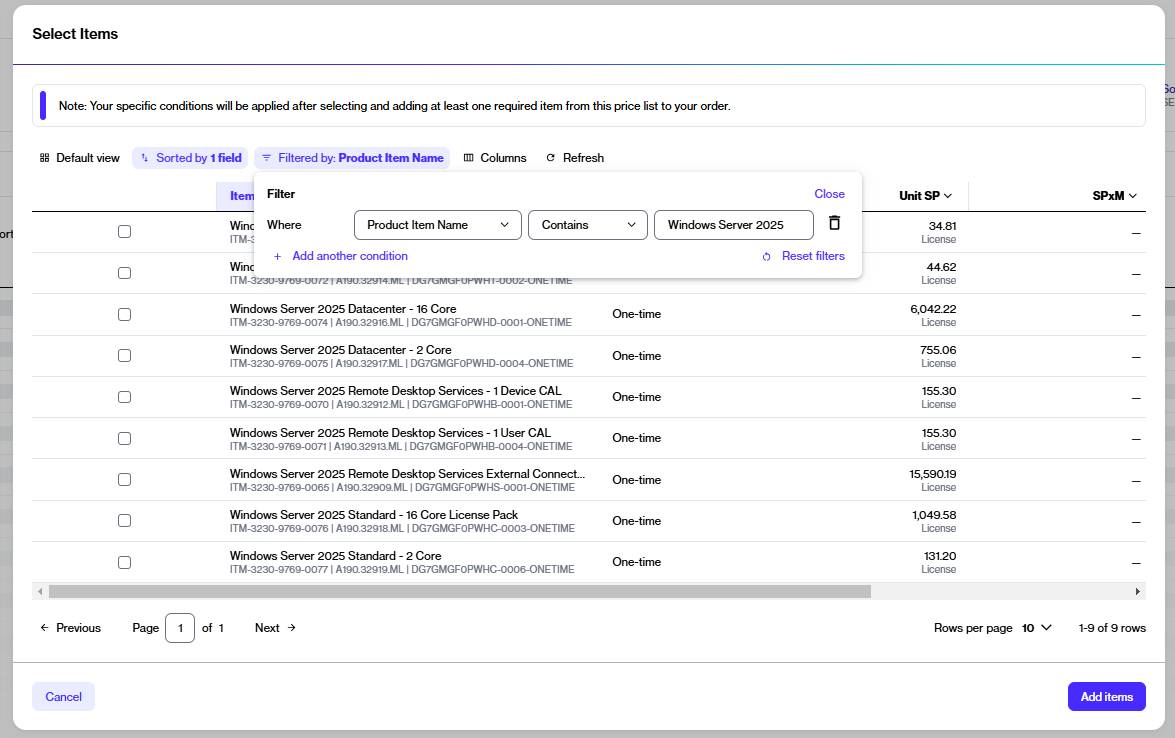
1. Locate the item (for example, *Windows Server 2025).* If required, use the following filters:
   1. Select the <img src="data:image/png;base64,iVBORw0KGgoAAAANSUhEUgAAAGAAAABgCAYAAADimHc4AAAAAXNSR0IArs4c6QAAActJREFUeF7t2TFOQ0EQBFF8UgISjkRCwElBpASg0Y5VtnmOZ6e9Vb+Db1+efFIClzRd+BMB8UNAAAExgTheAwiICcTxGkBATCCO1wACYgJxvAYQEBOI4zWAgJhAHK8BBMQE4ngNICAmEMdrAAExgTheAwiICcTxGnBvAp5fXj/j73zT8R/vb6OHejT8fXMCfvdPQNwPAgiICcTxGkBATCCO14BHFxDf7+Hix+8BD0cgvhABBMQE4ngNICAmEMdrAAExgTheAwiICcTxGkBATCCOv3oD7v0vzOmvm1OfBPxBjIDpI7U8T8Ay0Ok6AqbElucJWAY6XUfAlNjyPAHLQKfr7l7A9ML/bf7q7wH/Dej0vgRMiS3PE7AMdLqOgCmx5XkCloFO1xEwJbY8T8Ay0Ok6AqbElucJWAY6XUfAlNjyPAHLQKfrbl7A6X/K1/4xbQr85zwBpwQPzxNwCPD0OAGnBA/PE3AI8PQ4AacED88TcAjw9DgBpwQPz9+8gMP73fxxAmJFBBAQE4jjNYCAmEAcrwEExATieA0gICYQx2sAATGBOF4DCIgJxPEaQEBMII7XAAJiAnG8BhAQE4jjNYCAmEAcrwEExATi+C97b2BhPsA2DAAAAABJRU5ErkJggg==" alt="" data-size="line"> **Filter** option.
   2. Select **Add another condition**, then do the following:

      1. Select **Product Item Name**.
      2. Set the filter to **Contains**.
      3. Type the name of the required item (in this case, *Windows Server 2025*).
      4. **Close** the filter box.

      <div data-with-frame="true"><figure><img src="https://1674205915-files.gitbook.io/~/files/v0/b/gitbook-x-prod.appspot.com/o/spaces%2FZ5DNbniz33mXCZoO62Rm%2Fuploads%2FnAMYmn5t4yNrFptr7W6h%2Fimage.png?alt=media&#x26;token=1cf77a1f-db11-4b00-b0b2-632f697206a7" alt=""><figcaption><p>The available filter options in the table.</p></figcaption></figure></div>
2. Select the item you want (for example, *Windows Server 2025)*, then select **Add items** to include it in your order.
3. In the **New qty** field, adjust the quantity as needed. Select **Next**.
   {% endstep %}

{% step %}
**Complete the remaining steps to submit your order**

1. **Details** - Provide any additional IDs for the order and the agreement, then select **Next**.
2. **Review order** - Read the terms and conditions for the order and verify your order details. When done, select **Place order** to submit your order.
3. **Summary** - Select **View order** to open the order details page. Otherwise, select **Close**.
   {% endstep %}
   {% endstepper %}

### Next steps <a href="#next-steps" id="next-steps"></a>

Once you submit your order, you can track its status on the **Orders** page or in the **Orders** tab within the agreement details page.

Note that the status of your agreement also changes from **Active** to **Updating**. During this time, you cannot place any additional orders under this agreement until the current order is processed and the agreement status changes back to **Active**.
