# Assign Subscription Owner role
To [complete the Azure Lighthouse onboarding](https://docs.platform.softwareone.com/extensions/microsoft-cloud-solution-provider/azure-lighthouse/complete-the-azure-lighthouse-onboarding), you must have the subscription owner role in Azure.
Global administrators can assign the subscription owner role to the user who will complete the Azure Lighthouse onboarding.
### Assigning the Owner role
To assign the Owner role:
1. Sign in to the [Microsoft Azure portal](https://portal.azure.com/) as a Global Administrator.
2. Verify that you have permission to add role assignments. To verify permissions:
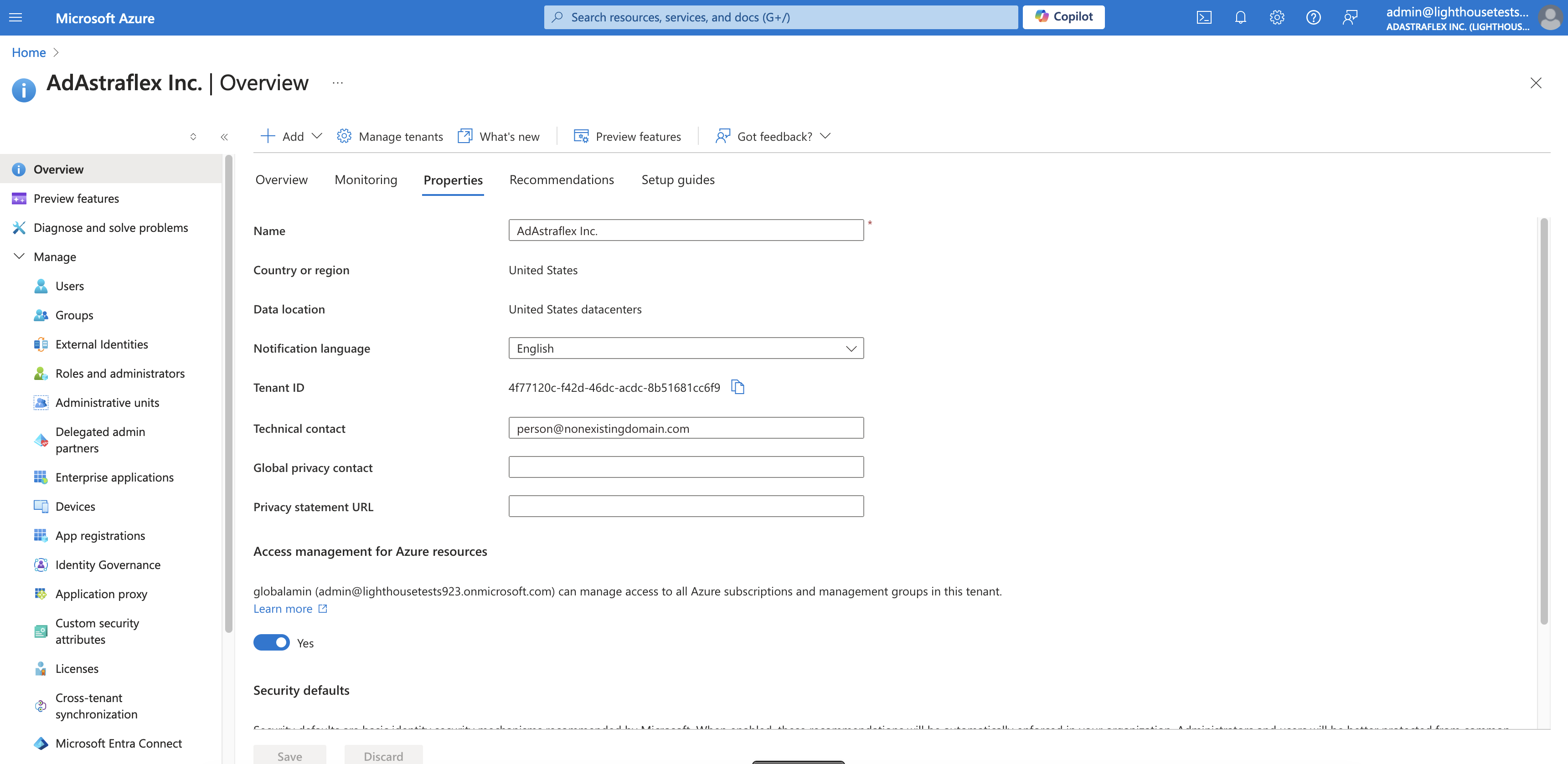
1. In the **Search** bar, type **Microsoft** **Entra ID**.
2. Go to the **Properties** tab.
3. Under **Access management for Azure resources**, set the toggle to **Yes**. Your global admin username should be visible.
4. Select **Save**.
Properties tab
3. In the Search bar, type **Subscriptions.** Then, on the **Subscriptions** page, select the required subscription.
4. In the left pane, select **Access control (IAM)**.
5. Select the **Role assignments** tab to view the role assignments at this scope. Then, select **Add** > **Add role assignment**.
6. On the **Privileged administrator roles** tab, select the **Owner** role and select **Next**.
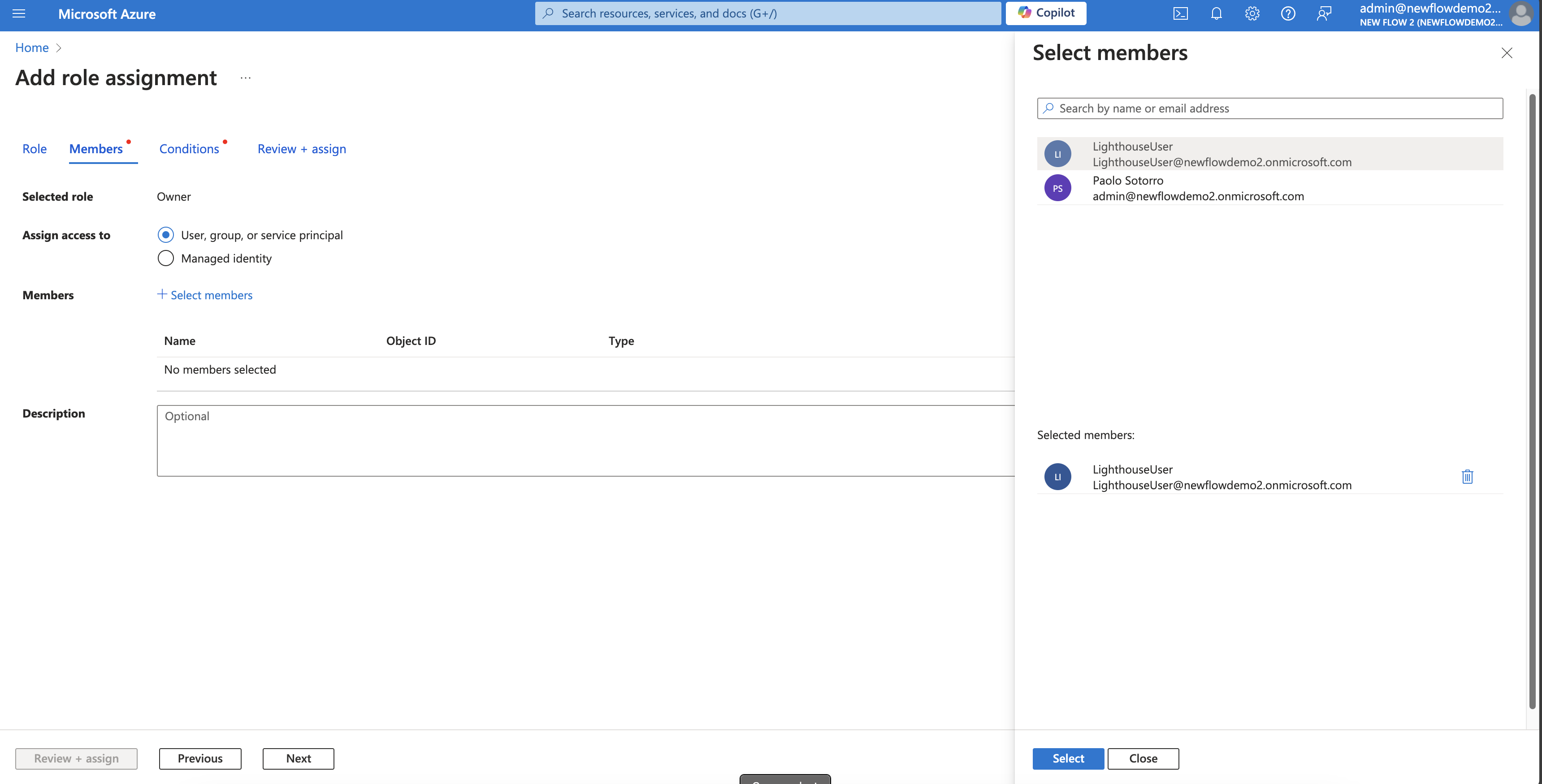
7. On the **Members** tab, select the user to whom you want to assign the **Owner** role and select **Next**. You must select the user you want to use for the Azure Lighthouse onboarding.
Add role assignment
8. On the **Conditions** tab, select **Allow user to assign all roles (highly privileged)** and then select **Next**.
9. On the **Review + assign** tab, select **Review + assign**.
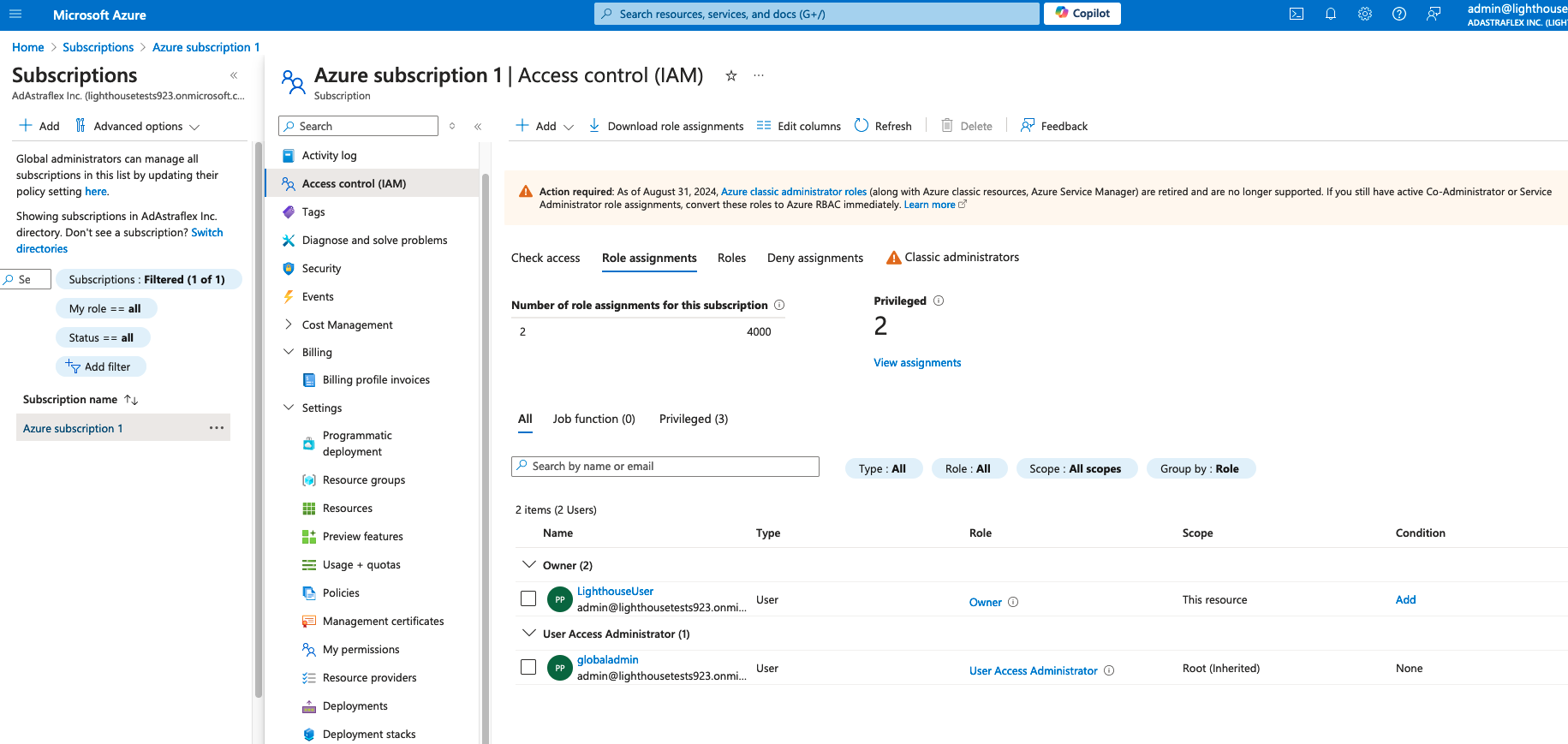
The **Owner** role is assigned to the user and displayed on the **Role assignments** tab in Azure:
Role assignments tab
### Next steps
After assigning the role in Azure, navigate to the **Orders** page in the Marketplace Platform to complete the onboarding steps. For step-by-step guidance, see [Complete Azure Lighthouse Onboarding](https://docs.platform.softwareone.com/extensions/microsoft-cloud-solution-provider/azure-lighthouse/complete-the-azure-lighthouse-onboarding).
### Related topics
{% content-ref url="../additional-resources/faqs/how-do-i-troubleshoot-lighthouse-activation-errors" %}
[how-do-i-troubleshoot-lighthouse-activation-errors](https://docs.platform.softwareone.com/extensions/microsoft-cloud-solution-provider/additional-resources/faqs/how-do-i-troubleshoot-lighthouse-activation-errors)
{% endcontent-ref %}