> For the complete documentation index, see [llms.txt](https://docs.platform.softwareone.com/llms.txt). Markdown versions of documentation pages are available by appending `.md` to page URLs; this page is available as [Markdown](https://docs.platform.softwareone.com/marketplace-platform/guides-and-tutorials/marketplace-for-clients/how-to-set-or-change-billing-currency.md).
# How to set or change billing currency
Learn how to choose a currency for your Marketplace invoices.
This tutorial describes how to choose the billing currency for a Marketplace agreement.
SoftwareOne issues invoices at the agreement level. It means that invoices are generated for specific agreements. Therefore, currency selection must be done at the agreement level.
There are two ways to choose a billing currency. You can select it when creating a new agreement. Alternatively, you can change it after the order is placed.
{% hint style="info" %}
* If your billing currency differs from your base currency, invoice amounts use the exchange rate in effect when the invoice is generated.
* If you don't see the option to change the currency, it means the seller doesn't offer additional billing currencies.
{% endhint %}
### Set currency for a new agreement
{% stepper %}
{% step %}
**Start a new purchase**
1. Go to **Catalog** > **Products**.
2. Select the product you want, then select **Buy now**. The purchase flow starts.
3. Under **Select agreement**, select **Create agreement**.
4. Continue through the steps until you reach the **Billing currency** step.
{% endstep %}
{% step %}
**Choose the billing currency**
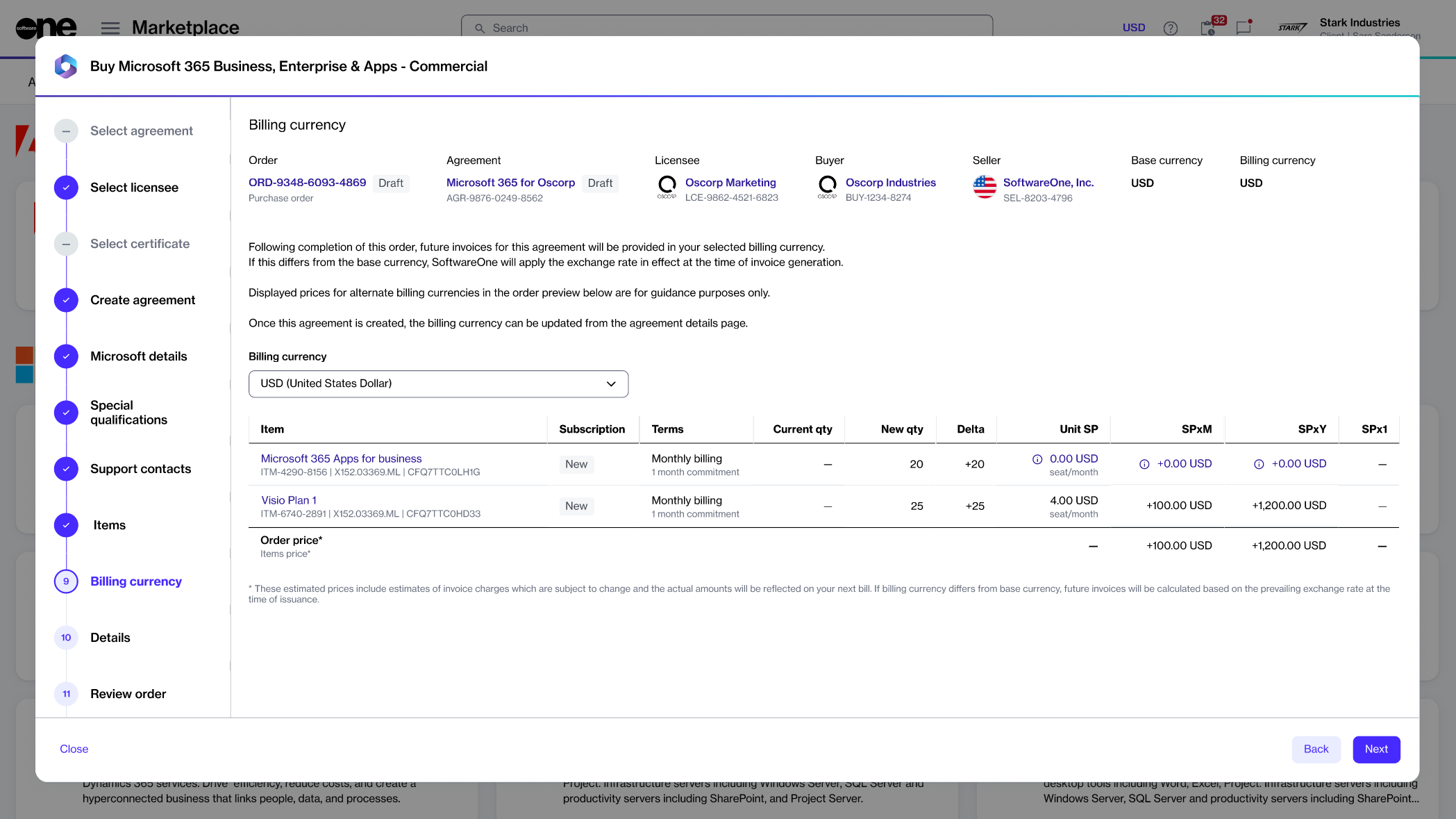
1. From the **Billing currency** list, select your preferred currency for future invoices.
2. Select **Next**.
3. Complete the remaining steps to finalize your order.
Select the billing currency for the new agreement.
{% endstep %}
{% endstepper %}
### Change currency for an existing agreement
Changing the billing currency affects future invoices only. Past invoices remain in the original currency.
{% stepper %}
{% step %}
**Open the agreement**
1. Go to **Marketplace** > **Agreements**.
2. Select the agreement whose currency you want to update.
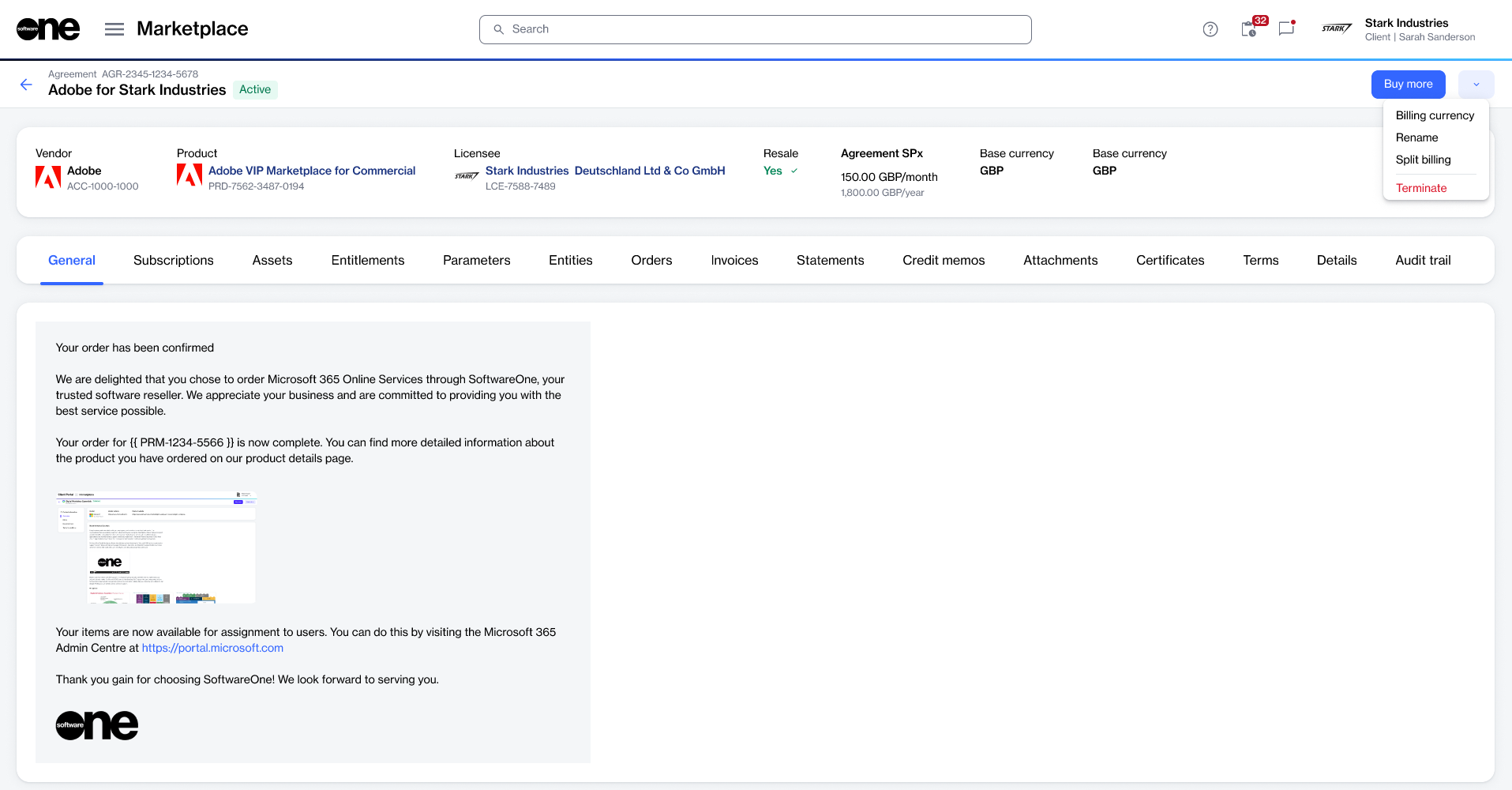
3. On the agreement details page, select the dropdown arrow :chevron-down:, then choose **Billing currency**.
Open the menu, then select Billing currency.
{% endstep %}
{% step %}
**Save the new currency**
1. In **Select billing currency**, choose the new currency.
2. Select **Save**.
{% endstep %}
{% endstepper %}
### Next steps
Future Marketplace invoices are issued in your selected billing currency. You can view and manage invoices using the [Invoices](/modules-and-features/billing/invoices.md) page.
---
# Agent Instructions
This documentation is published with GitBook. GitBook is the documentation platform designed so that both humans and AI agents can read, navigate, and reason over technical content effectively. Learn more at gitbook.com.
## Querying This Documentation
If you need additional information that is not directly available in this page, you can query the documentation by asking a question.
Perform an HTTP GET request on the following URL with the `ask` and `goal` query parameters:
```
GET https://docs.platform.softwareone.com/marketplace-platform/guides-and-tutorials/marketplace-for-clients/how-to-set-or-change-billing-currency.md?ask=&goal=
```
`ask` is the immediate question: it should be specific, self-contained, and written in natural language.
`goal` is what the user is ultimately trying to achieve, the reason they need the answer. Sharing it helps GitBook give you a better, more relevant answer. A goal is most helpful when it describes the outcome the user wants rather than restating the question. For example, with `ask=how do I create an API token`, a goal like `automate deployments from our CI pipeline` lets GitBook tailor the answer to that use case.
The response will contain a direct answer to the question and relevant excerpts and sources from the documentation.
Use this mechanism when the answer is not explicitly present in the current page, you need clarification or additional context, or you want to retrieve related documentation sections.