> For the complete documentation index, see [llms.txt](https://docs.platform.softwareone.com/llms.txt). Markdown versions of documentation pages are available by appending `.md` to page URLs; this page is available as [Markdown](https://docs.platform.softwareone.com/modules-and-features/marketplace/orders/view-orders.md).

# View orders

This topic describes how to view a list of orders, as well as details about a specific order.

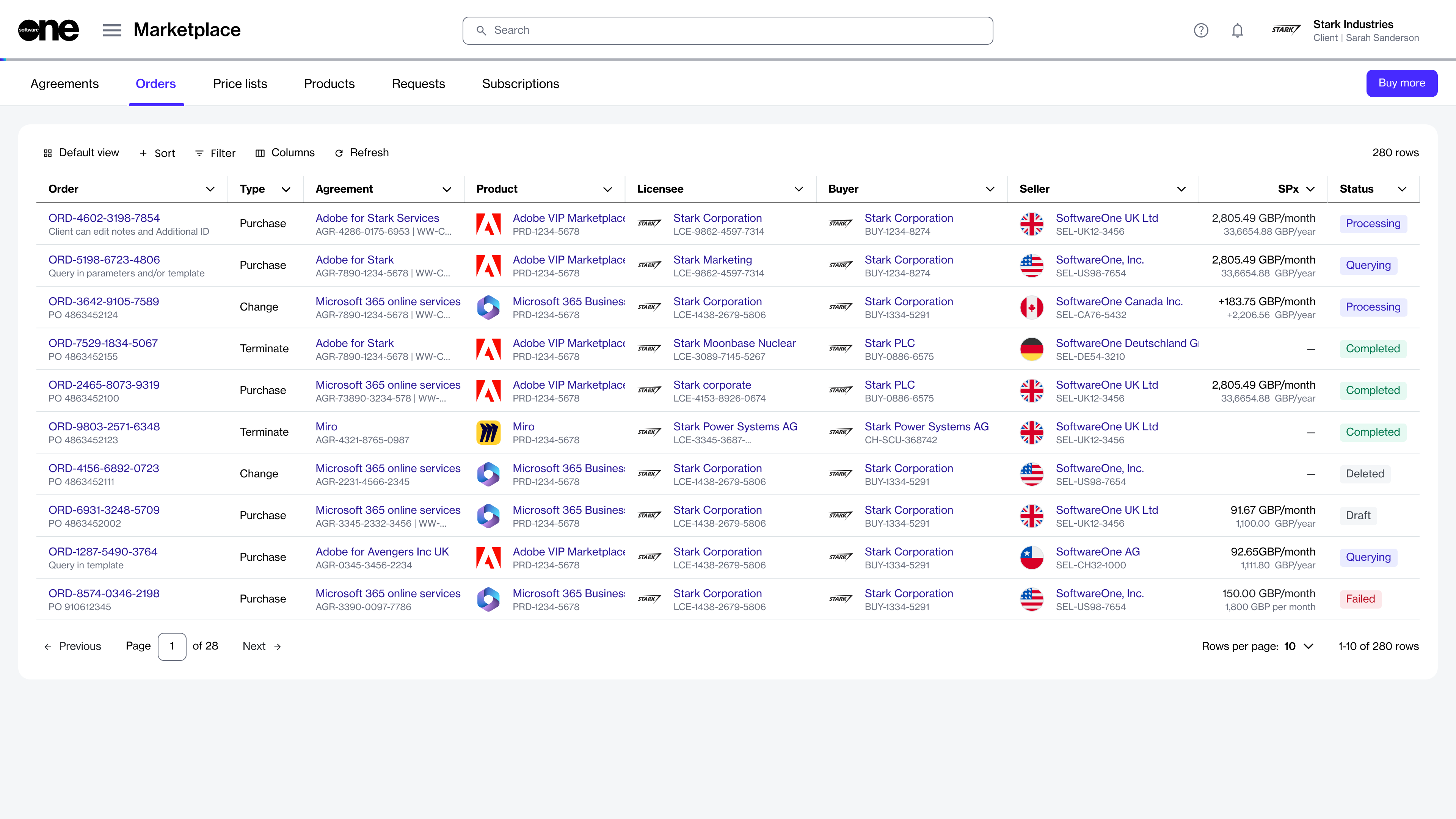
### View the orders list

To view your orders:

1. Go to **Marketplace** > **Orders**.
2. View the list of all orders displayed on the page.
3. Review key properties, such as the order number, linked agreement, product name, estimated sales price, status, and more.&#x20;

<div data-with-frame="true"><figure><img src="/files/eH5JwEaRKw4Srz3W8Qdu" alt=""><figcaption><p>Use the Orders page to view a list of your orders.</p></figcaption></figure></div>

### Open order details <a href="#order-details" id="order-details"></a>

On the order details page, you can view detailed information about an order. Some information is read-only, while other fields include links that allow you to navigate to related records.

To open details for a specific order:

1. Go to **Marketplace** > **Orders**.
2. Select the order you want to view. The order details page opens.
3. Use the tabs to view different types of information:

<table><thead><tr><th width="200">Tab</th><th>Description</th></tr></thead><tbody><tr><td><strong>General</strong></td><td>Shows the most up-to-date information for the order. </td></tr><tr><td><strong>Entitlements</strong> </td><td>Shows the items you have purchased along with their details, including quantity, pricing, status, and more.</td></tr><tr><td><strong>Parameters</strong> </td><td>Shows the fulfillment and ordering parameters for the order.</td></tr><tr><td><strong>Entities</strong></td><td>Shows the different entities mapped to the order, including the licensee, buyer, and seller.</td></tr><tr><td><strong>Subscriptions</strong></td><td>Shows all subscriptions associated with the order along with their details. Subscriptions are displayed only after they are activated.</td></tr><tr><td><strong>Assets</strong></td><td>Shows all one-time items within the order. For details, see <a href="/pages/rBG9axQ8MNU3PoVRDqot">Assets</a>.</td></tr><tr><td><strong>Notes</strong></td><td>Shows notes added to the order during the ordering process. Use <strong>Edit</strong> to add or update notes.</td></tr><tr><td><strong>Attachments</strong> </td><td>Shows all files attached to the agreement. You can download these files. For details, see <a href="/pages/5XkAERkzvcF4qnqTvbvT">View or download attachments</a>.</td></tr><tr><td><strong>Certificates</strong></td><td>Shows certificates that were used during the ordering process.</td></tr><tr><td><strong>Details</strong></td><td>Shows the timestamps and additional IDs, including the client and vendor IDs.</td></tr><tr><td><strong>Audit trail</strong></td><td>Shows the <a href="/pages/JDfWpNZKSOWvWaQjaRbq">audit trail</a> for the order.</td></tr></tbody></table>


---

# Agent Instructions
This documentation is published with GitBook. GitBook is the documentation platform designed so that both humans and AI agents can read, navigate, and reason over technical content effectively. Learn more at gitbook.com.

## Querying This Documentation
If you need additional information that is not directly available in this page, you can query the documentation dynamically by asking a question.

Perform an HTTP GET request on the current page URL with the `ask` query parameter, and the optional `goal` query parameter:

```
GET https://docs.platform.softwareone.com/modules-and-features/marketplace/orders/view-orders.md?ask=<question>&goal=<endgoal>
```

`ask` is the immediate question: it should be specific, self-contained, and written in natural language.
`goal` is optional and describes the broader end goal you are ultimately trying to accomplish on behalf of the user. GitBook uses it to tailor the answer towards what is most useful for that goal.

The response will contain a direct answer to the question and relevant excerpts and sources from the documentation.

Use this mechanism when the answer is not explicitly present in the current page, you need clarification or additional context, or you want to retrieve related documentation sections.
