> For the complete documentation index, see [llms.txt](https://docs.platform.softwareone.com/llms.txt). Markdown versions of documentation pages are available by appending `.md` to page URLs; this page is available as [Markdown](https://docs.platform.softwareone.com/modules-and-features/other-tools/reports/office365-spend-report.md).
# Office365 spend report
Get detailed analysis of your Office365 spend.
Office365 Consumption provides users with detailed Office365 spend analysis. The data is based on the billing data that is fetched daily.
Using Office365 Consumption, you can access multiple analytic reports and browse consumption cost information through interactive charts. The analysis is extended by leveraging information from the other Client Portal modules. You can also analyze spend per [Custom Group](/extensions/cloud-tools/custom-groups.md) or [Budget](/extensions/cloud-tools/budgets.md).
## Accessing Office 365 Consumption
To access Office365 Consumption:
1. Navigate to **Other tools > Consumption overview**. The Consolidated Consumption page displays.
2. From the **View** menu, select **SaaS Office365 Consumption Details** or **Office365 Billing Consumption Details (Preview)**.
## Office365 Consumption
You can visualize and analyze your Office 365 EA and Office 365Simple spend.
Each Azure Active Directory user and subscription is treated like a resource. You can assign it to a custom group, add tags, or split the quantity between different business units.
### SaaS Office365 Consumption Details Report
The **SaaS Office365 Consumption Details Report** report displays the cost or quantity data.
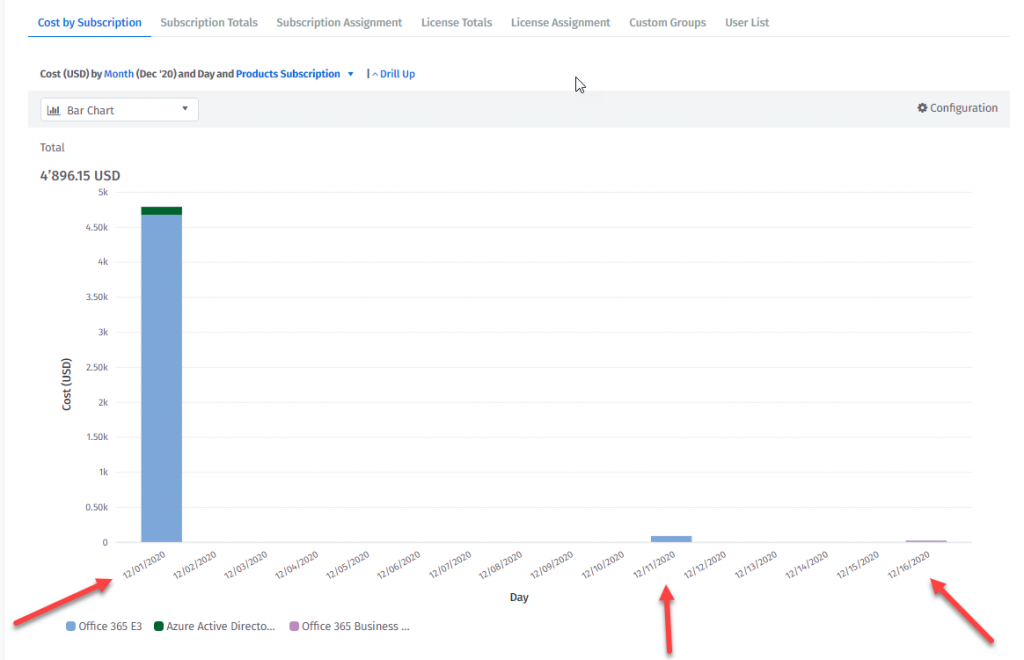
* The cost data always reports the initial monthly cost on the first day of the month and additional costs due to subscription updates on the day it happened. The cost data is calculated in a single currency.
Monthly initial cost and subscription update cost
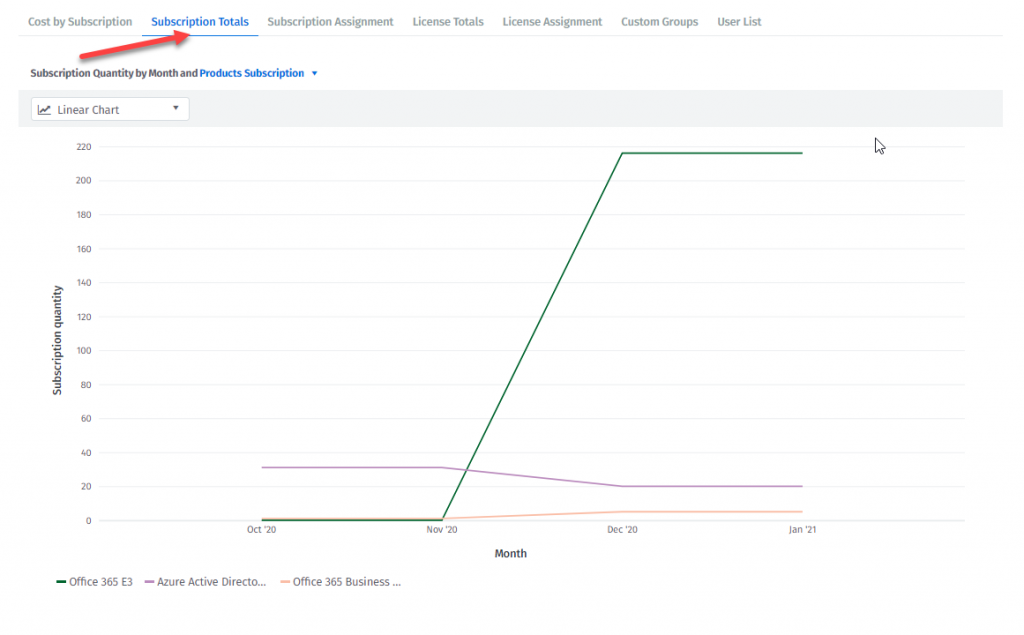
* The quantity data shows the maximum number of subscriptions by product subscription per month.
Subscription quantity
### **Office 365Simple Multiple Agreements Tenant**
The cost data for the Office 365Simple Multiple Agreements Tenant uses the average price calculated in a single currency. The average price is calculated on the first day of the month and on every subscription update.
To check the billing data per agreement, use the **Office365 Billing Consumption Details (Preview)** report or see the **Billing** tab under **Cloud Subscriptions**.
{% hint style="info" %}
If your Office365 tenant has subscriptions in multiple currencies, the Client Portal will only display the consumption data in the default currency of the portal. Multicurrency calculations are not supported for Office365 consumption.
{% endhint %}
### **Office 365 EA Tenant**
The cost data for Office365 EA Tenant uses the average price set manually in the Price List.
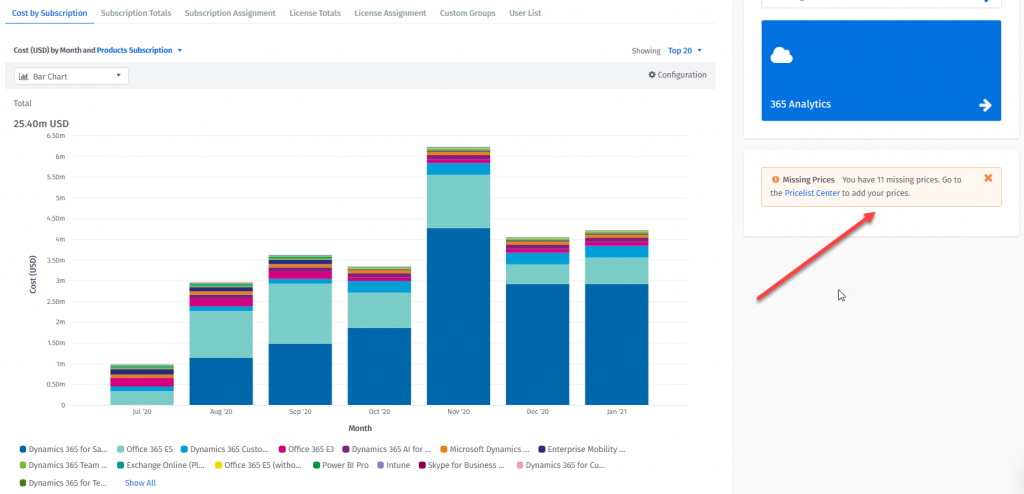
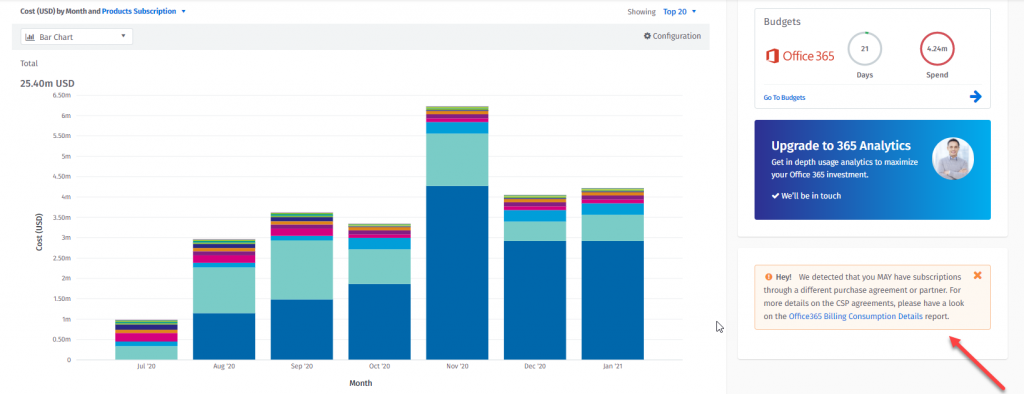
If the price for a subscription is not set, an information banner is displayed as shown in the following image:
Missing prices information banner
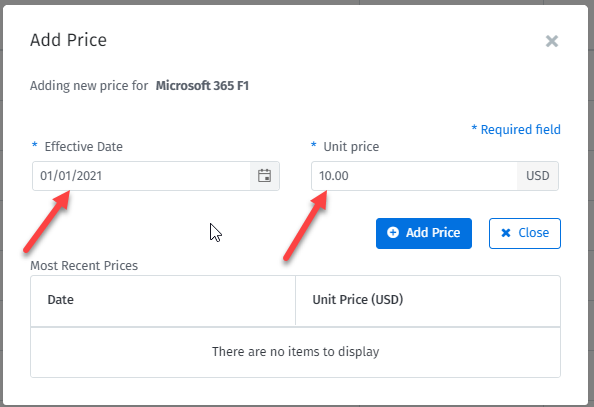
The price in the Price List Center is set for every subscription per month and the average calculation has to be done manually. All missing prices are visible under **Missing Prices**. If the historical quantity data is available, the cost data is recalculated starting from the **Effective Date**.
Setting missing price
### **Office 365 Tenant with Mixed Purchase Agreements**
The cost data for an Office 365 Tenant with mixed purchase agreements (that is, Office 365Simple and EA) uses an average price calculation based on the **Office 365Simple prices** only.
The Client Portal doesn't support setting custom prices for the subscriptions purchased through the Office 365 EA agreement. For Office 365 Tenants with mixed purchase agreements, an information banner is displayed.
Mixed Purchase Agreements Banner
## Understand the Office 365 Resource Spend
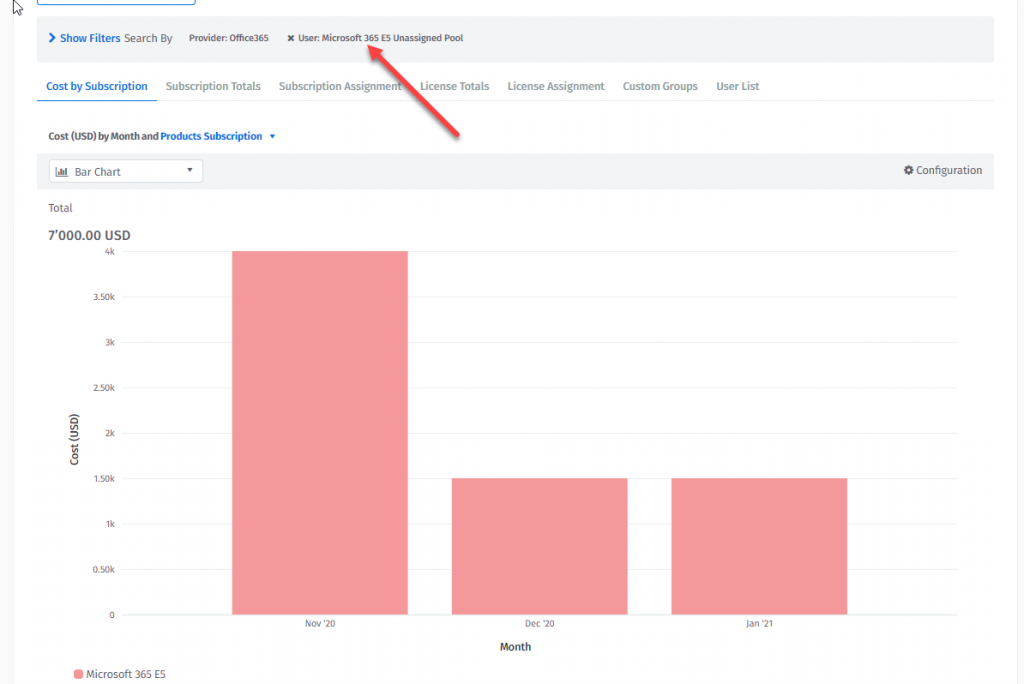
Azure Active Directory users and subscriptions are treated like **resources**. Azure Active Directory user **resource** cost, is a sum of costs of all subscriptions assigned to this user.
Subscription **resource** cost is the cost of all subscriptions that are not assigned to any Azure Active Directory user (Subscription **resource** has a name set to Subscription name and “Unassigned Pool” suffix).
Office 365 Resource Spend
---
# Agent Instructions
This documentation is published with GitBook. GitBook is the documentation platform designed so that both humans and AI agents can read, navigate, and reason over technical content effectively. Learn more at gitbook.com.
## Querying This Documentation
If you need additional information that is not directly available in this page, you can query the documentation by asking a question.
Perform an HTTP GET request on the following URL with the `ask` and `goal` query parameters:
```
GET https://docs.platform.softwareone.com/modules-and-features/other-tools/reports/office365-spend-report.md?ask=&goal=
```
`ask` is the immediate question: it should be specific, self-contained, and written in natural language.
`goal` is what the user is ultimately trying to achieve, the reason they need the answer. Sharing it helps GitBook give you a better, more relevant answer. A goal is most helpful when it describes the outcome the user wants rather than restating the question. For example, with `ask=how do I create an API token`, a goal like `automate deployments from our CI pipeline` lets GitBook tailor the answer to that use case.
The response will contain a direct answer to the question and relevant excerpts and sources from the documentation.
Use this mechanism when the answer is not explicitly present in the current page, you need clarification or additional context, or you want to retrieve related documentation sections.