
Loading...
Loading...
Loading...
Loading...
Loading...
Loading...
Loading...
Loading...
Loading...
Loading...
Loading...
Loading...
Loading...
Loading...
Loading...
Loading...
Loading...
Loading...
Loading...
Loading...
Loading...
Loading...
Loading...
Loading...
Loading...
Loading...
Loading...
Loading...
Loading...
Loading...
Loading...
Loading...
Loading...
Loading...
Loading...
Loading...
Loading...
Loading...
Loading...
Loading...
Loading...
Loading...
Loading...
Loading...
Loading...
Loading...
Loading...
Loading...
Loading...
Loading...
Loading...
Loading...
Loading...
Loading...
Loading...
Loading...
Loading...
Loading...
Loading...
Loading...
Loading...
Loading...
Loading...
Loading...
Loading...
Loading...
Loading...
Loading...
Loading...
Loading...
Loading...
Loading...
Loading...
Loading...
Loading...
Loading...
Loading...
Loading...
Loading...
Loading...
Loading...
Loading...
Loading...
Loading...
Loading...
Loading...
Loading...
Loading...
Loading...
Loading...
Loading...
Loading...
Loading...
Loading...
Loading...
Loading...
Loading...
Loading...
Change your profile picture, display language, and time zone settings.
Your profile contains details, such as your profile picture, first and last name, and contact options. Use the My profile page to update your personal details and region preferences.
To manage your profile:
Sign in to your account.
Select your profile menu in the header, then select My profile.
On the My profile page, select Edit.
In Edit user, update your personal details as needed:
Profile picture – Add or update your profile picture. Use a PNG or JPG image up to 5 MB.
First name – Update your first name.
Last name
A confirmation message appears after your profile is updated. You can review your regional settings on the General tab of My profile or from the Account switcher menu.
Country code – Select the country code for your phone number.
Phone number – Enter your phone number.
Update your region preferences as needed:
Language – Choose your preferred display language.
Settings – Choose whether to use your browser settings or custom formats for time, date, and numbers.
Browser defaults – Use your browser's language and regional settings automatically.
Custom settings – Choose your own Time zone, Time format, Date format, and Number format.
Select Save.
Use the Spotlight widget to keep track of items requiring attention.
The Spotlight widget helps you track items that need attention. It highlights important items, such as overdue invoices, querying orders, and expiring subscriptions, so you can take action quickly.
Spotlight is available on the Home page by default. You can also access it from anywhere in the platform by selecting the Spotlight icon in the status bar.
Spotlight groups items by category, such as Orders, Subscriptions, and more. Each category shows the number of items that need attention.
By default, Spotlight shows up to five items in each category. If more items are available, select View all to open the related main page and review the complete list.
You can customize Spotlight to display only the categories that are relevant to you.
Select the More options (three dots) icon in the widget.
Select the categories you want to display or clear the categories you want to hide.
Select Save. The widget updates to show only the selected categories.
Spotlight updates automatically on a regular schedule to ensure you stay informed and always have the latest information. You can also refresh the list manually by selecting the sync icon .

Adjust the data grid layout to suit your needs.
The Marketplace Platform uses data grids to display data.
A data grid is a table with rows and columns, and it contains several operations that allow you to customize the display of information.
You can sort and filter data, show or hide columns, adjust the column width, change the default rows per page, and more. This topic describes each of these tasks.
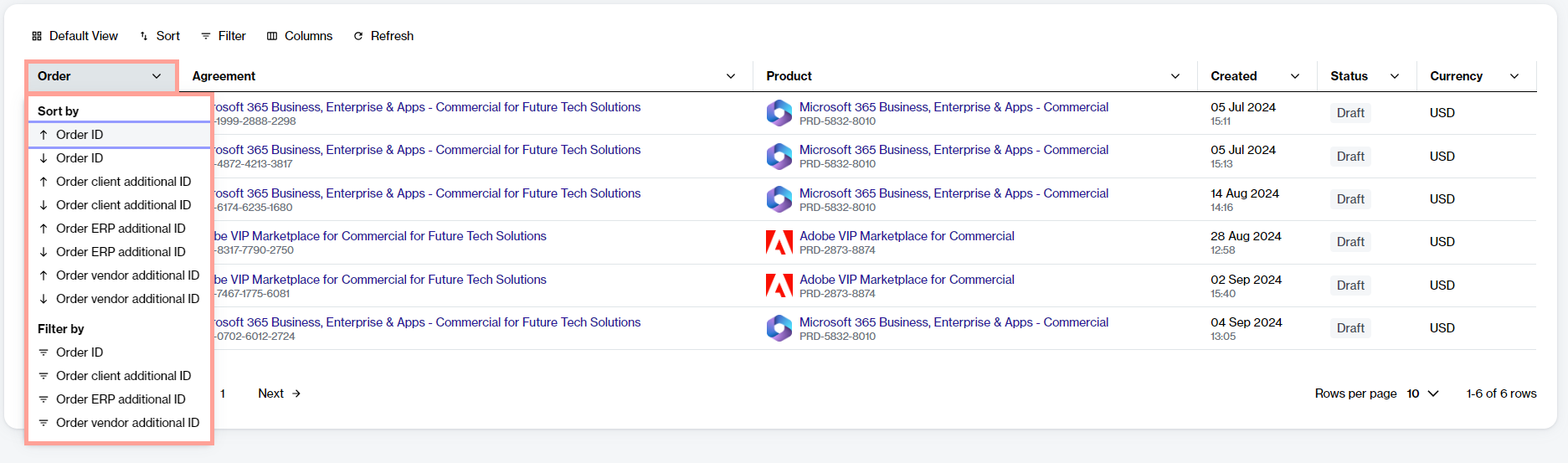
Sorting enables you to reorganize your data in ascending or descending order so you can understand and visualize it better. There are two ways to use the sort function in the grid.
Sort a single column
You can sort the data for a column by selecting the column header. When you select the header, the preconfigured sort options are displayed. You can choose any option from the list.
Sort multiple columns
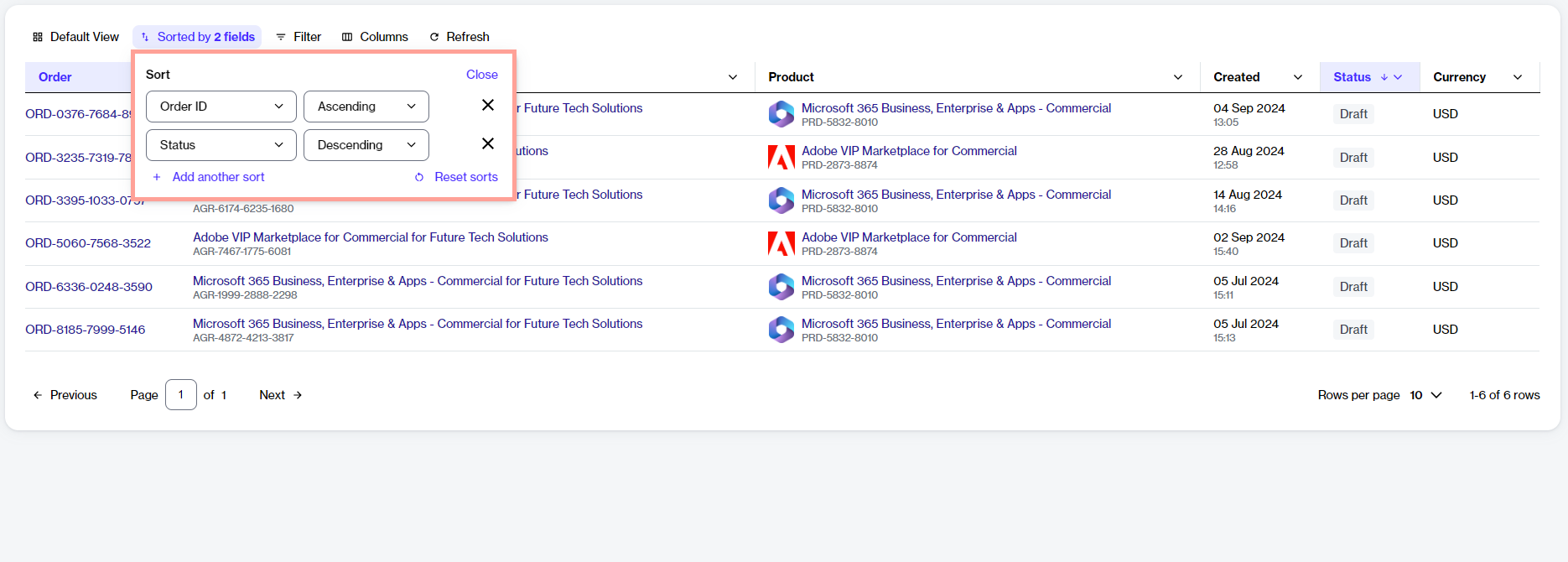
If you want to apply multiple sorts, select nSort and follow these steps:
In the Sort box, select Add another sort.
Choose the required property and select the display order (Ascending or Descending). To add another sorting rule, select Add another sort. You can add multiple rules.
Select Close. All columns that have sort conditions applied are highlighted in the table.
Filters help you narrow down data based on specific attributes. Depending on the type of data you are searching for, you can use a single filter or create multiple filters using different conditions and AND/OR operators.
For example, when ordering new items, you can create a filter to show only the items with a specific name. Similarly, if you have multiple subscriptions, you could use the AND/OR operators to view subscriptions that are active AND have auto-renewal enabled.
You can also use the Search Query filter to enter a search term to find matching records within other filter conditions, such as orders, agreements, and more. Additionally, you can use the second-level filter condition called Add a conditional group to build advanced filters by combining multiple rules and conditions.
To start filtering data:
Select Filter.
In the Filters box, do the following as necessary:
Enter the search query to find records matching a specific keyword or select a predefined property from the list (for example, Buyer name).
As you define filters, the data in the grid refreshes automatically. If the platform is unable to find any data matching the filters, it displays a message.
Show or hide columns
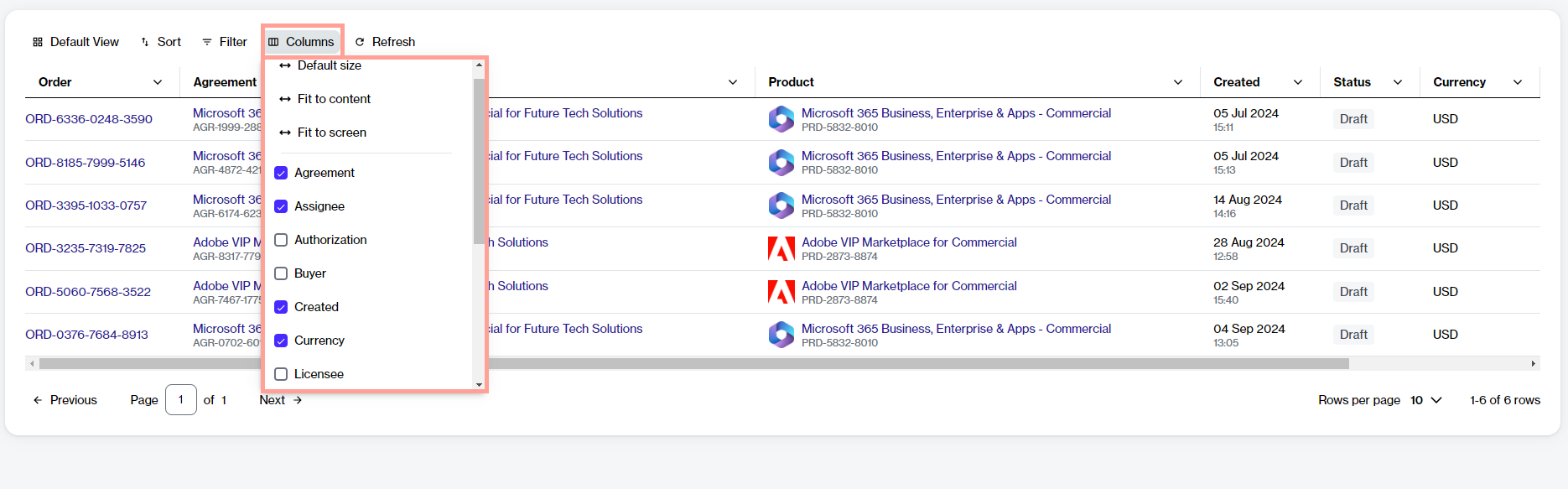
The Columns selector in the data grid lets you show or hide a column. Using this option, you can view only the information you need and hide other columns from the page.
You can use the checkbox next to each column name to hide or display a column. If you have hidden a column, you can make it visible again by selecting the same checkbox. Note that some columns are shown by default, and you cannot hide them.
Adjust column widths
The Columns selector also contains options to adjust the column width. These options include:
Default size - This option resets each column in the table to its default size. You can use this option if you've made adjustments and want to return all columns to their original state.
Fit to content - This option resizes each column in the table to fit its specific content. It means that the width is adjusted to the content within the column.
Fit to screen - This option resizes each column to make the entire table fit your screen.
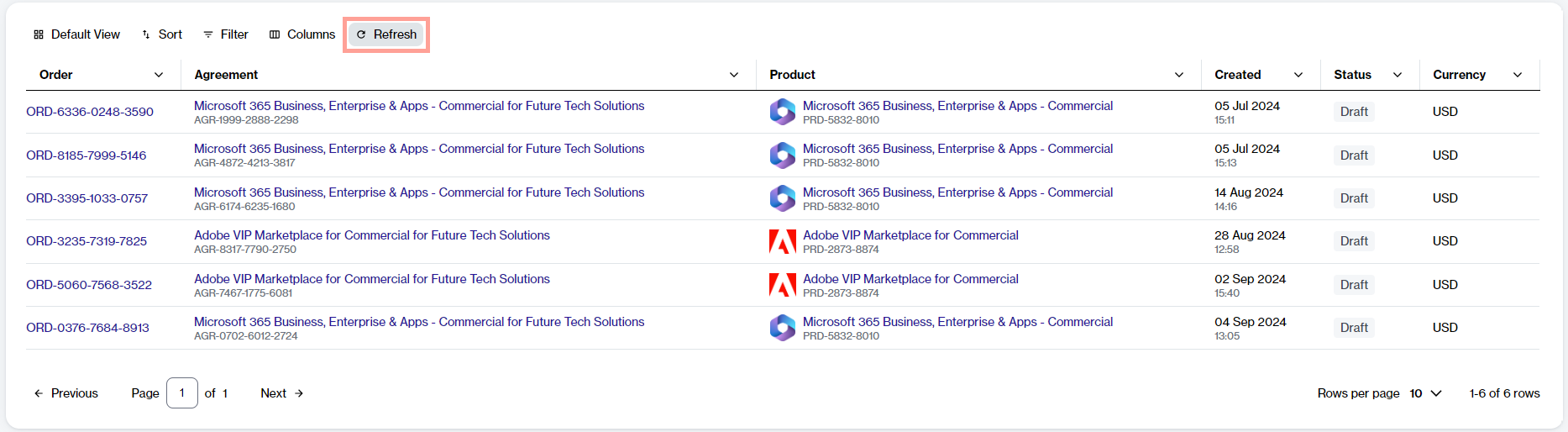
If the data in the grid has changed, you can refresh the data to make sure you are working with the latest data at all times. Use the Refresh option to fetch the latest data from the system.
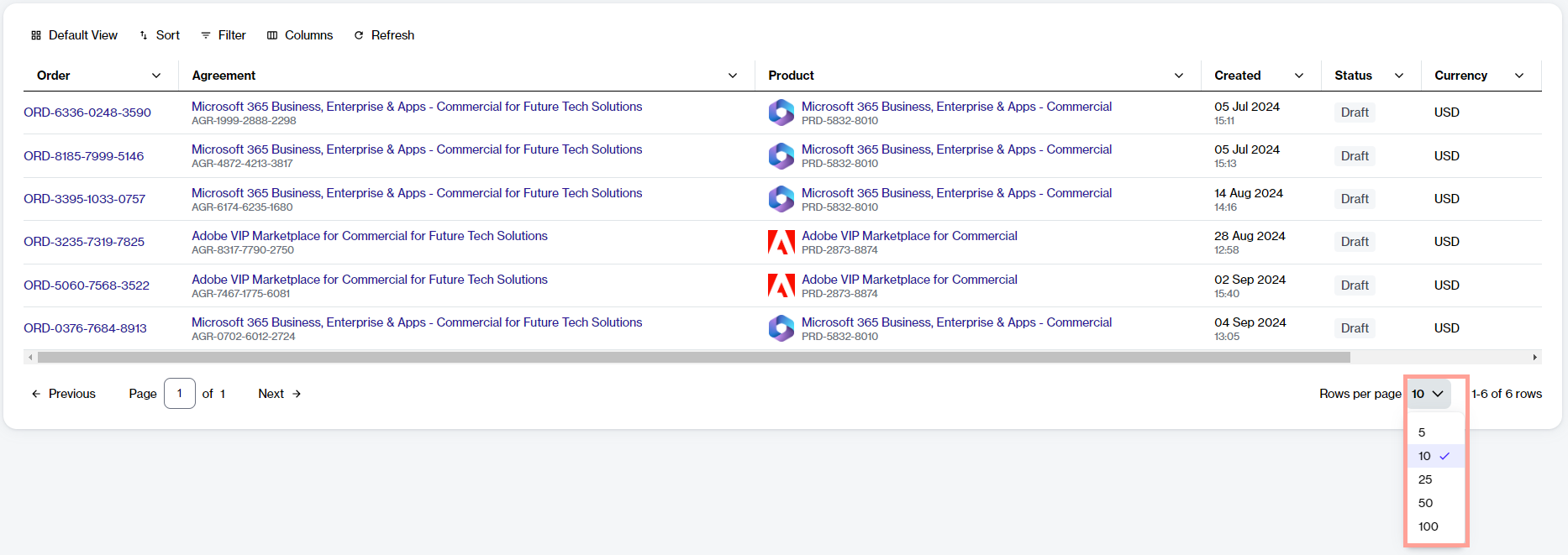
By default, the Marketplace Platform displays 10 rows of data on a page.
You can change the default value by selecting another value from the Rows per page option on the lower-right side of the grid. You can choose to show 5, 10, 25, 50, or 100 rows per page.
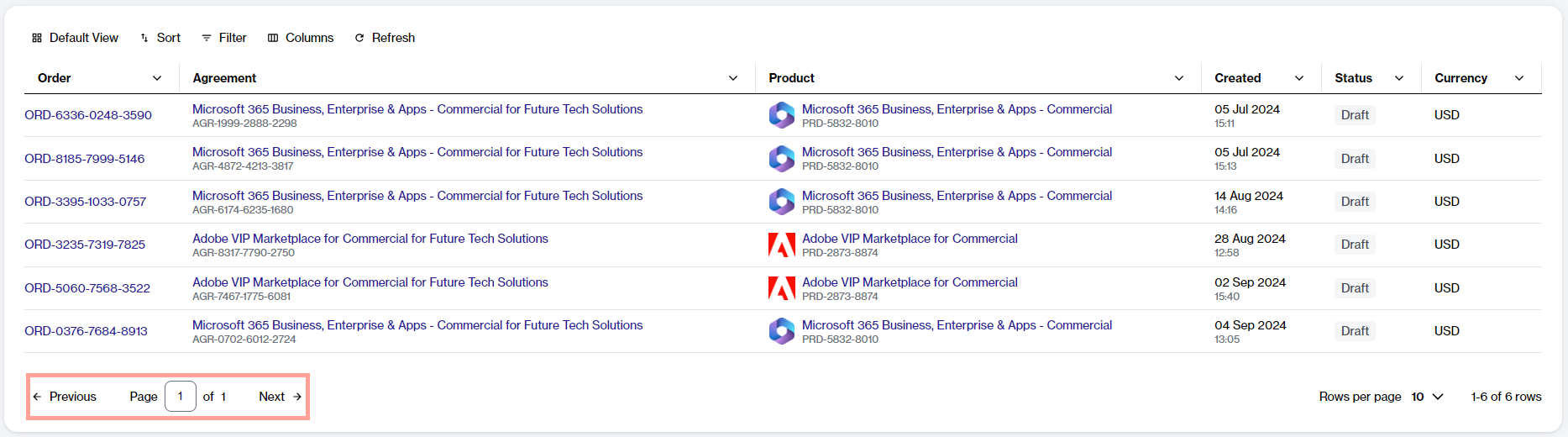
If the grid contains several rows, the rows are split into pages, and page numbers are displayed on the lower-left side of the table.
You can view the page number you are currently on and navigate between pages using the Next and Previous options. You can also go to a page directly by entering the number in the Page field and pressing Enter.
Select the desired And or OR operator.
And – If you select this operator, the results are displayed only if both conditions are met.
Or – If you select this operator, only one of the conditions needs to be met for the results to be displayed.
Choose the required property.
Select the condition, such as equal, contains, starts with, and so on.
Choose a value from the list of preconfigured values or type the keyword.
To add another condition, select Add another condition and define conditions as needed.
To add a conditional action, select Add a conditional group and use the dropdowns to select the criteria. If you want to add another condition within the same group, select Add another condition.


Learn about partner management and how it works.
To use the Marketplace Platform effectively as a Partner and make the most of its functionality, it's important to understand how the platform works and be familiar with its concepts.
Partner accounts include all the features and functionalities of client accounts, along with additional features to facilitate transactions and procurement within the Marketplace.
To learn more, see the following video guide, or go to .
Learn about partner management.
Verify partner functionalities in your account.
Configure licensees for reselling products.
Enrolling in the SWO CSP program.
Enroll in the CSP Partner program.
Buy products for resale to your customers.
Learn about the GDAP role assignment.
Find answers to commonly asked questions.
Quickly find the billing statements you need with filters.
The Statements page in the platform shows all statements that have been created for your account.
If you are looking for a specific statement, you can use filters to locate it easily. You can find a statement using criteria, such as statement ID, type (debit or credit), the date it was created, and status. You can also use other filters, such as agreement name, total sales price, and more.
This topic describes how to apply the two commonly used filters, including Type and Status.
To view statements based on their type:
Go to Billing > Statements.
Select the Filter option in the table.
In the Filters box, select Add another condition, then define the conditions as follows:
Select Type.
Set the condition to Equal.
Choose the type of statement: Debit
Close the filter box. All statements matching your specified status are displayed in the table.
To view statements based on their status:
Go to Billing > Statements.
Select the Filter option.
In the Filters box, select Add another condition, then define the conditions as follows:
Set the condition to Equal.
Choose the required status from the list. Options include Error, Generated, Generating, Issued, Pending, or Queued.
Close the filter box. All statements matching your specified status are displayed in the table.


The Software Assets page provides an overview of your active software subscriptions, current spending, and total spending.
To view software assets:
Go to Inventory > Software Assets.
Use the search options to view your software asset inventory list. You can search using a purchase order number or reference number. You can search by purchase order number or reference number. Additionally, you can apply available filters or expand Show more options to access advanced filters.
Review details on two tabs: Software Assets and Financial Transactions.
The Software Assets tab allows you to view only your active software subscriptions and current spending. Please note that it does not show past payments.
The Financial Transactions tab provides a comprehensive view of your total spending on all software, including both subscriptions and past transactions.

A license agreement is a contract that outlines the conditions and terms under which an organization can use a specific software.
Using the Client Portal's License Agreements module, you can easily view and manage your license agreements and gain visibility into the entitlement data associated with those agreements. You can also create alerts for true-ups, renewals, and expiring contracts.
Watch the following video guide on how to work with license agreements:
The License Agreements page contains filters to help you find the agreement you want to view or manage. You can search using filters, including agreement or enrollment number, publisher, start/expiration date, status, and more.
To find an agreement:
Specify the search parameters, then select Search. A list of agreements matching the criteria is displayed. You can then view detailed information or export the agreement to any of the available formats.
By default, the License Agreements page displays the agreement data in a Grid View. You can customize the data to show selected columns and rearrange them in the order you wish.
You can also change the view and select Timeline View to view your agreements as a timeline. The timeline view allows you to track and visualize your expiring agreements.
By selecting Export to PDF, you can export the timeline view to a PDF file. Note that you must have a PDF reader installed on your system to view the exported PDF document.
You can export an individual license agreement or all of your agreements.
To export an individual license agreement:
On the License Agreements page, find the contract you want to export.
Select the actions icon (•••) and choose Export to PDF, Export to CSV, or Export to Excel. Your report is queued for processing, and a confirmation message is displayed.
To export all of your license agreements:
On the License Agreements page, hover over the Exports option and select Contracts. The Create New Report - Contracts page opens.
Choose the format for your report, schedule frequency, and specify the start and the expiration date of your contract.
Select a template and provide a name for your report. If you don't want to use any template, choose None from the list.
Once your export is complete, you can view it by hovering over Exports and selecting Go to My Reports. This link will take you directly to your generated reports page.
Alternatively, select the main menu of the Client Portal and navigate to Analyze > Reports. To learn more about reports and their features, see .
You can export an agreement expiration date to Outlook to keep track of your expiring agreements.
Note that Outlook reminders can only be set for contracts that have an end date specified. If the contract doesn't have an end date, a message is displayed.
To set up a reminder in Outlook:
On the License Agreements page, search for your agreement.
Do one of the following:
Select the Actions icon and choose Outlook Export.
You can view the details of your agreement by selecting it from the License Agreements page. When the License Agreement Details page opens, the following information is displayed:
The details page also contains tabs that you can use to view and manage specific details.
Displays a list of products associated with the agreement and their license keys. You can also add new license keys or delete existing keys.
Adding keys
You can add a new license key by selecting Add License Key and providing the product name and the license key.
Deleting keys
You can delete a key by selecting Delete from the Actions column.
Displays a list of documents associated with the agreement, such as license certificates and purchase orders (if applicable). You can add, download, and delete these documents.
Adding new documents
Choose the delivery method, then select Run or Create, depending on whether you are creating a run-once or a scheduled report.
When the download completes, open the downloaded file in Outlook.
Verify the agreement details and save the event in your calendar.
You can add new documents by selecting Add a Document and then uploading the document. To upload, select the file from your system or drag the file into the location.
Deleting documents
You can delete a document by selecting Delete from the Actions column. Note that deleted documents cannot be recovered.
Downloading documents
You can download a document by either clicking the filename or by selecting Open from the Actions column.
Displays the company/entity that is associated with the agreement. Note that you cannot modify any information on this tab.
Displays all alerts for the agreement and allows you to create and delete alerts.
Adding new alerts
You can add a new alert by selecting Add Alert. When the Add Alert page opens, add a subject line and then specify the email address to which the alert should be sent. Note that you can add three email addresses separated by a semicolon.
Next, choose the alert type (Agreement Expiration, True Up, or Renewal) and specify how frequently you wish to be notified. You can select the frequency from the list or enter a date.
Delete alerts
You can delete an alert by selecting Delete from the Actions column.
Description
The name of the agreement.
Publisher
The publisher of the software for which the agreement is created.
SoftwareOne Contract No.
A unique number assigned to your agreement by SoftwareOne.
Contract Duration
The start and expiration date of the agreement. The duration also shows the agreement status:
Red indicates that your agreement has expired.
Yellow indicates that your agreement is expiring soon.
Green indicates that your agreement is active.
License Model
The licensing model that applies to your contract.
Agreement No.
A unique number assigned to your agreement by the publisher.
Remaining Days
The number of days remaining before your contract expires.
Customer Name
The name of the customer.
Contract Type
The type of contract.
Enrollment No.
The enrollment number assigned to your contract by the publisher.
Anniversary Date
The renewal date of the agreement.
Currency
The currency of the agreement.
Level
The price level of the agreement.
Comments
Option to add and save your comments.
Verify if your Marketplace account is enabled for partner use.
There are three ways to verify whether your account is configured as a partner account in the Marketplace Platform.
You can check this through the following pages, available under Settings in the main navigation menu:
Accounts – The Accounts page displays general information about your account. If you are set up as a SoftwareOne partner, you'll see a field labeled Partner program with the value Yes in the Additional Data section on the General tab. This field does not appear for client accounts.
Buyers – The page lists all entities or organizations that have been configured for your Marketplace account. For partner accounts, this page displays all organizations that receive invoices from SoftwareOne.
Licensees – On the page, partners can view their own organizations as well as third-party organizations. The Resale column indicates whether a licensee is procuring for self-consumption or reselling. If the value in the Resale column is Yes, it means the licensee is ordering products and services for resale purposes.
Divide subscription costs across buyers in your account.
Split billing is a feature that allows you to divide the cost of a subscription across different buyers in your account. If your organization has multiple legal entities, split billing can be used to distribute costs effectively. To learn more, see Split Billing.
In the SoftwareOne Marketplace, the split billing process begins by activating the feature from the user interface (UI), selecting buyers for allocation, and then specifying each buyer's allocation percentage or license count. This tutorial describes how to complete all of these steps.
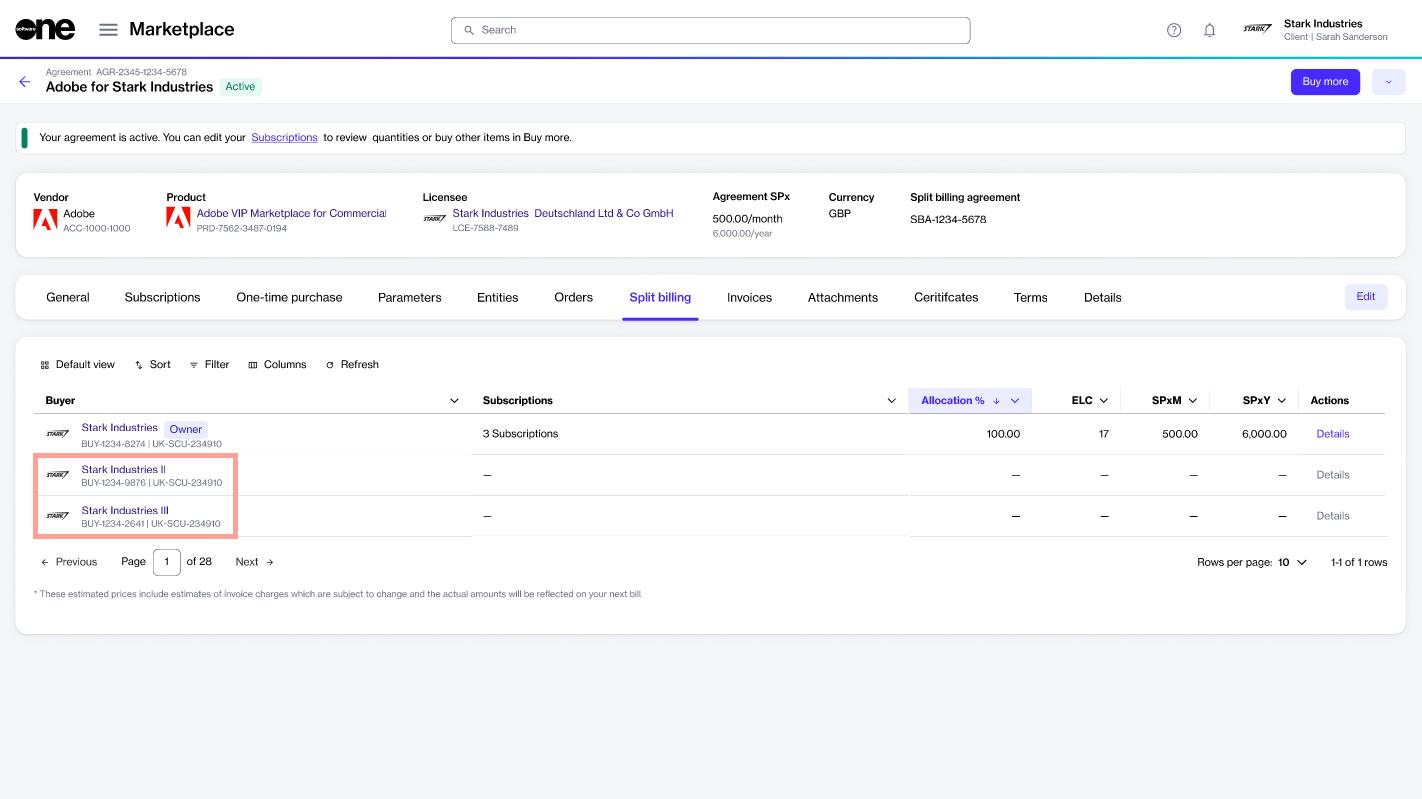
In this tutorial, an agreement named Adobe VIP Marketplace for Stark Industries contains three subscriptions. Currently, 100% of the billing for these subscriptions is assigned to a single buyer named Stark Industries. We'll activate split billing, add two new buyers named Stark Industries II and Stark Industries III, and specify the allocation percentage for these buyers.
Activate split billing
Split billing can only be activated at the agreement level. To activate split billing:
On the Agreements page, select an active agreement.
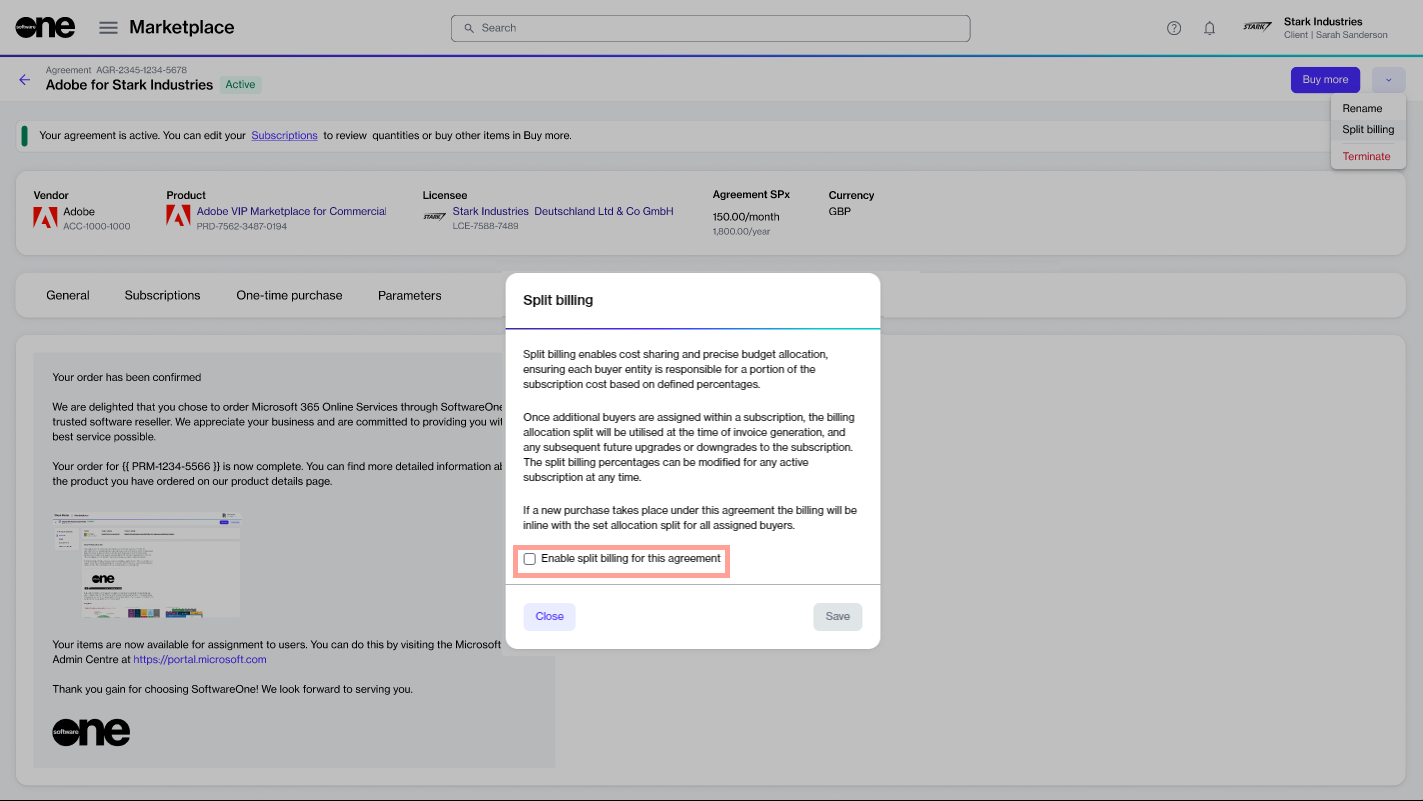
On the agreement details page, select the dropdown arrow , then choose Split billing.
Select the checkbox, then select Save.
Split billing is activated, and the Split billing tab appears on the agreement details page.
Configure buyers
In this tutorial, Stark Industries is the Owner buyer who has been allocated 100% of the billing. We will configure Stark Industries II and Stark Industries III as additional buyers and divide costs across buyers.
To configure buyers:
On the agreement details page, select the Split billing tab.
Allocate percentage
Billing can be allocated by specifying percentages for each buyer. You can also specify the estimated license count. Both of these options are linked, meaning that changing one automatically updates the other, although only the allocation % is used during billing (see to learn more).
To start configuring the split for each buyer:
In the Actions column for the Owner buyer, select Details.
Repeat the same steps if you have additional subscriptions and want to split the billing for those subscriptions.
You can also edit the split at any time. For details, see .
Manage and review your Excel billing statements.
A statement is a billing document you receive at the end of your billing period, along with your invoice PDF.
Statements are issued as Excel files. They contain a detailed view of your invoice data, including individual charges, subscriptions, and orders for the billing period.
An Excel statement contains the following tabs:
Summary – Shows objects associated with the statement (for example, agreement, licensee, and orders) with links to open them in the platform.
Charges – Shows charges and subscriptions for the billing period. You can also see individual items, quantities, and prices. If split billing is enabled, you can view allocation percentage and estimated license count (ELC) details.
Orders – Shows a list of orders for this billing period.
The Statements page shows all statements for your account.
To open this page, select Billing > Statements from the main menu.
Each row shows the statement ID, creation date, estimated sales price, current status, and more.
You can also select a statement to view detailed information. Use the detail view to review:
A list of charges and subscriptions for the billing period.
Statement metadata and events.
Add and manage your favorite pages and accounts.
You can mark pages and accounts as favorites to access them quickly in the SoftwareOne Marketplace.
Favorite pages appear in the Favorites section of the main menu and on the Home page.
Favorite accounts appear in the account switcher within your user profile menu.
To add or remove a page from your favorites:
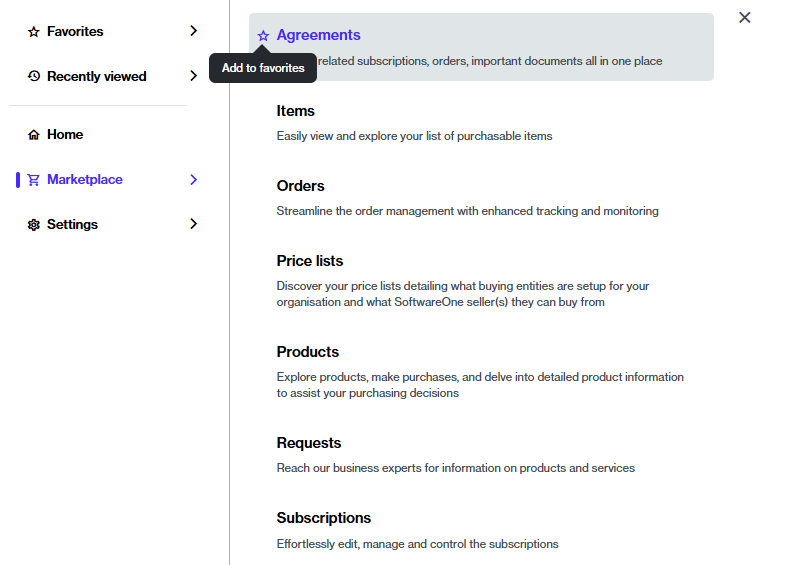
From the main menu, go to the required page (for example, Agreements).
Hover over the page.
Select the star icon . The icon changes from empty to filled, indicating that the page has been added to your favorites.
To remove the same page from your favorites, select the same star you used to mark it as a favorite. When the icon changes from filled to empty, the page is removed.
To add or remove an account from your favorites:
Select your profile menu.
Under All accounts, find the account you want to mark as a favorite. If required, use the Search option to locate the account.
Select the star icon . When it changes from empty to filled, the account is added to your favorites and displayed on the Favorites tab.
To remove the account from your favorites, select the same filled star icon. When the icon changes from filled to empty, the account is removed.
Learn about Partner Management and how it works.
SoftwareOne is a global provider of software and cloud technology solutions.
Our Partner Program helps companies that sell cloud-based products and services expand their businesses by accessing new markets worldwide.
The program supports partners, including Value-Added Resellers (VARs), System Integrators (SIs), and Managed Service Providers (MSPs), as well as other businesses such as Cloud Solutions Providers (CSPs), Direct Marketing Resellers (DMRs), and Retailers, to grow their revenue and scale their market presence. Our program equips partners with the tools, training, and support to accelerate growth, reach new clients, and build long-term relationships while minimizing the risks associated with competitive solutions.
Marketplace Platform and Partner Management
Marketplace Platform's Partner Management feature allows partners to access features designed to support resale activities.
Unlike clients, who procure software or services for self-use, partners can procure SaaS products for their own use and resale to their end customers.
This is managed at the licensee level within the platform. Licensees are the end-users or consumers of a license, and they are linked to agreements in the platform. Partners can create new licensees through self-service and configure them as resale licensees. When a licensee is marked for resale, it becomes available during the ordering process, indicating that the purchase is intended for resale.
Partner enrollments and certificates
Through Partner Management, partners can also enroll in various programs, complete certifications, and apply those certifications when ordering products to access the benefits associated with those programs.
To learn more, see the following links:
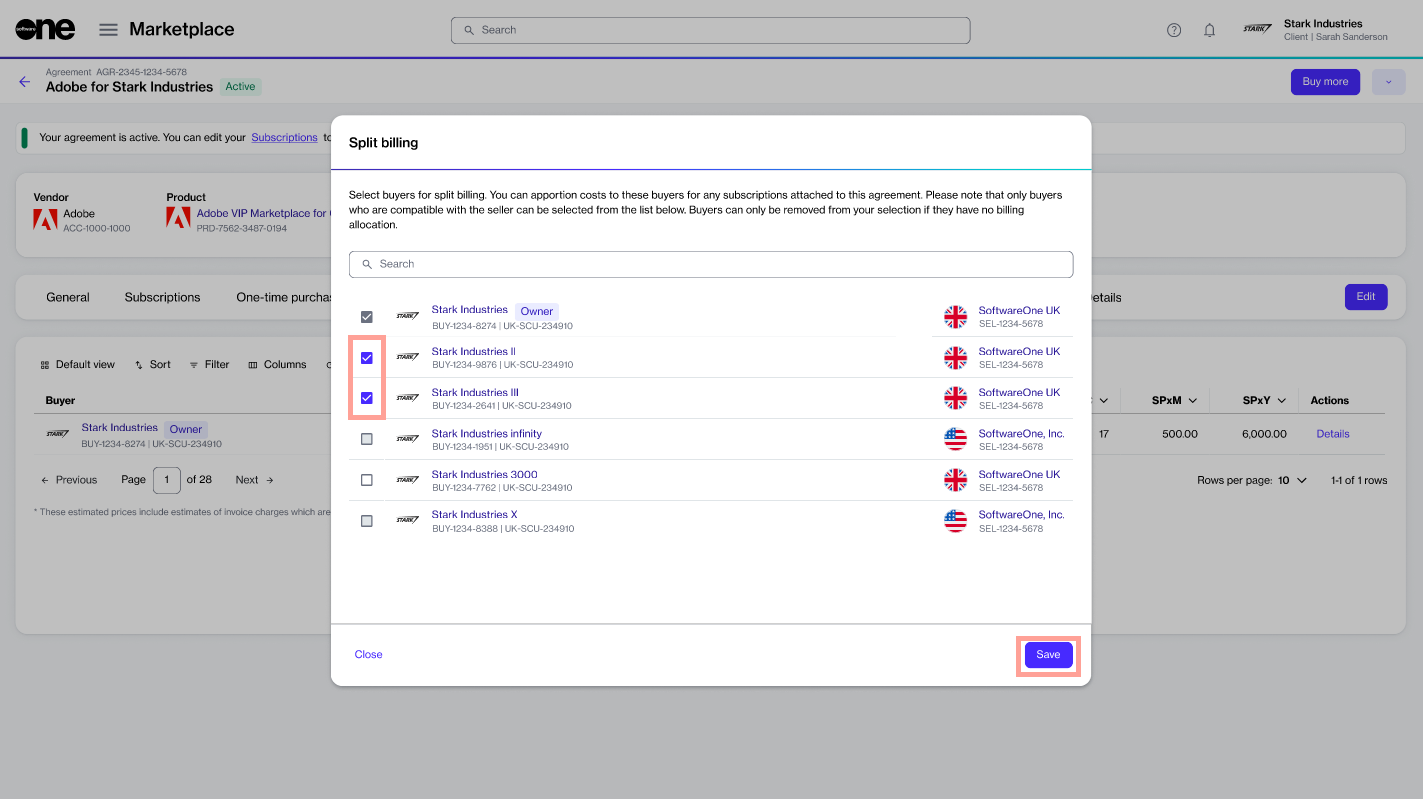
In the Split billing dialog, select the required buyers, then select Save.
Stark Industries II and Stark Industries III are added as buyers and displayed on the Split billing tab. You are now ready to allocate billing to these buyers.
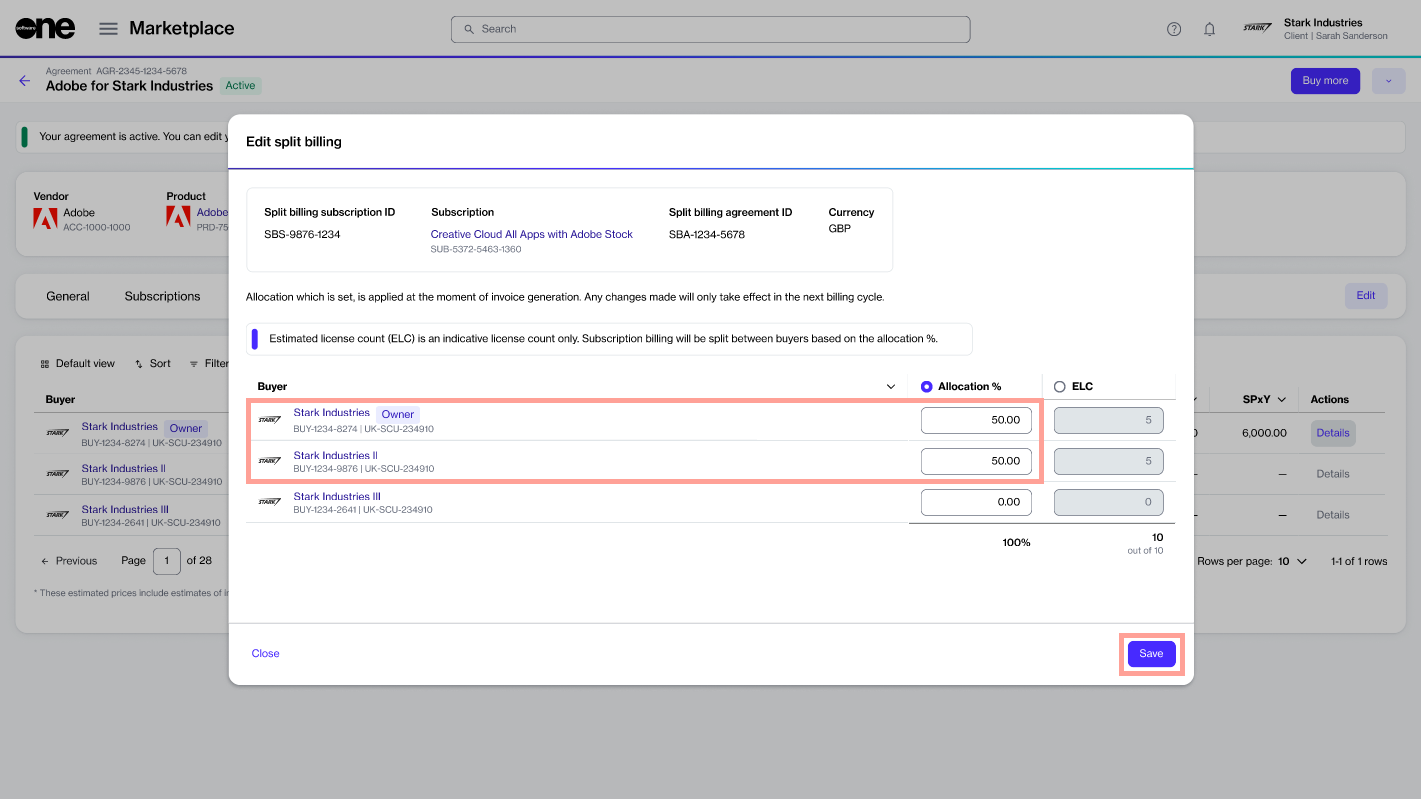
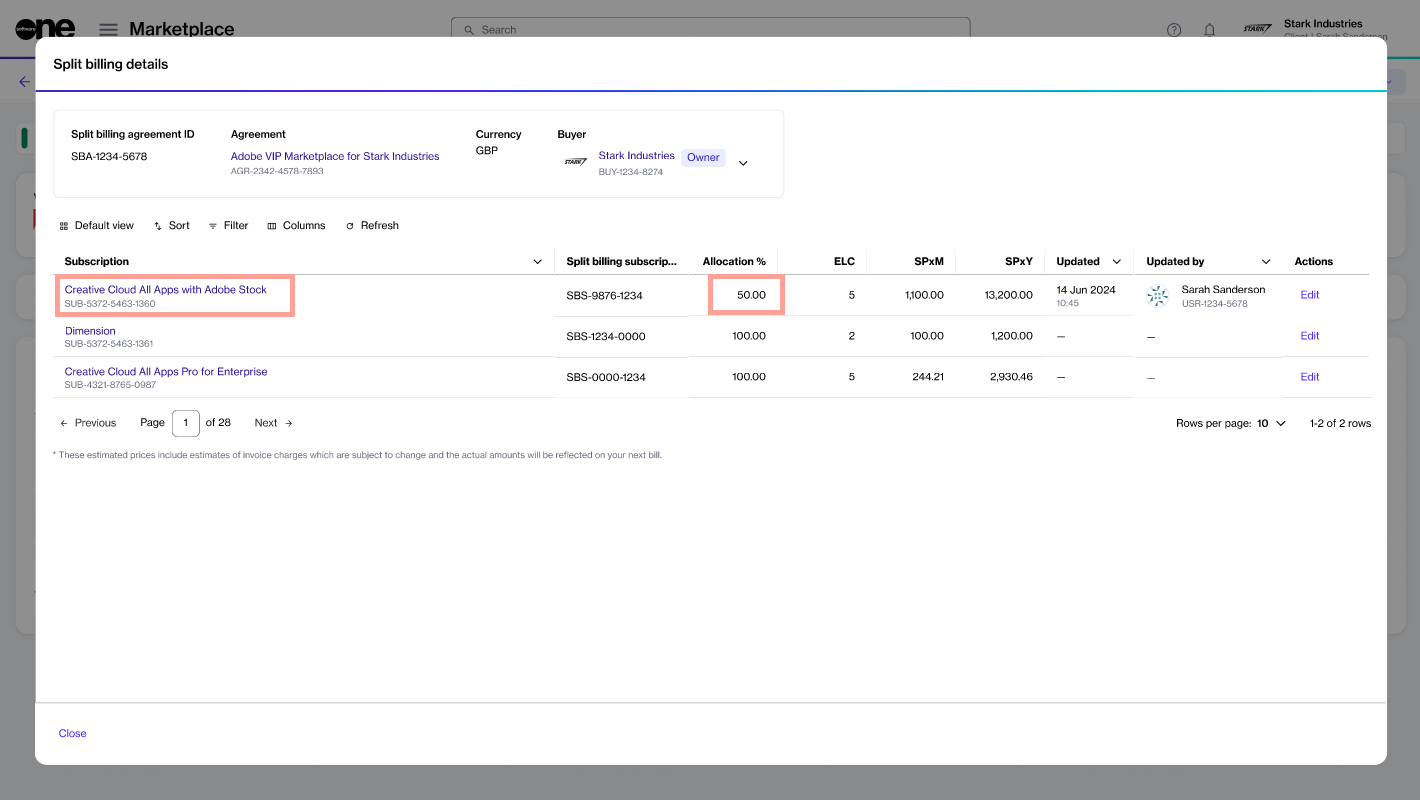
Under Allocation%, enter the allocation percentage for each buyer. Then, select Save. In this example, 50% of the billing is allocated to Stark Industries (owner buyer) and the remaining 50% to Stark Industries II. No split billing percentage is assigned to Stark Industries III.
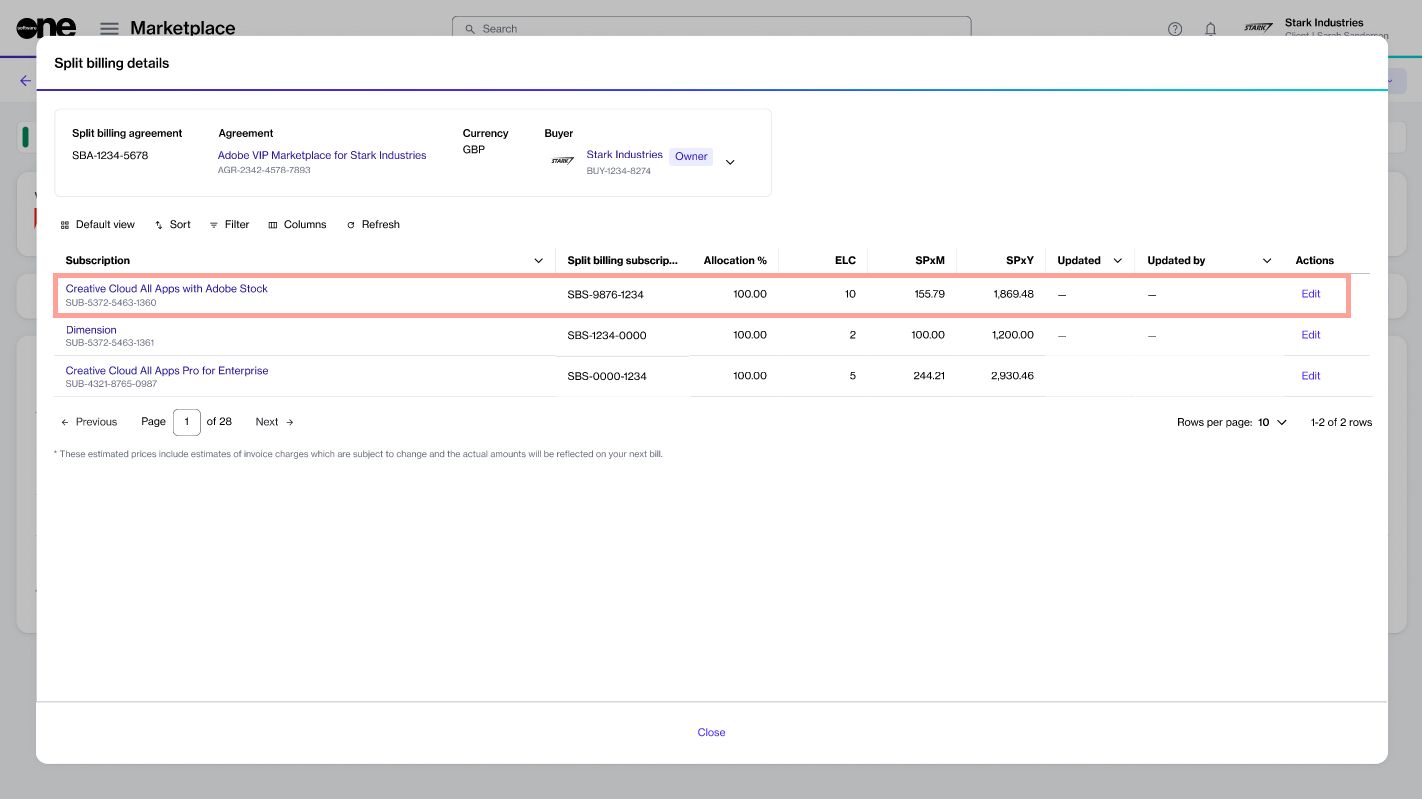
The allocation is updated and displayed on the Split billing details page. By default, the allocation for the owner buyer is displayed:
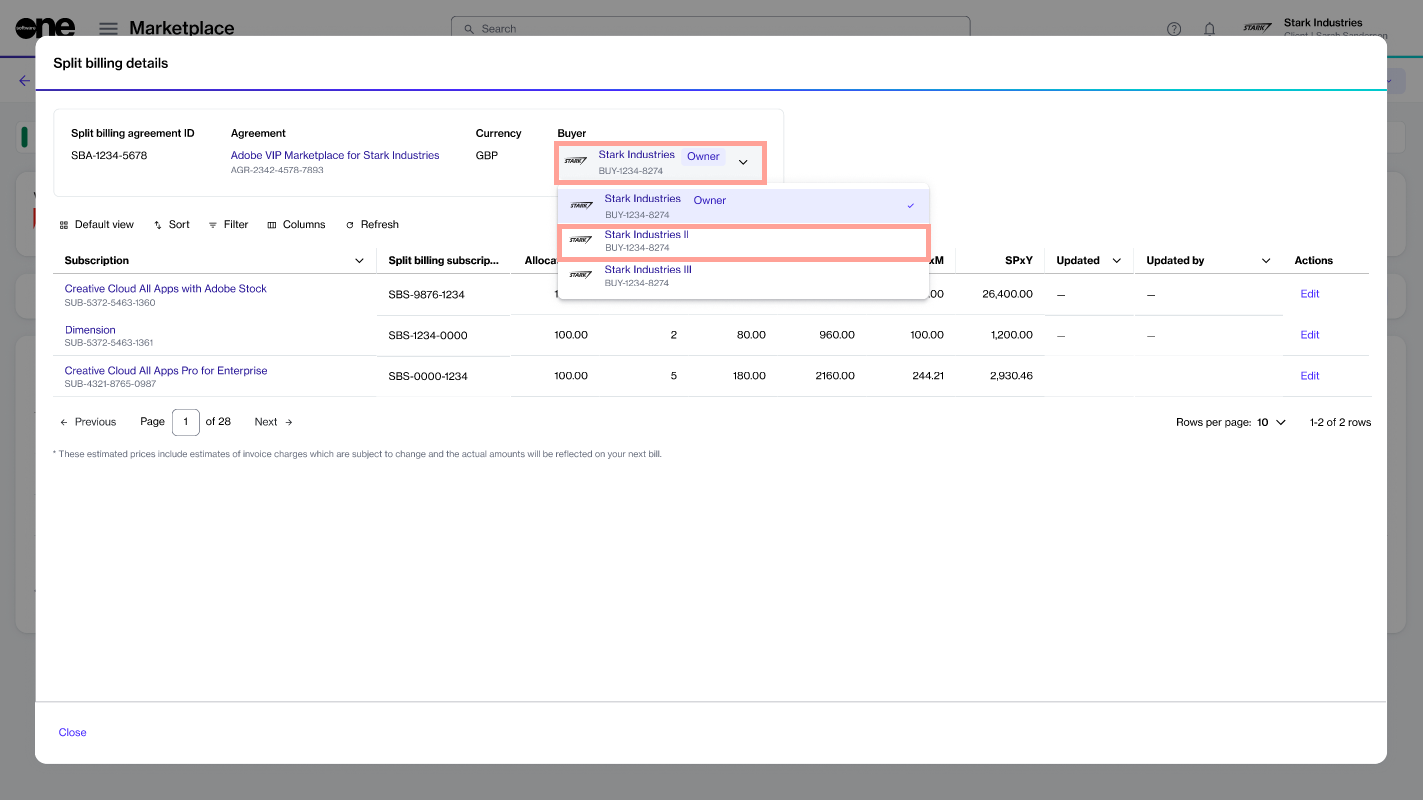
Use the Buyer menu at the top to view the allocation for the other buyers (Stark Industries II in this example):
Select Close. You are returned to the Split billing details tab.
Place your first order & manage subscription.
Access step-by-step tutorials for clients.
Explore step-by-step tutorials for partners.


Enroll in the Cloud Solution Provider partner program.
The Cloud Solution Provider Partner Program allows you to partner with SoftwareOne as your indirect CSP provider. To learn about this program, see .
To enroll in the CSP partner program:
You must have a Marketplace account with partner capabilities. For details, see .
You must be signed up for the Microsoft Cloud Solutions Provider (CSP) program as an indirect reseller. For details, see in Microsoft documentation.
You must be signed up for the SWO CSP Partner Program. For details, see How to enroll in the SWO CSP partner program.
You must have the Microsoft Partner Network (MPN) ID and email address for your Microsoft partner account. To find the ID, go to Microsoft Partner Center, select the Settings (gear) icon > Account settings > Organization Profile > Identifiers. Look for PartnerID with the Type Location that matches the country/region of your CSP account.
Open the CSP Partner Program details page
To open the details page:
Go to Program > Programs.
Select Cloud Solution Provider Partner Program.
Start the Add Certificate wizard
To start the wizard:
On the program details page, select the Certificates tab.
Select Add.
Use the Add Certificate wizard to enroll
Certificant – Choose the buyer for this certificate, then select Next.
Partner details – Do the following, then select Next:
The enrollment takes a few minutes to complete as we verify the details.
When it completes, a certificate is created. You can use this certificate when placing your order.
I’m new here
Start with the platform overview and core concepts.
I already use the platform
Manage subscriptions, orders, agreements, & more.
I’m building an integration
Use our API, MCP server, and developer references.
Billing
View invoices, statements, and monitor analytics.
Catalog
Browse catalog, find products, and make purchases.
Chat
Start and manage direct or group chats.
Helpdesk
View your account team, and submitted feedback.
Marketplace
Manage orders, agreements, subscriptions, & more.
Settings
Manage account settings, users, groups, & more.
Popular extensions
Developer resources
Help and support


Add participants, edit the chat name, or leave a group chat.
If you are in a chat conversation, you can quickly add someone from your account to the chat. New users added to the chat can view all previous messages from the beginning of the chat.
To invite participants to a chat:
On the Chats page, open the desired chat conversation.
Select the actions icon (•••), then choose Add participant.
In Add participant, select the user you want to invite. You can select multiple users. When done, select Add.
To edit the chat name or logo:
On the Chats page, open the desired chat conversation.
Select the actions icon (•••), then choose Edit.
In Edit group chat, edit the chat group name and upload a new image as necessary.
Select Save.
To leave a group chat:
On the Chats page, open the desired chat conversation.
Select the actions icon (•••), then choose Leave.
In the Leave chat confirmation, select Leave to confirm.
Authorize SoftwareOne as your indirect provider. You must select a country that is within your region. For regional markets, see Microsoft Regions.
Enter the email address associated with your Microsoft partner account. We will use this email address to link your CSP customers with your Microsoft reseller account.
Enter the Microsoft Partner Network ID associated with your Microsoft partner account. We'll associate your Microsoft subscriptions with the MPN ID.
Details – Enter a certificate name, then select Next.
Overview – Review the details, then select Add.
Summary – Select View details to open the enrollment details page or select Close.

Update the agreement name.
If your account contains multiple agreements, you can rename those agreements.
Only active agreements can be renamed. When choosing a new agreement name, we recommend providing a name that will help you find or locate the agreement in your list of agreements. Additionally, when renaming, ensure that the new name is not blank. Otherwise, the platform displays an error.
To rename an agreement:
Go to Marketplace > Agreements.
Find the agreement you want to rename.
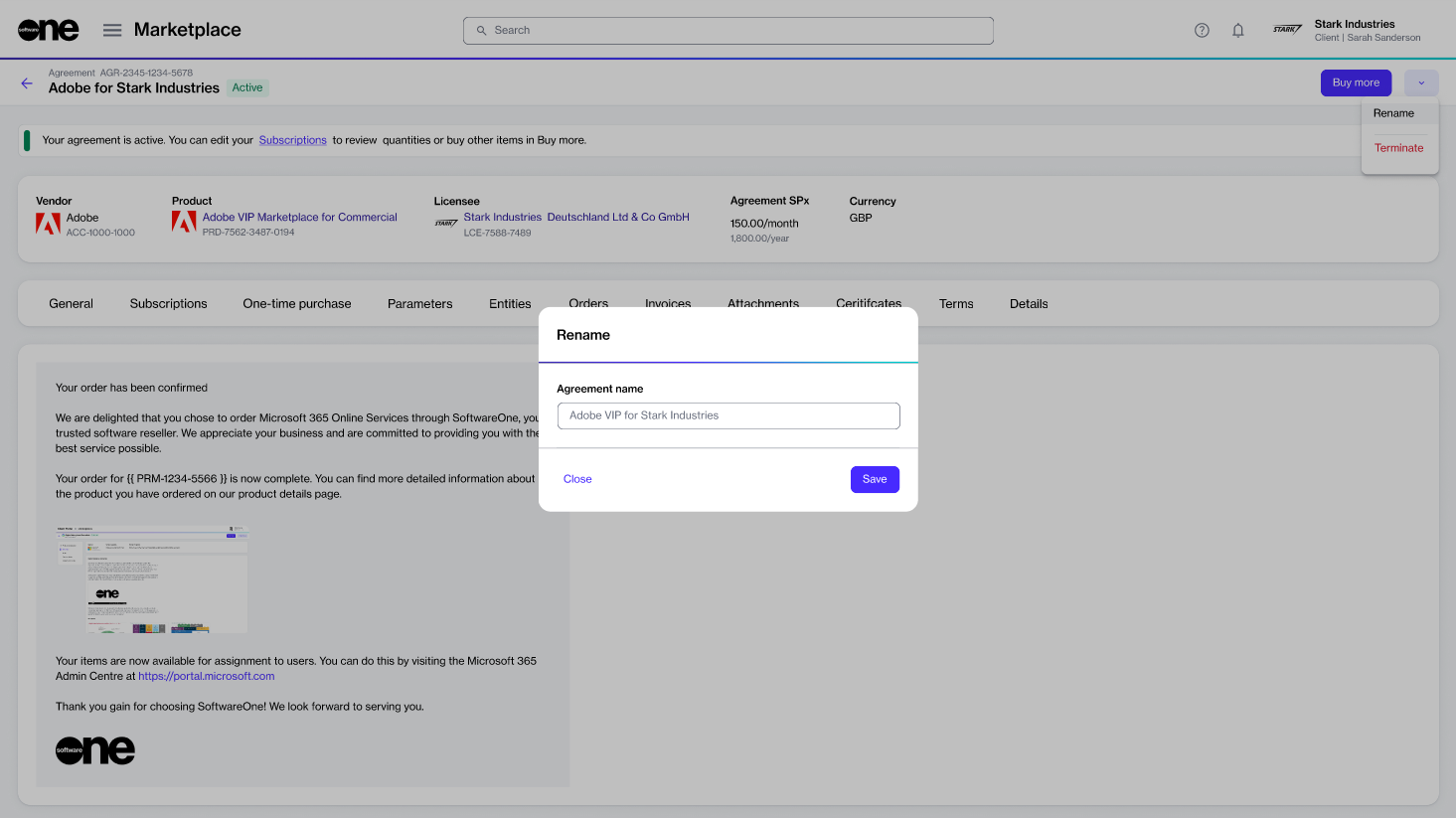
On the agreement details page, select the dropdown arrow, then select Rename.
In the Rename dialog, enter the new name.
Select Save. The agreement name is updated in the Marketplace.
Enable or disable notifications for your profile.
The Marketplace Platform sends email alerts for specific account-related events based on the notification categories enabled for your profile.
You can manage categories to choose which notifications you receive.
To manage notifications from My profile:
Sign in to your account.
Select your profile menu, then select My profile.
Select the Notification preferences tab, then select Edit.
Under Edit notification preferences, use the checkboxes to enable or disable categories.
Select Save.
Your changes are saved immediately and apply to future notification emails.
To update preferences using the notification email:
Open your notification email.
Scroll down to the footer and select the Manage notifications link. The Manage notifications form opens in your browser.
Use the checkboxes to enable or disable categories.
Select Save. Your changes are saved immediately and apply to future notification emails.

Assets are one-time purchase items or perpetual licenses.
Unlike subscription items that require ongoing payments to keep the license active, a perpetual license remains valid indefinitely and doesn't require recurring payments. This means assets do not renew. You buy them once, then keep access based on the purchase terms.
Use the Assets page to review your assets, open asset details, and track related orders, agreements, and activity.
The Assets page shows all assets available to your organization.
To open the page, choose Marketplace > Assets from the main menu.
The list shows key details such as the asset name, agreement number, order number, estimated sales price, and status.
Use to narrow the list. Use to adjust the table.
Get started as a client using the Marketplace Platform.
Use this section to complete common Marketplace tasks as a client.
Start with buying products. Then, use the related tutorials to filter orders, update subscriptions, order more licenses, split billing, and manage invoice currency.
Access the product catalog, discover products, and submit your order.
This tutorial describes how to order products from the SoftwareOne Marketplace using the purchase wizard.
The exact steps depend on the product and vendor. This page covers the common flow.
Review the product
Go to Catalog > Products.
Browse products and items, and view product and vendor profiles.
Use Catalog to browse products and items, compare pricing options, and review product and vendor profiles.

On the asset details page, you can view detailed information. Some information is read-only, while others include links that allow you to navigate to further details.
To open details for an asset:
Go to Marketplace > Assets.
Select the asset you want to view. The asset details page opens.
Use the tabs to view different types of information:
General
Shows the most up-to-date information for the asset.
Entitlements
Shows the purchased items, quantities, status, unit price, and estimated sales price (SPx1). For details, see .
Parameters

Select a product, for example, Microsoft 365 Business, Enterprise & Apps-Commercial.
Review the information, including product details, features, and more.
Start the order
On the product details page, select Buy now.
The purchase flow starts automatically and guides you through each step.
Review and submit the order
The ordering steps and required details vary by product and vendor. Most orders follow this flow:
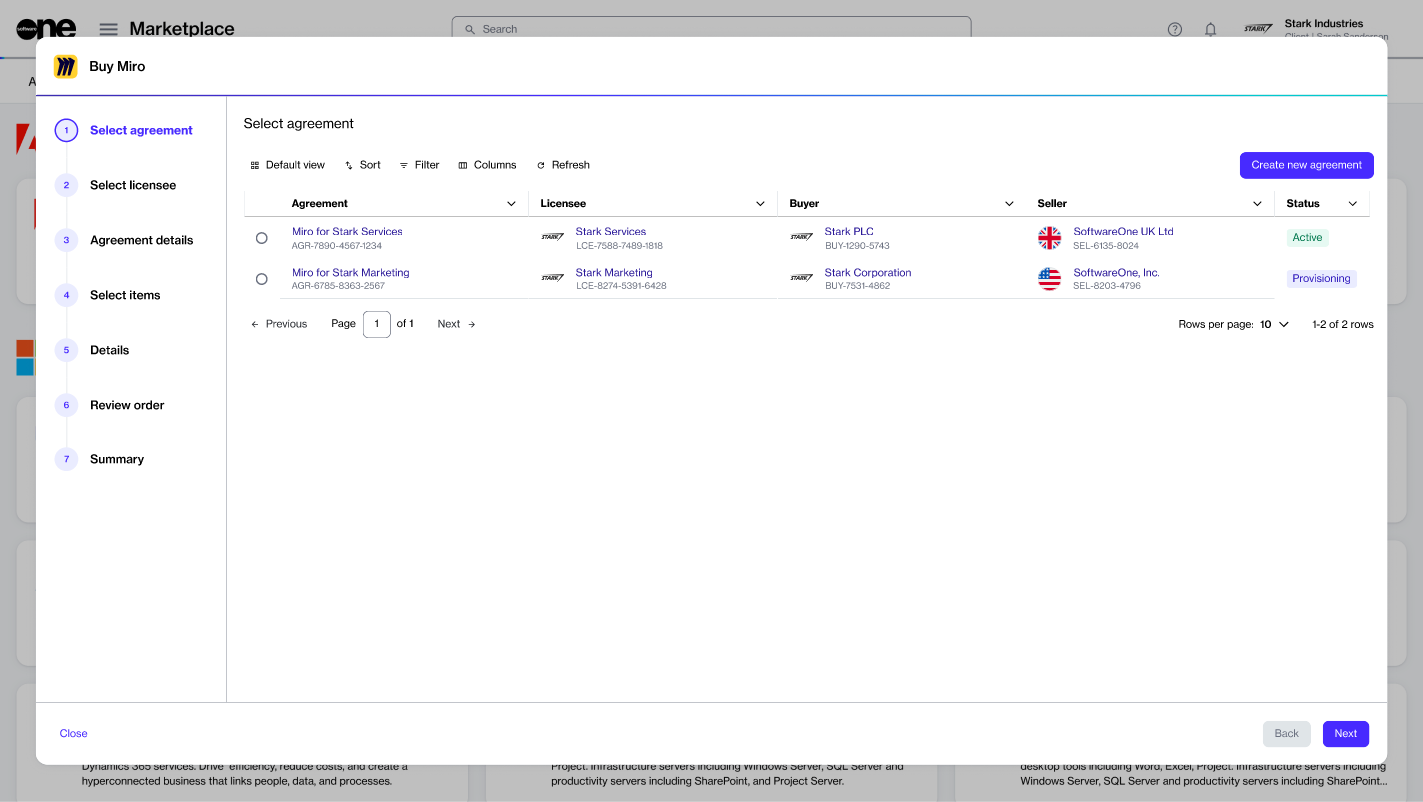
Select agreement – Select an existing agreement or create a new one. The option you select in this step determines the next step. For example, if you create a new agreement, the Select licensee step is displayed. However, if you select an existing agreement, the Select items step appears.
Select licensee – Choose an existing licensee or create a new one.
Agreement details – Complete agreement details, such as your company name, address, and more.
Select items – Select the items you want to order and adjust quantities.
Additional information – Add reference details, like internal order or agreement IDs, if needed.
Review order – Review the order details, go through the terms and conditions, and then submit your order.
Summary – Review your order summary to ensure everything is correct.
After you place the order, we verify the order details and start processing it. You can track the current status in the General tab on the order details page.
If action is required, the order details page shows the issue and the next step.
View and analyze billing insights.
The Analytics feature gives you insight into billing data from your invoices.
It provides a read-only view of this data through interactive dashboards, charts, and tables to help you monitor spending, forecast budgets, and manage costs across your organization.
With Analytics, you can analyze and compare billing data using different dimensions. This allows you to view overall billing trends or focus on spending across agreements, subscriptions, and other key categories.
All data is read-only. Visualizations are driven by filters and update automatically when filters are applied. No data is displayed until filters are selected.
Analytics currently supports the following features:
Cost analysis – Analyze billing data using interactive charts, tables, and drill-down capabilities.
Filtering – Refine what data is displayed by selecting relative or custom date ranges and granularity settings.
Grouping – Organize billing data by dimensions such as buyer, licensee, agreement, and subscription to analyze spending trends across different categories.
Export data – Export filtered and grouped data to an Excel file for offline analysis and sharing.
Currency display – View billing data in multiple currencies using daily updated exchange rates.
To open analytics, go to Billing > Analytics from the main menu. To load data, apply filters.
The filter bar is located on the left side of the page, and it defines what data is displayed. Once filters are applied, the page updates automatically.
The Analytics page includes a chart that displays billed charges over time. The table below the chart provides a structured view of billing data. Table columns adjust automatically based on the selected granularity, and include a total column for summary values and quick reference.
When data is grouped, the chart shows the top 10 entities based on the selected grouping. All remaining entities are combined under a single category called Others.
Billing amounts are shown in your standard billing currency.
You can select a different currency using the Currency filter in the sidebar. When you choose a new currency, the platform automatically applies the relevant exchange rates and converts all billing data.
When a conversion is applied, a note appears at the bottom of the data table indicating that an exchange rate was used, for example: An exchange rate was applied for the selected currency.
Use filters to customize Analytics.
On the Analytics page, you can use filters to focus on specific information.
You can select a time period, granularity, and grouping dimensions to adjust how data is displayed. You can group data by dimensions such as Agreement, Asset, Buyer, Client, and Document type.
When grouping is applied, the chart shows the top 10 entities based on the selected grouping. All remaining entities are combined into a single category called Others / Unmatched.
To customize the data in Analytics:
Go to Billing > Analytics.
In the Filters sidebar, apply the following customization as necessary:
Date range – Select a relative or custom period to define the timeframe.
Granularity – Adjust how the data is grouped over time. You can choose Daily, Monthly, or Yearly.
Daily – Shows data for each day.
Select Show results.
After applying filters, both the visual chart and the table reflect your customized view. If you want to download your data, use the Export option. For more details, see .
An order represents a transaction that starts, changes, or ends a service in Marketplace.
Orders are created under an agreement, and a single agreement can contain multiple orders. The Marketplace supports the following types of orders:
Purchase order – Created when you buy a new product or service by establishing a new agreement.
Change order – Used to modify an existing subscription, such as adding or removing licenses.
Termination order – Used to end an active subscription or agreement.
Configuration order – Used to manage subscription renewal settings. Depending on the vendor and subscription type, configuration orders may provide additional options or capabilities for managing the subscription.
Suspend order – Created by SoftwareOne to temporarily pause an active subscription without terminating it. The subscription configuration, data, and contractual terms are retained.
Resume order – Created by SoftwareOne to reactivate a suspended subscription and restore service access using the existing subscription configuration.
Marketplace orders move through various states from creation to completion. The available actions depend on the current state of the order. For more information, see .
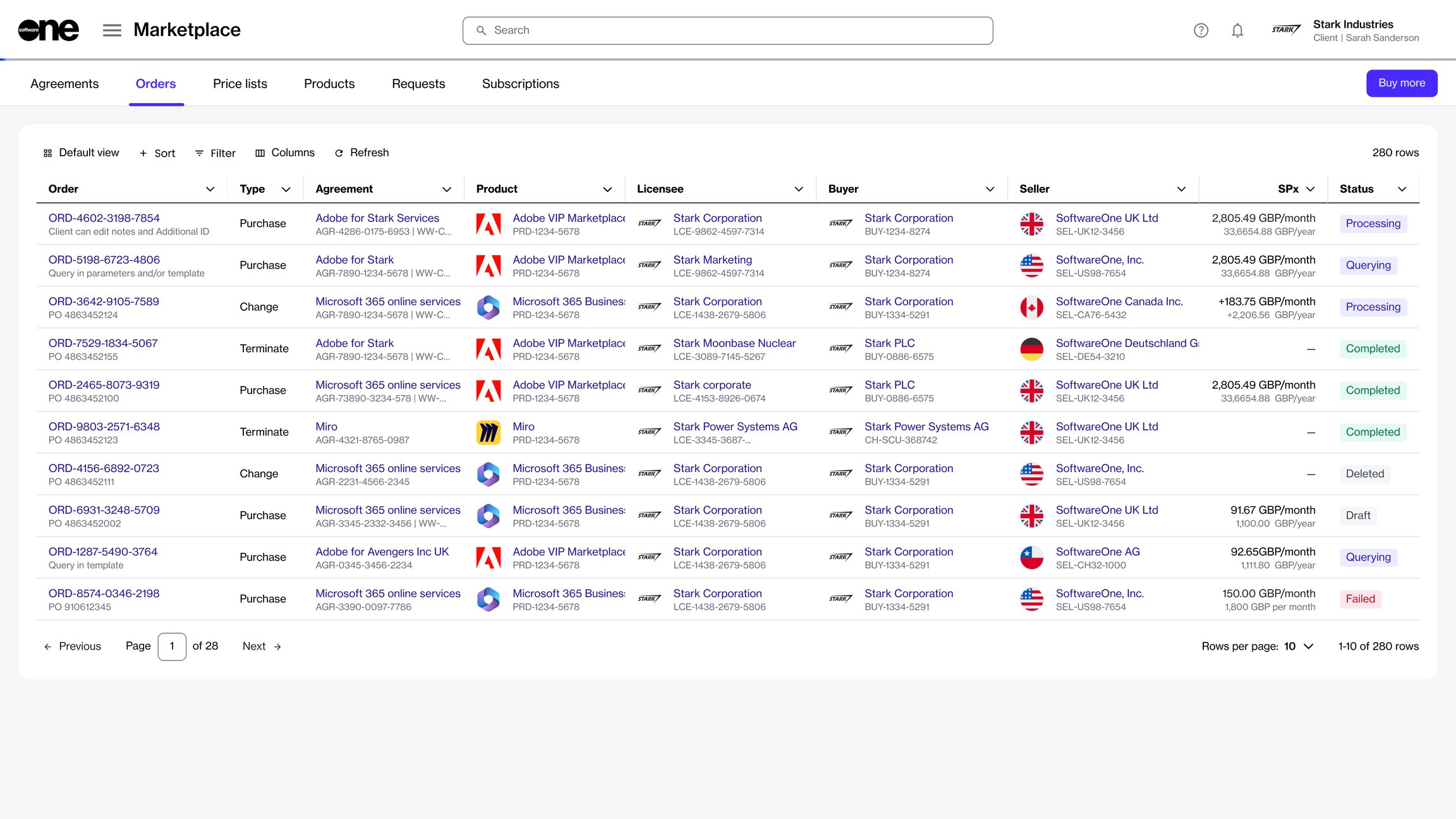
The Orders page displays all orders in your account. From this page, you can also manage an order, depending on its current status.
To open the page, select Marketplace > Orders from the main menu.
On the Orders page, you can view details for each order, including order ID, order type, and status.
You can also open an order to view details across several tabs, including entitlements, assets, and subscriptions, attachments and certificates, event history, and logs. For more details, see .
Find specific chats or messages in a chat.
There are two ways to use the search feature in Chat:
You can use the Search option in the left sidebar to locate a specific chat or group.
Additionally, you can use the magnifying glass icon within a specific chat to find what you are looking for.
To find a chat in your list of chats:
Open the Chat page.
In the left sidebar, type a keyword in the Search box. You can find a chat by chat ID, name, or specific message. All chats that meet your search criteria are displayed.
Select the chat to open it.
To search for a specific message within a chat:
On the Chats page, open the desired chat conversation.
Select the magnifying glass icon .
Enter the keyword you want to find (for example, invoice).
Browse through the highlighted matching messages.
Cancel an active Marketplace agreement.
You can terminate an agreement by submitting a termination order.
When you terminate an agreement, all subscriptions with the agreement are cancelled.
Once terminated, the agreement can't be restored or used when ordering new subscriptions. However, it can still be accessed within the platform.
Before terminating an agreement, note the following points:
You can only terminate an active agreement.
Creating a termination order doesn't immediately cancel your agreement. An agreement is terminated only after approval by the vendor.
To terminate an agreement:
Go to Marketplace > Agreements.
(Optional) Use filters to find the required agreement.
Select the agreement.
On the agreement details page, select the dropdown arrow , then choose Terminate.
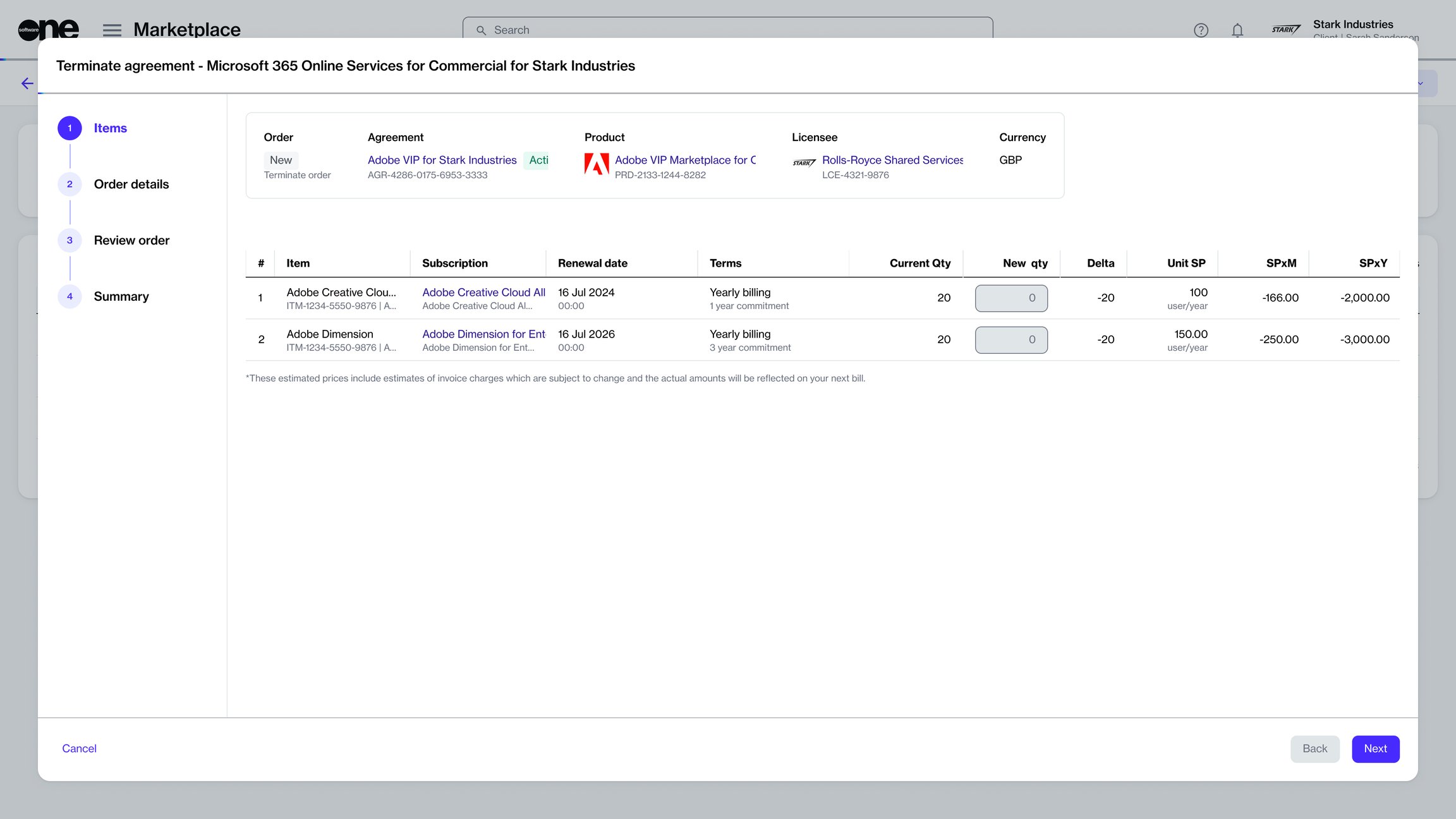
In the guided Terminate agreement flow, do the following:
Items – Make sure the new item quantity is displayed as 0. Then, select Next.
Order details – Add or update the additional ID and notes as needed. When done, select Next.
Once the termination order is submitted, the status of the agreement changes from Active to Updating.
When the order has been processed and all subscriptions in the agreement are canceled, the status changes to Terminated.
Rename your one-time purchase item.
You can rename your one-time purchased item from the asset details page.
Only the assets in the Active state can be renamed. When selecting a new name, we recommend choosing a name that makes it easier to search for or locate the asset quickly in your list.
Additionally, ensure that the new name is not blank; otherwise, the platform displays a message.
To rename an asset:
Go to Marketplace > Assets.
Select the asset you want to rename.
On the asset details page, select Rename.
In the Rename dialog, enter the new name, then select Save. The name is updated in the Marketplace.
See the key concepts and terminology used across the platform.
Certain concepts and terms are central to the functionality and design of the Marketplace Platform.
We recommend that you familiarize yourself with the terminology, as it's often referenced in our platform and documentation. This will allow you to interact with the platform effectively and maximize its use.
SoftwareOne Marketplace seamlessly brings together various actors to facilitate the buying, selling, provisioning, and billing of software products.
Actors are users or entities that interact with the platform for procurement, fulfillment, and other platform-specific operations.
Vendors – Company or person from whom SoftwareOne buys software solutions. Vendors develop and sell their products and services. Examples include Microsoft, Dropbox, Adobe, and more.
Review broader product information and related resources.
The Product profiles page provides detailed information about software products in the catalog.
It consolidates key product details and supporting resources in one location, making it easier to evaluate products and explore related information. Each product profile can include product description, features and benefits, supporting documentation, related products, and resources.
To open the Product profiles page, select Catalog > Product profiles from the main menu.
The page displays product profile cards and filters in the left sidebar. You can select a card to open the full profile and view details.
Use filters to narrow the list of available profiles. You can combine multiple filters to refine your search. Available filters include:
Manage agreements, orders, subscriptions, assets, and entitlements in Marketplace.
Marketplace provides access to agreements, orders, subscriptions, assets, and entitlements. Use the topics in this section to learn about these areas and perform common management tasks.
This topic describes how to view a list of feedback items you have submitted, as well as details about a specific feedback item.
To view submitted feedback:
Go to Helpdesk > Feedback.
View the list of all submitted feedback items displayed on the page.
Review information such as rating
Yearly – Displays totals grouped by year.
Group by – Choose one primary category to group the data. For example, to group by vendor, select Vendor, then choose specific vendors you want to include.
Filter by – Select the required filters and entities within categories. You can apply multiple filters at the same time.
Filter conditions - Select the desired And or OR operator.
And – If you select this operator, the results are displayed only if all conditions are met.
Or – If you select this operator, only one condition needs to be met for the results to be displayed.
Currency – Select the currency in which you want to view billing data.
Shows the parameters associated with the asset.
Orders
Shows the purchase order for the asset.
Details
Shows reference details such as additional IDs and timestamps. Use Edit to update the additional client ID.
Audit trail
Shows the record of events for the asset. For details, see Audit Trail.


Select Close to close the search bar.

Category – Filter by specific software categories, such as Accounting, Human Resources, Content Management Systems, and more.
Industry – Filter by business sectors or markets, such as Education, Hospitality, and more.
Segment – Filter by organization size. Common segments include Small Business, Mid-Market, Enterprise, and Startups.
Vendor profile – Filter profiles by vendors, such as Adobe, Microsoft, and more.
To apply filters:
Select a filter type under Filter by.
Choose one or more filter values.
Select Apply.

Summary – Select View order to open the details page or select Close.
Distributors – Entities that resell software solutions sourced from vendors to resellers. Distributors facilitate software procurement when direct relationships with vendors aren't feasible.
Associates – Internal SoftwareOne associates who administer the business network. Associates are involved in various processes throughout your journey and interaction with SoftwareOne.
Partners – Entities or businesses that buy products or services from SoftwareOne for reselling to other businesses.
Clients – Company or organization that uses our platform to buy software products for their own use or direct consumption.
Developers and systems integrators – Entities that build integrations within the business network.
A user is an individual who can sign in to the platform using their credentials and perform operations according to their permissions.
Users include both individual users and admins managing account settings. They can belong to multiple accounts or no account at all. Additionally, they can switch between accounts without signing out.
Users who don't belong to any account have limited capabilities. Such users can only sign in and adjust their profile settings. They cannot access any module. To learn more, see Users.
An account represents a company or an organization using the platform. The platform supports the following account types:
Client account – Represents an account used by clients and partners to establish agreements and procure software solutions for their enterprises.
Vendor account – Represents an account used by vendors to define the product structure and configuration, and make those products available for ordering through the Marketplace.
Operations account – Represents an account used by SoftwareOne associates.
In the SoftwareOne Marketplace, an account can contain a single user or multiple users.
Additionally, users are not restricted to a single account. They can belong to multiple accounts and switch between those accounts.
A group facilitates the management of permissions within an account.
Groups contain users, and all users within a group share the same role and permissions. This means that permissions are assigned at the group level, rather than individually to each user.
You can create multiple groups and add users to these groups. Users can also belong to several groups simultaneously; for example, they can be in both the Administrator and Finance groups. Additionally, they can have different roles across different accounts, such as being an Operations user in one account and an Administrator in another.
To learn more about creating and managing groups, see Groups.
A seller is a SoftwareOne entity that buys software solutions from vendors, like Microsoft, and sells them to clients and partners. Examples include SoftwareOne Canada, SoftwareOne UK, and more.
Sellers are responsible for issuing invoices to the buyer entities of clients and partners. They act as an intermediary in the transaction process.
Account admins can view all sellers on the Sellers page.
Buyers are responsible for engaging in commercial activities with sellers.
They are also the recipients of invoices issued by SoftwareOne, and are essential for placing orders, creating agreements, and ordering subscriptions.
Account admins can view and manage buyers from the Buyers page.
A licensee is a specific person or a department within an organization that consumes the product or service procured by the buyer.
Licensees receive the license to use the product, and they are critical in establishing agreements alongside buyers and sellers.
There can be multiple licensees within an account, but each licensee can only be connected to one buyer and one seller at a time.
Account admins can view and manage licensees from the Licensees page.
An agreement outlines the relationship between entities, such as the seller, buyer, and licensee.
They are foundational for placing orders through the platform and creating subscriptions. They also establish the terms and conditions under which transactions occur.
All agreements are listed on the Agreements page, allowing you to view and manage them easily.
An order is a business transaction under the framework of an established agreement.
The platform supports various types of orders to support different scenarios and requirements of our clients and partners, including:
Purchase order – This type of order is created when you buy a new product or service by establishing a new agreement.
Change order – This type of order is created when you modify your agreement or adjust quantities, such as reducing the number of licenses or buying additional resources.
Terminate order – This type of order is created when you terminate your agreement or subscription.
Configuration order – This type of order is created when you enable or disable automatic renewal of a subscription.
You can view, track, and manage your orders from the Orders page.
A subscription is a service provisioned over a specified period.
Subscriptions are associated with an agreement, and an agreement can contain one or more subscriptions.
Changes to a subscription can only be made through an order. For example, to terminate a subscription, you must place a termination order. Similarly, to add more licenses, you must submit a change order.
Direct modifications to a subscription are not allowed without placing an order. All subscriptions are listed on the Subscriptions page in the platform.
A product is a solution or service provided by a vendor through the SoftwareOne Marketplace. Examples of products include Adobe VIP Marketplace for Commercial, Microsoft 365 Business, Enterprise & Apps - Education, and so on.
Each product consists of individual items and parameters set by vendors. Additionally, products include a detailed description, a list of purchasable items, and supporting resources such as media files, terms and conditions, and price lists to assist you.
You can explore products, make purchases, and review details on the Products page.
An item refers to an individual stock-keeping unit (SKU) within a product. A product can contain several items, each with its own name and price.
For example, within the Microsoft 365 Business, Enterprise & Apps - Education product, you may find items, such as Copilot for Microsoft 365 (Education Student 13+), Defender Threat Intelligence (Education Student Pricing), Microsoft 365 A3 (Education Student Pricing), and more.
The page displays a list of individual items. You can also view items on the Items tab within the product details page. You can add items to your order when placing an order through the platform.
A parameter is structured data used by vendors to collect information during the ordering process.
Examples include contact details, address information, domain name, and more. Parameters are also used by vendors to pass information during provisioning.
A price list contains pricing information for each item within a product.
Price lists are created by vendors and are specific to particular regions and sellers. All price lists are organized through an object called Listing.
The Listing object is created by SoftwareOne associates after they have reviewed the product. This object connects the product price list with the seller, ultimately making the product available for purchase in the Marketplace.
A notification is an email alert about an event in your account. It can cover things like order status changes, subscription upsizes or downsizes, invoice generation, and other account events.
Notifications are managed from the Notifications area. Account admins can configure recipients and categories there, and individual users can manage their own preferences from My profile.
A Program is a set of requirements, or parameters, that vendors ask clients to meet.
In the Marketplace Platform, programs are used to view available programs for enrollment, request certificates after requirements are met, and manage related settings, documents, media, and terms.
See Programs for details on how they appear in the platform.
A certificate is an object that confirms a client or partner meets a vendor’s requirements for a specific program.
It serves as proof of eligibility to purchase or access the program’s products and benefits. You can view certificates from the Certificates page. For more details, see Certificates.
An Enrollment is the process of formally registering for a vendor program. It gives access to the program’s benefits and incentives, such as reduced pricing, special offers, and renewal discounts.
In the Marketplace Platform, an enrollment usually includes the program you are joining, the buyer or licensee it applies to, required parameters and supporting details, and a status that shows where it is in the workflow. For more details, see Enrollments.
An invoice is a billing document you receive at the end of a billing period.
It summarizes the charges on your account and is issued monthly for a specific Marketplace agreement. It's issued as a PDF containing subscription details and consolidated charges.
It can be either compact or detailed, depending on how many charges are on the statement, but it's always inked to a statement, which contains the full itemized breakdown. For more details, see Invoices.
A statement is a billing document issued at the end of a billing period, together with the invoice PDF.
It's delivered as an Excel (.xlsx) file and includes detailed invoice data, such as individual charges, subscriptions, and orders. For details on how to view statements, see Statements.
The feedback details page shows more information for a specific feedback.
To view details:
Go to Helpdesk > Feedback.
(Optional) Use filters to find the desired feedback.
Select the feedback ID to view information, such as the account under which the feedback was created, the individual who created it, and the rating.
Use the tabs on the feedback details page to access different types of information:
General
Shows the subject and description of the feedback.
Attachments
Shows all files attached to the feedback. To add more files, select Add.
Notes
Learn about the platform and its key capabilities.
The Marketplace Platform is a unified ecosystem for discovering, purchasing, and managing software purchases. It includes a comprehensive set of modules that streamline purchasing processes for businesses of all sizes and connect clients, partners, vendors, and SoftwareOne through a shared platform.
The platform brings together software discovery, procurement, billing, and management into a single system. By focusing on shared capabilities, it offers a streamlined, scalable way to manage software.
The following are some of the core capabilities:
Discover and purchase software – The platform provides a centralized catalog of software and services, making it easy to explore offerings and place orders. It supports different purchasing options and streamlines the buying experience.
Manage subscriptions and billing – All subscriptions, agreements, and invoices are managed in one place. This gives you full visibility into your software usage and spend, while simplifying renewals and cancellations. The platform also offers split billing, billing analytics, and consolidated financial statements to help you reduce administrative overhead.
Automate and integrate – Our APIs and SDKs allow the platform to be integrated with external systems and automate key workflows. This enables organizations to connect procurement and billing processes with their existing tools, which further improves efficiency and reduces manual effort.
Operate across a multi-sided ecosystem – The platform supports a collaborative ecosystem where users interact through a shared interface:
Clients can procure and self-manage their software purchases.
Vendors can create and manage products, define pricing, and automate fulfillment.
Partners can manage customer relationships and oversee transactions.
Scalable and flexible by design – Built to support global operations, the platform is designed to scale across regions, currencies, and business models. It adapts to different organizational needs while maintaining a consistent user experience. Its modular architecture allows new services, integrations, and capabilities to be added over time without disrupting existing workflows.
Read the to understand the platform's terminology.
See to learn about accessing, signing in, navigating, and personalizing your experience.
Go to for onboarding quickstarts and procedures.
Learn how to read and interpret your Marketplace invoices and statements.
For many cloud-based services, such as Microsoft Azure and Adobe VIP Marketplace, usage-based billing can result in multiple charge lines. When these charges are listed individually on a single invoice, the information can be difficult to read and interpret.
To simplify your billing experience, the Marketplace Platform provides the following documents:
Invoice – An invoice PDF contains subscription charges and usage recorded during the previous calendar month. Invoices are issued monthly based on a specific Marketplace agreement.
Statement – A statement Excel file contains a detailed breakdown of charges on an invoice, including individual charge lines and usage details. Statements are also issued monthly.
Learn about the different states of an order.
An order represents a transaction that starts, changes, or ends a service in Marketplace.
An order can be in one of these states: Draft, Deleted, Quoted, Processing, Querying, Scheduled, Cancelling, Cancelled, Complete, or Failed. The following diagram shows the transitions between these states:
The following table describes the different states:
Manage the feedback you've shared with SoftwareOne.
If you picked the wrong rating by mistake or want to update your comments or suggestions, you can edit the feedback you've created.
You also delete the feedback if you changed your mind or no longer want to share your experience.
Feedback can only be edited or deleted if it's yet to be reviewed by SoftwareOne. If the feedback is already in a Reviewed state, it cannot be modified.
To update your feedback item:
Go to Helpdesk > Feedback.
View your license agreements, create alerts for true-ups, renewals, and expiring contracts.
Manage your software asset spending across your organization.
Shows any comments that SoftwareOne added to the feedback.
Audit trail
Shows the audit trail for the feedback.


Invoice PDFs contain general invoice information, subscription details, and charges for the items within the subscription. You can access and download your invoices using the Invoices page.
We provide two types of invoices:
Compact invoice – A compact invoice is a summarized invoice issued for statements containing a large number of charges (typically 42 or more). In a compact invoice, all charges for a product or service are grouped into summarized invoice lines, and quantities are shown as 1 to represent the aggregate charge for each item.
Detailed invoice – A detailed invoice is issued for statements containing a limited number of charges (typically 41 or fewer). This type of invoice lists each charge on a separate line, allowing you to see exactly what you are being billed for, line by line. This means you don't need to refer to another statement for transaction details.
The invoice type is indicated in the Description column of your invoice PDF. For more details, see Invoice line item details.
The invoice header contains general information, such as the creation date, your customer number, and contact details. It also includes your invoice number and addresses.
The following are key fields:
PO No. (purchase order number)
This is the Client Additional ID that you specify for the agreement. The value comes from the Details tab on the agreement details page.
If the value you specify exceeds 20 characters, only the first 16 characters are shown on the invoice, followed by 3 dots (...).
If the value is blank, a dash (—) is displayed on the invoice.
To add or update the value, see .
External document number
This is the ID of the agreement for which the invoice was issued.
The ID is assigned by the platform and can't be changed.
Your reference
The line item details section contains all subscriptions and items for which you are billed. It contains multiple columns and may span multiple pages.
The following are key columns:
Pos
Displays the line number for the item being billed.
The value starts from 10 and continues by +10 for each billing item. It means if 5 items are being billed, the POS begins from 10 and ends at 50.
No.
Displays the item number from SoftwareOne's ERP system.
Description
This section contains a breakdown of taxes. It shows how VAT is calculated and applied to the total amount.
This section outlines the payment terms according to your contract and the payment due date. It may also contain bank account information for electronic payments.
A statement is a detailed record of charges for each invoice.
Unlike invoice PDFs that summarize charges, statements provide a comprehensive breakdown of all charges. Statements are issued as Excel (.xlsx) files and typically contain the following tabs:
Summary – Contains objects associated with the statement (for example, agreement, licensee, and orders) with links to view them in the platform.
Charges – Contains charges and subscriptions for the billing period. You can also see items within subscriptions, their quantities, and prices. If split billing is enabled, allocation percentage and estimated license count (ELC) details are also displayed.
Orders – Contains all orders placed during the billing period, including order type, order date, and related details.
You can download your statements from the Statements page or use the Billing Statement Download page if you cannot access your account. For details, see Download statement.
Draft
The order is a draft. This status applies to orders created by the platform for validation purposes. It doesn't apply to orders saved for later during the ordering process.
Deleted
The order was deleted. This status applies to orders that are deleted intentionally and those removed by the platform. For more details, see .
Quoted
The order has been saved for later using the Save Order option during order creation.
Processing
The order is created, and it's currently awaiting processing by the vendor.
Querying

Select the feedback.
On the feedback details page, select the dropdown arrow , then choose Edit.
In Edit feedback, do the following:
Change your feedback rating and description as necessary.
Select Save.
To delete your feedback permanently:
Go to Helpdesk > Feedback.
(Optional) Use filters to locate the desired feedback.
Select the feedback.
On the feedback details page, select the dropdown arrow , then choose Delete.
In Delete feedback, select Delete.
Learn how to navigate and use the platform.
The Marketplace Platform is a SoftwareOne SaaS solution that allows users to procure and manage software solutions. It offers a consistent navigation experience for different roles, including clients, vendors, and partners.
This topic explains how to navigate the platform, access features, and move between various modules.
The header is always visible as you move through the platform.
The widgets on the Home page give you quick access to key information.
Learn about the different states of a feedback item.
Feedback represents your experience, comments, and suggestions about the SoftwareOne Marketplace and how we can improve it.
A feedback item can be in one of these states: Submitted, Reviewed, or Deleted. The following diagram shows the transitions between these states:
The following table describes the different states:
Reopen a closed case from the Chats page.
You can reopen a completed support case at any time if the issue remains unresolved.
When a case is reopened, its status changes from Completed to Processing. By default, the case is reassigned to the last assignee who handled it.
You can reopen a completed case from either the Cases page or the Chat page.
To reopen a completed case from the Cases page:
Go to Helpdesk > Cases.
Use the different types of filters to find and view your orders.
This tutorial describes how to use filters to quickly find specific orders.
The Marketplace offers several filter options to help you find orders. You can apply a single filter or create a combination of filters by selecting different fields, operators, and values.
To filter orders by status, such as Draft:
Go to Marketplace > Orders.
Select the Filter icon.
Learn how to sign up for the SoftwareOne Marketplace Platform.
You can access the SoftwareOne Marketplace Platform in one of the following ways:
If your organization already uses the platform, ask your account administrator to invite you.
If your organization doesn't yet use the platform, to get started.
If your organization already uses the platform and you want to join that organization:
Manage and review your Marketplace invoices.
An invoice is a billing document issued at the end of a billing period.
It summarizes subscription details and consolidated charges for items within each subscription. Invoices are generated according to your billing terms, typically on a monthly cycle.
An invoice includes a total amount due for the billing period, a breakdown of charges, and metadata, such as issue date and due date. For a list of fields on your invoice and how to interpret them, see .
The Invoices page shows all invoices generated for your account.
To open this page, choose Billing > Invoices from the main menu.
Each invoice row shows the invoice ID, total amount, posting date, due date, and current status. An invoice can be in one of these states:
The ordering parameters are updated by the vendor. The order requires an action to be taken by the client.
Scheduled
The renewal order has been submitted, and the changes are due to take effect on the renewal date.
Cancelling
A cancellation request has been initiated for a scheduled renewal order.
Cancelled
The scheduled renewal order has been cancelled. The agreement and subscriptions remain unchanged.
Complete
The vendor has processed the order.
Failed
The order could not be processed. The reason is displayed on the order details page.
Submitted
The feedback has been submitted, but it's yet to be reviewed by SoftwareOne.
Reviewed
SoftwareOne has reviewed your feedback. If it's valid and actionable, we will handle it according to our project roadmap.
Deleted
The feedback is removed and no longer exists.

Open the invitation email and accept the invitation.
Register your account.
Sign in to your account.
If single sign-on (SSO) is enabled for your organization, you are redirected to your identity provider during the setup or sign-in process.
Invitation links expire after 7 days. If your link expires, ask your account administrator to send a new one. For more information, see Add new users and Respond to invitations.
If your organization doesn't yet use the SoftwareOne Marketplace and you want to sign up, contact us to get started.
After we configure your account, you'll receive the details you need to access it.
If your account is ready, continue to the Sign in to your account page.
After signing in, start with Navigate the interface to learn about the key components and features.
For key concepts and onboarding guidance, see key concepts and guides & tutorials, respectively.


Issued – The invoice has been generated but has not yet been settled.
Paid – The invoice has been fully paid.
Overdue – The invoice has surpassed its due date and requires payment.
You can also select an invoice ID to open its details. Use the detail view to review:
A list of subscriptions and items included in the invoice.
Official invoice PDFs.
Invoice metadata and events.

Send feedback lets you share comments and suggestions with us. For details, see Share feedback.


(Optional) Use filters to find the desired case.
Select the case ID.
In the case details pane, select the actions icon (•••), then choose Reopen.
Confirm that you want to open the case. The case status changes to Processing.
To reopen a completed case from the Chats page:
Go to the Chats page.
(Optional) Use the Filter option at the top of your chat list to find the desired case.
Select the case.
In the chat window, select the actions icon (•••).
Under Case, select Reopen.
Confirm that you want to open the case. The case status changes to Processing.
Select Add another condition.
Define the filter:
In the first field, select Status.
In the second field, select the operator. For this example, leave it set to Equal.
In the third field, select Draft.
Add more conditions if you need to narrow the results further.
The list of orders refreshes automatically when you apply the filter.
To find an order by ID:
Go to Marketplace > Orders.
Select the Filter icon, then define the filter:
In the first field, select Order ID.
In the second field, choose the operator. For this example, leave it set to Contains.
In the third field, enter all or part of the order ID.
The list of orders refreshes automatically.
Use Search query to find matching records across orders, agreements, and related details.
To search for an order:
Go to Marketplace > Orders.
Select the Filter icon.
Enter the desired search term.
The list of orders refreshes automatically to show matching records. To clear all filters and return to the default view, select Reset filters.
This is the ID of the statement linked to the invoice.
Statement IDs are assigned by the platform and can't be changed.
This is the main column listing subscriptions and items. It includes:
The invoice type and a secure URL to download the statement using the invoice and statement IDs. For more details, see Download statements.
Agreement information, including agreement ID and name, product details, and licensee details.
Subscription information (subscription ID and name). You can also view the additional client ID mapped to the subscription and the vendor ID. If no value exists, a dash is displayed.
Allocation percentage, if is enabled.
Total number of items within the subscription, but only if the subscription is active at the time of billing (for example, 'Qty 20 of ITM-XXXX-XXXX-XXXX / 65325070CA'). If the subscription is inactive, the item is shown as 'ITM-XXXX-XXXX-XXXX / 65325070CA' instead.
Start date - end date
Displays the duration of the charge.
Qty
Displays the item quantity. On compact invoices, this value is shown as 1 because charges are consolidated. For the actual item quantities, see your billing statement.
Unit price
Displays the unit price used to calculate the line amount.
VAT %
The VAT percentage applicable to the item.
Total excl. VAT
The subtotal without taxes.
Total incl. VAT
The total amount due including VAT.
With Software Asset Spend Management, you can oversee and manage your software asset spending across your organization. You can also export your software assets to other Software Asset Management (SAM) tools and import software assets, including those not procured through SoftwareOne.
The Software Assets module, offered as part of Cloud Managed Services, allows you to manage your software assets and inventory for software purchased through SoftwareOne.
To access this module, select Inventory > Software Assets from the main menu.
The Export option on the Software Assets page enables you to download your software asset inventory in various formats.
You can use these exports to create quick reports and organize your data in the commonly configured format (including column names and order) compatible with several Software Asset Management (SAM) tools, such as Aspera, Miss Marple, Snow, Flexera, and others.
To export software assets:
Go to Inventory > Software Assets.
Hover over the Export option.
Select your preferred export format.
In Create New Report, fill out the required fields.
Select Run to initiate the export.
Our entitlement services allow you to import your software assets into the Marketplace Platform, even those not purchased through SoftwareOne.
For information on entitlement services and how to import your assets, .
Add or update the additional client ID for an order.
The Additional Client ID field is a reference number associated with an agreement.
It is provided when an order is placed and, if included, appears in this field. If no number is entered at the time of ordering, you can add it manually later.
This reference is shown on your invoices as the PO number to help you match them for billing and invoicing purposes.
To add or update the Additional Client ID:
Go to Marketplace > Agreements.
Select the required agreement.
On the agreement details page, select the Details tab, then select Edit.
In the Edit ID dialog, add or update the client ID, then select Save.
Review your configuration for split billing.
The Review status on the Details tab of a change order indicates that a change has been made to the subscription.
When you see this status, it means that you need to review the split billing configuration for the subscription, as it may need adjustment.
You can review the allocation by clicking Edit. When the Edit dialog opens, review the details. If any changes are needed, you can update the split as necessary and then save your changes.
You can create a support case from any of the following locations:
Select the help icon in the header, then choose Need help.
Go to Helpdesk > Cases, then select Add.
Go to Chats, then select + Support case.
Regardless of where you start, the same Add case wizard opens.
To create a case:
Open the Add case flow from one of the available entry points.
In the guided Add case flow, complete the following steps:
Select the area you need help with, then select Next.
Review the available self-help resources. If you still need assistance, select
After you submit the case, it is routed to the appropriate team based on the information you provide. You can view your submitted case on the Cases page. For more details, see .
Entitlement refers to the item you have purchased, along with the quantity you are allowed to use.
An entitlement can be in one of these states: Active or Terminated. These states indicate whether the entitlement is currently valid or has been cancelled in the Marketplace Platform.
The following table describes the different states:
Use different types of filters to find and view your invoices.
The Invoices page displays all invoices generated for your account, allowing you to track and manage them.
The page includes filters that help you locate specific invoices based on criteria such as status, dates, and balance due.
This topic explains how to use the two most commonly used filters: Status and Due date.
To view invoices based on status:
Open the Invoices page.
Access vendor profiles to learn about all vendors in the SoftwareOne Marketplace.
The Vendor profiles page provides detailed information about software vendors in the catalog.
They consolidate key vendor information in one place, making it easier to evaluate vendors and explore their products and offerings. Each vendor profile may include a full vendor description, product portfolio, contact details, and supporting resources.
To open the Vendor profiles page, select Catalog > Vendor profiles from the main menu.
The page displays vendor profile cards and filters in the left sidebar. You can select a card to open the full profile and view details.
Add new items to your existing Marketplace agreement.
This tutorial describes how to add more items to your existing Marketplace agreement.
New items can be added using Buy more on the agreement details page. When you start from Buy more, the purchase wizard opens directly on the Items step.
Start from the agreement
Go to Marketplace > Agreements
Download your billing statements in XLSX format.
You can download your billing statements from two locations: the Statements page after signing in to your Marketplace account, or the page without signing in.
To download your statement from your account:
Sign in to your account.
Go to Billing > Statements.
Browse purchasable software products in the Marketplace.
A product is a software solution or service offered by a vendor.
Each product includes one or more purchasable items, also called SKUs. Products can also include parameters that collect required order details, such as agreement data, contact details, and quantity.
The Products page allows you to browse software products available in the Marketplace catalog. You can review product details, pricing information, available items (SKUs), and vendor information before starting a purchase.
To view the available products:
Go to Catalog > Products. The page displays a list of products available to your organization.
Learn about the different states of an asset.
An asset is a one-time purchase item or a perpetual license within the Marketplace Platform.
An agreement can be in one of these states: New, Draft, Active, or Terminated. The following diagram shows the transitions between these states:
The following table describes the different states:
Learn how invoices and statements relate.
Analyze billing activity, charges, and trends.
Review invoice details and download PDFs.
Access and download your statement files.
Set up and manage split billing for your account.
Provide details about your request or issue.
Select Add to submit the case.

New
This is the initial status of an asset or one-time item when it's added to the order during the ordering process. The status appears in the purchase wizard only while creating the order.
Draft
The status applies to an asset during the fulfillment phase of the order. It means the asset has been created as a result of a purchase order, but it's not active yet.
Active
The asset is now active because the associated purchase order has been completed.
Terminated
The asset has been cancelled by the vendor.

Manage your messages in a chat conversation.
You can edit or delete any messages you have sent in a chat conversation. This applies to both direct chats and group chats.
Only the messages that you sent can be edited or deleted. You cannot edit or delete messages sent by others. Once a message is deleted, it cannot be recovered. Deleted messages show this text: This message was deleted.
There's no limit to the number of times you can edit a message. Edited messages include the word edited.
To edit or delete a message:
Open the Chats page.
Select the required chat conversation.
Find the message you want to edit or delete.
Select the actions icon (•••) at the top of the message.
Do the following:
To edit the message, select Edit. Type the new message in the text field, then select Confirm to send it.
To delete the message, select Delete. In the Delete message confirmation, select Delete to confirm.
Active
The entitlement is created as a result of a purchase order, and it's now available for use. This is the default state for entitlements that are currently in effect.
Terminated
The entitlement is terminated and no longer valid. This can happen if the agreement or subscription associated with the entitlement is canceled. Once the entitlement moves to Terminated, it can’t return to Active.


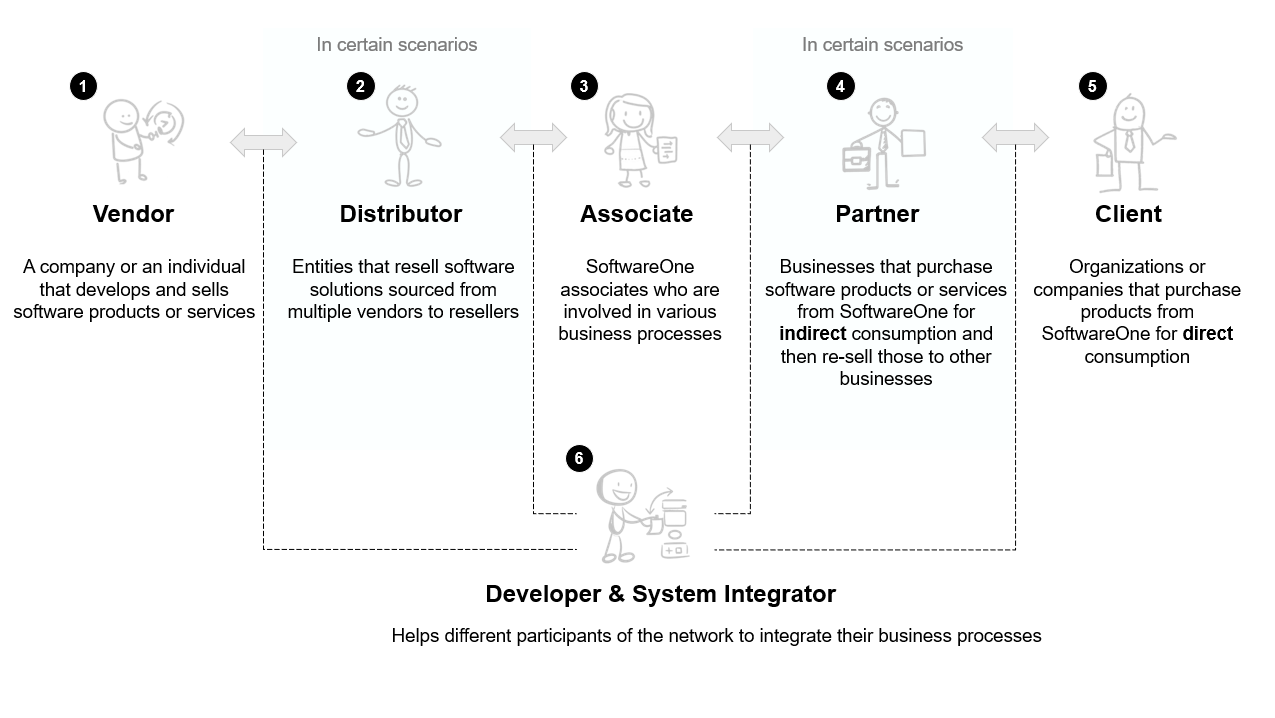
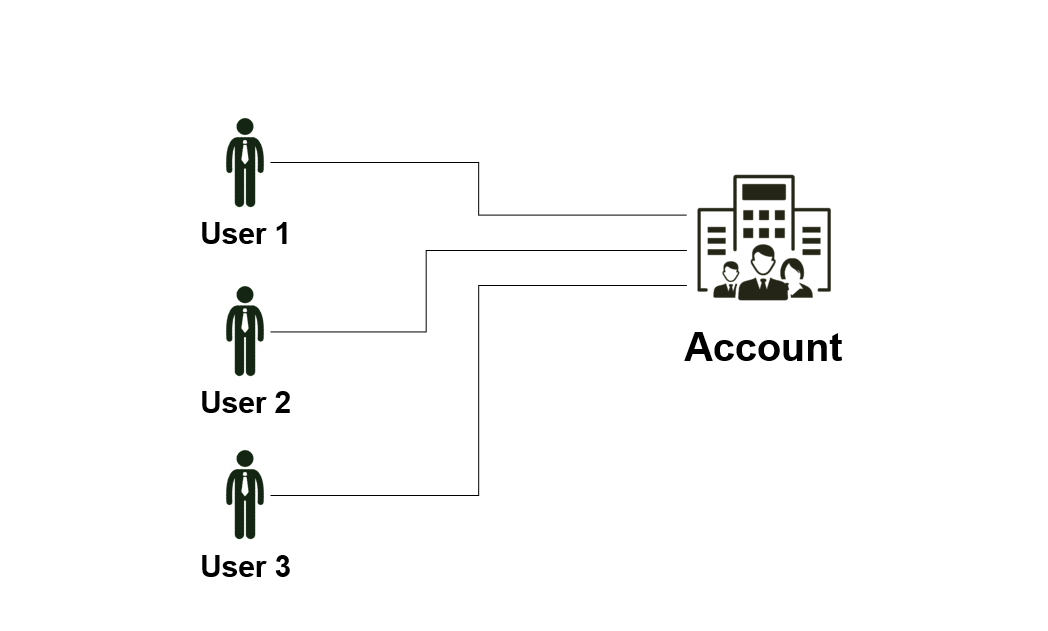
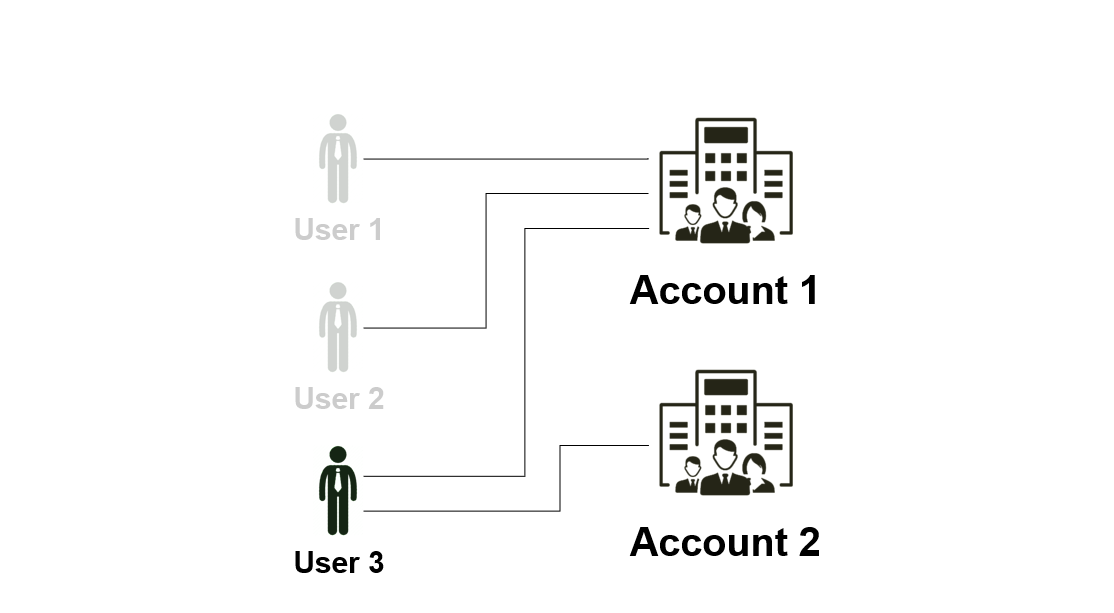
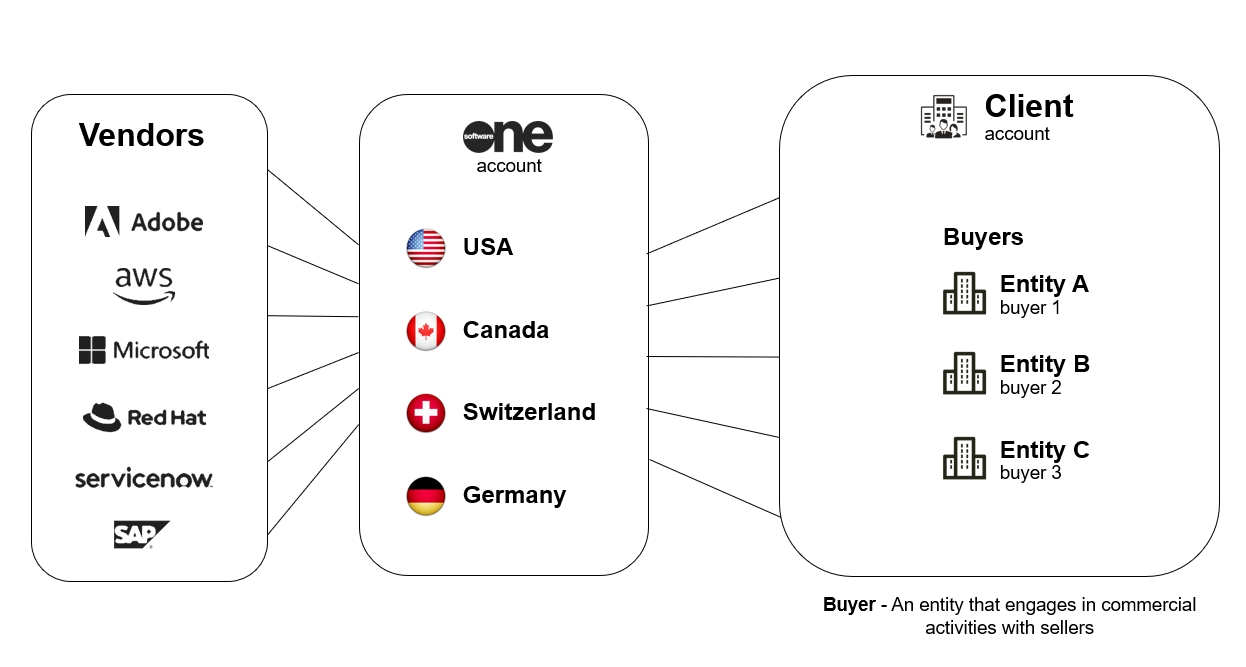
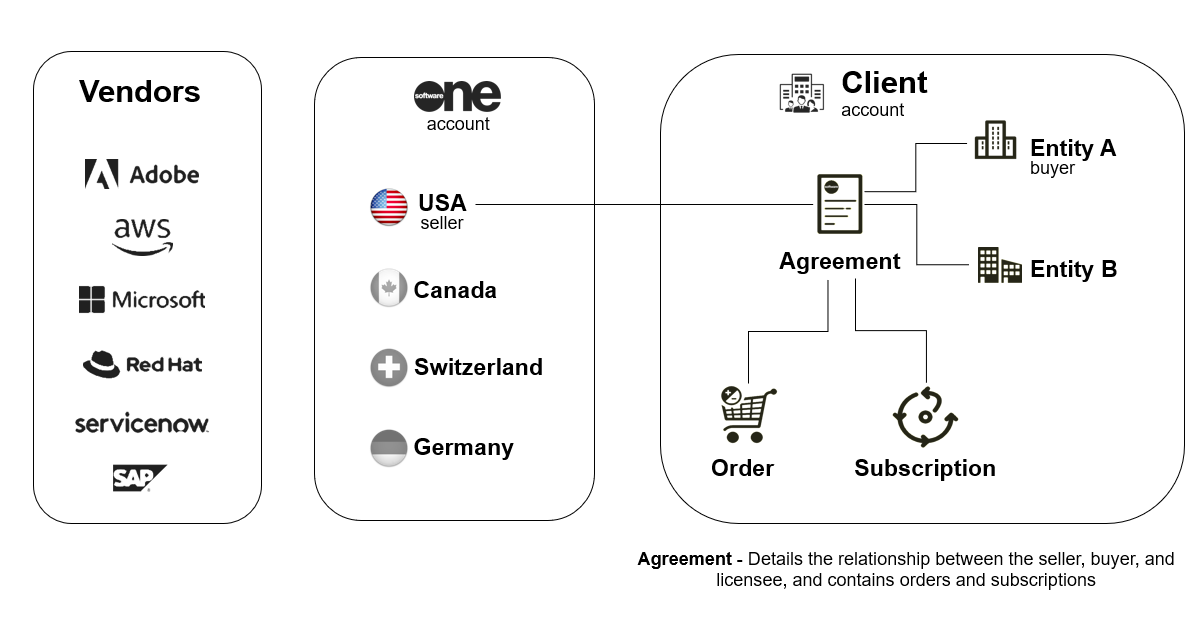
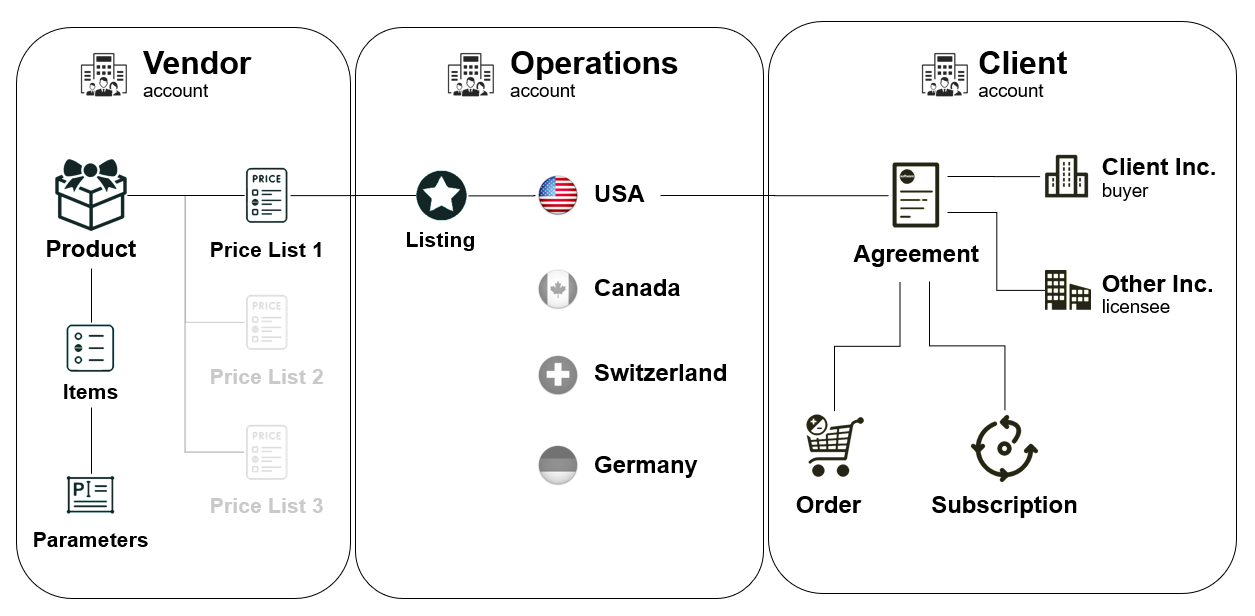
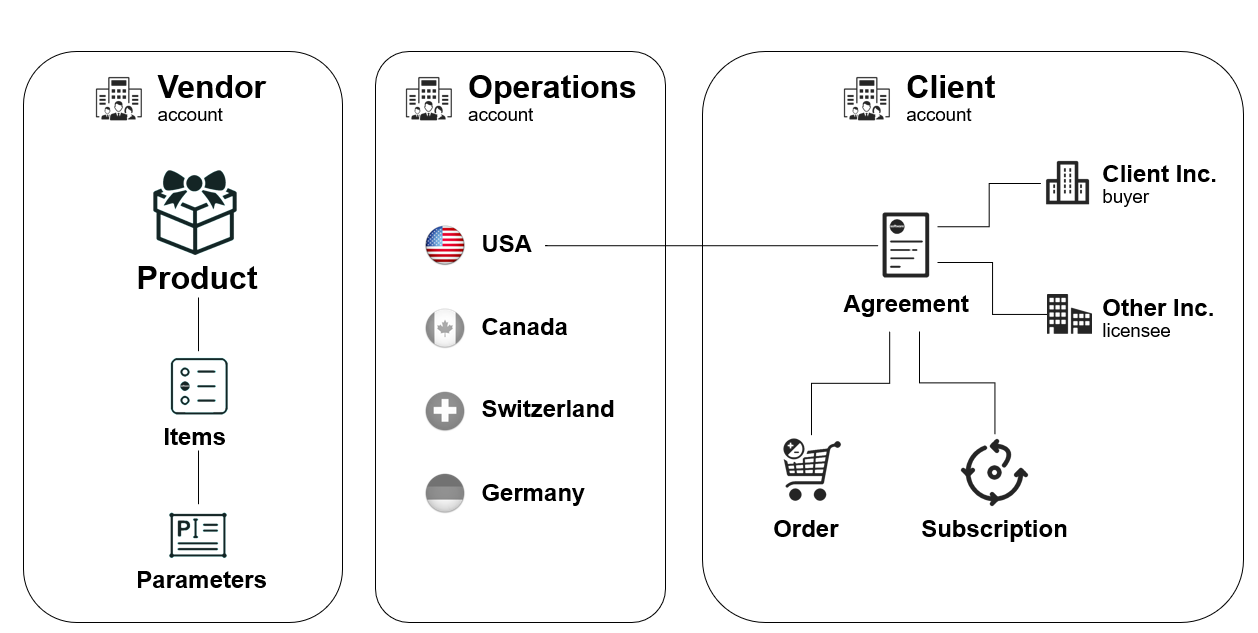
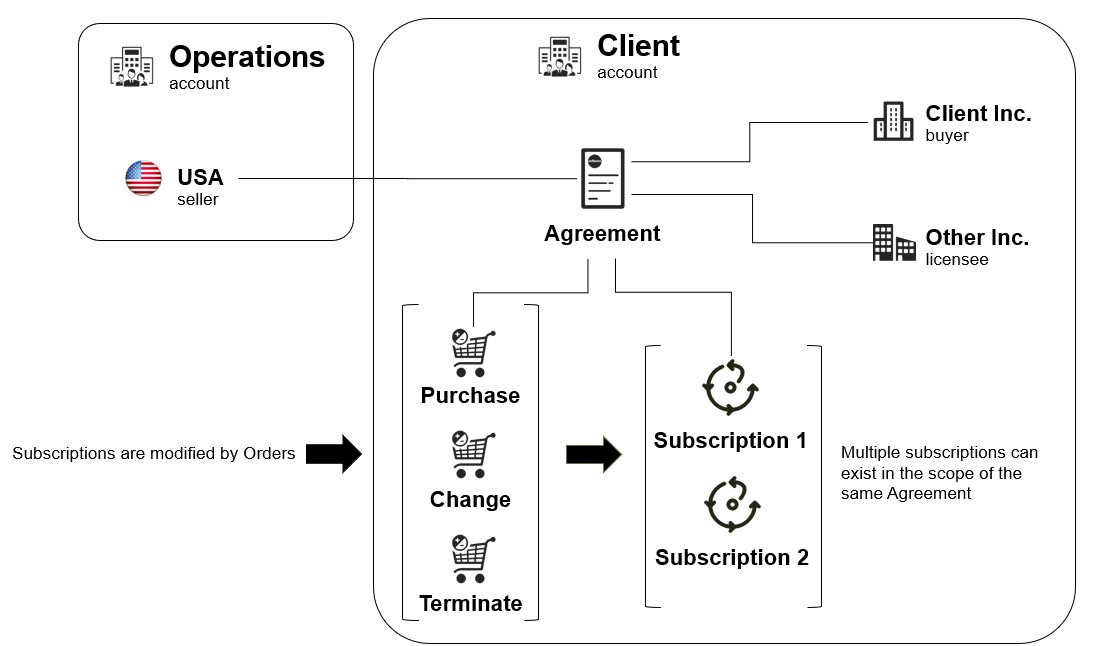
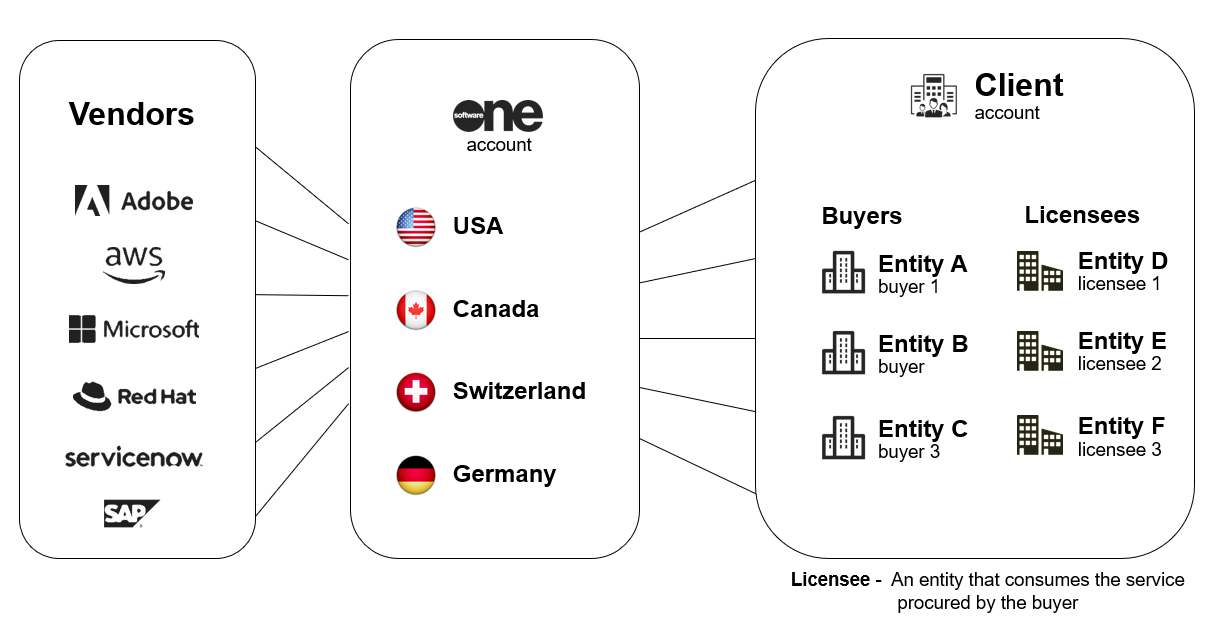
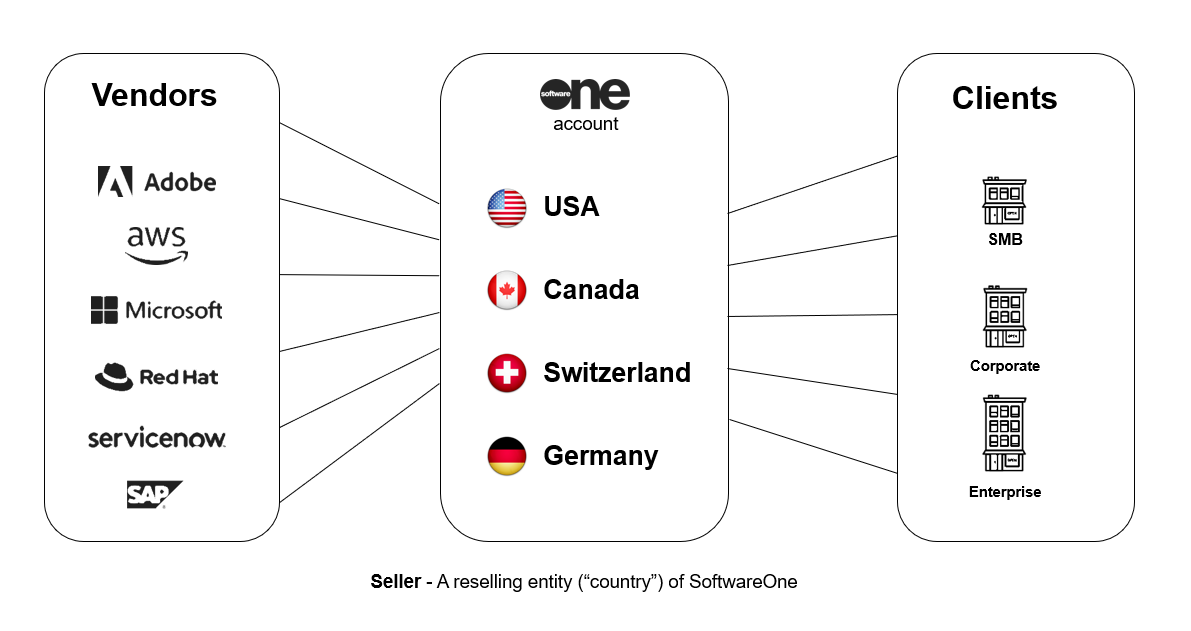
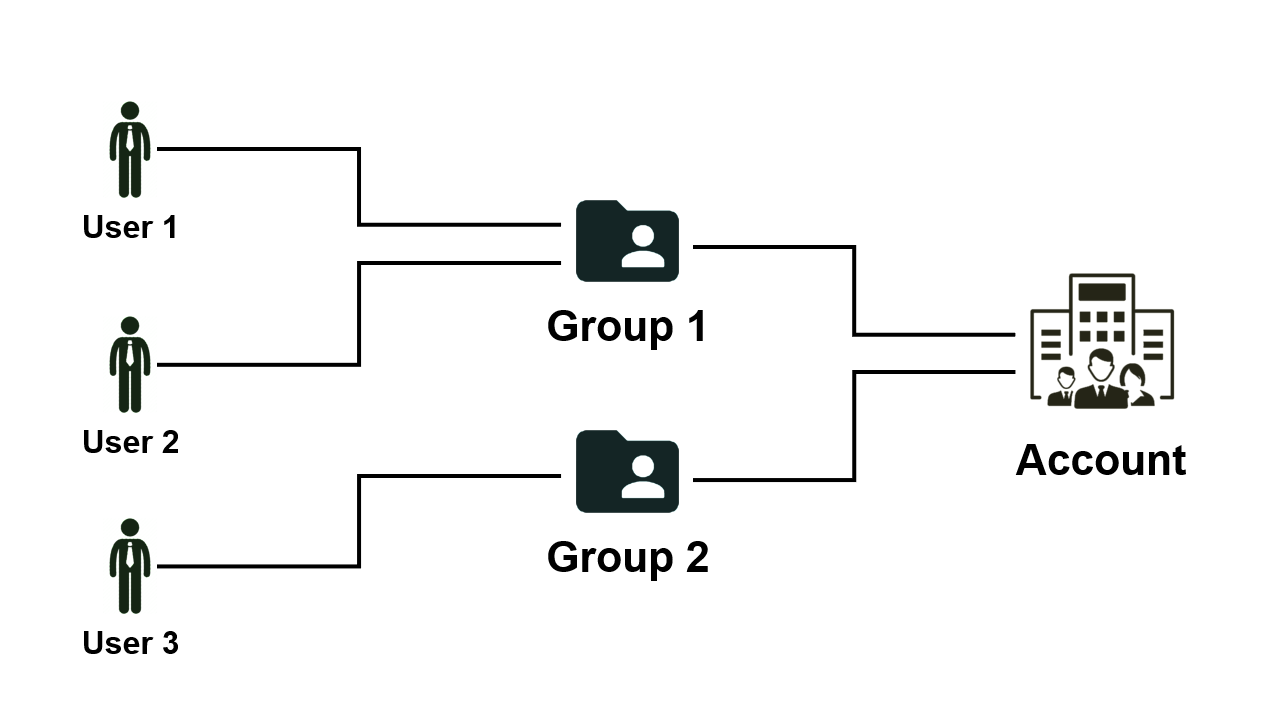
In the Filters box, select Add another condition, then define the conditions as follows:
Select Status.
Set the condition to Equal.
Choose one of these conditions as needed: Overdue, Issued, or Paid.
Close the filter box. All invoices matching your specified status are displayed in the table.
To view invoices based on due date:
Open the Invoices page.
Select the Filter option.
In the Filters box, select Add another condition, then define the conditions as follows:
Select Due date.
Set the condition to Greater, Is null, or Lesser to narrow down the invoices.
Use Greater to include invoices with a due date after the specified date.
Use Lesser to include invoices with a due date before the specified date.
Enter the date in the DD/MM/YYYY format, or select the calendar icon to choose a date.
Close the filter box. All invoices matching your specified criteria are displayed.
Select the agreement you want to update.
On the agreement details page, select Buy more.
Add the new items
In the guided Purchase flow, complete the following steps:
Select Add items.
Choose the items you want to order. Make sure to check the billing terms and duration. Select Add items.
In the New Qty field, update the quantity of licenses.
Select Next.
Review and submit the order
Add or update the reference ID and your comments. Select Next.
Verify the order information, then select Place order.
Select View details to open the order details page or select Close.
After you place the order, a change order is created for the agreement and sent to the vendor for fulfillment.
The agreement status also changes from Active to Updating. While the agreement is updating, you cannot place more orders under that agreement.
You can track the order on the Orders page or in the Orders tab on the agreement details page.
Select the statement ID.
On the statement details page, select the Attachments tab, then do one of the following:
Select the link in the Reference column.
Select the actions icon (•••) and choose Download.
If you can't access your account, you can still download your statement from the Billing Statement Download page. This page is publicly available, allowing you to download your statement using your unique invoice ID and statement ID.
To download your statement:
Open your invoice. Then, note down the statement ID and invoice ID.
Go to the Billing Statement Download page.
Enter your Invoice ID and Statement ID exactly as shown on the invoice, then select Download Billing Statement.
When the download is ready, select Download Now.
After downloading the file, you can view detailed charges, subscriptions, and orders placed during the billing period.
Browse the list of products.
Select a product to open its details page.
The product details page provides additional information about the selected product, including associated items, pricing, and purchasing options.
Depending on the product configuration, additional resources or related information may also be available.
To start a purchase, open a product details page and select Buy now. The purchase wizard guides you through the ordering process, including:
Agreement selection
Licensee information
Item selection
Order review
The available ordering steps may vary depending on the vendor and product configuration.


Mute or unmute notifications for a chat.
You can turn off notifications for a specific chat by muting it.
Muted chats are indicated by a notifications off icon in your chat list. Once you've muted a chat, you'll continue to receive messages, but you won't receive notifications.
You can also unmute a previously muted chat if you change your mind.
To mute a chat:
On the Chats page, open the desired chat conversation.
Select the actions icon (•••) in the right pane, then select Mute.
In the Mute notifications confirmation, select Mute. You'll no longer receive any alerts for new messages.
To unmute a chat:
Go to the desired chat, then select the actions icon (•••).
Select Unmute.
In the Unmute notifications confirmation, select Unmute. The chat is unmuted, and you start receiving alerts again.
Access and download your Marketplace invoice PDFs.
You can open invoice details from Billing > Invoices or from an agreement's Invoices tab.
From the invoice details page, you can review invoice information and download the invoice PDF.
To download an invoice PDF:
Go to Billing > Invoices.
(Optional) Use filters to find the invoice you want. For details, see Find specific invoices using filters.
Select an invoice ID to open the invoice details page.
Select the Attachments tab.
Under Actions, select Download. The invoice downloads as a PDF file.
The invoice details page shows the main invoice information in separate tabs.
To open invoice details:
Go to Billing > Invoices.
(Optional) Use filters to find the invoice you want.
Select an invoice ID. Use these tabs to review the invoice:
You can also open invoices directly from an agreement.
Open the agreement details page.
Select the Invoices tab.
Select an invoice ID to open the invoice details page.
From there, you can review the invoice tabs or download the PDF from Attachments.
For help reading invoice fields and charges, see .
Split billing when ordering additional licenses.
In the Marketplace Platform, change orders are created when you add more licenses to your subscription and submit the order.
If split billing is active for the agreement under which you are ordering additional licenses, you can select buyers and assign billing to those buyers when placing the order.
To split billing when ordering additional licenses using an existing agreement:
Navigate to the Subscriptions page. Then, select the desired subscription.
On the subscription details page, select Edit. Ensure that split billing is activated for the agreement and that buyers are configured.
Under New Qty, enter the new quantity, then select Next.
In the Split billing step, select the buyer to whom you want to allocate billing.
Select a buyer from the list to allocate billing according to the percentage you have set for the buyer.
Choose None to allocate billing based on the configured split percentages for this subscription.
Enter reference information as necessary, then select Next.
Review the information on each tab, then select Place order to submit your order.
Select View Order to navigate to the order details page. Otherwise, select Close.

Review billing statements and open statement details.
Use the Statements page to review all billing statements for your account. Select a statement ID to open its details.
To view your statements:
Go to Billing > Statements.
Review the list of statements.
View your SoftwareOne account team members in the platform.
The Account team page displays the SoftwareOne account team responsible for managing and supporting your account.
To view your SoftwareOne account team, select Helpdesk > Account team from the main menu.
This page shows the names of individual team members and enables you to start a chat conversation with them. You can also send an email or contact them by phone, based on their preferred communication methods.
Contact your account team, manage support cases, and share product feedback.
Use Helpdesk to contact your account team, create and track cases, and share feedback about the Marketplace.


Audit trail
Shows the invoice activity history. For details, see .
Entities
Shows extended information for records linked to the invoice.
Attachments
Shows downloadable invoice files, including the PDF.
Details

Shows reference fields, additional IDs, and timestamps.
The statement details page shows more information for a specific statement. Some fields are read-only. Some fields include links to related records.
To view statement details:
Go to Billing > Statements.
(Optional) Use filters to find the statement you want. For details, see Filter statements.
Select a statement ID to open the statement details page.
Use these tabs on the statement details page:
Charges
Shows the charges and subscriptions for the billing period.
Attachments
Shows the statement files you can open or download. For details, see .
Details
The Charges tab shows the individual charges for the billing period. These charges are used to calculate the statement total and invoice.
You can also review the same charge data in the downloaded Excel statement. For details, see Download statements.
To review charges on a statement:
Open the statement details page.
Select the Charges tab.
Review the individual charges and related subscriptions.
To open more information for a charge, select View details in the Actions column.


Learn how to get started as a partner using the Marketplace Platform.
To get started as a partner, you must have an account on the Marketplace Platform. This account must be set up as a partner account.
While partner accounts have the same features and functionalities as client accounts, they also provide additional features to help you procure for your end customers and transact successfully on the Marketplace.
Once you have signed in to your account, you can get started in various ways, depending on the actions you want to take. Use the following table as a guide to access the most important topics:
Use these additional resources to learn more about the platform:
Access files related to your agreement.
The Attachments tab within the agreement details page shows all files associated with your agreement.
These files can include invoice PDFs, Excel files, license keys, or any other file added by SoftwareOne or the vendor. This topic describes how you can view and download these files.
To view or download agreement files:
Go to Marketplace > Agreements.
Select the required agreement.
On the agreement details page, select the Attachments tab.
Select the file name in the Reference column to download it to your system.
Enroll in the SoftwareOne CSP partner program.
The SoftwareOne CSP Partner Program is for SoftwareOne partners to ensure compliance with our established terms and conditions.
All SoftwareOne partners must enroll in this program to obtain a compliance certificate. This enrollment is required to order products for resale. To learn more about this program, see Partner programs.
Make sure your account has been set up as a partner account. For details, see How to verify if your account has partner capabilities.
Open the SWO CSP Partner Program details page
To open the details page:
Go to Program > Programs.
Select SWO CSP Partner Program.
Start the Add Certificate wizard
To start the wizard:
On the program details page, select the Certificates tab.
Select Add.
Complete the enrollment
Certificant – Choose the buyer you want to enroll, then select Next.
Overview – Review the details, then select Add.
When the enrollment completes, a certificate is created. You can select this certificate when ordering CSP products and services.
Start a conversation with another user or a member of your SoftwareOne account team.
A direct chat allows you to message any user in your account. You can also use it to reach a member of your SoftwareOne account team.
When sending a message, you can format it using options, such as bold, italics, and underline. You can also use styles and lists to organize your message and add links or images. Additionally, you can use rich text formatting or switch to source code (HTML editor).
To start a direct chat:
Go to the Chats page.
Do one of the following:
Learn about cases and how to manage them in the SoftwareOne Marketplace.
A case is a support request or inquiry created when you need more information or help with an issue. Cases allow you to communicate with SoftwareOne and track the progress of your request.
Each case includes important details, such as the case ID, reporter, assignee, status, and the conversation between you and the assignee or individual handling your case. As the issue is reviewed, the case status is updated so you can monitor its progress.
In the SoftwareOne Marketplace, each case includes a conversation thread, also called case chat, that lets you communicate with the assignee handling your case.
You can view and track your cases through the Cases page. From this page, you can also add a case using the Add option.
To open the page, choose Helpdesk > Cases from the main menu.
On the Cases page, you can use the Actions

Familiarize yourself with the key concepts and terminology.
Learn how to navigate the platform and use features like data grids, object spotlight, account switcher, and more.
Understand the key points to establish a GDAP or a partner relationship request with SoftwareOne.
Enroll in the SoftwareOne CSP Partner Program (mandatory for ordering products for resale).
Order products for resale to your end customers by creating a new agreement.
Order additional items using an existing agreement.
Find answers to commonly asked questions.

Shows reference fields, additional IDs, and timestamps.
Audit trail
Shows the statement activity history. For details, see Audit trail.

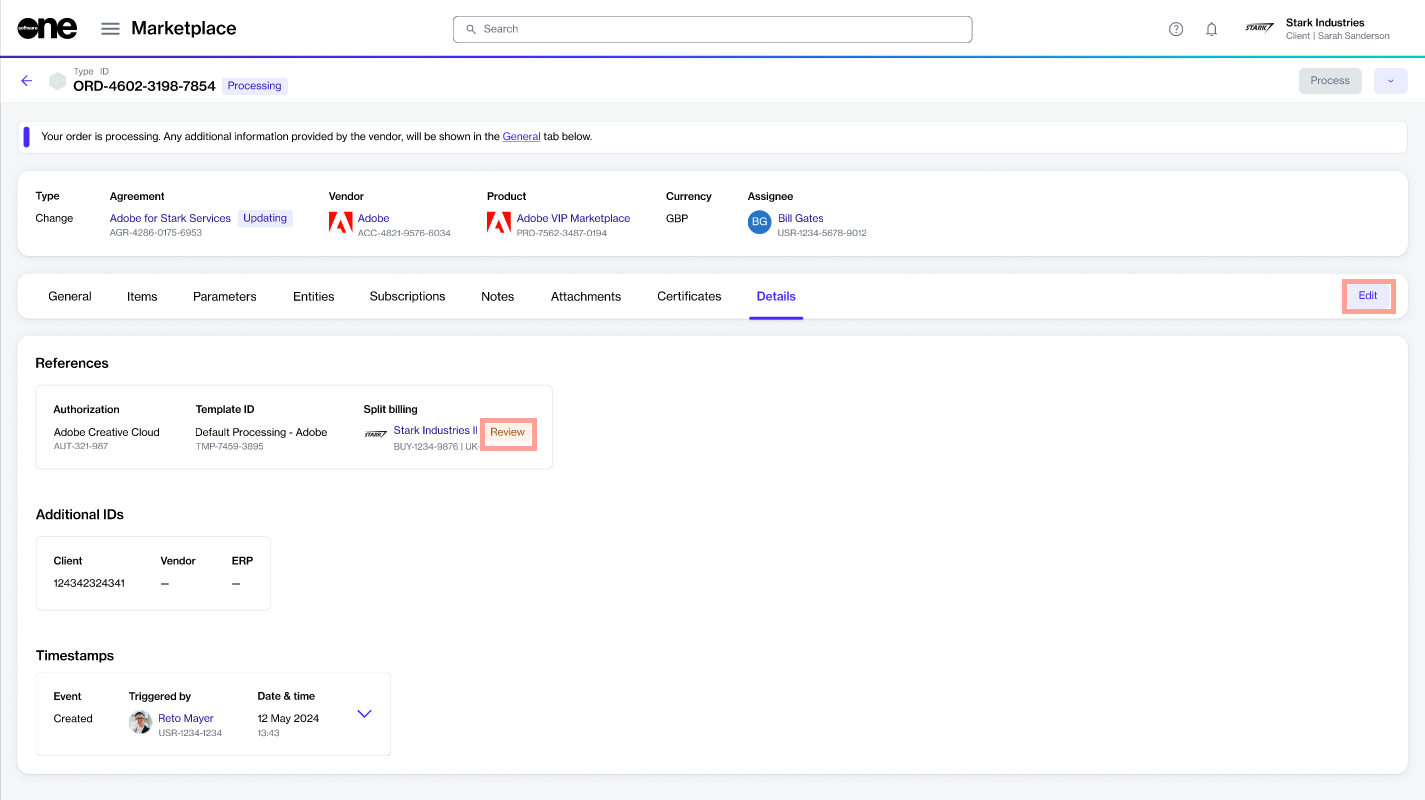

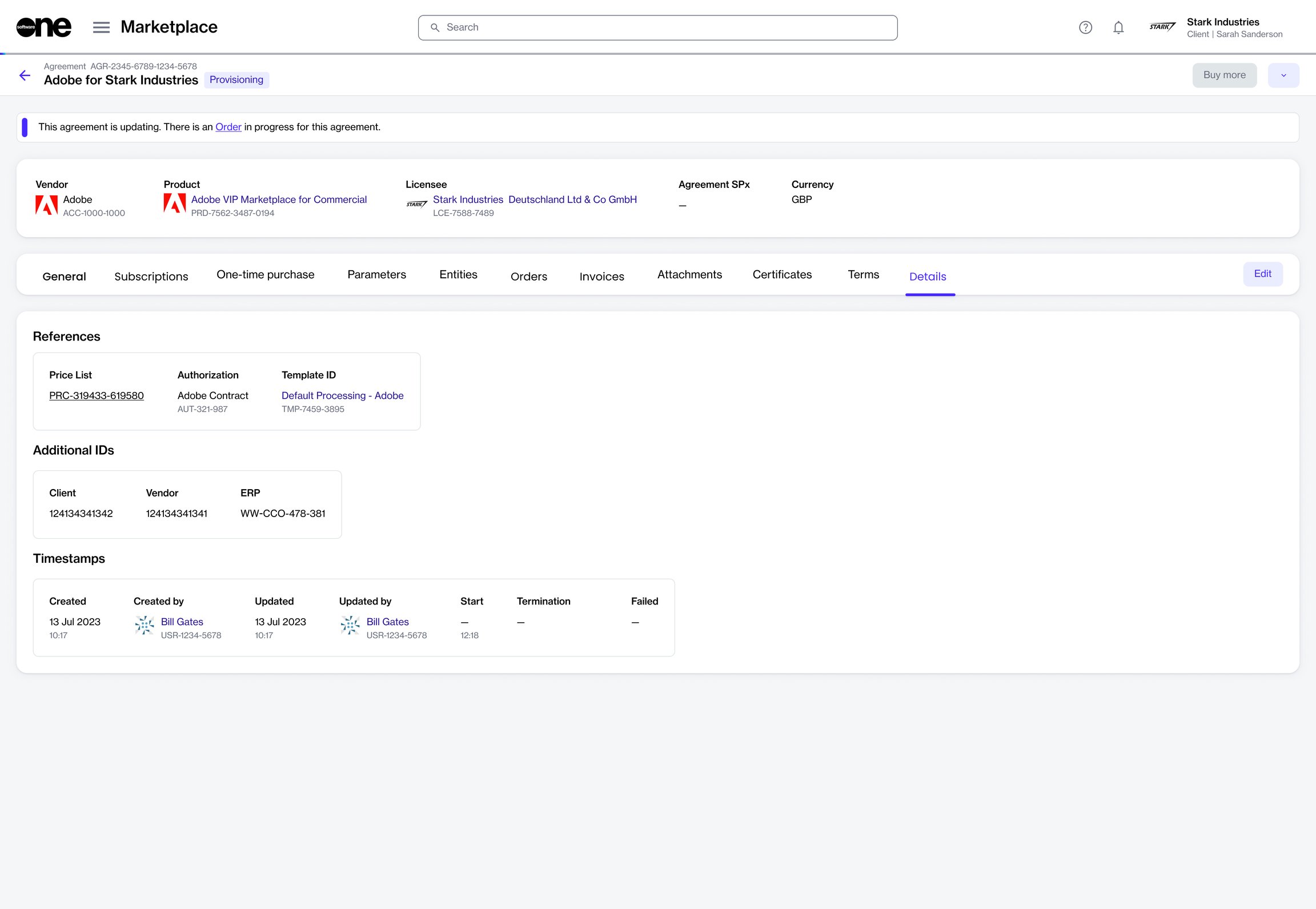
Select New chat, then choose Chat.
In the left sidebar, select, then choose Chat.
In Add chat, select the person you want to chat with, then select Add.
Type your message in the chat message field.
Select Send.
You can send a message to a member of the SoftwareOne account team only if they have enabled the chat option. If chat is not enabled, messaging is unavailable.
To start a chat:
Do one of the following:
On the Home page, look for the Account team widget. Then, select the chat icon for the person you want to chat with.
Go to Helpdesk > Account team. Then, under Actions, select Chat.
In the open chat window, type your message in the text field.
Select Send.
Create a licensee for resale ordering and link it to the right buyer and seller.
This tutorial describes how SoftwareOne partners can set up resale licensees.
You must mark a licensee for resale if you want to order products for resale instead of your own consumption.
Before you start, make sure you have account administrator permissions. Only admins can create new licensees.
Start the Add Licensee wizard
Go to Settings > Licensees.
Select Add.
Enter the licensee details
Complete the following steps, making sure to enter or verify the required information where necessary:
General – Enter the licensee details, then select Next:
Logo – Upload a logo or drag it into the field.
Review and create the licensee
Overview – Review the details, then select Add.
Summary – Select View details to open the licensee details page, or select Close.
After you create the licensee, you can order products for resale through the Products page. For details, see .
Manage buyers and adjust their allocation percentages.
If you need to update the list of buyers and adjust their allocation percentages after setting up split billing, you can easily do so through the interface.
After you've set up split billing, you can add new buyers and remove existing buyers as needed using the Edit option on the Split billing tab of your agreement.
When removing buyers, only those without an allocation percentage can be removed. This means you'll need to assign the allocation percentage to another buyer before removing them from split billing.
If an allocation exists for the buyers you wish to remove, the buyer checkbox is unavailable, as shown in the following image:
If you need to make any modifications to the allocation percentage for any of the buyers, you can edit the split billing details at any time.
Follow these steps to edit the allocation percentage for a buyer:
Open the details page of the required subscription.
On the Split billing tab, click Edit.
In the Edit split billing dialog, make the necessary changes to the allocation percentage or license count. Make sure that 100% is allocated across buyers.
Save your changes. The Split billing tab displays the updated allocation details. Note that the changes only take effect in your next billing cycle.
Browse individual items in the Marketplace.
An item is an individual stock-keeping unit (SKU) within a product. Each item has its own specific name, billing model, commitment term, and billing period.
A product can contain one or more items. For example, a Microsoft 365 product may include multiple subscription options with different billing and commitment terms.
To view all items in the catalog:
Go to Catalog > Items.
Browse the list of purchasable items.
Use filters and column customization options to refine the list and display the information most relevant to you.
To view additional information, select an item name from the list.
The item details page includes a full item description, associated pricing information, related product information.
Items cannot be ordered individually from the Items page.
To order an item, start a purchase order or change order workflow. During the item selection step, available items are displayed so you can add them to your order.
Specify purchase order numbers for additional buyers configured for split billing.
In the Marketplace Platform, you can enter additional IDs or purchase order (PO) numbers when ordering a new subscription or adjusting license quantities. Once you've provided the number, it appears on your invoice. For information, see How can I enter a purchase order number.
Within the marketplace, the PO number is also displayed as Client ID on the Details tab of the agreement:
When split billing is activated for the agreement and more buyers are added, the platform assigns the specified client ID to the Owner buyer. By default, no ID is assigned to the additional split billing buyers.
If you want to assign IDs to additional buyers in your agreement, follow these steps:
Open the required agreement. Make sure that split billing is activated and buyers are configured.
On the agreement details page, select the Split billing tab. The buyers you've configured for the agreement are displayed.
Select the actions icon (•••) for the desired buyer and select Client ID.
In the Edit dialog, enter the new ID or purchase order number and click Save.
The value is then updated and displayed as Client ID on the Split billing tab. This same value is also included on the buyer's invoice in your next billing cycle.
If you are specifying a client ID for more buyers in the agreement, repeat the same steps for each buyer. You can also use the same steps to update the ID, including the client ID for the Owner buyer.
Chat with users within your account or your SoftwareOne account team.
Chat lets you start a conversation with other users in your Marketplace account and your SoftwareOne account team.
It is available when the Helpdesk module is enabled for your account. The following chat types are supported:
Direct chat – Represents a one-to-one conversation with another user.
Group chat – Represents a conversation with multiple users.
Case chat – Represents a chat that is created automatically for a support case.
Chat conversations are limited to active users within the same account. External users or users who are not part of an account cannot be added to a conversation. All chats stay saved, so you can return to them at any time.
This topic describes how to view your agreements, as well as details about a specific agreement in the Marketplace.
To view your agreements:
Go to Marketplace > Agreements.
View the list of all agreements displayed on the page.
Check key details, such as the agreement name, related product, agreement status, estimated sales price, and more.
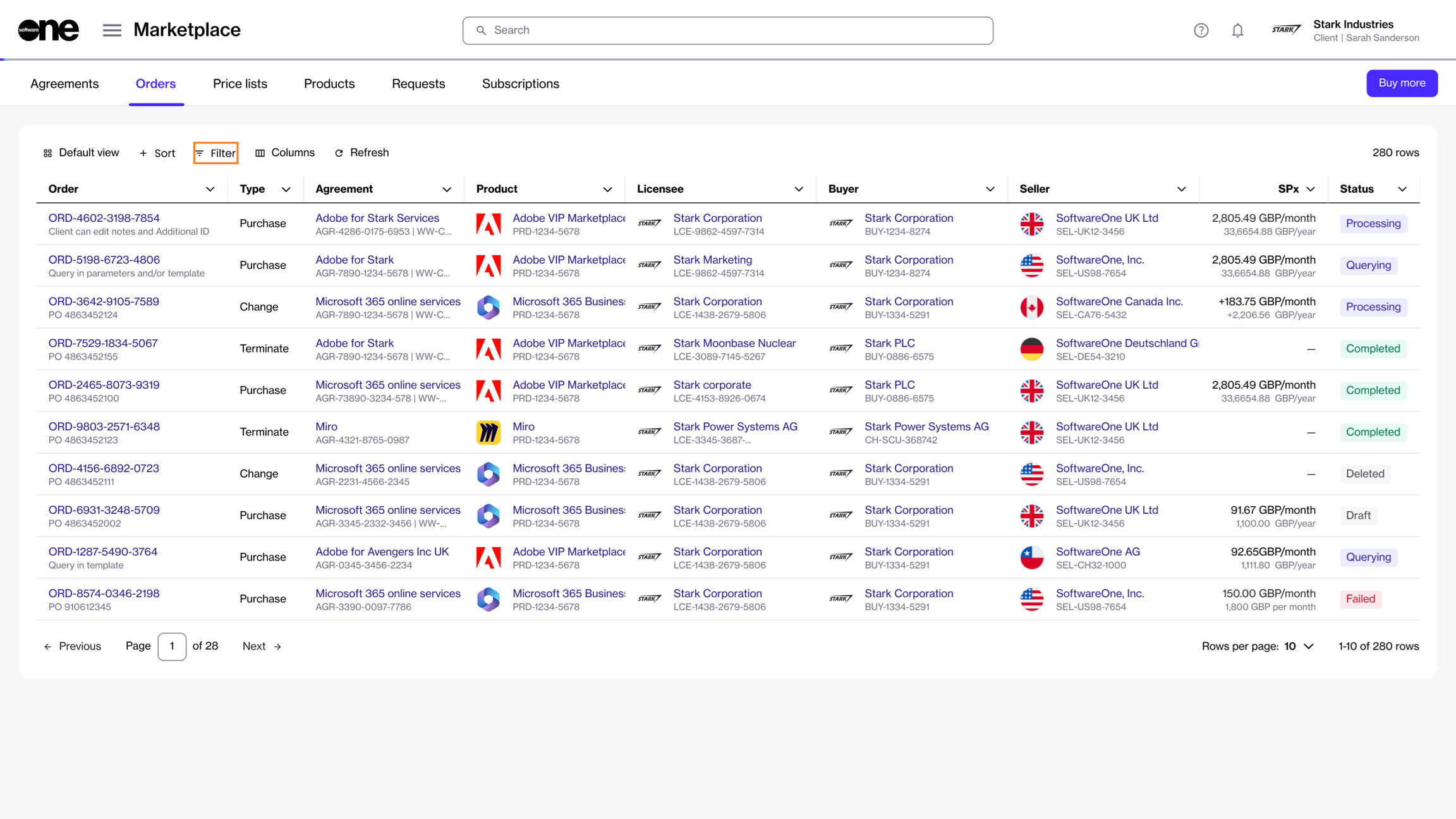
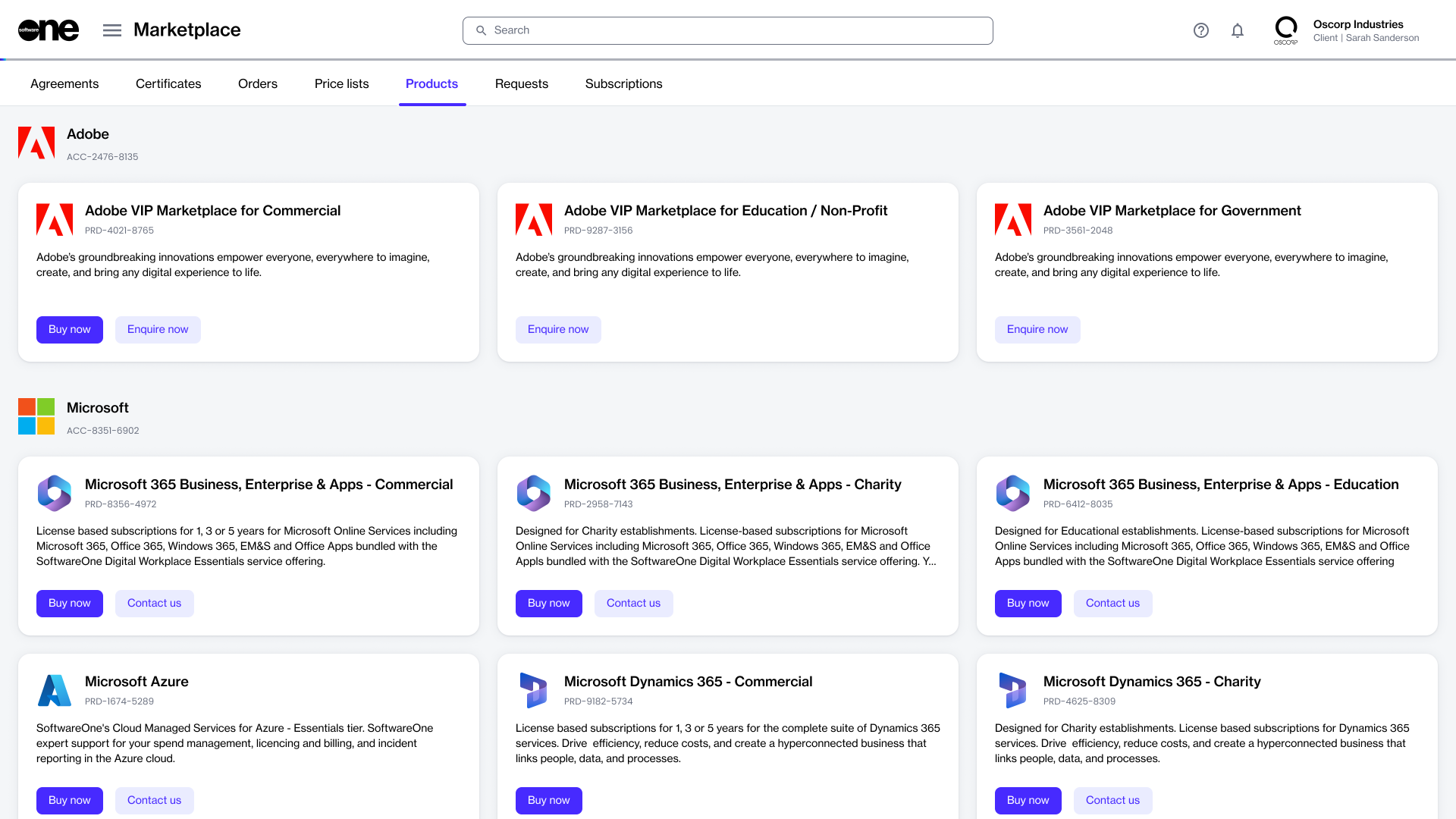
Licensee name – Enter a name for the licensee. This can be your company name, department name, or username.
Resale licensee – Select this checkbox to use the licensee for resale ordering.
External reference – Enter your internal reference or identifier for the licensee.
Licensee description – Add a short description.
Buyers – Select the buyer to link to the licensee, then select Next. A licensee can link to one buyer only.
Sellers – Select the seller to order from, then select Next.
Address – Use the same address as the buyer or enter a new one, then select Next.


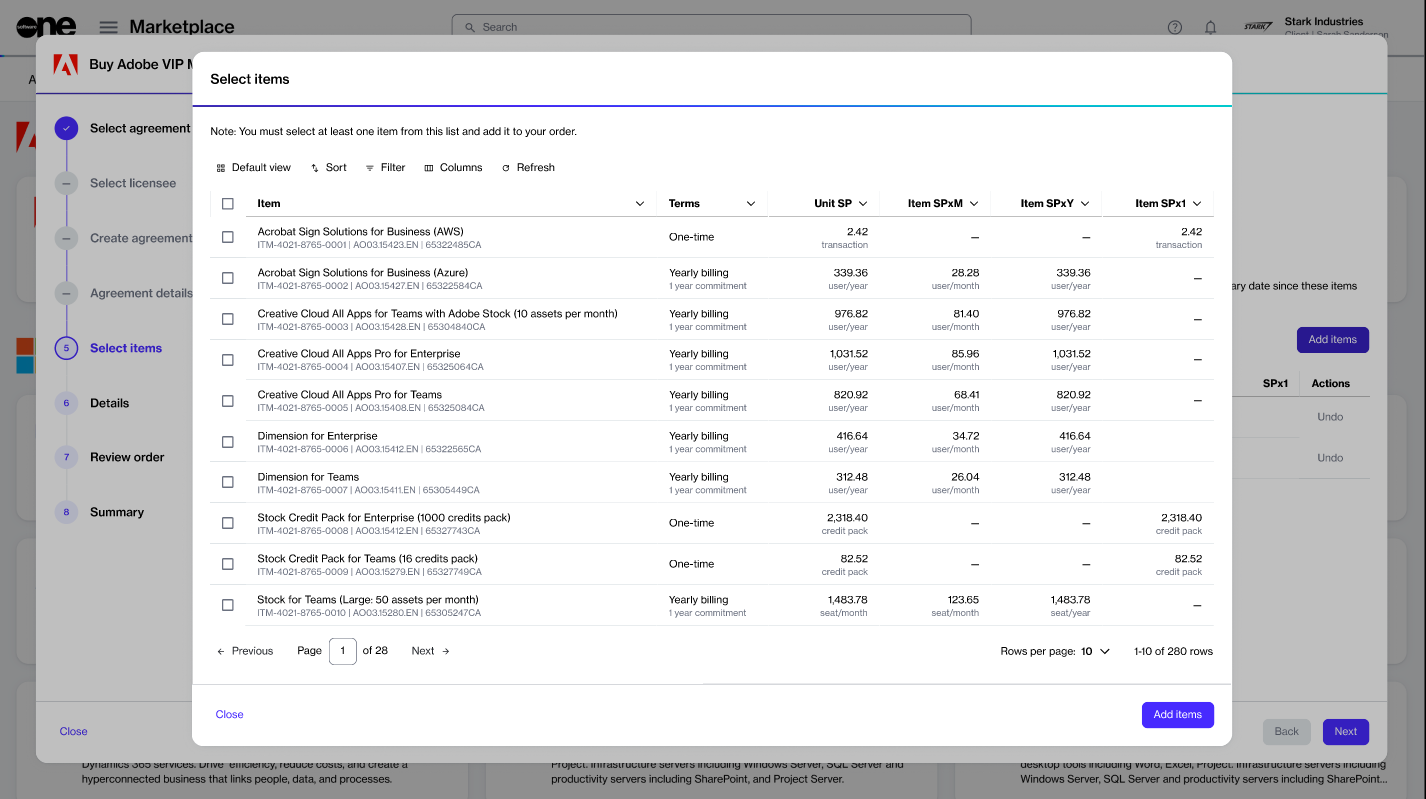
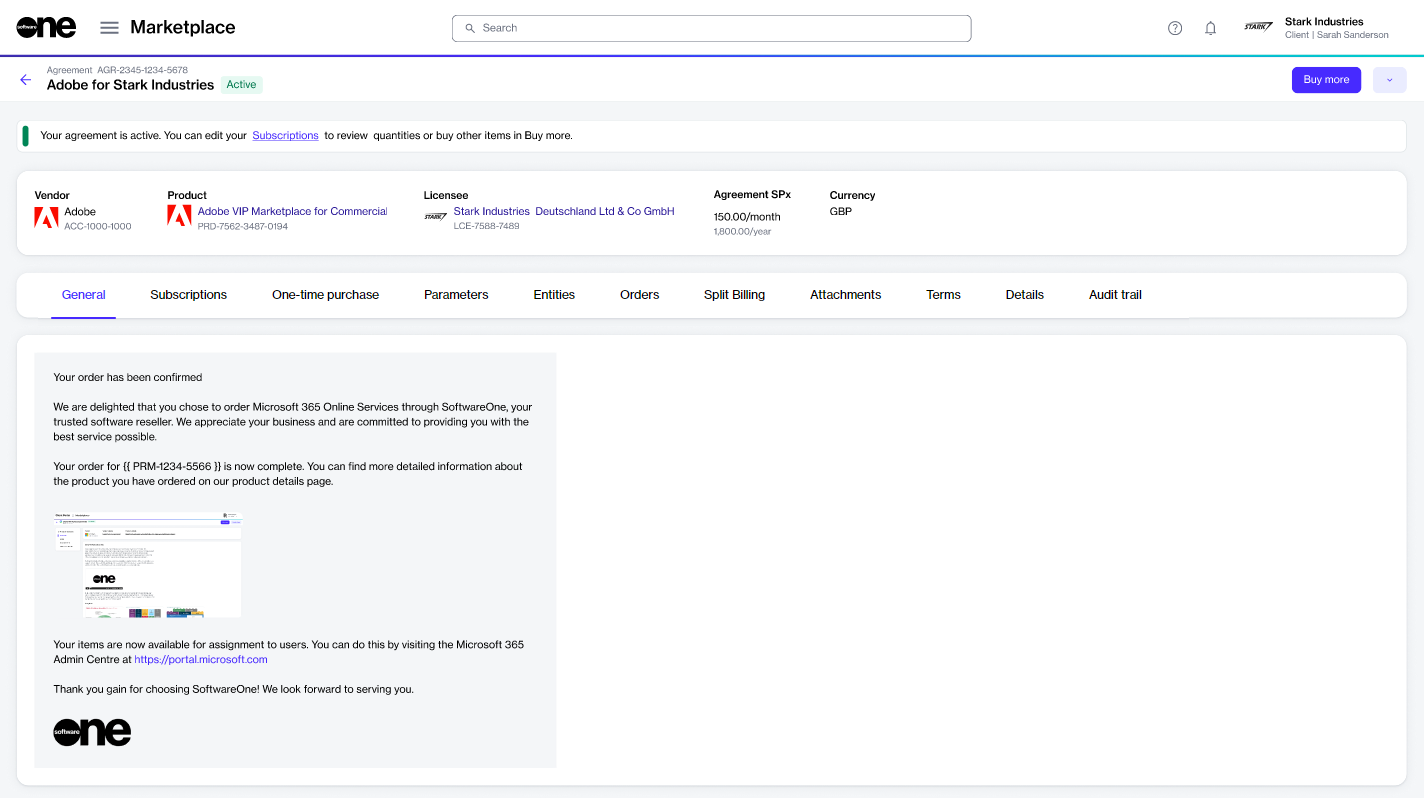

On the agreement details page, you can view detailed information for the agreement. Some information is read-only, while others include links that allow you to navigate to further details.
To view agreement details:
Go to Marketplace > Agreements.
Select the agreement you want to view. The agreement details page opens.
Use the tabs to view different types of information:
General
Shows the most up-to-date information for the agreement.
Subscriptions
Shows all subscriptions that exist within the agreement and the details of those subscriptions.
Assets
Share your ideas and feedback with SoftwareOne.
The Feedback page lets you share comments, suggestions, and ideas for improving SoftwareOne Marketplace.
Your feedback helps us improve the platform. We welcome all feedback about your experience, including both positive and negative experiences.
You can provide feedback by selecting the help icon in the header or through the Feedback page.
To submit feedback using the help icon, select , then choose Share Feedback.
To submit feedback from the Feedback page, go to Helpdesk > Feedback, then select Share Feedback.
When submitting feedback, you can add your comments, attach files, and rate your experience. For guidance on what information to include, see .
You can view your support cases on the Cases page, including cases that are processing, querying, or completed.
To view your cases:
Go to Helpdesk > Cases.
Review the list of all cases.
The list includes key information such as the case ID, reporter, assignee, creation date, and current status.

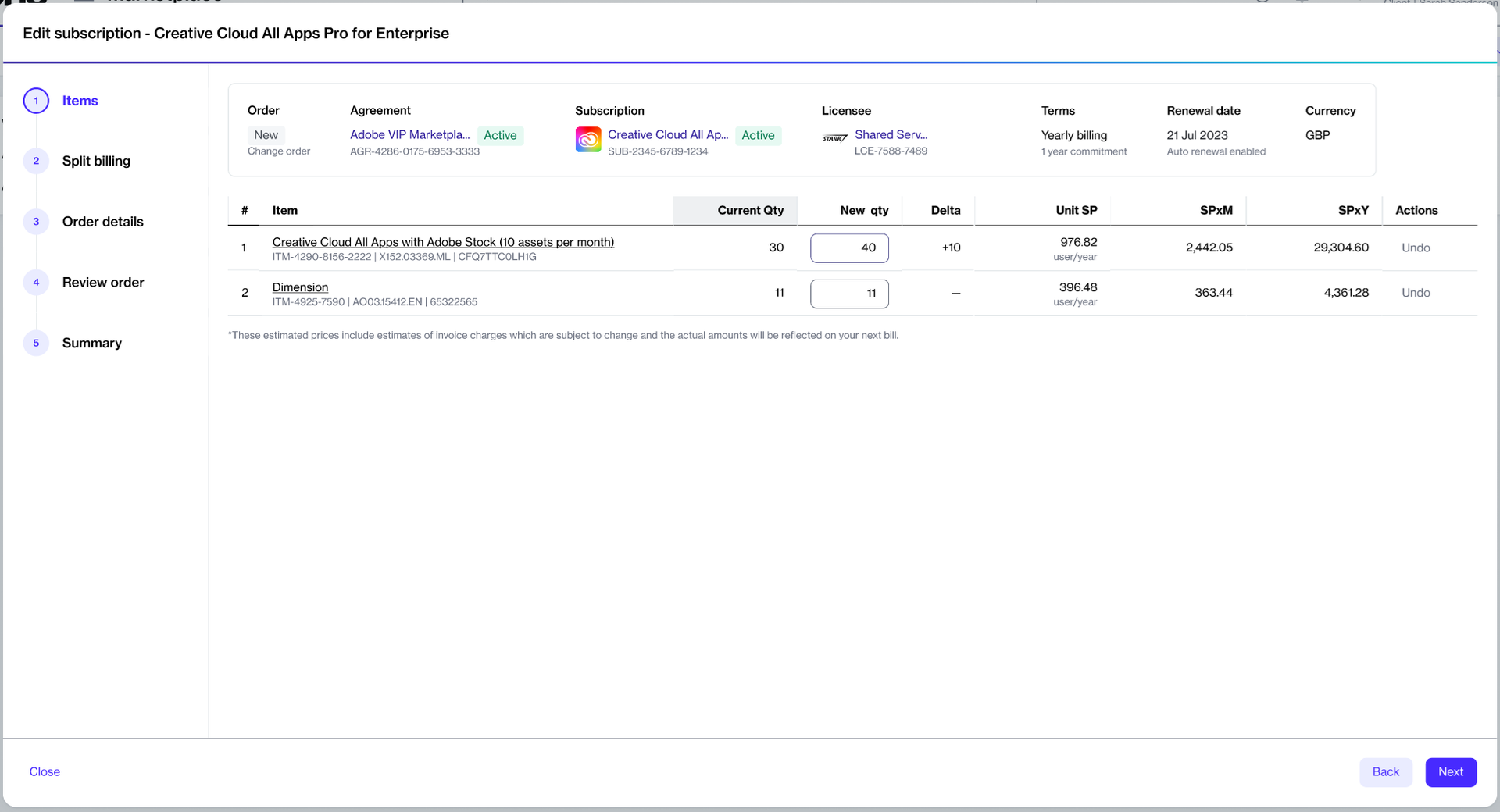
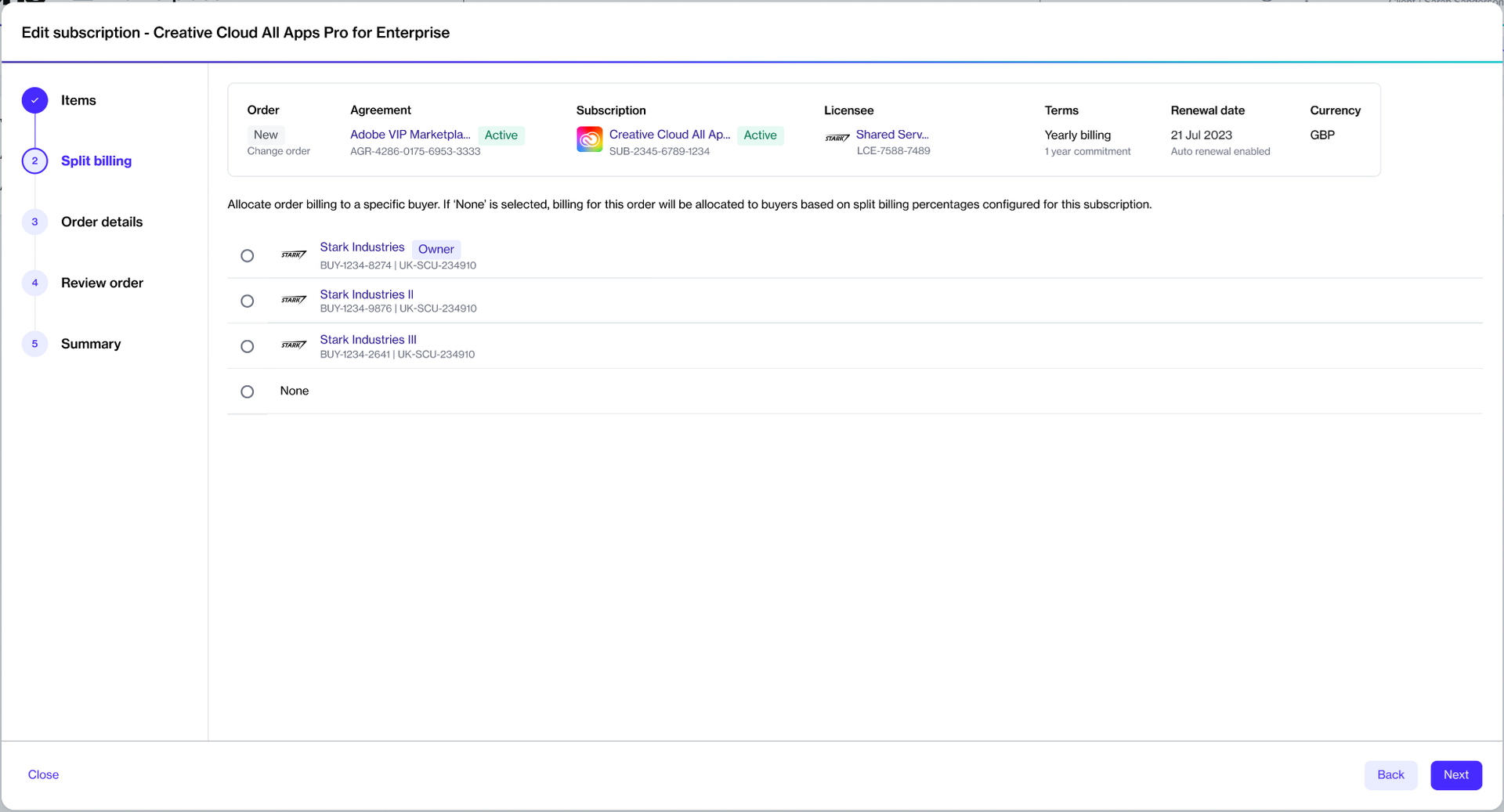
You can do this from the Helpdesk > Cases page, or directly from the Chats page.
To open case details from the Cases page:
Go to Helpdesk > Cases.
(Optional) Use the Filter option to locate the desired case.
Select the case ID to open the case details.
To open case details from the Chats page:
Go to Chats.
(Optional) Use the Filter option in the chat list to filter support cases.
Select a case to open the case details.
Shows your one-time purchases. One-time purchase items are non-subscription items where you own the license indefinitely.
Entitlements
Shows your purchased items along with their details, including quantity, pricing, status, and more.
Parameters
Shows the ordering and fulfillment parameters.
Entities
Shows the entities linked to the agreement, including licensees, buyers, and sellers.
Orders
Shows all orders within the agreement. Select an order to view the order details page.
Split billing
Shows buyers configured for split billing, if enabled. For details, see .
Attachments
Shows all files attached to the agreement.
Terms
Shows the terms associated with the agreement, and displays when they were accepted and by whom.
Details
Shows reference details, additional IDs, and timestamps.
Audit trail
Shows the for the agreement.
Find answers to frequently asked questions about invoices and statements.

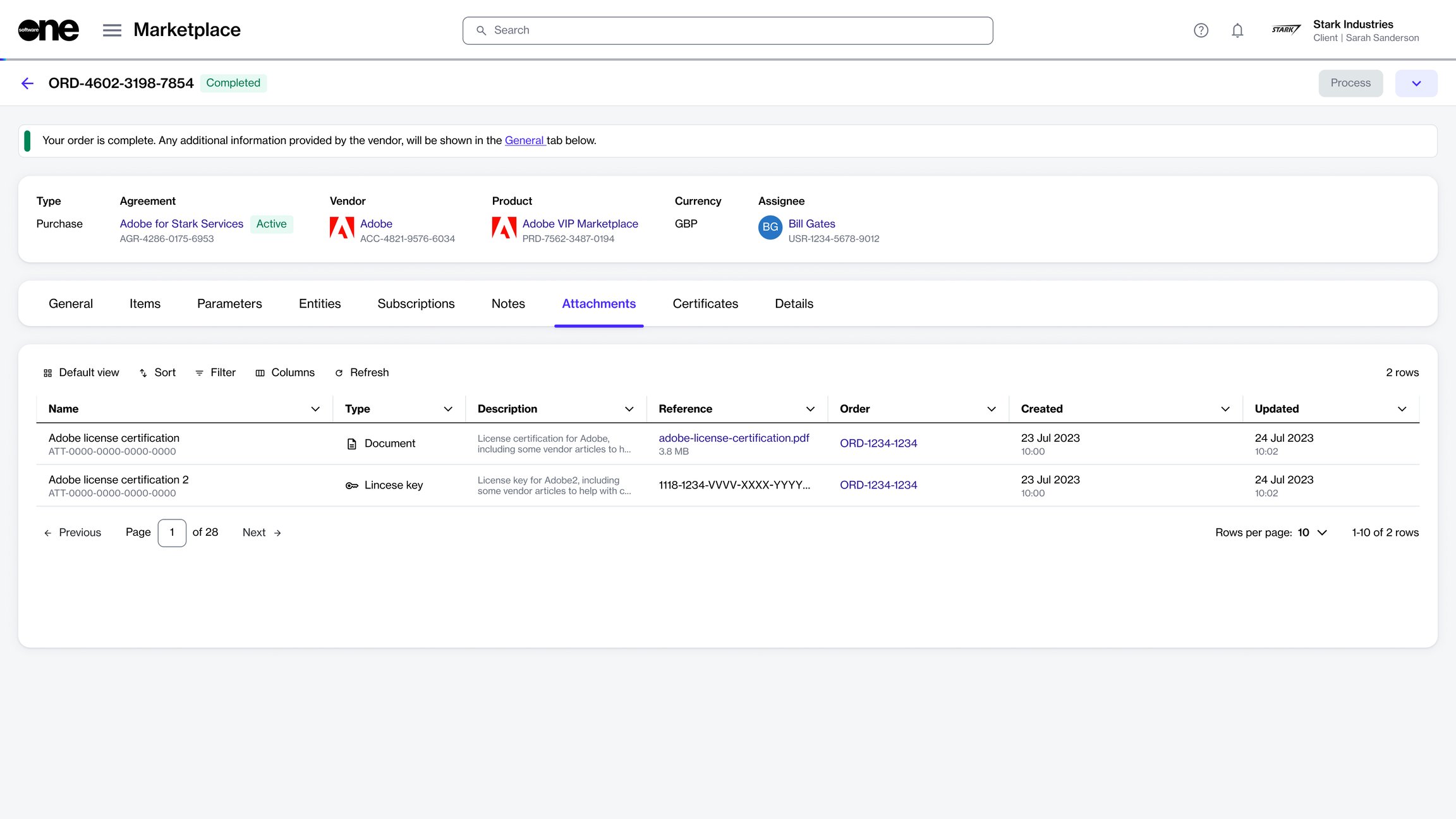
Format
Excel
Level of detail
Contains aggregated lines, such as per item, per subscription, and so on.
Can have hundreds or thousands of lines for precise usage.
Use case
Used as an official billing and record-keeping document.
Used for reconciliation, in-depth audits, and analysis.
Quantity
May displays the quantity as 1 if multiple lines are consolidated.
Each line shows the actual quantity of items.
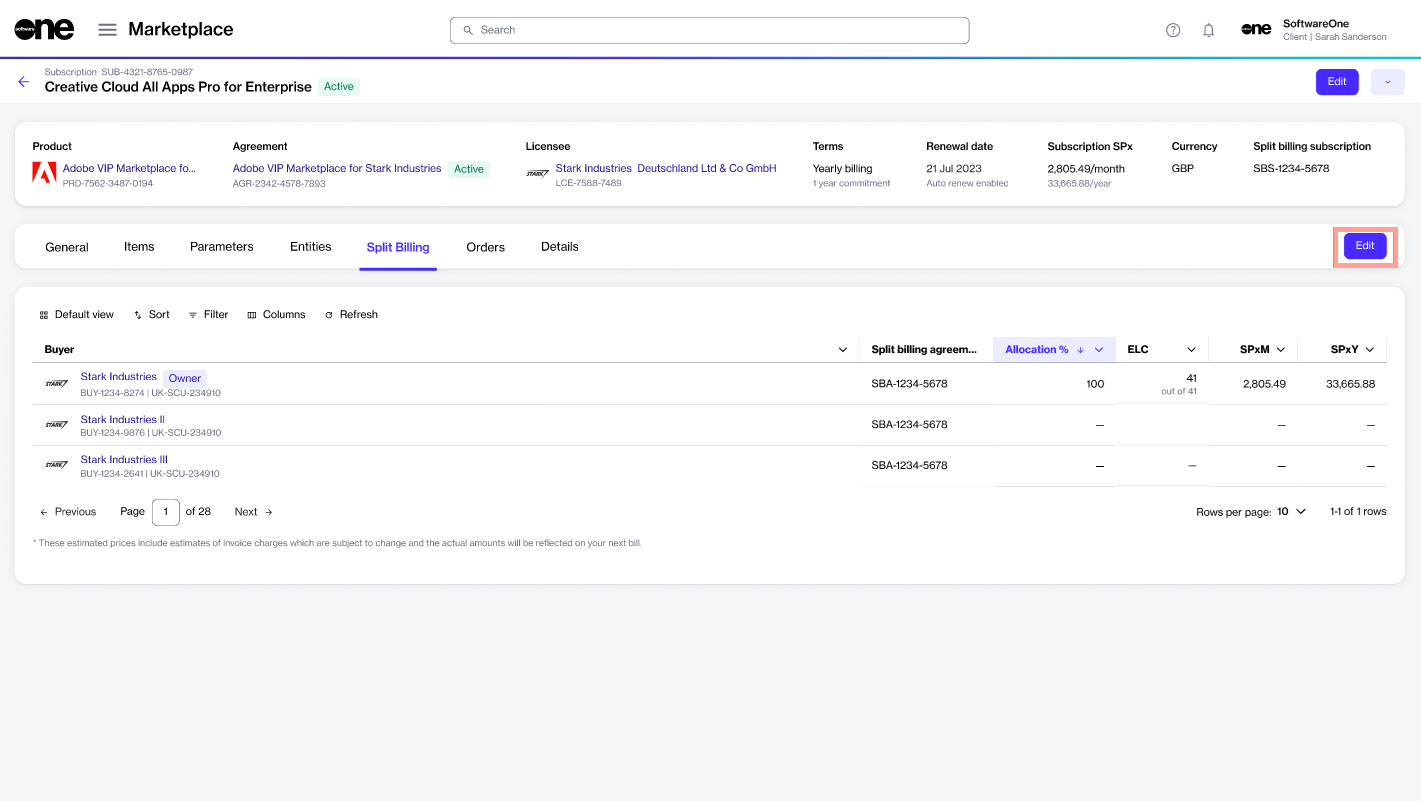
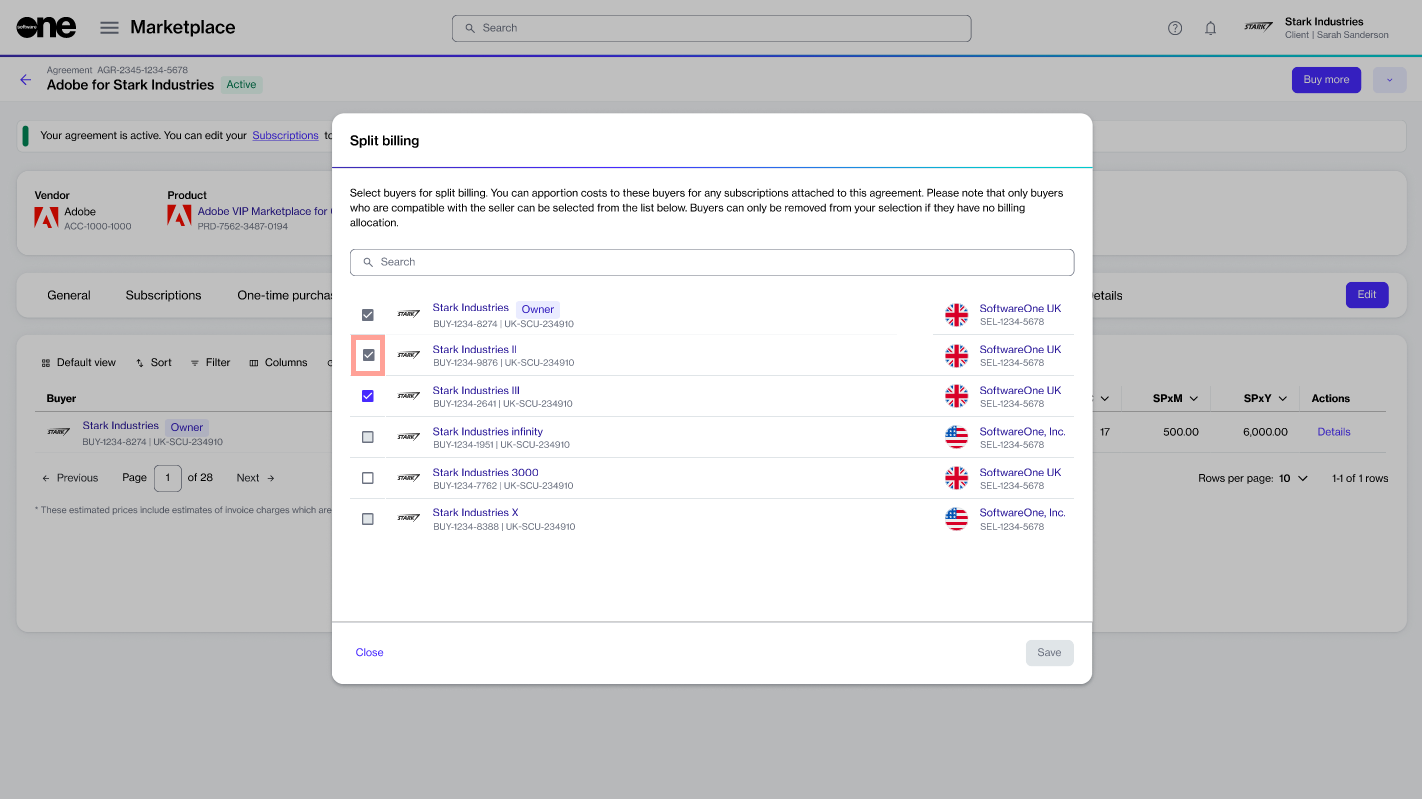
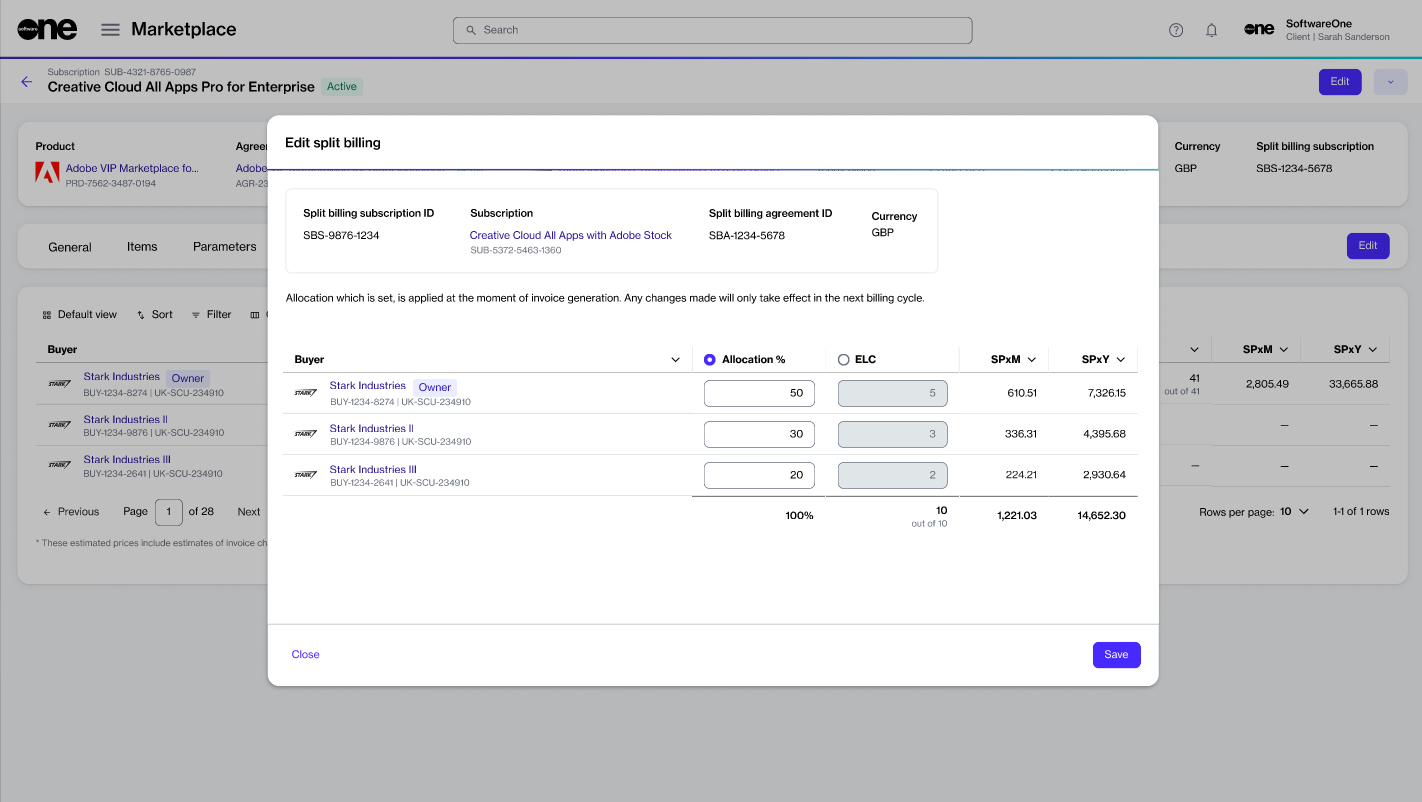
Order software products for reselling to your end customers.
This tutorial describes how to order Microsoft products for resale from the SoftwareOne Marketplace.
Before starting this tutorial, make sure you have the following:
An active licensee configured for resale. For details on setting up a resale licensee, see How to configure a licensee for resale. Licensee selection is required when setting up a new agreement.
Company details of your client, including the company name, registration ID, and address. These details are required for creating a new Microsoft tenant.
Start the order
To start the order:
Go to Catalog > Products.
Select the desired Microsoft 365 product, for example, Microsoft 365 Business, Enterprise & Apps - Commercial.
On the product details page, review the information, then select Buy now.
Create a new agreement and choose items
To create a new agreement and add items to your order:
Select agreements – Select Create agreement.
Select licensee – Choose a licensee. Ensure that the Resale column shows Yes, then select Next.
Review and submit your order
To review and submit your order:
Details – Provide reference details for the order, then select Next.
Review order – Review the order details, go through the terms and conditions, then select Place order.
After you place the order, we verify the order details and start processing it. You can track the current status in the General tab on the order details page.
Get started with the Marketplace Platform.
Select certificate – Select a certificate. If the certificate you want to use isn't displayed, use Add certificate to add it. When done, select Next.
Create agreement – Choose whether you want to create a new Microsoft tenant or connect an existing cloud account.
Microsoft details – Do the following depending on the selection in the previous step:
For a new cloud account, provide a new domain name, then provide the following details:
Company name.
Company registration ID or tax number.
Company address, including city and zip/postal code.
Contact details of the person managing your account.
For an existing cloud account, enter your existing domain name and your Microsoft account details.
Special qualifications – Select the checkbox if the organization is a state-owned entity. Otherwise, leave it clear. A company is classified as state-owned if it is either controlled by the government or performs functions that the government considers its own.
Support contacts – Enter the contact details of your support administrator and choose your preferred support language. Select Next.
Items – Complete the following steps, then select Next.
Read and understand the attestation: "By clicking Next, I confirm that my organization is acting as an indirect partner when choosing a reseller and as a direct partner in the absence of selecting a reseller".
Select Add items to choose the items you want to order.
Review and adjust the item quantity.
Summary – Review your order summary, then select View details to open the order details page or select Close.
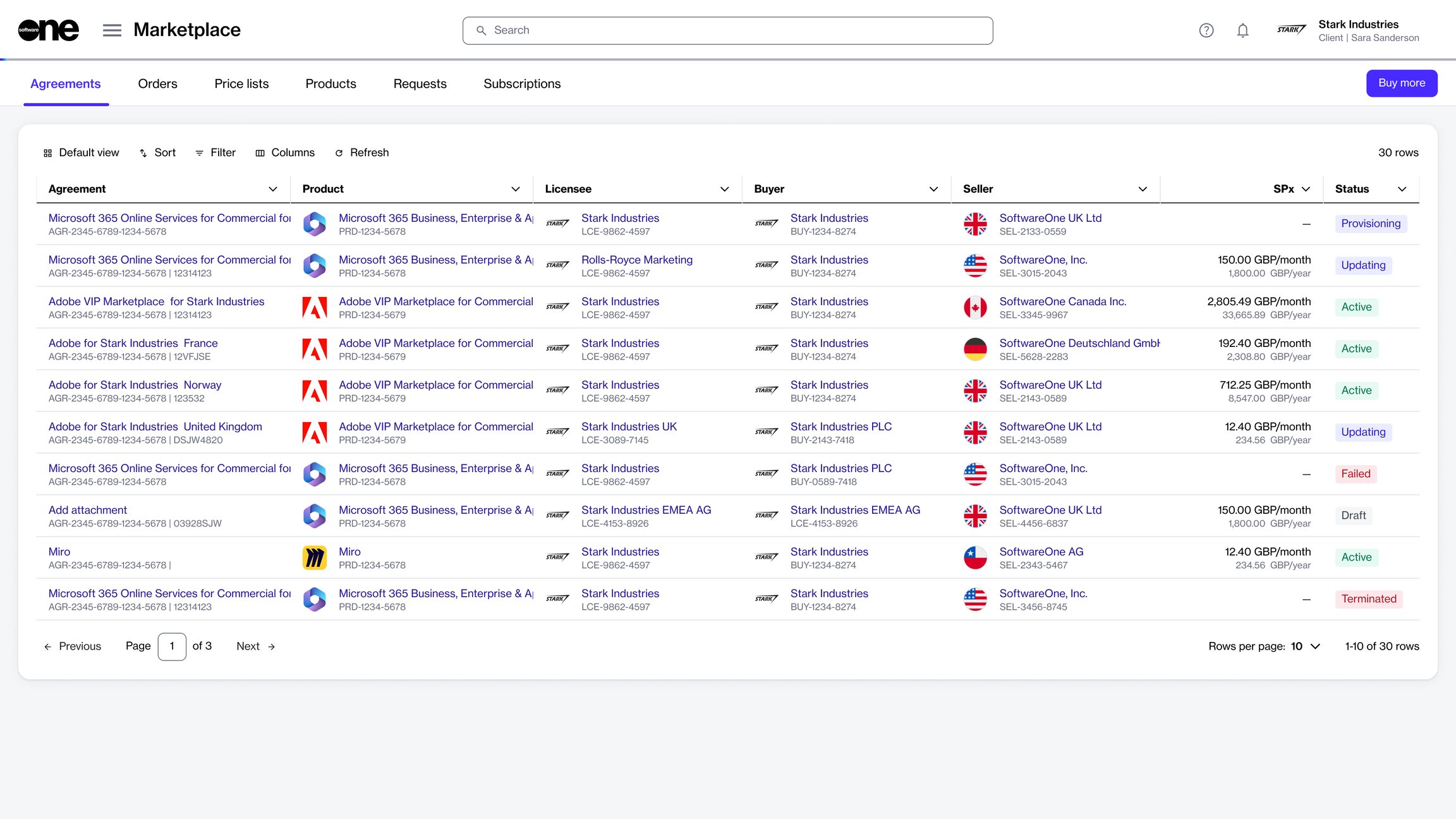
Learn how to sign up for the platform.
Access your Marketplace account.
Explore the layout and navigation.
Update your profile and region settings.
Switch between accounts without signing out.
Adjust columns, apply filters, and sort data.
Adjust your notification preferences.
Save pages and accounts for quick access.
Learn about the different states of a case.
A case represents a request, incident, or inquiry exchanged between reporters and assignees in the Marketplace Platform.
A case can currently exist in these states after it has been created: Processing, Querying, or Completed. The following diagram shows the transitions between these states:
The following table describes the different states:
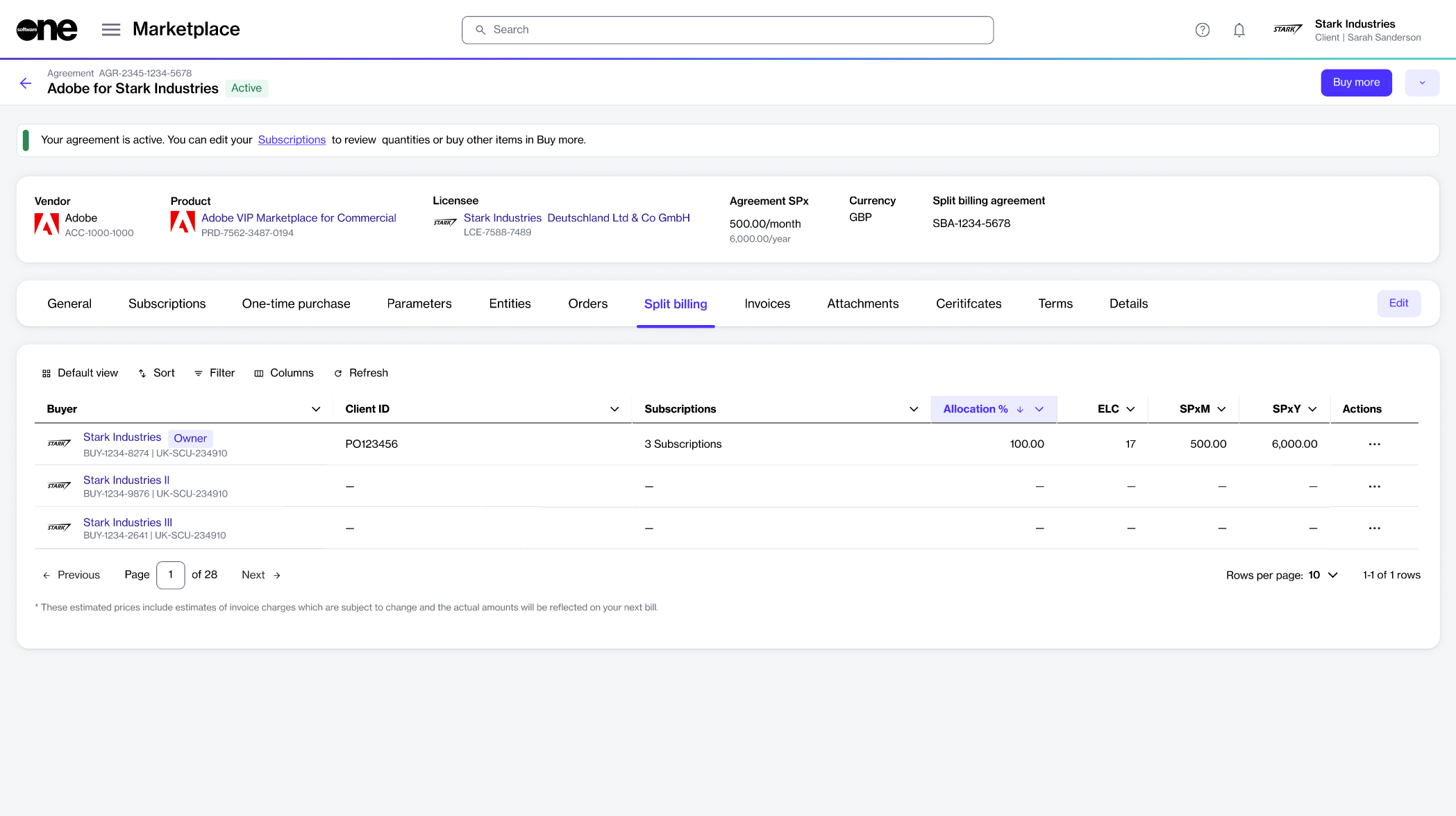
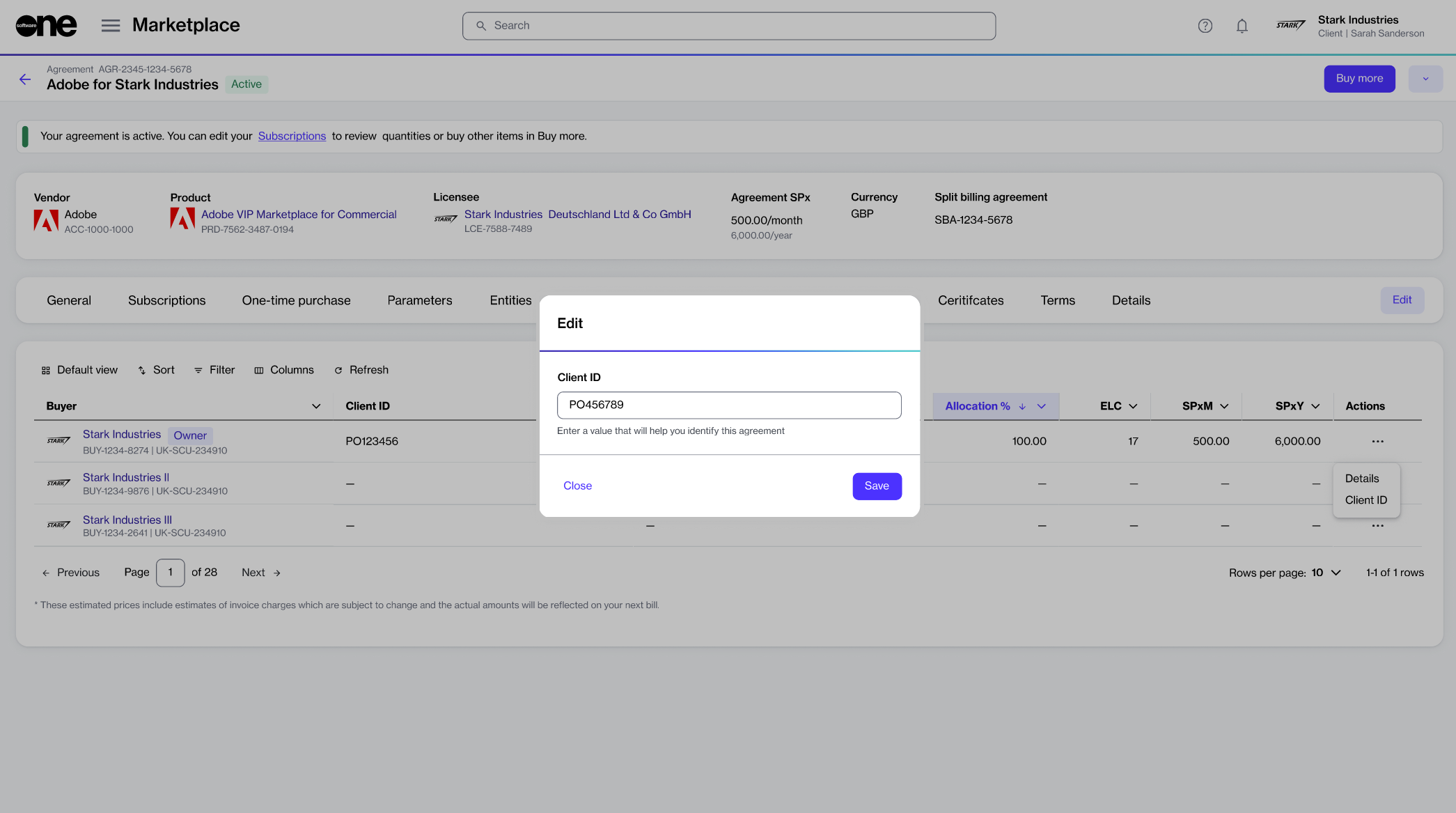
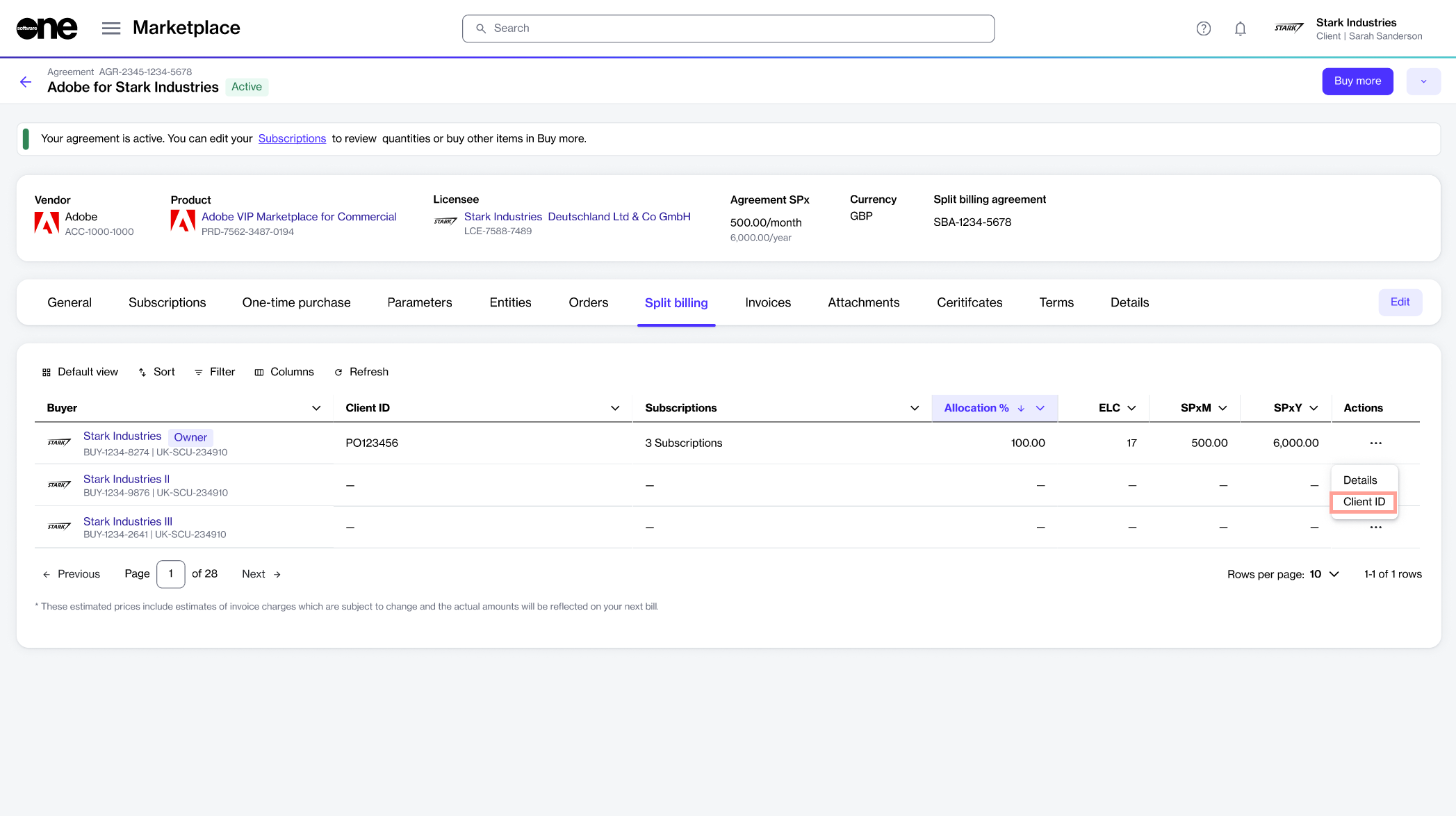
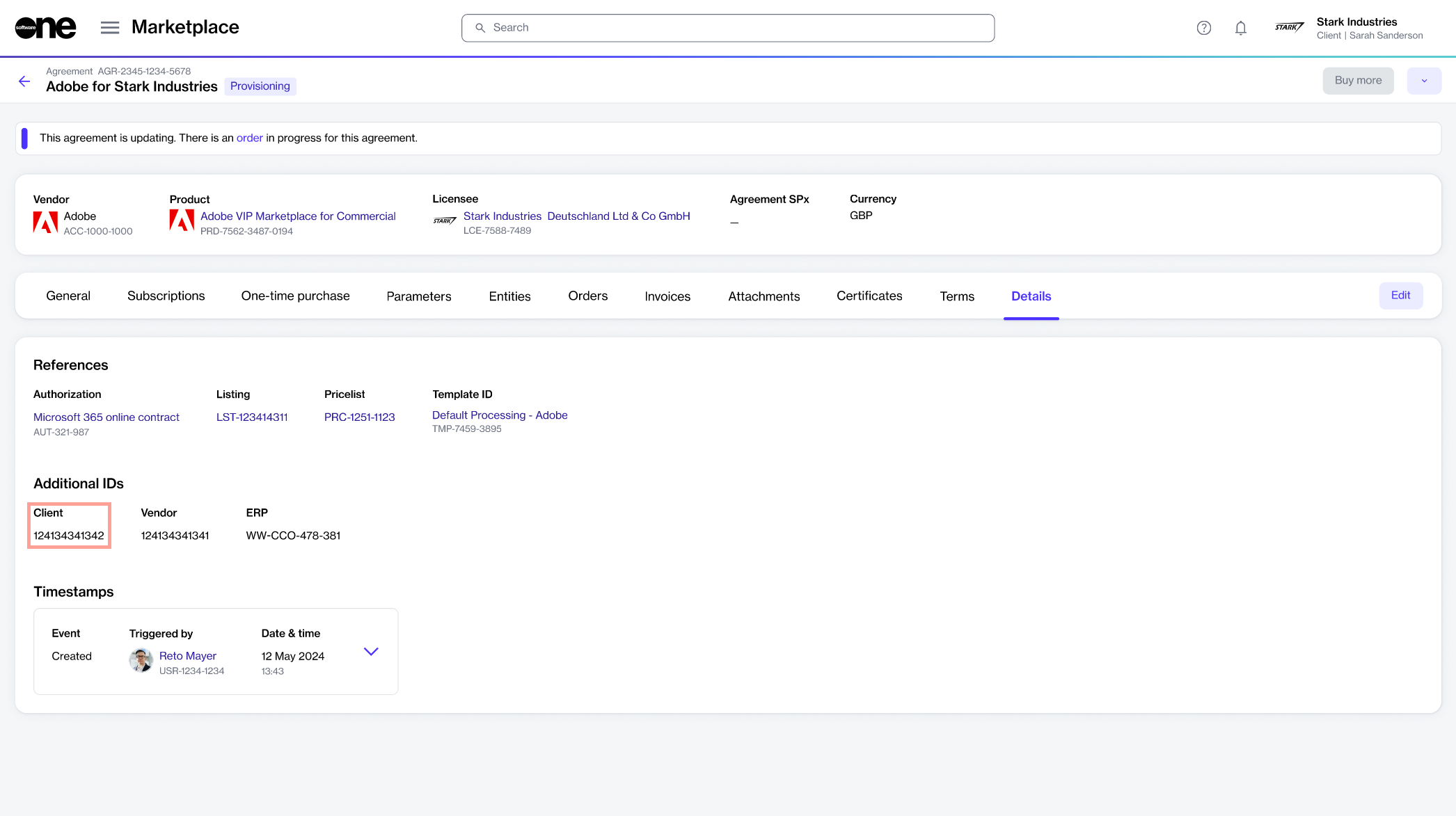
Processing
The case has been submitted. It has been assigned and is being worked on by the assignee.
Querying
The assignee has requested additional information or clarification from the reporter to proceed further.
Completed
The case has been resolved and closed by either the reporter or the assignee. You can case at any time.

Find answers to all frequently asked questions for partners.
Learn about the different states of an agreement.
An agreement is a record that establishes the terms and conditions of a transaction in the Marketplace.
An agreement can be in one of these states: Draft, Deleted, Provisioning, Failed, Active, Updating, or Terminated. The following diagram shows the transitions between these states:
The following table describes the different states:
Draft
The agreement is saved as a draft because the purchase order is saved for later during the ordering process.
Deleted
The draft agreement is deleted because the draft purchase order associated with the agreement is deleted.
Provisioning
The agreement is sent to the vendor and is pending fulfilment.
Failed
The agreement has failed because the vendor or SoftwareOne canceled the purchase order.
Active

The vendor has completed the purchase order, and the agreement is active. Active agreements have at least one active subscription and no open orders.
Updating
A business transaction or a change order is in progress for at least one subscription within the agreement.
Terminated
The agreement is terminated. It no longer contains an active subscription.
An entitlement refers to the item you have purchased, along with the quantity you are allowed to use.
Entitlements can include subscription items that renew at predefined intervals unless canceled, as well as your assets, which are one-time purchases.
Each entitlement includes the item itself and the allowed quantity. For example, if you purchase 25 Microsoft 365 licenses, your entitlement allows you to use that product for up to 25 users. Within the platform, each entitlement is associated with either a subscription or a one-time purchase and is linked to a specific agreement and order under which it was purchased.
The Entitlements page shows a list of your entitlements.
To open the page, go to Marketplace > Entitlements.
The Entitlements page shows key details for each record. This includes the item name, source, status, and estimated sales price.
Use the Source column to see whether the entitlement comes from a subscription or an asset.
Select any entitlement to open its details page.
The details page shows more information and links to related objects. Use those links to move to the connected agreement, order, subscription, or asset.
To open entitlement details:
Go to Marketplace > Entitlements.
Select the entitlement you want to review.
Use the tabs to view different types of information:
Description shows the item description.
Price lists shows price lists linked to the item.

Define buyers and split subscription costs across those buyers.
When split billing is activated, the platform assigns 100% of the billing to the default buyer in your agreement, known as the Owner buyer.
You can configure additional buyers and distribute subscription costs across those buyers using the Edit option on the agreement details page.
When selecting buyers, there's no limit to the number of buyers you can select, meaning you can choose as many buyers as necessary to divide costs effectively.
To configure buyers:
Open the details page of your agreement. Make sure that split billing has been activated for the agreement.
On the Split billing tab, select Edit.
In the Split billing dialog, select the buyers you wish to add. You can select only those buyers who are linked to the seller of this agreement. Additionally, the Owner buyer is selected by default, and you can't change it.
Select Save. Your newly added buyers are displayed on the Split billing tab in your agreement.
Set up percentage allocation for split billing.
If you have configured buyers, but have not defined the split breakdown yet, 100% of the subscription billing is allocated to the Owner buyer in your agreement.
You can update the split to include additional buyers and allocate billing to those buyers. There are two ways to do this. You can configure the allocation from the subscription details page or the agreement details page.
The Split billing tab on the subscription details page displays the allocation for all buyers and allows you to divide the billing across different buyers in your account.
To set up allocations:
On the Split billing tab, select Edit. The Edit split billing dialog opens.
Enter the allocation percentage or estimated license count for the required buyers and select Save. Make sure that 100% of the cost is allocated.
The updated split details are displayed on the Split billing tab of your subscription.
The Split billing tab within the agreement details page displays the allocation for your assigned buyers. Use the Details option for each buyer to adjust the billing percentage or the estimated license count.
To split the billing:
On the Agreements page, select the required agreement. Ensure that , and .
Select the Split billing tab. Your selected buyers are displayed.
Select the Details option for the buyer for whom you want to update the allocation.
In the Split billing details dialog, select the Edit option corresponding to the required subscription.
In Edit split details, choose whether you want to update the allocation % or the estimated license count. The allocation % option is selected by default, but you select ELC if required.
Allocation % - Select this option to split the subscription billing based on the percentage. For example, you can split the total allocation percentage of 100% between two buyers as 30% and 70% respectively.
ELC - Select this option to split the billing based on the license count. For example, if you have 12 subscription licenses, you can split these between two buyers as 8 and 4 licenses, respectively.
The allocation is updated for your selected buyer. Use the Buyer menu in the highlights panel to view allocation details for other buyers.
Select Close to return to the Split billing tab.
Enter a value based on the split percentage or license count and click Save. Make sure that 100% of billing or all licenses are allocated. Otherwise, the platform displays a message.
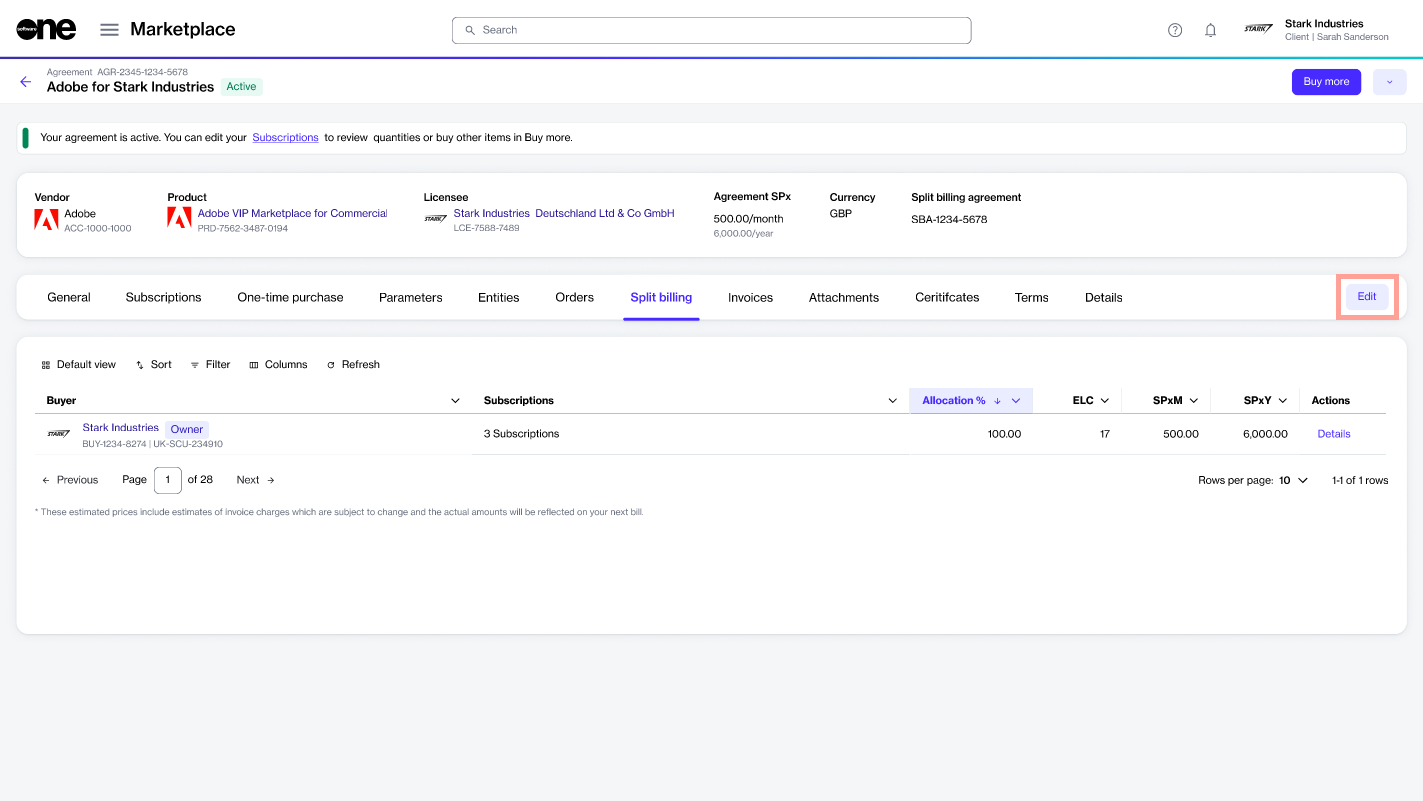
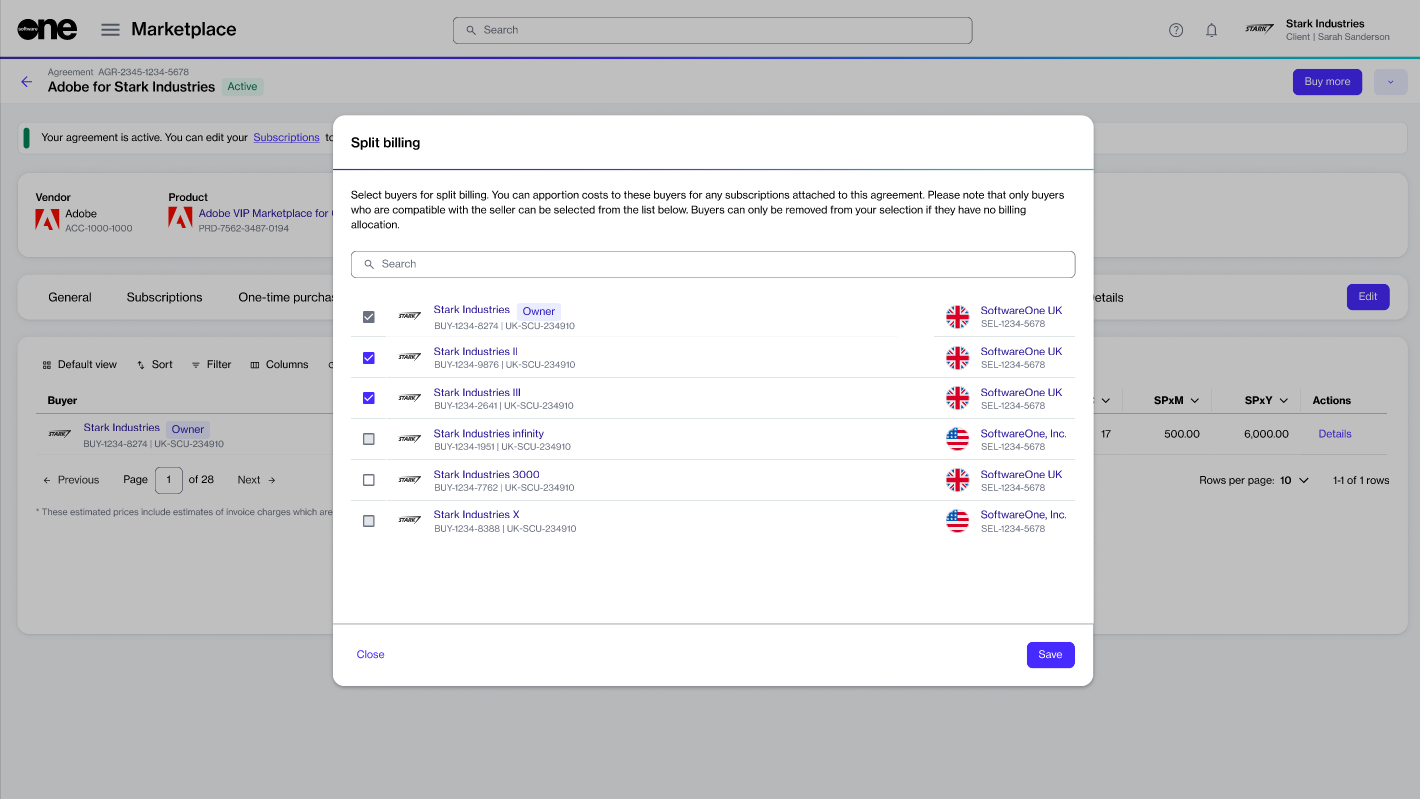
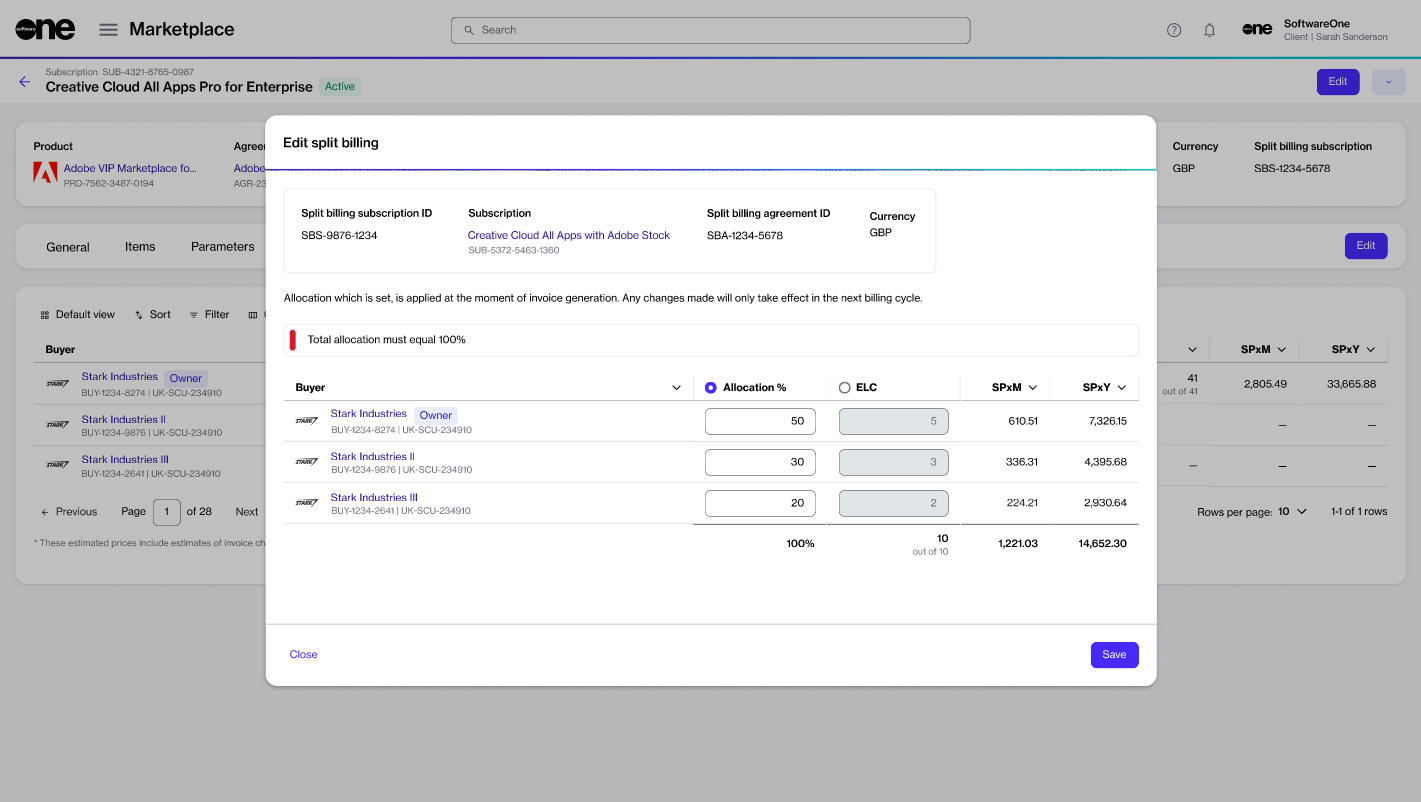
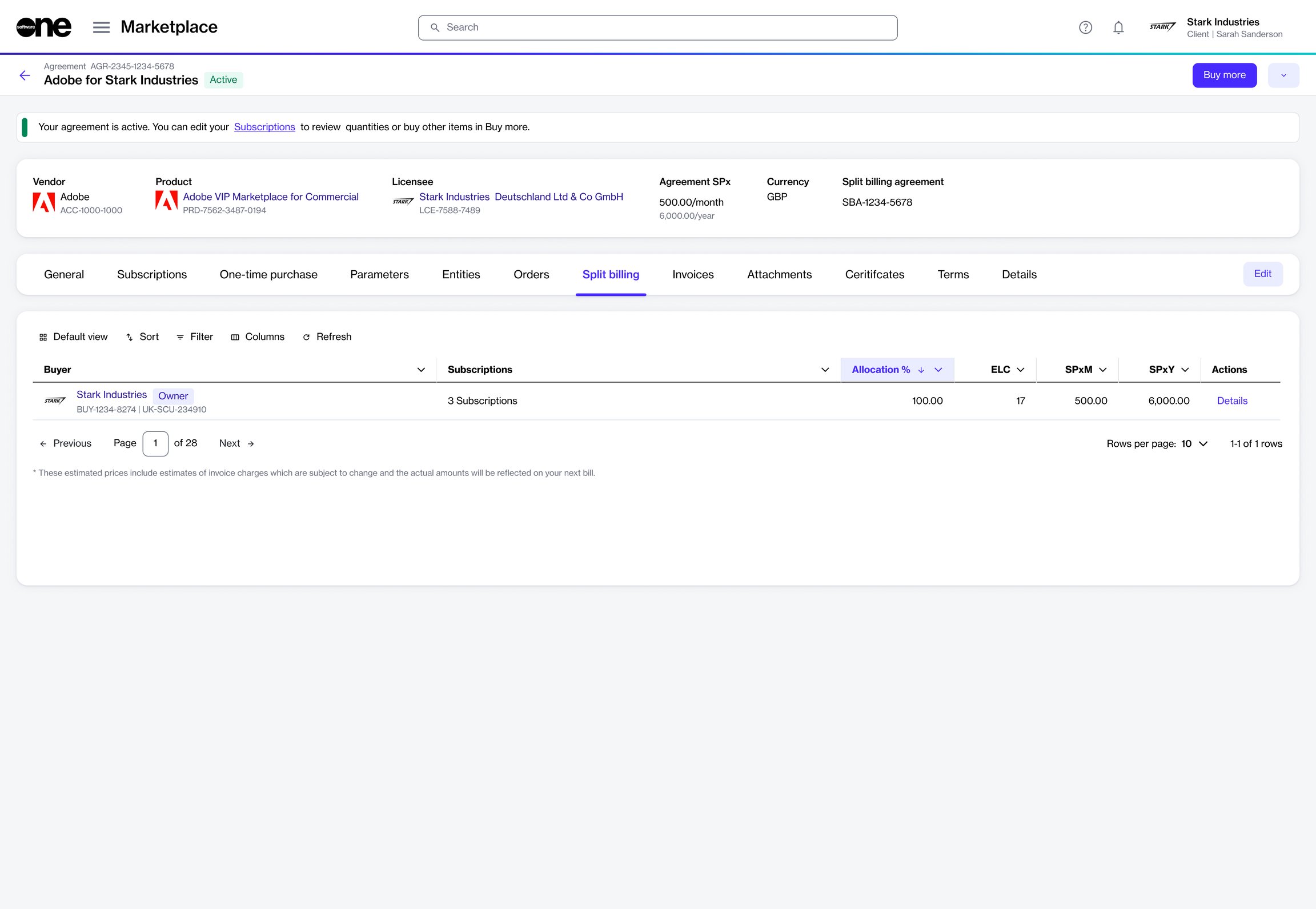
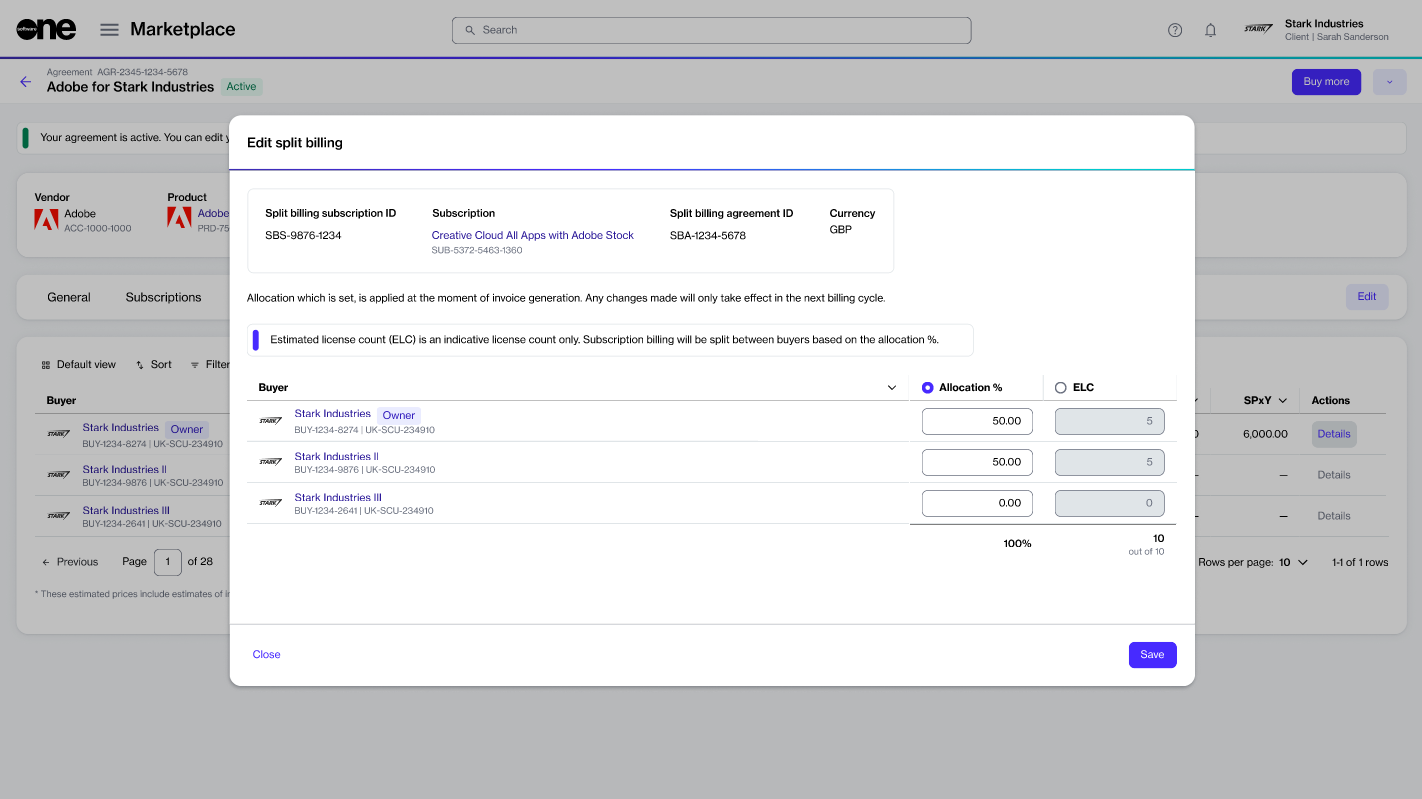
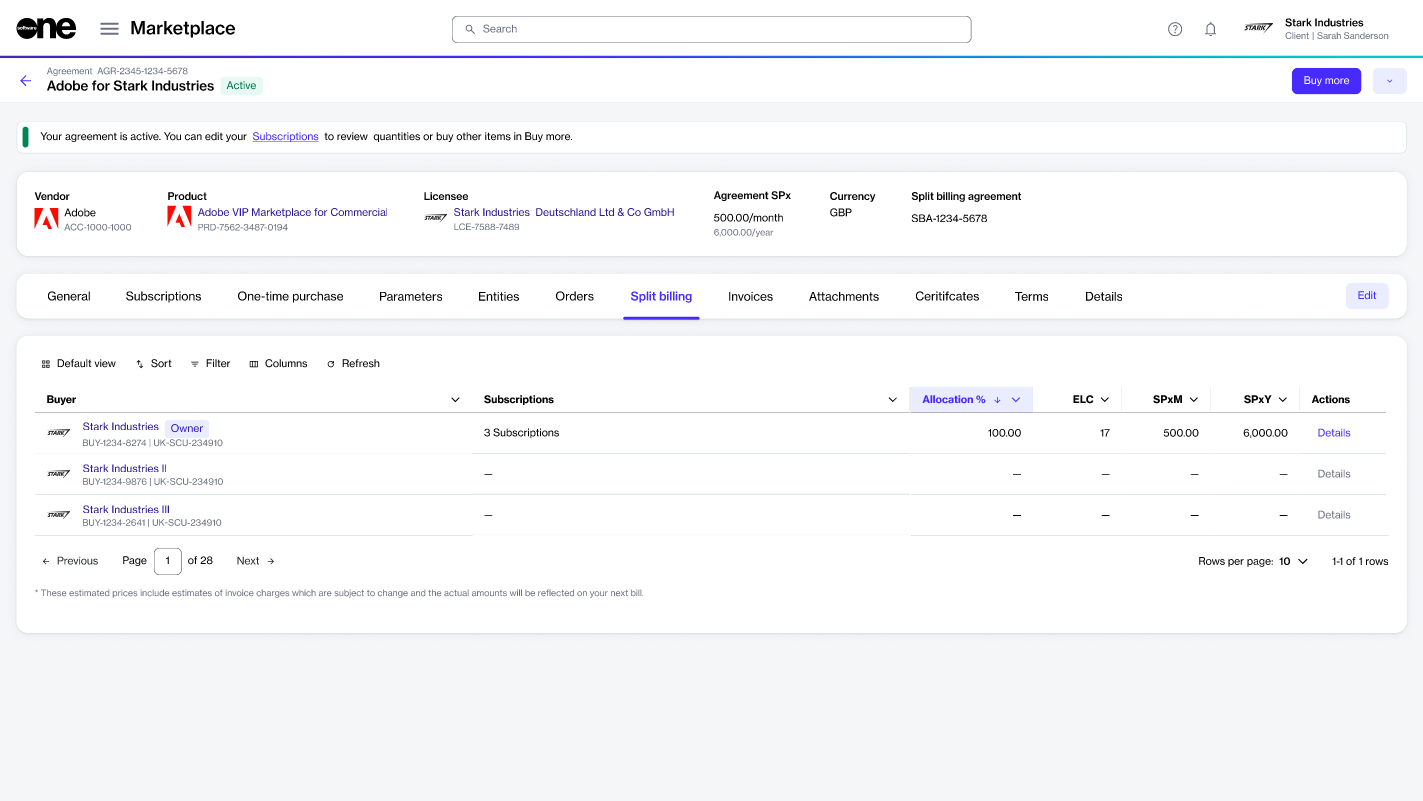
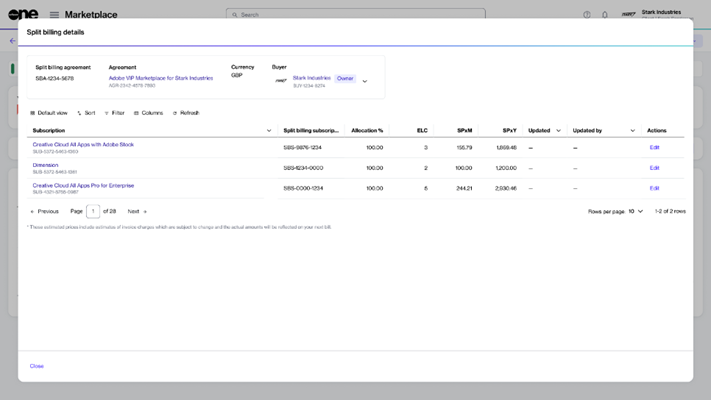
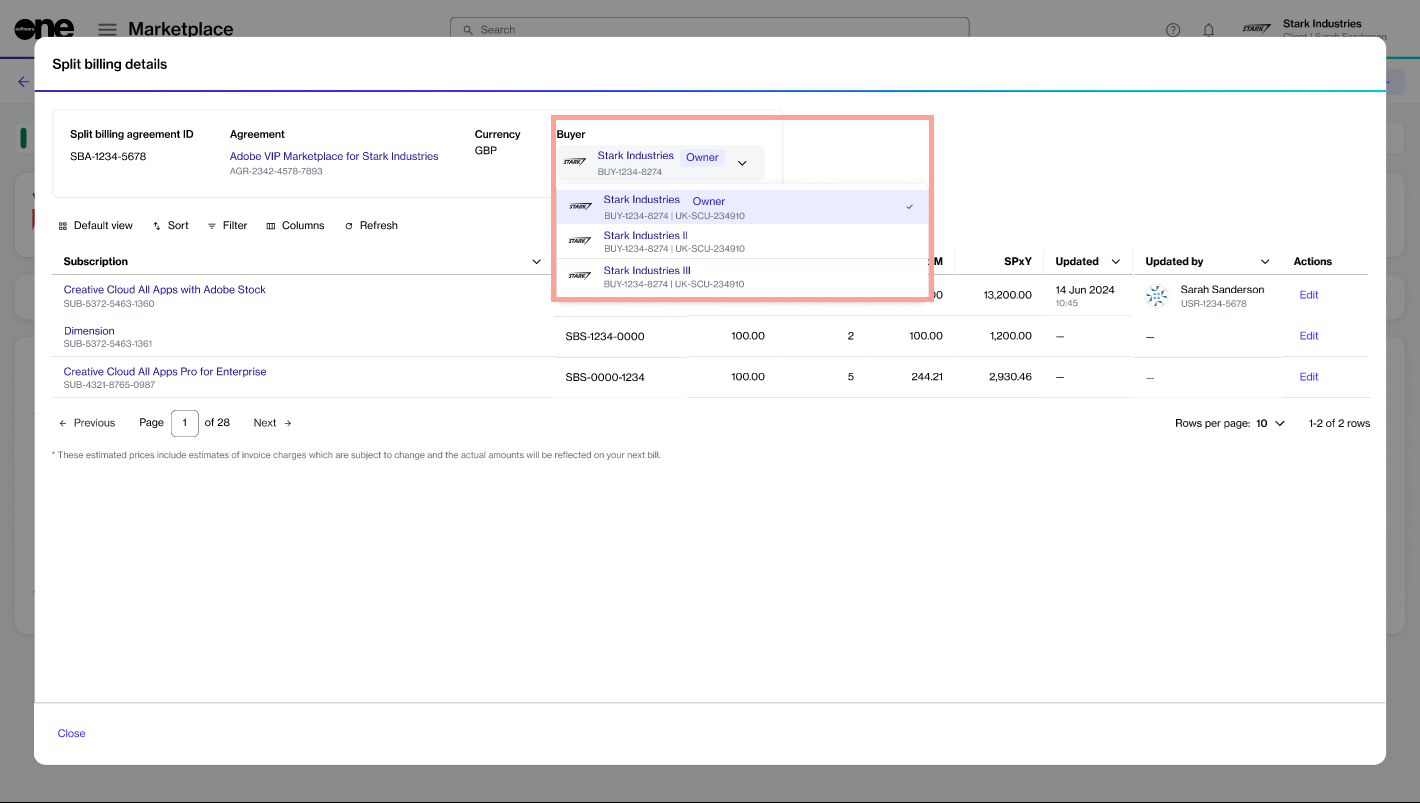
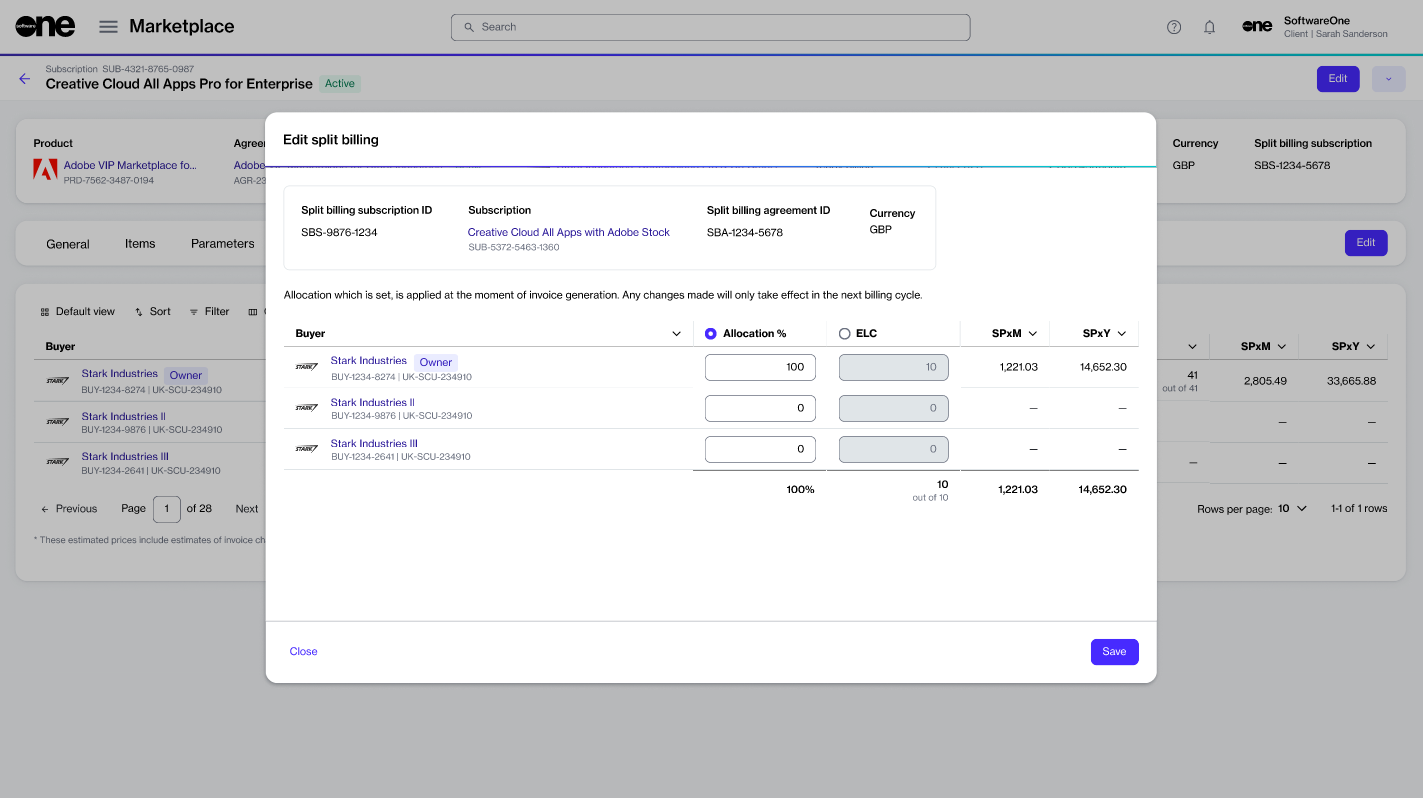
Download your billing data.
The Export option on the Analytics page allows you to download your billing data as an Excel file, so you can share it with others by email or other methods.
While the visual chart within Analytics displays only your top 10 grouped entities, the Excel file provides you with a complete and unfiltered dataset.
To export billing data:
Go to Billing > Analytics.
In the filters sidebar, apply your desired filters, then select Show results.
Under Analytics dashboard, select Export to download the file.
Change the number of licenses for your subscription.
This tutorial describes how to change license quantities for an existing subscription.
Start from the subscription
Go to Marketplace > Subscriptions.
Select the required subscription. Ensure that the subscription is active.
On the subscription details page, select Edit.
Change the license quantities
In the Edit subscription flow, do the following:
Update the New qty value, then select Next.
Add or update the reference ID and your comments. Select Next
After you place the order, a change order is created and sent to the vendor for processing. You can also see it on the Orders page.
While the change order is in progress, the subscription and agreement status change to Updating. No further orders can be placed under that agreement until processing is complete.
Verify the information, then select Place order. Select Next.
Select View details to open the order details page or select Close.
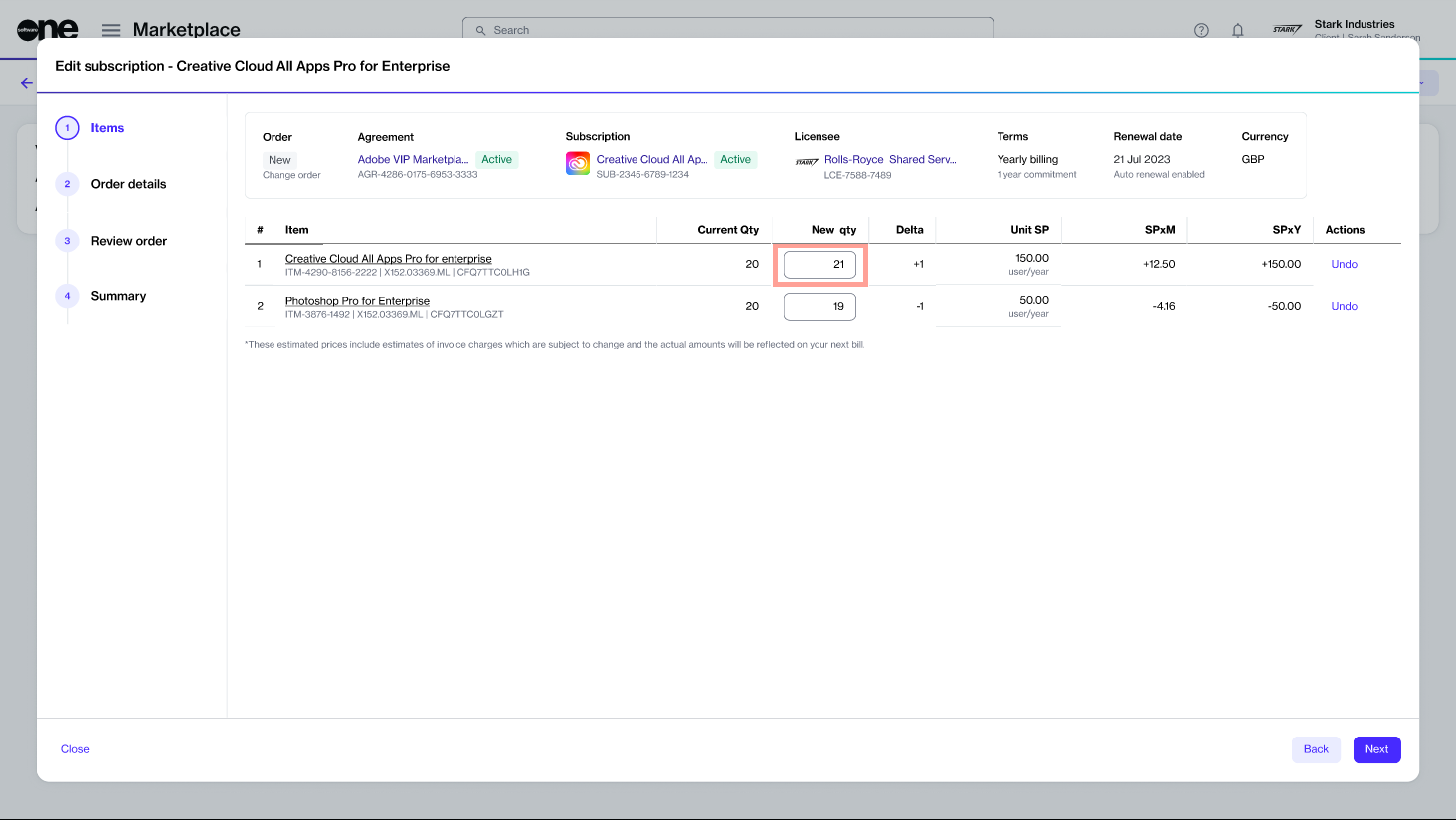
When a credit memo is issued for an invoice, SoftwareOne Marketplace displays the relationship between the invoice and its associated credit memos.
The Invoices details page now includes a Credit Memo field that indicates whether an invoice has associated credit memo records. This field displays one of the following values:
—
When the invoice is associated with more than one credit memo, the invoice overview displays the number of associated credit memos.
To view the associated credit memos, open the invoice details page.
To view associated credit memos:
Go to Billing > Invoices.
Select the required invoice.
Review the Credit Memo field and associated credit memo information displayed on the invoice details page.
When associated credit memos exist, a credit memo indicator is displayed in the invoice header.
Additionally, a message is displayed under the Invoice ID indicating that a credit memo is associated with the invoice.
You can also navigate from a credit memo to its original invoice. The Credit Memos page includes the Marketplace invoice ID and the original invoice number.
This allows you to easily identify the relationship between invoices and credit memos:
Invoice > Credit Memo
Credit Memo > Original Invoice
No credit memo is associated.
Credit memo number (for example, CRM-456)
One credit memo is associated.
Number (for example, 4)
Multiple credit memos are associated.
Split billing is a feature that allows you to divide the billing for your subscriptions among different buyers in your account.
Designed for organizations with multiple legal entities, split billing lets you select buyers and allocate billing for your subscriptions to different buyers. This enables cost-sharing and accurate tracking of consumption. It also ensures that each buyer is accountable for a share of the subscription cost based on usage.
You can divide the subscription costs easily by specifying percentages or estimated license count (ELC) for each buyer. Once defined, these details are used during invoicing to generate separate invoices for each entity. In cases where split billing is enabled but the split hasn't been defined, 100% of the billing is allocated to the default buyer in your agreement, also known as the Owner buyer.
The platform also lets you allocate billing when ordering additional subscription licenses. It means when creating a change order for an increase in subscription quantity, you can select buyers and allocate billing to those buyers.
In the Marketplace Platform, the following rules apply to split billing:
Split billing must be activated at the agreement level. Once activated, this feature cannot be deactivated.
After activating split billing, new purchases under the agreement are invoiced based on the allocation percentage or the specific buyer you've allocated the subscription billing to.
The ELC is indicative only. The Split billing feature is designed around allocation percentages, which means the platform always considers percentages during billing.
You can modify the allocation for your active subscriptions at any time. However, the changes will only take effect in your next billing cycle.
Buyers can only be removed from split billing if they have no configured allocation percentage. The platform doesn't allow you to remove buyers if an allocation percentage exists for those buyers.
You can activate split billing using the Split Billing option on the details page of your agreement. For instructions, see .
Once activated, the Split billing tab appears on the agreement’s details page.
By default, the buyer associated with the agreement is set as the Owner buyer, and 100% billing is allocated to the Owner buyer. You can configure additional buyers using the Edit option. For more information, see .
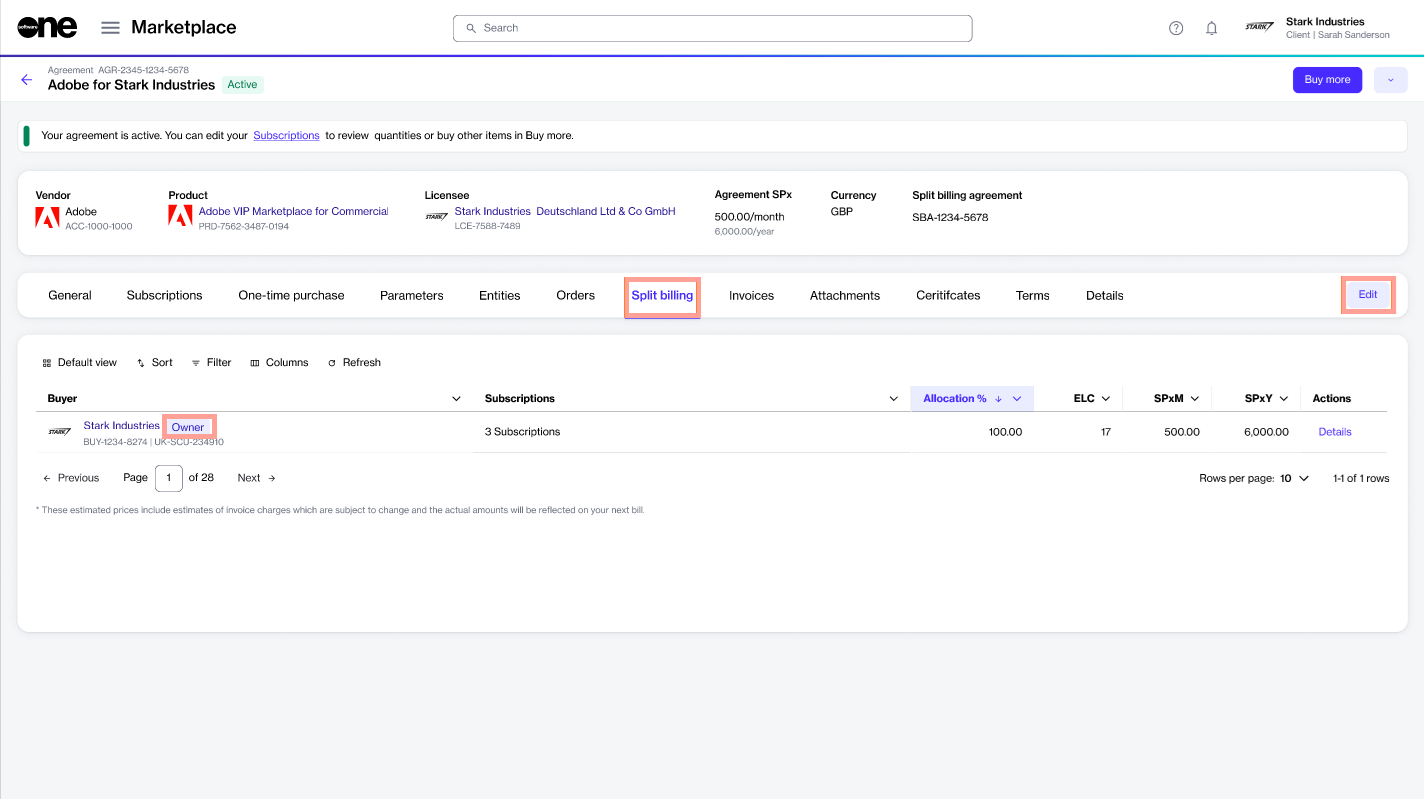
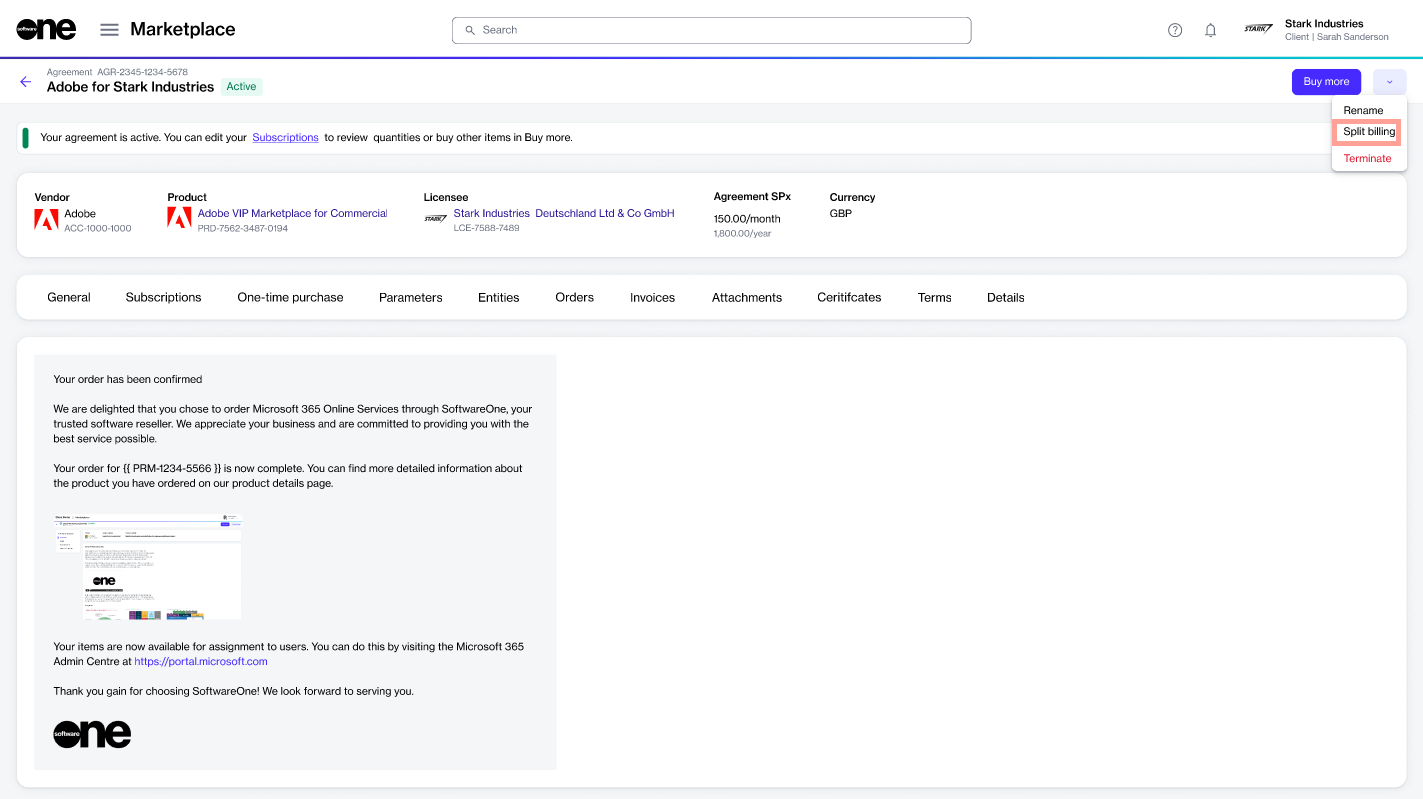
Switch between your accounts without signing out.
If you belong to multiple accounts, you can switch between them without signing out of the platform.
To switch between your Marketplace accounts:
Sign in to your account.
Select your profile menu.
If required, search for the account using its name or identifier.
If the account is added to your favorites, use the Favorites tab to access it.
If you accessed the account recently, use the Recents tab to open it again.
Select the account name.
Your account is switched, and you can access the modules and settings linked to your profile.

Learn how to choose a currency for your Marketplace invoices.
This tutorial describes how to choose the billing currency for a Marketplace agreement.
SoftwareOne issues invoices at the agreement level. It means that invoices are generated for specific agreements. Therefore, currency selection must be done at the agreement level.
There are two ways to choose a billing currency. You can select it when creating a new agreement. Alternatively, you can change it after the order is placed.
Start a new purchase
Go to Catalog > Products.
Select the product you want, then select Buy now. The purchase flow starts.
Under Select agreement, select Create agreement.
Continue through the steps until you reach the Billing currency step.
Choose the billing currency
From the Billing currency list, select your preferred currency for future invoices.
Select Next.
Complete the remaining steps to finalize your order.
Changing the billing currency affects future invoices only. Past invoices remain in the original currency.
Open the agreement
Go to Marketplace > Agreements.
Select the agreement whose currency you want to update.
On the agreement details page, select the dropdown arrow
Future Marketplace invoices are issued in your selected billing currency. You can view and manage invoices using the page.
Save the new currency
In Select billing currency, choose the new currency.
Select Save.


Start a group chat with multiple users.
You can start a group chat with specific users in your account. When setting up the group chat, you can also add a group name and upload a logo.
To start a group chat:
Go to the Chats page.
At the top of your chat list in the left sidebar, select, then choose Group chat.
In Add group chat, do the following:
Select the people you want to add to the chat, then select Next.
Enter a name for the group and, optionally, upload a photo.
Select Add. A new chat conversation window opens.
Type your message in the text box and select Send or press Enter to send your message.
View key properties and contextual information through cards in the interface.
Information and description cards provide a quick way to view key properties and contextual details directly within the interface.
Information cards help you quickly view key details about an item without leaving your current page.
They appear when you hover over an object’s name (for example, an agreement), and contain important information such as the object name, ID, and more. The exact details displayed within a card vary according to the object.
Information cards also contain links to related objects. Selecting a link takes you directly to that object's details page. For example, selecting the licensee name opens the licensee’s details page. You can close a card by selecting Close or pressing Esc.
Description cards are tooltip-style components used throughout the SoftwareOne Marketplace to provide short and contextual information directly within the interface. These cards offer additional guidance to help you understand key details and make informed decisions.
When description cards are available, you’ll see an info icon (). For example, during order creation, an info icon appears next to the price when additional details are available. The details may include promotional information, including discount percentage, promo dates, seat requirements, and more.
You can hover over the icon to view the additional information. To close a card, select Close or press Esc.
Access your Marketplace account using your login credentials.
You can sign in to the SoftwareOne Marketplace using either a web or mobile browser.
Additionally, you can access the platform via the SoftwareOne Marketplace mobile app, available on iOS and Android.
This topic describes how to sign in to the web version. For the mobile app, see Get started with the app.
To sign in to your account on the web version:
Open the sign-in page in your browser.
Enter the email address for your account, then select Continue.
Enter your password and select Continue.
If single sign-on (SSO) is enabled for your organization, you are redirected to your identity provider.
After you have successfully signed in, you are directed to the Home page.
If you enter incorrect login credentials, an error message is displayed.
If you have forgotten your password, select Forgot password? and follow the instructions to reset it. For more details, see .
After signing in, start with . For onboarding guidance, see .


Use this quickstart to get started in the Marketplace, place your first order, and manage your subscription.
This quickstart guide explains how to get set up in the SoftwareOne Marketplace, make your first purchase, track orders, and self-manage your subscription.
The page is split into tasks. Each task contains information and further links to detailed instructions.
After signing in, set up your profile and define preferences, including your name, profile picture, account language, and time zone.
If you are an account administrator, you can perform additional account setup tasks, such as creating user groups and inviting users to your account.
When you’re ready to make your first purchase, browse the catalog to view the available products, then place your order.
After placing the order, use the Orders page to view detailed information and check the status.
After your order is provisioned, manage your subscription from the Subscriptions page. This includes increasing or reducing the number of licenses and managing your subscription's renewal.
On the registration page, do the following:
Enter your first name and last name.
Enter a new password and then confirm that your new password matches the one you entered in the Password field.
Select the terms of use.
Select Accept invitation.
Sign in to your account using your email address and password.


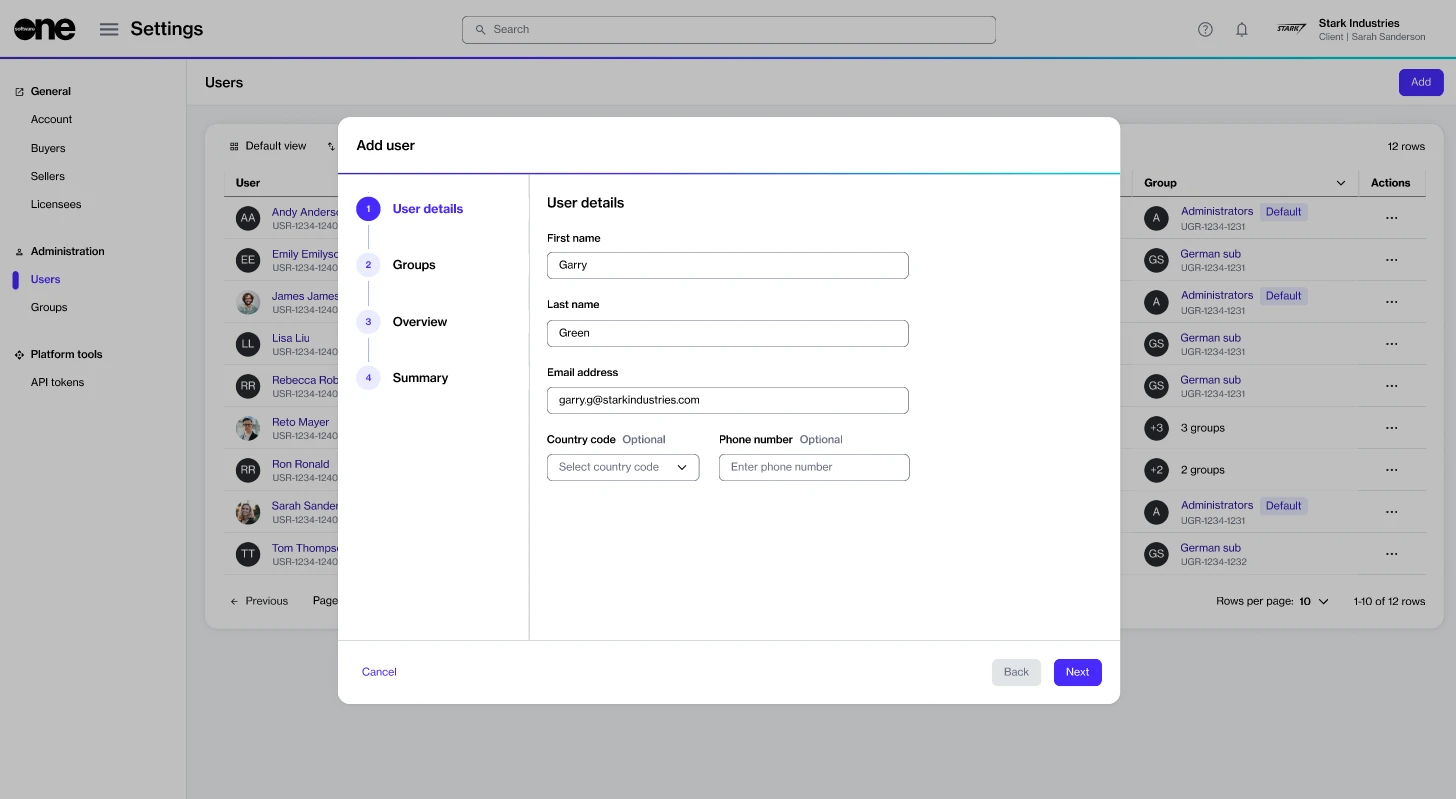
Understand the key invoice fields and how they map to the platform.
Your Marketplace invoice includes various details that are pulled from the platform and displayed on the invoice.
This topic provides information on all such fields, helping you understand where the information comes from and how it corresponds to your invoice PDF. If you want to learn about the structure of your Marketplace invoices and statements, see the Billing invoices and Billing statements sections, respectively.
PO No.
Mapped from the Additional Client ID in your agreement details.
External Document No.
Mapped from the agreement ID.
Your Reference
Mapped from the statement ID.
Agreement
Mapped from the agreement details page.
Product
Mapped from the agreement details page.
Licensee
Mapped from the agreement details page.
Subscription
Mapped from the subscription details page.
Client ID/Vendor ID
Mapped from the Details tab on the subscription details page.


An agreement establishes the terms and conditions of a transaction in the Marketplace.
It defines the relationships among buyers, sellers, and licensees, and is required for placing orders and creating subscriptions.
Marketplace agreements can include one or more subscriptions. Each subscription contributes to the total agreement value based on its type (quantity‑based or usage‑based). For information on these subscription types, see Subscription models.
The Agreements page displays a list of your agreements and allows you to manage them.
To open the page, choose Marketplace > Agreements from the main menu.
On the agreements page, you can view various details for an agreement, including the agreement ID, entities (such as buyers and sellers) for the agreement, estimated agreement value, status, and more.
You can also select an agreement to view detailed information organized across several tabs. The information available includes a list of entitlements, assets, and subscriptions, file attachments and certificates, and more. For details, see .
Agreements display estimated values to indicate expected costs. The estimated values are indicative, and the final billed amount is always confirmed in the invoice.
Estimated agreement value – Represents the total estimated value for all subscriptions included in the agreement.
For quantity‑based subscriptions, the estimated value is based on the number of licenses within the agreement.
For usage‑based subscriptions, estimated values appear only if provided by the vendor. If no estimate is available, the agreement value might be partial or empty. As a result, agreements that include usage‑based subscriptions might not show a complete total value.
Estimated values, when available, are displayed on both agreements and agreement details pages, as well as subscriptions and subscription details pages. If a value is unavailable, the corresponding field displays an em dash “—”.


Complete (or close) a case chat if your issue is resolved.
You can mark a case as Complete when your issue has been resolved and no further assistance is needed.
Completing a case closes it. Any user in the account can close a case, regardless of who created it.
If additional assistance is required later, you can reopen the case. For more information, see Reopen case.
To close a case from the Cases page:
Go to Helpdesk > Cases.
(Optional) Use filters to find the desired case.
Select the case ID.
In the details pane, select the actions icon (•••).
Under Case, select Complete.
Confirm that you want to complete the case. The case status changes to Completed.
To close a case from the Chats page:
Go to Chats.
(Optional) Use Filters at the top of your chat list to find the desired case.
Select the case.
In the chat window, select the actions icon (•••).
Under Case, select Complete.
Confirm that you want to complete the case. The case status changes to Completed.


