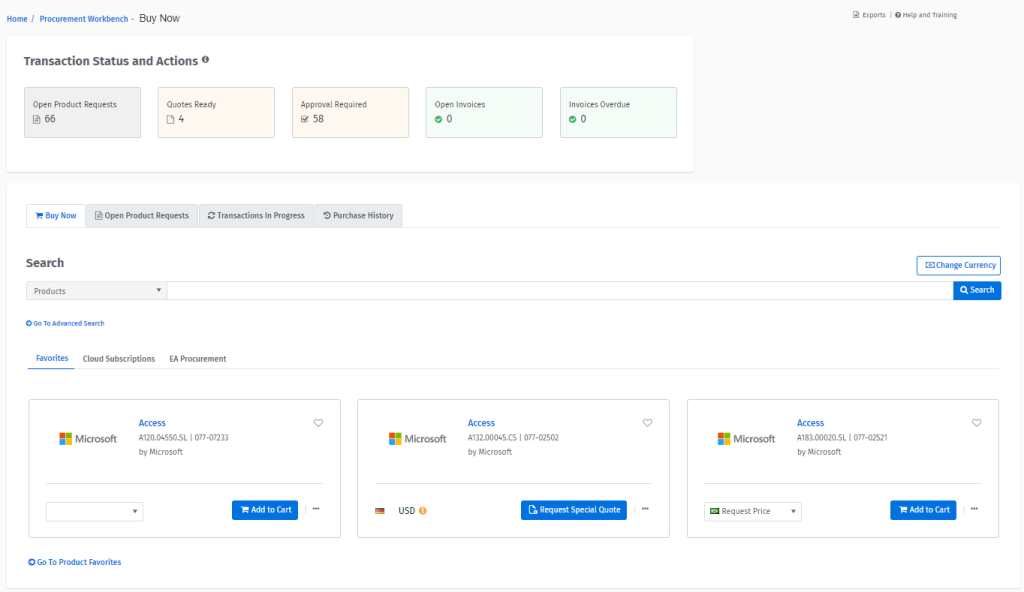
Procurement users can view their transactions and manage purchase orders and quotes.
Procurement Workbench provides procurement users with a comprehensive set of features to manage software transactions.
To access Procurement Workbench, navigate to the main menu and select Procurement > Procurement Workbench.
With Procurement Workbench, you can easily access all information related to your quotes and orders. You can also:
View your favorite products and add them to your cart. If product prices are unavailable, you can use special quotes to request prices.
Access your frequently purchased items, generate a quote for placing an order, and check the status of your transaction.
Check items that are awaiting approval and view your open and overdue invoices.
For more information, see .
On the Procurement Workbench page, you will find different sections that enable you to purchase products, view your transactions, and check your purchase history.
Additionally, you can get an overview of your transactions and see the necessary actions you need to take.
The Transaction Status and Actions section contains the following information:
Open Product Requests: Allows you to view special quotes that are open. When a special quote is complete, it's no longer displayed in this section. You can also use this tab to request a new quote by selecting Request Special Quote. For information on how to create a special quote, see Special Quotes.
Quotes Ready: Allows you to view a list of quotes that are ready to be converted to an order. You can also view detailed information for a quote, delete a quote, convert a quote to an order, or export a quote to PDF or Excel.
Approval Required: Allows you to view orders that are pending approval. Depending on the purchase approval workflow:
The Approve option is displayed if you can approve the orders yourself.
The Details option is displayed if the order requires approval by someone else, as per the approval workflow.
The Buy Now tab contains the Search, Advanced Search, and Buying for options. It also contains the following tabs:
The Purchase History tab displays the complete purchase history based on the time range you choose from the Show menu.
It provides visibility into the full purchase history and provides links to all documents generated in the procurement cycle. This includes special quotes, invoices along with PO, country, and amount details.
You can also add additional columns to get an idea of how many days it took in each step of the process. This can give your organization a high level of SLA tracking.
Open Invoices: Allows you to view the open invoices.
Overdue Invoices: Allows you to view overdue invoices.
Favorites
Displays your personal and global (company’s) favorites so that you can quickly add items to your cart
Cloud Subscriptions
Allows you to select your cloud account. This will list the subscriptions that are active and inactive. You can make changes to your subscriptions by selecting Manage Subscription.
Buying for
Allows you to purchase a product for a company different from your default company. This option is only available if you have multiple catalogs available