How to add an Azure subscription to an existing Azure tenant.
This tutorial describes how you can order a subscription for Microsoft Azure by setting up a new agreement and connecting your existing tenant.
Before starting this tutorial, make sure you have the following:
An existing licensee in the active state or permission to create a new licensee (if you don't want to use an existing licensee). You'll need to select the licensee when setting up the new agreement.
The name of the Microsoft tenant you want to connect.
The contact details of the person who will manage your account.
Start the ordering process
To start the process:
Go to Catalog > Products.
From the list of products, select Microsoft Azure.
Once you place your order, we verify the details and create your new subscription.
You can track your order on the order details page. The General tab on the order details page outlines the next steps.
On the product details page, review the product information, then select Buy now.
Create a new agreement and provide details of your existing Microsoft tenant
In the guided purchase flow, complete the following steps:
Select agreement – Select Create new agreement.
Select licensee – Select an existing licensee or create a new one. In this tutorial, an existing licensee is selected.
Create agreement – Select Connect existing cloud account.
Microsoft details – Do the following:
In Primary domain name, enter your existing domain name.
In Azure subscription name, provide a name for your Azure subscription. Make sure the name meets Microsoft's naming requirements. If you leave the field empty or provide a name that isn't accepted, the platform assigns a default name to the subscription.
Additional information – Do the following:
If your organization is a , select the checkbox. Otherwise, leave it clear. A company is classified as state-owned if it is either controlled by the government or performs functions that the government considers its own.
Enter the contact details for your support administrator and choose your preferred support language. Select Next.
Add items to your order and submit your order
Complete the following steps:
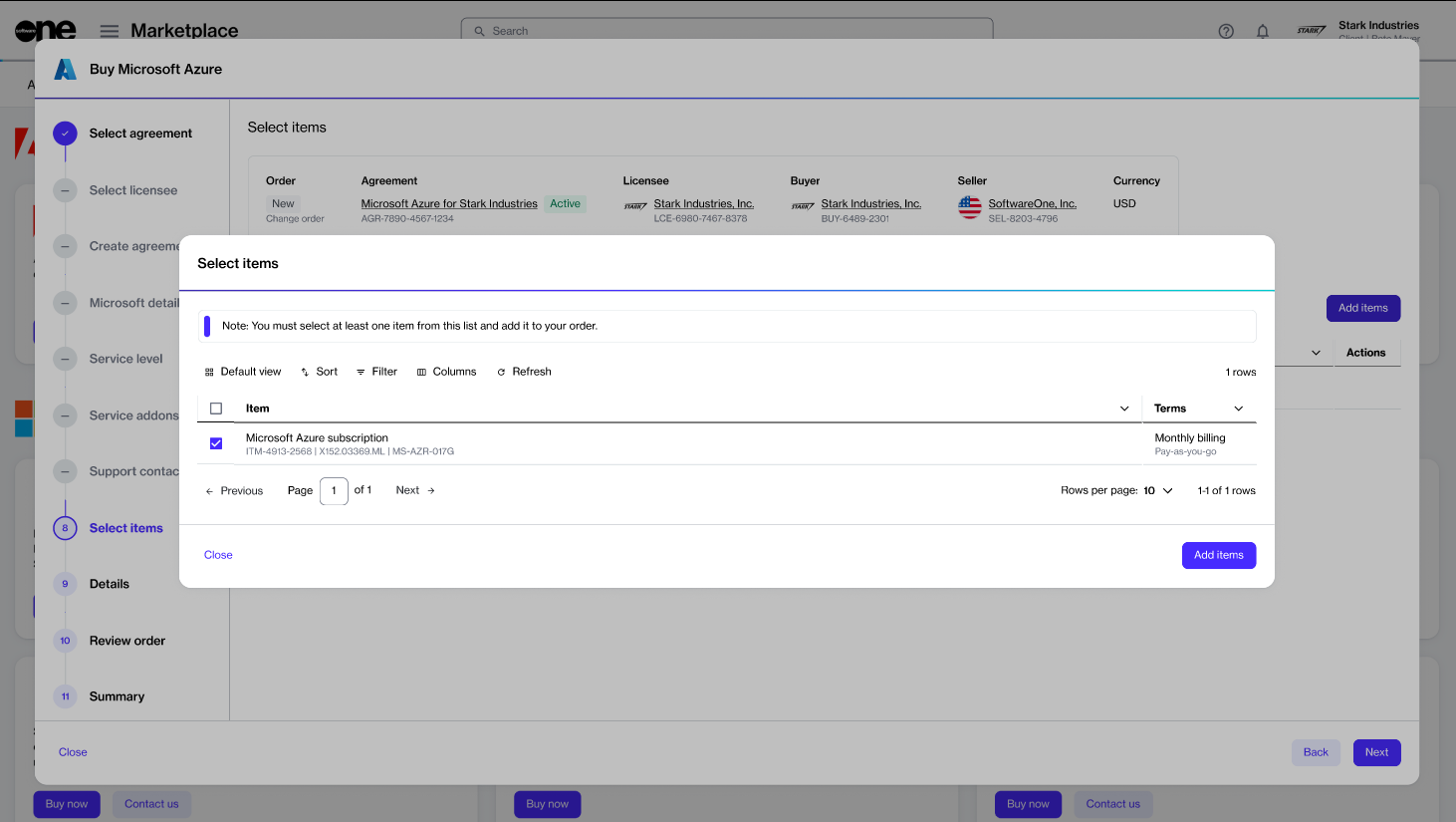
Items – Choose the Azure subscription item, then select Add items to add it to your order. Note that for Microsoft Azure, only one item is available without any associated price. When using Azure services, pay-as-you-go charges are generated against the subscription.
Details – Add reference details and your comments, then select Next.
Review order – Read the terms and conditions and the privacy statement. When done, select Place order to submit your order.
Summary – Select View order to open the order details page or select Close.
How to order additional Azure subscriptions for an existing tenant.
This tutorial describes how you can order additional subscriptions for Microsoft Azure using an existing Marketplace agreement.
Before starting this tutorial, make sure that the agreement you want to use is in the Active state. Agreements in any other state cannot be used for ordering additional items.
Start the ordering process
To start the order:
Go to Catalog > Products.
Select Microsoft Azure.
On the product details page, review the product information, then select Buy now.
Select the agreement and add the new Azure item
In the guided purchase flow, complete the following steps:
Select agreement – Select an active agreement, then select Next.
Microsoft details – Provide a name for your Azure subscription. Make sure the name meets Microsoft's naming requirements.
Once you place your order, we verify the details and create your new subscription.
You can track your order on the order details page. The General tab on the order details page outlines the next steps.
Items – Select Add items to add the new Azure subscription to your order, then select Next. For Microsoft Azure, there is only one item without any associated cost. When using Azure services, pay-as-you-go charges are generated against the subscription.
Details – Add reference details and your comments, then select Next.
Review order – Read the terms and conditions and the privacy statement. When done, select Place order to submit your order.
Summary – Select View order to open the order details page or select Close.
How to create a new Azure tenant and purchase an Azure subscription.
This tutorial describes how you can order a subscription for Microsoft Azure by setting up a new agreement and a new Microsoft tenant.
Before starting this tutorial, make sure you have the following:
A licensee in the active state or permission to create a new licensee (if you don't want to use an existing licensee). You'll need to select the licensee when setting up the new agreement.
Your details, such as company name, registration ID, and address. You'll need to provide this information when creating the new Microsoft tenant.
Contact details of the person who manages your account.
Start the ordering process
To start the process:
Go to Catalog > Products.
From the list of products, select Microsoft Azure.
Once you place your order, we verify the details and create your new subscription.
You can track your order on the order details page. The General tab on the order details page outlines the next steps.
On the product details page, review the product information, then select Buy now.
Create a new agreement and a new Microsoft tenant
In the guided purchase flow, complete the following steps:
Create agreement – Select Create agreement.
Select licensee – Select an existing licensee or create a new one. In this tutorial, an existing licensee is selected.
Create agreement – Select Create new cloud account to create a new organization tenant with Microsoft. Select Next.
Microsoft details – Provide the following information:
Enter the tenant name you want to use on the onmicrosoft.com domain and select Next. Make sure that the name doesn't include punctuation marks or spaces. To check the tenant name availability, see the .
Provide the following details:
Additional information – Follow these steps:
If your organization is a , select the checkbox. Otherwise, leave it clear. A company is classified as state-owned if it is either controlled by the government or performs functions that the government considers its own.
Enter the contact details for your support administrator and choose your preferred support language. Select Next.
Add items to your order and submit your order
Complete the following steps:
Items – Select the Azure subscription item and select Add items to add it to your order. For Microsoft Azure, there is only one item without any associated cost. When using Azure services, pay-as-you-go charges are generated against the subscription.
Details – Add reference details and your comments, then select Next.
Review order – Read the terms and conditions and the privacy statement. When done, select Place order to submit your order.
Summary – Select View order to open the order details page or select Close.
Company name.
Company registration ID or tax number.
Company address, including city and zip/postal code.
Fill out the Primary Contact form with the contact details of the person managing your account. Select Next.
Microsoft Azure is a cloud computing platform that lets you access and manage cloud services and resources provided by Microsoft. With Marketplace Platform, you can easily order an Azure plan subscription.
Browse the following topics to learn about Microsoft Azure Plan subscriptions.
Create a new Azure tenant and purchase an Azure subscription.
Add an Azure subscription to an existing Azure tenant.
Purchase an additional Azure subscription for an existing tenant.