Add new items to your existing Marketplace agreement.
This tutorial describes how to add more items to your existing Marketplace agreement.
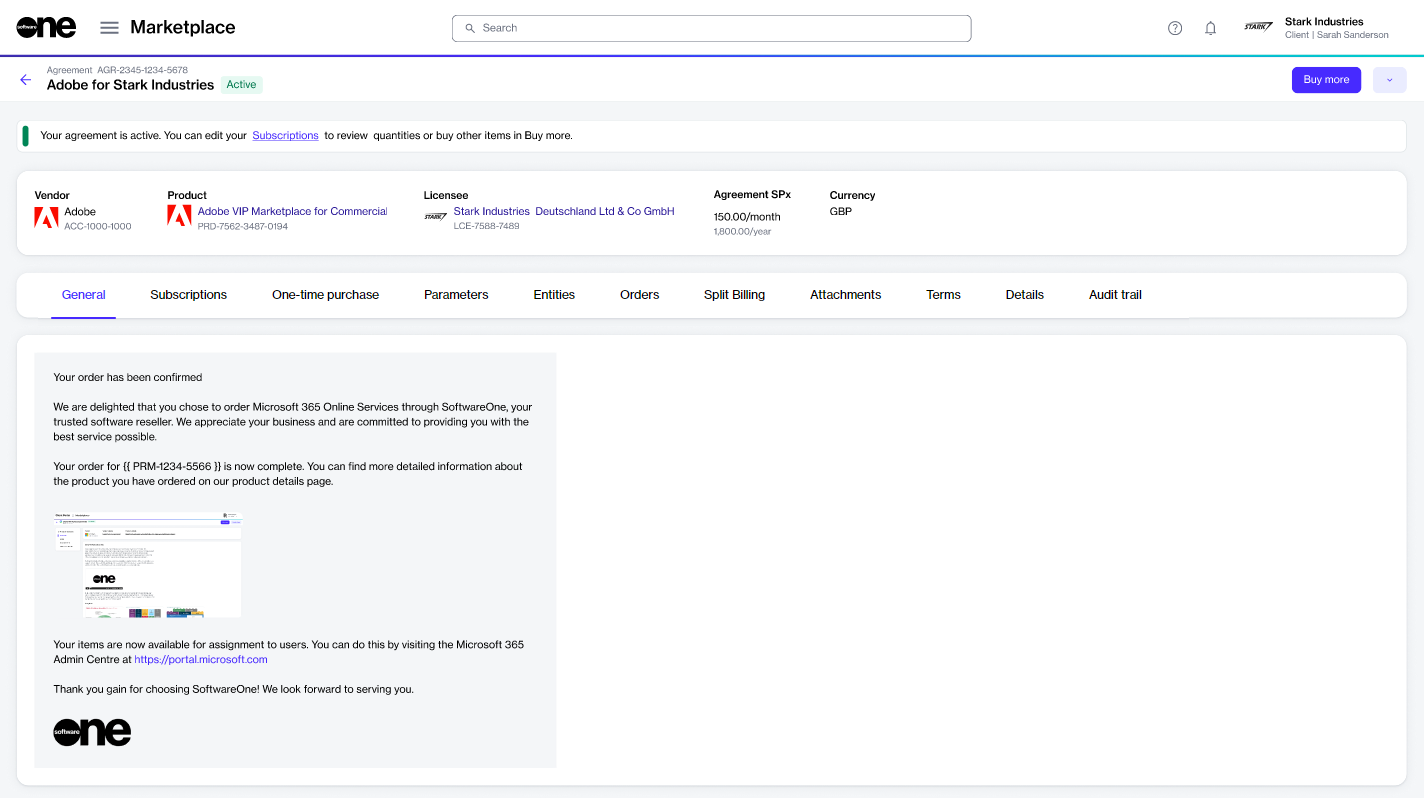
New items can be added using Buy more on the agreement details page. When you start from Buy more, the purchase wizard opens directly on the Items step.
Start from the agreement
Go to Marketplace > Agreements.
Select the agreement you want to update.
On the agreement details page, select Buy more.
Add the new items
In the guided Purchase flow, complete the following steps:
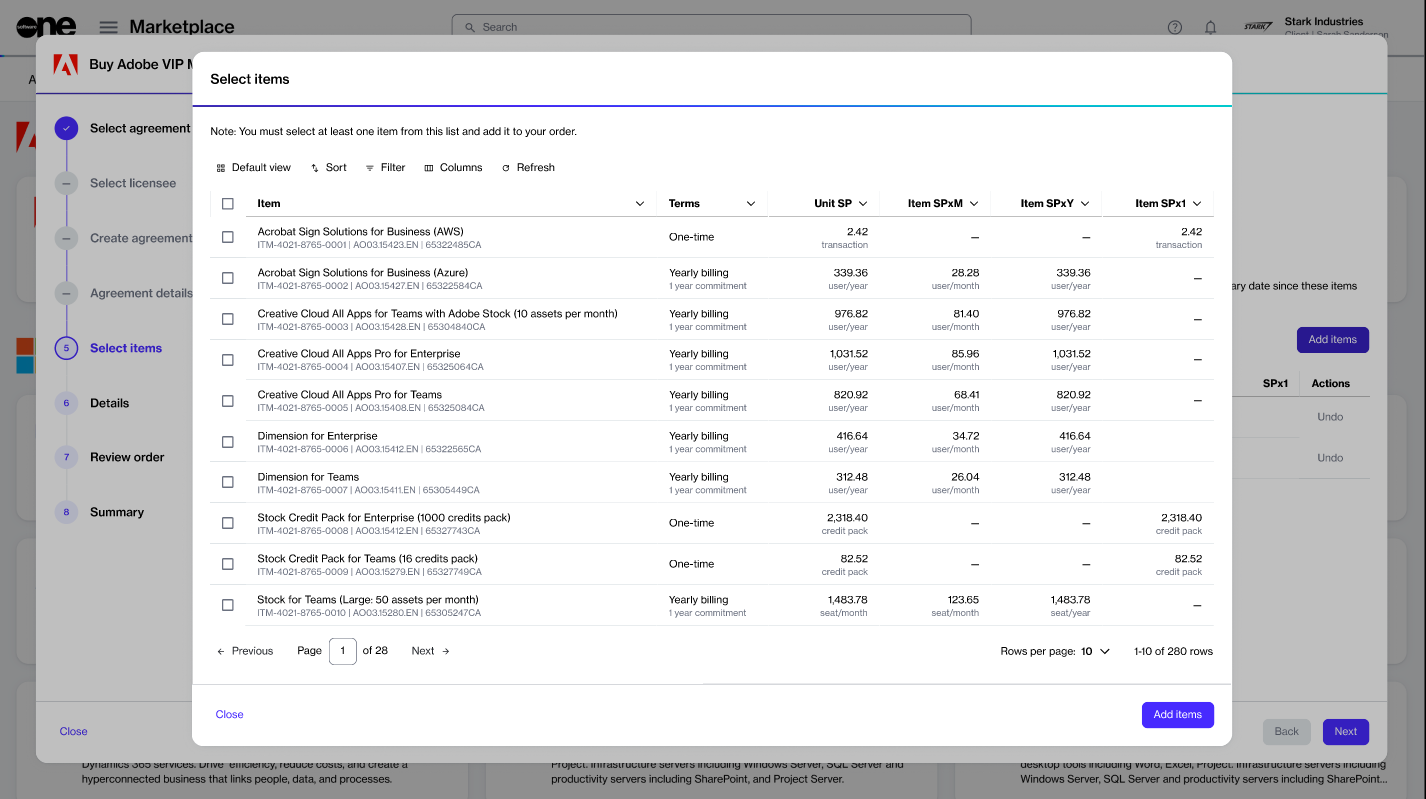
Select Add items.
Choose the items you want to order. Make sure to check the billing terms and duration. Select Add items.
Review and submit the order
Add or update the reference ID and your comments. Select Next.
Verify the order information, then select Place order.
Select View details
After you place the order, a change order is created for the agreement and sent to the vendor for fulfillment.
The agreement status also changes from Active to Updating. While the agreement is updating, you cannot place more orders under that agreement.
You can track the order on the Orders page or in the Orders tab on the agreement details page.
In the New Qty field, update the quantity of licenses.
Select Next.