Loading...
Loading...
Loading...
Loading...
Loading...
Loading...
Loading...
Loading...
Loading...
Loading...
Loading...
Loading...
Loading...
Loading...
Loading...
Loading...
Loading...
Loading...
Loading...
Loading...
Loading...
Loading...
Loading...
Loading...
Loading...
Loading...
Loading...
Loading...
Loading...
Loading...
Loading...
Loading...
Loading...
Loading...
Loading...
Set up your Adobe VIP Marketplace account in the SoftwareOne Marketplace.
You can set up your Adobe VIP Marketplace account in the SoftwareOne Marketplace in one of three ways: create a new Adobe account, transfer your account from another reseller, or migrate from Adobe VIP. This helps you choose the right way to get started.
Create a new agreement and a new Adobe account.
Move your Adobe account from another reseller to SoftwareOne.
Move your Adobe VIP account to VIP Marketplace.
Buy Adobe licenses for a state or federal agency.
Learn about Adobe VIP Marketplace and how it benefits you.
Adobe VIP Marketplace is Adobe’s new licensing program that replaces Adobe VIP.
VIP Marketplace is designed to make purchasing and managing Adobe software licenses easier. It provides streamlined automated purchasing, provisioning, and billing, and allows SoftwareOne to resell Adobe licenses through the Marketplace Platform.
Various term-length options, volume discounts, and product offerings enable clients (VIP Marketplace members) and organizations of all sizes to meet their needs by purchasing as many licenses as needed in one flexible transaction.
After your initial order has been set up with SoftwareOne, you can manage your licenses through the Marketplace Platform, which works seamlessly with the Adobe Admin Console.
As the next evolution of the VIP buying program, the Adobe VIP Marketplace delivers a more customized and streamlined system. It enables SoftwareOne to sell Adobe products in the SoftwareOne Marketplace to provide a simpler, automated, and efficient experience.
The flexibility and breadth of the program allow SoftwareOne to put together desirable proposals, with software as a key element, and execute plans seamlessly on an ongoing basis.
Adobe is included with many other vendors in the SoftwareOne Marketplace for a one-stop shop experience.
Bundles and services are easily available.
Better overall experience from quicker purchasing to easier license management, with no disruption due to missed or delayed renewals.
VIP Marketplace is the primary Adobe buying program for SoftwareOne clients, except for VIP members in China.
The following VIP Marketplace products are available in the SoftwareOne Marketplace:
Adobe VIP Marketplace for Commercial – For businesses.
Adobe VIP Marketplace for Education – For schools, universities, other education institutions, and non-profit organizations.
Adobe VIP Marketplace for Government – For government organizations.
Adobe VIP Marketplace for Large Government Agencies – For state and federal agencies in the United States and Canada that order 100 or more licenses. For more details, see .
After you place an order with your reseller, you will receive an invitation to accept the terms and conditions for VIP Marketplace. Once you’ve accepted the terms and conditions, you can manage your licenses and begin deploying them to users immediately in the Adobe Admin Console.
If you are currently a member of the Value Incentive Plan, you can move seamlessly to the VIP Marketplace to benefit from features like automatic renewal.
Contact SoftwareOne for details on transitioning to VIP Marketplace.
To add licenses to your VIP Marketplace account, the following options are available:
Add the license to the Marketplace Platform.
Add the license in the Admin Console (also known as Purchase Authorization), then place a corresponding order in the Marketplace Platform within 7 days. If no order is placed in the Marketplace Platform, Adobe automatically removes the license after 7 days.
To reduce the effort associated with adding licenses, we recommend using the first option. Fulfillment is simple and quick in the Marketplace Platform.
The Adobe Admin Console is an online tool that allows organizations to manage their users as well as the assignment and reassignment of Adobe licenses. The member of your organization who received the welcome email and accepted the VIP Marketplace terms and conditions is the first person who will have access to your organization’s Admin Console.
Once this person accesses the Admin Console, they can begin managing licenses and users, along with granting administration rights to other members of their organization.
You can save more as a VIP Marketplace Member when your organization qualifies for volume discounts. Purchase 10 or more licenses during a subscription term to qualify.
Your discount increases as you purchase more licenses.
As a VIP Member with fewer than 10 licenses, you can automatically qualify for volume discounts with a single order of 10 or more licenses. Place an order for the minimum license quantity for your preferred discount level, and your membership will automatically receive the respective volume discount.
You can qualify for volume discounts with your renewal order. Your volume discount is automatically calculated based on the licenses renewed in your auto-renewal order.
If your renewal total is 10 licenses or more, then that renewal order and subsequent orders of any size qualify for the volume discount earned at renewal. You can add more licenses to achieve the 50- and 100-license thresholds for higher discounts.
Your VIP ID is a unique number that identifies your organization as a member of VIP Marketplace. Keep track of this number so you can provide it to your reseller when placing orders or asking questions about your account. This number is confidential information for your organization and will remain effective while you are a VIP Marketplace Member.
Your VIP Marketplace anniversary date is set to be 12 months from the date of your initial order. If you are migrating from Adobe VIP, your anniversary date will be the same as it was under VIP. With extended terms, your anniversary date can be up to 36 months after your initial order.
Additional licenses may be added at any time after your initial order. The anniversary date for your additional licenses will be listed on the order confirmation email and in the Account tab in the Adobe Admin Console. Add-on licenses are prorated for the length of time they will be used until your next anniversary date. Your licenses will be renewed on the anniversary date, and changes to your Adobe subscriptions must be made before this date.
Licenses purchased through VIP Marketplace automatically renew for the following year. Your annual subscription will automatically renew with Adobe on your anniversary date at the current sales price in effect for your qualifying discount level (prices subject to change), unless auto-renewal is turned off.
If you turn off auto-renewal with a configuration order, your licenses stay active until your next anniversary date and are then deactivated. You can change your renewal settings at any time, except on the day before your anniversary date and on the anniversary date itself (US Pacific time). For more details, see .
For example, if in your current term, you are at discount level 2 (10-49 licenses) and in your renewal term, your auto-renewal order is for 50-99 licenses, you would receive the level 3 discount. Also, if in your current term, your Adobe product offer is based on promotional pricing, then in your renewal term, your Adobe product offer will be based on standard pricing because the promotional pricing has expired.
You can return any number of licenses you bought or renewed in the last 14 days, as long as they aren't in use. You don't have to return a whole order. Some products cannot be returned, including consumables, Stock Credit Packs, and Acrobat license packs. Returns are credited at the price in effect when the return is processed. For more details, see .
If the VIP Member has any VIP orders that are eligible for return, then such orders may no longer be returned after migration to the VIP Marketplace. Upon migration to VIP Marketplace, the VIP Member waives any rights to return for such orders.
Once you are enrolled in VIP Marketplace, your membership remains effective until any of the following conditions occur:
You choose to leave the program by giving a 30-day notice of cancellation to SoftwareOne.
Adobe terminates the program.
Your membership is terminated due to a breach of the program terms and conditions.
The program terms and conditions are subject to change at any time. You will be presented with updated terms and conditions the next time you log in to the Adobe Admin Console if there are any changes.
VIP Members must purchase for the country where their team members reside. For team members residing in Europe, “country” shall mean Europe. In this case, “Europe” means EU Member countries Iceland, Liechtenstein, Norway, Switzerland, and the UK. To the extent there is inconsistency between this restriction and terms stated in an applicable end-user license agreement, this restriction shall govern.
Renew your Adobe subscriptions on time, early, or late.
You can renew your Adobe subscriptions at your anniversary date, renew them early, or renew them late if they expired. This helps you keep your licenses without interruption and choose when you're billed.
If auto-renewal is on, your subscriptions renew automatically on your anniversary date. Use the renewal wizard to change what renews, add products, or apply discount codes. For the renewal window and other dates, see Key dates and deadlines.
Learn about Adobe VIP Marketplace for Large Government Agencies.
You can buy Adobe products for a large government agency with the Adobe VIP Marketplace for Large Government Agencies product. This helps state and federal agencies in the United States and Canada buy Adobe licenses at large-agency pricing.
To use this product, your organization must:
Be a state or federal government entity.
Be in the United States or Canada. The product is only listed in these countries.
Order at least 100 licenses.
Change your Adobe subscriptions during your term.
You can change your Adobe subscriptions at any time during your term: add products, change license quantities, upgrade, and turn auto-renewal on or off. This helps you keep your licenses in line with what your organization needs.
Note that you cannot place change or configuration orders on the day before your anniversary date or on the anniversary date itself. For more details, see .
Learn about the impact of terminating your Adobe subscription.
You can terminate an Adobe subscription only while all of its licenses are within the 14-day return window.
If all licenses are within the return window
In the SoftwareOne Marketplace, the subscription is canceled: its status changes to Terminated and auto-renewal is turned off.
In the Adobe Admin Console, the subscription is removed and its licenses become unavailable to users.
You receive a credit for the returned licenses, at the price in effect when the return is processed.
Find answers to common questions about Adobe VIP Marketplace.
You can find answers to common questions about ordering and managing Adobe VIP Marketplace subscriptions. This helps you resolve common issues without contacting support.
Adobe requires all customers with VIP Marketplace accounts in the Education segment to select their education sub-segments.
When setting up a new education-segment account or when placing orders against an existing one, you must choose your Education sub-segments in the Adobe Admin Console. This task only needs to be completed once.
Adobe enforces a mutually exclusive relationship between the sub-segment groups:
You can select K-12, Higher Education, or both.
You can select Non-Profit, but not in combination with K-12 or Higher Education.
To select your sub-segments:
Find out why an Adobe order can stay in Processing status for a while.
Most Adobe orders complete within minutes, but some take longer. While an order is in Processing status, the agreement shows Updating, and you cannot place another order for it.
An order can stay in Processing status a little longer when:
Adobe is still completing its part of the order. The SoftwareOne Marketplace checks the order again regularly until Adobe confirms it.
The order returns licenses from several orders. Returns are placed one after another, so each one has to complete before the next starts.
Invoices are issued every Monday and cover the previous week (Monday to Sunday).
If you order and terminate within the same billing week, you aren't charged.
If you terminate in a later billing week, you're charged on the invoice for the week of your order and credited on the invoice for the week of your termination. For example, if you order on a Friday and terminate the following Tuesday, you're charged on the next Monday's invoice and credited on the Monday invoice after that.
If any license is outside the return window
The termination order is refused, with the message "Cannot return the entire quantity of all subscriptions in this order. Consider disabling auto-renewal for these subscriptions instead using a Configuration Order."
To stop the subscription, turn off auto-renewal with a configuration order. Your licenses stay available until your anniversary date and then expire, with no refund. For more details, see Change Adobe subscription auto-renewal.
To return just the licenses that are still within the window, reduce the subscription's quantity instead. For more details, see Reduce Adobe license quantity.
Adobe is temporarily unavailable. The order is retried automatically.
You don't need to do anything. The order completes automatically, or shows an error if it cannot be completed.
If an order is still in Processing status after its Order processing deadline, typically 30 days after it was placed, it fails. Contact SoftwareOne if an order is in Processing status for more than a few days.
Plan a renewal that takes effect on your anniversary date.
Renew early and lock in today's prices.
Renew subscriptions that expired on your anniversary date.
When you order, you provide these details for your agency:
Agency type – Select Federal or State. This is required.
Government agency name – The name of the agency.
Government agency address – The address of the agency.
You also accept the Adobe Large Government Agencies Program Agreement - Exhibit A, in addition to the Adobe VIP Marketplace terms.
With this product, you can:
Create a new Large Government Agency account.
Migrate a Large Government Agency account from Adobe VIP to VIP Marketplace.
Transfer your Large Government Agency account from another reseller to SoftwareOne. For more details, see Transfer your Adobe account to SoftwareOne.
After your account is set up, you manage your subscriptions in the same way as other Adobe VIP Marketplace subscriptions.
1 Year
50 - 99
Yes
4
1 Year
100+
Yes
12
3 Year
10 - 49
Yes
13
3 Year
50 - 99
Yes
14
3 Year
100+
Yes
1
1 Year
1 - 9
No
2
1 Year
10 - 49
Yes
3
Sign in to the Adobe Admin Console.
On the Required action: Confirm type of organization page:
Select the sub-segments applicable to your organization.
Select Confirm and continue.
If you have an order with a Querying status in the Marketplace, open the order, then select Process. For instructions, see Set Querying Orders to Processing.
Add new Adobe products to your existing agreement.
You can add new items to your existing Adobe VIP Marketplace agreement by placing a change order. This helps you add Adobe products without creating a new agreement.
Make sure the agreement you want to use is active.
You cannot place a change order on the day before your anniversary date or on the anniversary date itself (US Pacific time). For more details, see Key dates and deadlines.
Start the ordering process
To start the order:
Go to Catalog > Products.
Select the required Adobe product, for example, Adobe VIP Marketplace for Commercial.
Review the product details.
Select Buy now.
Add the items to your order
In the guided purchase flow, complete the following steps:
Select agreement – Select the required active agreement, then select Next.
Select Items – Do the following:
Review and submit the change order
Details – Add or update the reference ID and order notes. Select Next.
Review order – Review the order details, go through the terms and conditions, then select Place order.
Summary – Review your order summary, then select
After you place the order, a change order is created for the agreement.
The agreement status also changes from Active to Updating. While the agreement is updating, you cannot place more orders under that agreement.
You can track the order on the Orders page or in the Orders tab on the agreement details page.
Upgrade an Adobe subscription to a higher product during your term.
You can upgrade an active Adobe subscription to a higher product partway through your term by placing an upgrade order. This helps you move to the Adobe products you need without waiting for your renewal.
When you upgrade:
You choose from the products Adobe allows your subscription to upgrade to. Adobe's suggestions are marked Recommended.
You can upgrade all of your licenses or, where Adobe allows it, only some of them.
Your anniversary date stays the same, with no new term to commit to.
If you upgrade all of your licenses, the original subscription is terminated.
If the upgrade creates a new subscription, auto-renewal is turned on for it.
Prices shown in the wizard are estimates. The final amount appears on your next bill.
You are signed in with a client account. The upgrade wizard is available to client accounts only.
The subscription and the agreement are both Active.
No renewal is in place for the agreement. You cannot upgrade while a renewal is planned for your anniversary date, or after an early renewal until your original anniversary date.
Open the subscription
To open the subscription:
Go to Marketplace > Subscriptions.
Select the subscription you want to upgrade.
On the subscription details page, select the dropdown arrow, then choose Upgrade
Your upgrade order is submitted for processing. The subscription and the agreement change from Active to Updating, and you cannot place further orders until the order completes.
When the order completes, the upgraded licenses are on the new product, and your anniversary date is unchanged. You can follow the order on its details page.
Note that an upgrade cannot be returned like a new or renewal order. For more details, see .
Turn automatic renewal on or off for your Adobe subscription.
You can turn automatic renewal on or off for an Adobe subscription by placing a configuration order. This helps you decide whether the subscription renews on your anniversary date.
Disable auto-renewal if you don't want the subscription to renew. Your licenses stay active until your anniversary date, and then the subscription expires. This is also the way to stop a subscription that is outside the 14-day return window.
Enable auto-renewal if you turned it off and now want the subscription to renew.
You cannot place a configuration order on the day before your anniversary date or on the anniversary date itself (US Pacific time). For more details, see Key dates and deadlines.
Open the required subscription
To open the subscription:
Go to Marketplace > Subscriptions.
Select the required subscription.
On the subscription details page, select the dropdown arrow , then choose Configure.
Submit the configuration order
In the guided Configuration order flow, complete the following steps:
Auto-renewal – Choose Disable or Enable, then select Next.
Order details – Enter the order reference information, then select Next.
Your configuration order is processed automatically. When it completes:
If you disabled auto-renewal, your licenses stay active until your anniversary date. Then the subscription expires, and you are not billed further.
If you enabled auto-renewal, the subscription renews on your anniversary date at its Renewal quantity.
Plan your Adobe renewal to take effect on your anniversary date.
You can plan your Adobe renewal in the renewal wizard so that it takes effect on your anniversary date. This helps you choose which subscriptions renew, change renewal quantities, add products, and apply discount codes, with nothing billed until your anniversary date.
Everything you renew is priced together for the best available volume discount, including any quantity changes or new products you add. Pricing reflects the rates in effect on your anniversary date.
To renew straight away instead, see Renew Adobe subscriptions now.
You are signed in with a client account. The renewal wizard is available to client accounts only.
The agreement is Active. While another order is processing, the agreement is Updating, and you cannot start a renewal.
It is between 30 and 2 days before your anniversary date (US Pacific time). For more details, see .
Open the renewal wizard
To open the renewal wizard:
Go to Marketplace > Agreements.
Select the Adobe agreement you want to renew.
On the agreement details page, select the dropdown arrow, then choose Renew
Your renewal is set up, and nothing is billed until your anniversary date. On your anniversary date, Adobe renews your subscriptions as planned.
To change the plan, open the renewal wizard again and place another order. The Timing step shows Renew at your anniversary date (confirmed), and your changes join the same renewal. You can change the plan until 2 days before your anniversary date.
Products you add start on your anniversary date. Until then, their current quantity is 0.
While your renewal is set up, you cannot place change, configuration, or termination orders, or upgrade a subscription. Make renewal changes through the renewal wizard instead.
Note that some products cannot renew at the anniversary date, such as Stock Credit Packs. The wizard leaves them out of your plan. If you have a 3-year commitment, your plan must keep you at or above your committed minimum.
Terminate and return licenses within the 14-day return window.
You can cancel an Adobe subscription and return all of its licenses by placing a termination order. This helps you get a credit for licenses you no longer need.
You can only terminate a subscription if every license on it is still returnable. That means each one was bought or renewed in the last 14 days, and after the subscription's most recent renewal. If any license is outside the return window, the termination order is refused.
To stop a subscription that cannot be terminated, turn off auto-renewal instead. The subscription then expires on your anniversary date. For more details, see Change Adobe subscription auto-renewal.
To return only some of the licenses, reduce the subscription's quantity instead. For more details, see Reduce Adobe license quantity.
Make sure the subscription is active, and that all of its licenses were bought or renewed in the last 14 days.
You cannot place a termination order on the day before your anniversary date or on the anniversary date itself (US Pacific time). For more details, see Key dates and deadlines.
Open the subscription to terminate
To open the subscription:
Go to Marketplace > Subscriptions.
Select the subscription you want to terminate.
On the subscription details page, select the dropdown arrow and choose Terminate.
Submit a termination order for the subscription
In the guided Terminate subscription flow, complete the following steps:
Items – Verify that the new quantity field displays a 0, then select Next.
Details – Add or update the reference ID and your comments. Select Next.
Your termination order is processed automatically. When it completes, the subscription is canceled, its status changes to Terminated, and auto-renewal is turned off. In the Adobe Admin Console the subscription is removed, and its licenses become unavailable to users. You receive a credit at the price in effect when the return is processed.
If the subscription has licenses from several orders, they're returned one after another, so the order can stay in Processing a little longer. You can follow the order on its details page.
Increase the number of licenses for your existing Adobe subscription.
You can increase the number of licenses in an Adobe subscription by placing a change order. This helps you add licenses as your team grows.
Before increasing the number of licenses, ensure that both the agreement and subscription are active.
You cannot place a change order on the day before your anniversary date or on the anniversary date itself (US Pacific time). For more details, see Key dates and deadlines.
Open the required subscription
To open the subscription:
Go to Marketplace > Subscriptions.
Select the required subscription.
On the subscription details page, select Edit.
Increase the quantity and submit the change order
In the guided Edit subscription flow, complete the following steps:
Items – Under New qty, increase the quantity, then select Next.
Details – Add or update the reference details for the order, then select Next.
After you place the order, a change order is created for the agreement.
The agreement status also changes from Active to Updating. While the agreement is updating, you cannot place more orders under that agreement.
You can track the order on the Orders page or in the Orders tab on the agreement details page.
Renew Adobe subscriptions that expired on your anniversary date.
You can renew Adobe subscriptions that expired on your anniversary date for up to 14 days afterwards. This helps you get your licenses back if your subscriptions didn't renew, for example, because auto-renewal was turned off.
To renew late, you order the same products again on the agreement they belonged to. The SoftwareOne Marketplace recognizes the order as a late renewal.
It is no more than 14 days after your anniversary date (US Pacific time). For more details, see Key dates and deadlines.
You order products you had in your previous term.
The agreement the subscriptions belonged to is still Active. If every subscription on the agreement expired, the agreement has ended. For what to do, see .
Start the order
To start the order:
Go to Catalog > Products.
Select the Adobe product, for example, Adobe VIP Marketplace for Commercial.
Select Buy now
If every subscription on your agreement expired, the agreement ends automatically, usually the day after your anniversary date, and its status changes to Terminated. Your Adobe account isn't affected.
To renew late in this case:
Contact Platform Support within 14 days of your anniversary date, and ask for a new agreement for your Adobe account. For more details, see .
When the new agreement is ready, order the products again on it, as described in .
Contact us as early as you can, so there's time to set up the new agreement before the 14 days end.
Your order is processed as a late renewal. The licenses you had before are renewed, and any extra licenses are added at the same time. The best eligible discount code is applied automatically. When the order completes, your licenses are available again.
Transfer your account to SoftwareOne.
You can transfer your Adobe account to SoftwareOne if you currently buy Adobe licenses through another reseller. This helps you manage your Adobe subscriptions and orders in the SoftwareOne Marketplace.
Adobe allows its VIP Marketplace customers to switch from their current reseller to a new one. This process is known as reseller transfer.
Once the transfer is complete, SoftwareOne becomes your new reseller, managing your Adobe subscriptions and orders.
Before starting the reseller change process, make sure you have the following details from your Adobe Admin Console:
Your system administrator's email address.
Your reseller change code.
All reseller transfers require a new agreement and a new purchase order in the Marketplace. The order includes your existing Adobe subscriptions automatically. You cannot add more items to a transfer order, but you can add them with a change order after the transfer completes.
Move your Adobe VIP account to Adobe VIP Marketplace.
You can move your Adobe VIP account to Adobe VIP Marketplace by placing a migration order in the SoftwareOne Marketplace. This helps you manage your existing Adobe subscriptions, buy new licenses, and renew automatically in the SoftwareOne Marketplace.
Your company details and your active Adobe subscriptions are taken from your VIP account, so you don't need to enter them again.
Before you start, make sure you have the following:
An Adobe VIP account. Accounts under other Adobe licensing programs, such as CLP, TLP, or ETLA, cannot be migrated.
Your Adobe VIP membership number. You can find it in the Adobe Admin Console.
Create a new agreement and Adobe account to start buying Adobe products.
You can order an Adobe subscription by creating a new agreement and setting up a new Adobe account. This helps you start buying Adobe products through the SoftwareOne Marketplace.
Before starting this tutorial, make sure you have the following:
An or permission to . Licensee selection is required when setting up a new agreement.
Your company's legal address and primary admin contact.
If choosing a 3-year commitment, the minimum quantities you want to commit to: at least 10 licenses or 1000 consumables.
Cancel your Adobe agreement and return all subscriptions.
You can cancel your Adobe agreement by placing a termination order. This cancels all subscriptions in the agreement and ends the agreement entirely.
Canceling an agreement returns every license on every subscription in it, so it's only possible when all of those licenses were bought or renewed in the last 14 days. If any subscription has licenses outside the return window, the whole termination order is refused. In that case, turn off auto-renewal on the subscriptions instead, so they expire on your anniversary date. For more details, see .
Make sure that the agreement you want to terminate is currently active. Agreements in any other cannot be terminated.
You cannot place a termination order on the day before your anniversary date or on the anniversary date itself (US Pacific time). For more details, see .
Open the agreement to cancel
To open the agreement:
When SoftwareOne sends you an invitation for your 3-year commitment (3YC), you receive an email from Adobe and a notification in your Adobe Admin Console.
This invitation includes information about the 3YC program.
To receive and accept the invitation, you must have access to the Adobe Admin Console. Additionally:
You must be an active administrator. If you are not an active administrator when the 3YC invitation is sent, you will not receive it.
If there are multiple administrators in the Adobe Admin Console, all of them will receive the invitation and can take action on it.
Check the status and details of your Adobe 3-year commitment.
You can check your 3-year commitment (3YC) in the SoftwareOne Marketplace in two places: the Adobe tab, which shows the commitment as Adobe currently records it, and the Parameters tab of your agreement.
To view your 3YC on the Adobe tab:
Go to Marketplace > Agreements.
Select the Adobe agreement.
Select the
Reduce the number of licenses in your Adobe subscription.
You can reduce the number of licenses in an Adobe subscription by placing a change order. This helps you pay only for the licenses you need.
What happens depends on how many of the licenses you're removing you bought or renewed in the last 14 days:
Returned – If you bought or renewed at least that many licenses in the last 14 days, Adobe returns them. The licenses become unavailable to users immediately, your Current quantity and Renewal quantity both go down, and you receive a credit.
Reduced at renewal – If you're removing more licenses than that, or the product cannot be returned, nothing is returned now. Your licenses stay available until your anniversary date, only your Renewal quantity goes down, and there's no credit.
Learn how Adobe global customer accounts work in the SoftwareOne Marketplace.
You can buy Adobe licenses for users in more than one country under one Adobe account by setting the account up as a global customer. This helps organizations with users in several countries manage their Adobe licenses together.
A global customer account can be set up in one of two ways. The following table describes them:
Find out why an Adobe order is paused in Querying status and what to do.
An order moves to Querying status when it needs an action from you before it can continue. The order's General tab explains what is needed.
The following table describes the most common reasons and what to do:
Choose the upgrade and place the order
In the guided Upgrade subscription flow, complete the following steps:
Upgrade from – Check the subscription you are upgrading, then select Next.
Upgrade to – Select the product to upgrade to and enter the New Quantity, then select Next. Where Adobe doesn't allow a partial upgrade, the quantity must match the quantity you hold.
Promotions – Choose a discount code for the upgraded item, or enter your own. The code that gives you the lowest price is pre-selected, and the discounted price is shown. Select Next.
Split billing – If your subscription has split billing, choose how to allocate billing for this order, then select Next. This step only appears for subscriptions with split billing.
Details – (Optional) Enter an Additional ID and Notes to help you identify the order, then select Next.
Review order – Review the effect on both subscriptions and the estimated prices, then select Place order.
Summary – Select View order to open the order details page.
Plan the renewal and place the order
In the guided Renew flow, complete the following steps:
Timing – Select Renew at your anniversary date (recommended), then select Next. This choice applies to the whole renewal and cannot be changed after you place your first order.
Renewal – For each subscription, turn Renew on or off, then select Next. A subscription with Renew turned off stops renewing and expires on your anniversary date.
Items – Under Renewal qty, change the quantities you want to renew. To add a product, select Add items, choose the items in Select items, then select Next. Adobe's suggestions are marked Recommended.
Promotions – For each item, choose a discount code, or select No code. Codes you already hold are marked Inherited. Select Next.
Details – (Optional) Enter an Additional ID and Notes to help you identify the order, then select Next.
Review order – Review the items and estimated prices, then select Place order.
Summary – Select View order to open the order details page.
Order the same products again
In the guided purchase flow, complete the following steps:
Select agreement – Select the agreement the subscriptions belonged to, then select Next.
Select items – Select Add items, add the products that expired, and enter the quantities you need under New qty. Then select Next. You can order more licenses than you had before.
Details – Add the reference details for the order, then select Next.
Review order – Review the order details, go through the terms and conditions, then select Place order.
Summary – Select View details to open the order details page, or select Close.
If your account has deployments:
You can place orders against the main account or any deployment.
Each deployment uses a local price list for its region and currency, so you only see the products available in that region.
Billing follows each deployment's location and currency.
Returns are limited to the deployment the order was placed for.
You can move to one agreement at your anniversary date. To do this, turn off auto-renewal for all subscriptions in your deployment agreements, and buy the same products again under the main account. Contact SoftwareOne to plan the move.
To set up your Adobe account as a global customer, contact SoftwareOne.
You can check whether your account is a global customer on the Adobe tab of your agreement, under Global customer. If your account has deployments, each agreement's Parameters tab also shows its deployment ID and all the deployments of your account. For more details, see Agreement and subscription details.
One agreement
All licenses are bought under the main account, on one agreement, whichever country your users are in. This is the simpler setup, and the one most new global customers use.
An agreement for each deployment
The account has a main account and one or more deployments. A deployment is a location, such as a country, with its own currency. The main account and each deployment have their own agreement.
Adobe rejected your company name, address, or contact details.
Correct the field named on the order, then select Process.
The agency type is missing (Large Government Agencies).
Select Federal or State, then select Process.
Your VIP membership number could not be used (migrations).
Check and correct the membership number, then select Process. If Adobe is still migrating the account, wait and try again later.
An order waiting in Querying status doesn't fail because of its Order processing deadline. The deadline is cleared while the order waits, and a new one is set when you select Process. Complete the action the order asks for as soon as you can, so that your order goes ahead without delay.
For more details, see Common error messages.
Your 3-year commitment invitation is waiting. While an invitation is waiting for your acceptance, orders for your account pause.
Accept the invitation in the Adobe Admin Console, then select Process on the order. For more details, see How do I accept my 3-year commitment invitation?.
Your education sub-segments are not selected. Adobe needs them for Education accounts.
Select your sub-segments in the Adobe Admin Console, then select Process on the order. For more details, see How do I select my education sub-segments?.
Add the required items to your order.
Update the quantity in the New qty field.
Select Next.
Review order – Review the details, then select Place order.
Summary – Review your order summary, then select View details to open the order details page, or select Close.

Review – Review the order details, go through the terms and conditions, then select Place order to submit your order.
Summary – Review your order summary, then select View details to open the order details page, or select Close.
Review – Review the order details, go through the terms and conditions, then select Place order.
Summary – Review your order summary, then select View details to open the order details page, or select Close.
To start the process:
Sign in to the Marketplace Platform.
Go to Catalog > Products.
Select Adobe VIP Marketplace. Then, on the product details page, review the information, and select Buy now.
In the guided purchase flow, complete the following steps:
Select Create agreement.
Choose a licensee or . Then, select Next.
Choose Transfer account and select Next.
Provide your system administrator's email address and the approval code from the Admin Console. Make sure that the approval code is valid. If the code has expired, you must generate a new one from the Admin Console. Select Next.
Select Next to continue to the Details step. This current step is view-only.
Provide reference details for the order, then select Next.
Read the terms and conditions and the privacy statement. Select Place order.
Review your order summary, then select View details to open the order details page, or select Close.
Once we process the order and change the reseller, we will notify you. You can check the status of your order on the order details page.
When the transfer completes, auto-renewal is turned on for all your transferred subscriptions. Check your subscriptions, and turn auto-renewal off for any that you don't want to renew. For more details, see Change Adobe subscription auto-renewal.
An active licensee or permission to create a new licensee.
Start the order
To start the order:
Go to Catalog > Products.
Select the Adobe product, for example, Adobe VIP Marketplace for Commercial.
Select Buy now.
Set up the migration and place the order
In the guided purchase flow, complete the following steps:
Select agreement – Select Create agreement.
Select licensee – Select a licensee, then select Next. You can also .
If your SoftwareOne representative created a draft migration order for you, complete it to accept the terms of VIP Marketplace and activate your agreement.
To complete your draft order:
Do one of the following:
Select the link in the email from SoftwareOne. If you are signed in, the details page of your draft order opens.
Go to the Orders page and select the Adobe order in Draft status.
Select the Items tab, then select Edit to start the purchase wizard.
Select items – Review the items, quantities, and prices, then select Next. You cannot add items or change quantities in a draft order.
Order details – Update the agreement name and other details as needed, then select Next.
Review order – Read the terms, then select Place order.
Your migration order is submitted for processing. When it completes, your VIP Marketplace agreement is active, and you can manage your subscriptions in the SoftwareOne Marketplace.
Your anniversary date stays the same as it was under VIP.
Auto-renewal is turned on for all your migrated subscriptions. Check your subscriptions, and turn auto-renewal off for any that you don't want to renew. For more details, see Change Adobe subscription auto-renewal.
Orders you placed in Adobe VIP can no longer be returned after you migrate.
To add licenses or products, place a change order after the migration completes. For more details, see Add products to your Adobe agreement.
If the order shows a message about your membership number, see Common error messages.
Start the ordering process
To start the order:
Go to Catalog > Products.
Select the required Adobe product. For example, Adobe VIP Marketplace for Commercial.
Review the product details.
Select Buy now.
Create a new agreement and choose items
Complete the following steps:
Select agreement – Select Create agreement.
Select licensee – Select a licensee, then select Next. You can also .
Review and submit your purchase order
Details – Provide reference details for the order, then select Next.
Review order – Review the order details, go through the terms and conditions, then select Place order.
Summary – Review your order summary, then select
After placing the order, you'll receive an invitation from Adobe to accept the terms and conditions for Adobe VIP Marketplace.
After accepting the terms, you can manage your licenses and deploy them to users immediately through the Adobe Admin Console.
If you chose a 3-year commitment, the order pauses in Querying status until you accept the 3-year commitment invitation. Accept it, then select Process on the order. For more details, see How do I accept my 3-year commitment invitation? and Why is my Adobe order in Querying status?.
Go to Marketplace > Agreements.
Select the agreement you want to cancel.
On the agreement details page, select the dropdown arrow , then choose Terminate.
Place a termination order for the agreement
In the guided Terminate agreement flow, complete the following steps:
Items – Check that all subscriptions show the new quantity as 0, then select Next.
Order details – Enter the reference information for the agreement and the termination order. Select Next.
Review order – Review the order details, go through the terms and conditions, then select Place order.
Summary – Review your order summary, then select View details to open the order details page, or select Close.
Your termination order is processed automatically. When it completes, every subscription in the agreement is terminated and its licenses are returned. Subscriptions with licenses from several orders are returned one order at a time, so the order can stay in Processing a little longer. You can follow the order on its details page.
Accepting the invitation involves reviewing the program details, including terms and conditions, and confirming the acceptance.
To accept the invitation
Open the 3-year commitment email from Adobe, usually sent from message@adobe.com.
Select Review offer. You'll be directed to the Adobe Admin Console.
Sign in to the console. Then, do one of the following:
In the 3-year commit message at the top, select View details.
Go to Account overview and select Join now.
On the Accept 3 Year Commit page:
Under Accept Terms and Conditions, select the checkbox to confirm that you have read the terms and conditions.
Select Accept 3 Year Commit. Note that the option is enabled only after selecting the checkbox.
After you accept the invitation, SoftwareOne updates your 3-year commitment details in the SoftwareOne Marketplace.
Reach your minimum within 30 days. Your 3-year commitment becomes active when you hold at least the minimum quantities you committed to. The smallest possible commitment is 10 licenses or 1000 consumables. Adobe gives you 30 days after you accept to reach your minimum.
Orders waiting for your acceptance continue. While an invitation is waiting, orders for your account pause in Querying status. After you accept, open each paused order and select Process.
Your prices change. When your 3-year commitment is active, prices are adjusted to your committed discount level.
You can check your 3-year commitment at any time on the Adobe tab of your agreement. For more details, see How do I view 3-year commitment details in Marketplace?.
The page shows your Current commitment, any Commitment request, and any Recommitment request, each with its status and minimum quantities. For more details, see Your Adobe account.
To view your 3YC on the Parameters tab:
Go to Marketplace > Agreements.
Select the Adobe agreement.
Select the Parameters tab. The 3YC details are in the Fulfillment section.
The following table describes the 3YC details:
3-year commitment active
Shows COMMITTED when your 3YC is active. Your 3YC becomes active when you have accepted the invitation and reached your minimum quantities. From then on, your prices use the 3YC discount level. The field is empty until then.
3-year commitment start date
The date your 3YC began. It is filled in when your 3YC becomes active. The 3-year period is counted from this date.
3-year commitment end date
The date your 3YC ends, 3 years after the start date.
Minimum committed licenses and Minimum committed consumables
The minimum quantities of your active 3YC.
3-year commitment request status
For more details, see Returns and termination.
Ensure that both the agreement and the subscription you want to downsize are currently active.
You cannot place a change order on the day before your anniversary date or on the anniversary date itself (US Pacific time). For more details, see Key dates and deadlines.
Open the subscription
To open the subscription:
Go to Marketplace > Subscriptions.
Select the required subscription.
On the subscription details page, select Edit.
Decrease the quantity and submit the order
In the guided Edit subscription flow, complete the following steps:
Items – Under New qty, update the quantity, then select Next.
Details – Add or update the reference details, then select Next.
Review – Review the order details, go through the terms and conditions, then select Place order.
Your change order is submitted for processing. The subscription and the agreement change from Active to Updating, and you cannot make further changes until the order completes.
When the order completes, open the subscription's General tab to see the result:
If the Current quantity has gone down, the licenses were returned.
If only the Renewal quantity has gone down, the reduction applies at your anniversary date.
You can follow the order on its details page.
Renew your Adobe subscriptions early and lock in today's prices.
You can renew your Adobe subscriptions before your anniversary date in the renewal wizard. This helps you lock in today's prices, so you avoid any price increase before your anniversary date.
When you renew now:
The renewal takes effect today. It is invoiced in the next weekly billing cycle.
Your anniversary date moves forward a year.
Any further renewal orders on the agreement also renew now.
Adding products or increasing quantities is handled in separate orders after the renewal.
Because each of these orders is priced on its own, your licenses may not reach the same volume discount level as they would if they were renewed together. When you renew at your anniversary date, everything you renew, including any quantity changes or new products, is priced together for the best available volume discount. For more details, see .
You are signed in with a client account. The renewal wizard is available to client accounts only.
The agreement is Active. While another order is processing, the agreement is Updating, and you cannot start a renewal.
It is between 30 and 2 days before your anniversary date (US Pacific time). For more details, see .
Open the renewal wizard
To open the renewal wizard:
Go to Marketplace > Agreements.
Select the Adobe agreement you want to renew.
On the agreement details page, select the dropdown arrow, then choose Renew
Adobe handles a renewal and any additions as separate orders, so one order cannot both renew and add. To add licenses or new products after you renew now:
Open the renewal wizard again. The Timing step shows Renew now (confirmed).
On the Items step, add the products or increase the quantities you need.
Complete the remaining steps and select Place order.
You can also use a follow-up order to renew licenses you didn't renew the first time. The Items step shows how many licenses of each subscription are already renewed. You can place follow-up renewal orders until 2 days before your original anniversary date.
Note that each follow-up order is priced separately, so it may not receive the same discount as a single combined renewal.
Your renewal takes effect today, and your anniversary date moves forward a year. The renewal is invoiced in the next weekly billing cycle. You can follow the order on its details page.
After you renew now:
You cannot renew fewer licenses than you already renewed early.
Change, configuration, and termination orders, and upgrades, are locked until your original anniversary date (the anniversary date you had before you renewed now).
If you have a 3-year commitment, your renewal must keep you at or above your committed minimum.
Learn about your Adobe account details on the Adobe tab of your agreement.
You can see details of your Adobe account that come directly from Adobe on the Adobe tab of your agreement. This helps you check your 3-year commitment, linked membership, global customer setting, and discount codes in one place.
To open the Adobe tab:
Go to Marketplace > Agreements.
Select the Adobe agreement.
Select the Adobe tab.
Under Manage account, the tab has four sections: 3-year commitment, Linked membership, Global customer, and Discounts.
This section shows your 3-year commitment as Adobe currently records it. The following table describes the three groups of details:
The following table describes the statuses you might see:
To request a 3-year commitment, increase it, or recommit, contact SoftwareOne. For more details, see .
This section shows whether your Adobe account is part of a linked membership, which lets several Adobe accounts combine their quantities for volume discounts. It shows the membership Type (Standard or Consortium), this account's role in the membership, and the creation date.
To create a linked membership, contact SoftwareOne. Note that a linked membership cannot be created for an account with a 3-year commitment, and it cannot be changed once it is created.
This section shows whether your Adobe account is set up as a global customer, so that you can buy licenses for users in more than one country. For more details, see .
To set up your account as a global customer, contact SoftwareOne.
This section lists the flexible discount codes available to you. For more details, see .
Learn about the dates and deadlines that apply to your Adobe VIP Marketplace subscriptions.
You can change your Adobe VIP Marketplace subscriptions at most times during your term, but some changes have deadlines, especially around your anniversary date. This helps you plan returns, renewals, and other changes in time.
All dates are counted in US Pacific time (PT), the time zone Adobe uses. The date in Pacific time can be different from the date where you are.
The following table describes the key dates and deadlines:
Return licenses
Within 14 days of the new or renewal order. For more details, see .
You cannot place change, configuration, or termination orders on the day before your anniversary date or on the anniversary date itself. This includes:
Adding items to an agreement.
Increasing or reducing license quantities.
Turning auto-renewal on or off.
Terminating a subscription or canceling an agreement.
If you try, the order is refused with the message: "Orders cannot be placed within 24 hours of the renewal date. Please wait until after the renewal date and make your required changes with Change, Configuration, or Termination Orders."
For example, if your anniversary date is 15 March, you cannot place these orders on 14 March or 15 March (Pacific time). Place them by 13 March, or wait until 16 March.
The renewal wizard is open from 30 days to 2 days before your anniversary date. In this window, you can renew now or plan your renewal for your anniversary date. You can change a plan for your anniversary date until the window closes. After that, your subscriptions renew as they're currently set up.
Return your renewal order for a refund within 14 days.
You can return all of a renewal order within 14 days of the renewal by placing a termination order. This helps you get a credit for renewed licenses you no longer need.
A termination returns every license on the subscription. It only works if all of them came from the renewal or from orders placed after it. To return only part of a renewal, reduce the subscription's quantity instead. For more details, see Reduce Adobe license quantity.
Licenses must not be in use. For more details, see Returns and termination.
Make sure the subscription renewed less than 14 days ago. After 14 days, Adobe does not accept a return of the renewal. To stop the subscription renewing again, turn off auto-renewal instead.
You cannot place a termination order on the day before your anniversary date or on the anniversary date itself (US Pacific time). For more details, see Key dates and deadlines.
Open the required subscription
To open the subscription:
Go to Marketplace > Subscriptions.
Select the required subscription to open its details page.
Select the dropdown arrow and choose Terminate.
Place a termination order for the subscription
In the guided Terminate subscription flow, complete the following steps:
Items – Verify that the new quantity field displays 0, then select Next.
Details – Provide reference details for the order, then select Next.
Your termination order is processed automatically. When it completes, the subscription is canceled, the renewed licenses are returned, and you receive a credit at the price in effect when the return is processed. You can follow the order on its details page.
Summary – Review your order summary, then select View details to open the order details page, or select Close.
The status of your 3YC invitation. REQUESTED means the invitation was sent but not yet accepted. ACCEPTED means you accepted it, but haven't reached your minimum quantities yet. The field is empty when no invitation is pending.
Commitment request minimum licenses, Commitment request minimum consumables, Commitment request start date, and Commitment request end date
The details of a pending invitation, including a request to increase your commitment.
3-year recommitment request status
The status of an invitation to commit for another 3 years. It applies only when your current 3YC is nearing its end.
Recommitment request minimum licenses, Recommitment request minimum consumables, Recommitment request start date, and Recommitment request end date
The details of a pending recommitment invitation.

Renew and place the order
In the guided Renew flow, complete the following steps:
Timing – Select Renew now, then select Next. This choice applies to the whole renewal and cannot be changed after you place your first order.
Renewal – For each subscription, turn Renew on or off, then select Next.
Items – Under Renewal qty, set the quantities you want to renew, then select Next. You cannot renew more than you hold now.
Promotions – For each item, choose a discount code, or select No code. Codes you already hold are marked Inherited. Select Next.
Details – (Optional) Enter an Additional ID and Notes to help you identify the order, then select Next.
Review order – Review the items and estimated prices, then select Place order.
Summary – Select View order to open the order details page.
Expired
The commitment or invitation has ended.
Current commitment
Your active 3-year commitment: its status, minimum licenses and consumables, and start and end dates.
Commitment request
A commitment you have been invited to, or a request to increase your commitment: its status, minimums, and start and end dates.
Recommitment request
An invitation to commit for another 3 years when your current commitment ends: its status and minimums.
Requested
An invitation has been sent. Accept it in the Adobe Admin Console.
Accepted
You accepted the invitation, but you haven't reached the minimum quantities yet.
Committed
Your 3-year commitment is active, and its discount level applies.
Declined
The invitation was declined.
Noncompliant
You are below your committed minimum.


Order licenses added in the Adobe Admin Console
Within 7 days of adding them. Otherwise, Adobe removes the licenses. For more details, see Adding licenses.
Plan your renewal in the renewal wizard
From 30 days to 2 days before your anniversary date, including both days. For more details, see Renew Adobe subscriptions at your anniversary date and Renew Adobe subscriptions now.
Renew late, after your subscriptions have expired
Within 14 days after your anniversary date. For more details, see Renew Adobe subscriptions late.
Place change, configuration, and termination orders
Any time, except on the day before your anniversary date and on the anniversary date itself.
Place a purchase order for a new agreement
Any time.
Reach your 3-year commitment minimum
Within 30 days of accepting the 3-year commitment. For more details, see How do I accept my 3-year commitment invitation?.
Accept a 3-year recommitment request
In the 30 days before your 3-year commitment ends. For more details, see How do I view 3-year commitment details in Marketplace?.
Adobe VIP membership number – Enter your membership number, then select Next.
Select items – Review your active subscriptions, which are added automatically. Don't add or remove items, or change quantities. Then select Next.
Details – Provide reference details for the order, then select Next.
Review order – Review the order details, go through the terms and conditions, then select Place order.
Summary – Review your order summary, then select View details to open the order details page, or select Close.
Additional information – Do the following:
Enter the Company name and check the Company address and Primary Adobe administrator. The address is pre-filled from your buyer details, and the administrator is pre-filled with your details. The primary administrator becomes the contract owner of the Adobe account and receives Adobe's activation email.
Choose whether to join the 3-year commitment.
If you join, enter the Minimum committed licenses, the Minimum committed consumables, or both. Enter at least one: 10 or more licenses, or 1000 or more consumables.
For Large Government Agencies, you also enter the Agency type, Government agency name, and Government agency address.
Select items – Do the following:
Select the items you want to buy. You can select multiple items.
Select Add items.
Review and adjust the quantity of each item.
Select Next.
Review order – Review the order details, go through the terms and conditions, then select Place order.
Summary – Review your order summary, then select View details to open the order details page, or select Close.
Learn how flexible discount codes work for your Adobe VIP Marketplace orders.
You can get lower prices on Adobe orders with flexible discount codes. This helps you see which codes are available to you, and how and when they are applied to your orders.
To view your discount codes:
Go to Marketplace > Agreements.
Select the Adobe agreement.
Select the Adobe tab, then select Discounts.
The page lists every code available to you, including codes you have already redeemed.
The following table describes the columns on the Discounts page:
Open codes are updated from Adobe every day.
Single-use codes can be used once. After you redeem a single-use code, it is not offered again.
Reusable codes can be used on later orders until the date shown after Discount lock until. After a reusable code's end date, it is offered only if you already hold it.
The following table describes how discount codes are applied to each type of order:
Each code is confirmed with Adobe before your order is placed. When a code is applied automatically and Adobe refuses it, the next best code is used. If Adobe doesn't confirm any of your eligible codes, the order goes ahead without a discount.
Only one discount code can be applied to each item.
In the renewal and upgrade wizards, you can type in a code that is not on your list. If the code is not known, the wizard warns you. You can still place the order. On a renewal, an invalid code causes the order to fail. On an upgrade, the upgrade goes ahead without the discount. To have a code added to your list, contact your SoftwareOne sales team.
If Adobe refuses a code, the wizard shows the reason for each item. The following table describes the most common reasons:
If you're not sure why a code was refused, contact your account manager. For other messages, see .
Learn about the details shown on your Adobe agreements and subscriptions.
You can see the details of your Adobe account on your Adobe agreements and subscriptions in the SoftwareOne Marketplace. This helps you check your anniversary date, your quantities, and your 3-year commitment without opening the Adobe Admin Console.
These details are updated from Adobe regularly. The Last Adobe sync date shows when they were last updated.
To see the details of an agreement, open the agreement and select the Parameters tab. The following table describes the main details:
Order types
The orders the code applies to: Add seats, Renewal, Switch (a mid-term upgrade), or Any.
Redeemed
Whether you have already used the code.
This discount requires a different order quantity.
Change the quantity to one the code allows.
This discount requires a 3-year commitment this customer does not have.
The code is for customers with a 3-year commitment.
This code is not known to Adobe.
Check the code, or choose another.
Only one discount code can be applied to a line.
Keep one code for the item.
Code
The discount code and its name. A label shows whether the code is Active or Expired.
Source
Open – a code from Adobe's promotions, available to eligible customers. Closed – a code set up specifically for you.
Type
Percentage, Fixed Discount (a fixed amount off), or Fixed Price.
Value
The discount, for example, 20% off.
Valid
The dates the code can be used. Reusable codes also show Discount lock until and a date.
Buy products or add licenses
The code that gives you the lowest price is applied automatically. There's nothing you need to do.
Renew late
The code that gives you the lowest price is applied automatically.
Renew in the renewal wizard
You choose a code for each item on the Promotions step. Codes you already hold are marked Inherited and selected for you. For more details, see Renew Adobe subscriptions at your anniversary date.
Upgrade a subscription
On the Promotions step, the code that gives you the lowest price is pre-selected. You can choose another or enter your own. For more details, see Upgrade Adobe subscription.
This discount requires the customer to already own a qualifying product.
You need to own a specific product before you can use the code.
This discount applies only to products the customer does not already own.
The code is for new products only.
This discount is limited to a customer segment this customer is not in.
The code is for another segment, such as Education or Government.
This discount does not apply to this type of order.
The code is for a different order type, for example, renewals only.
This discount requires the renewal to keep the current seat count.
Renew the same number of licenses you hold now.
Company name
The legal name on the Adobe account.
Company address
The address of the company buying Adobe products in this region.
Primary Adobe administrator
The primary administrator and contract owner of the Adobe account.
Adobe customer ID
The identifier Adobe assigned to the account.
Adobe anniversary date
The date your subscriptions renew. It is normally 12 months after your first order, but can be up to 36 months with extended terms.
Order processing deadline
The date by which the current order must complete, typically 30 days after it was placed. An order still in Processing status after this date fails. While an order waits in Querying status, it has no deadline; a new one is set when you select Process.
Last Adobe sync date
When the agreement was last updated from Adobe.
The following table describes the 3-year commitment details on the agreement:
3-year commitment active
Shows COMMITTED when your 3-year commitment is active. Empty if you don't have one.
3-year commitment start date and 3-year commitment end date
When your current commitment started and when it ends.
Minimum committed licenses and Minimum committed consumables
The minimums of your active commitment.
3-year commitment request status
The status of a commitment invitation, for example, REQUESTED or ACCEPTED. This is not the same as an active commitment.
Commitment request minimum licenses, Commitment request minimum consumables, Commitment request start date, and Commitment request end date
The details of a pending commitment request. They are empty when no request is pending.
You can also see your 3-year commitment on the Adobe tab. For more details, see Your Adobe account.
Linked membership ID, Linked membership name, Linked membership type, Linked membership role, and Linked membership creation date
The details of a linked membership, if your account is part of one. The type is STANDARD or CONSORTIUM, and the role is OWNER or MEMBER.
Adobe global customer
Whether the account is set up as a global customer.
Global customer deployment ID (this agreement)
The deployment this agreement belongs to.
Global customer deployments
All deployments of the Adobe account, with their country codes.
The following table describes the details on each Adobe subscription:
Adobe SKU
The full Adobe product code, including the discount level.
Renewal date
When the subscription renews.
Current quantity
The number of licenses you hold now.
Renewal quantity
The number of licenses that will renew on your anniversary date. It can be different from the current quantity, for example, after a reduction that applies at renewal.
Last Adobe sync date
When the subscription was last updated from Adobe.
Each subscription also shows a short description of its current state, for example, that it will renew with a given quantity, that it expires on your anniversary date, or that it starts on your anniversary date.
The SoftwareOne Marketplace regularly checks your Adobe account and updates your agreements and subscriptions to match. For example:
Quantities are updated if licenses were changed in the Adobe Admin Console.
Prices are updated when a 3-year commitment starts or ends, or when your agreement renews.
Subscriptions that have expired or are inactive at Adobe are terminated.
Adobe account setup
How the Adobe account was set up: new, migrated from Adobe VIP, or transferred from another reseller.
Learn how returns, reductions, and terminations work for your Adobe subscriptions.
You can manage your Adobe VIP Marketplace subscriptions in the SoftwareOne Marketplace: reduce license quantities, turn auto-renewal on or off, and terminate subscriptions. This article explains how reductions, returns, terminations, and auto-renewal work, and the rules that apply when you make changes.
Current quantity – The number of licenses you hold now and can assign to users.
Renewal quantity – The number of licenses that will renew on your anniversary date.
Return window – 14 days from the date of a new or renewal order. Licenses bought or renewed in the last 14 days are returnable.
Reduce (downsize) – Lowering a subscription's quantity with a change order, while keeping at least one license.
Termination – Canceling a subscription with a termination order, which returns all of its licenses. This is different from reducing: a reduction always leaves at least one license. A termination is only possible when every license on the subscription is still returnable.
Auto-renewal – Whether a subscription renews on your anniversary date. If auto-renewal is off, the licenses stay active until the anniversary date and then expire.
You can see the Current quantity and Renewal quantity of a subscription on its General tab.
You cannot place change, configuration, or termination orders on the day before your anniversary date or on the anniversary date itself (US Pacific time). For more details, see .
You can return any number of licenses that you bought or renewed in the last 14 days, as long as they aren't in use. You don't have to return a whole order.
To return part of a subscription, reduce its quantity with a change order. For more details, see .
To return all of a subscription, terminate it. For more details, see and .
Returned licenses become unavailable to users immediately. You receive a credit for them at the price in effect when the return is processed. This price may differ from the price you originally paid.
Licenses are returnable when they come from a new or renewal order that:
was placed in the last 14 days,
is complete, and
was placed on or after the subscription's most recent renewal.
When you return licenses, they are taken from your oldest returnable order first.
Licenses bought more than 14 days ago.
Licenses bought before your most recent renewal, even if that was less than 14 days ago.
Mid-term upgrades.
Consumables (for example, Adobe Sign transactions), Stock Credit Packs, Acrobat license packs, and minimum-order-quantity (MOQ) offers.
When you reduce a subscription's quantity, each product on your change order is handled in one of two ways. The following table describes the two outcomes:
A product is never split between the two: either the whole reduction is returned, or the whole reduction applies at renewal. If your order has several products, some can be returned while others are reduced at renewal.
Your order completes in both cases. To check which one happened, open the subscription's General tab:
Returned – The Current quantity has gone down.
Reduced at renewal – The Current quantity is unchanged, and only the Renewal quantity has gone down. Your licenses stay available to users until your anniversary date.
You hold 17 Photoshop for Teams licenses:
10 were bought 30 days ago. They are outside the return window.
4 were bought 10 days ago. They are returnable.
3 were bought 3 days ago. They are returnable.
So 7 licenses are returnable. The following table describes what happens when you reduce by different quantities:
If you have a 3-year commitment, you cannot reduce your licenses below your committed minimum. A reduction that would take you below it is refused.
A termination cancels a subscription and returns every license on it. It's only possible when all of the subscription's licenses are still returnable, for example, when all of them were bought in the last 14 days.
If any license on the subscription is outside the return window, the termination order is refused. Instead, turn off auto-renewal with a configuration order, so the subscription expires on your anniversary date. For more details, see .
When a termination is processed:
The subscription is canceled, and its status changes to Terminated.
Auto-renewal is turned off.
In the Adobe Admin Console, the subscription is removed, and its licenses become unavailable to users immediately.
When a termination returns several orders, they're returned one after another, so the order can stay in Processing a little longer.
When a subscription renews, the renewal order can be returned for 14 days, like any other order:
To return part of the renewal, reduce the subscription's quantity. Licenses are taken from the renewal order and from any orders placed after it.
To return all of it, terminate the subscription. This only works if every license on the subscription came from the renewal or later orders.
Licenses bought before the renewal cannot be returned, even if they were bought less than 14 days ago. For more details, see .
You can turn auto-renewal on or off with a configuration order in the SoftwareOne Marketplace.
If auto-renewal is on, the subscription renews on your anniversary date at its Renewal quantity. If it's off, the subscription stays active until your anniversary date and then expires. For more details, see .
For error messages, see . For deadlines, see .
Specific Terms: Adobe Value Incentive Plan Marketplace Program ("VIP Marketplace") Product Subscriptions from SoftwareOne
1.1 SoftwareOne is a VIP Marketplace Direct Partner authorized to resell Adobe software products and services licensed under the VIP Marketplace (“Adobe Products” or “Products”) to members of the VIP Marketplace (“Members") through the SoftwareOne Marketplace.
1.2 Please read these specific terms (“Specific Terms” or “Contract”) carefully. The terms of this Contract (as may be updated from time to time) govern Your purchase of Adobe Products from SoftwareOne as part of the VIP Marketplace via the SoftwareOne Marketplace and Your access and use of them.
1.3 By clicking “Place Order” on placing an order for the Products on the SoftwareOne Marketplace or by accessing or using the Adobe Products, You are agreeing to be bound by the terms of this Contract and, You represent to SoftwareOne that You are a Member of VIP Marketplace, that You are an active business, that You are lawfully able to enter into this Contract, and if You are entering into this Contract on behalf of a firm or entity, such as the company or organization You work for, You are representing to SoftwareOne that You have the legal authority to bind that firm or entity.
1.4 This Contract is made between You individually if You are agreeing to it in Your own capacity as an active business, or if You are authorized to enter into this Contract on behalf of a firm or entity, between the firm or entity for whose benefit You act (in either case, “Customer”, “Client”, “You” or “Your”) and the relevant SoftwareOne contracting party designated as the “Seller” on the SoftwareOne Marketplace site page (“SoftwareOne”, “We”, or “Us”). Each a “Party” and together the “Parties”.
1.5 This Contract is entered into under and is governed by SoftwareOne’s standard terms and conditions, a copy of which is available here: (“Standard Terms”), as may be updated from time to time. In the event of any conflict or inconsistency between the terms of this Contract and the Standard Terms, the terms of this Contract shall take precedence.
2.1 By agreeing to be bound by the terms of this Contract, Customer agrees that:
(i) its access and use of the Adobe VIP Marketplace is subject to Customer’s acceptance of the Adobe Value Incentive Plan Terms and Conditions (a direct agreement between Adobe and Customer), as may be amended by Adobe from time to time, and which are available here: , or any successor website (the “Adobe VIP Terms”);
(ii) in addition to (i) above, its access and use of each Adobe Product is subject to Customer’s acceptance of the General Terms of Use (a direct agreement between Adobe and Customer), as may be amended by Adobe from time to time, which are available here: (and also referenced within the Adobe VIP Terms), or any successor website, including the Additional Terms and any other terms referenced therein that are applicable to the Adobe Product (collectively, the “TOU”);
(iii) it shall accept the Adobe VIP Terms and the TOU prior to accessing and/or using the VIP Marketplace or any Adobe Product. By accessing and/or using the VIP Marketplace and/or any Adobe Product, Customer: (i) acknowledges that it has read and understood the content of the Adobe VIP Terms and the TOU; and (ii) agrees to be bound by and comply with their terms;
(iv) it may have to re-accept the Adobe VIP Terms and TOU in connection with purchasing Adobe Products under the VIP Marketplace through the SoftwareOne Marketplace.
3.1 Adobe Products provided under the VIP Marketplace through the SoftwareOne Marketplace are licensed to Customer for Customer’s access and use for a committed term (a “Subscription”) and are not sold. Customer may only use the Adobe Products for its internal business use, and not for sale (or for free) to a third party.
3.2 Subscriptions are available for the following commitment terms (“Subscription Term”):
(i) Annual Plan (one (1) year) Paid Yearly in Advance (“Annual Plan”): Customer commits to a one (1) year Subscription Term and is charged yearly in advance at the price prevailing at the time the order status is set to “completed” on the SoftwareOne Marketplace (“Completed”) based on the quantity of Units that Customer chooses for its Subscription(s). Any additional Units that Customer adds during the Subscription Term will be charged yearly in advance on a prorated basis at the price prevailing at the time the order for such additional Units is Completed;
(ii) Three (3) Year Commit (thirty-six (36) months) Paid Yearly in Advance (“Three Year Commit”): Customer commits to purchase a minimum quantity of Units for a three (3) year Subscription Term (the “Committed Quantity”). Each year of the three (3) year Subscription Term, Customer will be charged yearly in advance for the Committed Quantity at the price prevailing at the time the Three Year Commit order was Completed. Any additional Units that Customer adds during any year of the Subscription Term will be charged in advance on a prorated basis for that year at the price prevailing for those additional Units at the time the Three Year Commit order was Completed and renewed and charged yearly in advance for each remaining year of the Subscription Term at such price.
4.1 Adobe Products included in the VIP Marketplace are auto-renewing Subscriptions and will automatically renew unless otherwise set forth herein or notified by SoftwareOne. For the:
(i) Annual Plan: Subscriptions will automatically renew for additional successive one (1) year terms. For each automatically renewing Subscription SoftwareOne will charge Customer, at the price prevailing at the time of such renewal, for the Subscription and for any additional Units added during the then current Subscription Term, yearly in advance on or following the last day of Customer’s then current Subscription Term. Any additional Units that Customer adds during a renewed Subscription Term will be charged yearly in advance on a prorated basis at the price prevailing for such additional Units at the time the order is Completed;
(ii) Three Year Commit: Subscriptions (including any additional Units beyond the Committed Quantity) will automatically default to the Annual Plan (and renew for additional successive one (1) year terms in accordance with Clauses 3.2(i) and 4.1(i) above) unless Customer accepts a recommitment request within the thirty (30) days, but not later than seven (7) Business Days, before the end of the current Subscription Term committing to renewing the Three Year Commit Subscription for a successive three (3) year Subscription Term (“Recommitment Request”). For each renewed Three Year Commit Subscription:
Each year of the three (3) year renewed Subscription Term, Customer will be charged yearly in advance for the Committed Quantity at the price prevailing at the time of the acceptance of the Recommitment Request;
Any additional Units beyond the Committed Quantity will be renewed and charged yearly in advance for each year of the renewed Subscription Term at the price prevailing for such additional Units at the time of the acceptance of the Recommitment Request; and
Any additional Units that Customer adds during any year of the renewed Subscription Term will be charged in advance on a prorated basis for that year at the price prevailing for those additional Units at the time of the acceptance of the Recommitment Request and renewed and charged yearly in advance for each remaining year of the renewed Subscription Term at the price prevailing for such additional Units at the time of the acceptance of the Recommitment Request.
4.2 In addition, and without prejudice, to the above, if the Adobe Product Subscription is an automatically-renewing Subscription Customer expressly agrees and consents to the following Auto-Renewal Terms:
AUTO-RENEWAL TERMS mean: (i) that the Subscription will continue until Customer cancels; (ii) SoftwareOne’s cancellation policy (including any option for online cancellation provided, if Customer accepts the licensing terms online); (iii) the price of the recurring charges for each Adobe Product and the amount of the charge may change; (iv) the length of the automatic renewal term or that the service is continuous; and (v) if a free trial is offered, the price that will be charged after the trial ends.
5.1 Customer may elect to opt out of auto-renewal for an automatically renewing Adobe Product Subscription at any time but no later than seven (7) Business Days before the renewal date by following the procedure for this on the SoftwareOne Marketplace. By doing so, Customer’s Subscription will automatically terminate at the end of the then-current Subscription Term.
6.1 Customer may change:
(i) the quantity of Units for an Annual Plan in advance of the end of the then current Subscription Term by providing notice of the revised quantity through the SoftwareOne Marketplace at least seven (7) Business Days prior to the end of the then current Subscription Term; or
(ii) the quantity of additional Units added beyond the Committed Quantity of a Three Year Commit Subscription at the end of each year of the Subscription Term by providing notice of the revised quantity through the SoftwareOne Marketplace at least seven (7) Business Days prior to the end of the then current year of the Subscription Term.
(iii) without prejudice to Clause 4.1(ii), the Committed Quantity of a Three Year Commit Subscription at the end of the three year Subscription Term by providing notice of the revised minimum quantity through the SoftwareOne Marketplace prior to the acceptance of the Recommitment Request.
6.2 Customer acknowledges and agrees that changes in quantities may affect price.
6.3 Reducing the number of any committed quantities below the committed quantities is not allowed.
6.4 A “Unit” means a credit pack, named license, workstation, subscription, user, server, transaction or other units of measure specified by Adobe as consumables, licenses, or otherwise in the VIP Marketplace in connection with an Adobe Product Subscription.
6.5 Customer may add additional Units to its Adobe Product Subscriptions via Adobe’s admin console (“Admin Console”) and should then be able to use the additional Units added. When Customer adds additional Units SoftwareOne will receive notice of this however, Adobe will automatically terminate the added Units unless SoftwareOne places a corresponding order with Adobe within seven (7) days of Customer adding the Units. To enable SoftwareOne to do this, Customer must place a corresponding order with SoftwareOne through the SoftwareOne Marketplace and the order must be Completed within seven (7) days of Customer adding the Units via the Admin Console. The order date for any such orders will be the date the order status is Completed, and not the date Customer added the additional Units in the Admin Console.
6.6 To avoid additional steps, SoftwareOne recommends Customer following the procedure for this on the SoftwareOne Marketplace or calling or emailing its SoftwareOne Account Manager.
6.7 Customer has ten (10) days from the date an order is Completed to submit and have the return order status Completed for the Adobe Product ordered. Customer must follow the procedure for this on the SoftwareOne Marketplace or call or email its SoftwareOne Account Manager. No extended return periods will apply, and no returns will be accepted after that ten (10) day window has lapsed. Notwithstanding the foregoing, any Adobe Product will not be accepted as a return if any portion of such Adobe Product has been used.
6.8 Customer may return all or part of the quantity of an order, provided the return is submitted within the period set out in Clause 6.7 and the Units returned have not been used. Certain Adobe Products, including consumables, cannot be returned, in whole or in part.
6.9 If Customer has migrated from VIP to Adobe VIP Marketplace, Customer acknowledges and agrees that VIP orders cannot be returned within VIP Marketplace. After migration to VIP Marketplace, any orders placed in VIP may no longer be returned. Even if such prior VIP orders would have been eligible for return in VIP, such orders may no longer be returned once Customer has migrated to VIP Marketplace. Upon migration to VIP Marketplace, Customer waives any rights to return such orders.
7.1 Prices shown on the SoftwareOne Marketplace are estimates only and are subject to change (including as a result of the fluctuation of currency values). Changes in the quantity of any order may affect price.
7.2 Unless otherwise stated herein, Customer’s Subscription price (including the price of any Units added during the Subscription Term) may change at the time of each relevant renewal period. Customer may contact its SoftwareOne Account Manager at any time for pricing information.
7.3 SoftwareOne reserves the right to cancel orders as a result of pricing or other errors.
7.4 SoftwareOne will not refund or credit Customer for any amounts paid for Adobe Products ordered unless a refund or credit is provided by Adobe to SoftwareOne.
7.5 Unless otherwise stated herein or on the relevant SoftwareOne Marketplace site page for the Adobe Product ordered, SoftwareOne shall issue invoices for all charges prorated yearly in advance.
7.6 Unless otherwise agreed with SoftwareOne, invoices shall be payable by Customer within seven (7) days of the date of the invoice.
7.7 All fees and other charges are stated exclusive of all taxes and expenses which shall be payable by Customer in addition thereto.
7.8 If Customer is required by applicable law to deduct or withhold any taxes from any amount payable, the amount payable shall be increased so that after making all required deductions and withholdings, SoftwareOne receives an amount equal to the amount it would have received had no such deductions or withholdings been made.
7.9 SoftwareOne shall be entitled to vary prices, fees, expenses, Taxes or other charges (including any minimum charges, percentages or discounts applied) and/or the billing model related thereto at any time.
7.10 For the avoidance of doubt, “year” or “yearly” means any successive period of one (1) year measured from: (i) the date an order is Completed; or (ii) in relation to the renewal of a Three Year Commit Subscription, the time of the acceptance of the Recommitment Request.
8.1 Customer acknowledges and agrees that SoftwareOne will provide Adobe with Customer data for Adobe’s use, including in connection with the performance by Adobe of the Adobe VIP Terms and TOU.
8.2 Customer will collect and transfer Personal Data to SoftwareOne, so that SoftwareOne can transfer such data to Adobe. Therefore, Customer confirms that it collects and transfers such Personal Data to SoftwareOne in accordance with lawful legal bases and that it has informed the respective individuals of the processing that SoftwareOne undertakes and their right to object to the processing.
8.3 SoftwareOne, Adobe and Customer are independent contractors with respect to the purchase, access and use of the Adobe Product Subscription(s).
8.4 Customer agrees to SoftwareOne providing Adobe with a copy of this Contract as Adobe may reasonably request.
9.1 For information on the Adobe VIP Marketplace, please also see SoftwareOne’s information page available here: . Customer agrees that the information page is provided for information only.
3-year recommitment request status
The status of an invitation to recommit for another 3 years.
Recommitment request minimum licenses, Recommitment request minimum consumables, Recommitment request start date, and Recommitment request end date
The details of a pending recommitment request.
Returned
You bought or renewed at least as many licenses as you're removing in the last 14 days, and the product can be returned.
Reduced immediately
Reduced to match
Yes
Reduced at renewal
You're removing more licenses than you bought or renewed in the last 14 days, or the product cannot be returned.
Unchanged until your anniversary date
4
Returned (the 4 from 10 days ago)
13
13
4 licenses
6
Returned (the 4, then 2 of the 3)
Reduced
No
11
11
6 licenses
7
Returned (all 7)
10
10
7 licenses
10
Reduced at renewal (more than the 7 returnable)
17
7
None
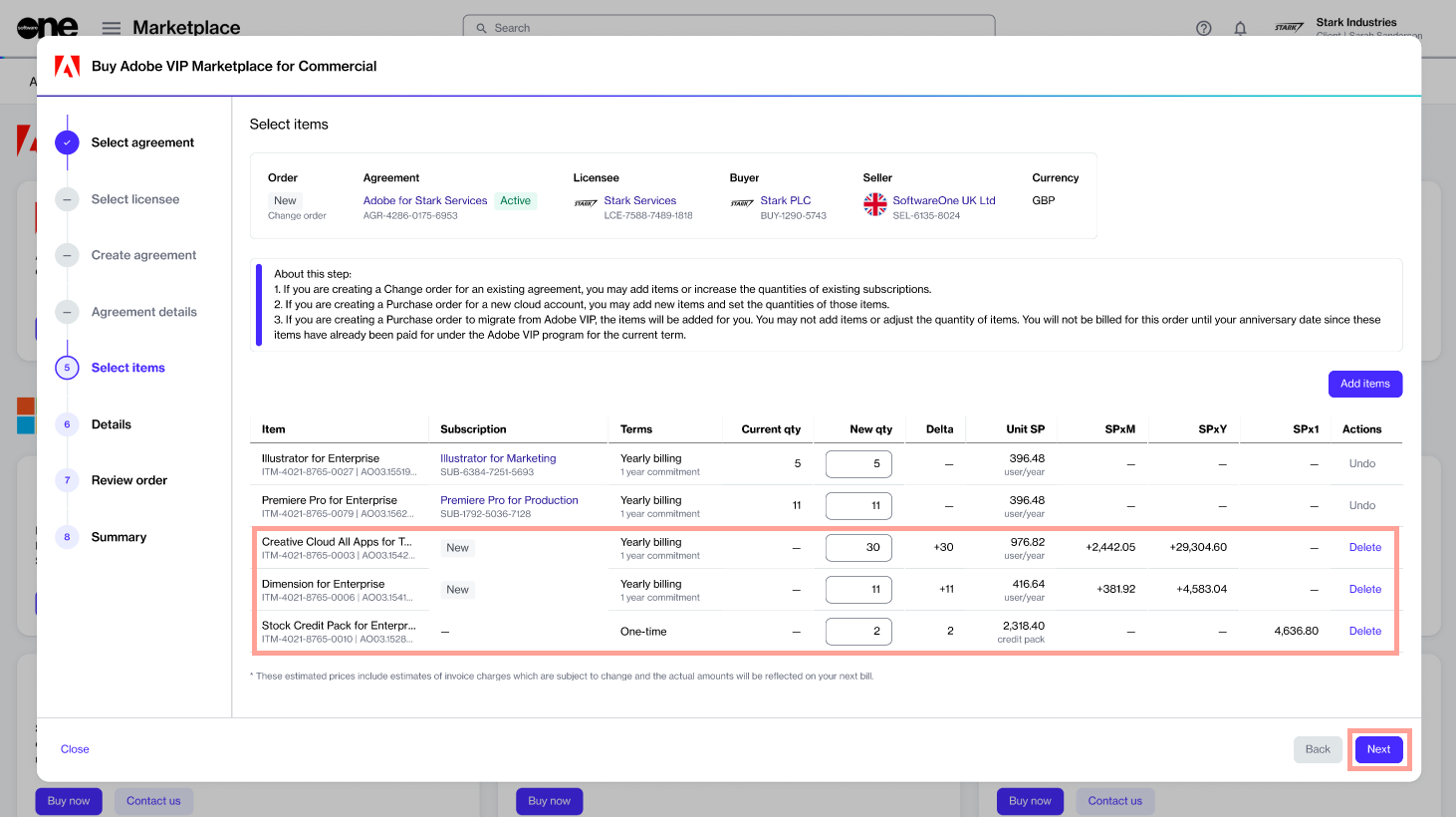
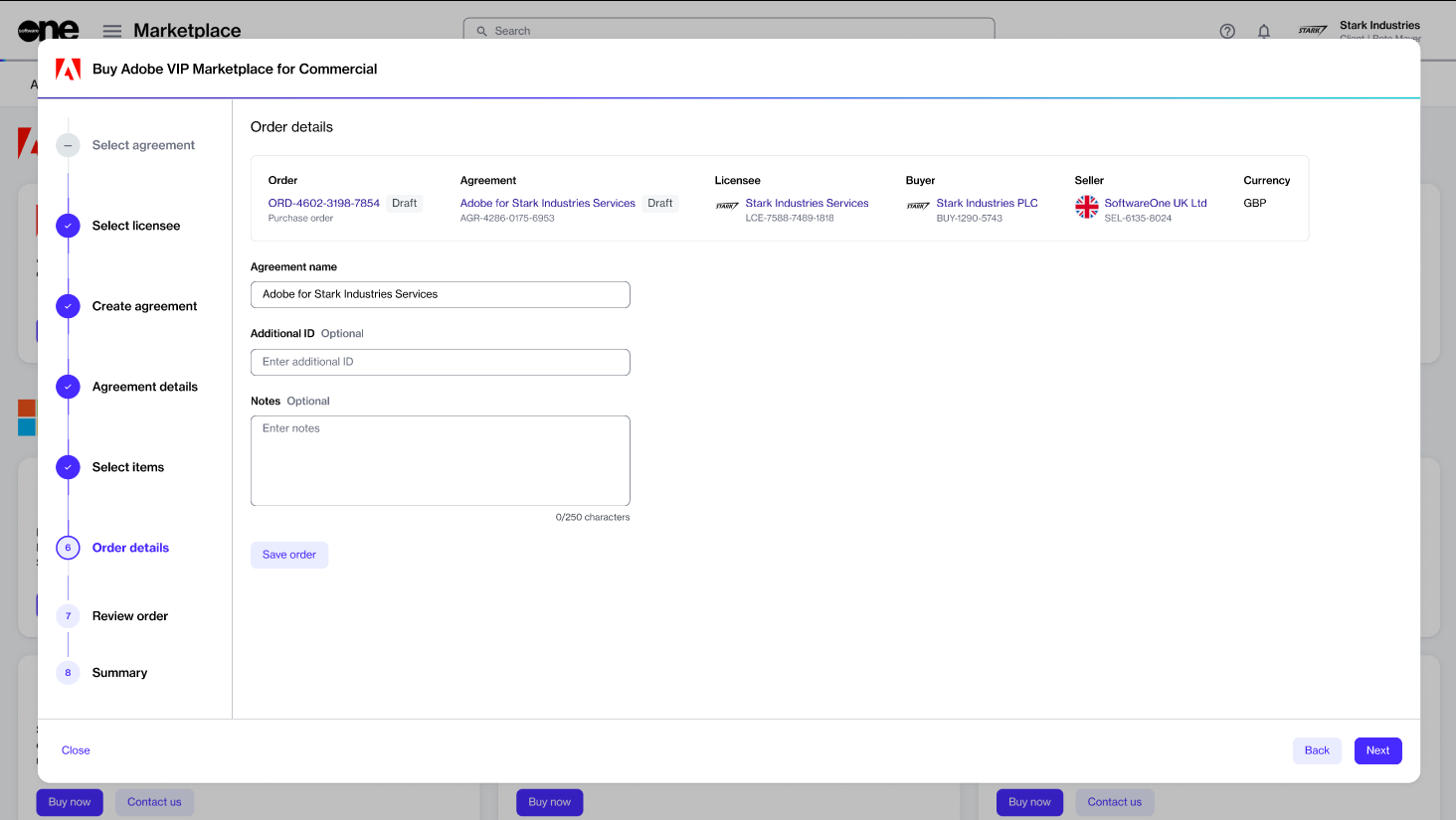
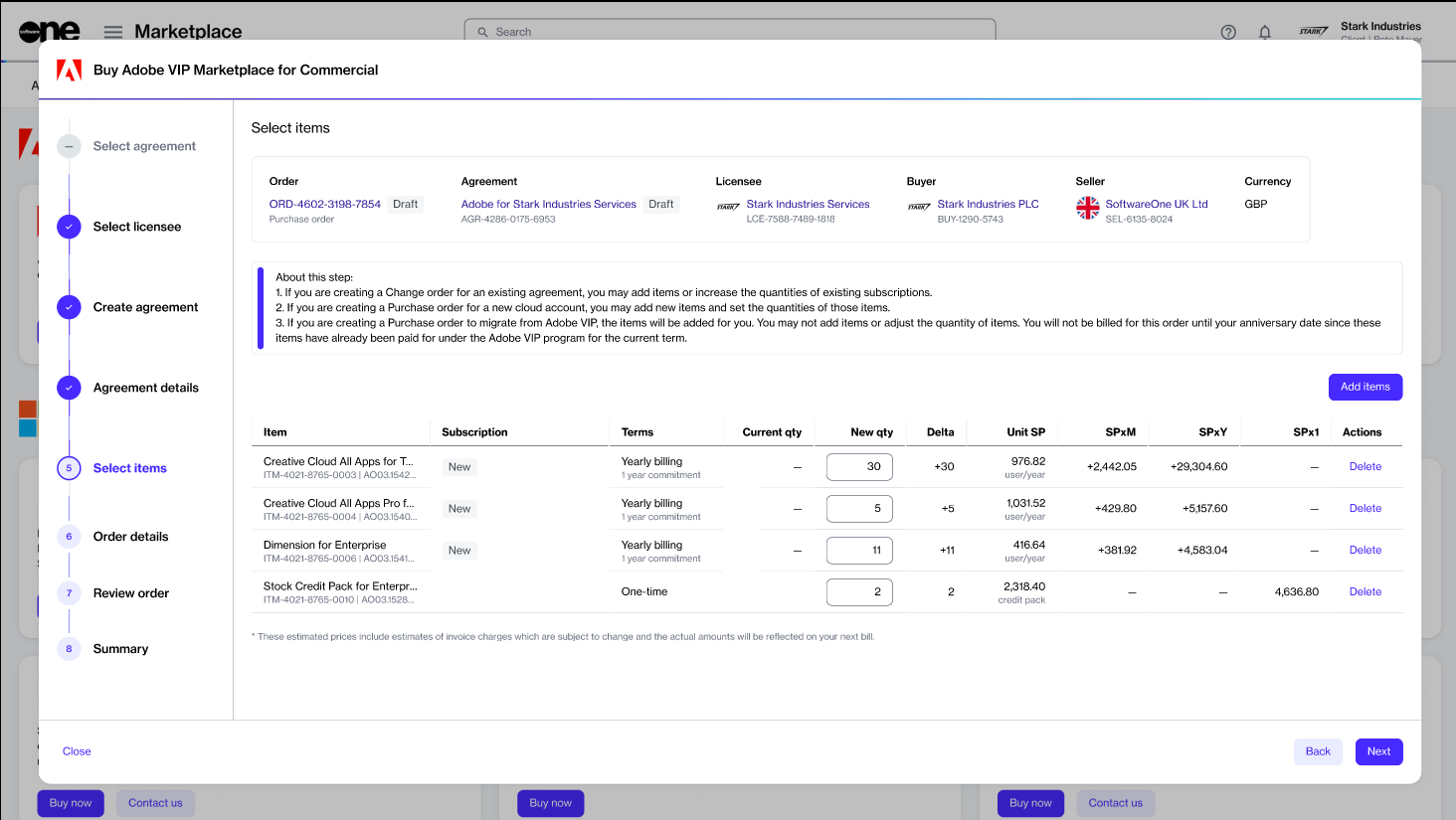
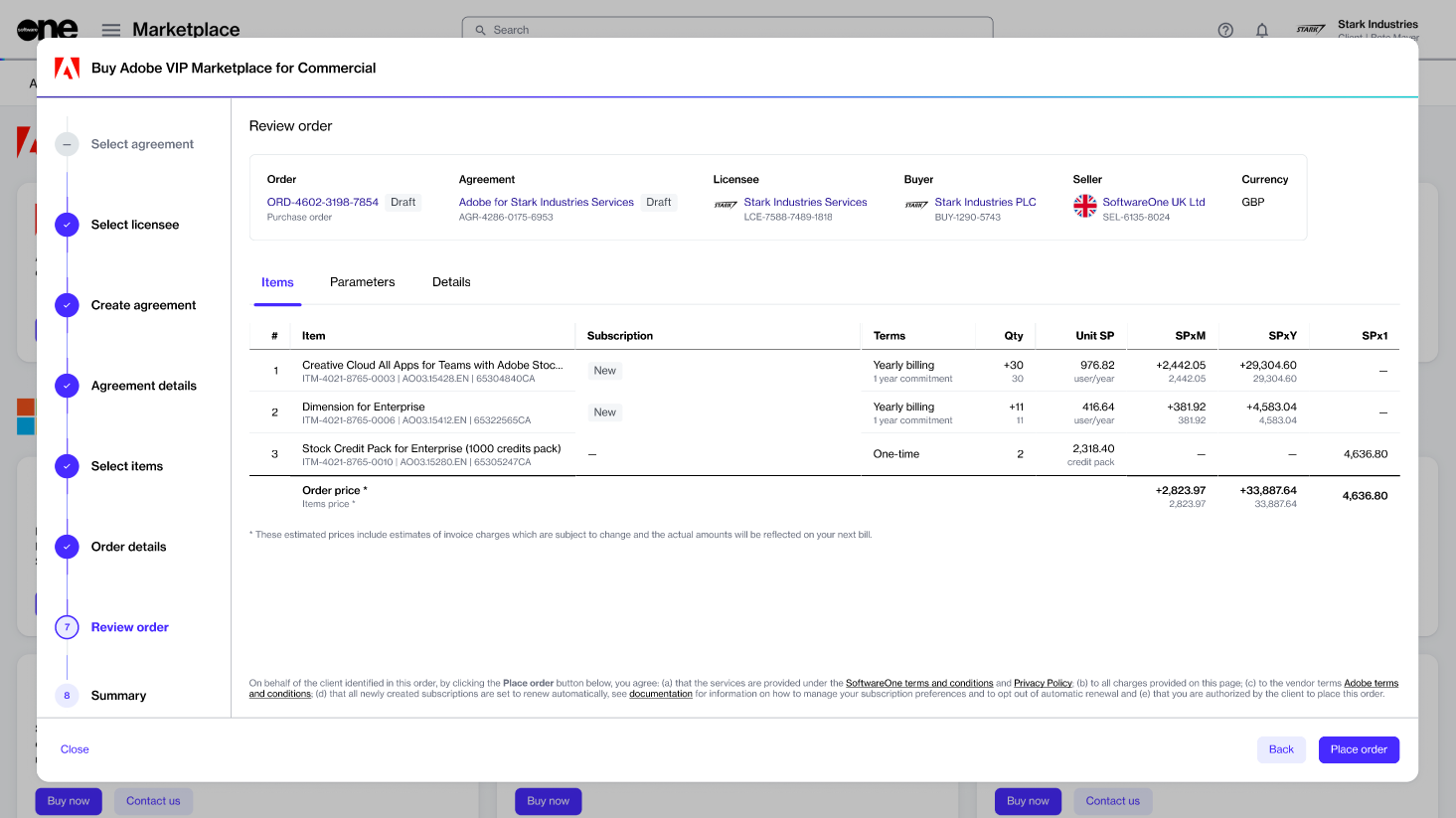
This page outlines the latest updates, improvements, and fixes to the integration between the SoftwareOne Marketplace and Adobe VIP Marketplace.
You can now return any number of the Adobe seats you bought or renewed in the last 14 days. Returns are no longer limited to whole order lines.
Reduce seats by exactly the amount you need, and get a credit for exactly that
Your credit uses the price in effect when your return is processed, which may differ from the price you originally paid
Your renewal quantity is updated to match, so returned seats aren't renewed
If you reduce by more seats than you bought or renewed in the last 14 days, or the product doesn't support partial returns, the reduction applies at your anniversary date instead.
This gives you more flexibility to adjust your Adobe seats as your needs change.
We've improved how flexible discount codes are applied when you buy Adobe products, add seats, or renew late.
The SoftwareOne Marketplace finds the discount codes you're eligible for and applies the one that gives you the lowest price
Each code is confirmed with Adobe before your order is placed. If a code can't be applied, the next best one is used.
Only codes Adobe confirms are applied to your order. If Adobe doesn't confirm any of your eligible codes, the order goes ahead without a discount.
There's nothing you need to do. This helps you get the best available price on every order.
Your Adobe agreement now lists the flexible discount codes available to you, including codes set up specifically for you. To see them, open the agreement, select the Adobe tab, then select Discounts.
See each code's discount, validity dates and the orders it applies to
Check whether a code has already been redeemed
Reusable codes you've already used stay listed for as long as they still apply. After a reusable code's end date, it's offered only to customers who already hold it.
Your codes are offered when you renew or upgrade, and the best code is applied automatically when you buy or add seats.
This makes it easier to see the discounts you can use, and when.
You can now plan and place your Adobe renewal directly in the SoftwareOne Marketplace. Open your Adobe agreement and select Renew to start the renewal wizard. Choose one of two paths:
At anniversary: set a renewal plan that Adobe applies on your anniversary date. Nothing is invoiced until then, and you can change the plan until 2 days before your anniversary date.
Renew now: renew straight away. Your anniversary date moves forward a year, you lock in current prices, and the renewal is invoiced in the next weekly billing cycle.
The path you choose with your first renewal order applies to the whole renewal. After you renew now, any further renewal orders also renew now.
In either path, you can:
Choose which subscriptions renew, and adjust quantities
Add new products, with Adobe's suggestions marked as Recommended. On Renew now, one order cannot both renew and add, so renew first, then add new products or extra seats in a follow-up order.
Apply flexible discount codes
Review your plan and pricing before you place it
Renewals are available from 30 to 2 days before your anniversary date, including both days, counted in US Pacific time. The window is checked again when you place the order. Outside that window, the wizard explains when you can renew. For more details, see .
Once a renewal is in place, change, configuration, and termination orders and upgrades are locked until your anniversary date. Make renewal changes through the renewal wizard instead. This keeps your renewal plan intact.
This makes it easier to set up your renewal the way you want it.
You can now upgrade an active Adobe subscription to a higher product partway through your term, directly in the SoftwareOne Marketplace. Open the subscription and select Upgrade to start.
Choose from the products Adobe allows your subscription to upgrade to, with Adobe's suggestions marked as Recommended
Upgrade all your seats or, where Adobe allows it, only some of them
Keep your existing anniversary date, with no new term to commit to
Apply a flexible discount code. The code that gives you the lowest price is pre-selected, you can choose another or enter your own, and you see the discounted price straight away.
Upgrades aren't available while you have a renewal in place, such as seats renewed early or a planned anniversary renewal. After an early renewal, upgrades are available again 30 days later. The wizard explains this if it applies.
Prices shown in the wizard are estimates. The final amount appears on your next bill.
This makes it easier to move to the Adobe products you need, without waiting on a support request.
We have updated how price lists are assigned to Global Customer agreements in the SoftwareOne Marketplace.
Previously, these agreements used worldwide price lists, which showed items across all regions regardless of where the deployment was located. Deployments now use local price lists matched to the deployment location's region and subscription currency.
What this means for you:
When adding items to a deployment, you will now see only the products available in that deployment's region. This makes it faster to find and order the right items, and avoids items being offered that cannot be fulfilled in that location.
Pricing and currency continue to follow the deployment location, as before.
Your existing agreements and subscriptions are unaffected, and there is no change to billing.
We’ve refined how Adobe products are presented throughout the SoftwareOne Marketplace:
Clearer product descriptions
Improved on-screen guidance during ordering
Better structured product and item selection
These updates make it easier to understand what you’re ordering and provide the right information when you need it.
You can now see exactly what is being transferred:
Previously, a reseller transfer order would contain a single item, "Reseller Transfer"
Now, all incoming subscriptions are displayed individually in your order
This gives you full visibility of your subscriptions and pricing during reseller transfers.
If you have a 3-year commitment (3YC), we’ll now keep you informed with timely reminders as your commitment comes to an end:
Notifications at 30, 14, 7, and 1 day before expiry
A reminder shortly after expiry
This helps you take action at the right time and avoid disruption.
Your linked membership details are now easier to access:
Linked memberships are visible directly within your agreement. Navigation to the Parameters tab of your Agreement to see your linked membership details.
This makes it simpler to track and manage your Adobe linked membership without needing to switch to the Adobe Admin Console.
We’ve improved how late renewals are processed to avoid confusion:
Reduced risk of duplicate quantities appearing in the Adobe Admin Console
This ensures your subscriptions remain accurate and easier to manage.
We’ve enhanced how Adobe is presented in the SoftwareOne Marketplace:
Clearer product information
Improved navigation across Adobe offerings
This makes it easier to find and understand the products that are right for you.
Starting February 2026, Adobe VIP Marketplace billing is moving from monthly to weekly invoicing.
As a result, billing will occur every Monday, starting February 2. This change aligns with Adobe’s updated invoicing model. There are no changes to pricing; only the billing frequency will change.
If you have questions or need more information, contact your SoftwareOne account team.
Adobe requires all customers with VIP Marketplace accounts in the Education segment to select their education sub-segments.
When setting up a new Education-segment account or when placing orders against an existing one, customers must choose their Education sub-segments in the Adobe Admin Console.
This release provides clear instructions during order processing and pauses the order in the Querying status, allowing you to select your sub-segments. This results in a more reliable ordering process, especially when placing orders for new Education accounts with items that require the sub-segments to be chosen before the final order is placed with Adobe. For more information, see .
When placing orders for net new Adobe VIP Marketplace accounts with a 3-year commitment, order processing is paused in Querying status after the account is created, but before the final order is placed.
This allows you to accept the 3-year commitment invitation in your Adobe Admin Console before the order is placed with Adobe, ensuring that your first order is placed at the higher discount level.
When the order is in Querying status, clear instructions on how to accept your 3-year commitment invitation will be displayed on the General tab of the order. For more information, see .
With this improvement, notifications sent during order processing include not just the final quantity of each subscription in the order, but also the individual increase or decrease amounts for each line.
Today, we release an entirely new Adobe VIP Marketplace product specifically for large government agencies in the United States and Canada.
Large Government Agencies must order a minimum of 100 licenses and must be a State or Federal entity.
With this release, it is now possible to:
Create a new Large Government Agency account.
Migrate a Large Government Agency account from VIP to VIP Marketplace.
Transfer your Large Government Agency account from another reseller to SoftwareOne.
Note that this product is only listed in the United States and Canada.
With the introduction of Assets in the SoftwareOne Marketplace, Adobe VIP Marketplace purchases of one-time items such as Stock Credit Packs now provide a richer experience.
Combined with Asset templates, it is now possible to see your usage of your assets as they are used.
Orders for Adobe VIP Marketplace now utilize Adobe's built-in functionality to calculate the price of each item in the order. This makes our pricing more accurate and allows us to show the correct prices for our High Volume Discount customers.
In addition, SoftwareOne can now extend Adobe discounts to customers during promotional events such as Black Friday and Cyber Monday.
Adobe VIP Marketplace subscriptions now include subscription templates, providing clear, plain-language descriptions of each subscription’s current state and what occurs at renewal.
This enhancement provides visibility into renewal outcomes, including whether a subscription renews automatically (with the quantity that will be renewed) or expires at the anniversary date.
By adopting subscription templates, Adobe VIP Marketplace delivers a more transparent and predictable subscription experience.
With this release, reseller transfers can now be completed directly in the Purchase Wizard, eliminating the need for a support ticket.
You can change your reseller through the Marketplace Platform by providing your administrator's email address and the reseller code from the Adobe Admin Console. For detailed instructions, see .
The Agreement Sync process is more behind-the-scenes, but no less important to the day-to-day quality of life for users. The Agreement sync keeps our Marketplace up to date with changes that may occur at Adobe, but that we may not be aware of in the SoftwareOne Marketplace.
With this release, we improve this sync to include the following:
Automatically update Agreements when a 3-year commitment starts or ends.
Automatically update pricing in Subscriptions when a customer starts or finishes a 3-year commitment or renews their Agreement (goes past their anniversary date).
Automatically updates the quantities of Subscriptions after changes are made outside of the SoftwareOne Marketplace.
Automatically terminate Subscriptions that are expired or inactive at Adobe.
Lastly, in the Parameters tab of Agreements and Subscriptions, the "Last Sync Date" parameter indicates when the Agreement or Subscription was last synced with Adobe.
In this release, we have resolved an issue that occurred when increasing the quantity of end-of-sale items in a change order. These orders would fail in the SoftwareOne Marketplace, even if the order itself succeeded at Adobe.
This issue occurred because once the order completes at Adobe, our Adobe extension attempts to update the renewal quantity of the subscription to reflect the new quantity. As end-of-sale items at Adobe cannot have their renewal quantities modified, this attempt failed. As a result, the Marketplace order failed.
This issue has now been resolved. If the Adobe extension is unable to update the renewal quantity, the order completes successfully. The quantity of the subscription item in the SoftwareOne Marketplace remains the same as it was before the order was placed.
You can view the current quantity of the subscription by checking the Current quantity parameter of the subscription in the SoftwareOne Marketplace.
When terminating a subscription that has already expired at Adobe, orders would get stuck in the Processing status.
This issue is now resolved, and termination orders placed against already expired subscriptions will now complete successfully, resulting in the termination of the subscription in the SoftwareOne Marketplace.
Delayed orders have been removed from the Adobe extension. Previously, when a change or termination order was placed within 4 days of the customer's anniversary date, the order would be delayed until after the anniversary date.
This has now changed. Change, configuration, and termination orders can now be placed up to 24 hours before the anniversary date. Attempting to place an order within 24 hours of the anniversary date will result in an error in the Purchase Wizard. If the order is placed directly through the SoftwareOne Marketplace API, the order will be marked as failed.
Note that dates are counted in US Pacific time, so these orders are refused on the whole day before the anniversary date and on the anniversary date itself. For more details, see .
Since the introduction of configuration orders to turn auto-renewal on or off, termination orders can now be used for a single purpose: to return the entire quantity of a subscription.
A termination order can now only be placed against a subscription or agreement if the entire quantity of the affected subscriptions can be returned to Adobe. If a subscription has licenses that are outside of the return window, then that subscription cannot be terminated. Instead, use a configuration order to disable auto-renewal.
When creating a new account with a 3-year commitment, the Adobe extension will now wait until the customer has accepted the 3-year commitment invitation before placing the order with Adobe. This ensures that the initial order is placed at the higher discount level provided by the commitment.
In addition, when preparing an order for a new account, the Adobe extension will validate the items in the order to ensure they all contribute to the 3-year commitment minimum quantities to avoid the order being placed at a lower (non-3yc) discount level.
When a customer has a 3-year commitment, it is important when processing an order to ensure that the customer's quantities remain above the minimum quantities required for their 3-year commitment.
To this end, we have introduced two additional capabilities:
When an order is placed against a 3-year commitment, the order is validated to ensure that the combined changes that the order will make will still satisfy the minimum quantities.
When an order is fulfilled against a 3-year commitment, subscriptions with quantity increases are processed first, and then decreases are processed second. This ensures that the total quantities never go below the minimum quantities, which would cause order failure.
A small number of customers have subscriptions in more than one currency in a single location. We now handle this as follows:
Subscriptions in the same currency as the Agreement are activated during fulfilment of the Purchase Order. These subscriptions have auto-renewal enabled and are added to the Agreement.
Subscriptions in a different currency from the Agreement are ignored. They are not added to the Agreement, and auto-renewal is switched off.
With this process, customers with multiple currencies in a single location will consolidate to a single currency at renewal.
Adobe VIP Marketplace notifications are now sent through the new Notifications module in the SoftwareOne Marketplace. This allows you to manage your notification settings for Adobe VIP Marketplace using the Notifications module.
To manage your notification preferences, use this link:
In this release, we have improved the creation of agreements and subscriptions for global customers:
Agreement parameters now reflect the correct details of each deployment location.
Inactive subscriptions at Adobe are ignored when creating the SoftwareOne Marketplace Subscriptions for each deployment location
One-time purchases are now excluded from Purchase Orders in the SoftwareOne Marketplace. These items were causing issues when completing those orders.
Global Customers are now supported by the SoftwareOne Marketplace:
Global customers can now be migrated from VIP to VIP Marketplace.
Global customers can be activated in the SoftwareOne Marketplace. The main account and each deployment location will have its own Agreement.
You can now place orders against the main account or any deployment location.
Billing update to support global customers.
In this release, we added functionality for "delayed orders". In the few days leading up to renewal, changes made to subscriptions at Adobe may not be reflected after renewal.
To ensure a predictable outcome for these orders, we will now delay them until after the renewal has taken place.
In this release, we improved quantity decreases of subscriptions to ensure any returnable orders are returned where possible.
Attempts to reduce the quantity of subscriptions prior to the final two weeks before renewal require returnable orders in order to be processed.
Attempts to reduce the quantity of subscriptions within the final two weeks before renewal only set the renewal quantity for the next renewal.
Improved setting of autorenewal for subscriptions when a customer account is activated in the SoftwareOne Marketplace.
Improved handling of customer accounts that are marked as inactive by Adobe. We now show an appropriate error message when trying to activate an Adobe VIP Marketplace account that has been disabled by Adobe.
Other various minor improvements
With VIP Marketplace Program, you can purchase Adobe subscriptions via self-service on the Marketplace Platform, and take advantage of volume discounts and automated renewals.
To learn about the VIP Marketplace program, see .
Review the effect on both subscriptions, and your estimated renewal cost, before you submit
Automatically Terminate Agreements for customers who have performed a reseller transfer away from SoftwareOne.


Find common error messages and how to resolve them.
You can find the error messages you might see when you order, change, renew, or return Adobe licenses, and how to resolve them. This helps you fix the problem and place your order again.
Messages are grouped by the task you were doing. Parts of a message in angle brackets, such as <field>, are replaced with your own details. Some error codes are used for more than one message, so look for the message text rather than the code.
For more details, see Returns and termination.
The following table describes the messages you might see in the renewal wizard:
The following table describes the messages you might see in the upgrade wizard:
If you see an error that isn't listed here, such as "Order can't be processed. Failure reason: …" or a message that includes "Adobe returned an error", contact SoftwareOne. Include the order ID and the full message.
"You can plan your renewal from 30 days until 2 days before your renewal date. Meanwhile, you can still use Change, Configuration, and Termination orders to manage your subscriptions."
Come back when the renewal window opens. For more details, see .
"It's too late to plan this renewal. Renewals can be planned up to 2 days before your renewal date. Your subscriptions will renew as they're currently set up."
Your subscriptions renew with their current settings. You can make changes after your anniversary date.
"Your renewal date is unknown, so this renewal cannot be planned right now. Your subscriptions will renew as they're currently set up."
Contact SoftwareOne.
"This agreement has no active subscriptions. You cannot plan a renewal for this agreement."
There is nothing to renew on this agreement.
"Orders can only be created for Active agreements. The agreement is currently <status>."
Wait until the current order completes and the agreement is Active again.
"The renewal is available to client accounts only."
Sign in with your client account.
"Adobe handles a renewal and any additions as separate orders, so this order cannot include both. …"
Keep only the renewal lines or only the additions, as the message describes. Place the rest as a separate order.
"Renewing now cannot go above the quantity you hold. …"
Renew the quantity you hold now. Add extra licenses in a separate order after the renewal is placed.
"A renewal has been set up for this agreement's anniversary date, so the subscription cannot be upgraded until it takes effect. To change the renewal, re-open the renewal wizard."
Upgrade after your anniversary date, or change the renewal in the renewal wizard.
"An early renewal has already been placed for this agreement, so the subscription cannot be upgraded until it takes effect at the anniversary date. …"
Upgrades are possible again after your original anniversary date.
"No upgrades available"
Adobe does not offer an upgrade for this product.
"The mid-term upgrade is available to client accounts only."
Sign in with your client account.
"Subscription <subscription> cannot renew fewer seats than the <quantity> already early-renewed."
Keep at least the quantity you already renewed early. To return licenses, reduce the subscription with a change order after the renewal.
"The renewal plan would place the account below the minimum quantities committed for the three-year commitment."
Increase the quantities so you stay at or above your 3-year commitment minimum.
"The renewal plan includes products that cannot renew at the anniversary date. Remove them from the plan to continue."
Remove the products named in the message.
"The renewal plan has no changes to submit."
Change at least one subscription or add a product before you place the renewal.
"The code you have entered, <code>, is not known. …"
Check the code. You can still place the order, but an invalid code makes the order fail.
"Reusable discounts you already hold no longer qualify for this renewal and were not applied: <codes>."
No action is needed. The renewal is priced without those codes.
"Adobe rejected the following discount codes: …"
Remove the codes listed, or choose another code for those items.
Address line 1 and Address line 2
60 characters
City
40 characters
ZIP/Postal code
40 characters
Phone number
40 characters
First name and Last name
35 characters