Cancel specific subscriptions in your agreement.
You can terminate a subscription if you no longer need it or don't want it to renew.
Subscriptions are linked to agreements, and the termination process depends on the number of active subscriptions in the agreement.
If the agreement includes multiple active subscriptions and you want to cancel all subscriptions, you must terminate the entire agreement by placing a termination order. For details, see Terminate agreement.
If the agreement includes multiple active subscriptions and you want to cancel some but not all, you must place a termination order for each specific subscription.
Only active subscriptions can be terminated. Additionally. submitting a termination order for a subscription doesn't guarantee termination. Termination orders are sent to the vendor, who decides the outcome.
To terminate a subscription:
Go to Marketplace > Subscriptions.
Select the subscription to terminate.
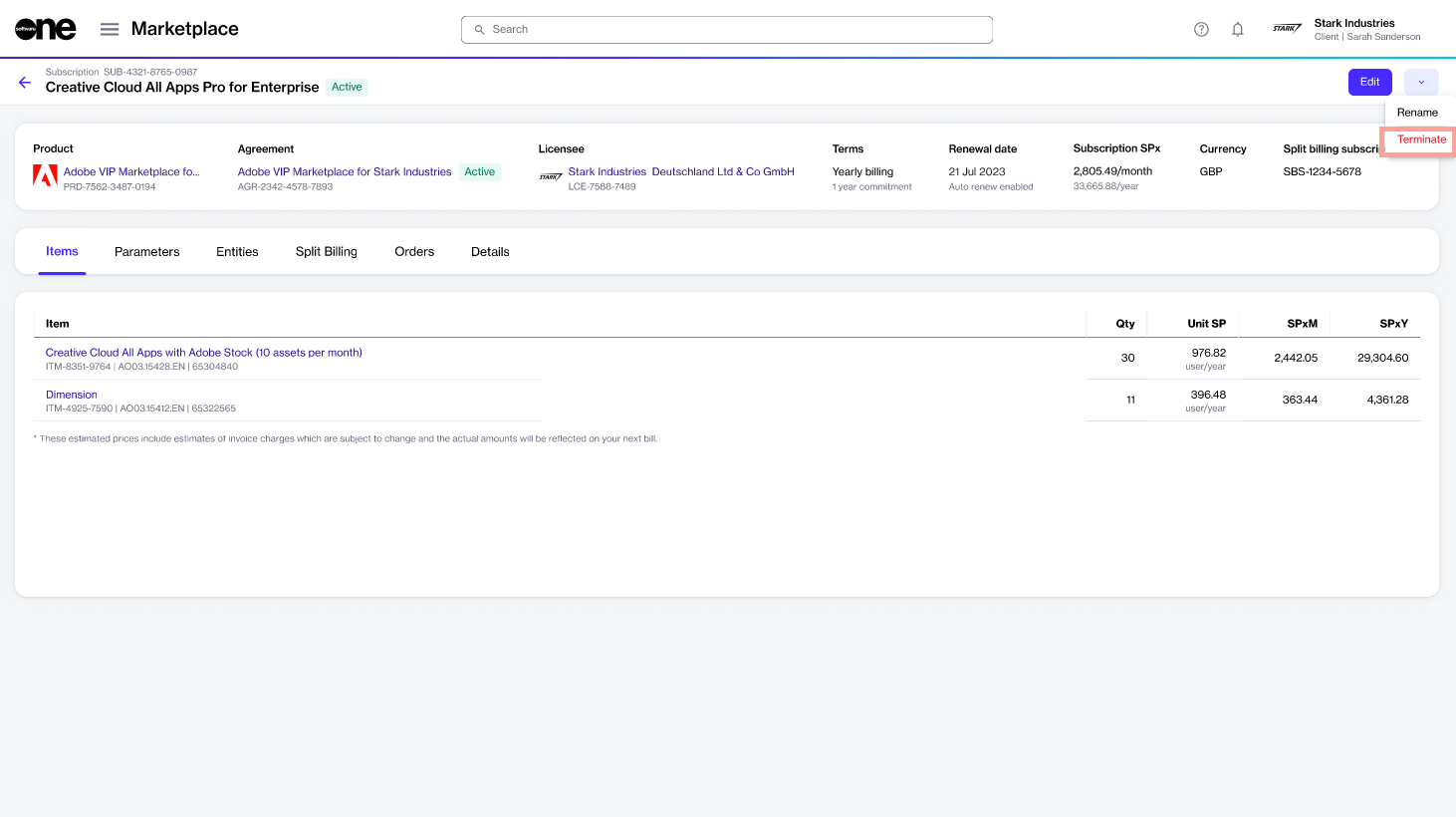
On the subscription details page, select the dropdown arrow , then choose Terminate.
In the guided Terminate subscription flow, do the following:
Items – Check that the item quantity is zero, then select Next.
Order details – Provide any reference details and order notes. Then, select Next.
Once the termination order is submitted, the subscription status changes to Terminating, and the agreement status changes to Updating. This means that no other orders can be placed against the subscription until the termination order either completes or fails.
If the order is successfully processed, the subscription status changes to Terminated. All items are removed from the subscription, and the agreement either returns to Active if there are other active subscriptions or it moves to Terminated if no active subscriptions remain.
If the order cannot be processed, both the subscription and the agreement revert to Active.
Summary – Select View order to open the order details page or select Close.