Learn about licensees in the Marketplace Platform.
A licensee is a specific person or a department within your account that receives the license to use the product.
Licensees are the entities that consume the software products or services procured by the buyer. In the SoftwareOne Marketplace, licensees are connected to buyers and sellers, and they are critical in establishing new agreements. Your account may contain multiple licensees, but each licensee can only be connected to one buyer and one seller at a time.
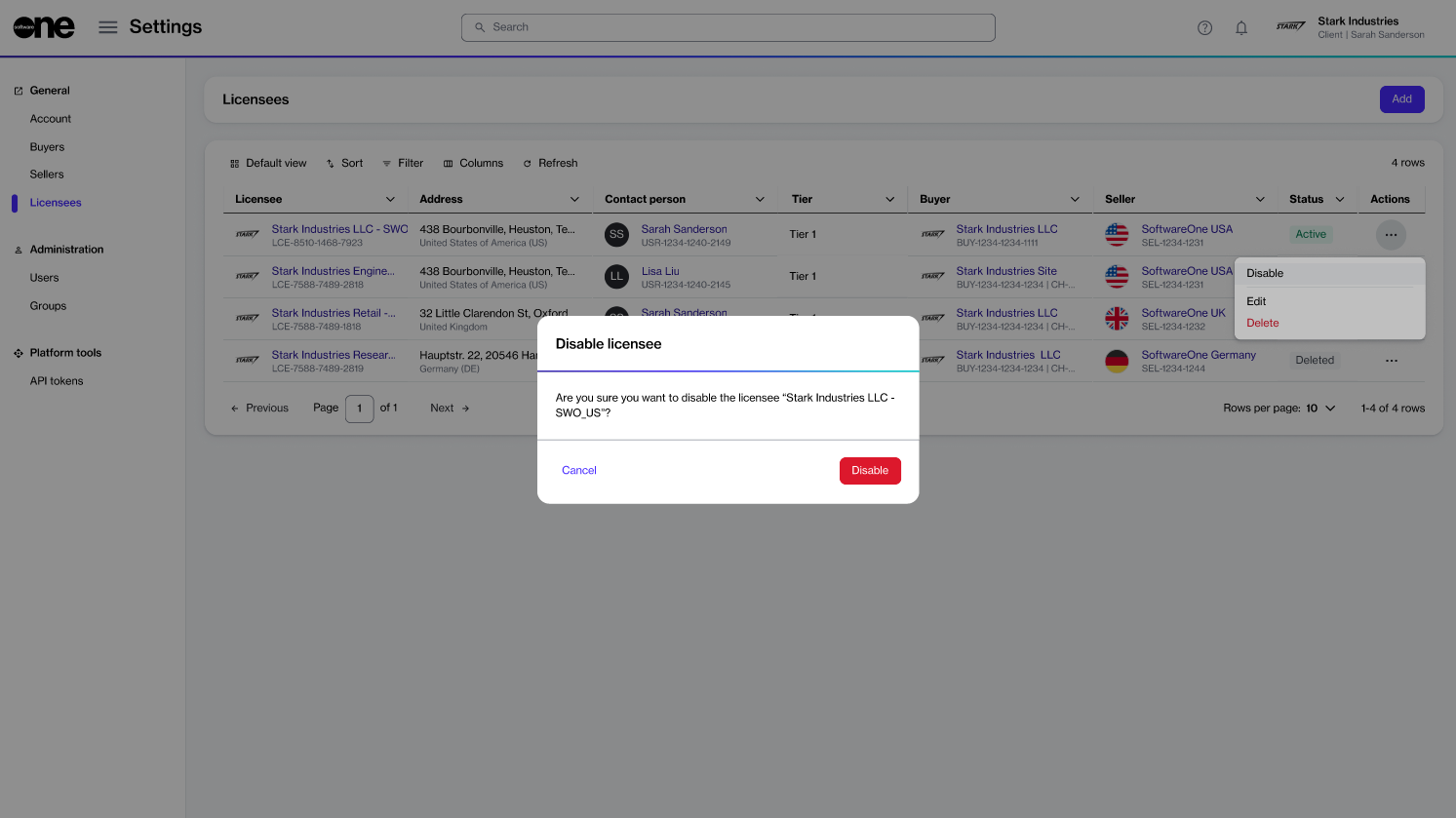
The Licensees page allows account administrators to add new licensees. Administrators can also use this page to view, modify, enable, or disable a licensee.
To open the page, choose Settings > Licensees from the main menu.
On the Licensees page, you can use the sort and filter options and show or hide specific columns to customize the list. You can also view a licensee's details by selecting their name, and you can manage the licensee by using the options in the Actions column.
Learn about the different states of licensees.
A licensee is a specific person or a department within your account that receives the license to use the product.
A licensee can be in one of these states: New, Active, Enabled, Disabled, or Deleted. The following diagram shows the transitions between these states:
The following table describes the different states:
Update an existing licensee.
Account administrators can update general information for a licensee, including the name, description, and address details. The buyer or seller entities for the licensee cannot be updated.
To update details for an existing licensee:
Go to Settings > Licensees.
Find the licensee you want to edit.
New
This is the initial status and it's assigned when you are creating a new licensee .
Active
The licensee is currently active, and you can use it when creating new agreements and ordering products.
Enabled
The licensee has been set up in the system, but it can't be used for transactions.
Disabled
The licensee has been disabled and can no longer be used.
Deleted
The licensee has been deleted.

In the Edit Licensee flow, make changes as needed, then save your changes:
General – Update the following details:
Logo – Upload the licensee's logo in the JPG or PNG format. The maximum file size is 5 MB. You can upload an image by selecting Select file or by dragging the image into the field.
Licensee name – Update the licensee name.
External reference – Add or update the reference number associated with the licensee. You can also remove the number if provided during licensee creation.
Licensee description – Add or update the licensee description.
Address information – Adjust the address as necessary. You can update the existing address or use the same address as that of the buyer.
Create a new licensee and map them to buyers and sellers.
In the SoftwareOne Marketplace, you must select a licensee when creating a new agreement or ordering products.
Account administrators can create new licensees and map them to the appropriate buyer and seller entities within the account.
Before creating a licensee, ensure that your account contains buyers and sellers. Also, make sure that you have the licensee's first and last name and email address.
To create a new licensee:
Go to Settings > Licensees.
In the Add licensee flow, complete the following steps:
General – Provide the following details, then select Next:
Logo – (Optional) Add a logo representing the licensee. You can upload an image by clicking Select file or by dragging the image into the field.
Licensee name – (Required) Provide the licensee's name. This can be your company name, department name, or username.
Resale licensee – (Optional) Select this checkbox if you are a SoftwareOne partner who is transacting through the partner program. Otherwise, leave it clear.
External reference – (Optional) Provide a reference number or identifier for the licensee.
Licensee description – (Optional) Add a description for the licensee.
Buyers – Choose the buyer for your transactions. You can link a licensee to one buyer only. Select Next.
Sellers – Choose the SoftwareOne entity that will facilitate transactions. Select Next.
Address – Choose the licensee's address. You can use the same address as that of the buyer or provide a new one by selecting Create a new licensee address.
Overview – Review the details, then select Add.
Summary – Select View details to open the licensee details page or select Close.
The new licensee is created. You can select this licensee when ordering products through the Marketplace.
Manage your existing licensees.
Account administrators can enable or disable a licensee from the licensee's details page.
Once you disable a licensee, you can’t select it when creating new agreements or ordering subscriptions.
To enable or disable a licensee:
Go to Settings > Licensees.
Find the licensee you want to enable or disable.
Complete one of the following steps:
Select the actions icon (•••), then choose Enable or Disable.
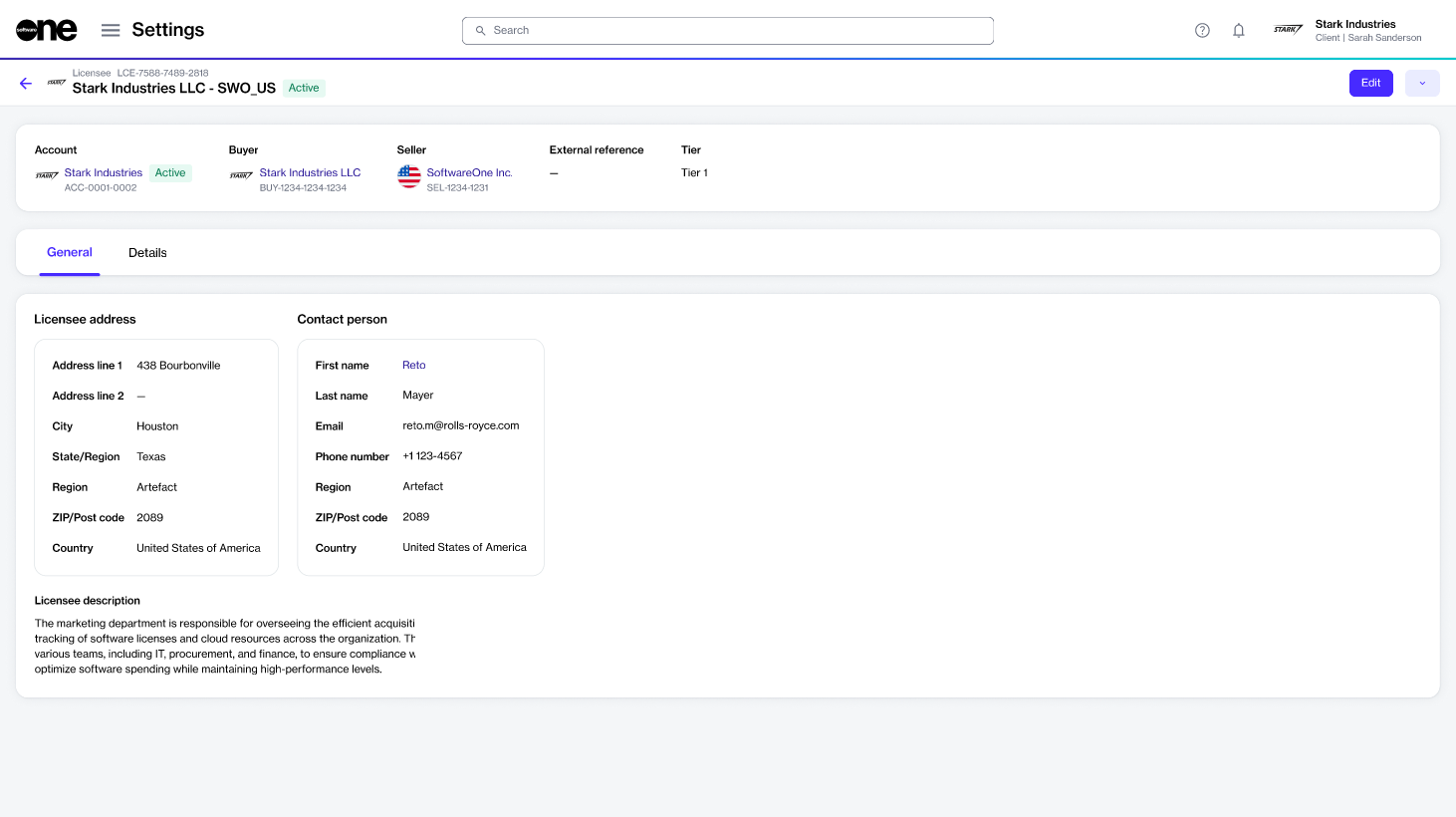
On the Licensees page, select the licensee. Then, on the licensee details page, select the dropdown arrow and choose Enable or Disable.
Confirm the action.
The licensee is enabled or disabled, depending on your chosen action, and a confirmation message is displayed. You can view the updated status on the Licensees page.
This topic describes how to view a list of licensees in your account, as well as details about a specific licensee.
To view a list of licensees in your account:
Go to Settings > Licensees.
View the list of all licensees displayed on the page.
Review details, such as licensee name, address, status, and more. You can also identify whether the licensee is configured as a resale licensee who sells products for resale rather than using them for self-consumption.
On the licensee details page, you can view detailed information for a specific licensee.
To view the licensee details:
Go to Settings > Licensees.
Select the licensee you want to view. The licensee details page opens.
Use the tabs to access different types of information:
General
Shows the licensee's mailing address and contact person details.
Details
Shows the event history and additional details for the licensee.
Audit trail
Shows an for the licensee.