Increase the number of licenses for your existing Adobe subscription.
You can increase the number of licenses in an Adobe subscription by placing a change order. This helps you add licenses as your team grows.
Before increasing the number of licenses, ensure that both the agreement and subscription are active.
You cannot place a change order on the day before your anniversary date or on the anniversary date itself (US Pacific time). For more details, see Key dates and deadlines.
Open the required subscription
To open the subscription:
Go to Marketplace > Subscriptions.
Select the required subscription.
On the subscription details page, select Edit.
Increase the quantity and submit the change order
In the guided Edit subscription flow, complete the following steps:
Items – Under New qty, increase the quantity, then select Next.
Details – Add or update the reference details for the order, then select Next.
After you place the order, a change order is created for the agreement.
The agreement status also changes from Active to Updating. While the agreement is updating, you cannot place more orders under that agreement.
You can track the order on the Orders page or in the Orders tab on the agreement details page.
Review – Review the order details, go through the terms and conditions, then select Place order.
Summary – Review your order summary, then select View details to open the order details page, or select Close.
Change your Adobe subscriptions during your term.
You can change your Adobe subscriptions at any time during your term: add products, change license quantities, upgrade, and turn auto-renewal on or off. This helps you keep your licenses in line with what your organization needs.
Note that you cannot place change or configuration orders on the day before your anniversary date or on the anniversary date itself. For more details, see .
Add new Adobe products to your existing agreement.
Increase the number of licenses for an active subscription.
Upgrade an active subscription to a higher product mid-term.
Reduce the number of licenses for an active subscription.
Turn automatic renewal on or off for a subscription.
Add new Adobe products to your existing agreement.
You can add new items to your existing Adobe VIP Marketplace agreement by placing a change order. This helps you add Adobe products without creating a new agreement.
Make sure the agreement you want to use is active.
You cannot place a change order on the day before your anniversary date or on the anniversary date itself (US Pacific time). For more details, see Key dates and deadlines.
Start the ordering process
To start the order:
Go to Catalog > Products.
Select the required Adobe product, for example, Adobe VIP Marketplace for Commercial.
Review the product details.
Select Buy now.
Add the items to your order
In the guided purchase flow, complete the following steps:
Select agreement – Select the required active agreement, then select Next.
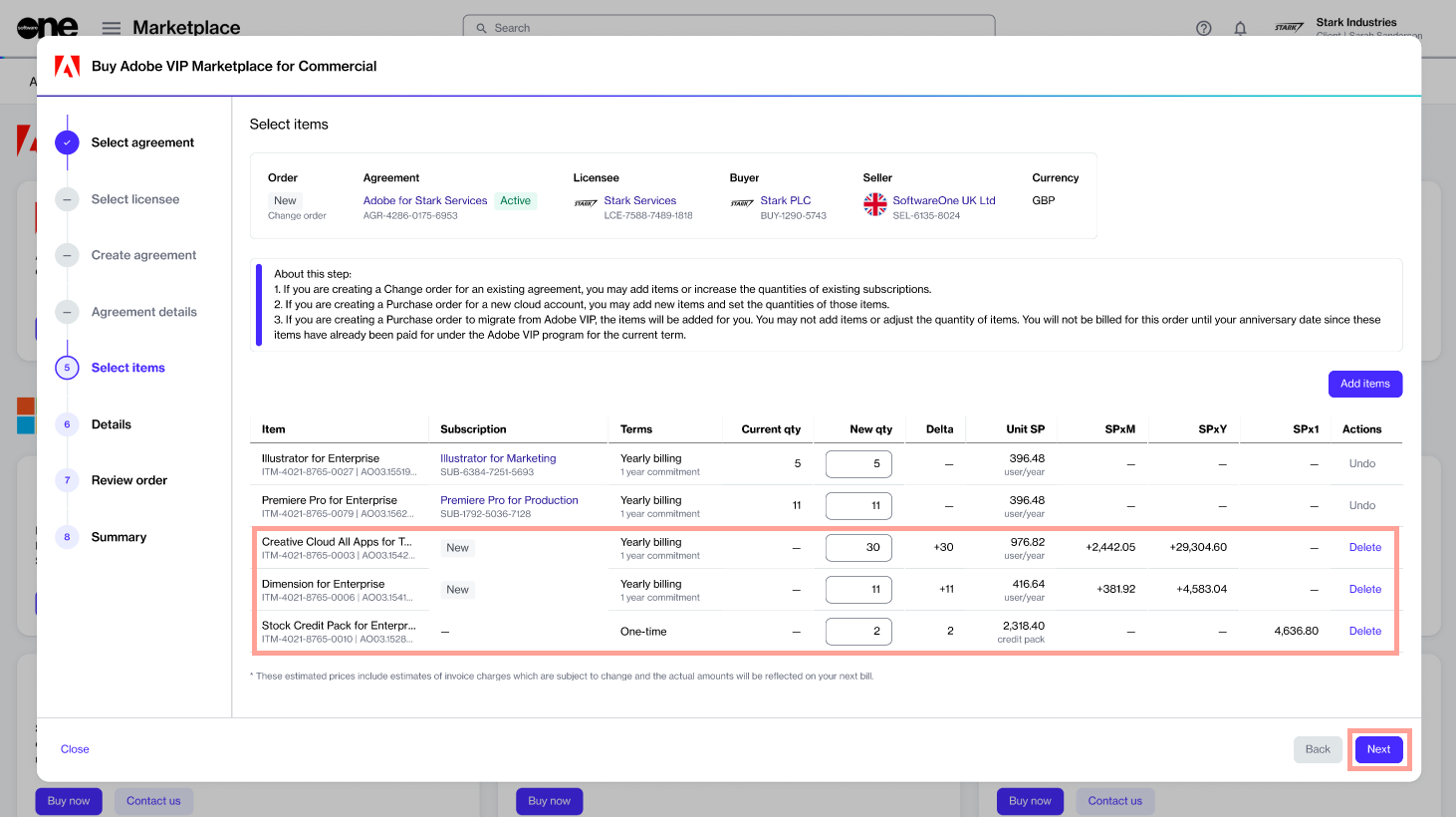
Select Items – Do the following:
Review and submit the change order
Details – Add or update the reference ID and order notes. Select Next.
Review order – Review the order details, go through the terms and conditions, then select Place order.
Summary – Review your order summary, then select
After you place the order, a change order is created for the agreement.
The agreement status also changes from Active to Updating. While the agreement is updating, you cannot place more orders under that agreement.
You can track the order on the Orders page or in the Orders tab on the agreement details page.
Add the required items to your order.
Update the quantity in the New qty field.
Select Next.
Reduce the number of licenses in your Adobe subscription.
You can reduce the number of licenses in an Adobe subscription by placing a change order. This helps you pay only for the licenses you need.
What happens depends on how many of the licenses you're removing you bought or renewed in the last 14 days:
Returned – If you bought or renewed at least that many licenses in the last 14 days, Adobe returns them. The licenses become unavailable to users immediately, your Current quantity and Renewal quantity both go down, and you receive a credit.
Reduced at renewal – If you're removing more licenses than that, or the product cannot be returned, nothing is returned now. Your licenses stay available until your anniversary date, only your Renewal quantity goes down, and there's no credit.
You can remove any number of returnable licenses. You don't have to match a whole order.
For more details, see .
Ensure that both the agreement and the subscription you want to downsize are currently active.
You cannot place a change order on the day before your anniversary date or on the anniversary date itself (US Pacific time). For more details, see .
Open the subscription
To open the subscription:
Go to Marketplace > Subscriptions.
Select the required subscription.
On the subscription details page, select Edit.
Your change order is submitted for processing. The subscription and the agreement change from Active to Updating, and you cannot make further changes until the order completes.
When the order completes, open the subscription's General tab to see the result:
If the Current quantity has gone down, the licenses were returned.
If only the Renewal quantity has gone down, the reduction applies at your anniversary date.
You can follow the order on its details page.
Decrease the quantity and submit the order
In the guided Edit subscription flow, complete the following steps:
Items – Under New qty, update the quantity, then select Next.
Details – Add or update the reference details, then select Next.
Review – Review the order details, go through the terms and conditions, then select Place order.
Summary – Review your order summary, then select View details to open the order details page, or select Close.
Upgrade an Adobe subscription to a higher product during your term.
You can upgrade an active Adobe subscription to a higher product partway through your term by placing an upgrade order. This helps you move to the Adobe products you need without waiting for your renewal.
When you upgrade:
You choose from the products Adobe allows your subscription to upgrade to. Adobe's suggestions are marked Recommended.
You can upgrade all of your licenses or, where Adobe allows it, only some of them.
Your anniversary date stays the same, with no new term to commit to.
If you upgrade all of your licenses, the original subscription is terminated.
If the upgrade creates a new subscription, auto-renewal is turned on for it.
Prices shown in the wizard are estimates. The final amount appears on your next bill.
You are signed in with a client account. The upgrade wizard is available to client accounts only.
The subscription and the agreement are both Active.
No renewal is in place for the agreement. You cannot upgrade while a renewal is planned for your anniversary date, or after an early renewal until your original anniversary date.
Open the subscription
To open the subscription:
Go to Marketplace > Subscriptions.
Select the subscription you want to upgrade.
On the subscription details page, select the dropdown arrow, then choose Upgrade
Your upgrade order is submitted for processing. The subscription and the agreement change from Active to Updating, and you cannot place further orders until the order completes.
When the order completes, the upgraded licenses are on the new product, and your anniversary date is unchanged. You can follow the order on its details page.
Note that an upgrade cannot be returned like a new or renewal order. For more details, see .
Choose the upgrade and place the order
In the guided Upgrade subscription flow, complete the following steps:
Upgrade from – Check the subscription you are upgrading, then select Next.
Upgrade to – Select the product to upgrade to and enter the New Quantity, then select Next. Where Adobe doesn't allow a partial upgrade, the quantity must match the quantity you hold.
Promotions – Choose a discount code for the upgraded item, or enter your own. The code that gives you the lowest price is pre-selected, and the discounted price is shown. Select Next.
Split billing – If your subscription has split billing, choose how to allocate billing for this order, then select Next. This step only appears for subscriptions with split billing.
Details – (Optional) Enter an Additional ID and Notes to help you identify the order, then select Next.
Review order – Review the effect on both subscriptions and the estimated prices, then select Place order.
Summary – Select View order to open the order details page.
Turn automatic renewal on or off for your Adobe subscription.
You can turn automatic renewal on or off for an Adobe subscription by placing a configuration order. This helps you decide whether the subscription renews on your anniversary date.
Disable auto-renewal if you don't want the subscription to renew. Your licenses stay active until your anniversary date, and then the subscription expires. This is also the way to stop a subscription that is outside the 14-day return window.
Enable auto-renewal if you turned it off and now want the subscription to renew.
You cannot place a configuration order on the day before your anniversary date or on the anniversary date itself (US Pacific time). For more details, see Key dates and deadlines.
Open the required subscription
To open the subscription:
Go to Marketplace > Subscriptions.
Select the required subscription.
On the subscription details page, select the dropdown arrow , then choose Configure.
Submit the configuration order
In the guided Configuration order flow, complete the following steps:
Auto-renewal – Choose Disable or Enable, then select Next.
Order details – Enter the order reference information, then select Next.
Your configuration order is processed automatically. When it completes:
If you disabled auto-renewal, your licenses stay active until your anniversary date. Then the subscription expires, and you are not billed further.
If you enabled auto-renewal, the subscription renews on your anniversary date at its Renewal quantity.
Review order – Review the details, then select Place order.
Summary – Review your order summary, then select View details to open the order details page, or select Close.

