Finalize and submit your saved orders for processing.
If you saved an order for later, you can submit it for processing from the Orders page.
Once a saved order is submitted, it is no longer listed as a saved order and will not appear with a draft or quoted status.
To submit a saved order for processing:
Go to Marketplace > Orders.
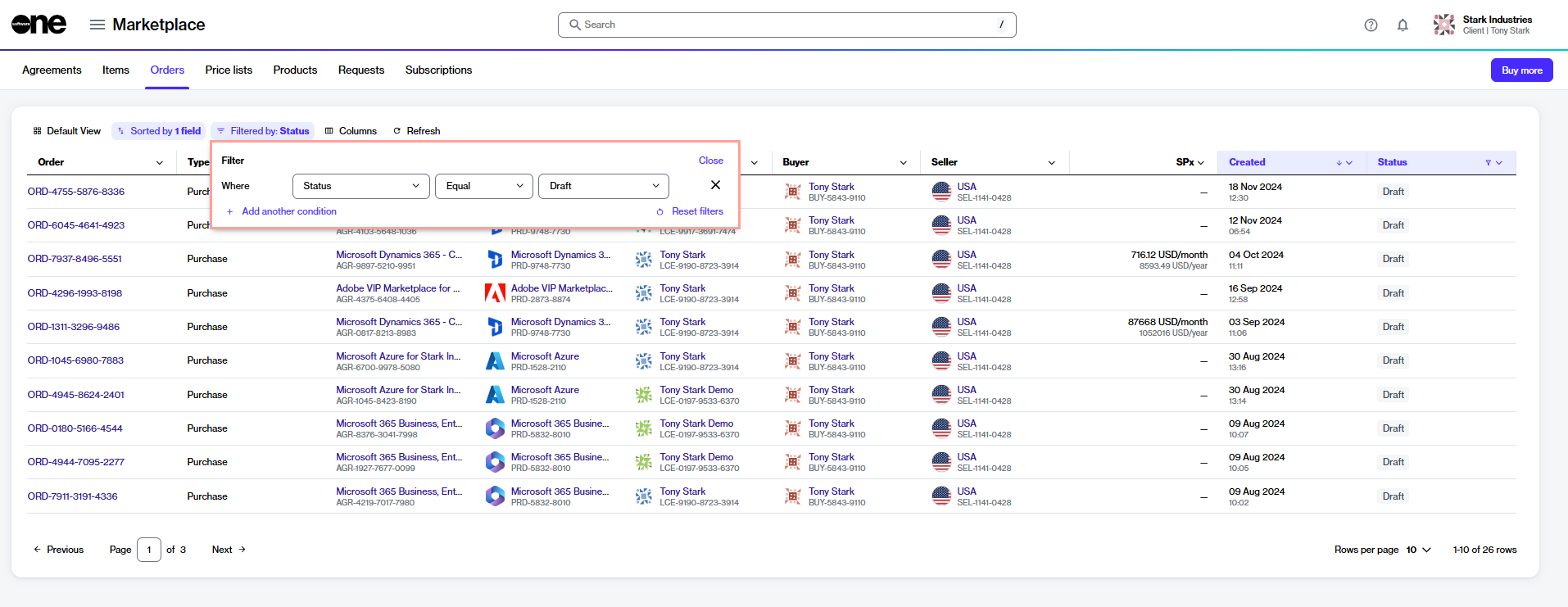
(Optional) Use the following filters to find the required order:
Select the Filter option in the table.
Select Add another condition and then use the dropdown to make the following selections:
In the first field, choose Status.
In the second field, set the filter to Equal.
In the third field, select Draft and then close the filter box.
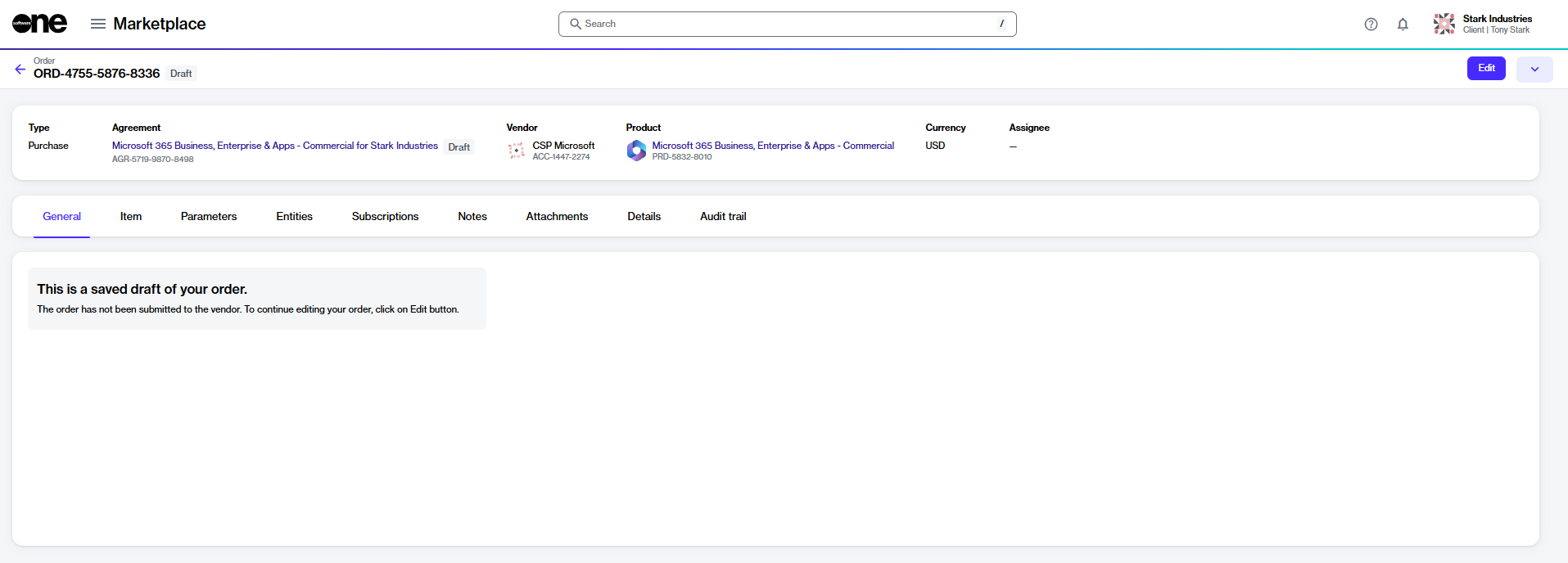
Select the required order. Then, on the order details page, select Edit.
In the Purchase flow, complete the following steps:
Select items – Do one of the following:
If your order already includes items that were added before it was saved for later, those items are displayed in the Items section. Review the items, then select Next.
Once the order is submitted, the order status changes to Processing, and the agreement status changes to Updating. This means that no other orders can be placed against the agreement.
If the order is successfully processed, the order status changes to Completed, and the agreement status changes to Active. If the order needs your attention, the status changes to Querying. Open the querying order and review the General tab for the next steps.
Details – Provide reference IDs or order notes, then select Next.
Review – Review the order details, then select Place order.
Summary – Select View details to open the order details page or select Close.