Split billing is a feature that allows you to divide the billing for your subscriptions among different buyers in your account.
Designed for organizations with multiple legal entities, split billing lets you select buyers and allocate billing for your subscriptions to different buyers. This enables cost-sharing and accurate tracking of consumption. It also ensures that each buyer is accountable for a share of the subscription cost based on usage.
You can divide the subscription costs easily by specifying percentages or estimated license count (ELC) for each buyer. Once defined, these details are used during invoicing to generate separate invoices for each entity. In cases where split billing is enabled but the split hasn't been defined, 100% of the billing is allocated to the default buyer in your agreement, also known as the Owner buyer.
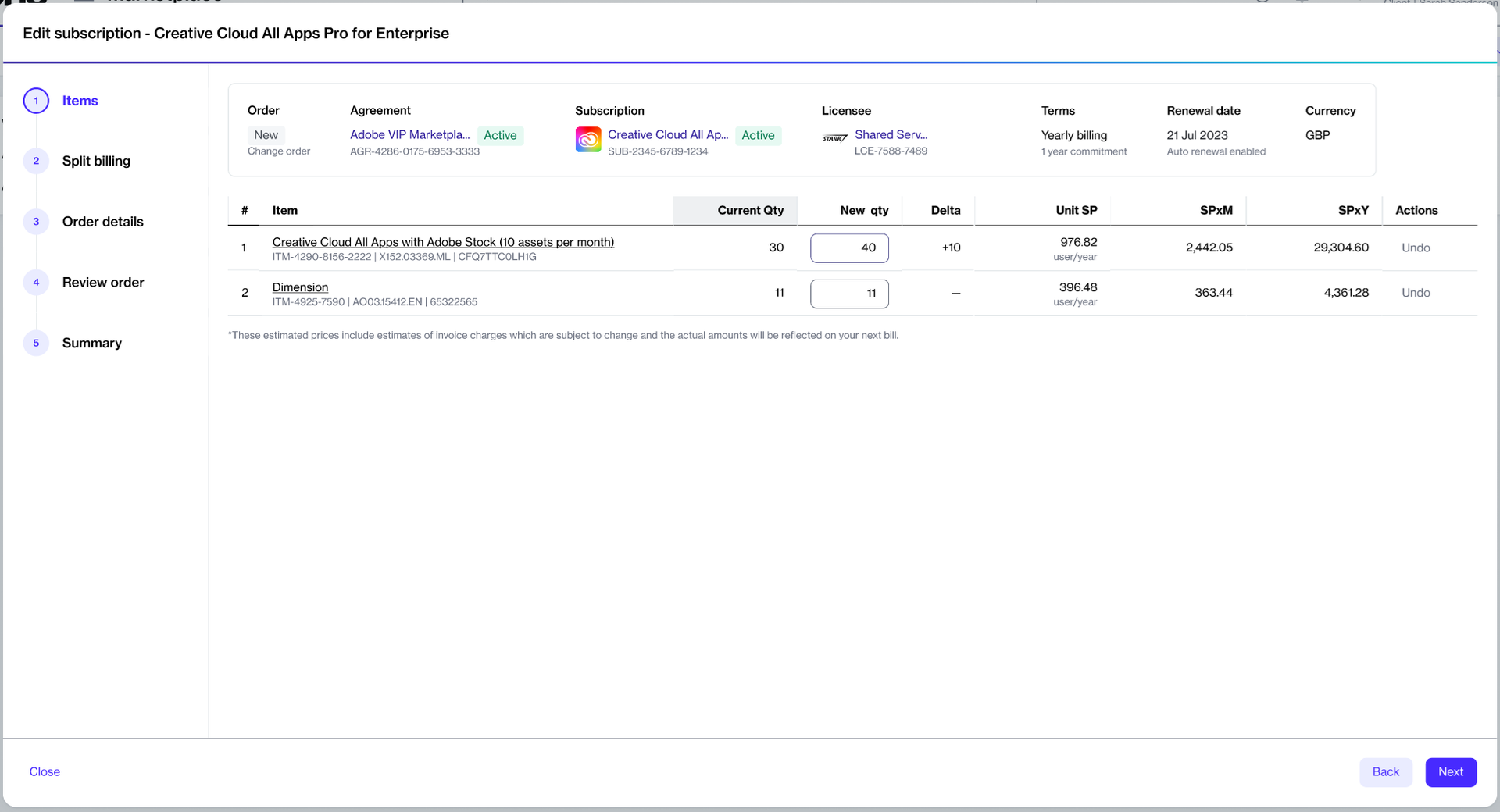
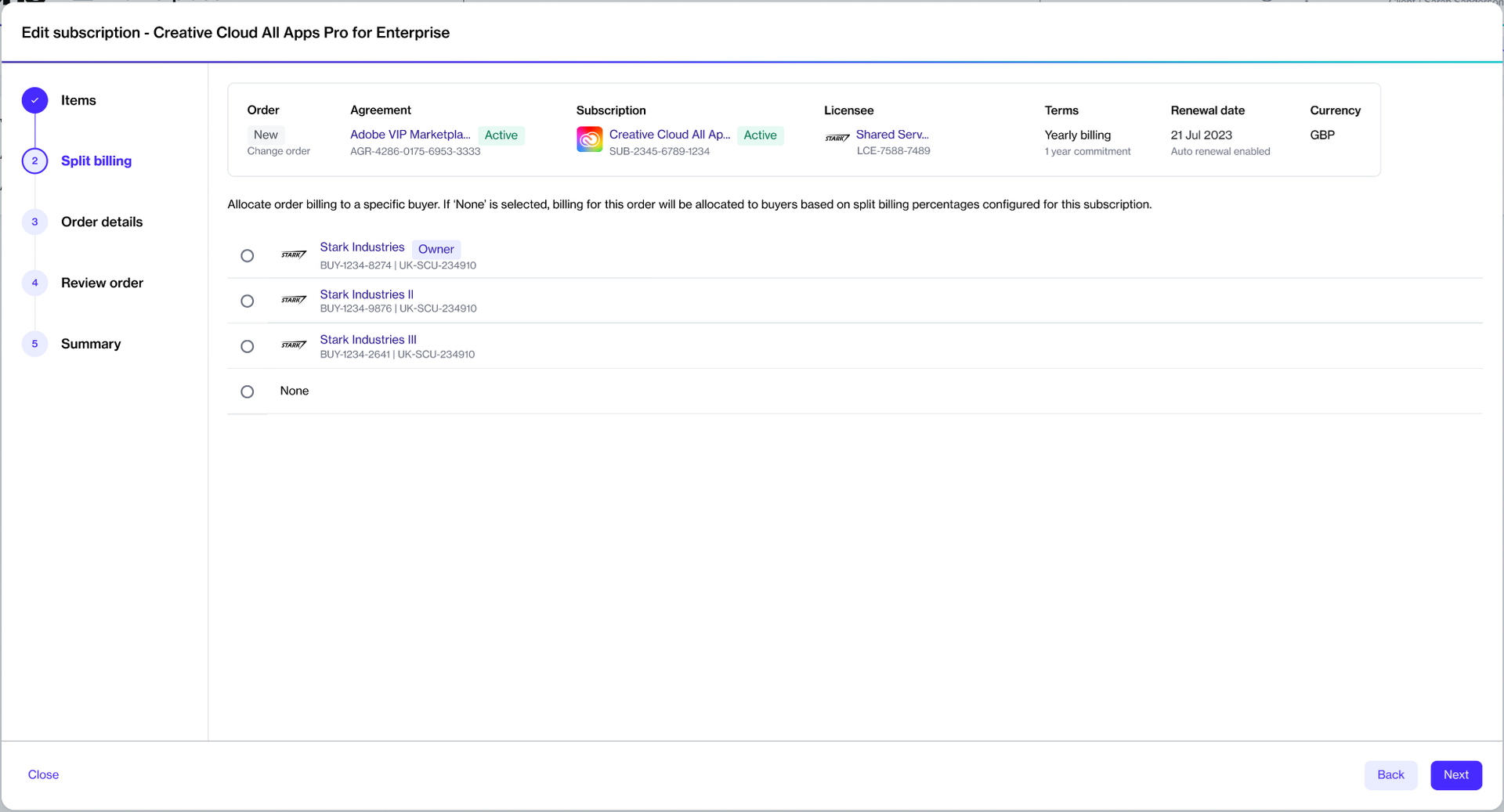
The platform also lets you allocate billing when ordering additional subscription licenses. It means when creating a change order for an increase in subscription quantity, you can select buyers and allocate billing to those buyers.
In the Marketplace Platform, the following rules apply to split billing:
Split billing must be activated at the agreement level. Once activated, this feature cannot be deactivated.
After activating split billing, new purchases under the agreement are invoiced based on the allocation percentage or the specific buyer you've allocated the subscription billing to.
The ELC is indicative only. The Split billing feature is designed around allocation percentages, which means the platform always considers percentages during billing.
You can modify the allocation for your active subscriptions at any time. However, the changes will only take effect in your next billing cycle.
Buyers can only be removed from split billing if they have no configured allocation percentage. The platform doesn't allow you to remove buyers if an allocation percentage exists for those buyers.
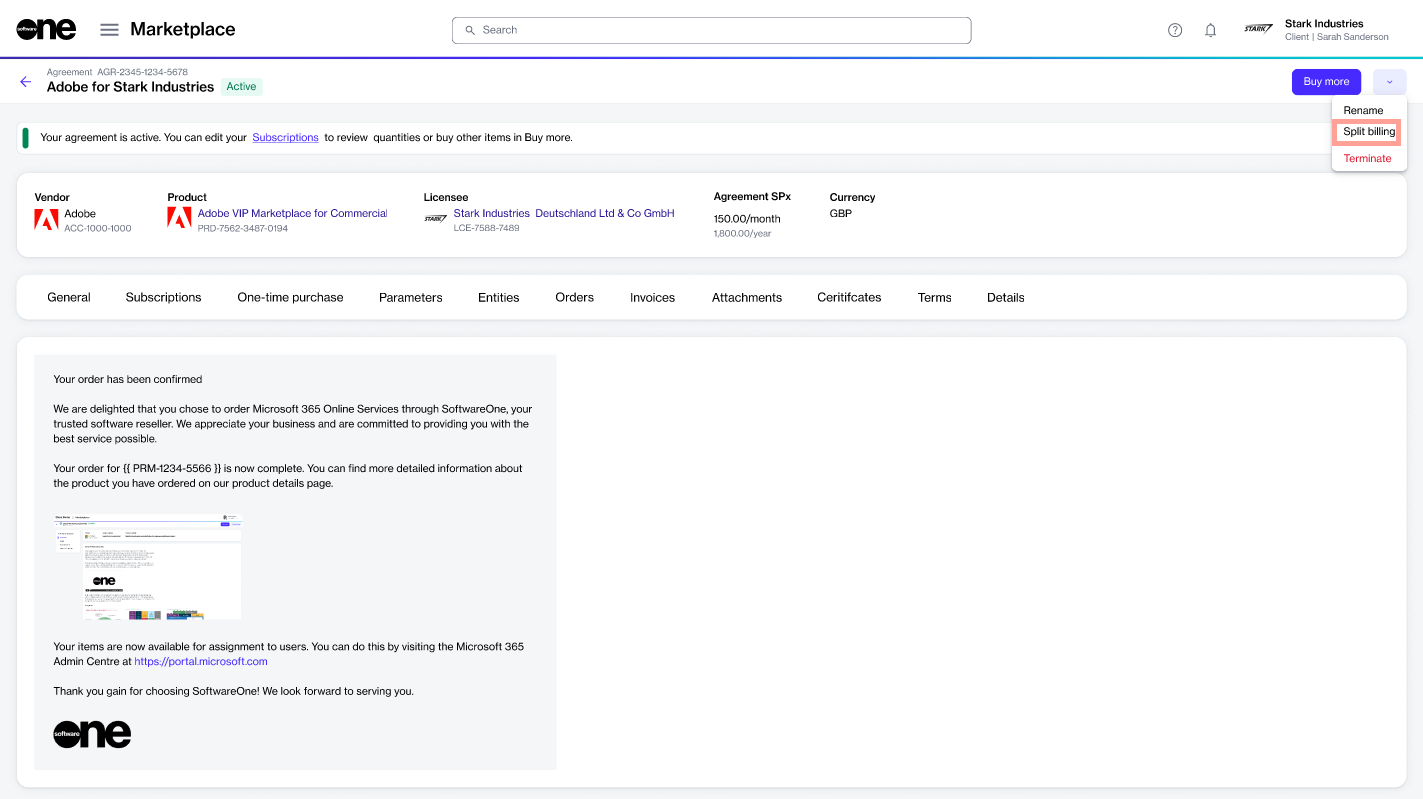
You can activate split billing using the Split Billing option on the details page of your agreement. For instructions, see .
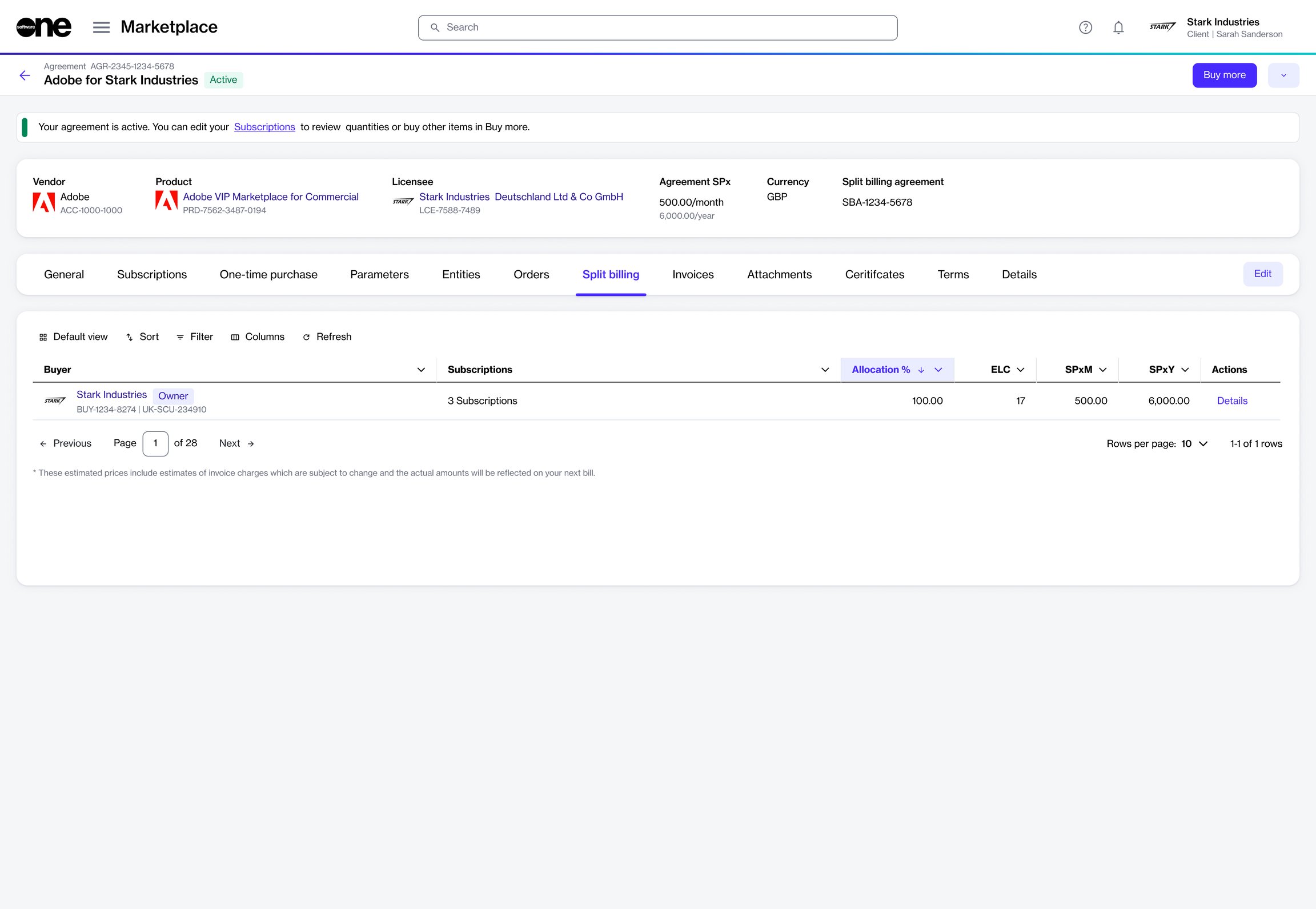
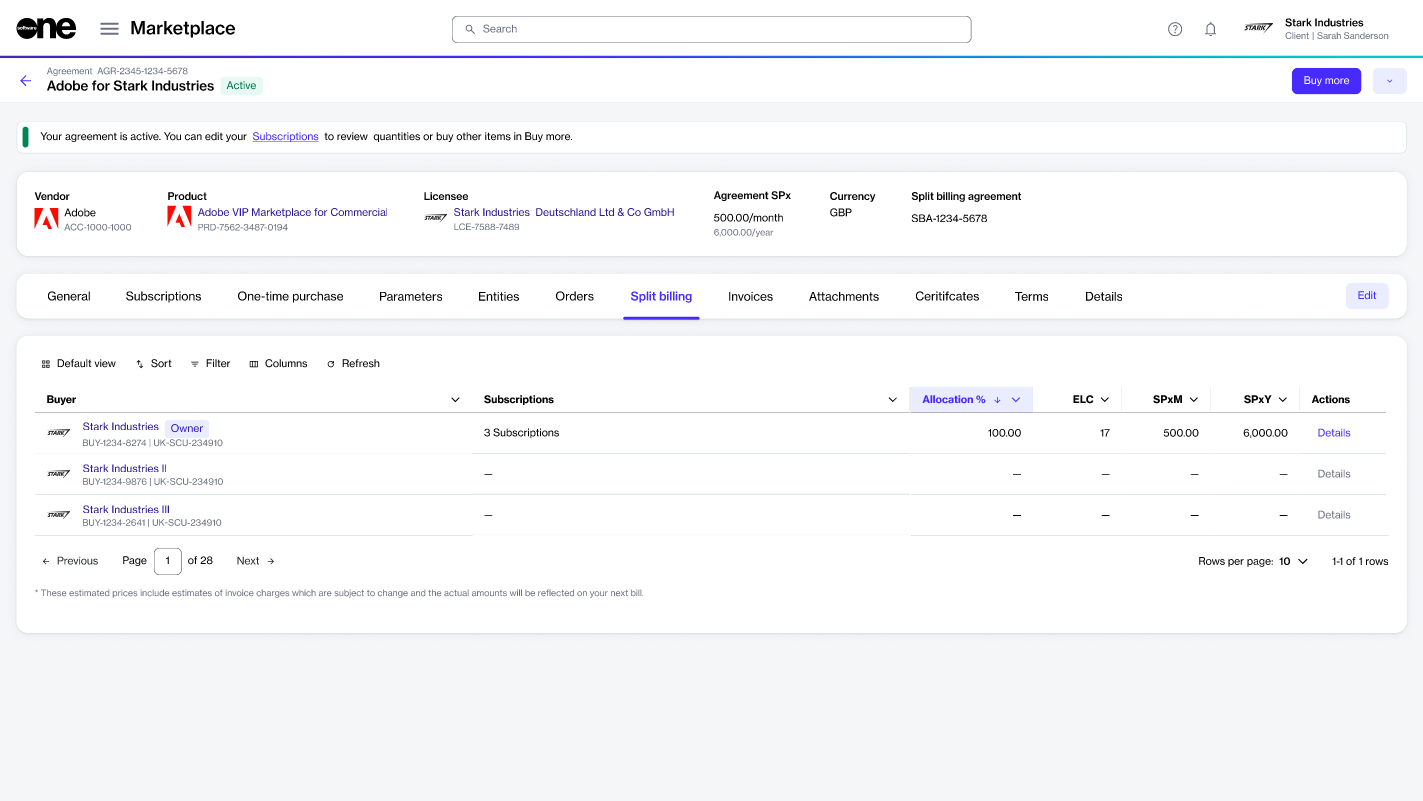
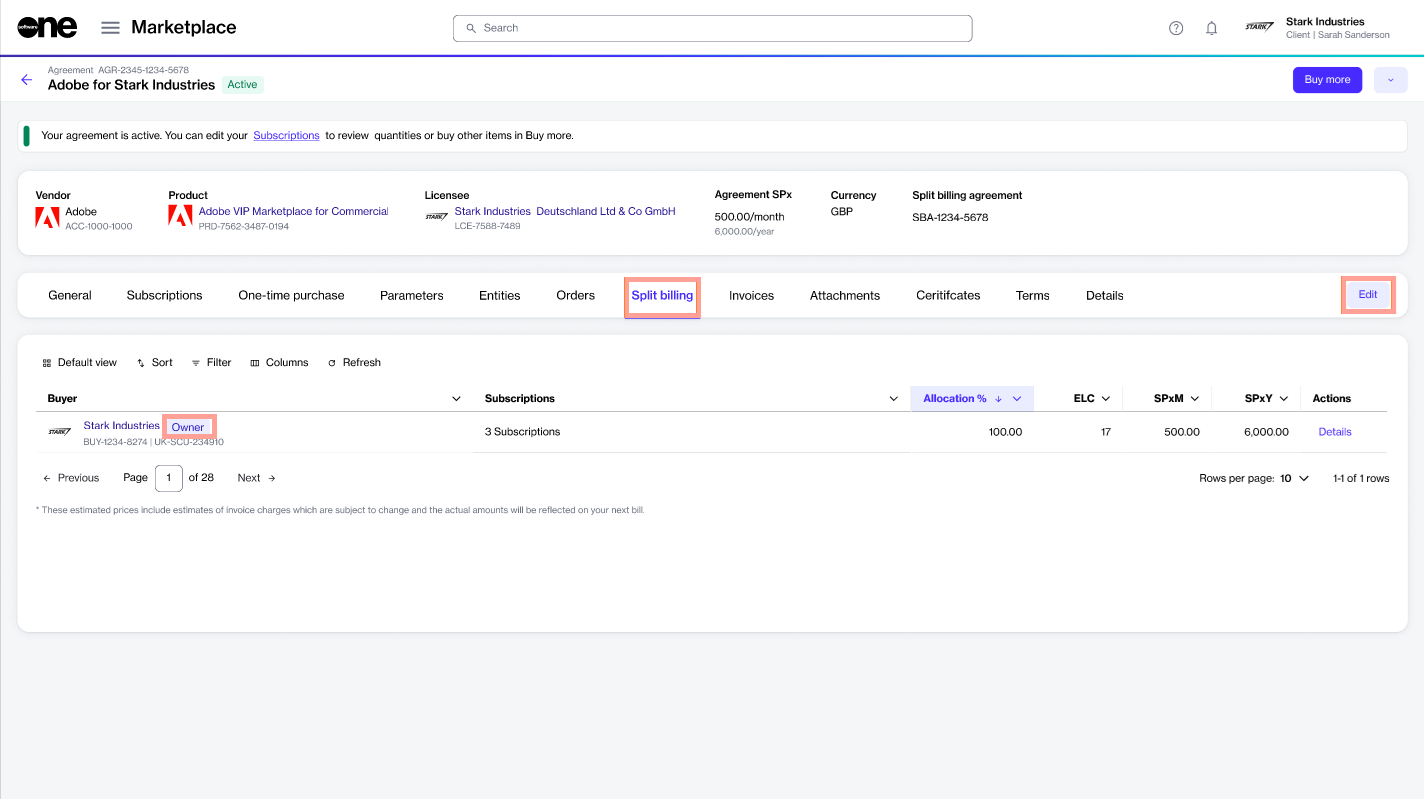
Once activated, the Split billing tab appears on the agreement’s details page.
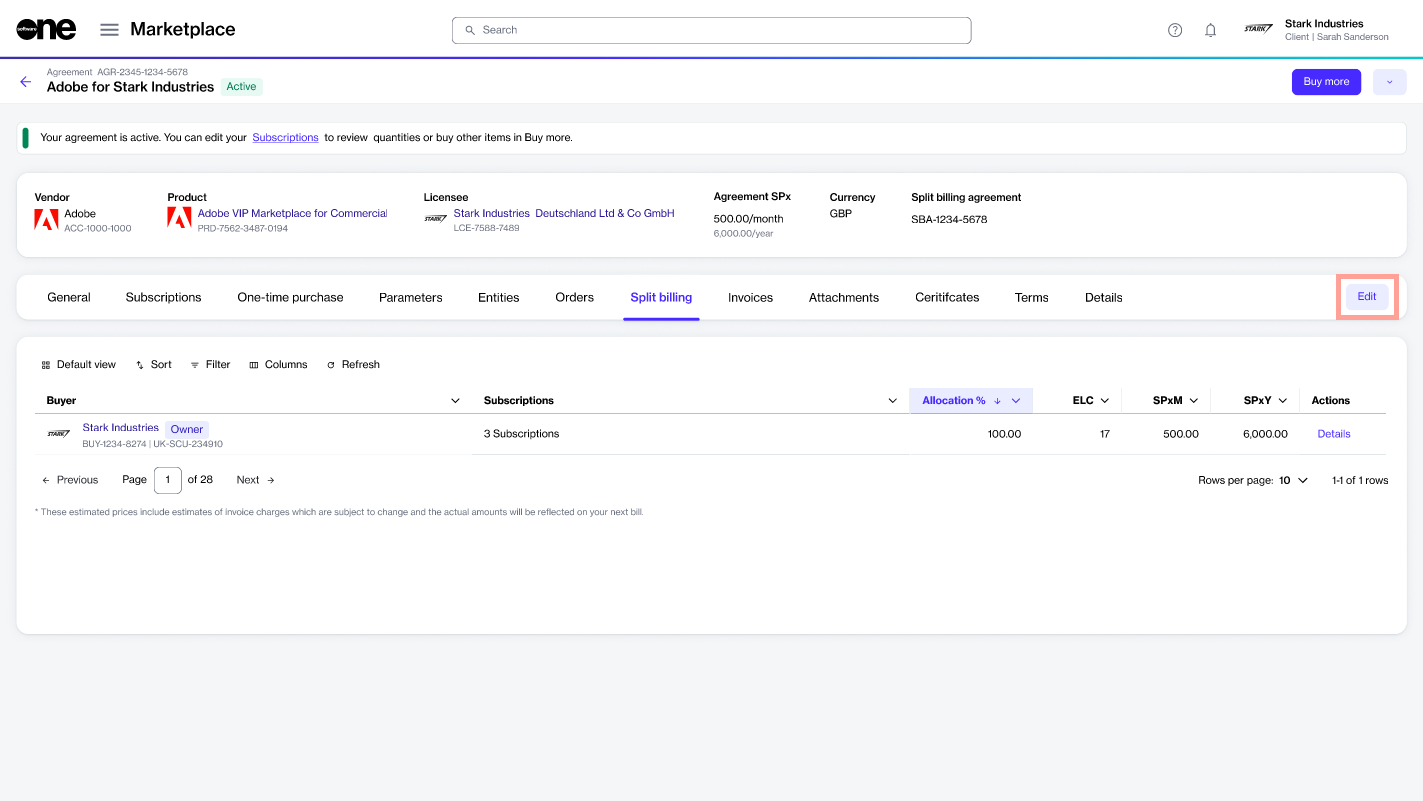
By default, the buyer associated with the agreement is set as the Owner buyer, and 100% billing is allocated to the Owner buyer. You can configure additional buyers using the Edit option. For more information, see .
Define buyers and split subscription costs across those buyers.
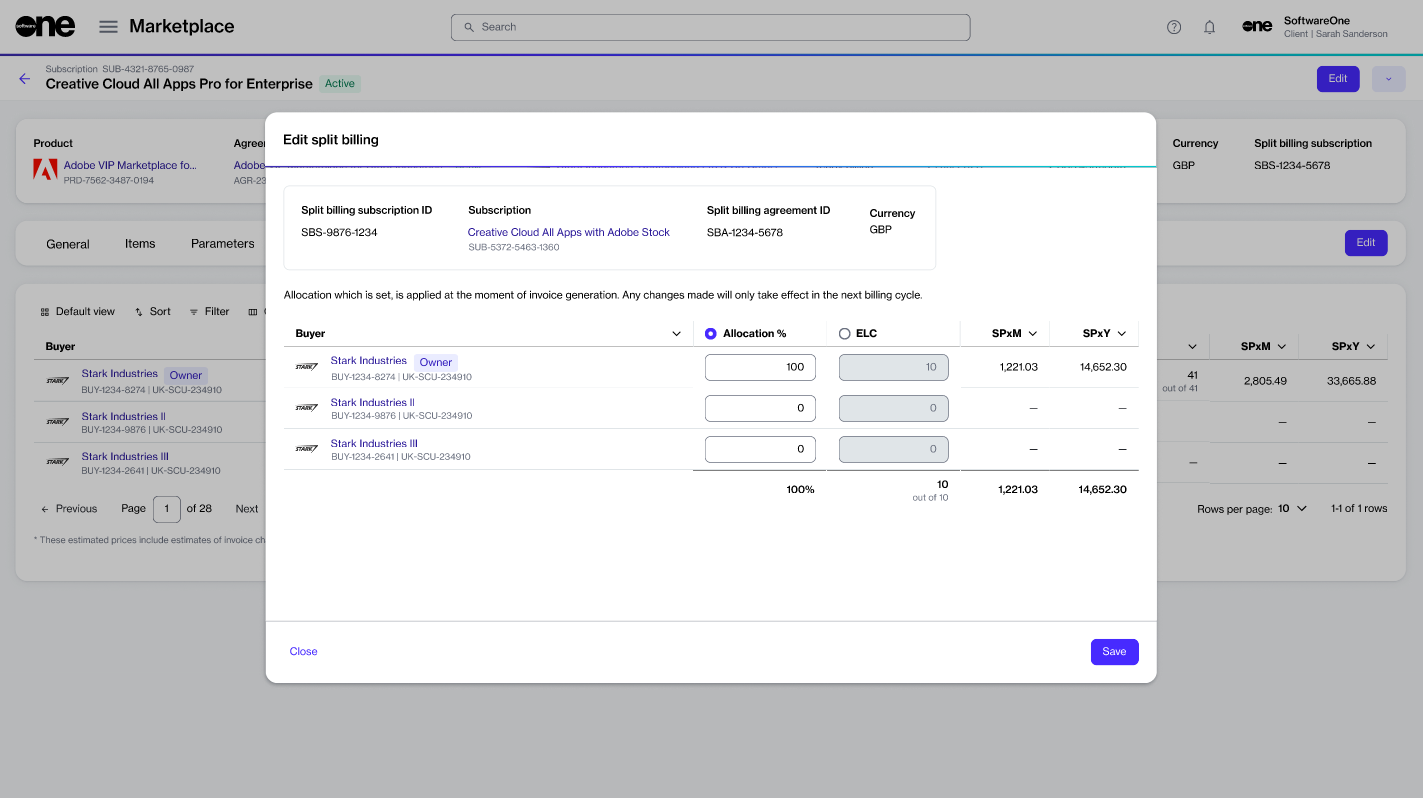
When split billing is activated, the platform assigns 100% of the billing to the default buyer in your agreement, known as the Owner buyer.
You can configure additional buyers and distribute subscription costs across those buyers using the Edit option on the agreement details page.
When selecting buyers, there's no limit to the number of buyers you can select, meaning you can choose as many buyers as necessary to divide costs effectively.
To configure buyers:
Open the details page of your agreement. Make sure that for the agreement.
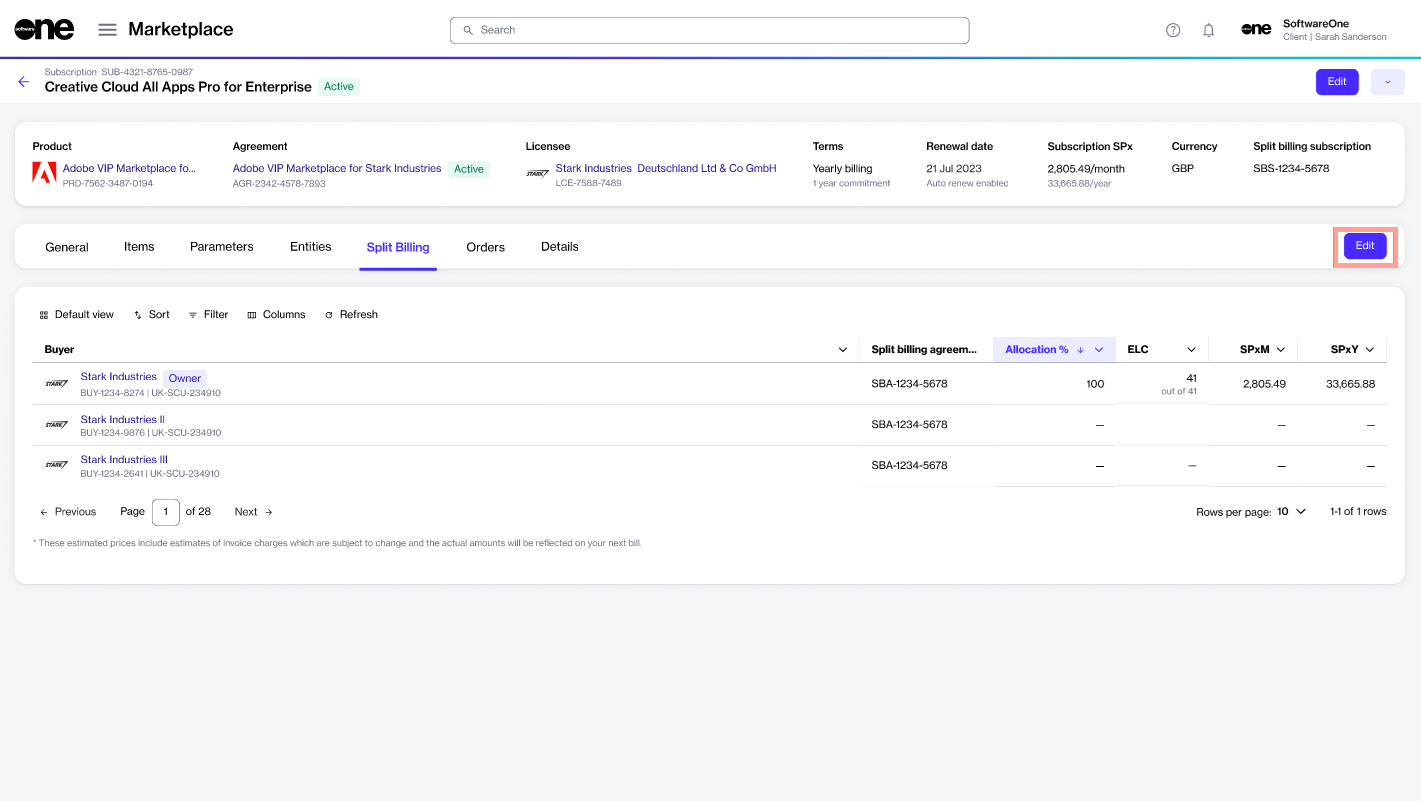
On the Split billing tab, select Edit.
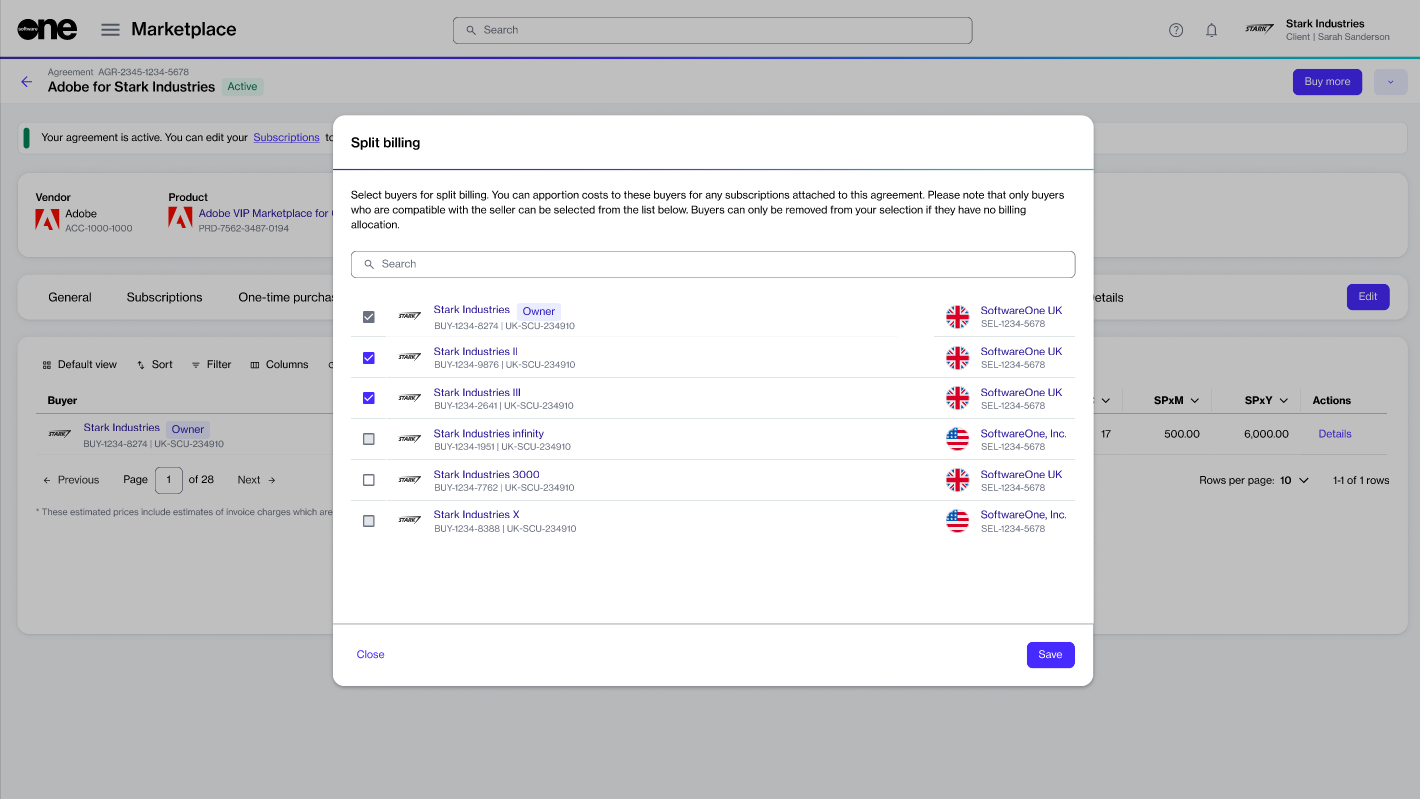
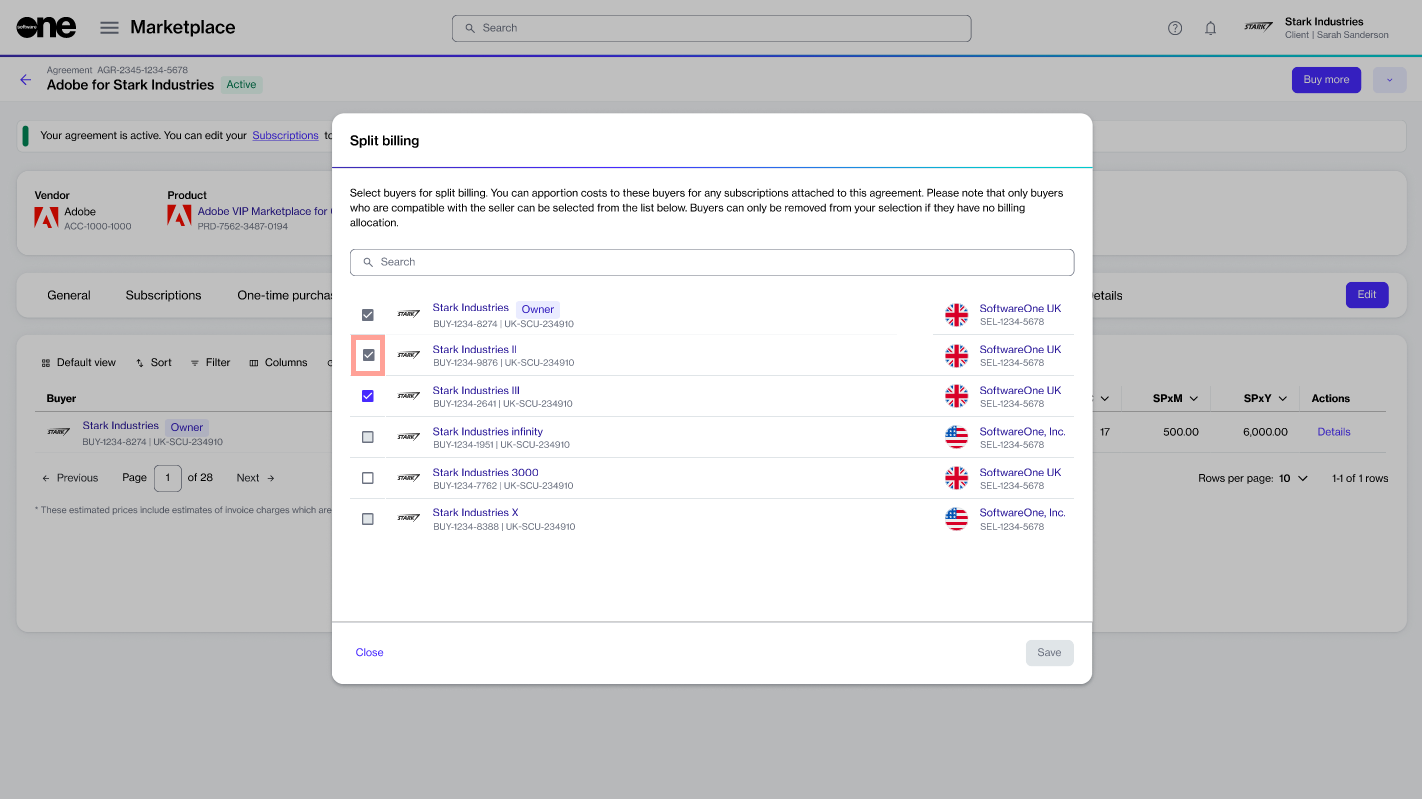
In the Split billing dialog, select the buyers you wish to add. You can select only those buyers who are linked to the seller of this agreement. Additionally, the Owner buyer is selected by default, and you can't change it.
Select Save. Your newly added buyers are displayed on the Split billing tab in your agreement.
Split billing when ordering additional licenses.
In the Marketplace Platform, change orders are created when you add more licenses to your subscription and submit the order.
If split billing is active for the agreement under which you are ordering additional licenses, you can select buyers and assign billing to those buyers when placing the order.
To split billing when ordering additional licenses using an existing agreement:
Navigate to the Subscriptions page. Then, select the desired subscription.
On the subscription details page, select Edit. Ensure that split billing is activated for the agreement and that buyers are configured.
Under New Qty, enter the new quantity, then select Next.
In the Split billing step, select the buyer to whom you want to allocate billing.
Select a buyer from the list to allocate billing according to the percentage you have set for the buyer.
Choose None to allocate billing based on the configured split percentages for this subscription.
Enter reference information as necessary, then select Next.
Review the information on each tab, then select Place order to submit your order.
Select View Order to navigate to the order details page. Otherwise, select Close.
Review your configuration for split billing.
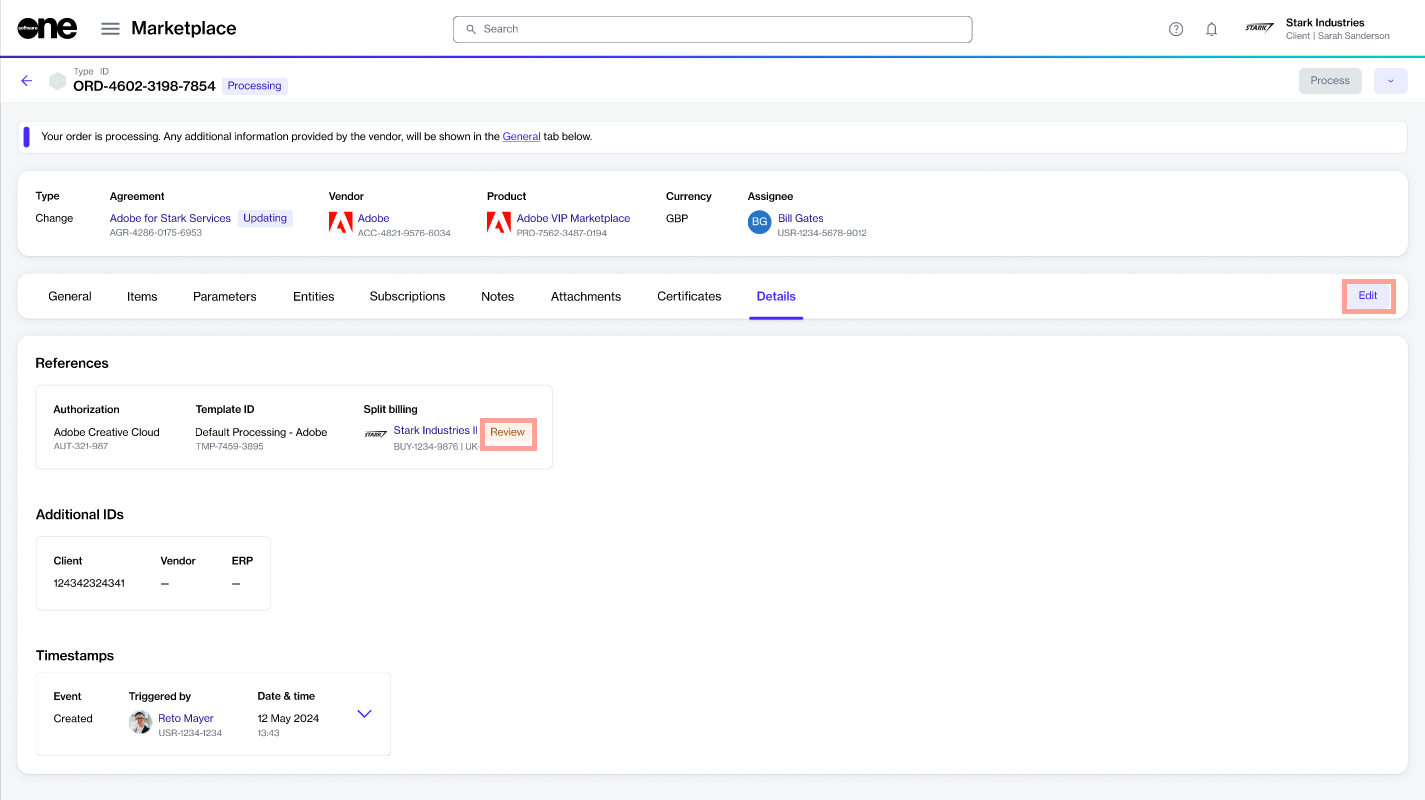
The Review status on the Details tab of a change order indicates that a change has been made to the subscription.
When you see this status, it means that you need to review the split billing configuration for the subscription, as it may need adjustment.
You can review the allocation by clicking Edit. When the Edit dialog opens, review the details. If any changes are needed, you can update the split as necessary and then save your changes.
Manage buyers and adjust their allocation percentages.
If you need to update the list of buyers and adjust their allocation percentages after setting up split billing, you can easily do so through the interface.
After you've set up split billing, you can add new buyers and remove existing buyers as needed using the Edit option on the Split billing tab of your agreement.
When removing buyers, only those without an allocation percentage can be removed. This means you'll need to assign the allocation percentage to another buyer before removing them from split billing.
If an allocation exists for the buyers you wish to remove, the buyer checkbox is unavailable, as shown in the following image:
If you need to make any modifications to the allocation percentage for any of the buyers, you can edit the split billing details at any time.
Follow these steps to edit the allocation percentage for a buyer:
Open the details page of the required subscription.
On the Split billing tab, click Edit.
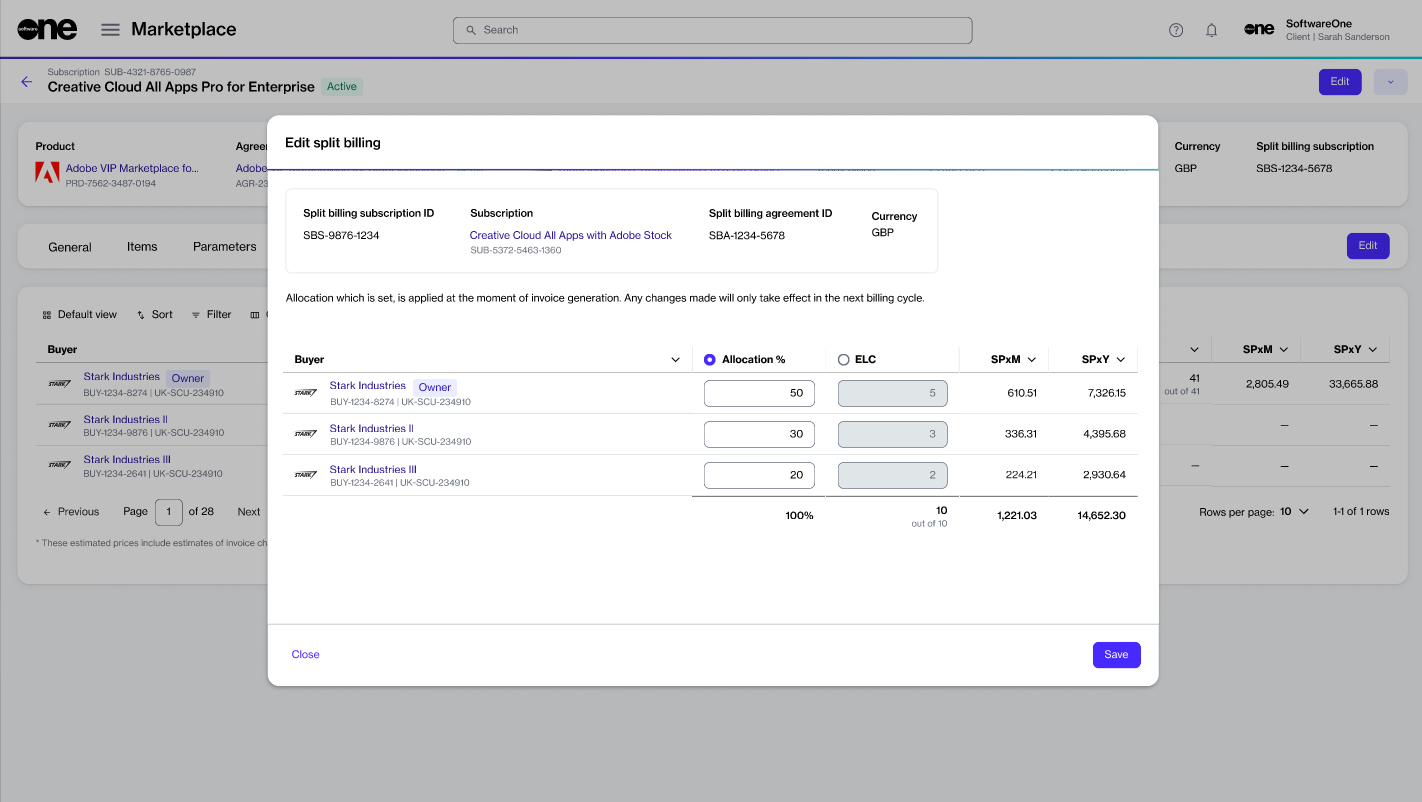
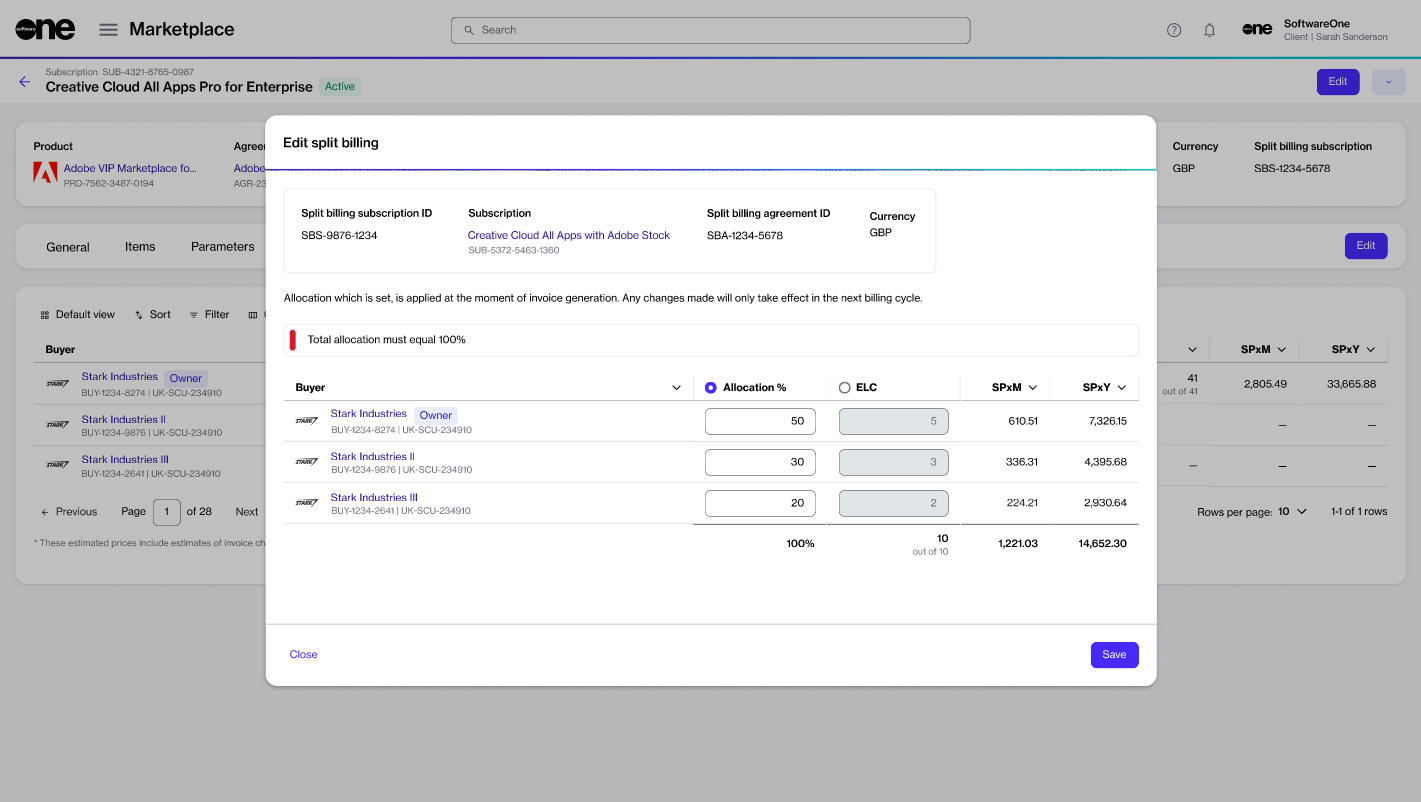
In the Edit split billing dialog, make the necessary changes to the allocation percentage or license count. Make sure that 100% is allocated across buyers.
Save your changes. The Split billing tab displays the updated allocation details. Note that the changes only take effect in your next billing cycle.
Set up percentage allocation for split billing.
If you have configured buyers, but have not defined the split breakdown yet, 100% of the subscription billing is allocated to the Owner buyer in your agreement.
You can update the split to include additional buyers and allocate billing to those buyers. There are two ways to do this. You can configure the allocation from the subscription details page or the agreement details page.
The Split billing tab on the subscription details page displays the allocation for all buyers and allows you to divide the billing across different buyers in your account.
To set up allocations:
On the Split billing tab, select Edit. The Edit split billing dialog opens.
Enter the allocation percentage or estimated license count for the required buyers and select Save. Make sure that 100% of the cost is allocated.
The updated split details are displayed on the Split billing tab of your subscription.
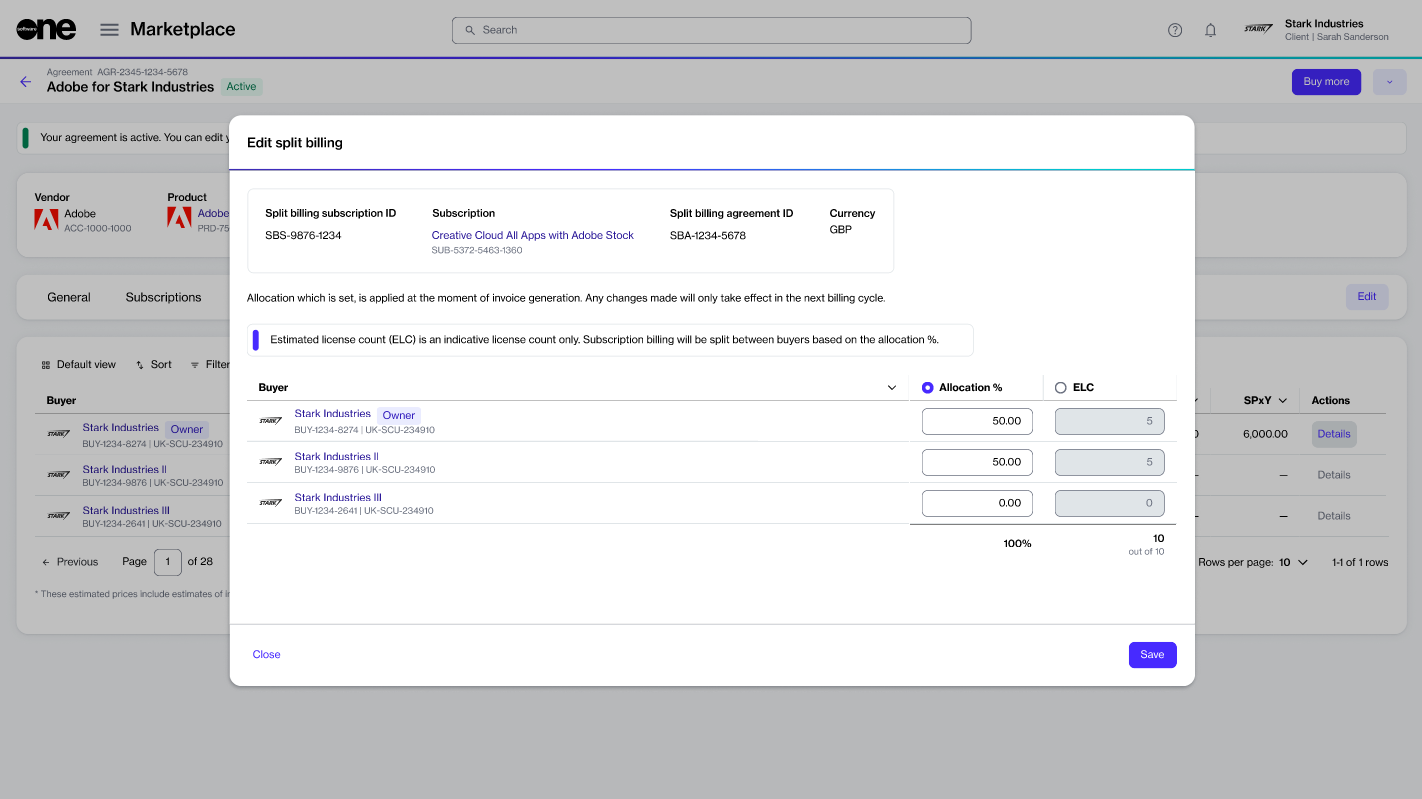
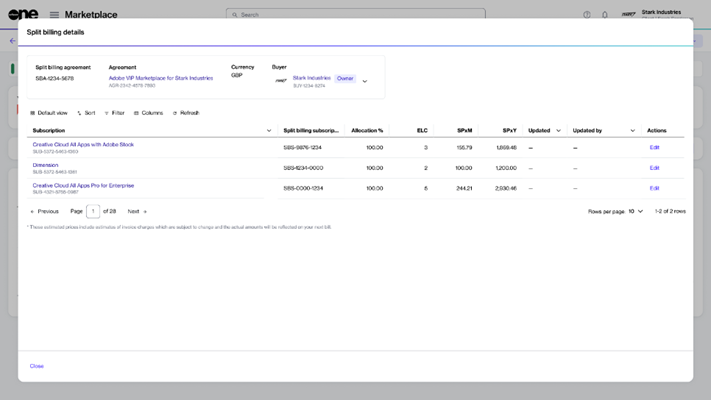
The Split billing tab within the agreement details page displays the allocation for your assigned buyers. Use the Details option for each buyer to adjust the billing percentage or the estimated license count.
To split the billing:
On the Agreements page, select the required agreement. Ensure that , and .
Select the Split billing tab. Your selected buyers are displayed.
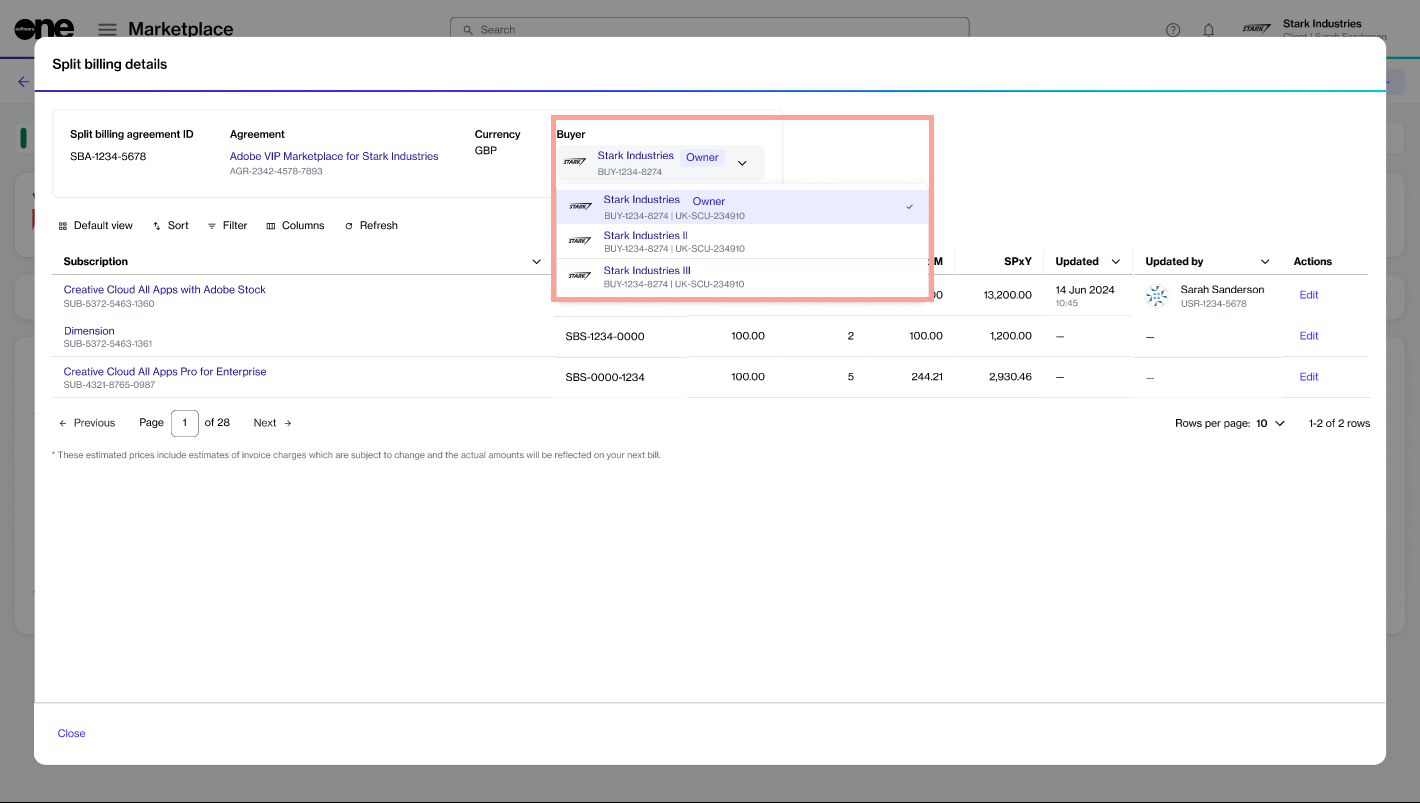
Select the Details option for the buyer for whom you want to update the allocation.
In the Split billing details dialog, select the Edit option corresponding to the required subscription.
In Edit split details, choose whether you want to update the allocation % or the estimated license count. The allocation % option is selected by default, but you select ELC if required.
Allocation % - Select this option to split the subscription billing based on the percentage. For example, you can split the total allocation percentage of 100% between two buyers as 30% and 70% respectively.
ELC - Select this option to split the billing based on the license count. For example, if you have 12 subscription licenses, you can split these between two buyers as 8 and 4 licenses, respectively.
The allocation is updated for your selected buyer. Use the Buyer menu in the highlights panel to view allocation details for other buyers.
Select Close to return to the Split billing tab.
Enter a value based on the split percentage or license count and click Save. Make sure that 100% of billing or all licenses are allocated. Otherwise, the platform displays a message.
Specify purchase order numbers for additional buyers configured for split billing.
In the Marketplace Platform, you can enter additional IDs or purchase order (PO) numbers when ordering a new subscription or adjusting license quantities. Once you've provided the number, it appears on your invoice. For information, see How can I enter a purchase order number.
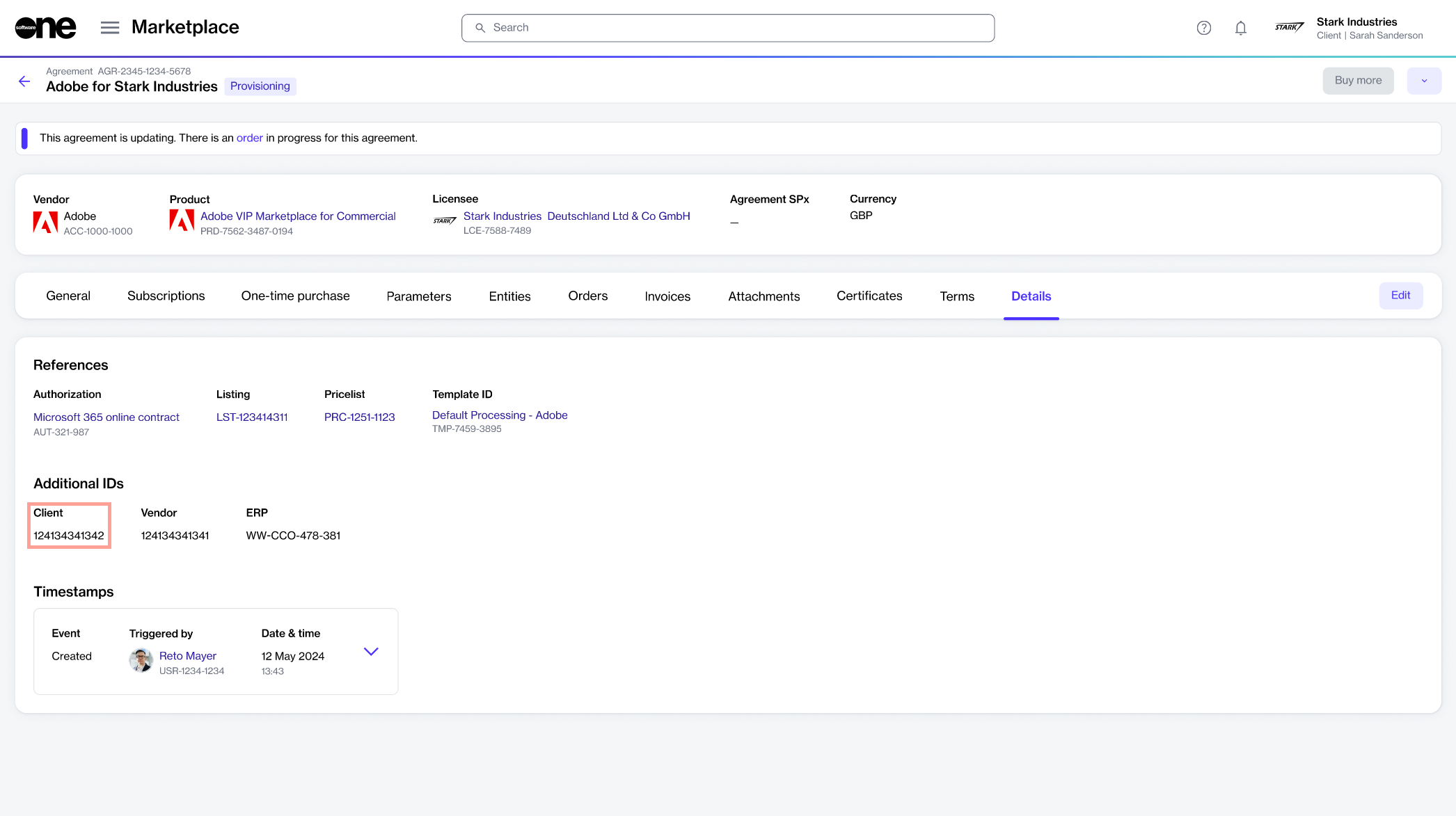
Within the marketplace, the PO number is also displayed as Client ID on the Details tab of the agreement:
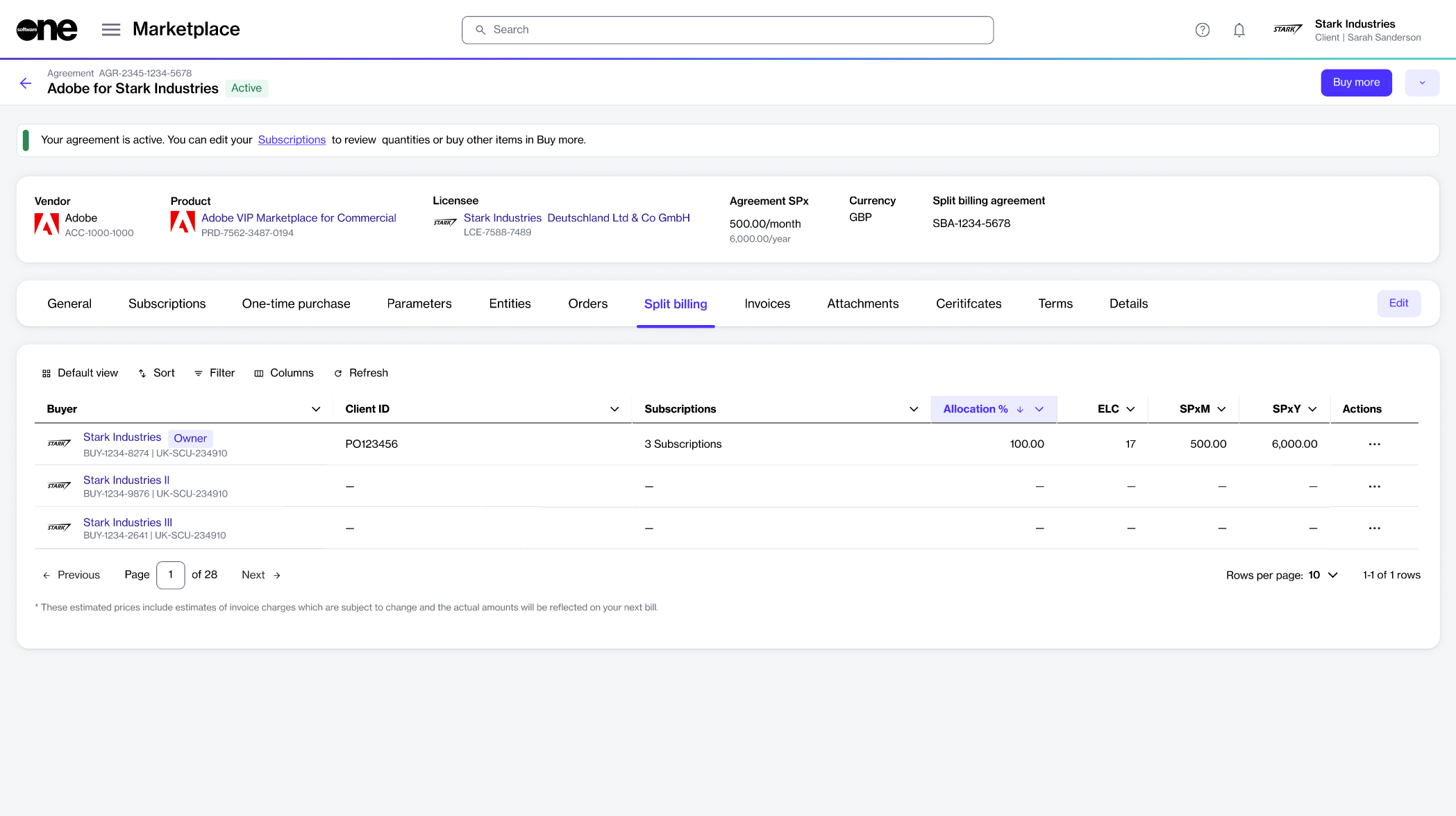
When split billing is activated for the agreement and more buyers are added, the platform assigns the specified client ID to the Owner buyer. By default, no ID is assigned to the additional split billing buyers.
If you want to assign IDs to additional buyers in your agreement, follow these steps:
Open the required agreement. Make sure that split billing is activated and buyers are configured.
On the agreement details page, select the Split billing tab. The buyers you've configured for the agreement are displayed.
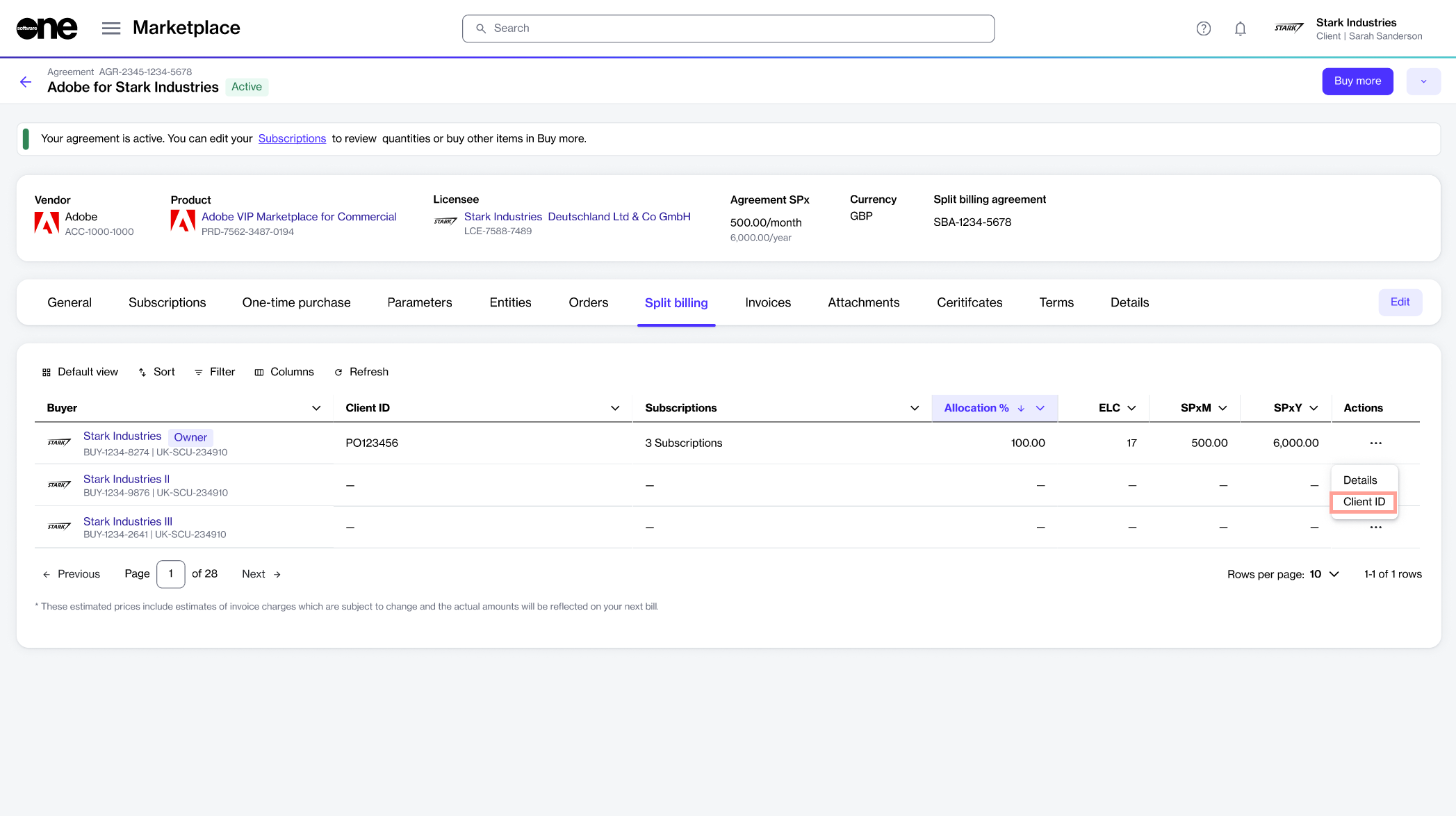
Select the actions icon (•••) for the desired buyer and select Client ID.
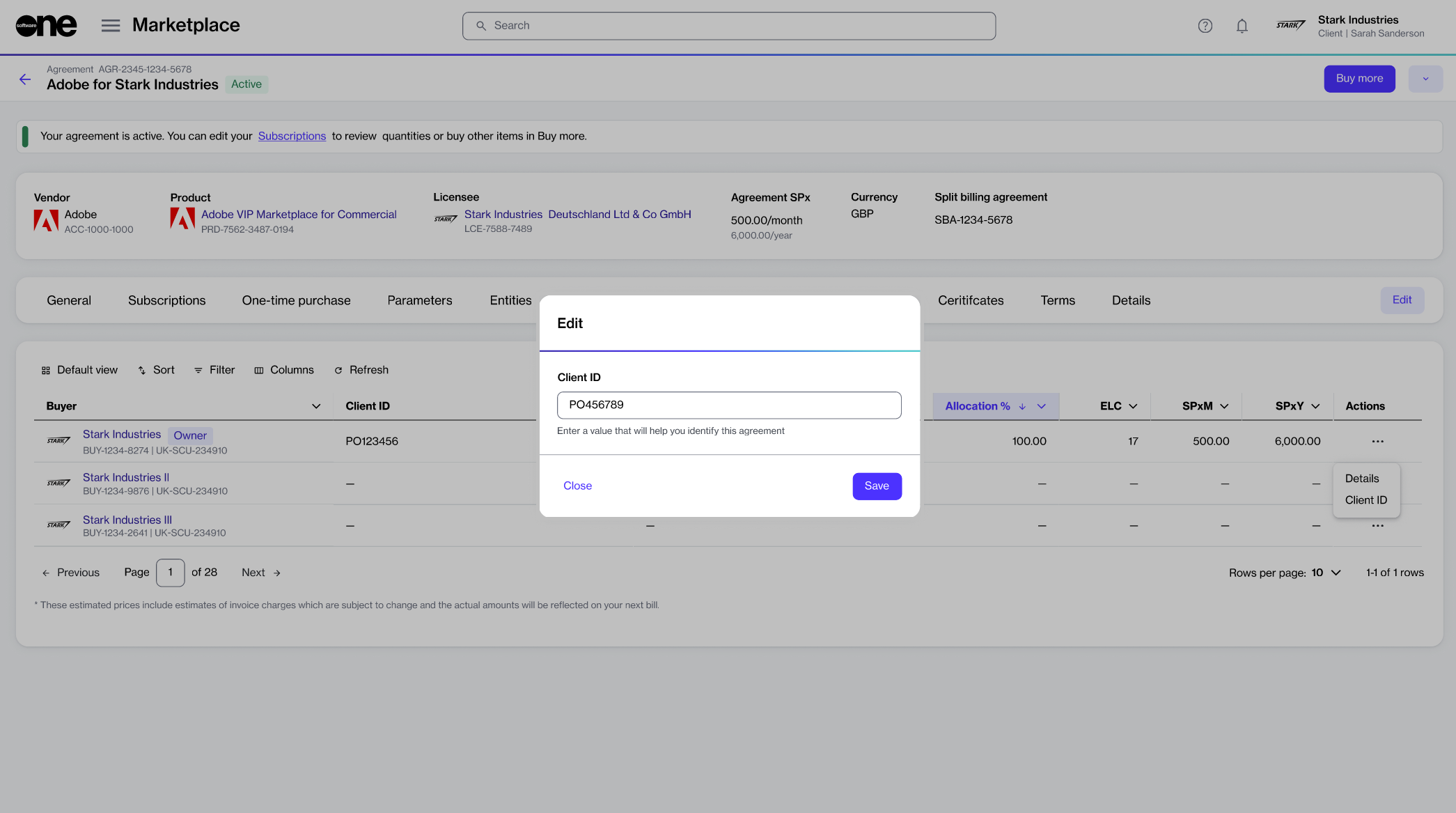
In the Edit dialog, enter the new ID or purchase order number and click Save.
The value is then updated and displayed as Client ID on the Split billing tab. This same value is also included on the buyer's invoice in your next billing cycle.
If you are specifying a client ID for more buyers in the agreement, repeat the same steps for each buyer. You can also use the same steps to update the ID, including the client ID for the Owner buyer.