
Delete a user group permanently.
If a group is no longer needed, you can delete it. All groups except the default group can be deleted. Once a group is deleted, it cannot be restored.
To delete a group permanently:
Go to Settings > Groups.
Find the group you want to delete.
Do one of the following:
Select the actions icon (•••) for the group and select Delete.
Select the group to open its details page. Then, select the dropdown arrow , and choose Delete.
Select Delete to confirm. A confirmation message is displayed stating that the group has been deleted.
This topic describes how to view a list of groups you have created, as well as details about a specific group.
To view a list of groups:
Go to Settings > Groups.
View the list of groups displayed on the page.
Review information such as the group name, the total number of users it contains, buyers visible to the group members, and more.
On the group details page, you can view detailed information for your selected group.
To view group details:
Go to Settings > Groups.
Select the group you want to view. The group details page opens.
Use the tabs to access different types of information:
General
Shows the group description.
Modules
Shows the modules enabled for the group.
Buyers
Shows buyers enabled for the group.
Users
Displays all users within this group.
Details
Shows the event history and additional details for the group.
Audit trail
Shows an for the group.
Restrict a user group to certain buyers.
Account administrators can define whether users in a group can view all buyers in the account or only certain buyers. You can customize buyer access when creating or updating a group.
This feature is useful if your account contains different types of users, for example, global users and local users. Global users require access to all transactions and data across all buyers (including orders, subscriptions, and more), while local users may need their access to be limited.
With this feature, you can apply group-level restrictions, ensuring that your group members only see the buyers and platform objects linked to their access.
Keep the following rules in mind:
Only account administrators can set visibility restrictions when creating a new group (see Create new group) or managing an existing group (see Edit group).
Visibility restrictions apply to the Marketplace module only. Therefore, if you want to restrict a group to specific buyers, you must select the Marketplace module when adding or updating groups.
When a group member belongs to multiple groups, and each group has access to several buyers, the member's access is determined by the sum of all those buyers. For instance, if your account contains three groups (Group 1, Group 2, and Group 3) and five buyers (A, B, C, D, & E), the platform will apply restrictions as follows:
If Group 1 has access to the Marketplace module, and its members are restricted to Buyers A and B, the group members can view the Marketplace objects (like agreements, subscriptions, and more) linked to Buyers A and B.
If Group 2 has access to modules such as Marketplace and Procurement, and its members are restricted to Buyer C, they can only view the Marketplace objects associated with Buyer C. However, if members belong to Group 1 and Group 2, they can access the objects linked to Buyers A, B, and C.
You can apply buyer-level restrictions when creating new groups or editing existing ones. For instructions, see and .
If Group 3 has access to several modules, like Marketplace, Procurement, and Account Management, and its members are restricted to Buyer D, they can only view the Marketplace objects associated with Buyer D. If the users in Group 3 require access to Buyers A, B, and C, they must also be members of Groups 1 and 2.
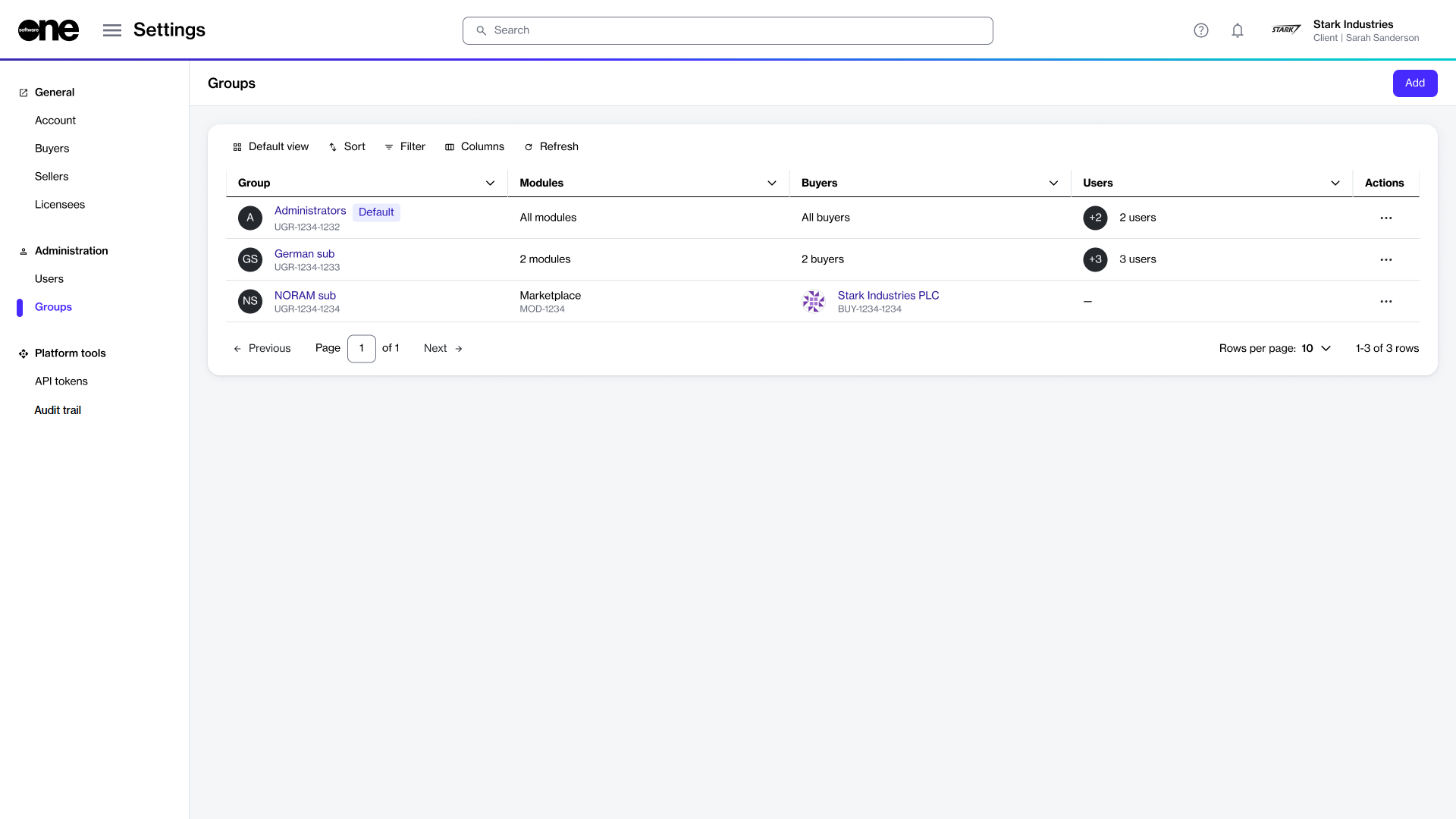
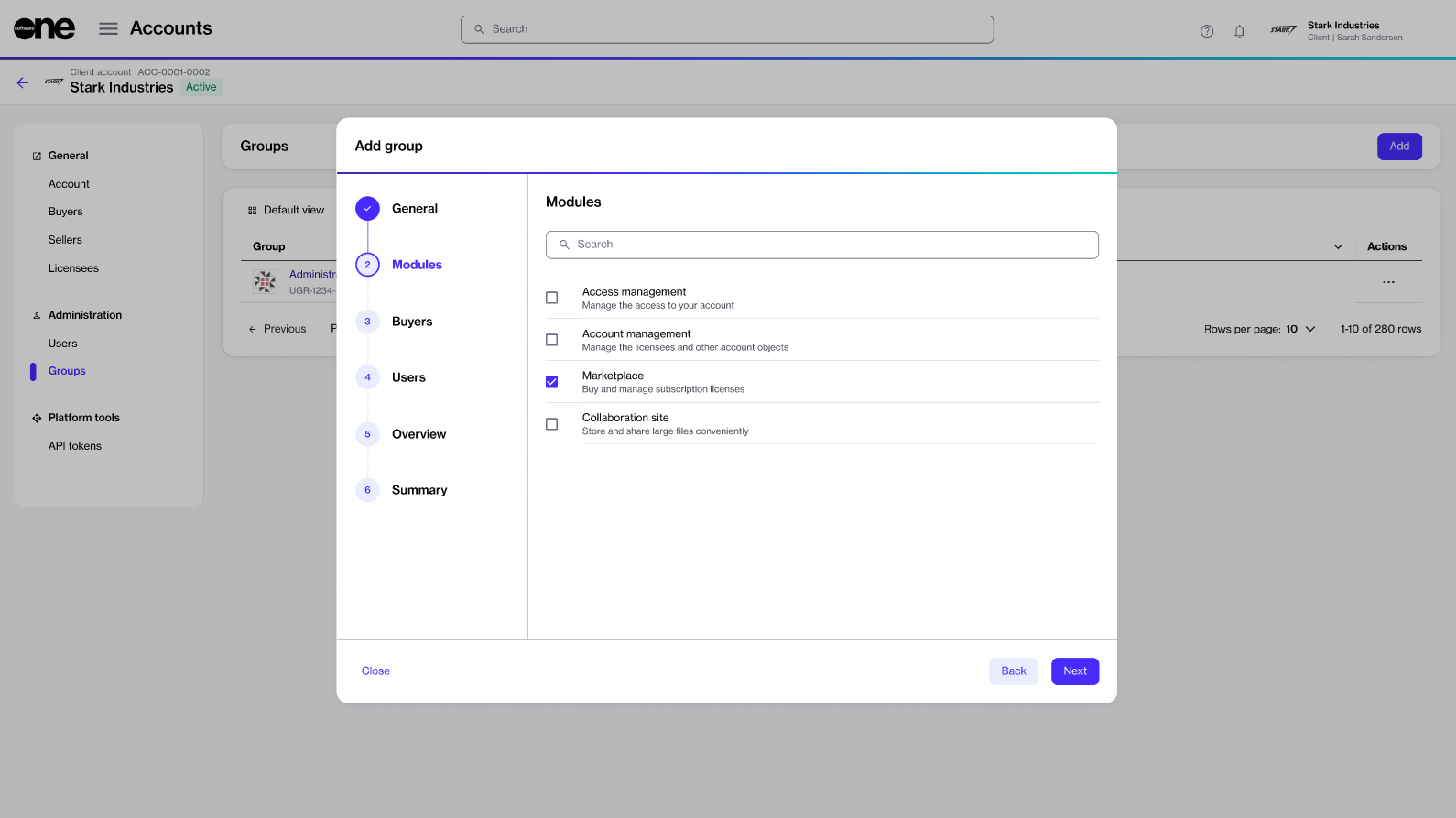
Make changes to an existing group.
Account administrators can edit a group to update its general information, manage its members, and adjust buyer settings.
Buyer access can be configured as either full or restricted, depending on the group’s needs.
For a default group, you can update the group’s general information and manage its members. The modules enabled for a default group cannot be changed.
You can update buyer visibility only if the Marketplace module is enabled for the group. If the module was not enabled during group creation, you can enable it while editing the group, if the group is not a default one.
Buyer access restrictions apply only to the Marketplace module.
To edit a group:
Go to Settings > Groups.
Select the actions icon (•••) for the group, then select Edit.
In the Edit group flow, do the following as needed:
General – Update the group's name and description.
Modules – Update the modules that the group can access. Note that access can't be updated for a default group.
Extensions – Choose whether group members should have visibility limited to a selected extension or full visibility across all extensions.
Buyers – Update buyer settings for the group. This section appears only if the Marketplace module is enabled for the group.
Users – Add or remove group members.
Select Save. A confirmation message is displayed stating that the group has been updated.
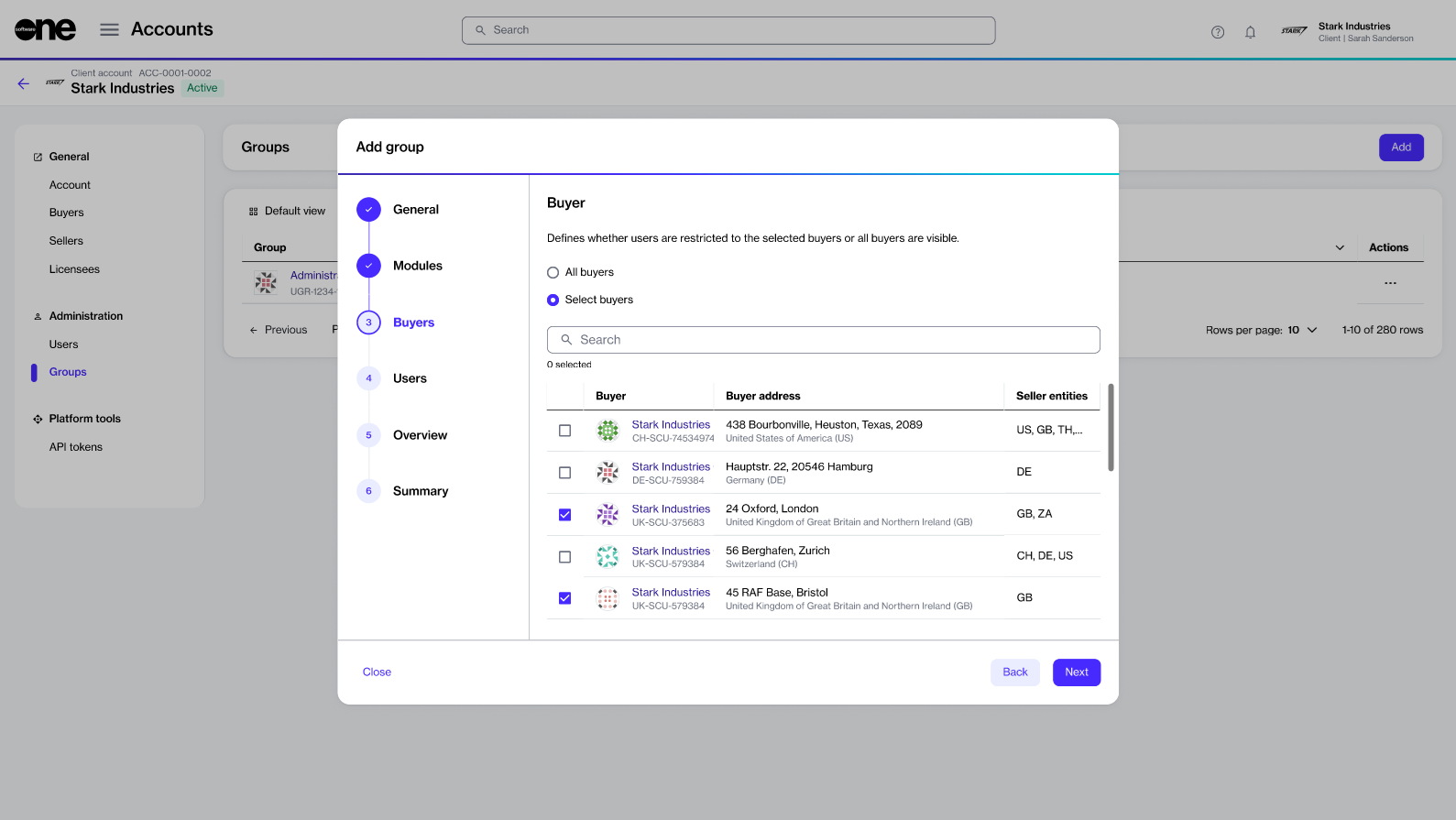
Create a new group and add users to that group.
The SoftwareOne Marketplace allows account administrators to create new groups and add members to those groups.
When creating groups, administrators choose the modules to enable for group members. Additionally, administrators can restrict group members to certain buyers. It means you can define whether your group members should see all buyers in your account or only specific buyers.
To create a group:
Go to Settings > Groups.
Select Add.
Complete the following steps in the Add group flow:
General – Provide the following details, then select Next:
Name – (Required) Enter a group name.
Description – (Optional) Add a group description. You can enter information about the group members, their roles, and so on.
Modules – Choose the modules you want to enable for the group. You must select at least one module. When done, select
Extensions – Choose whether group users should have access to a specific extension or all extensions.
Buyers – Choose whether the group members can see all buyers in your account or only specific buyers.
All buyers – This option is selected by default. It allows your group members to view all buyers in your account.
Select buyers – Select this option to choose specific buyers.
Users – Select the individuals to add to the group, then select Next.
Overview – Review the details, then select Add to create the group.
Summary – Select View details to go to the group details page or select Close.
Learn about the different states of user groups.
A group represents a collection of users who share the same roles and permissions.
A group can be in one of these states: Active or Deleted. The following diagram shows the transitions between these states:
The following table describes the different states:
Active
The group is active.
Deleted
The group was deleted and no longer exists.

Learn about groups in the Marketplace Platform.
A group represents a set of users who share the same roles and permissions.
Groups allow administrators to manage permissions of multiple users at once, instead of configuring each user individually.
The Groups page allows account administrators to manage groups, including adding new groups and updating existing ones. Administrators can also permanently delete a group if it is no longer needed.
To open the page, select Settings > Groups from the main menu.
On the Groups page, you can use the Actions column to manage a group or select a group to view detailed information organized across multiple tabs.
The group details include a list of users within the group, modules that the group members can access, a record of events and logs for the group, and additional configuration details. For details, see .