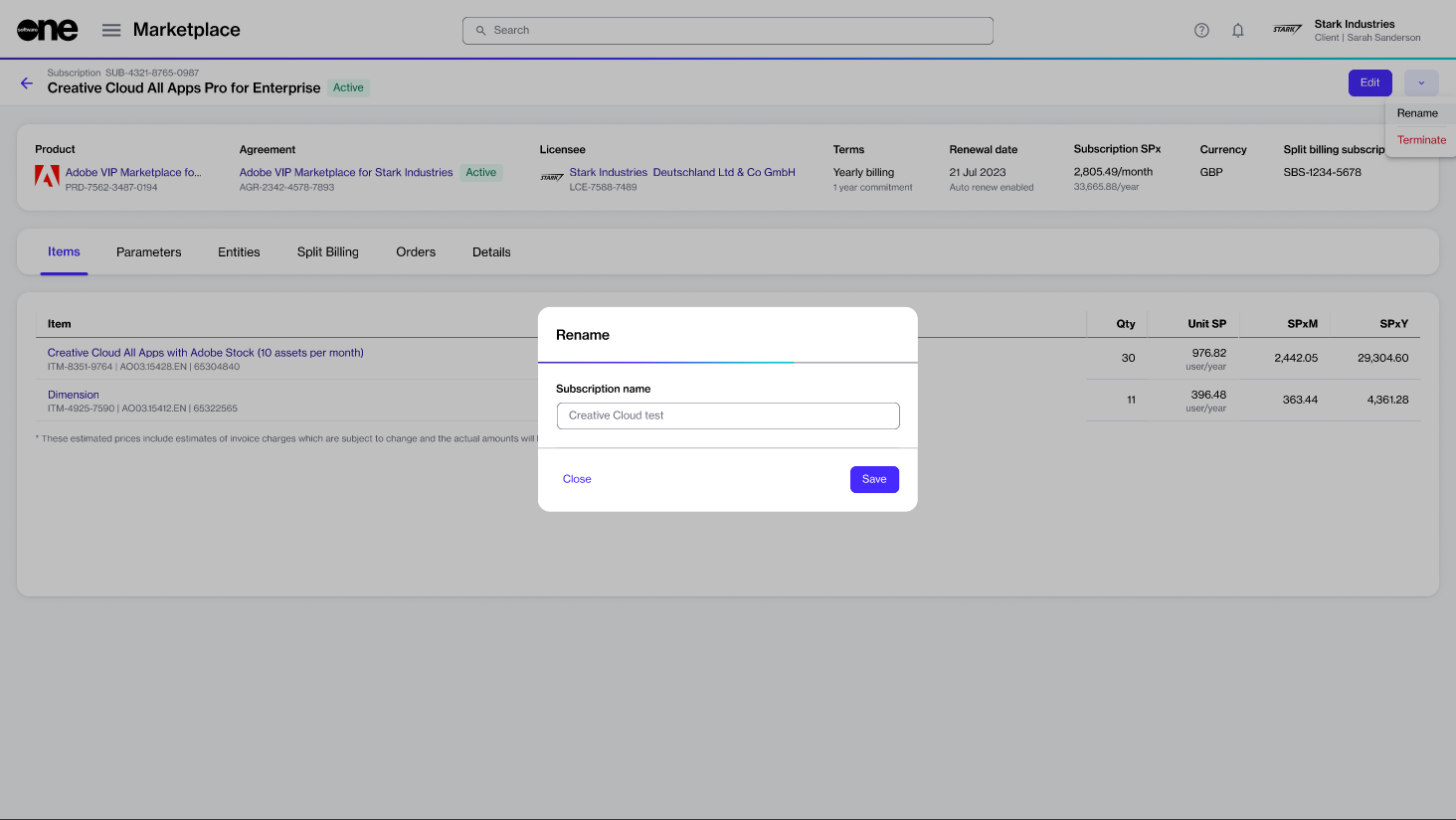
If your Marketplace account contains multiple Adobe subscriptions, you can rename those subscriptions to identify them easily in your list of subscriptions.
This tutorial shows how you can do this. In this tutorial, the subscription name is changed from Creative Cloud All Apps Pro for Enterprise to Creative Cloud test.
Prerequisites
Before starting this tutorial, make sure that the subscription you want to rename is in the Active or Updating state. Terminated subscriptions cannot be renamed.
Renaming a subscription
1
Open the subscription you want to rename
To open the subscription:
Go to the Subscriptions page.
From the list of subscriptions, select the subscription you want to rename.
On the subscription details page, select the arrow and choose Rename.
2
Provide the new name for the subscription
In the Rename dialog, complete the following steps:
Under Subscription name, provide a new name.
Select Save.In this example, the subscription's name is changed to Creative Cloud test.
Enter the new subscription name
The new name is updated immediately in the platform and reflected on all pages featuring the subscription, including the subscription details page.