
Loading...
Loading...
Loading...
Loading...
Loading...
Loading...
Loading...
Loading...
Loading...
Loading...
Add items to an existing agreement.
This tutorial explains how to add new items to your existing Adobe VIP Marketplace agreement with SoftwareOne by placing a change order.
Make sure the agreement you want to use is active.
Start the ordering process
To start the order:
Go to Catalog > Products.
Select the required Adobe product, for example, Adobe VIP Marketplace for Commercial.
Review the product details.
Select Buy now.
Add the items to your order
In the guided purchase flow, complete the following steps:
Select agreement – Select the required active agreement, then select Next.
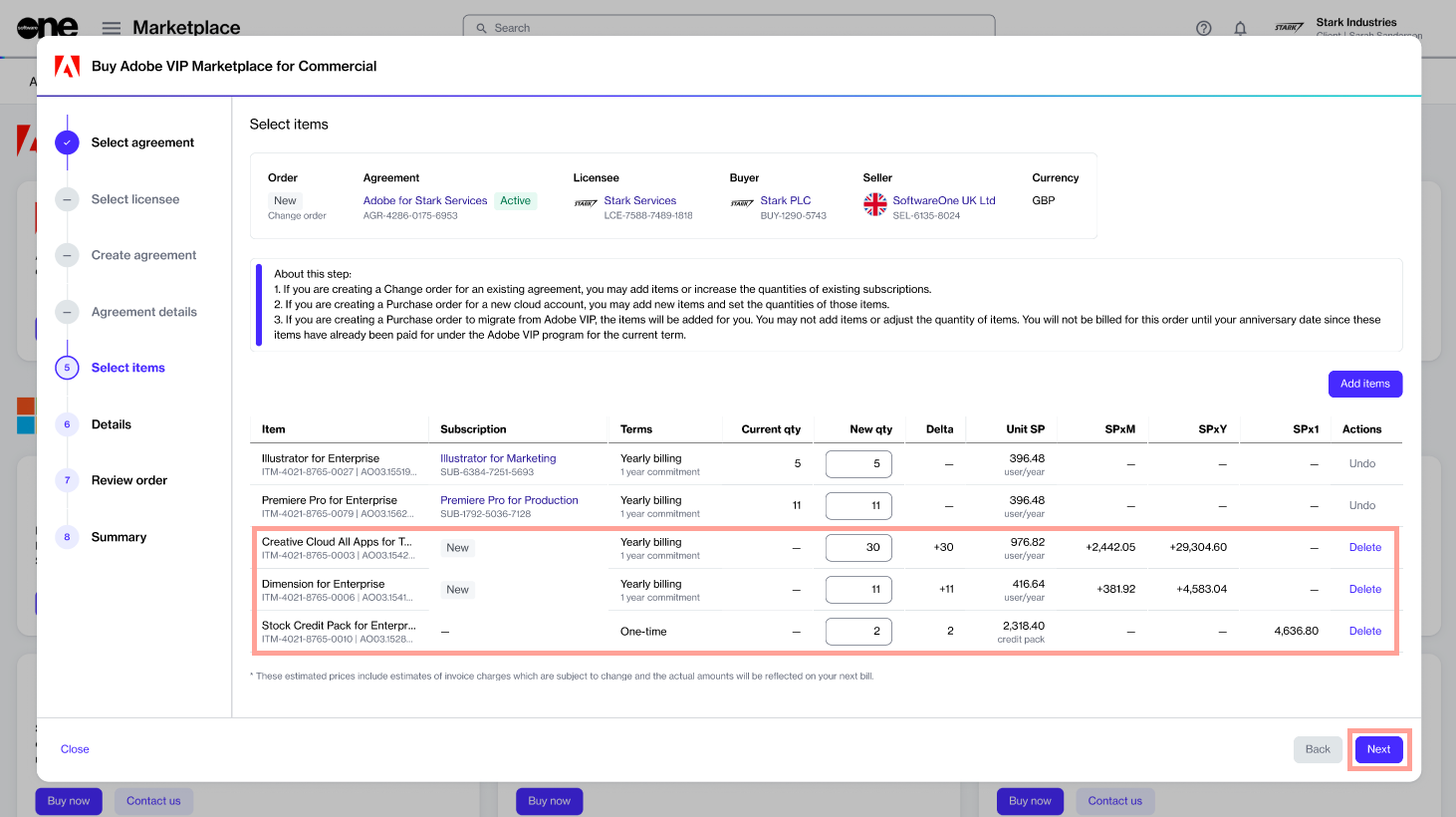
Select Items – Do the following:
Review and submit the change order
Details – Add or update the reference ID and order notes. Select Next.
Review order – Review the order details, go through the terms and conditions, then select Place order.
After you place the order, a change order is created for the agreement.
The agreement status also changes from Active to Updating. While the agreement is updating, you cannot place more orders under that agreement.
You can track the order on the Orders page or in the Orders tab on the agreement details page.
Terminate and return licenses within the 14-day return window.
This tutorial describes how to cancel your Adobe subscription within the 14-day return window by placing a termination order.
Terminating a subscription means canceling it entirely and returning the full quantity of licenses for a refund. Terminating is only possible if the subscription is within the allowed period and is eligible for a return.
For terminations outside the return window, only auto-renewal can be turned off, meaning the respective subscriptions will expire on the renewal date. For more details, see Disable auto-renewal.
Make sure that the required subscription is eligible for a return and is currently active.
Open the subscription to terminate
To open the subscription:
Go to Marketplace > Subscriptions.
Select the subscription you want to terminate.
On the subscription details page, select the dropdown arrow and choose Terminate.
Submit a termination order for the subscription
In the guided Terminate subscription flow, complete the following steps:
Items – Verify that the new quantity field displays a 0, then select Next.
Details – Add or update the reference ID and your comments. Select
SoftwareOne will review your termination order.
If the order meets the criteria, it will be processed. You can keep track of your order on the order details page.
Select Add items.
Add the required items to your order.
Update the quantity in the New qty field.
Select Next.
Review – Review the order details, go through the terms and conditions, then select Place order to submit your order.
Summary – Review your order summary, then select View details to open the order details page, or select Close.
Reduce the number of licenses in your Adobe subscription.
This tutorial describes how to reduce the quantity of your licenses by submitting a change order.
Downsizing a subscription means reducing the number of licenses while keeping at least one license active. When you downsize a subscription, the result depends on whether the licenses are within the allowed 14-day return window.
If the licenses are within the return window, Adobe processes a return for the affected licenses, and those licenses immediately become unavailable to users.
If the licenses are outside the return window, the current licenses remain active until the renewal date, and only the renewal quantity is reduced.
You can only return quantities that match eligible returnable orders. If the quantity doesn't match, the Marketplace Platform suggests a valid quantity that you can return.
For more information, see .
Ensure that both the agreement and the subscription you want to downsize are currently active.
Open the subscription
To open the subscription:
Go to Marketplace > Subscriptions.
Select the required subscription.
Your change order is submitted to SoftwareOne for processing. The status of your subscription and the agreement changes from Active to Updating. While the order is being processed, you cannot make any further changes until it is complete.
You can view the most up-to-date information about your order on its details page.
Order an Adobe subscription by creating a new agreement.
This tutorial explains how to order an Adobe subscription by creating a new agreement and setting up a new Adobe account.
Before starting this tutorial, make sure you have the following:
An or permission to . Licensee selection is required when setting up a new agreement.
Your company's legal address and primary admin contact.
Decrease the quantity and submit the order
In the guided Edit subscription flow, complete the following steps:
Items – Under New qty, update the quantity, then select Next.
Details – Add or update the reference details, then select Next.
Review – Review the order details, go through the terms and conditions, then select Place order.
Summary – Review your order summary, then select View details to open the order details page, or select Close.
Start the ordering process
To start the order:
Go to Catalog > Products.
Select the required Adobe product. For example, Adobe VIP Marketplace for Commercial.
Review the product details.
Select Buy now.
Create a new agreement and choose items
Complete the following steps:
Select agreement – Select Create agreement.
Select licensee – Select a licensee, then select Next. You can also .
Review and submit your purchase order
Details – Provide reference details for the order, then select Next.
Review order – Review the order details, go through the terms and conditions, then select Place order.
After placing the order, you'll receive an invitation from Adobe to accept the terms and conditions for Adobe VIP Marketplace.
After accepting the terms, you can manage your licenses and deploy them to users immediately through the Adobe Admin Console.
Return your renewal order for a refund within 14 days.
This tutorial explains how to return a renewal order within the 14-day return window.
Returns are accepted if the entire order is returned and if the licenses are not currently in use. In the SoftwareOne Marketplace, returns are processed through a termination order. For policy details, see Downsize, termination, and return policies.
Make sure the renewal order is within the allowed return period. If the renewal order is older than 14 days, Adobe will not accept a return.
Open the required subscription
To open the subscription:
Go to Marketplace > Subscriptions.
Select the required subscription to open its details page.
Select the dropdown arrow and choose Terminate.
Place a termination order for the subscription
In the guided Terminate subscription flow, complete the following steps:
Items – Verify that the new quantity field displays 0, then select Next.
Details – Provide reference details for the order, then select
Your termination order will be reviewed and processed by SoftwareOne.
If the renewal order is within the 14-day return window and meets all conditions, the licenses will be removed from the subscription.
Adobe account setup – Choose Create new Adobe account, then select Next.
Additional information – Do the following:
Enter your company name, company address, and primary Adobe administrator contact.
Choose whether to join the 3-year commitment.
If required, enter the minimum licenses you want to commit to for the 3-year term.
Select items – Do the following:
Select the items you want to buy. You can select multiple items.
Select Add items.
Review and adjust the quantity of each item.
Select Next.
Review order – Review the order details, go through the terms and conditions, then select Place order.
Summary – Review your order summary, then select View details to open the order details page, or select Close.
Transfer your account to SoftwareOne.
This tutorial explains how to transfer your account to SoftwareOne if you are currently buying Adobe product licenses through a non-SoftwareOne reseller.
Adobe allows its VIP Marketplace customers to switch from their current reseller to a new one. This process is known as reseller transfer.
Once the transfer is complete, SoftwareOne becomes your new reseller, managing your Adobe subscriptions and orders.
Before starting the reseller change process, make sure you have the following details from your Adobe Admin Console:
Your system administrator's email address.
Your reseller change code.
All reseller transfers require a new agreement and a new purchase order in the Marketplace.
To start the process:
Sign in to the Marketplace Platform.
Go to Catalog > Products.
Select Adobe VIP Marketplace. Then, on the product details page, review the information, and select Buy now.
In the guided purchase flow, complete the following steps:
Once we process the order and change the reseller, we will notify you. You can check the status of your order on the order details page.
Increase the number of licenses for your existing Adobe subscription.
This tutorial describes how to increase the number of licenses for a subscription by placing a change order.
Before increasing the number of licenses, ensure that both the agreement and subscription are active.
Open the required subscription
To open the subscription:
Go to Marketplace > Subscriptions.
Order a new Adobe VIP Marketplace agreement and subscription.
Add additional items to your existing active agreement.
Switch from your current reseller to SoftwareOne.
Increase the number licenses for an active subscription.
Reduce the number licenses for an active subscription.
Change the auto-renewal settings for your Adobe subscription.
Cancel a recently purchased subscription.
Cancel your agreement and all associated subscriptions.
Return your recent subscription renewal to receive a refund.
Select Create agreement.
Choose a licensee or create a new one. Then, select Next.
Choose Transfer account and select Next.
Provide your system administrator's email address and the approval code from the Admin Console. Make sure that the approval code is valid. If the code has expired, you must generate a new one from the Admin Console. Select Next.
Select Next to continue to the Details step. This current step is view-only.
Provide reference details for the order, then select Next.
Read the terms and conditions and the privacy statement. Select Place order.
Review your order summary, then select View details to open the order details page, or select Close.
Select the required subscription.
On the subscription details page, select Edit.
Increase the quantity and submit the change order
In the guided Edit subscription flow, complete the following steps:
Items – Under New qty, increase the quantity, then select Next.
Details – Add or update the reference details for the order, then select Next.
Review – Review the order details, go through the terms and conditions, then select Place order.
Summary – Review your order summary, then select View details to open the order details page, or select Close.
After you place the order, a change order is created for the agreement.
The agreement status also changes from Active to Updating. While the agreement is updating, you cannot place more orders under that agreement.
You can track the order on the Orders page or in the Orders tab on the agreement details page.


Stop your Adobe subscription from renewing automatically.
This tutorial explains how to disable automatic renewal for your Adobe subscription by submitting a configuration order.
Automatic renewal can be disabled if you are outside the 14-day return window or don't want the subscription to renew on the anniversary date.
Open the required subscription
Go to Marketplace > Subscriptions.
Select the required subscription.
On the subscription details page, select the dropdown arrow , then choose Configure.
Submit the configuration order
In the guided Configuration order flow, complete the following steps:
Auto-renewal – Choose Disable, then select Next.
Order details – Enter the order reference information, then select Next.
Your configuration order is reviewed and processed by SoftwareOne.
If the order meets all conditions, your subscription expires at the end of the commitment period or renewal date, and you are not billed further.
Review order – Review the details, then select Place order.
Summary – Review your order summary, then select View details to open the order details page, or select Close.

Cancel your Adobe agreement and return all subscriptions.
This tutorial describes how to cancel your Adobe agreement by placing a termination order.
An agreement can be terminated if you want to cancel all subscriptions within the specific agreement and end it entirely.
The cancellation outcome depends on whether you are inside or outside the return period. For information on the policies, see Downsize, termination, and return policies.
Make sure that the agreement you want to terminate is currently active. Agreements in any other state cannot be terminated.
Open the agreement to cancel
To open the agreement:
Go to Marketplace > Agreements.
Select the agreement you want to cancel.
On the agreement details page, select the dropdown arrow , then choose Terminate.
Place a termination order for the agreement
In the guided Terminate agreement flow, complete the following steps:
Items – Check that all subscriptions show the new quantity as 0, then select Next.
Order details – Enter the reference information for the agreement and the termination order. Select Next.
Your termination order will be reviewed and processed by SoftwareOne.
You can view the most up-to-date information on your order and its status on the order details page.
Review order – Review the order details, go through the terms and conditions, then select Place order.
Summary – Review your order summary, then select View details to open the order details page, or select Close.