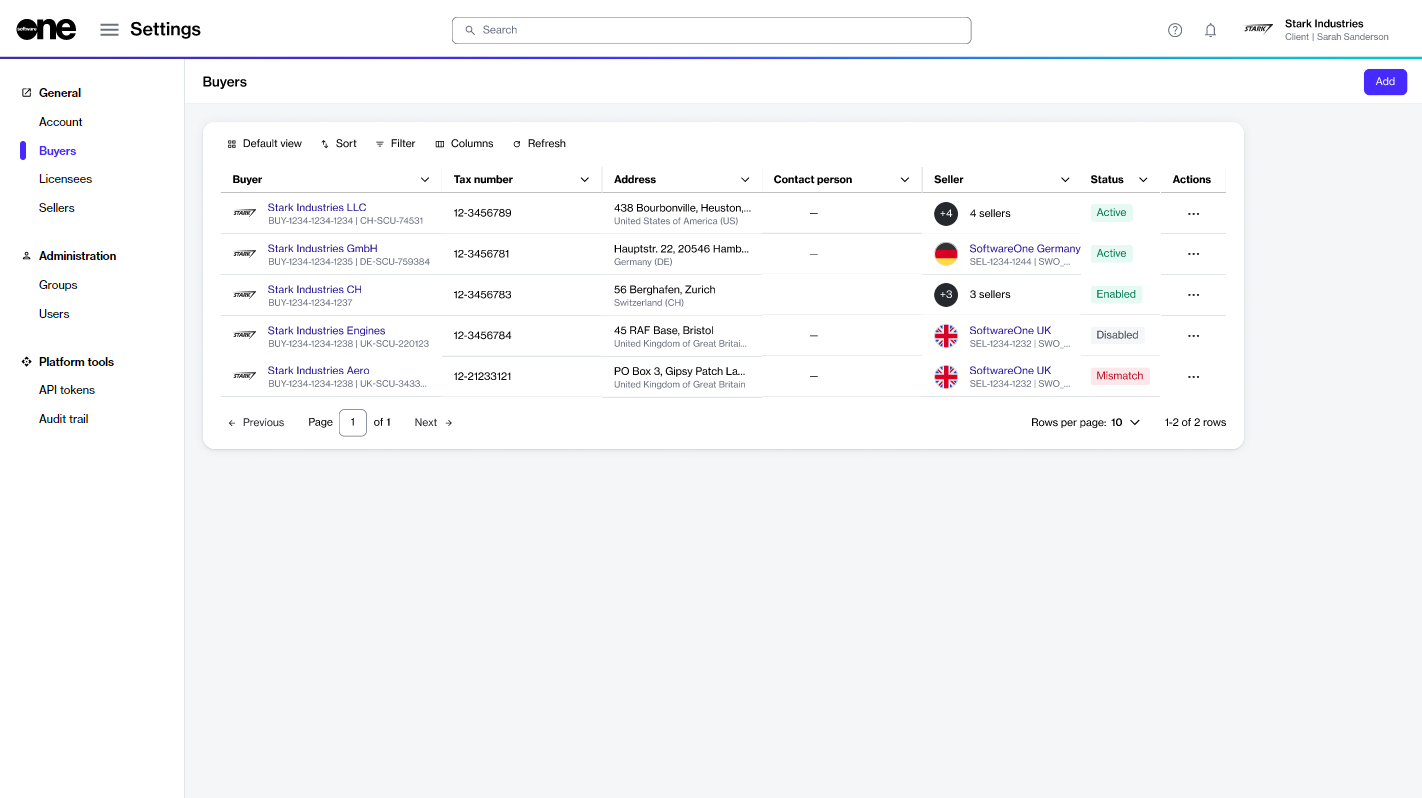
Manage your existing buyers.
If you no longer wish to use a buyer, you can temporarily disable them and re-enable them when required.
When you disable a buyer, the licensees associated with that buyer also become unavailable. This means you'll no longer be able to select those licensees when creating a new agreement.
To enable or disable a buyer:
Go to Settings > Buyers.
Find the buyer you want to manage.
Select the actions icon (•••) for the buyer and choose Enable or Disable. Note that only one of these options is shown depending on the current state of the buyer. For example, the Enable option is shown only if the buyer has been disabled.
In the confirmation dialog, confirm the action.
A message is displayed stating that the buyer was updated. You can view the updated buyer status on the Buyers page.
This topic describes how to view a list of buyers in your account, as well as details about a specific buyer.
To view a list of buyers:
Go to Settings > Buyers.
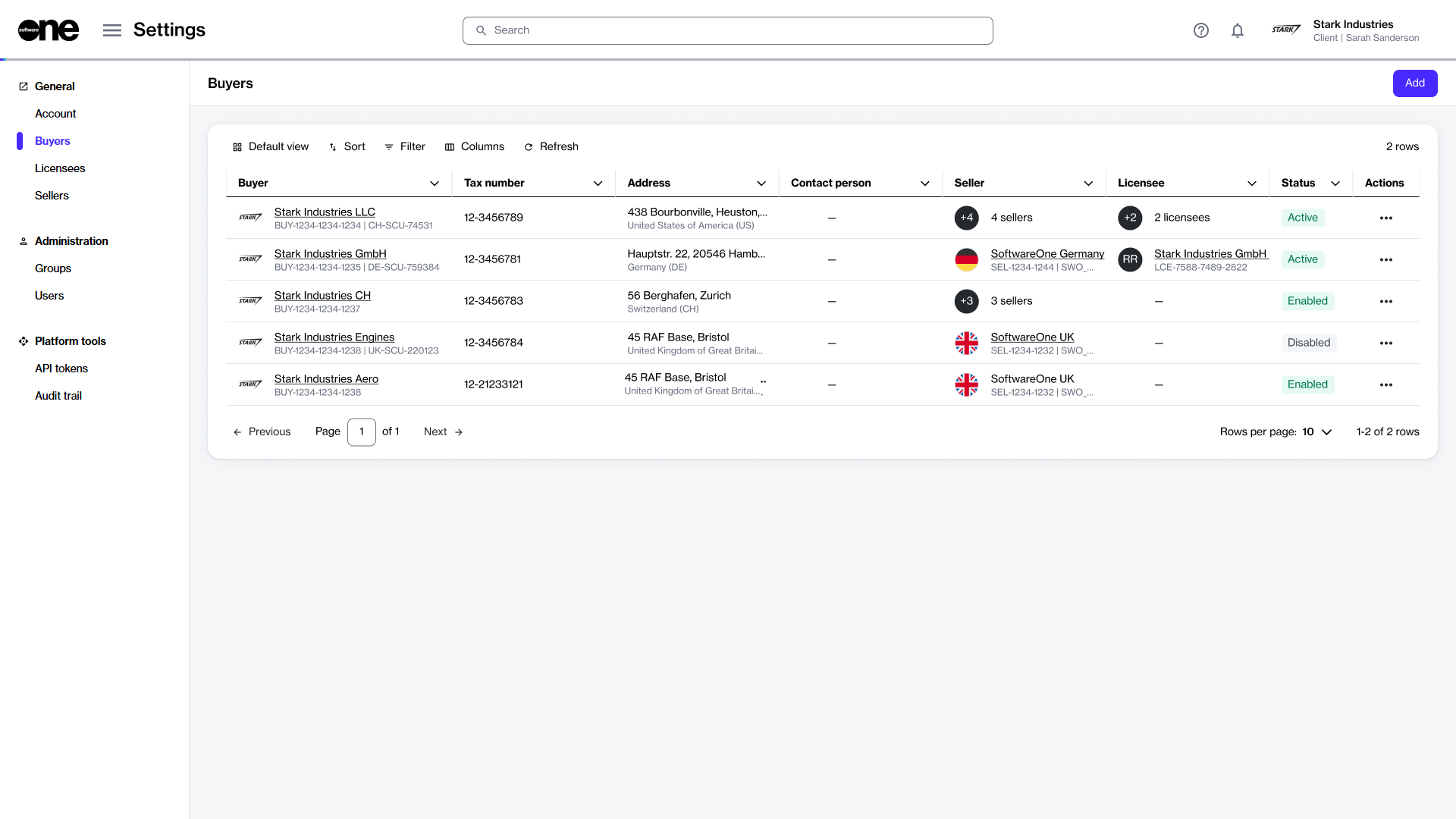
View the list of buyers displayed on the page.
Review information such as the buyer's name and address, tax identifier, and contact person. You can also view buyer status, including:
Enabled – Indicates that the buyer has been created in the system, but it hasn't been activated yet by SoftwareOne.
Active – Indicates that the buyer is active, and you can select it from your list of buyers when ordering products.
Disabled – Indicates that the buyer has been disabled, and you can no longer select it when buying products.
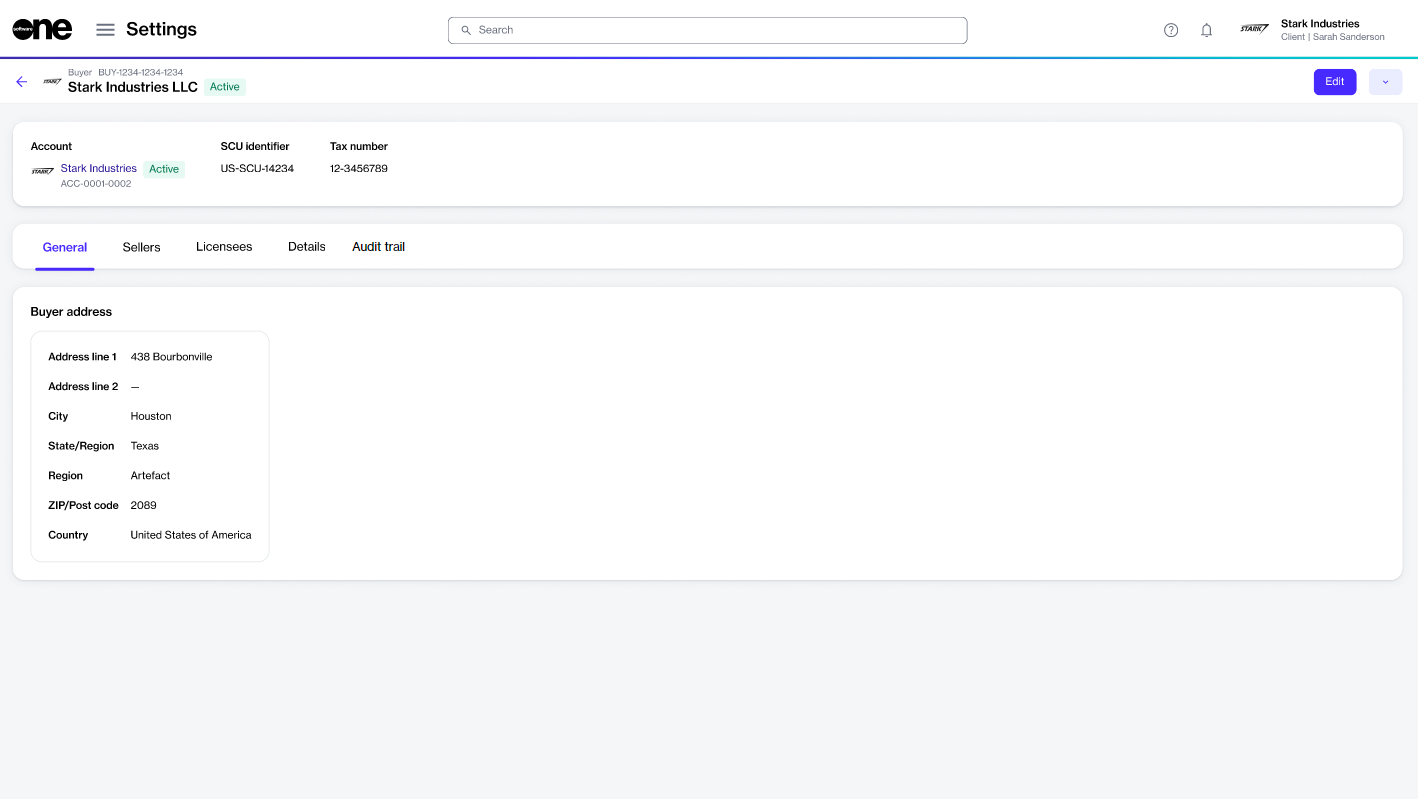
On the buyer details page, you can view properties, such as account name, ID, and status, SCU identifier (which represents a unique ID for your customer card or profile within the SoftwareOne ERP system), and tax number.
To view buyer details:
Go to Settings > Buyers.
Select the buyer you want to view. The buyer details page opens.
Use the tabs on the buyer details page to access different types of information:
General
Displays the buyer's address and the contact person's details.
Sellers
Displays the SoftwareOne entity associated with the buyer. There's a 1:1 relationship between a buyer and seller, meaning each buyer is linked to one or more sellers. The ERP link status is also displayed on this tab. An ERP link is a reference to the customer record in the SoftwareOne ERP system.
Licensees
In the Marketplace platform, the buyer's address fields must meet certain requirements. If any address fields are empty on the General tab, the SoftwareOne ERP system automatically fills them with the word 'unknown'. If you notice this, for assistance.
If the status of the ERP link is Blocked, it indicates that you cannot transact with the specified seller. In such cases, for assistance.
Displays the licensees associated with the buyer, along with their details.
Details
Displays timestamps for various events and external IDs, such as Customer Discount Group (CDG) and Company Contact (CON) identifiers.
Audit trail
Displays the for the buyer.
Edit the general information and contact person for a buyer.
After SoftwareOne links buyers to your account, you can manage them in the platform and update buyer details as needed. You can edit information such as the buyer’s assigned contact person and the buyer’s logo.
To update the buyer details:
Go to Settings > Buyers.
Select the buyer you want to update. The buyer details page opens.
Select Edit.
In the Edit buyer flow, do the following as needed:
General – Add or update the buyer's logo. You can upload an image by selecting Select file or by dragging the image into the field.
Buyer address – Update the buyer's address.
Learn about buyers in the Marketplace Platform.
In the SoftwareOne Marketplace, a buyer is an organization that purchases products or services from SoftwareOne.
Buyers are registered as legal entities in SoftwareOne's ERP system and are the recipients of invoices issued by SoftwareOne. All buyers are added to an account by SoftwareOne.
The Buyers page lets account administrators view all buyers in the account. Administrators can also perform management tasks such as editing, enabling, or disabling a buyer.
To open the page, choose Settings > Buyers from the main menu.
On the Buyers page, you can view details for each buyer, including the name, address, status, and more.
You can also select a buyer to view detailed information organized across tabs. These details include the buyer’s address, associated entities such as sellers and licensees, and a record of events and logs for the buyer. For more information, see .