Learn about the different states of a user.
A user is an individual with a unique login who interacts with the Marketplace Platform.
A user can be in one of these states: Invited, Invitation expired, Active, Blocked, Disabled, or Deleted. The following diagram shows the transitions between these states:
The following table describes the different states:
Learn about users in the Marketplace Platform.
A user is an individual who interacts with the Marketplace with a unique username and password. Each user has a profile with attributes, such as email address, name, profile image, and more.
In the SoftwareOne Marketplace, users linked to an account can access modules and functionalities, according to their permissions. Users can also belong to multiple accounts or have no account at all. Additionally:
Users with multiple accounts can switch between them without signing out.
Users who don't belong to any account have limited capabilities. Such users can only sign in and adjust their profile settings. They cannot access any module.
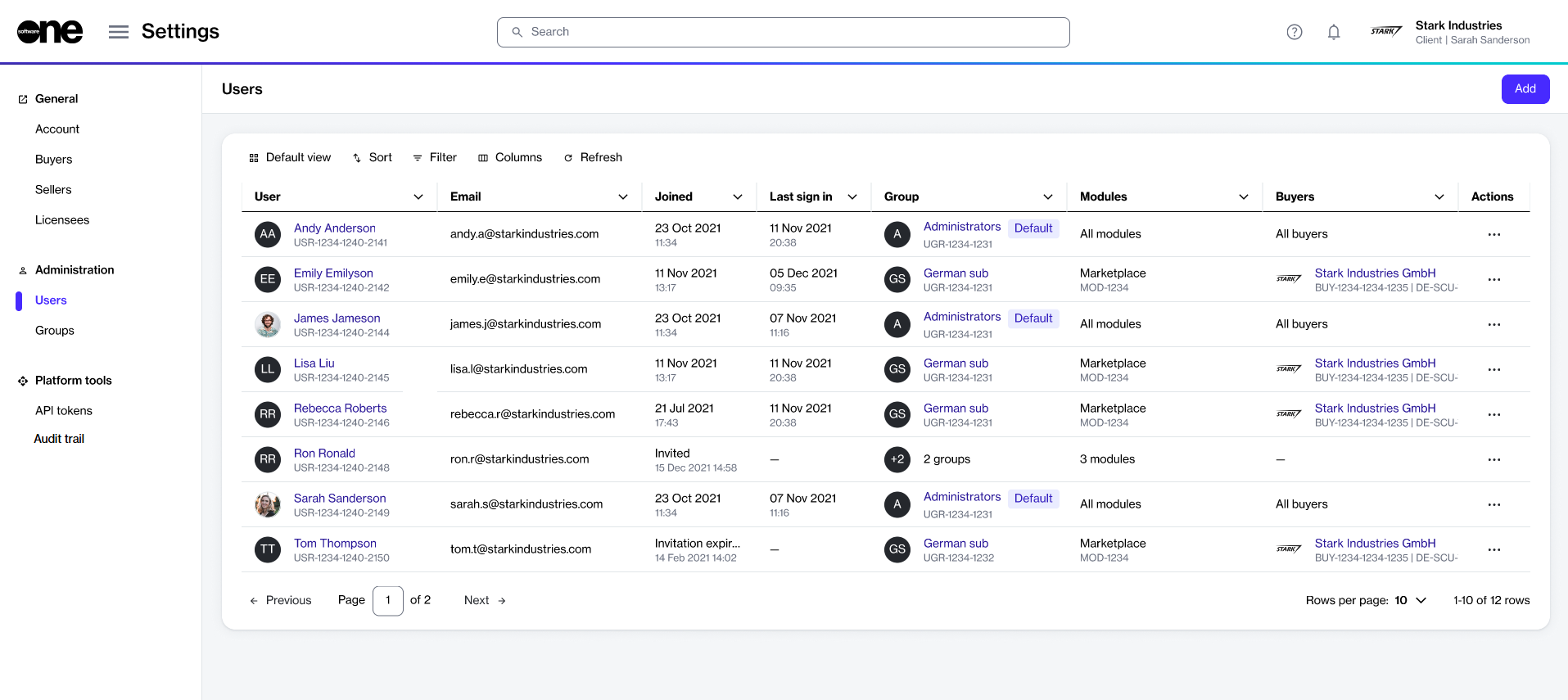
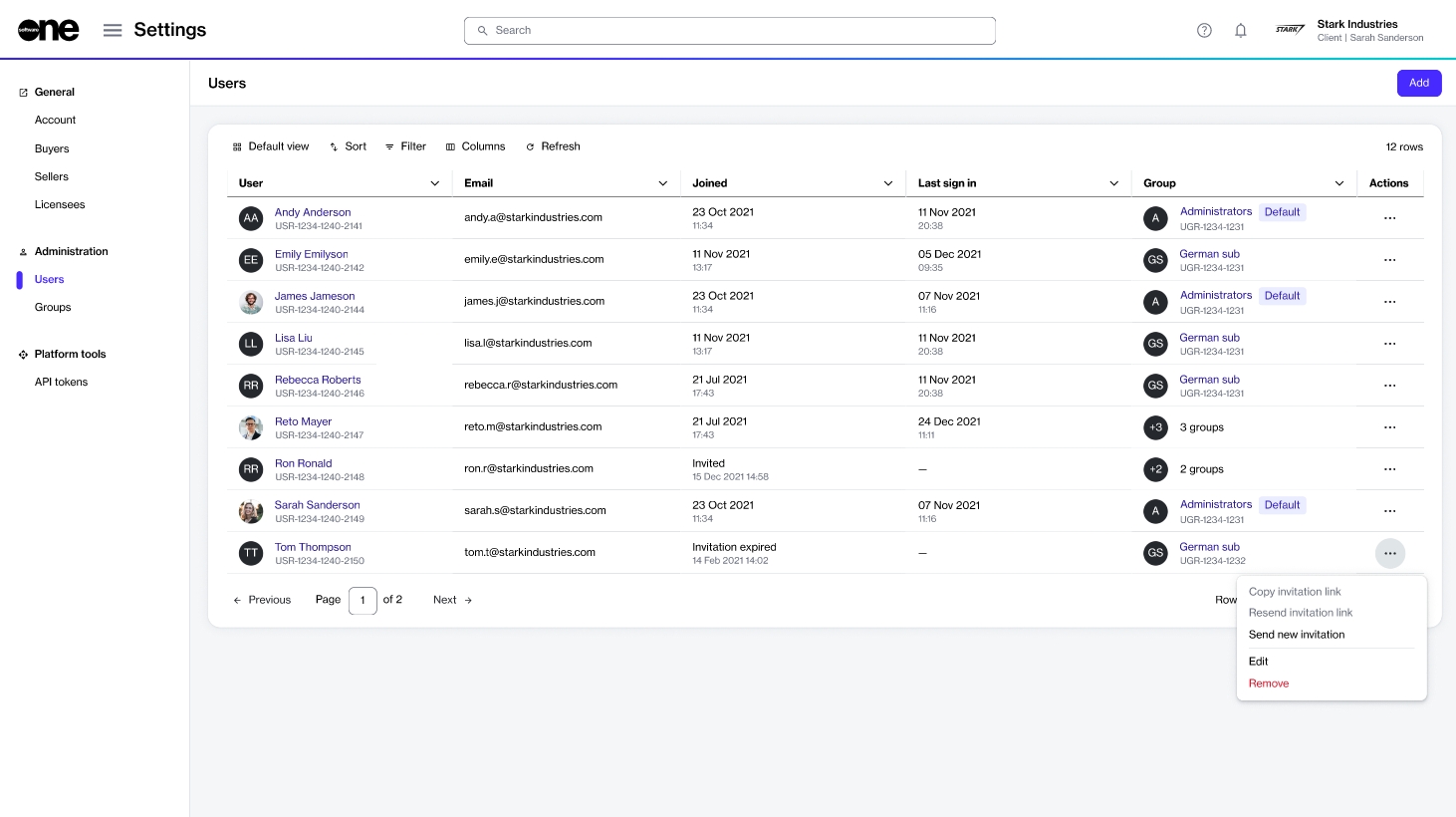
The Users page allows account administrators to perform user management tasks, such as adding new users and managing existing users. Administrators can also modify, remove, and reinvite users, and much more.
To open the page, choose Settings > Users from the main menu.
On the Users page, you can use the and to customize the list.
You can view a user's details by selecting the user name, and manage a user by using the options in the Actions column.
Invited
The user has been invited to the account.
Invitation expired
The user's invitation has expired because they didn't accept it within 7 days from the send date.
Active
The user can access the account and perform operations based on their permissions.
Blocked
The user has been restricted from accessing the account. This could be due to terms and conditions violations, security concerns, or at the administrator's discretion.
Disabled
The user has been removed from the account. They cannot perform any operation in the account.
Deleted
The user no longer exists in the system.
Manage a user’s group membership.
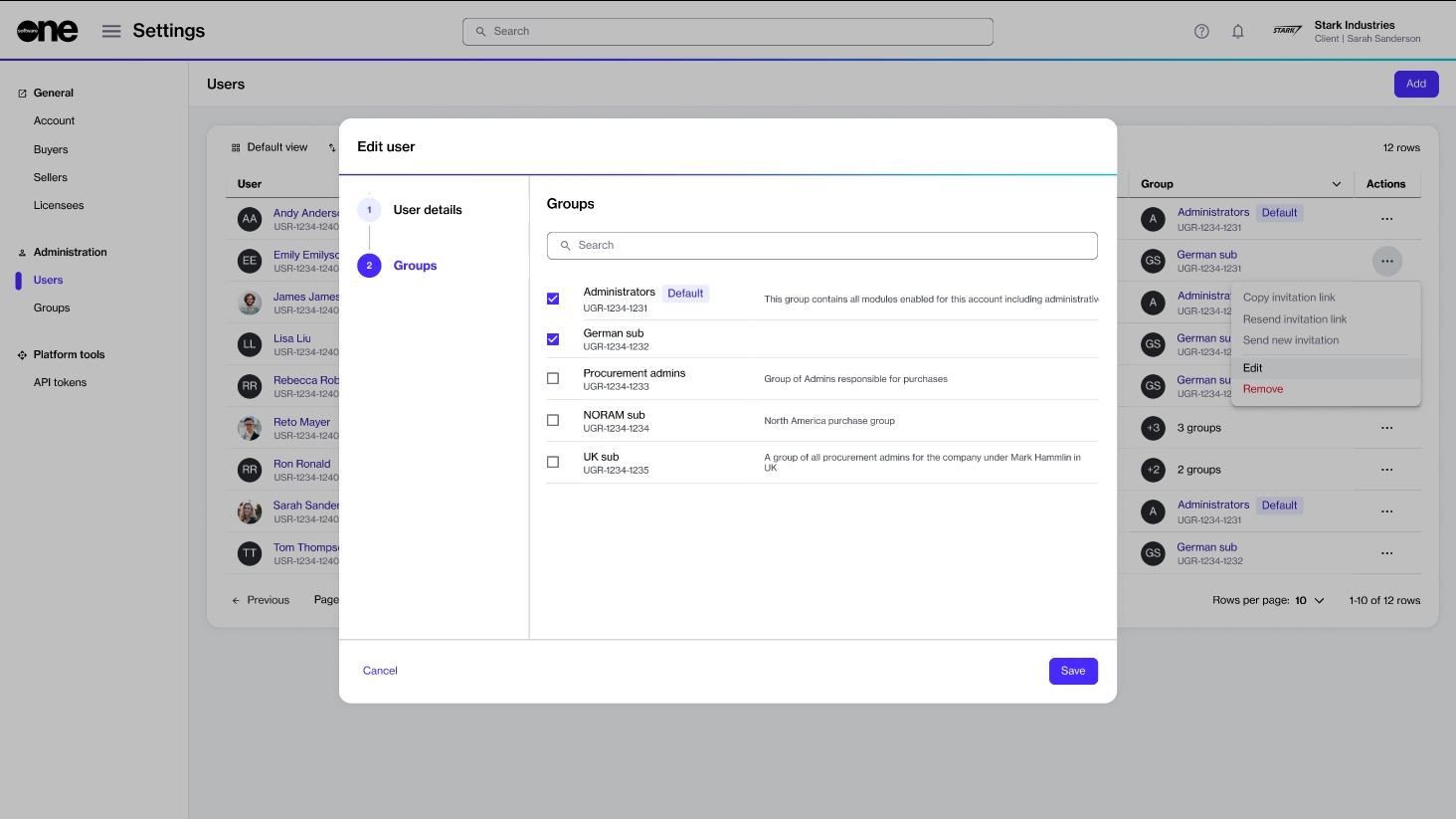
The Edit option on the Users page allows you to modify a user’s group memberships. This means you can add or remove the groups the user belongs to.
Personal details, such as name, email address, or contact details, cannot be edited from this page. If these details need to be updated, the user must make the changes through My Profile in their profile menu. For more details, see Manage your profile.
To edit a user:
Go to Settings > Users.
Find the user you want to edit. Then, do one of the following:
Select the actions icon (•••), then select Edit.
Select the user name. Then, on the user details page, select Edit.
In the Edit user flow, select the Groups step and make changes as needed:
To add the user to a group, select the checkbox for that group.
To remove the user from a group, clear the checkbox.
Select Save. A confirmation message is displayed stating that the user was edited successfully.
Reinvite a user to your Marketplace account.
Administrators can manage invitations from the Users page in the platform.
If a user you added to the account didn't receive the invitation email or has difficulty accepting it, you can either share the invite link with them directly or resend the invitation.
To reinvite a user to your account:
Go to Settings > Users.
Find the user you want to reinvite.
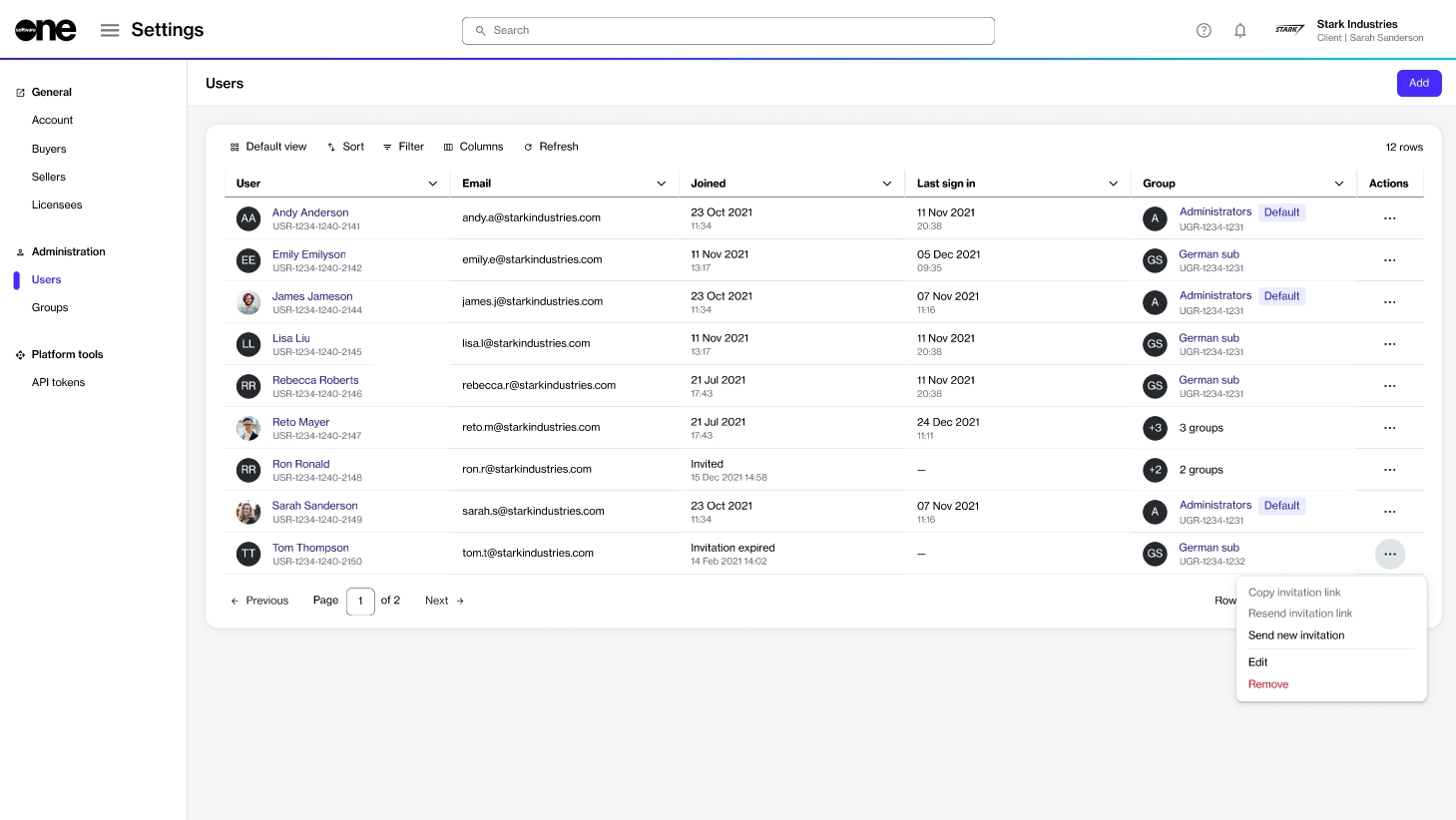
Select the actions icon (•••) for the user, then do the following:
Copy invitation link – Select this option to copy the invitation link and share it directly with the individual.
Resend invitation link – Select this option to resend the invitation to their email address.
Invitations that are not accepted within 7 days from the send date will expire.
If a user's original invitation link is no longer active, you can send them a new invitation email with a new link to join the account.
To send a new invitation email:
Go to Settings > Users.
Select the actions icon (•••) for the user, then choose Send new invitation. A new invitation email is sent to the user, and a confirmation message is displayed.
Advise the user to locate and accept the invitation email from SoftwareOne Marketplace.
Invite new users to your SoftwareOne Marketplace account.
Account administrators can add new users to the account from the Users page.
Once a user is added, they will receive an invitation email containing a unique link. To join the account, the user must accept the invitation and complete the registration process within 7 days. Otherwise, the invitation expires and must be resent.
Before adding a user to your account, note the following points:
Ensure you have the user's email address and full name.
Make sure the user is not already added to the account. If they are, the platform displays a message.
When adding the user, make sure to assign them to the correct group. For information on creating or updating a group, see .
To add a new user:
Go to Settings > Users, then select Add.
In the Add user flow, complete the following steps:
Email – Enter the user's email address, then select Next.
After adding the user, advise the user to locate the invitation email from SoftwareOne Marketplace and accept the invite.
Groups – Select the groups to which the user must be added. You must choose at least one group. When done, select Next.
Overview – Review the details you have provided and select Add. The user is added to your account, and the invitation email is sent to them.
Summary – Select View details to view the user details page or select Close. To share the invite link directly with the user, select the copy icon .

Your users list gives you quick access to all users in your account. This topic describes how to view a list of users in your account, as well as details about a specific user.
To view a list of users in your account
Go to Settings > Users.
View the list of all users displayed on the page.

Review information such as the user name, email address, group membership, and the available fields. You can also see all the buyers visible to the user in the Buyers column. The following table lists buyer visibility rules:
Account Management module
All buyers
User can view every buyer in the account.
Marketplace module only
Total number of buyers
On the user details page, you can view detailed information for a specific user.
To view details for a specific user:
Go to Settings > Users.
Select the user you want to view. The user details page opens.
Use the tabs to access different types of information:
General
Shows general information for the user.
Groups
Shows the user's group memberships and the modules they have access to.
Details
Remove a user from your Marketplace account.
In certain situations, you may need to remove a person from your account. If you are an account administrator, you can use the Remove option on the Users page to delete an individual from the account.
Before removing an individual, note the following points:
Ensure that you have reviewed the individual's permissions and assigned groups. This is necessary to prevent accidental removal.
Removing an individual doesn't delete them from the platform. It only removes them from the account. If the individual belongs to other accounts, they can still access those accounts.
A removed user can be .
You cannot remove yourself from the account. The platform shows a message if you try to remove yourself.
If you remove an individual with an Invited status, their invitation link no longer remains valid.
To remove a user from your account:
Go to Settings > Users.
Locate the individual you want to remove.
Select the actions icon (•••), then choose Remove.
In the Remove user dialog, select Remove to confirm.
A message is displayed stating that the user was removed. Additionally, the user receives an email stating that they have been removed from the account and its groups.
Shows count of buyers the user can access, for example 2.
No access to either module
– (dash)
User cannot view any buyers.
Shows the date and time details for the user, including when they joined the account.
Audit trail
Shows the audit trail for the user.
Accept or decline your Marketplace invitation.
When you are invited to the Marketplace Platform by the SoftwareOne Operations team or your account administrator, you'll receive an invitation to join the account. This topic describes how to accept or decline the invitation.
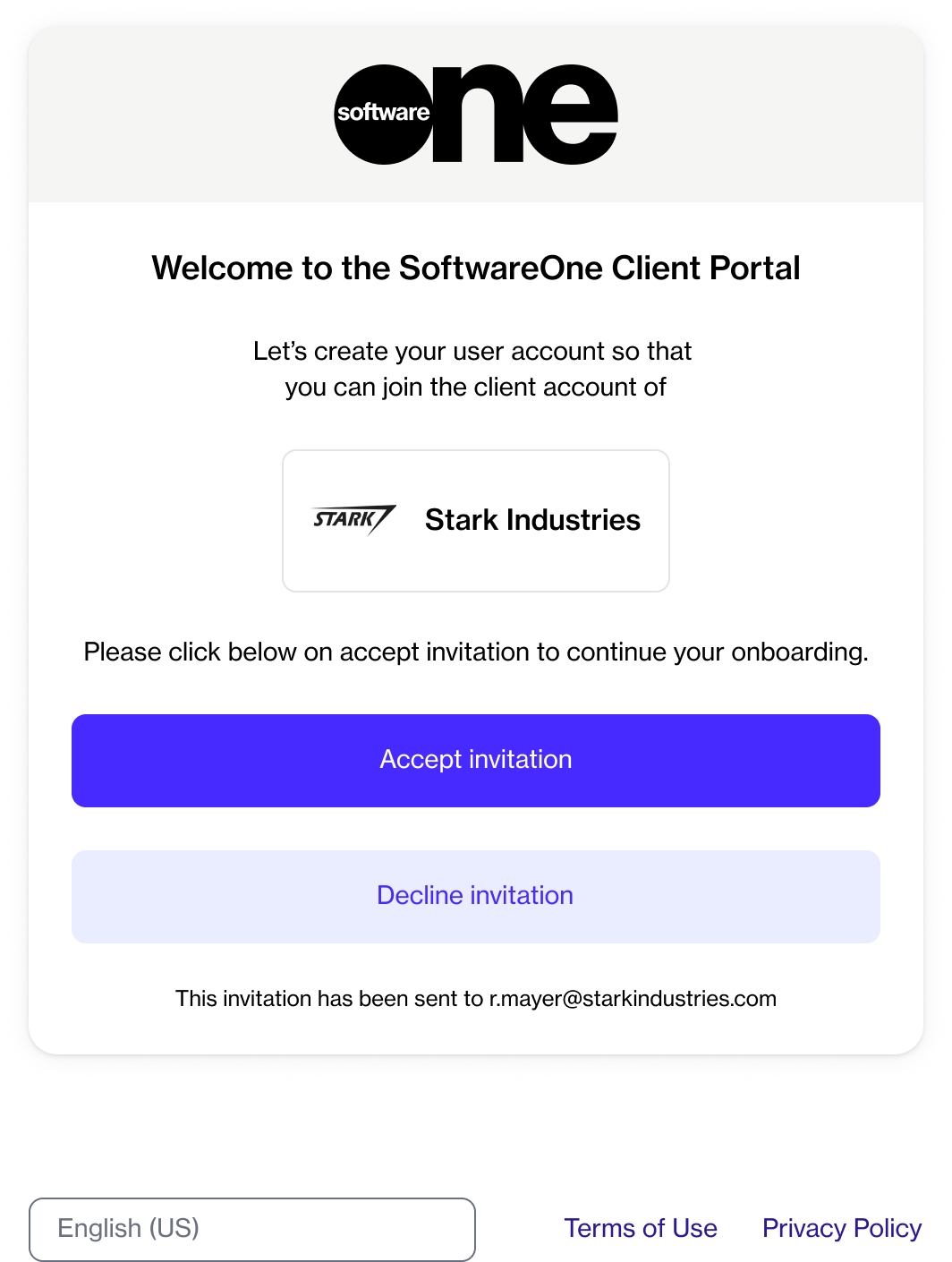
To accept the invitation:
Select the invite link in your email. The following page is displayed:
Select Accept invitation.
On the account registration page, do the following:
Enter your first name and last name.
Enter your phone number.
Enter a new password, then confirm that your new password matches the one you entered in the Password field. Passwords must be at least eight characters long and must contain at least one lowercase (a-z) and one uppercase letter (A-Z), a number, and a special character. When you enter a new password, our password validation checks whether it meets the specified criteria.
You can decline an invitation if it was sent to you in error or if you choose not to join the account.
To decline:
Open the invitation link.
Select Decline invitation.
Select I agree to the SoftwareOne Client Portal Terms of Use.
Select Accept invitation.