Interface Overview
Learn how to navigate and use the platform.
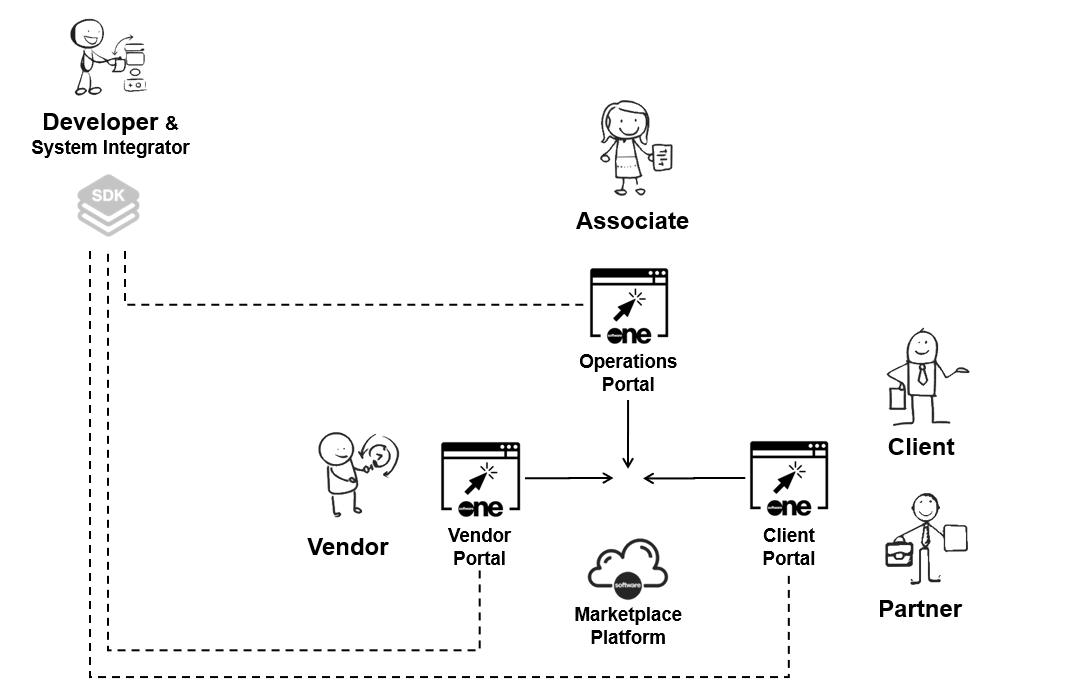
The Marketplace Platform is a SoftwareOne SaaS solution that enables users to procure and manage software solutions. This page provides a high-level overview of the platform interface and explains how to navigate and use its core features.
This content applies to all Marketplace Platform users, including Client Portal users (clients and partners), Vendor Portal users (software vendors), and Operations Portal users (SoftwareOne internal associates).

Signing in to your account
You can access the platform from an up-to-date desktop or mobile browser. For a list of supported browsers, see Which browsers do you support?.
To sign in to your SoftwareOne Marketplace account:
Navigate to the sign-in page.
Enter the email address associated with your account, then select Continue.
Enter your password and select Continue.
Upon successful sign-in, the platform's Home page is displayed.
If you provide inaccurate credentials, an error message is displayed. If you don’t remember your password, select Forgot password? and follow the instructions to recover it.
Understanding the interface layout
The Marketplace Platform interface is designed to provide consistent navigation across all portals.
While the layout is consistent, the available modules and content depend on your role and portal (Client, Vendor, or Operations).

Header
The header is always visible and contains the following components:
Hamburger menu
The hamburger menu provides access to all the modules enabled for your account. Select
Home in the header to open the menu.
When you are viewing a page within a specific module, the menu label changes to match that context (for example, it displays Billing when viewing invoices, Marketplace when viewing subscriptions, and so on).
Menu items with chevronscan be expanded to reveal additional pages within that category.

Search
The Search bar in the header enables you to search for objects, such as your orders, agreements, subscriptions, and more. You can also search for specific products and items in our catalog.
Additionally, you can use search to access product documentation, including resources such as tutorials, FAQs, and procedures. For example, you can search for 'manage subscriptions' to read documentation about how to manage your subscriptions.

When performing a search, start by choosing the category you want to search across and then enter the search term. Our platform supports free text, which means you can enter all or part of the object's ID or name.
For example, when searching for an agreement using its ID, select the Agreements category and then enter the full order ID (such as ‘AGR-8981-7039-6781’) or part of it (such as 6781). The platform will then display results matching your specified search term.
Help
The Help option
allows you to quickly access documentation, request assistance, and share feedback directly from the platform.
The Documentation section displays a list of recommended topics from our product documentation. You can browse suggested topics and select a topic to view detailed guidance. To access all documentation resources, select View all.
Use Need help? if you require additional assistance. This option directs you to our Get help wizard, where you can get help with platform issues or questions. For more details, see Contact support.
Use Send feedback to share your comments, suggestions, and experiences about the SoftwareOne Marketplace directly with us. For more details, see Share feedback.
Spotlight
The Spotlight option
highlights tasks that require action, helping you stay on top of important tasks.
Examples of such tasks include subscriptions nearing expiration, orders querying for more information, and more.

Profile menu
Your user profile menu in the header displays your profile settings and allows you to manage them using the My profile option.
If you belong to multiple accounts, the profile menu also includes an account switcher that enables you to:
Search for an account by its name or ID.
Select an account to switch to. For more information, see Switch Accounts.
Mark an account as a favorite for easy access later from the Favorites tab.
View all recently accessed accounts on the Recents tab.

Home page widgets
The widgets on the Home page provide a centralized overview of key information and shortcuts.
Spotlight widget
The Spotlight widget displays key platform objects requiring your attention. These objects include your agreements, orders, subscriptions, invoices, and more.
For more information, see Object Spotlight.
News and updates widget
The News and updates widget contains video guides from our YouTube channel. Each video includes a brief description, the date it was posted, and links to related documentation.
You can watch videos directly within the platform or open them on YouTube.
Favorites widget
The Favorites widget provides quick access to pages you have marked as favorites.
For information on adding and managing favorites, see Using Favorites.
Last updated
Was this helpful?