To complete the Azure Lighthouse onboarding, you must have the subscription owner role in Azure.
Global administrators can assign the subscription owner role to the user who will complete the Azure Lighthouse onboarding.
To assign the Owner role:
Sign in to the Microsoft Azure portal as a Global Administrator.
Verify that you have permission to add role assignments. To verify permissions:
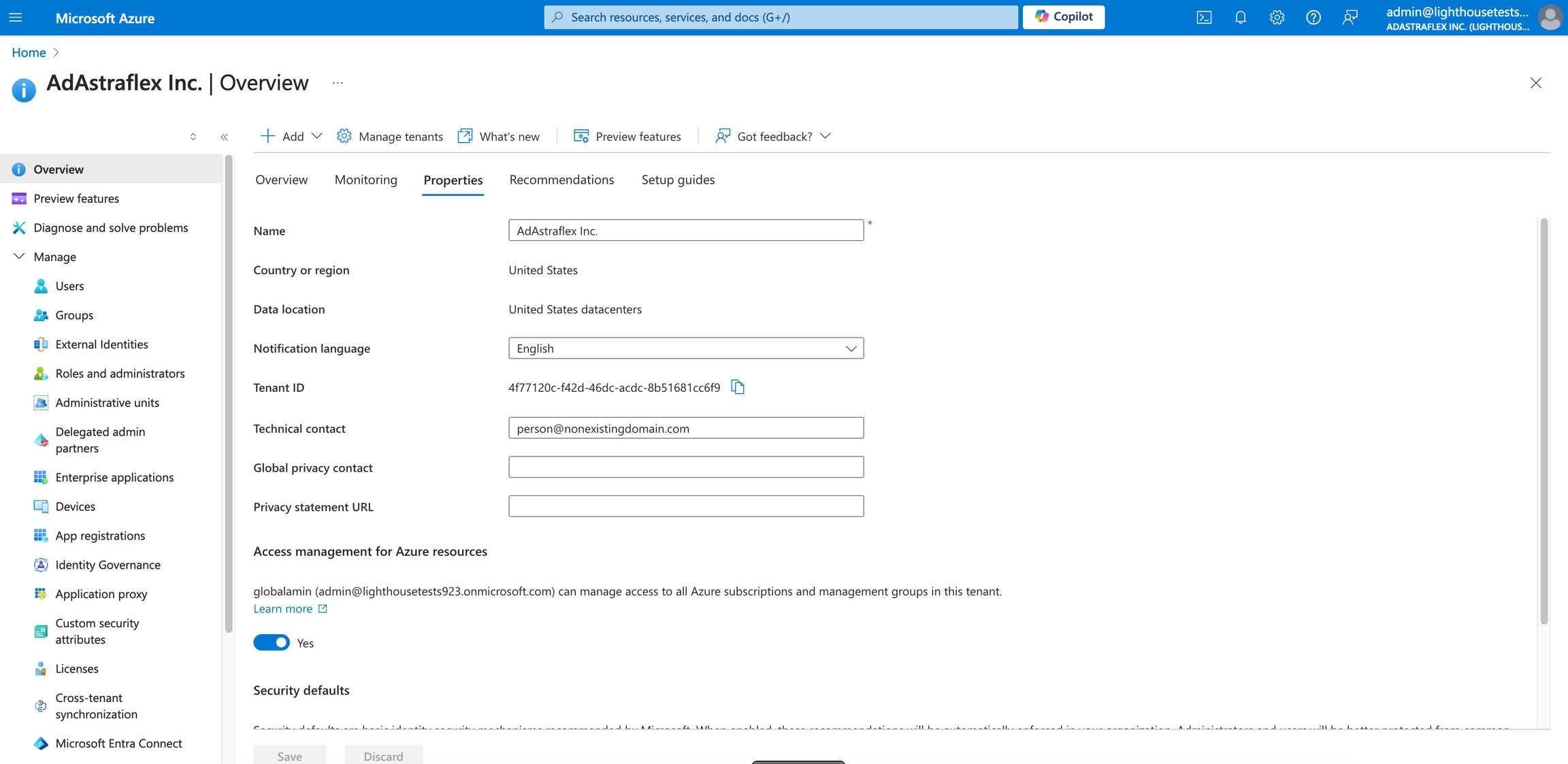
In the Search bar, type Microsoft Entra ID.
Go to the Properties tab.
Under Access management for Azure resources, set the toggle to
In the Search bar, type Subscriptions. Then, on the Subscriptions page, select the required subscription.
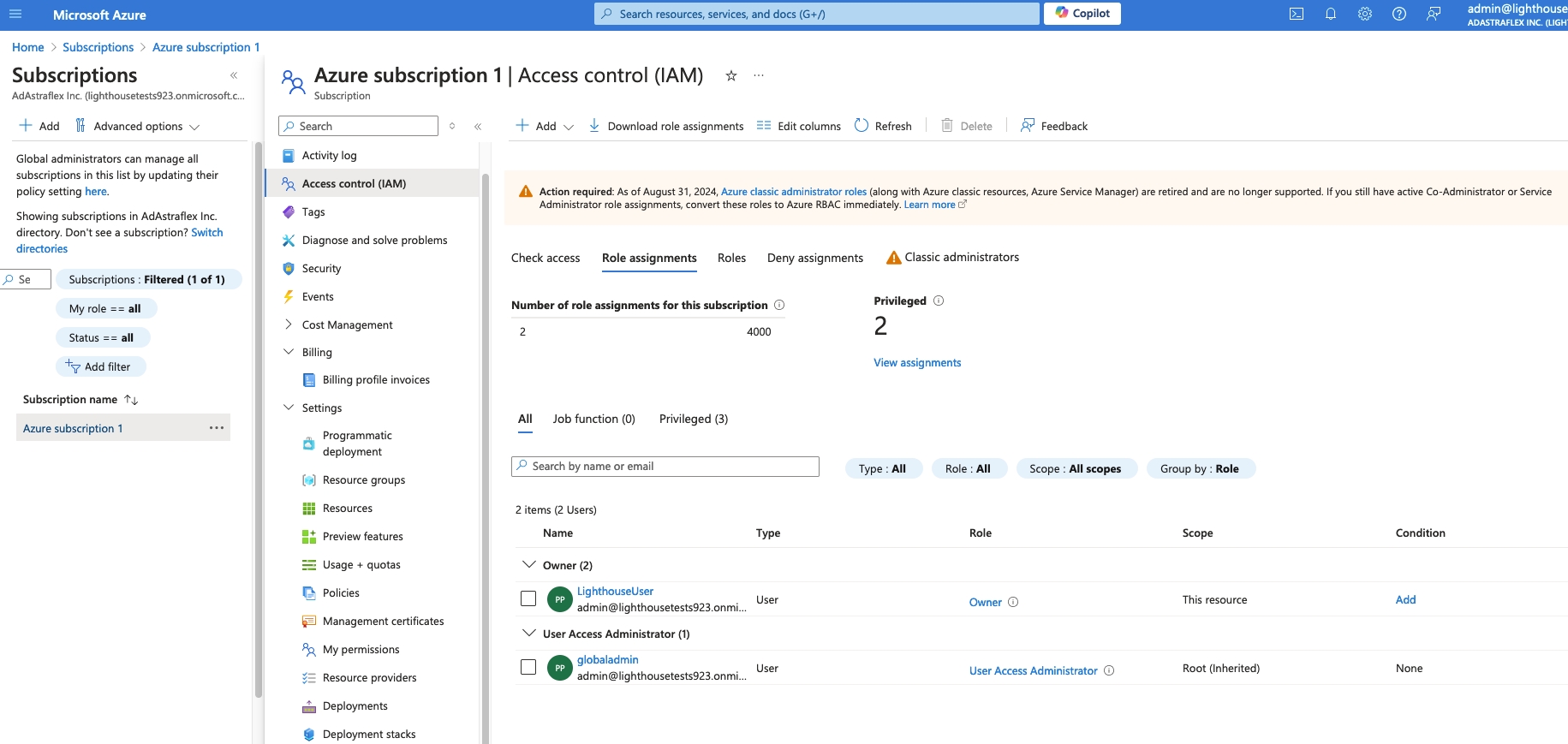
In the left pane, select Access control (IAM).
Select the Role assignments tab to view the role assignments at this scope. Then, select Add > Add role assignment.
On the Conditions tab, select Allow user to assign all roles (highly privileged) and then select Next.
On the Review + assign tab, select Review + assign.
The Owner role is assigned to the user and displayed on the Role assignments tab in Azure:
After assigning the role in Azure, navigate to the Orders page in the Marketplace Platform to complete the onboarding steps. For step-by-step guidance, see .
Select Save.
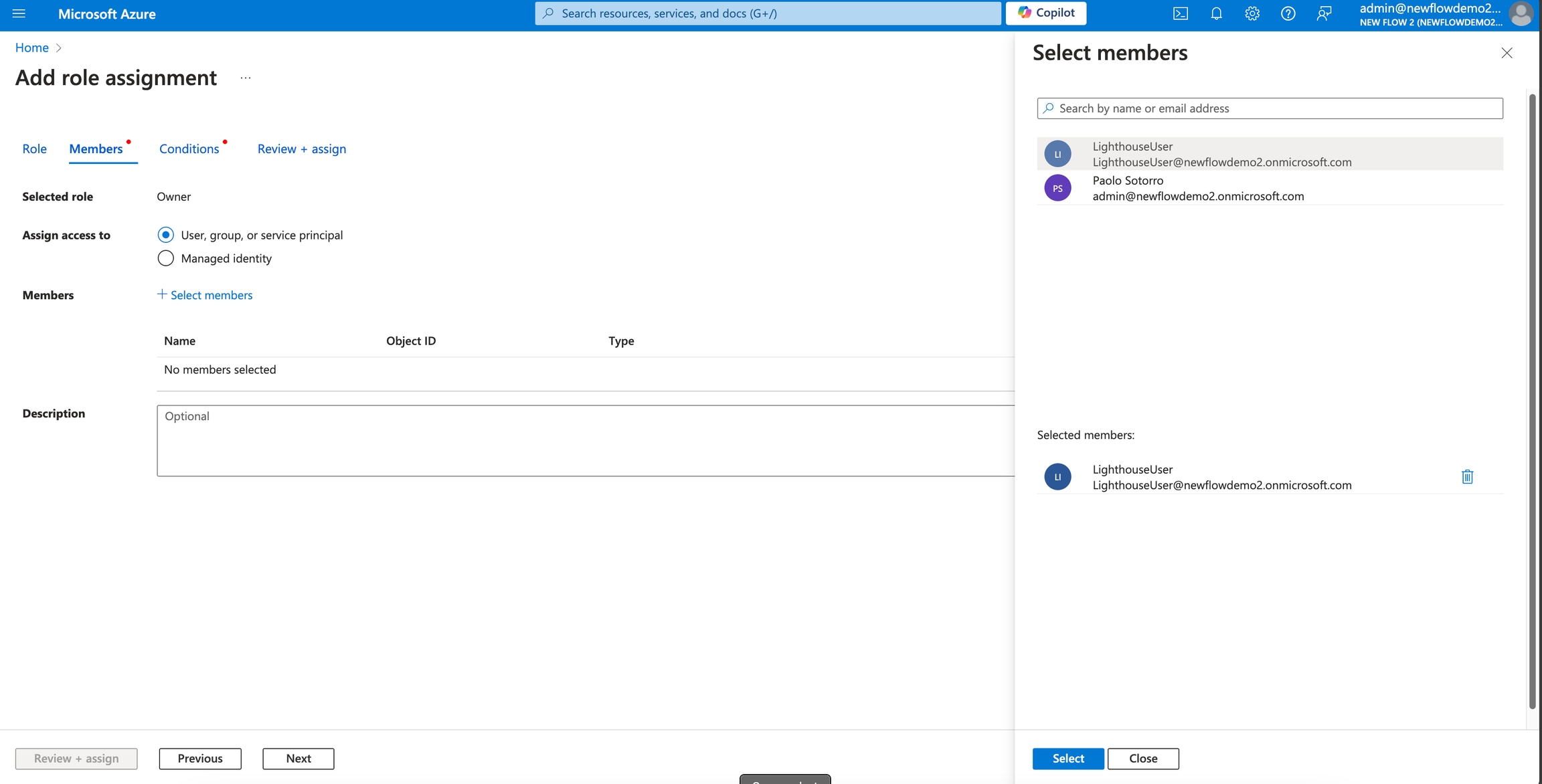
On the Members tab, select the user to whom you want to assign the Owner role and select Next. You must select the user you want to use for the Azure Lighthouse onboarding.