
Move your Adobe VIP account to Adobe VIP Marketplace.
You can move your Adobe VIP account to Adobe VIP Marketplace by placing a migration order in the SoftwareOne Marketplace. This helps you manage your existing Adobe subscriptions, buy new licenses, and renew automatically in the SoftwareOne Marketplace.
Your company details and your active Adobe subscriptions are taken from your VIP account, so you don't need to enter them again.
Before you start, make sure you have the following:
An Adobe VIP account. Accounts under other Adobe licensing programs, such as CLP, TLP, or ETLA, cannot be migrated.
Your Adobe VIP membership number. You can find it in the Adobe Admin Console.
An or permission to .
Start the order
To start the order:
Go to Catalog > Products.
Select the Adobe product, for example, Adobe VIP Marketplace for Commercial.
Select Buy now
If your SoftwareOne representative created a draft migration order for you, complete it to accept the terms of VIP Marketplace and activate your agreement.
To complete your draft order:
Do one of the following:
Select the link in the email from SoftwareOne. If you are signed in, the details page of your draft order opens.
Go to the page and select the Adobe order in Draft status.
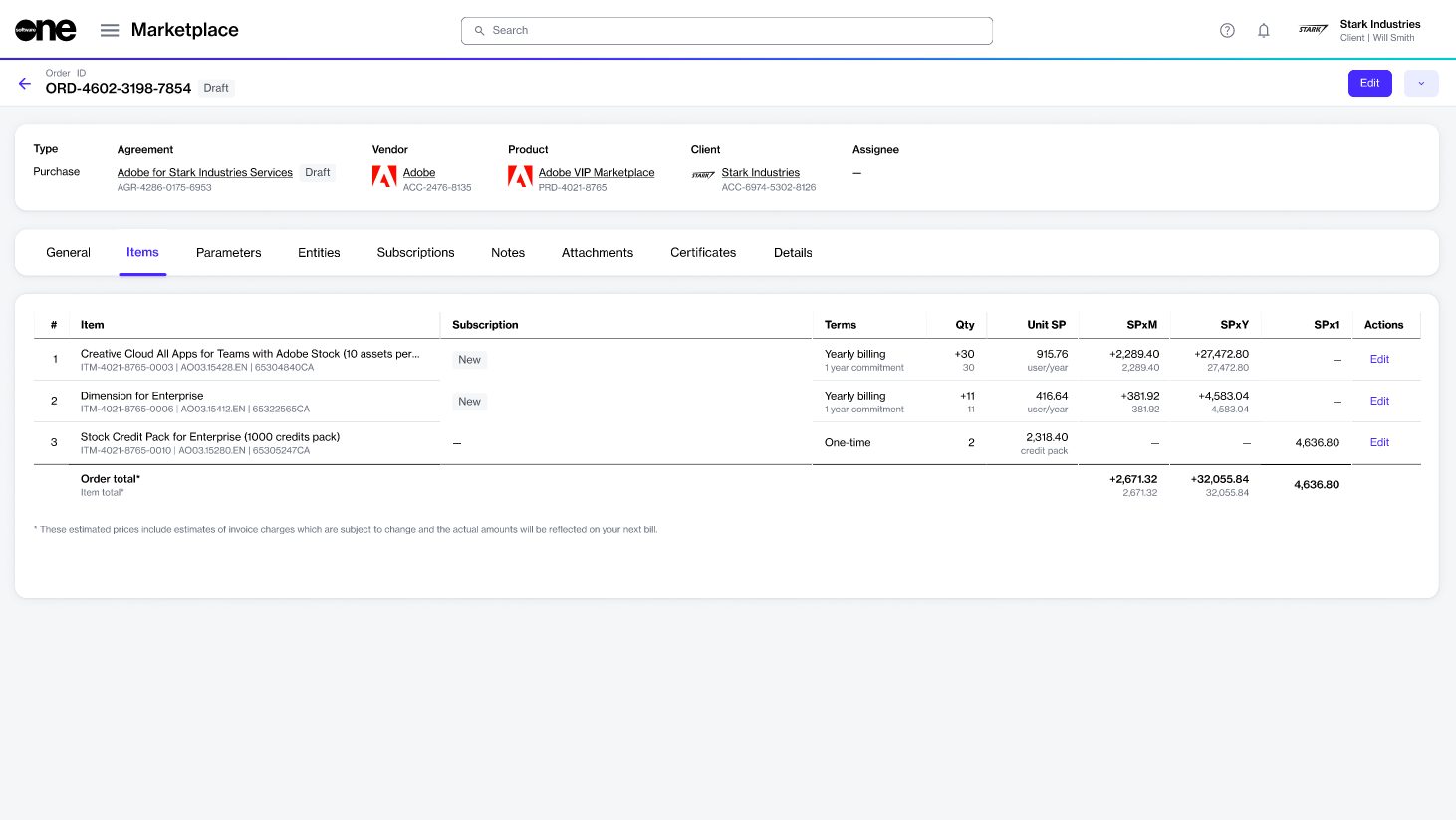
Select the Items tab, then select Edit to start the purchase wizard.
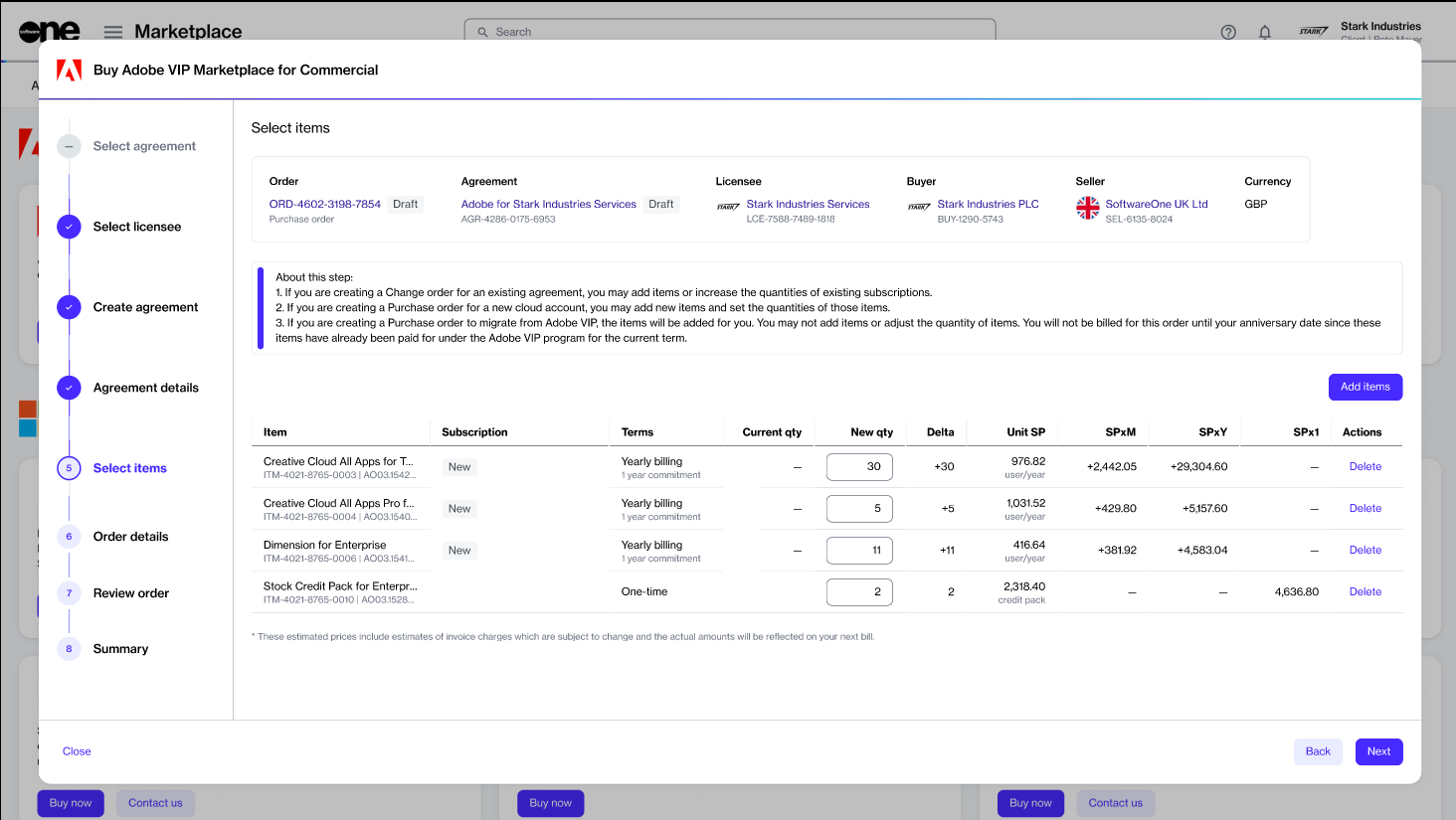
Select items – Review the items, quantities, and prices, then select Next. You cannot add items or change quantities in a draft order.
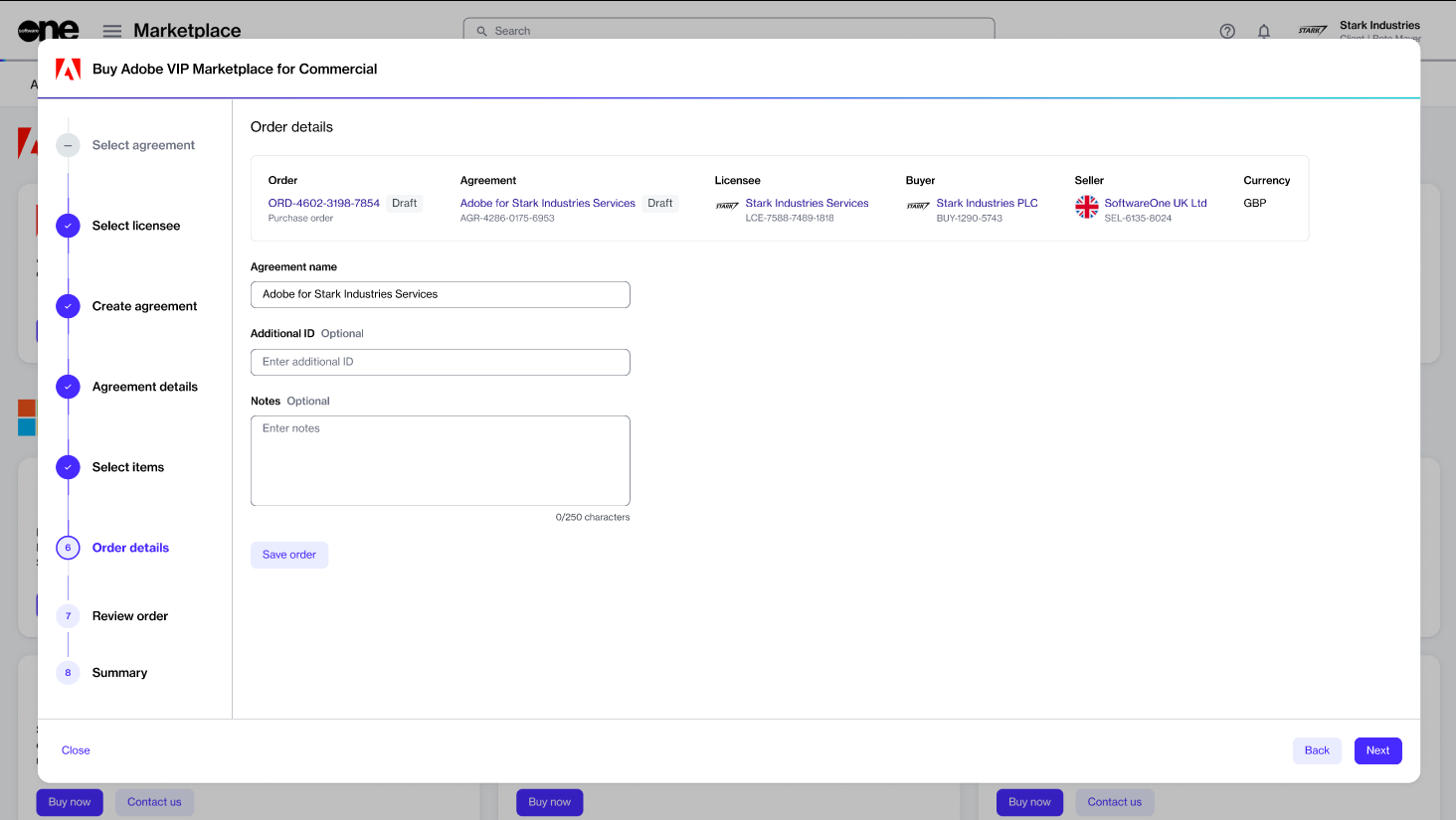
Order details – Update the agreement name and other details as needed, then select Next.
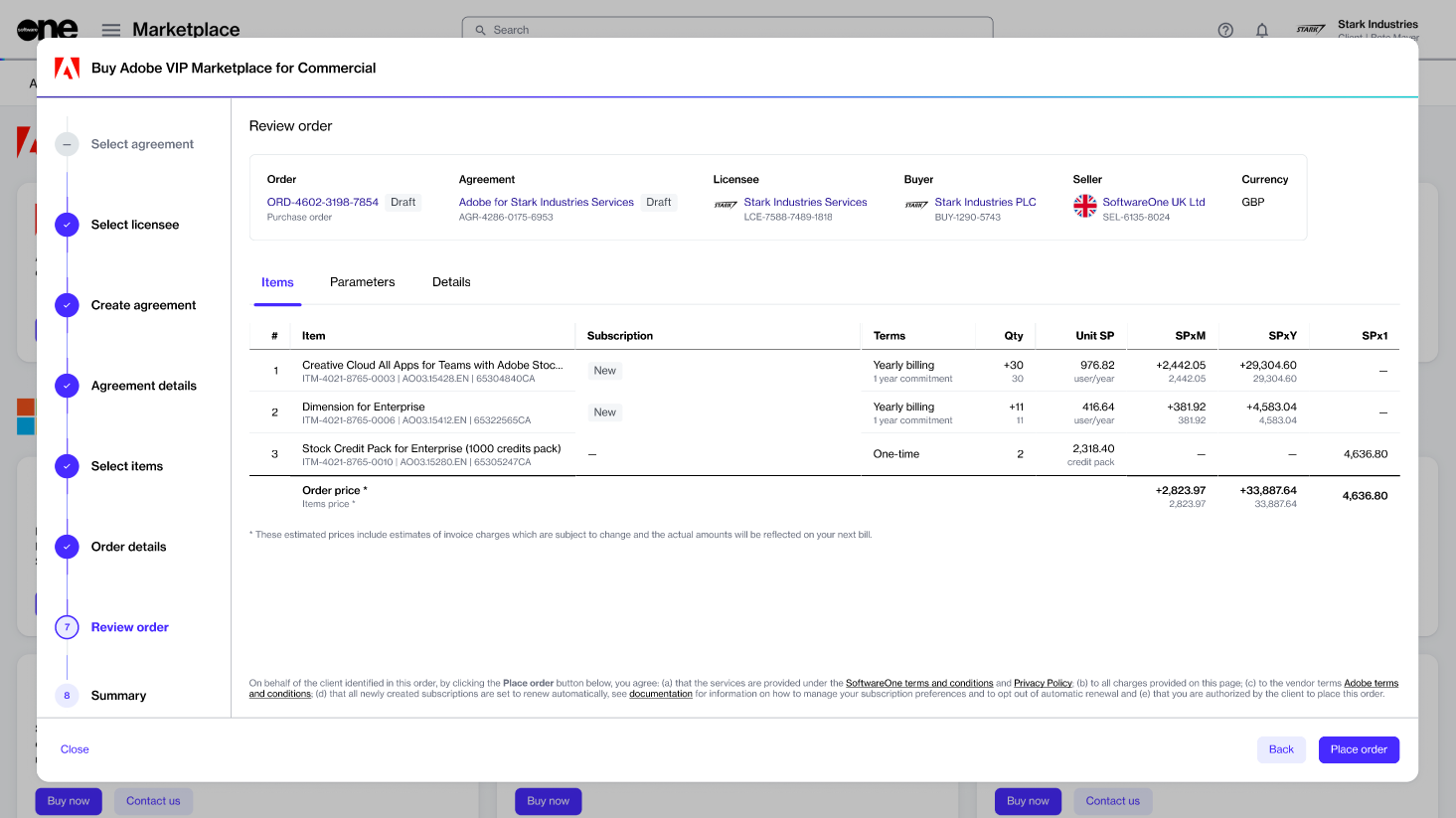
Review order – Read the terms, then select Place order.
Your migration order is submitted for processing. When it completes, your VIP Marketplace agreement is active, and you can manage your subscriptions in the SoftwareOne Marketplace.
Your anniversary date stays the same as it was under VIP.
Auto-renewal is turned on for all your migrated subscriptions. Check your subscriptions, and turn auto-renewal off for any that you don't want to renew. For more details, see .
Orders you placed in Adobe VIP can no longer be returned after you migrate.
To add licenses or products, place a change order after the migration completes. For more details, see .
If the order shows a message about your membership number, see .
Transfer your account to SoftwareOne.
You can transfer your Adobe account to SoftwareOne if you currently buy Adobe licenses through another reseller. This helps you manage your Adobe subscriptions and orders in the SoftwareOne Marketplace.
Adobe allows its VIP Marketplace customers to switch from their current reseller to a new one. This process is known as reseller transfer.
Once the transfer is complete, SoftwareOne becomes your new reseller, managing your Adobe subscriptions and orders.
Before starting the reseller change process, make sure you have the following details from your Adobe Admin Console:
Your system administrator's email address.
Your reseller change code.
All reseller transfers require a new agreement and a new purchase order in the Marketplace. The order includes your existing Adobe subscriptions automatically. You cannot add more items to a transfer order, but you can add them with a change order after the transfer completes.
To start the process:
Sign in to the Marketplace Platform.
Go to Catalog > Products.
Select Adobe VIP Marketplace. Then, on the product details page, review the information, and select Buy now.
In the guided purchase flow, complete the following steps:
Once we process the order and change the reseller, we will notify you. You can check the status of your order on the order details page.
When the transfer completes, auto-renewal is turned on for all your transferred subscriptions. Check your subscriptions, and turn auto-renewal off for any that you don't want to renew. For more details, see .
Create a new agreement and Adobe account to start buying Adobe products.
You can order an Adobe subscription by creating a new agreement and setting up a new Adobe account. This helps you start buying Adobe products through the SoftwareOne Marketplace.
Before starting this tutorial, make sure you have the following:
An or permission to . Licensee selection is required when setting up a new agreement.
Your company's legal address and primary admin contact.
If choosing a 3-year commitment, the minimum quantities you want to commit to: at least 10 licenses or 1000 consumables.
Set up your Adobe VIP Marketplace account in the SoftwareOne Marketplace.
You can set up your Adobe VIP Marketplace account in the SoftwareOne Marketplace in one of three ways: create a new Adobe account, transfer your account from another reseller, or migrate from Adobe VIP. This helps you choose the right way to get started.
Set up the migration and place the order
In the guided purchase flow, complete the following steps:
Select agreement – Select Create agreement.
Select licensee – Select a licensee, then select Next. You can also create a new licensee.
Adobe account setup – Choose Migrate Adobe VIP account, then select Next.
Adobe VIP membership number – Enter your membership number, then select Next.
Select items – Review your active subscriptions, which are added automatically. Don't add or remove items, or change quantities. Then select Next.
Details – Provide reference details for the order, then select Next.
Review order – Review the order details, go through the terms and conditions, then select Place order.
Summary – Review your order summary, then select View details to open the order details page, or select Close.
Select Create agreement.
Choose a licensee or create a new one. Then, select Next.
Choose Transfer account and select Next.
Provide your system administrator's email address and the approval code from the Admin Console. Make sure that the approval code is valid. If the code has expired, you must generate a new one from the Admin Console. Select Next.
Select Next to continue to the Details step. This current step is view-only.
Provide reference details for the order, then select Next.
Read the terms and conditions and the privacy statement. Select Place order.
Review your order summary, then select View details to open the order details page, or select Close.
Choose any administrator from the list and note their email address.
In the Change your Account Manager dialog box, select Generate Code to generate the approval code.
Note the generated code and use it within 7 days.
Start the ordering process
To start the order:
Go to Catalog > Products.
Select the required Adobe product. For example, Adobe VIP Marketplace for Commercial.
Review the product details.
Select Buy now.
Create a new agreement and choose items
Complete the following steps:
Select agreement – Select Create agreement.
Select licensee – Select a licensee, then select Next. You can also .
Review and submit your purchase order
Details – Provide reference details for the order, then select Next.
Review order – Review the order details, go through the terms and conditions, then select Place order.
Summary – Review your order summary, then select
After placing the order, you'll receive an invitation from Adobe to accept the terms and conditions for Adobe VIP Marketplace.
After accepting the terms, you can manage your licenses and deploy them to users immediately through the Adobe Admin Console.
If you chose a 3-year commitment, the order pauses in Querying status until you accept the 3-year commitment invitation. Accept it, then select Process on the order. For more details, see How do I accept my 3-year commitment invitation? and Why is my Adobe order in Querying status?.


Additional information – Do the following:
Enter the Company name and check the Company address and Primary Adobe administrator. The address is pre-filled from your buyer details, and the administrator is pre-filled with your details. The primary administrator becomes the contract owner of the Adobe account and receives Adobe's activation email.
Choose whether to join the 3-year commitment.
If you join, enter the Minimum committed licenses, the Minimum committed consumables, or both. Enter at least one: 10 or more licenses, or 1000 or more consumables.
For Large Government Agencies, you also enter the Agency type, Government agency name, and Government agency address.
Select items – Do the following:
Select the items you want to buy. You can select multiple items.
Select Add items.
Review and adjust the quantity of each item.
Select Next.
Learn about Adobe VIP Marketplace for Large Government Agencies.
You can buy Adobe products for a large government agency with the Adobe VIP Marketplace for Large Government Agencies product. This helps state and federal agencies in the United States and Canada buy Adobe licenses at large-agency pricing.
To use this product, your organization must:
Be a state or federal government entity.
Be in the United States or Canada. The product is only listed in these countries.
Order at least 100 licenses.
Other government organizations use the Adobe VIP Marketplace for Government product. If you order with the wrong product, the order is refused with a message telling you which product to use.
When you order, you provide these details for your agency:
Agency type – Select Federal or State. This is required.
Government agency name – The name of the agency.
Government agency address – The address of the agency.
You also accept the Adobe Large Government Agencies Program Agreement - Exhibit A, in addition to the Adobe VIP Marketplace terms.
With this product, you can:
Create a new Large Government Agency account.
Migrate a Large Government Agency account from Adobe VIP to VIP Marketplace.
Transfer your Large Government Agency account from another reseller to SoftwareOne. For more details, see .
After your account is set up, you manage your subscriptions in the same way as other Adobe VIP Marketplace subscriptions.