Loading...
Loading...
Loading...
Loading...
Loading...
Loading...
Loading...
Loading...
Loading...
Loading...
Loading...
Loading...
Loading...
Loading...
Loading...
Loading...
Loading...
Loading...
Loading...
Loading...
Loading...
Loading...
Loading...
Loading...
Loading...
Loading...
Loading...
Loading...
Loading...
Manage agreements, orders, subscriptions, assets, and entitlements in Marketplace.
Marketplace provides access to agreements, orders, subscriptions, assets, and entitlements. Use the topics in this section to learn about these areas and perform common management tasks.
Access files related to your agreement.
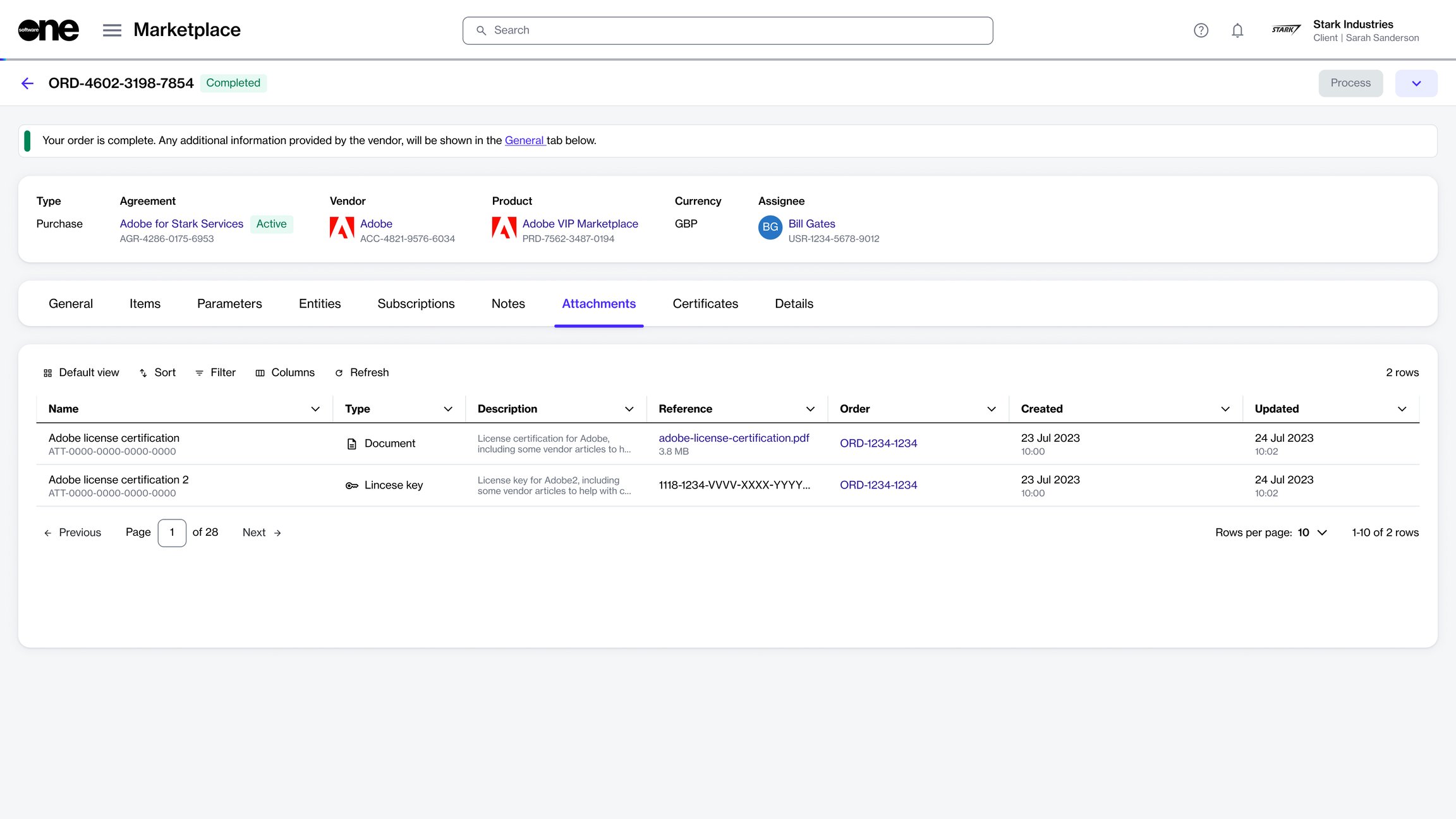
The Attachments tab within the agreement details page shows all files associated with your agreement.
These files can include invoice PDFs, Excel files, license keys, or any other file added by SoftwareOne or the vendor. This topic describes how you can view and download these files.
To view or download agreement files:
Go to Marketplace > Agreements.
Select the required agreement.
On the agreement details page, select the Attachments tab.
Select the file name in the Reference column to download it to your system.
This topic describes how to view your agreements, as well as details about a specific agreement in the Marketplace.
To view your agreements:
Go to Marketplace > Agreements.
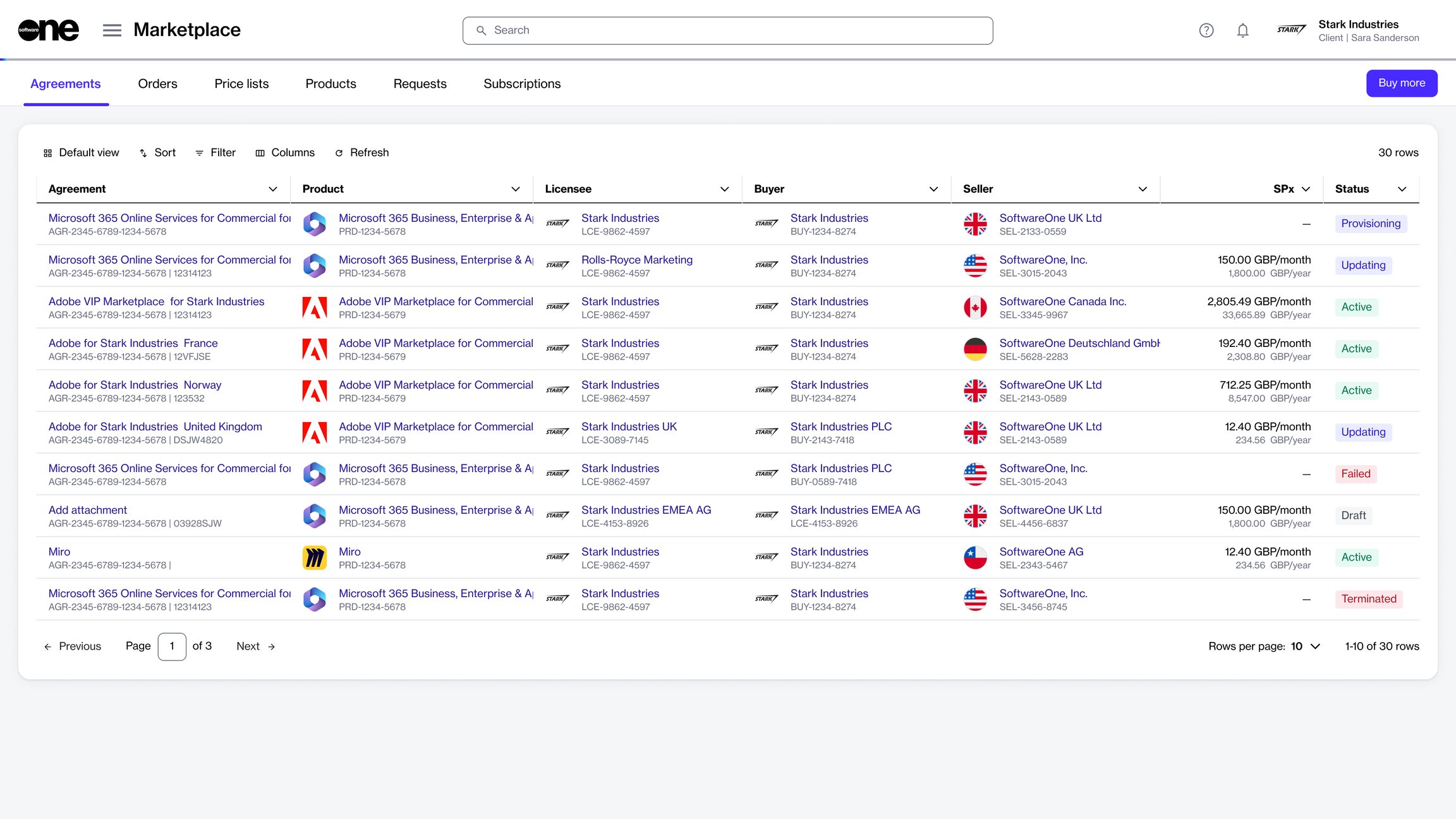
View the list of all agreements displayed on the page.
Check key details, such as the agreement name, related product, agreement status, estimated sales price, and more.
Update the automatic renewal settings for a subscription.
In the SoftwareOne Marketplace, your subscriptions are renewed automatically to avoid any service interruptions.
If you don't want your subscription to renew automatically, you can disable auto-renewal if it's supported for your specific product. When auto-renewal is turned off, your subscription expires at the end of the commitment period or renewal date, and you are not billed after that.
You can manage the auto-renewal of your subscription by placing a configuration order. If you have previously disabled auto-renewal and want to re-enable it, you can do so before the subscription expires.
To manage automatic renewal:
Go to Marketplace > Subscriptions.
Rename your one-time purchase item.
You can rename your one-time purchased item from the asset details page.
Only the assets in the Active state can be renamed. When selecting a new name, we recommend choosing a name that makes it easier to search for or locate the asset quickly in your list.
Additionally, ensure that the new name is not blank; otherwise, the platform displays a message.
To rename an asset:
Go to Marketplace > Assets.
Move a querying order to Processing
In some cases, you may need to provide additional information if your order information is incorrect or incomplete, or requires specific steps to be completed before it can be processed.
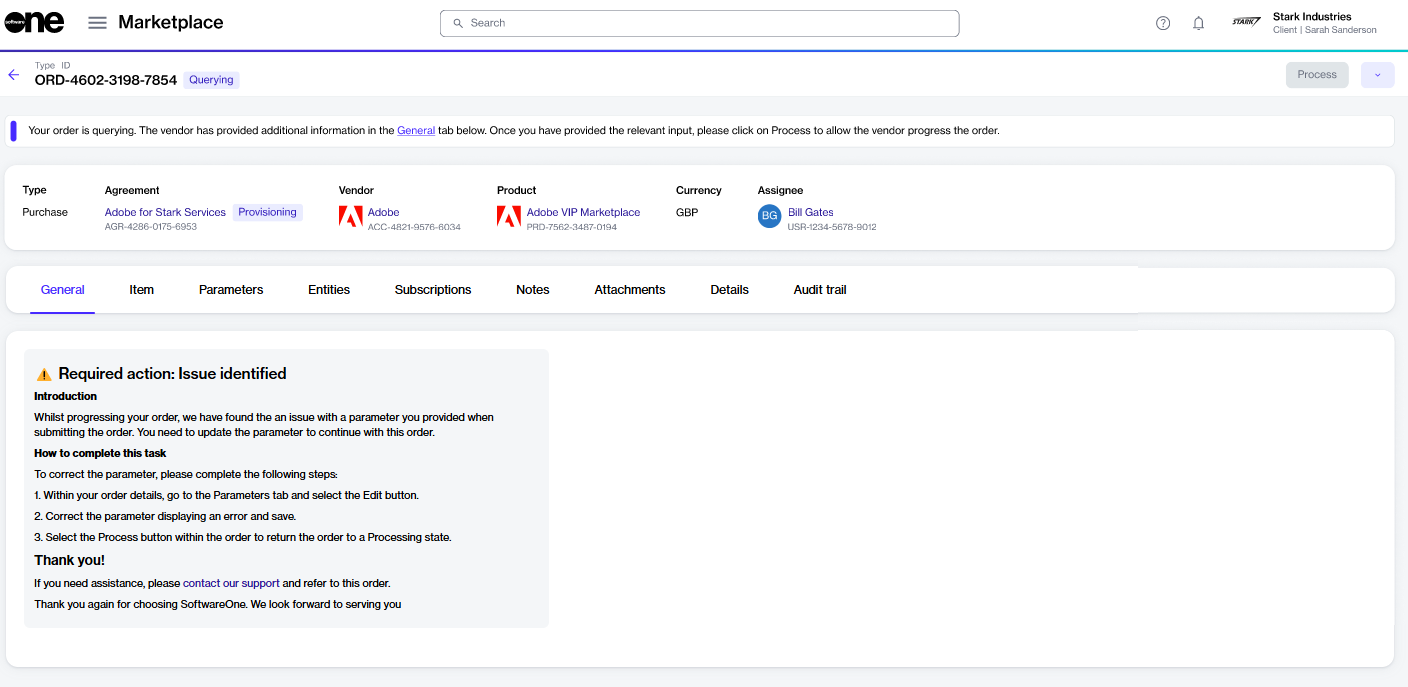
Orders that need your attention appear with a Querying status. When you open a querying order, the General tab on the details page explains what needs to be corrected and how to resolve the issue.
After completing the required steps, you must update the order status from Querying to Processing. Updating the status notifies SoftwareOne and the vendor that the order is ready for their review and further processing.
To move an order from Querying to Processing:
Go to Marketplace > Orders
Entitlement refers to the item you have purchased, along with the quantity you are allowed to use.
An entitlement can be in one of these states: Active or Terminated. These states indicate whether the entitlement is currently valid or has been cancelled in the Marketplace Platform.
The following table describes the different states:
The entitlement is created as a result of a purchase order, and it's now available for use. This is the default state for entitlements that are currently in effect.
Terminated
The entitlement is terminated and no longer valid. This can happen if the agreement or subscription associated with the entitlement is canceled. Once the entitlement moves to Terminated, it can’t return to Active.
Active
On the agreement details page, you can view detailed information for the agreement. Some information is read-only, while others include links that allow you to navigate to further details.
To view agreement details:
Go to Marketplace > Agreements.
Select the agreement you want to view. The agreement details page opens.
Use the tabs to view different types of information:
General
Shows the most up-to-date information for the agreement.
Subscriptions
Shows all subscriptions that exist within the agreement and the details of those subscriptions.
Assets
Select the required subscription.
On the subscription details page, select the dropdown arrow , then choose Configure.
In the guided Configuration order flow, do the following:
Auto-renewal – Choose the required auto-renewal status. Select Next.
Order details – Enter the additional ID and notes for the order. Select Next.
Review order – Review the details. When done, select Place order.
Summary – Select View order to open the order details page or select Close.
Once the configuration order is submitted, the subscription and agreement status change from Active to Updating. This means that no other orders can be placed against the agreement or subscription.
If the order is successfully processed, the status changes to Active, and the new auto-renewal status is shown on the subscription details page.
On the asset details page, select Rename.
In the Rename dialog, enter the new name, then select Save. The name is updated in the Marketplace.
(Optional) Use the search bar or filters to find the required order.
Select the order to open its details page.
On the General tab, review the message and take the required action.
Select Process. This button becomes available only after you have completed the required action indicated in the message.
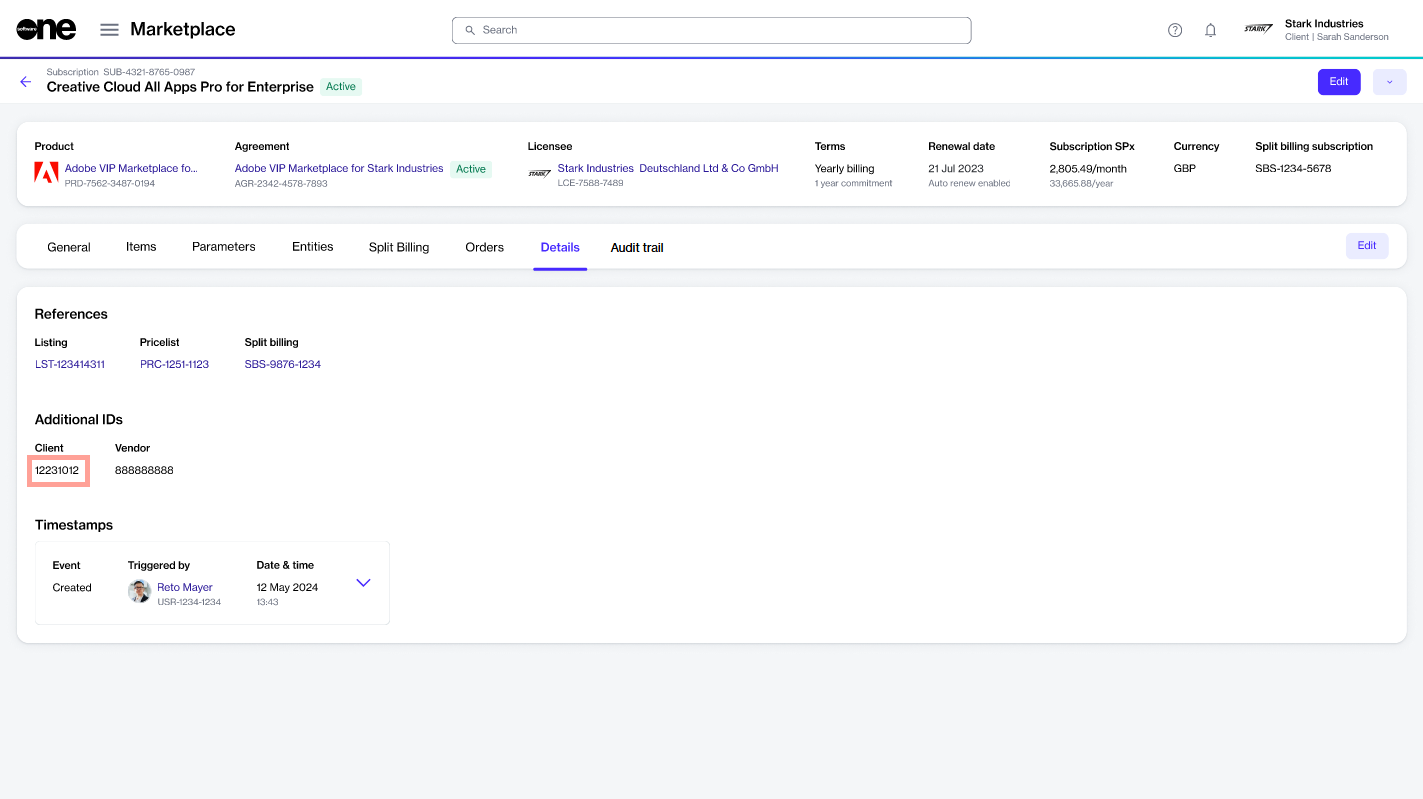
Assign client ID to a subscription
A subscription client ID is a unique, optional identifier that you can assign to a subscription.
This allows you to reference the subscription using a meaningful ID within your business systems, such as your CRM or ERP, instead of using only the auto-generated Marketplace subscription ID.
You can assign a new client ID or update the existing ID from the subscription details page. IDs can only be added or updated for active, updating, terminated, or terminating subscriptions.
To assign a client ID to a subscription:
Go to Marketplace > Subscriptions.
Select the required subscription.
On the subscription details page, select the Details tab.
Select Edit.
In the Edit ID dialog, enter the ID, then select Save. The updated ID is displayed under Additional IDs.
Add or update the additional client ID for an order.
The Additional Client ID field is a reference number associated with an agreement.
It is provided when an order is placed and, if included, appears in this field. If no number is entered at the time of ordering, you can add it manually later.
This reference is shown on your invoices as the PO number to help you match them for billing and invoicing purposes.
To add or update the Additional Client ID:
Go to Marketplace > Agreements.
Select the required agreement.
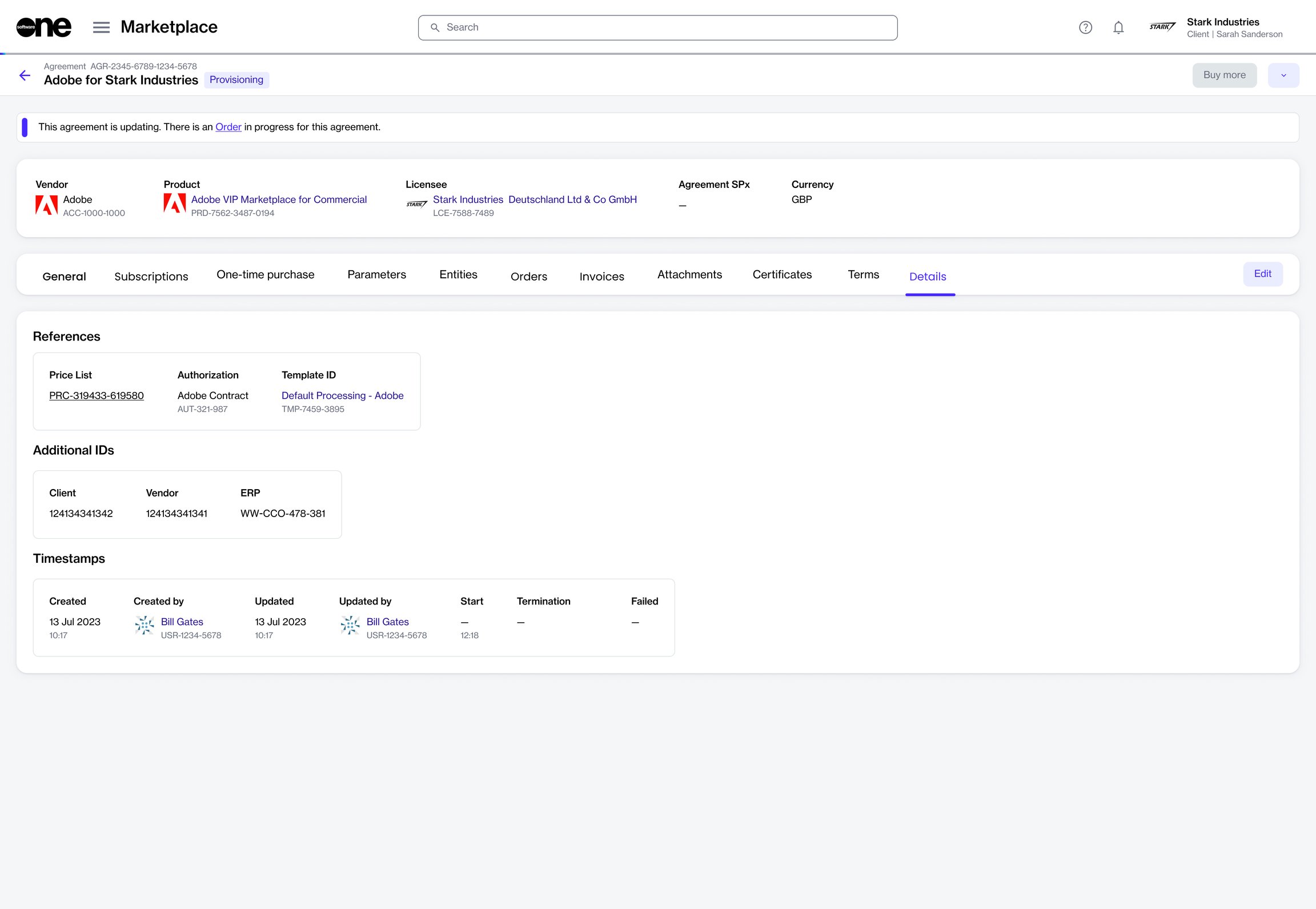
On the agreement details page, select the Details tab, then select Edit.
In the Edit ID dialog, add or update the client ID, then select Save.
Manage your notes for an existing order.
When ordering a product, the Marketplace Platform provides an option to add comments or instructions, allowing you to include information that you may want to link to the order.
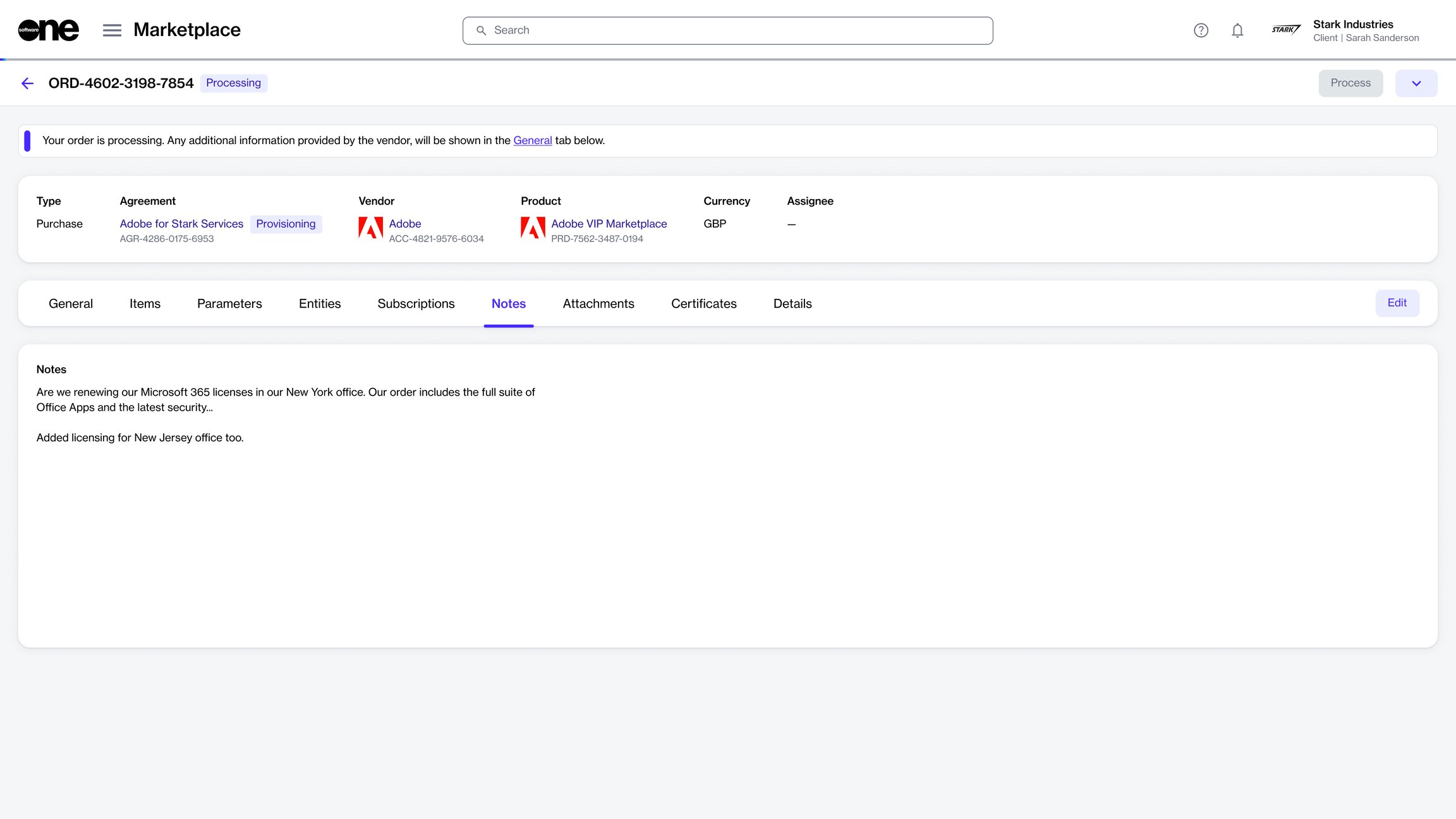
After the order is submitted, any notes you entered are displayed on the Notes tab within the order details page. If you need to update these notes, you can use the Edit option on the Notes tab. You can also use the same option to add new notes if you didn't add them when the order was originally placed.
Notes can be added or updated at any time, regardless of the order's status.
To add or update the notes for an order:
Go to Marketplace > Orders.
Select the order to manage.
On the order details page, select the Notes tab, then select Edit.
In the Edit notes dialog, add or update notes as necessary. A maximum of 300 characters is allowed.
Select Save. The details are updated and displayed immediately on the Notes tab.
Update the agreement name.
If your account contains multiple agreements, you can rename those agreements.
Only active agreements can be renamed. When choosing a new agreement name, we recommend providing a name that will help you find or locate the agreement in your list of agreements. Additionally, when renaming, ensure that the new name is not blank. Otherwise, the platform displays an error.
To rename an agreement:
Go to Marketplace > Agreements.
Find the agreement you want to rename.
Remind an individual about a pending order via email.
If you have created an order but have not yet submitted it for processing, you can use the Send Reminder feature to notify the person responsible for completing the order.
The Send Reminder feature sends a reminder email that includes a link to the order, and it also allows you to send a copy of the email to yourself.
Reminders can be sent only for orders in Quoted status, which applies to orders saved for later using the Save Order option during order creation.
To send an order reminder email:
Go to Marketplace > Orders.


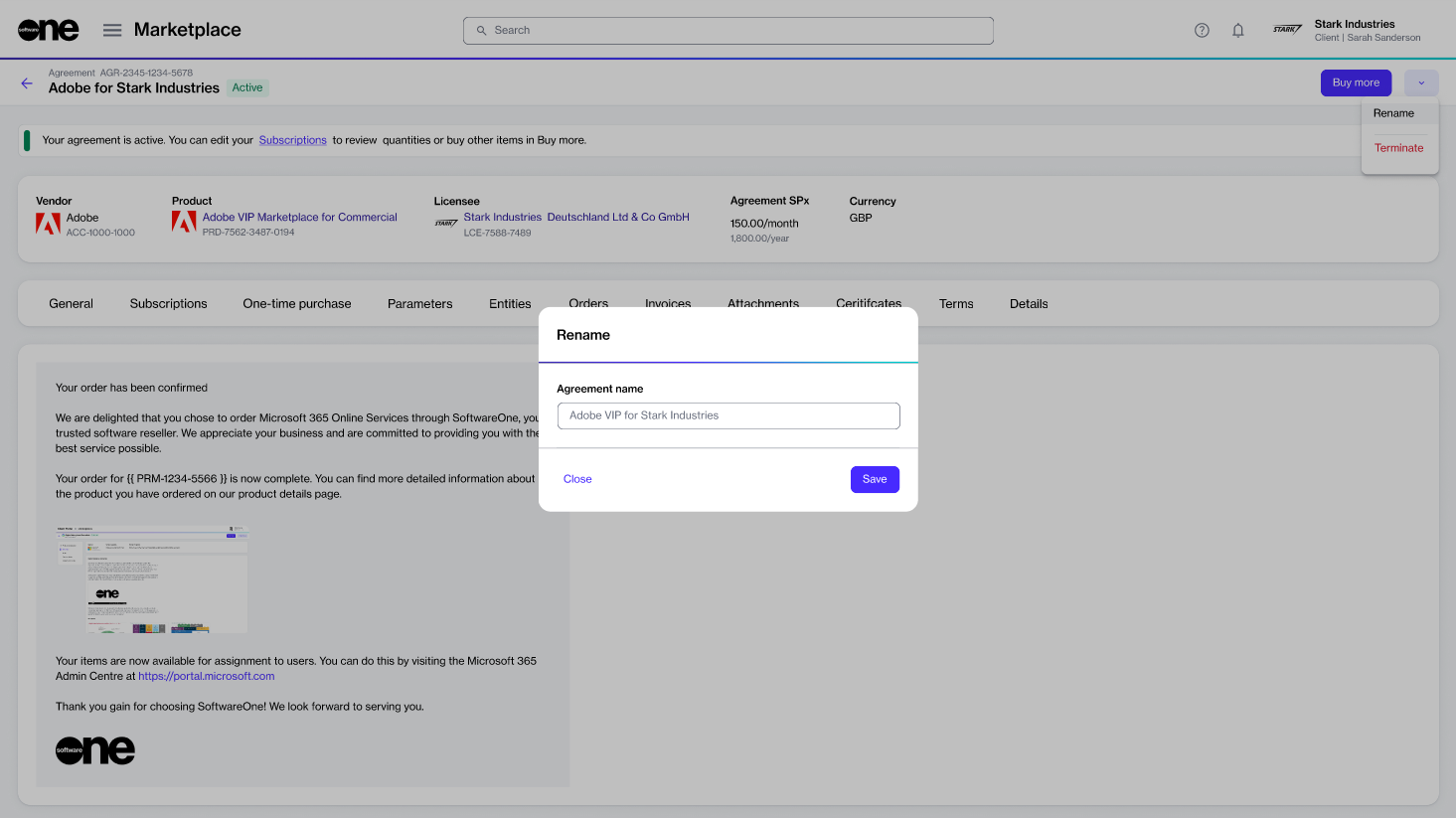
On the agreement details page, select the dropdown arrow, then select Rename.
In the Rename dialog, enter the new name.
Select Save. The agreement name is updated in the Marketplace.
Select the required order to open its details page.
Select the dropdown arrow , then choose Send reminder.
In the Send order to user flow, do the following:
Email address - Enter the email address of the person to whom you want to send the reminder email, then select Next.
Order details - Enter reference details as needed, then select Next.
Overview - Select the Send a copy of this email to me checkbox to receive a copy of the email. Otherwise, leave it clear.
Select Send. The individual will receive an email containing a link to the order. After selecting the link, they can review the order in the platform and submit it for processing.
Shows your one-time purchases. One-time purchase items are non-subscription items where you own the license indefinitely.
Entitlements
Shows your purchased items along with their details, including quantity, pricing, status, and more.
Parameters
Shows the ordering and fulfillment parameters.
Entities
Shows the entities linked to the agreement, including licensees, buyers, and sellers.
Orders
Shows all orders within the agreement. Select an order to view the order details page.
Split billing
Shows buyers configured for split billing, if enabled. For details, see Configure buyers for split billing.
Attachments
Shows all files attached to the agreement.
Terms
Shows the terms associated with the agreement, and displays when they were accepted and by whom.
Details
Shows reference details, additional IDs, and timestamps.
Audit trail
Shows the audit trail for the agreement.
A subscription refers to the ongoing service provisioned under the terms and conditions of an agreement. In the SoftwareOne Marketplace, subscriptions are mapped to agreements, and each agreement can contain several subscriptions.
You can order and manage subscriptions through self-service in the platform. This includes ordering additional licenses, terminating subscriptions, managing automatic renewal, and more.
The Marketplace supports two subscription models: quantity-based and usage-based. These models determine how services are billed and how values are displayed in subscriptions and agreements.
Quantity-based – Quantity‑based subscriptions are priced based on an agreed quantity. The values shown in the subscription and agreement represent an estimated total value based on that quantity. Changes to quantity updates, prorations, or billing conditions can affect the final charged amount.
Usage-based – Usage‑based subscriptions are billed according to actual consumption. Because usage can vary over time, the total cost of a usage‑based subscription can't be fully calculated in advance. As a result, subscriptions and agreements that include usage‑based services can display no value or an estimated value to indicate expected costs.
To ensure transparency, vendors may provide estimated values for usage‑based subscriptions. These values indicate expected costs but don't represent fixed or committed amounts.
Estimated subscription value – Represents an estimate of the expected total cost for the subscription. It's an optional value provided by the vendor and applies to usage‑based subscriptions. The estimated subscription value is for informational purposes only and is not used for billing.
Estimated agreement value – Represents an estimated total of all subscriptions within the agreement. For more information on the estimated agreement value, see .
Estimated values, when available, are displayed on both agreements and agreement details pages, as well as subscriptions and subscription details pages. If a value is unavailable, the corresponding field displays an em dash “—”.
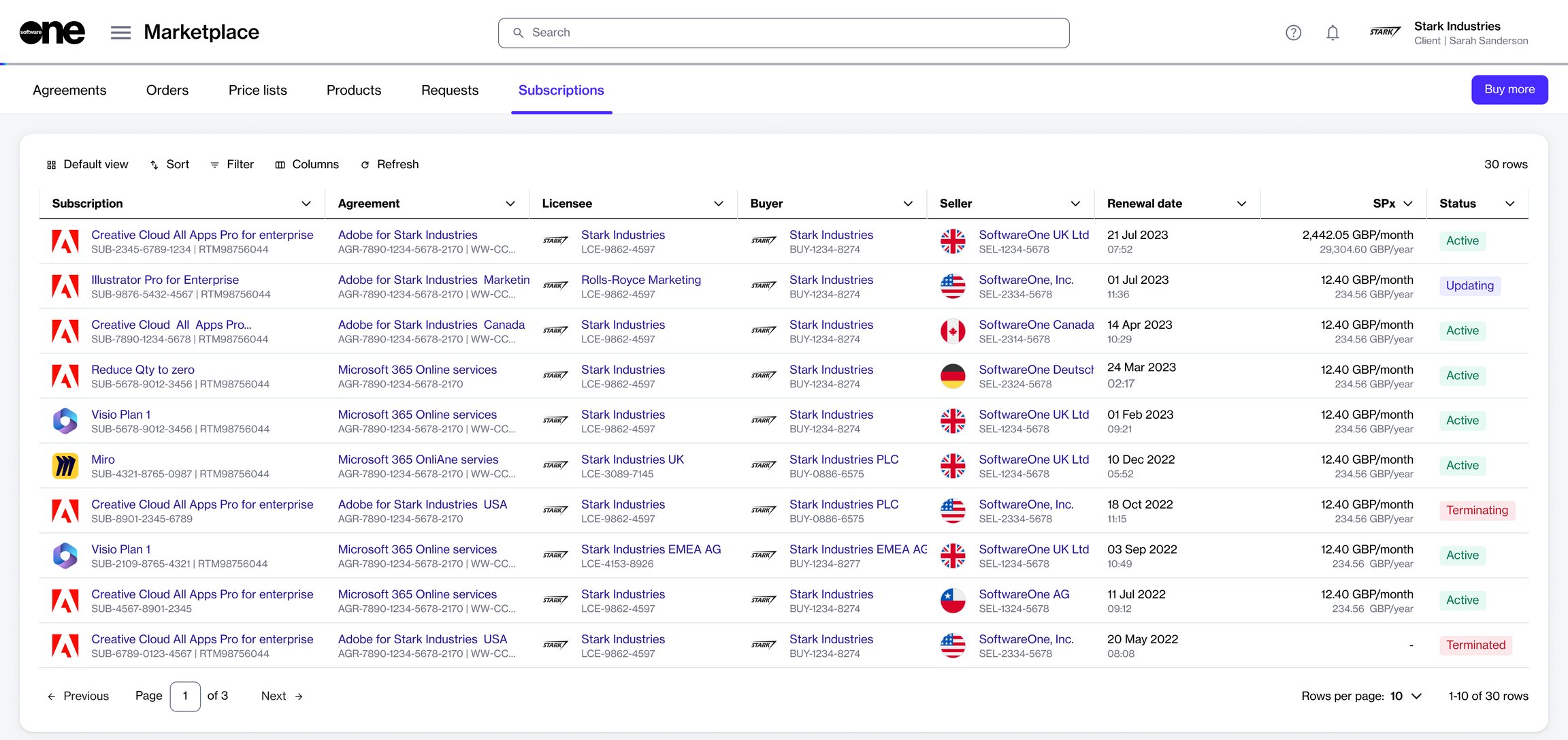
The Subscriptions page displays all subscriptions in your account.
To open the page, choose Marketplace > Subscriptions from the main menu.
On the subscriptions page, you can view various details for a subscription, including the subscription ID, linked entities (such as buyers and sellers), the estimated subscription value, status, and more.
You can also select a subscription to view detailed information organized across several tabs. The information available includes your entitlements, orders, a record of events or logs for the subscription, and more. For more details, see .
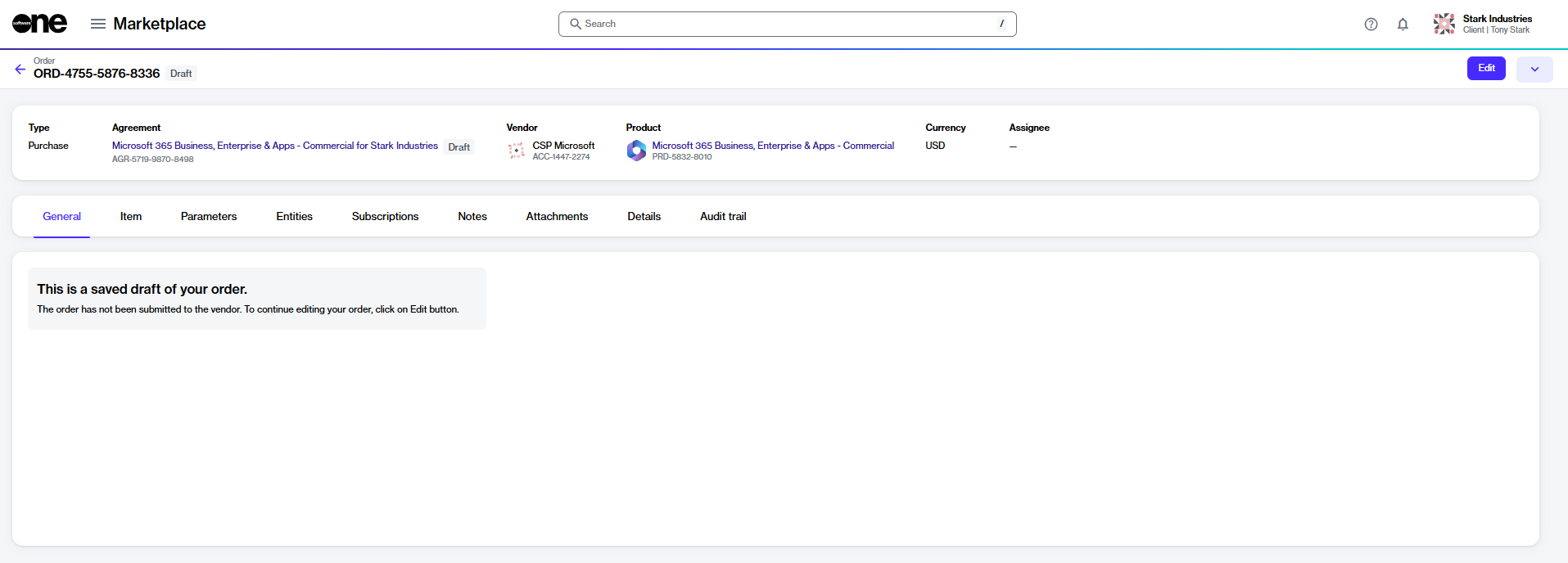
Finalize and submit your saved orders for processing.
If you saved an order for later, you can submit it for processing from the Orders page.
Once a saved order is submitted, it is no longer listed as a saved order and will not appear with a draft or quoted status.
To submit a saved order for processing:
Go to Marketplace > Orders.
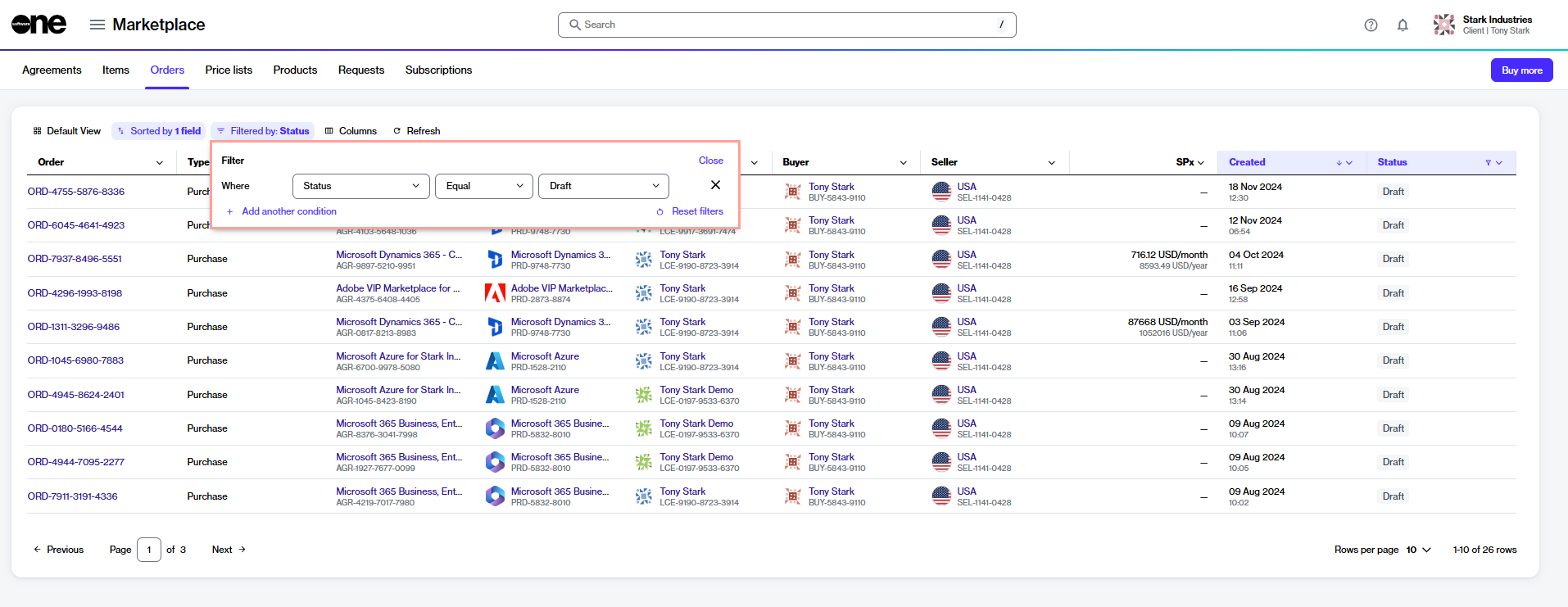
(Optional) Use the following filters to find the required order:
Select the Filter option in the table.
Select Add another condition and then use the dropdown to make the following selections:
In the first field, choose Status.
In the second field, set the filter to Equal.
In the third field, select Draft and then close the filter box.
Select the required order. Then, on the order details page, select Edit.
In the Purchase flow, complete the following steps:
Select items – Do one of the following:
If your order already includes items that were added before it was saved for later, those items are displayed in the Items section. Review the items, then select Next.
Once the order is submitted, the order status changes to Processing, and the agreement status changes to Updating. This means that no other orders can be placed against the agreement.
If the order is successfully processed, the order status changes to Completed, and the agreement status changes to Active. If the order needs your attention, the status changes to Querying. Open the querying order and review the General tab for the next steps.
Rename your active or updating subscriptions.
You can rename your subscription so you can find it easily in your list of subscriptions.
A subscription can be renamed using the Rename option on the subscription details page. Only active and updating subscriptions can be renamed.
To rename a subscription:
Go to Marketplace > Subscriptions.
Select the subscription to rename.
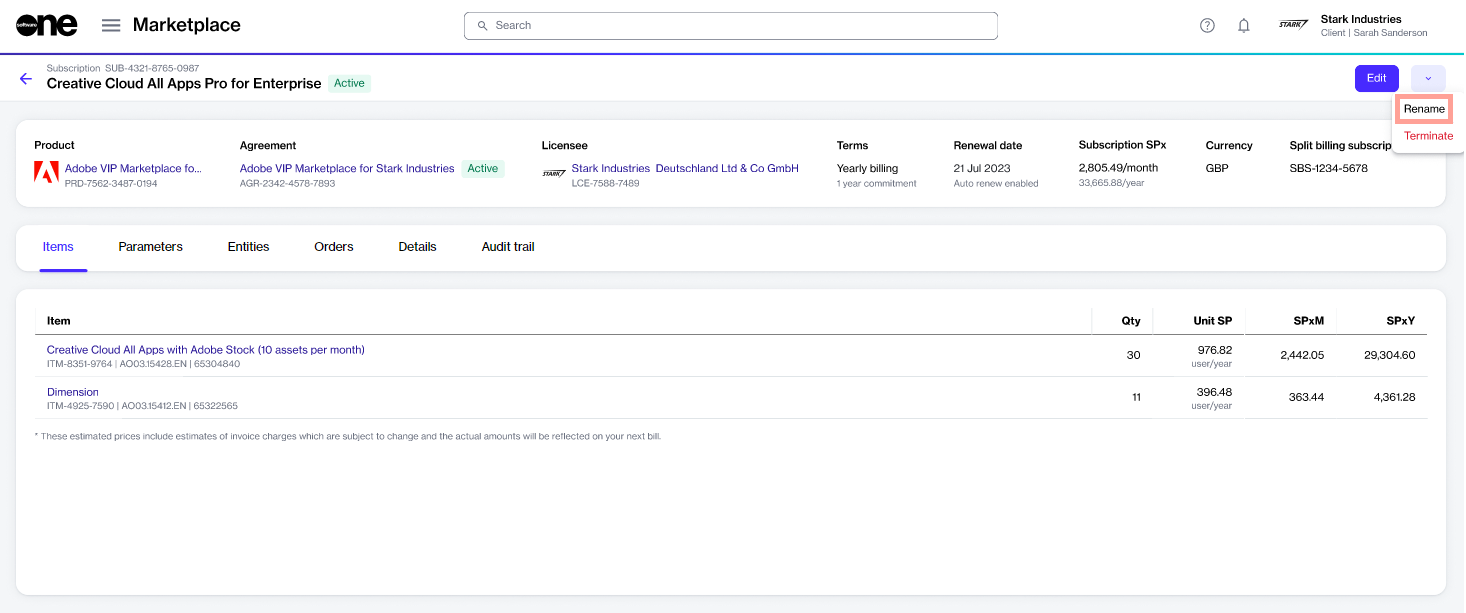
On the subscription details page, select the dropdown arrow , then choose Rename.
In the Rename dialog, enter the new name, then select Save. The subscription is renamed.
Cancel specific subscriptions in your agreement.
You can terminate a subscription if you no longer need it or don't want it to renew.
Subscriptions are linked to agreements, and the termination process depends on the number of active subscriptions in the agreement.
If the agreement includes multiple active subscriptions and you want to cancel all subscriptions, you must terminate the entire agreement by placing a termination order. For details, see Terminate agreement.
If the agreement includes multiple active subscriptions and you want to cancel some but not all, you must place a termination order for each specific subscription.
Only active subscriptions can be terminated. Additionally. submitting a termination order for a subscription doesn't guarantee termination. Termination orders are sent to the vendor, who decides the outcome.
To terminate a subscription:
Go to Marketplace > Subscriptions.
Select the subscription to terminate.
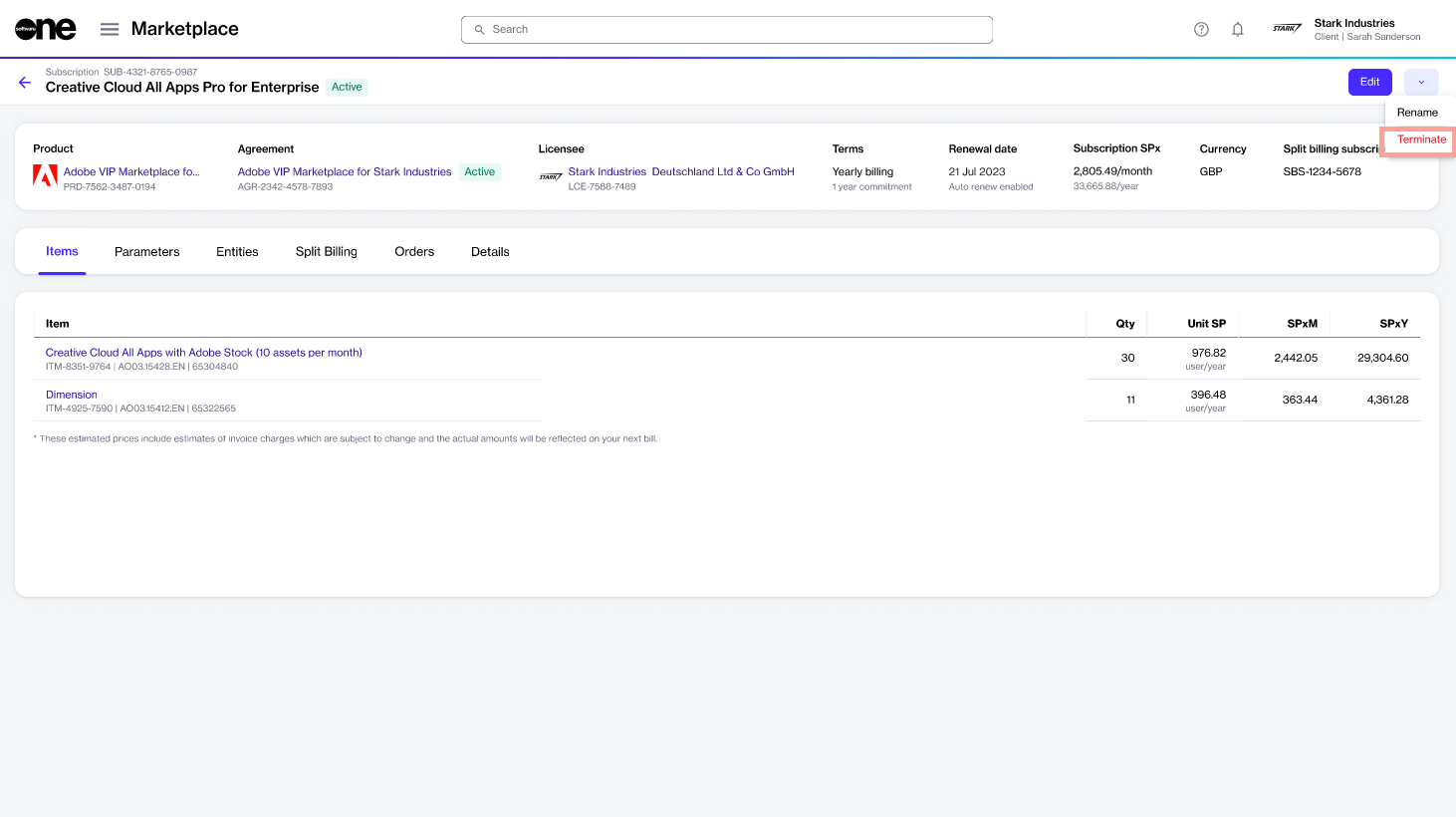
On the subscription details page, select the dropdown arrow , then choose Terminate.
In the guided Terminate subscription flow, do the following:
Items – Check that the item quantity is zero, then select Next.
Order details – Provide any reference details and order notes. Then, select Next.
Once the termination order is submitted, the subscription status changes to Terminating, and the agreement status changes to Updating. This means that no other orders can be placed against the subscription until the termination order either completes or fails.
If the order is successfully processed, the subscription status changes to Terminated. All items are removed from the subscription, and the agreement either returns to Active if there are other active subscriptions or it moves to Terminated if no active subscriptions remain.
If the order cannot be processed, both the subscription and the agreement revert to Active.
Save your purchase and change orders for submitting later.
In the SoftwareOne Marketplace, you can save an order and return to it later to finalize or submit it.
This feature is available for both purchase and change orders. Saved orders are displayed on the Orders page with a Quoted status.
To save a purchase order for later:
On the Products page, select the product you want to buy.
On the product details page, select Buy now.
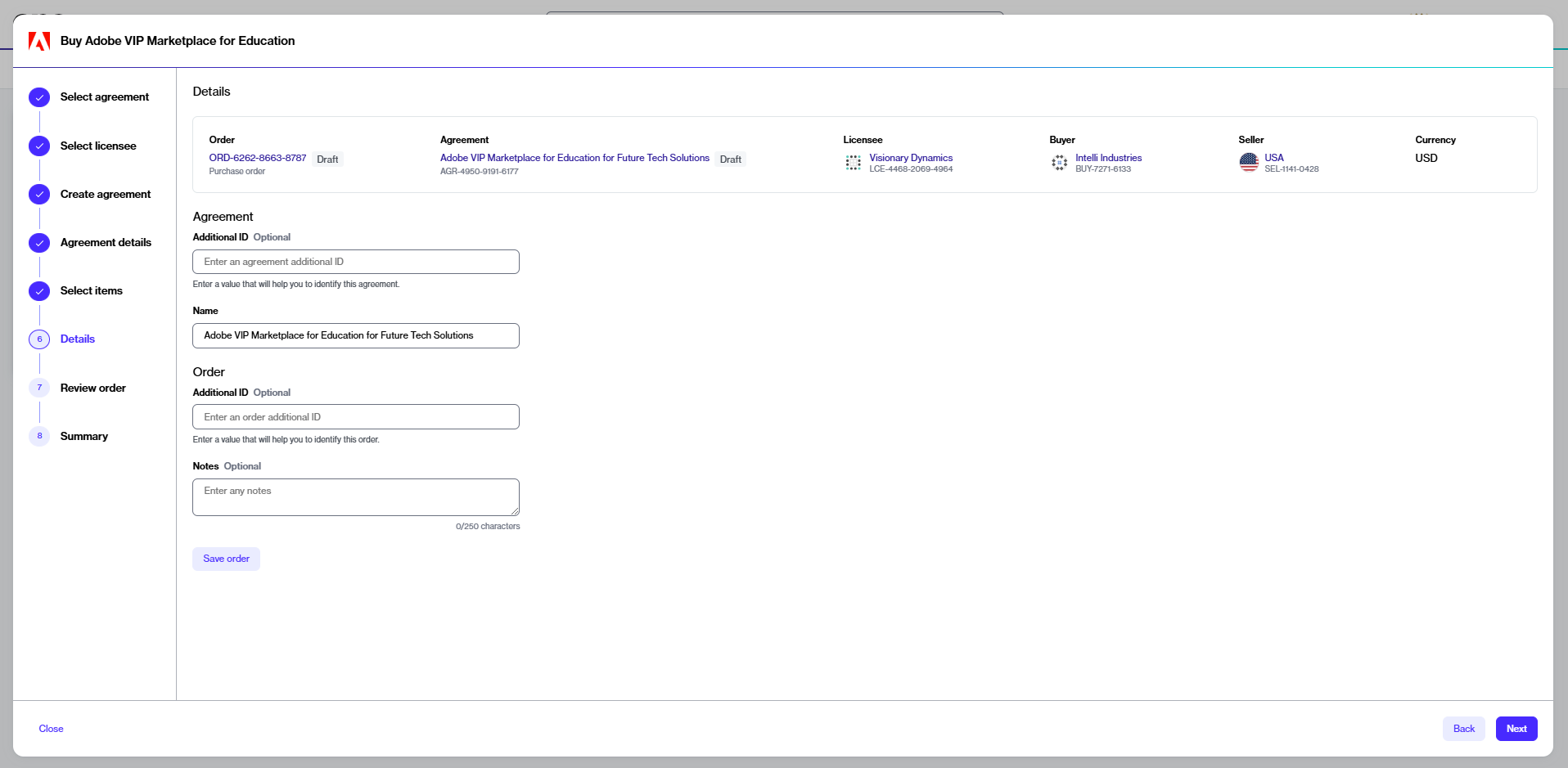
In the guided purchase flow, complete all the steps until you reach the Details step.
In the Details step, enter the required information, then select Save order. The order is saved for later.
To save a change order for later:
Go to Marketplace > Subscriptions.
Select the required subscription.
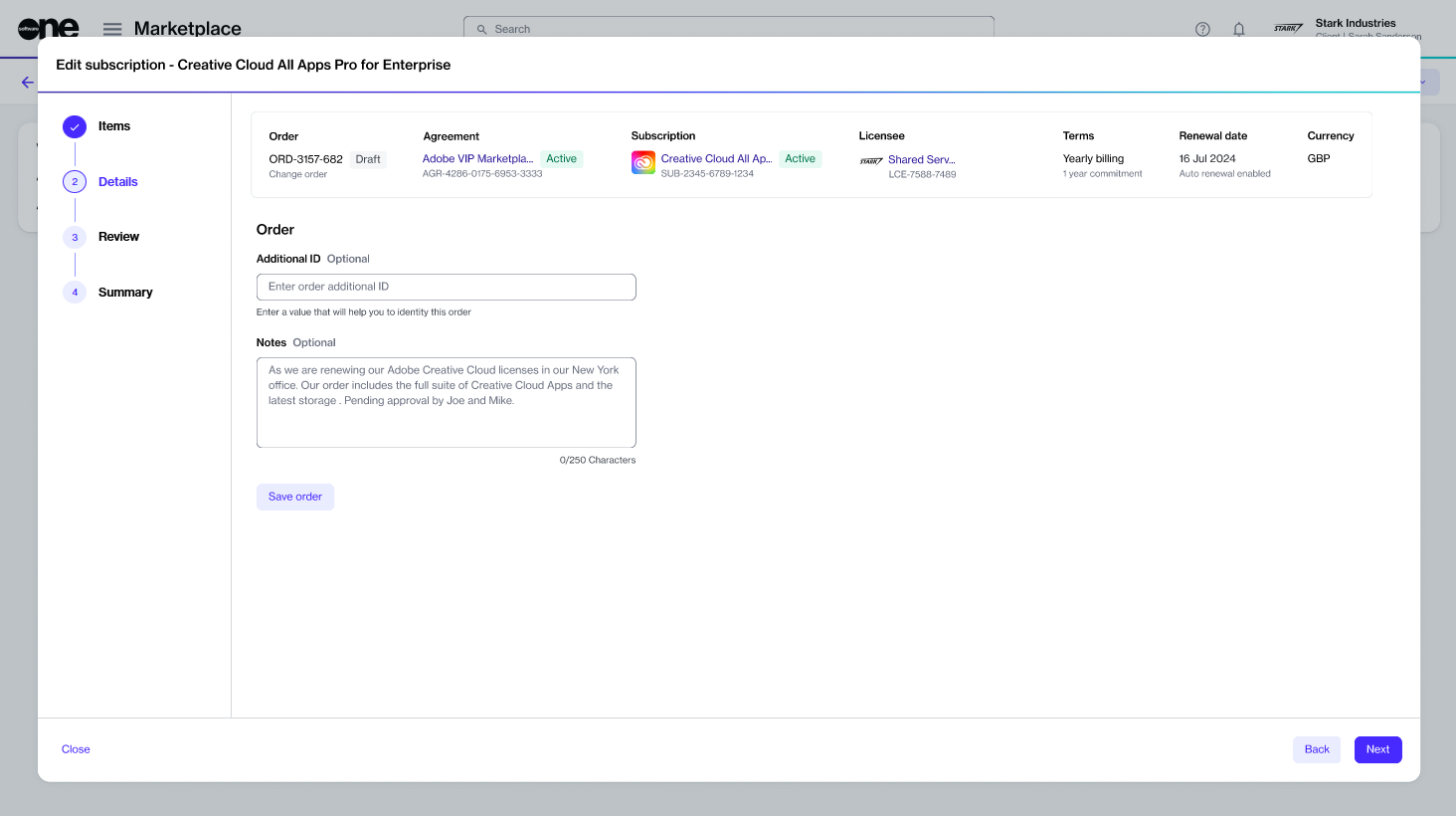
On the subscription details page, select Edit.
In the Edit subscription flow, do the following:
When you are ready to finalize the order, open the order and select Review on the order details page to submit it. For more details, see .
Learn about the different states of a subscription.
A subscription refers to the ongoing service provision under the terms and conditions of an agreement.
A subscription can be in one of these states: Draft, Deleted, Terminating, Active, Updating, Terminated, or Expired. The following diagram shows the transitions between these states:
The following table describes the different states:
An entitlement refers to the item you have purchased, along with the quantity you are allowed to use.
Entitlements can include subscription items that renew at predefined intervals unless canceled, as well as your assets, which are one-time purchases.
Each entitlement includes the item itself and the allowed quantity. For example, if you purchase 25 Microsoft 365 licenses, your entitlement allows you to use that product for up to 25 users. Within the platform, each entitlement is associated with either a subscription or a one-time purchase and is linked to a specific agreement and order under which it was purchased.
The Entitlements page shows a list of your entitlements.
To open the page, go to Marketplace > Entitlements.
The Entitlements page shows key details for each record. This includes the item name, source, status, and estimated sales price.
Use the Source column to see whether the entitlement comes from a subscription or an asset.
Select any entitlement to open its details page.
The details page shows more information and links to related objects. Use those links to move to the connected agreement, order, subscription, or asset.
To open entitlement details:
Go to Marketplace > Entitlements.
Select the entitlement you want to review.
Use the tabs to view different types of information:
Description shows the item description.
Learn about the different states of an asset.
An asset is a one-time purchase item or a perpetual license within the Marketplace Platform.
An agreement can be in one of these states: New, Draft, Active, or Terminated. The following diagram shows the transitions between these states:
The following table describes the different states:
An agreement establishes the terms and conditions of a transaction in the Marketplace.
It defines the relationships among buyers, sellers, and licensees, and is required for placing orders and creating subscriptions.
Marketplace agreements can include one or more subscriptions. Each subscription contributes to the total agreement value based on its type (quantity‑based or usage‑based). For information on these subscription types, see Subscription models.
The Agreements page displays a list of your agreements and allows you to manage them.
To open the page, choose Marketplace > Agreements from the main menu.
On the agreements page, you can view various details for an agreement, including the agreement ID, entities (such as buyers and sellers) for the agreement, estimated agreement value, status, and more.
You can also select an agreement to view detailed information organized across several tabs. The information available includes a list of entitlements, assets, and subscriptions, file attachments and certificates, and more. For details, see .
Agreements display estimated values to indicate expected costs. The estimated values are indicative, and the final billed amount is always confirmed in the invoice.
Estimated agreement value – Represents the total estimated value for all subscriptions included in the agreement.
For quantity‑based subscriptions, the estimated value is based on the number of licenses within the agreement.
For usage‑based subscriptions, estimated values appear only if provided by the vendor. If no estimate is available, the agreement value might be partial or empty. As a result, agreements that include usage‑based subscriptions might not show a complete total value.
Estimated values, when available, are displayed on both agreements and agreement details pages, as well as subscriptions and subscription details pages. If a value is unavailable, the corresponding field displays an em dash “—”.
Assets are one-time purchase items or perpetual licenses.
Unlike subscription items that require ongoing payments to keep the license active, a perpetual license remains valid indefinitely and doesn't require recurring payments. This means assets do not renew. You buy them once, then keep access based on the purchase terms.
Use the Assets page to review your assets, open asset details, and track related orders, agreements, and activity.
The Assets page shows all assets available to your organization.
To open the page, choose Marketplace > Assets from the main menu.
The list shows key details such as the asset name, agreement number, order number, estimated sales price, and status.
Use to narrow the list. Use to adjust the table.
Learn about the different states of an agreement.
An agreement is a record that establishes the terms and conditions of a transaction in the Marketplace.
An agreement can be in one of these states: Draft, Deleted, Provisioning, Failed, Active, Updating, or Terminated. The following diagram shows the transitions between these states:
The following table describes the different states:
Learn about the different states of an order.
An order represents a transaction that starts, changes, or ends a service in Marketplace.
An order can be in one of these states: Draft, Quoted, Provisioning, Querying, Completed, Failed, or Deleted. The following diagram shows the transitions between these states:
The following table describes the different states:
Cancel an active Marketplace agreement.
You can terminate an agreement by submitting a termination order.
When you terminate an agreement, all subscriptions with the agreement are cancelled.
Once terminated, the agreement can't be restored or used when ordering new subscriptions. However, it can still be accessed within the platform.
Before terminating an agreement, note the following points:
You can only terminate an active agreement.
Creating a termination order doesn't immediately cancel your agreement. An agreement is terminated only after approval by the vendor.
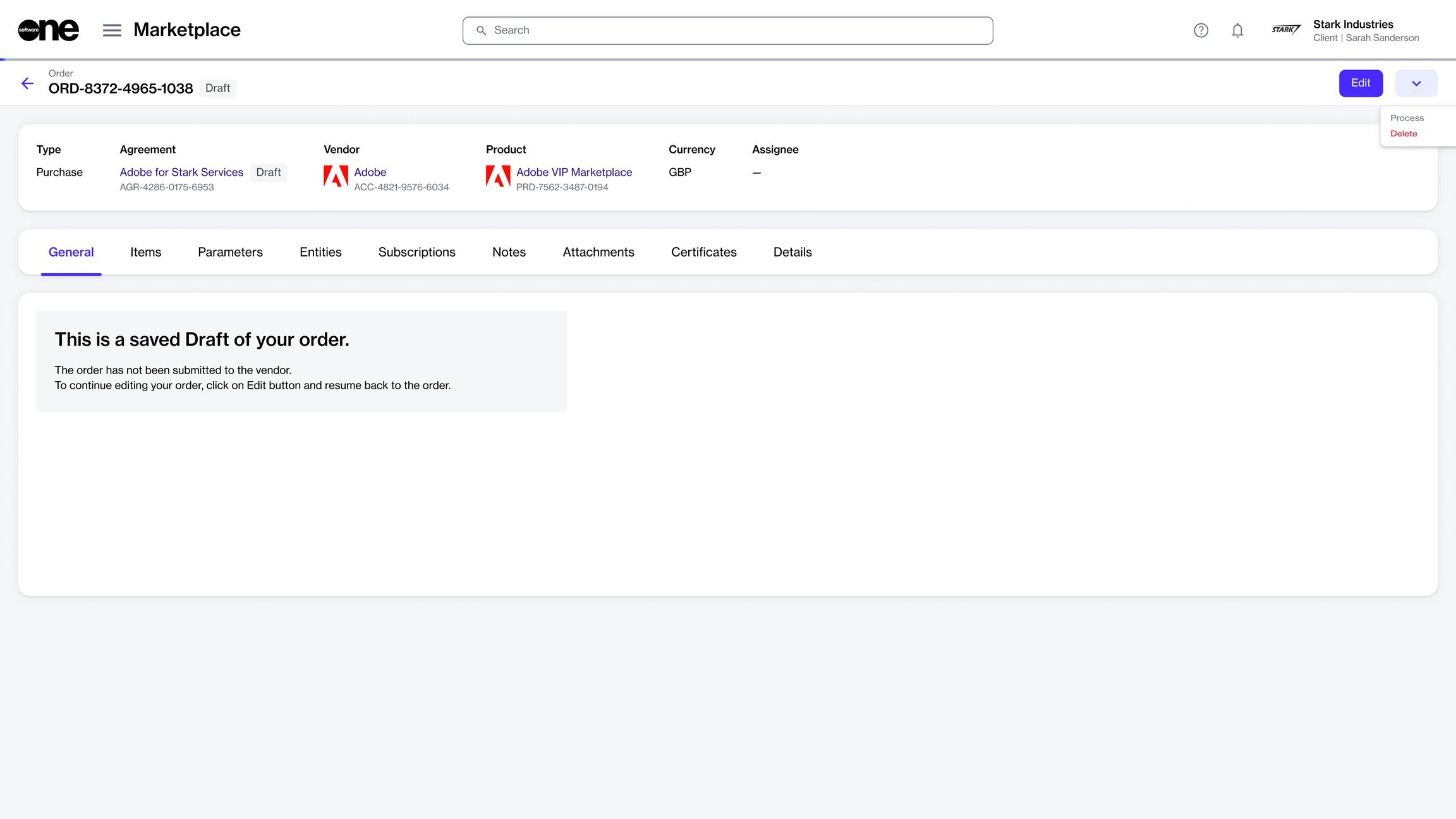
Delete your unsubmitted or draft orders.
If you saved an order for later and no longer want to continue with it, you can delete it.
Deleted orders can't be recovered, but are still displayed in your list of orders.
You can delete only the Draft and Quoted orders. When you delete a draft purchase order, the agreement linked to the draft order is also deleted.
To delete an order:
Go to Marketplace > Orders.
Price lists shows price lists linked to the item.

New
This is the initial status of an asset or one-time item when it's added to the order during the ordering process. The status appears in the purchase wizard only while creating the order.
Draft
The status applies to an asset during the fulfillment phase of the order. It means the asset has been created as a result of a purchase order, but it's not active yet.
Active
The asset is now active because the associated purchase order has been completed.
Terminated
The asset has been cancelled by the vendor.

Deleted
The draft subscription has been deleted by the vendor.
Draft
The vendor has created the subscription, but the order has not been completed yet.
Active
The subscription is active and in use.
Updating
A business transaction is in progress for the subscription.
This status applies to change orders submitted for the subscription.
Terminating
A termination order has been created for the subscription through the Client Portal.
Terminated

The vendor has completed the termination order and the
subscription is now terminated.

Details – Provide reference IDs or order notes, then select Next.
Review – Review the order details, then select Place order.
Summary – Select View details to open the order details page or select Close.
Summary – Select View order to open the order details page or select Close.
Items – Adjust the quantity, then select Next.
Details – Enter the reference information, then select Save order. The order is saved for later.
On the asset details page, you can view detailed information. Some information is read-only, while others include links that allow you to navigate to further details.
To open details for an asset:
Go to Marketplace > Assets.
Select the asset you want to view. The asset details page opens.
Use the tabs to view different types of information:
General
Shows the most up-to-date information for the asset.
Entitlements
Shows the purchased items, quantities, status, unit price, and estimated sales price (SPx1). For details, see .
Parameters

Draft
The agreement is saved as a draft because the purchase order is saved for later during the ordering process.
Deleted
The draft agreement is deleted because the draft purchase order associated with the agreement is deleted.
Provisioning
The agreement is sent to the vendor and is pending fulfilment.
Failed
The agreement has failed because the vendor or SoftwareOne canceled the purchase order.
Active

Draft
The order is a draft. This status applies to orders created by the platform for validation purposes. It doesn't apply to orders saved for later during the ordering process.
Quoted
The order has been saved for later using the Save Order option during order creation.
Processing
The order is created, and it's currently awaiting processing by the vendor.
Querying
The ordering parameters are updated by the vendor. The order requires an action to be taken by the client.
Completed

Go to Marketplace > Agreements.
(Optional) Use filters to find the required agreement.
Select the agreement.
On the agreement details page, select the dropdown arrow , then choose Terminate.
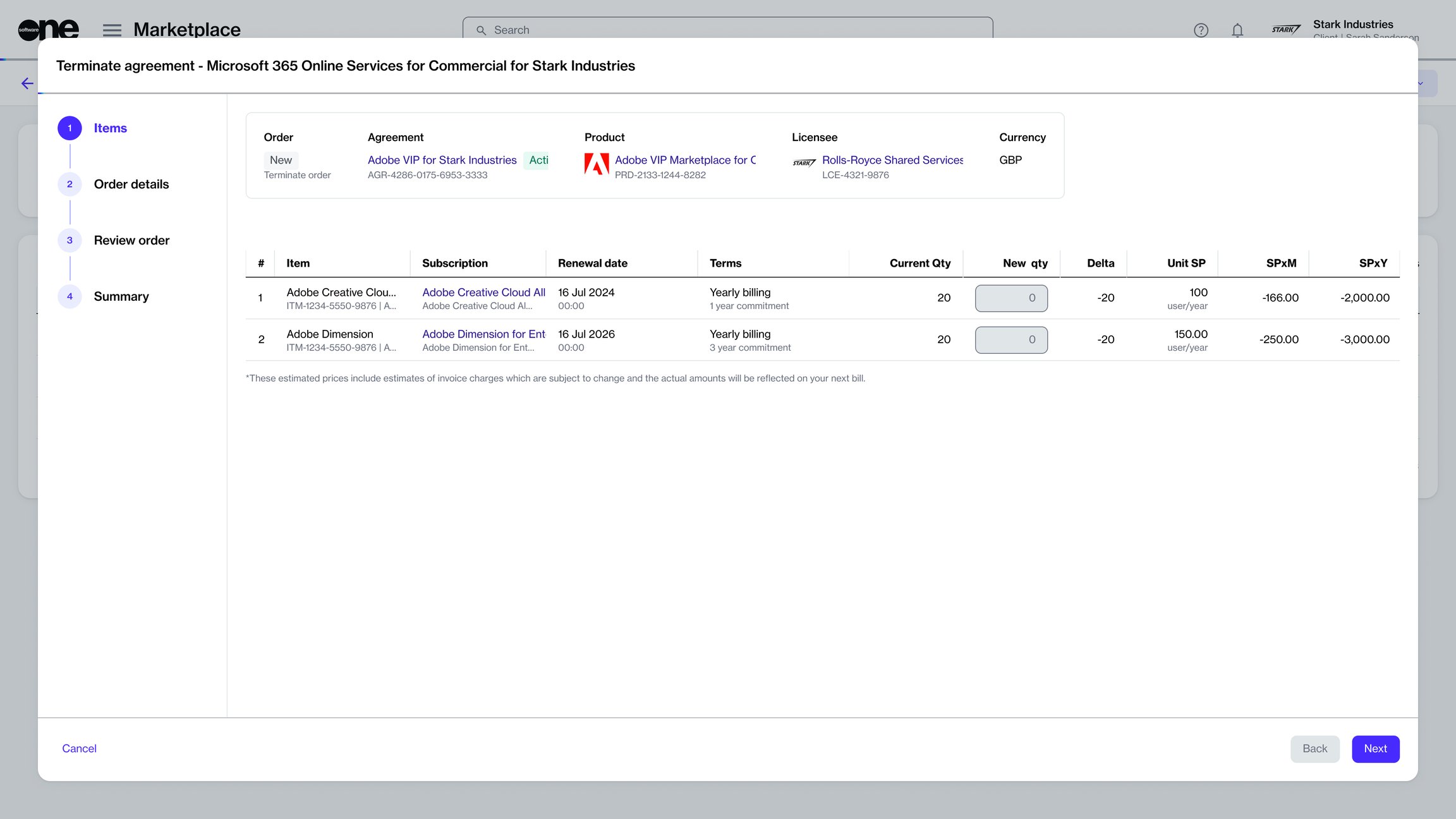
In the guided Terminate agreement flow, do the following:
Items – Make sure the new item quantity is displayed as 0. Then, select Next.
Order details – Add or update the additional ID and notes as needed. When done, select Next.
Review order – Check the order details, then select Place order to submit your order.
Summary – Select View order to open the details page or select Close.
Once the termination order is submitted, the status of the agreement changes from Active to Updating.
When the order has been processed and all subscriptions in the agreement are canceled, the status changes to Terminated.
On the order details page, select the dropdown arrow, then select Delete.
In the Delete order dialog, select Delete. The order is removed, and its status changes to Deleted.
An order represents a transaction that starts, changes, or ends a service in Marketplace.
Orders are created under an agreement, and a single agreement can contain multiple orders. The Marketplace supports the following types of orders:
Purchase order – This type of order is created when you buy a new product or service by establishing a new agreement.
Change order – A change order is used to modify an existing subscription, such as adding or removing licenses.
Termination order – This order is created when you want to end an active subscription or agreement.
Configuration order – A configuration order is used to manage renewal settings for a subscription, such as enabling auto-renewal.
Marketplace orders move through various states from creation to completion. The available actions depend on the current state of the order. For more information, see .
The Orders page displays all orders in your account. From this page, you can also manage an order, depending on its current status.
To open the page, select Marketplace > Orders from the main menu.
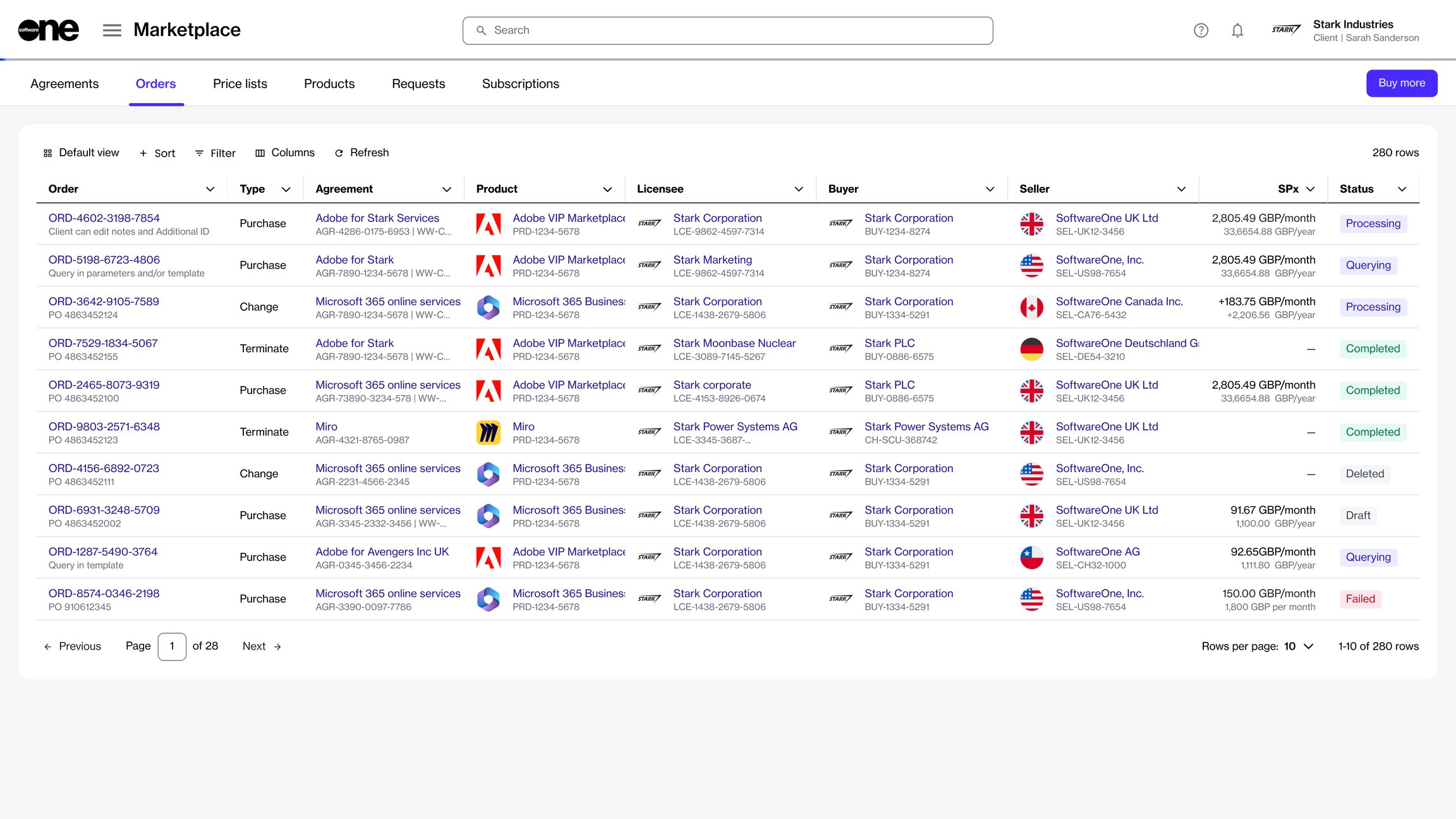
On the Orders page, you can view details for each order, including order ID, order type, and status.
You can also open an order to view details across several tabs, including entitlements, assets, and subscriptions, attachments and certificates, event history, and logs. For more details, see .
This topic describes how to view a list of subscriptions in your account, as well as details about a specific subscription.
To view your subscriptions list:
Go to Marketplace > Subscriptions.
Review the list of subscriptions.
Review key properties, such as subscription name, agreement, renewal date, current status, and more. You can also view the estimated sales price and check whether split billing is enabled.
On the subscription details page, you can view detailed information for a specific subscription. Some information is read-only, while others include links that allow you to navigate to further details.
To open details for a specific subscription:
Go to Marketplace > Subscriptions.
Select the subscription to view. The subscription details page opens.
Use the tabs to view different types of information:
The vendor has completed the purchase order, and the agreement is active. Active agreements have at least one active subscription and no open orders.
Updating
A business transaction or a change order is in progress for at least one subscription within the agreement.
Terminated
The agreement is terminated. It no longer contains an active subscription.
The vendor has processed the order.
Failed
The order could not be processed. The reason is displayed on the order details page.
Deleted
The order was deleted. This status applies to orders that are deleted intentionally and those removed by the platform. For more details, see My draft or quoted order has been deleted.
Shows the parameters associated with the asset.
Orders
Shows the purchase order for the asset.
Details
Shows reference details such as additional IDs and timestamps. Use Edit to update the additional client ID.
Audit trail
Shows the record of events for the asset. For details, see Audit Trail.
Split billing
Shows the split billing allocation for the subscription, if split billing is enabled for the agreement.
Orders
Shows the orders within the agreement.
Details
Shows reference information, additional IDs, and timestamps.
Audit trail
Shows the for the subscription.
Entitlements
Shows your entitlements.
Parameters
Shows the fulfillment parameters for the subscription. The list of parameters varies by product and vendor.
Entities
Shows entities linked to the subscription. These include licensees, buyers, and sellers.

This topic describes how to view a list of orders, as well as details about a specific order.
To view your orders:
Go to Marketplace > Orders.
View the list of all orders displayed on the page.
Review key properties, such as the order number, linked agreement, product name, estimated sales price, status, and more.
On the order details page, you can view detailed information about an order. Some information is read-only, while other fields include links that allow you to navigate to related records.
To open details for a specific order:
Go to Marketplace > Orders.
Select the order you want to view. The order details page opens.
Use the tabs to view different types of information:


General
Shows the most up-to-date information for the order.
Entitlements
Shows the items you have purchased along with their details, including quantity, pricing, status, and more.
Parameters
Shows the fulfillment and ordering parameters for the order.
Entities
Shows the different entities mapped to the order, including the licensee, buyer, and seller.
Subscriptions
Shows all subscriptions associated with the order along with their details. Subscriptions are displayed only after they are activated.
Assets
Shows all one-time items within the order. For details, see .
Notes
Shows notes added to the order during the ordering process. Use Edit to add or update notes.
Attachments
Shows all files attached to the agreement. You can download these files. For details, see .
Certificates
Shows certificates that were used during the ordering process.
Details
Shows the timestamps and additional IDs, including the client and vendor IDs.
Audit trail
Shows the for the order.