How to add new software items to your existing Marketplace agreement.
This tutorial explains how to add new Microsoft items to your existing CSP agreement in the SoftwareOne Marketplace.
This scenario focuses on finding and adding an item called Microsoft Power BI.
Make sure that the agreement you want to use is active.
Open the required agreement
To open the agreement:
Go to Marketplace > Agreements.
Select the agreement.
Add new items
To add new items:
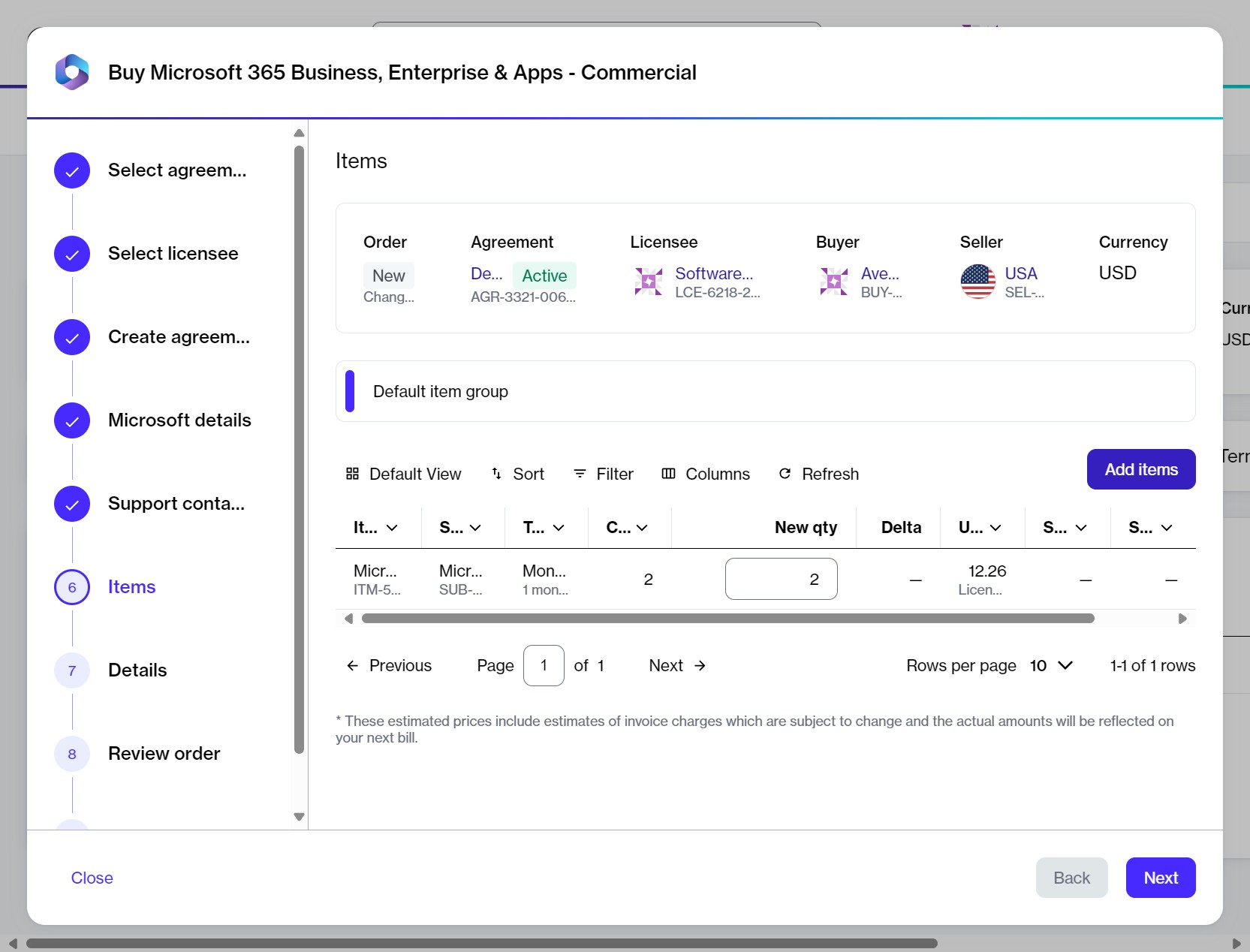
On the agreement details page, select Buy more. The guided purchase flow starts, and the Items step is displayed.
Select Add items.
Submit your order
Details – Add any reference details or comments, then select Next.
Review order – Review the order details, terms and conditions, and privacy statement, then select Place order.
You can check the status of your new order on the Orders page or in the Orders tab on the agreement details page.
Once you place the order, the agreement status changes from Active to Updating. You won't be able to place any additional orders under this agreement until your current order has been processed and the agreement status is changed back to Active.
Use filters to find the required items. In this example, search for Power BI using the following steps:
Select the Filter option in the grid.
Select Add another condition and then use the dropdown to make the following selections:
Select Product Item Name.
Set the filter to Contains.
Type the name of the required product (in this case, Power BI).
Close the filter box.
Select the items from the list. You can select multiple items.
Select Add items. The items are added, and the Select items page is displayed.
In the New qty field, set the quantity of your newly added items. Then, select Next.