Loading...
Loading...
Loading...
Loading...
Loading...
Loading...
Loading...
Loading...
Loading...
Loading...
Save your purchase and change orders for submitting later.
In the SoftwareOne Marketplace, you can save an order and return to it later to finalize or submit it.
This feature is available for both purchase and change orders. Saved orders are displayed on the Orders page with a Quoted status.
To save a purchase order for later:
On the Products page, select the product you want to buy.
On the product details page, select Buy now.
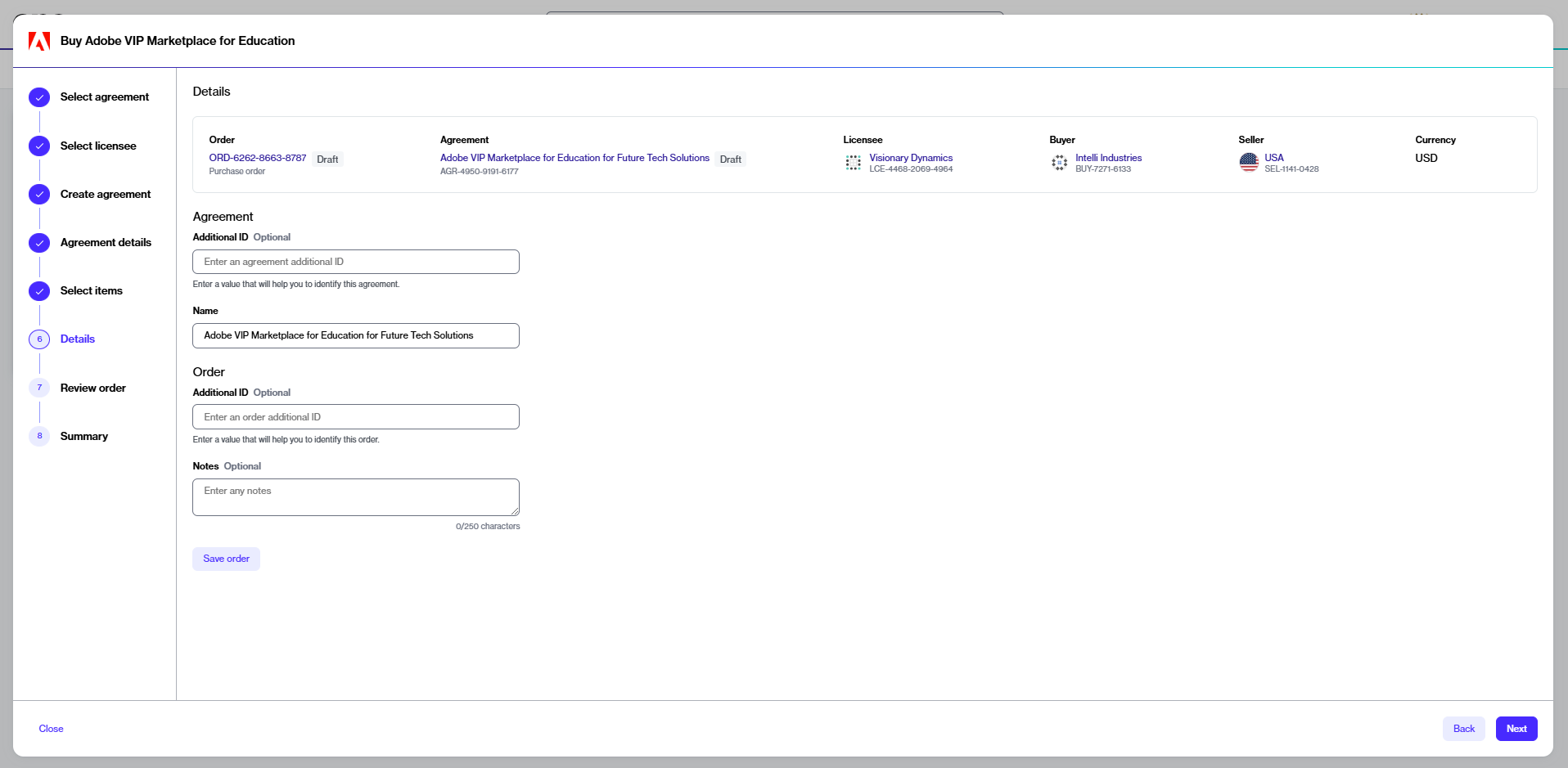
In the guided purchase flow, complete all the steps until you reach the Details step.
In the Details step, enter the required information, then select Save order. The order is saved for later.
To save a change order for later:
Go to Marketplace > Subscriptions.
Select the required subscription.
On the subscription details page, select Edit.
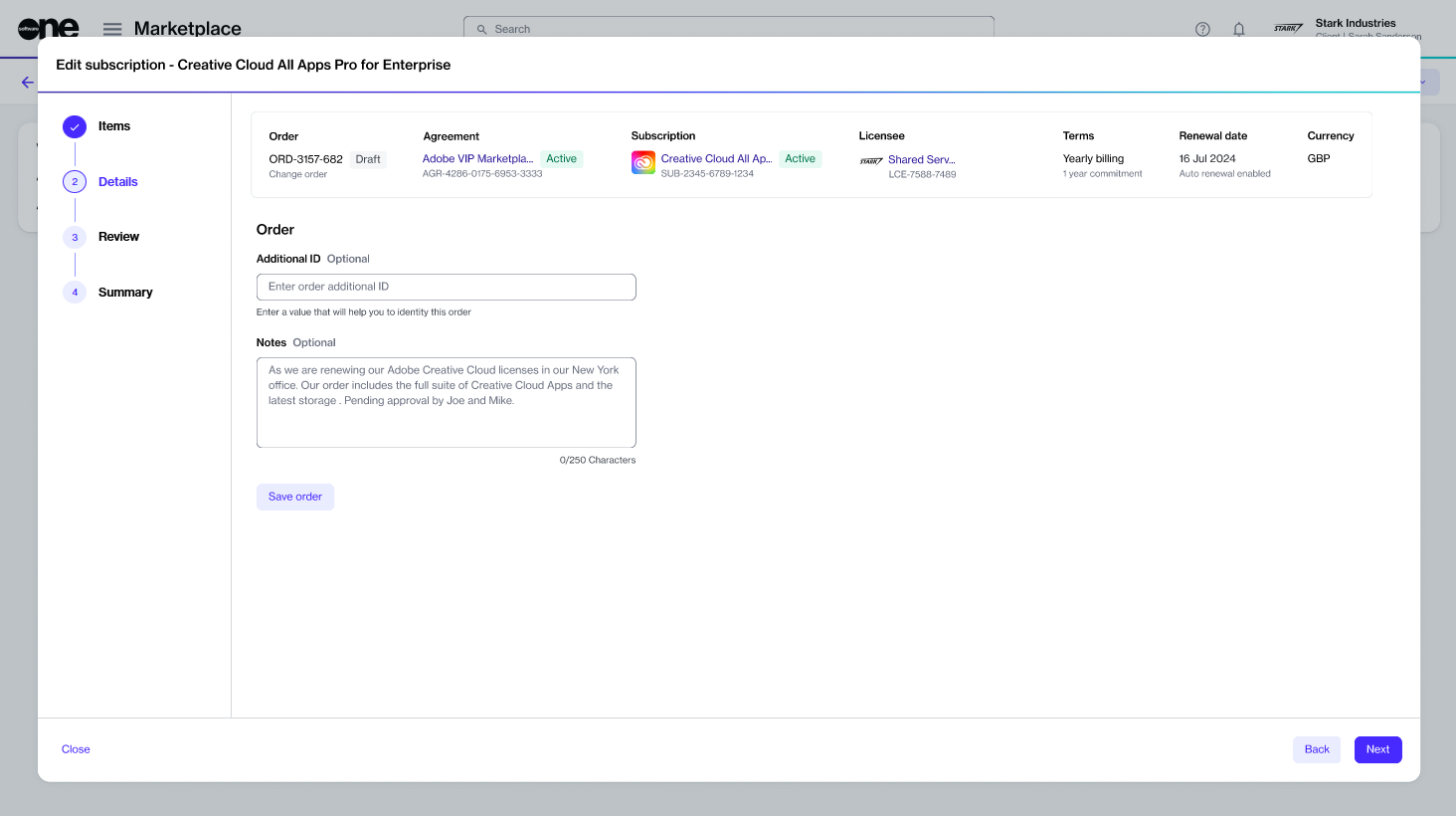
In the Edit subscription flow, do the following:
When you are ready to finalize the order, open the order and select Review on the order details page to submit it. For more details, see .
Learn about the different states of an order.
An order represents a transaction that starts, changes, or ends a service in Marketplace.
An order can be in one of these states: Draft, Deleted, Quoted, Processing, Querying, Scheduled, Cancelling, Cancelled, Complete, or Failed. The following diagram shows the transitions between these states:
The following table describes the different states:
An order represents a transaction that starts, changes, or ends a service in Marketplace.
Orders are created under an agreement, and a single agreement can contain multiple orders. The Marketplace supports the following types of orders:
Purchase order – Created when you buy a new product or service by establishing a new agreement.
Change order – Used to modify an existing subscription, such as adding or removing licenses.
Termination order – Used to end an active subscription or agreement.
Configuration order – Used to manage subscription renewal settings. Depending on the vendor and subscription type, configuration orders may provide additional options or capabilities for managing the subscription.
Suspend order – Created by SoftwareOne to temporarily pause an active subscription without terminating it. The subscription configuration, data, and contractual terms are retained.
Resume order – Created by SoftwareOne to reactivate a suspended subscription and restore service access using the existing subscription configuration.
Marketplace orders move through various states from creation to completion. The available actions depend on the current state of the order. For more information, see .
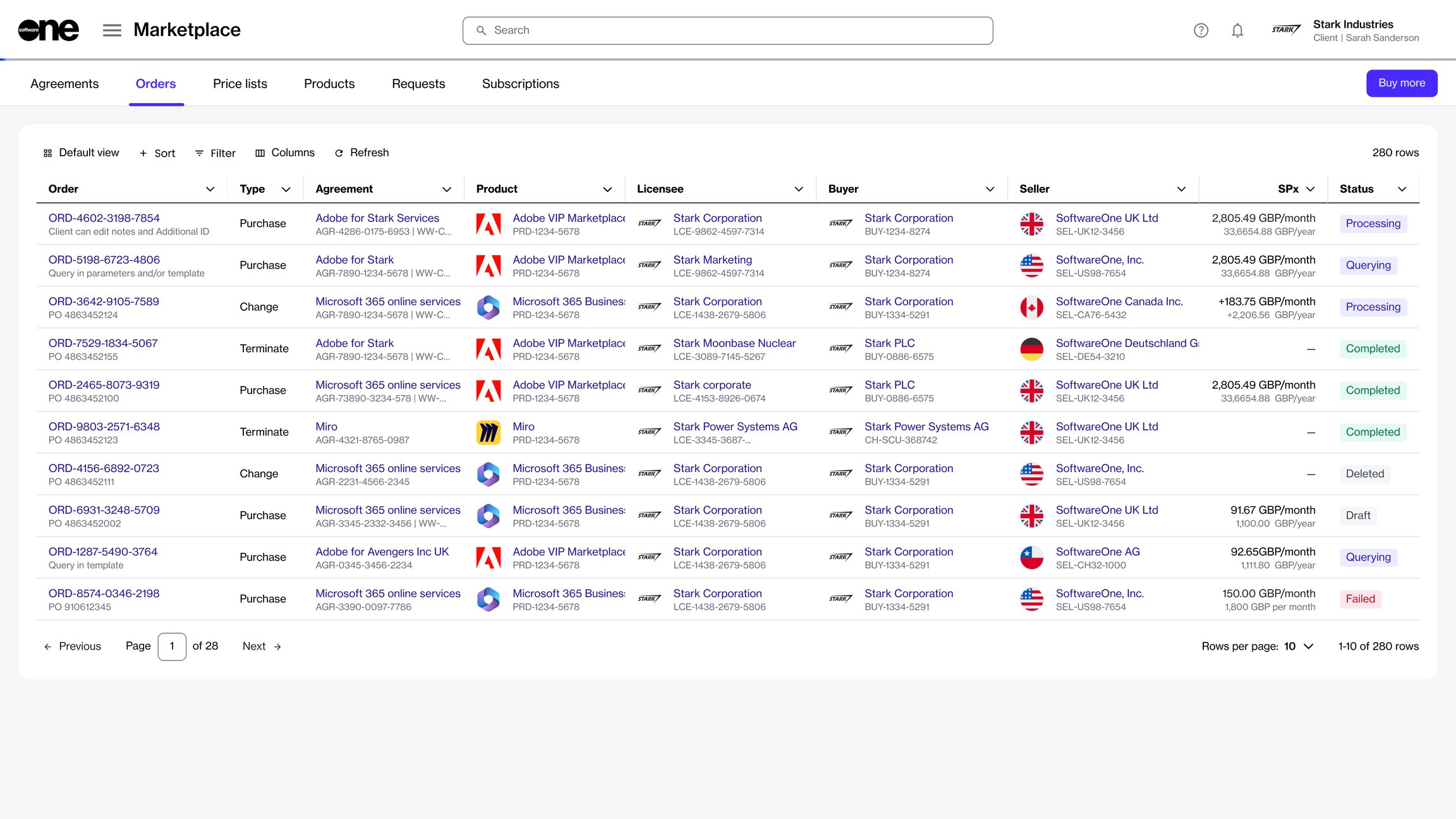
The Orders page displays all orders in your account. From this page, you can also manage an order, depending on its current status.
To open the page, select Marketplace > Orders from the main menu.
On the Orders page, you can view details for each order, including order ID, order type, and status.
You can also open an order to view details across several tabs, including entitlements, assets, and subscriptions, attachments and certificates, event history, and logs. For more details, see .
Scheduled
The renewal order has been submitted, and the changes are due to take effect on the renewal date.
Cancelling
A cancellation request has been initiated for a scheduled renewal order.
Cancelled
The scheduled renewal order has been cancelled. The agreement and subscriptions remain unchanged.
Complete
The vendor has processed the order.
Failed
The order could not be processed. The reason is displayed on the order details page.
Draft
The order is a draft. This status applies to orders created by the platform for validation purposes. It doesn't apply to orders saved for later during the ordering process.
Deleted
The order was deleted. This status applies to orders that are deleted intentionally and those removed by the platform. For more details, see My draft or quoted order has been deleted.
Quoted
The order has been saved for later using the Save Order option during order creation.
Processing
The order is created, and it's currently awaiting processing by the vendor.
Querying
The ordering parameters are updated by the vendor. The order requires an action to be taken by the client.
Items – Adjust the quantity, then select Next.
Details – Enter the reference information, then select Save order. The order is saved for later.
Move a querying order to Processing
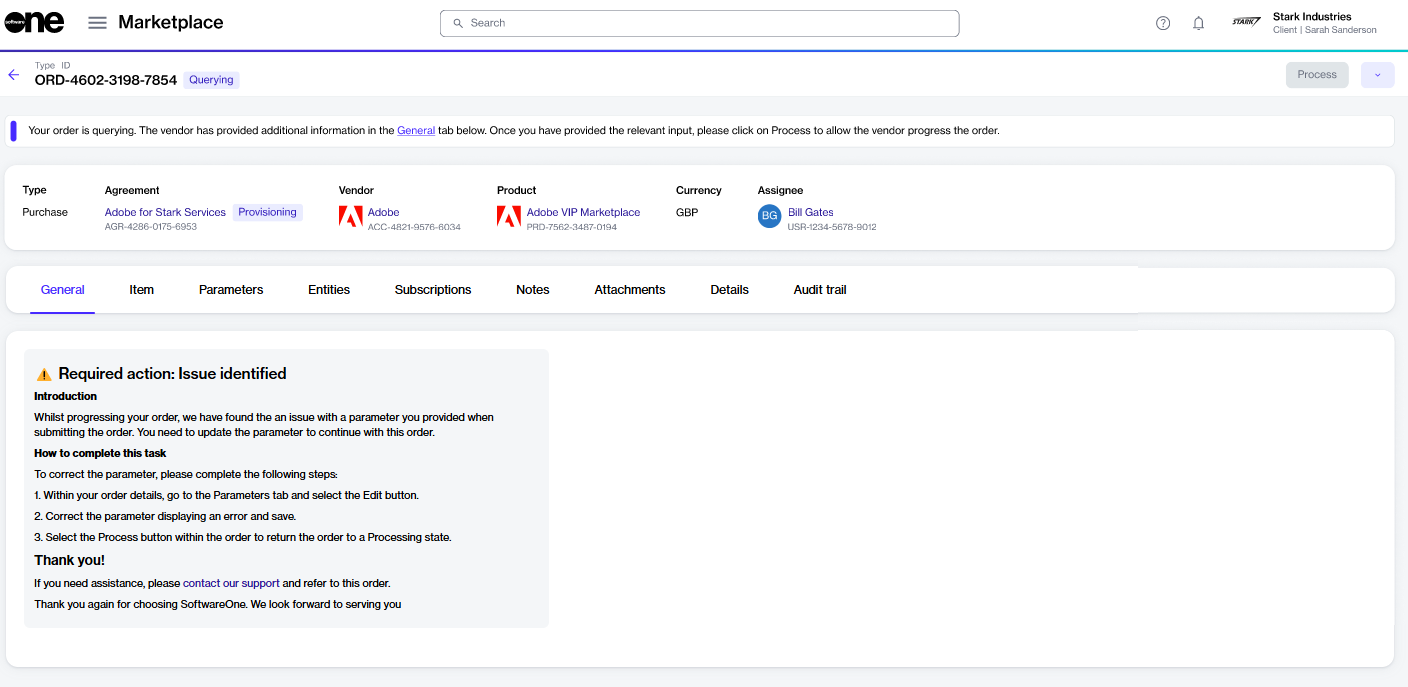
In some cases, you may need to provide additional information if your order information is incorrect or incomplete, or requires specific steps to be completed before it can be processed.
Orders that need your attention appear with a Querying status. When you open a querying order, the General tab on the details page explains what needs to be corrected and how to resolve the issue.
After completing the required steps, you must update the order status from Querying to Processing. Updating the status notifies SoftwareOne and the vendor that the order is ready for their review and further processing.
To move an order from Querying to Processing:
Go to Marketplace > Orders.
(Optional) Use the or to find the required order.
Select the order to open its details page.
On the General tab, review the message and take the required action.
Select Process. This button becomes available only after you have completed the required action indicated in the message.
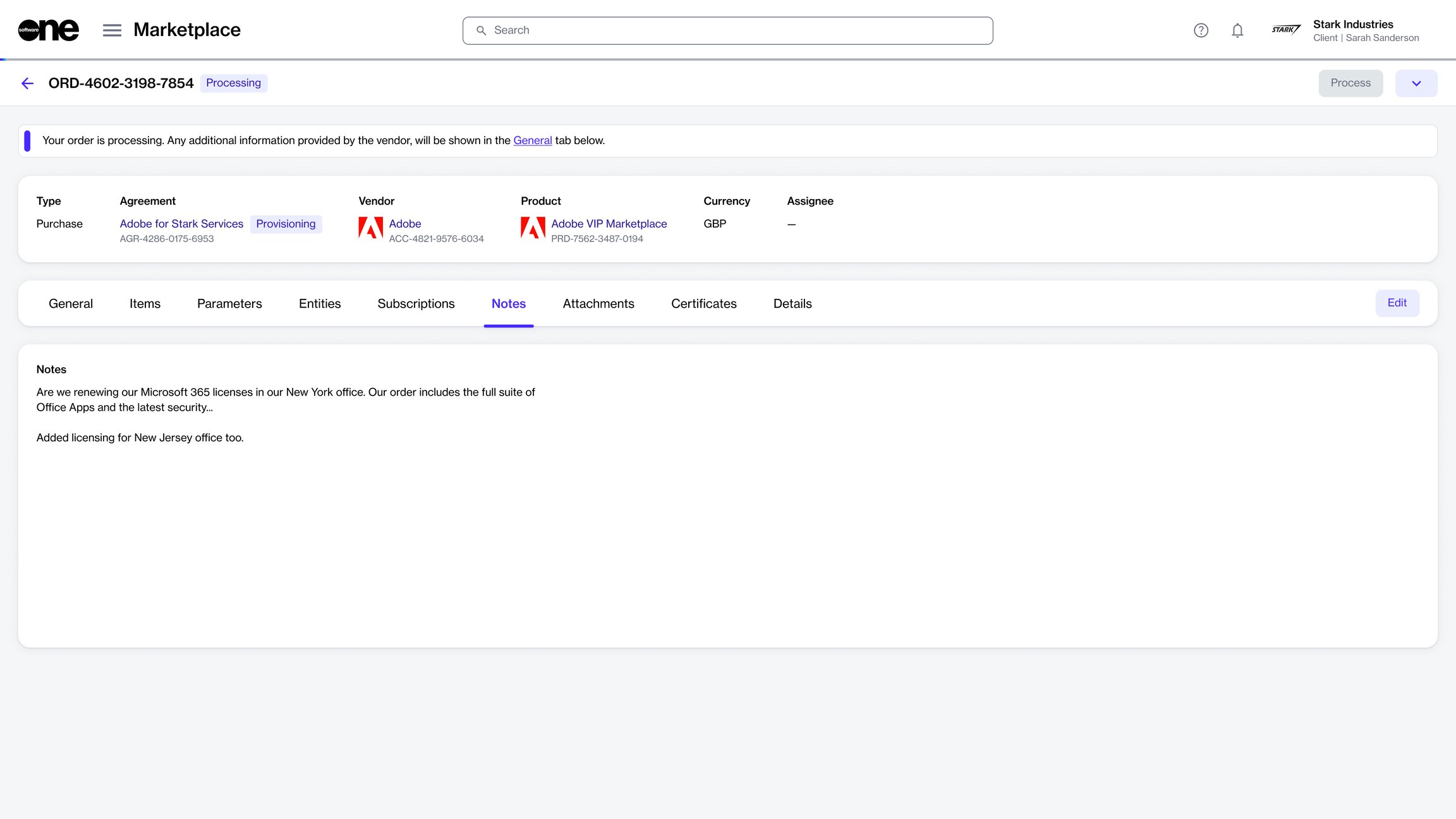
Manage your notes for an existing order.
When ordering a product, the Marketplace Platform provides an option to add comments or instructions, allowing you to include information that you may want to link to the order.
After the order is submitted, any notes you entered are displayed on the Notes tab within the order details page. If you need to update these notes, you can use the Edit option on the Notes tab. You can also use the same option to add new notes if you didn't add them when the order was originally placed.
Notes can be added or updated at any time, regardless of the order's status.
To add or update the notes for an order:
Go to Marketplace > Orders.
Select the order to manage.
On the order details page, select the Notes tab, then select Edit.
In the Edit notes dialog, add or update notes as necessary. A maximum of 300 characters is allowed.
Select Save. The details are updated and displayed immediately on the Notes tab.
Submit subscription changes in advance.
In the SoftwareOne Marketplace, you can submit changes to your subscription in advance and allow them to take effect automatically on the renewal date.
This helps you plan renewal-related changes without affecting the current subscription until renewal occurs.
Scheduled renewal orders are available for eligible subscriptions that support renewal changes.
Scheduled renewal orders can include:
License quantity changes.
SKU or term changes (when supported by the vendor).
Auto-renewal setting changes.
To create a scheduled renewal order:
Go to Marketplace > Subscriptions.
Locate the subscription you want to update.
Select the dropdown arrow, then select Renewal.
In the guided Renewal workflow, configure the required changes.
After the renewal order is approved, its status changes to Scheduled. You can identify scheduled renewal orders in the following locations:
The Orders page, where renewal orders are listed with the Renewal order type.
The Subscriptions page, using the optional Renewal Order column and related filters.
The subscription details page, where a message indicates that a scheduled renewal order is associated with the subscription.
On the renewal date, your order moves to Processing. Once processing is complete, the requested changes are applied to the subscription.
Until the renewal order is processed, the subscription remains active and continues to use its current configuration.
If the renewal date has not yet been reached, you can request cancellation of a scheduled renewal order.
To request cancellation:
Go to Marketplace > Orders.
Select the required renewal order.
Select Cancel.
The cancellation request is submitted. If it is completed successfully, the scheduled changes will not be applied to the subscription.
Finalize and submit your saved orders for processing.
If you , you can submit it for processing from the Orders page.
Once a saved order is submitted, it is no longer listed as a saved order and will not appear with a draft or quoted status.
To submit a saved order for processing:
Go to Marketplace > Orders.
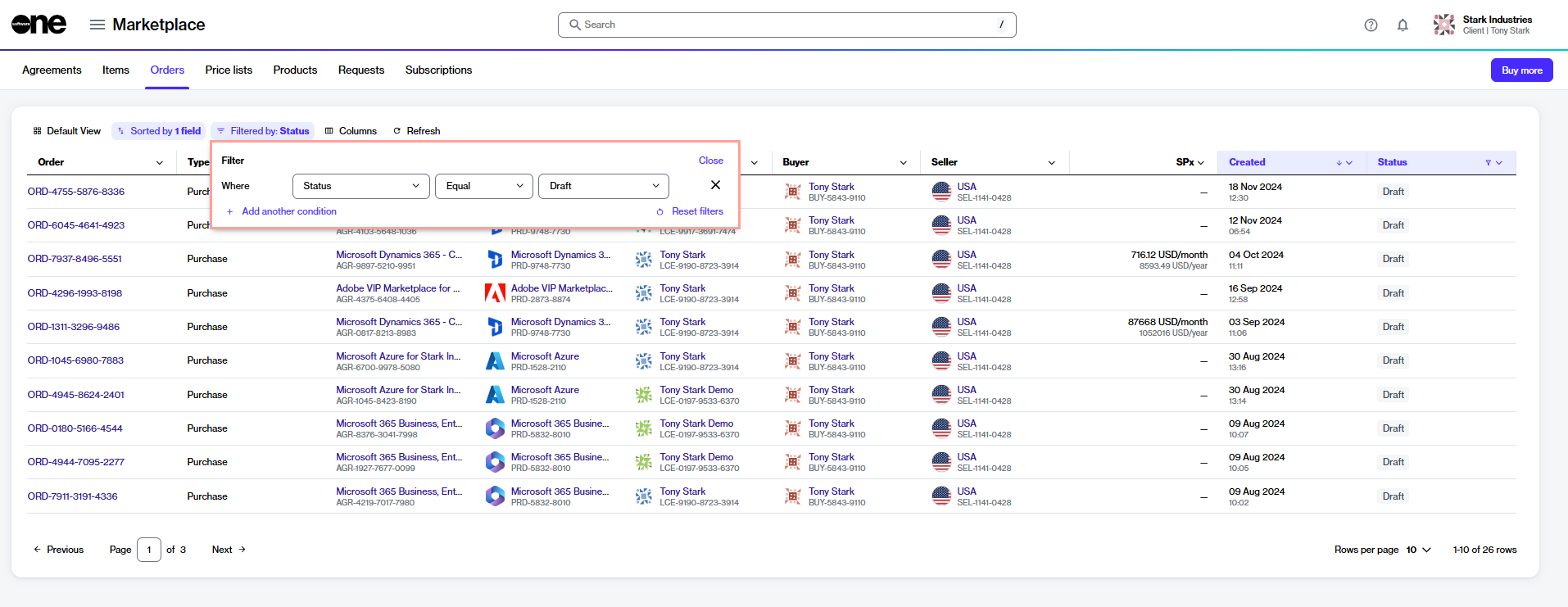
(Optional) Use the following filters to find the required order:
Review the renewal order and select Submit.
Select the Filter option in the table.
Select Add another condition and then use the dropdown to make the following selections:
In the first field, choose Status.
In the second field, set the filter to Equal.
In the third field, select Draft and then close the filter box.
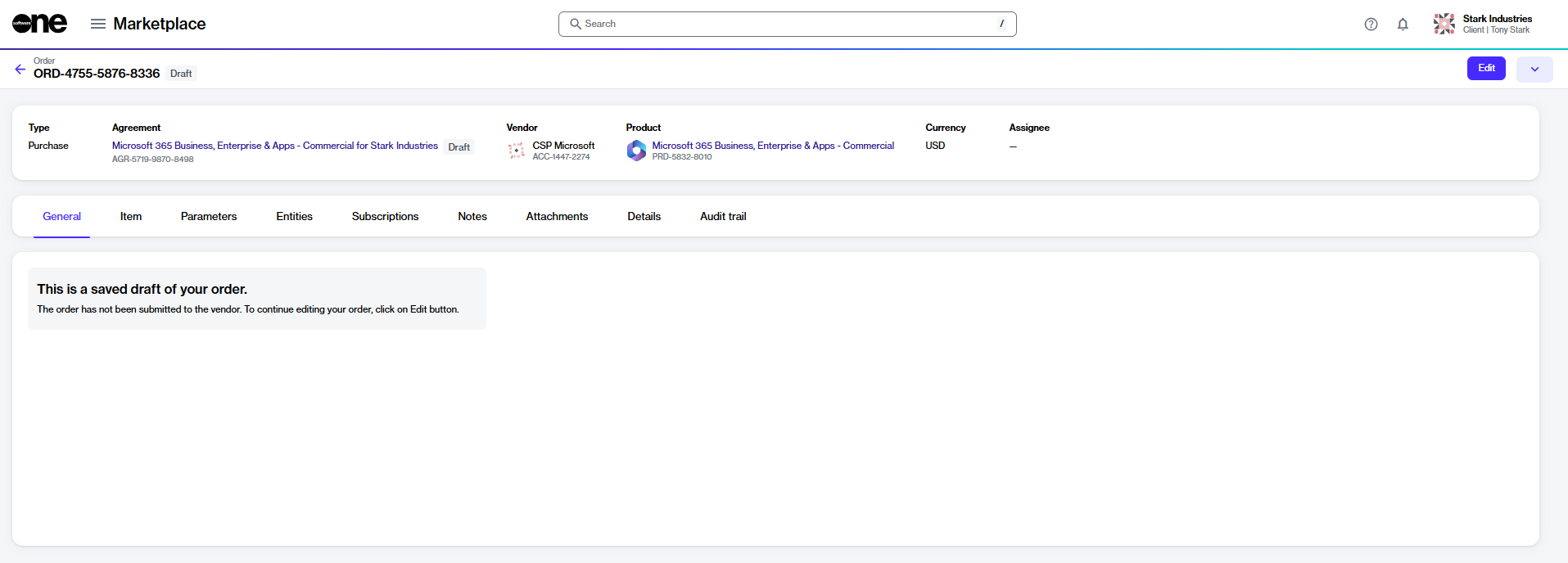
Select the required order. Then, on the order details page, select Edit.
In the guided Purchase flow, complete the following steps:
Select items – Do one of the following:
If your order already includes items that were added before it was saved for later, those items are displayed in the Items section. Review the items, then select Next.
If no items were added, the Select items window opens. Add the items you want to buy, then select Next.
Details – Provide reference IDs or order notes, then select Next.
Review – Review the order details, then select Place order.
Summary – Select View details to open the order details page or select Close.
Once the order is submitted, the order status changes to Processing, and the agreement status changes to Updating. This means that no other orders can be placed against the agreement.
If the order is successfully processed, the order status changes to Completed, and the agreement status changes to Active. If the order needs your attention, the status changes to Querying. Open the querying order and review the General tab for the next steps.


This topic describes how to view a list of orders, as well as details about a specific order.
To view your orders:
Go to Marketplace > Orders.
View the list of all orders displayed on the page.
Review key properties, such as the order number, linked agreement, product name, estimated sales price, status, and more.
On the order details page, you can view detailed information about an order. Some information is read-only, while other fields include links that allow you to navigate to related records.
To open details for a specific order:
Go to Marketplace > Orders.
Select the order you want to view. The order details page opens.
Use the tabs to view different types of information:
General
Shows the most up-to-date information for the order.
Entitlements
Shows the items you have purchased along with their details, including quantity, pricing, status, and more.
Parameters
Shows the fulfillment and ordering parameters for the order.
Entities
Shows the different entities mapped to the order, including the licensee, buyer, and seller.
Subscriptions
Shows all subscriptions associated with the order along with their details. Subscriptions are displayed only after they are activated.
Assets
Shows all one-time items within the order. For details, see .
Notes
Shows notes added to the order during the ordering process. Use Edit to add or update notes.
Attachments
Shows all files attached to the agreement. You can download these files. For details, see .
Certificates
Shows certificates that were used during the ordering process.
Details
Shows the timestamps and additional IDs, including the client and vendor IDs.
Audit trail
Shows the for the order.
Remind an individual about a pending order via email.
If you have created an order but have not yet submitted it for processing, you can use the Send Reminder feature to notify the person responsible for completing the order.
The Send Reminder feature sends a reminder email that includes a link to the order, and it also allows you to send a copy of the email to yourself.
Reminders can be sent only for orders in Quoted status, which applies to orders saved for later using the Save Order option during order creation.
To send an order reminder email:
Go to Marketplace > Orders.
Select the required order to open its details page.
Select the dropdown arrow , then choose Send reminder.
In the Send order to user flow, do the following:
Email address - Enter the email address of the person to whom you want to send the reminder email, then select Next.
Order details - Enter reference details as needed, then select Next.
Select Send. The individual will receive an email containing a link to the order. After selecting the link, they can review the order in the platform and submit it for processing.

Delete your unsubmitted or draft orders.
If you saved an order for later and no longer want to continue with it, you can delete it.
Deleted orders can't be recovered, but are still displayed in your list of orders.
You can delete only the Draft and Quoted orders. When you delete a draft purchase order, the agreement linked to the draft order is also deleted.
To delete an order:
Go to Marketplace > Orders.
Select the order you want to delete.
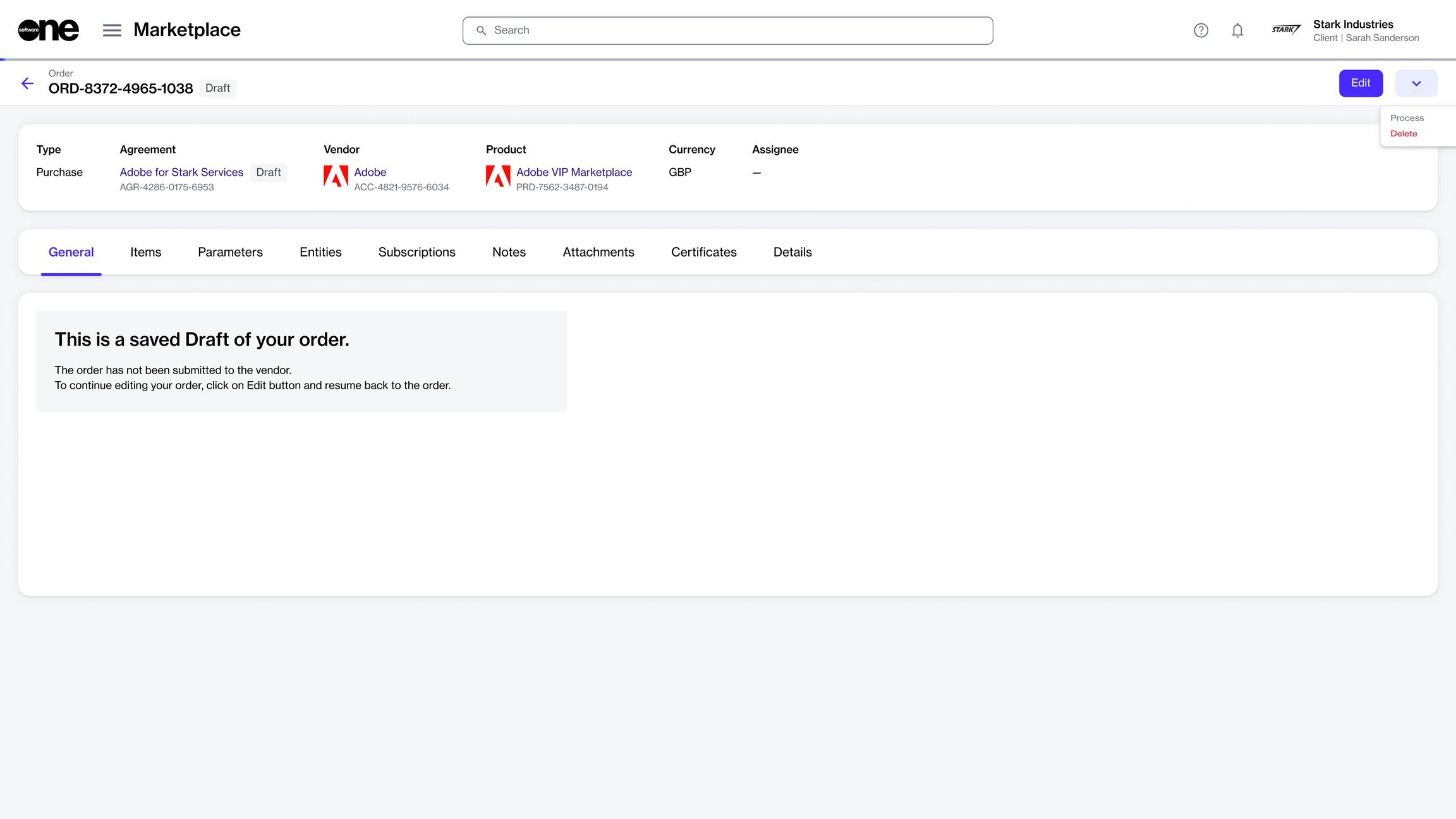
On the order details page, select the dropdown arrow, then select Delete.
In the Delete order dialog, select Delete. The order is removed, and its status changes to Deleted.