
Loading...
Loading...
Loading...
Loading...
Loading...
Loading...
Loading...
Loading...
Loading...
Loading...
Loading...
Loading...
Loading...
Loading...
Loading...
Loading...
Loading...
Loading...
Loading...
Loading...
Loading...
Loading...
Loading...
Loading...
Loading...
Loading...
Loading...
Loading...
Loading...
Loading...
Loading...
Loading...
Loading...
Loading...
Loading...
Loading...
Loading...
Loading...
Loading...
Loading...
Loading...
Loading...
Loading...
Loading...
Loading...
Loading...
Loading...
Loading...
Loading...
Loading...
Loading...
Loading...
Loading...
Loading...
Loading...
Loading...
Loading...
Loading...
Loading...
Azure Lighthouse is a Microsoft solution that enables seamless multi-tenant management. It allows administrators to manage multiple environments in one place without switching between accounts.
At SoftwareOne, we use Azure Lighthouse to deliver consistent and efficient management across all Azure environments. By leveraging automation and standardized operational processes, our teams can manage an unlimited number of client environments, regardless of size or complexity.
Azure Lighthouse enables you to maintain full control and complete visibility over your Azure environment, while allowing SoftwareOne to provide expert management and support.
Full access control – You define which users can access your environment, what resources they can manage, and what actions they are authorized to perform.
Complete transparency – All actions performed by SoftwareOne are logged in the Azure Activity Log. This provides full visibility into what changes are made, when, and by whom.
Enhanced security and governance – SoftwareOne engineers have read-only access by default, unless elevated permissions are granted through your explicit approval.
Azure Lighthouse enables SoftwareOne to deliver a streamlined and secure management experience, optimized for performance at every scale.
We provide top-tier managed services without the complexity of managing each tenant separately. Our focus is on delivering the best service faster.
We manage multiple customers effortlessly, reducing operational costs and improving service consistency.
We follow strict role-based access protocols, ensuring that our team only gets elevated access with your explicit approval, minimizing any potential risks.
We prioritize transparency; every action is logged and fully visible to both you and SoftwareOne, ensuring complete visibility and peace of mind.
Not activating Azure Lighthouse might result in significant drawbacks for you and SoftwareOne.
For you
Limited visibility and control – You'll have less granular control over which service providers can access your environment and the actions they can perform.
Higher costs – Removing Azure Lighthouse access leads to increased Azure charges due to the lack of optimized management capabilities.
For SoftwareOne
Inefficient management – Without Azure Lighthouse, SoftwareOne faces increased complexity when managing multiple customers, reducing the efficiency of service delivery.
Security risks – Without built-in governance and role-based access controls, there's a higher risk of unauthorized actions within customer environments.
If you have any technical questions or concerns about the Azure Lighthouse activation process, contact our Services Support team. For details, see .
The Microsoft Accounts page provides a centralized view of your CSP tenants.
If you have Microsoft agreements through the SoftwareOne Marketplace, you can use this page to monitor tenants, agreements, subscriptions, GDAP relationships, and special qualifications from a single location.
To access this page, select Microsoft Accounts from the main navigation menu.
You can then view a consolidated list of your CSP tenants, including:
Microsoft tenant ID and primary domain.
The number of agreements and subscriptions associated with each tenant.
The market associated with each tenant.
Health indicators that highlight actions required to manage subscriptions or create orders, such as:
MCA – The Microsoft Customer Agreement (MCA) must be signed before new subscriptions can be created or existing subscriptions updated.
Partnership – The Microsoft partnership must be accepted before orders can be created.
GDAP – The required Granular Delegated Admin Privileges (GDAP) relationship has not been accepted.
From the Microsoft Accounts page, you can select a tenant to view additional information.
The tenant details page provides access to subscription, GDAP, and account information for the selected tenant.
From the details page, you can also:
Access the Microsoft 365 admin center directly.
View subscriptions by type, including License-based, Azure, Software, and Perpetual.
View GDAP relationships for the CSP tenant, including the relationship name, requested roles, expiration date, auto-extend setting, and relationship status. You can also manage the relationship directly in the Microsoft 365 admin center.
To indicate that your organization is a state-owned entity:
On the Account tab, select Edit.
In the Special qualifications dialog box, select I confirm the company is a state-owned entity.
Select Save.
SoftwareOne requires Granular Delegated Administrative Privileges (GDAP) in your tenant to manage your Microsoft products and services. Without these privileges, we are unable to provide all the services associated with your purchase.
After you have placed an order, you must accept our GDAP invitation. This invitation is provided as a URL on the order details page. When you select the link and log in as a Global Administrator, you are redirected to the Microsoft 365 admin center to complete the GDAP setup.
To accept a GDAP relationship request:
Open the Orders page.
Select the required purchase order.
New Commerce Experience (NCE) is Microsoft's licensing and purchasing model for cloud subscriptions sold through the Cloud Solution Provider (CSP) program.
NCE introduces standardized subscription terms, billing options, and lifecycle management capabilities for Microsoft cloud services. It's designed to provide greater flexibility, transparency, and predictability when purchasing and managing subscriptions.
With NCE, you can:
Choose from different subscription terms and billing options.
Manage subscription renewals through auto-renewal settings.
This topic describes how to start your Government Community Cloud (GCC) journey with SoftwareOne.
The process depends on whether you are a new customer just starting with GCC or an existing GCC customer looking to move to SoftwareOne.
If you are a new GCC customer, you must verify your eligibility to gain access to the government community cloud set of products. To do this:
Complete the .
Provide SoftwareOne's Partner Tenant GUID: 141e07d1-6f28-4169-b951-316d5a941d88.
The Marketplace Platform allows you to explore a Microsoft product before committing to a paid version. This means you can order a free trial subscription and try it out for 30 days.
The following restrictions apply to NCE trial subscriptions in the Marketplace:
Trial subscriptions don't automatically renew. When the trial ends, the subscription expires.
Trial subscriptions can't be converted to a paid subscription at the end of the trial period. If you decide to order the paid version, you must place a new order for the corresponding paid product.
Microsoft Government Community Cloud (GCC) is an elite, purpose-built cloud environment designed exclusively for US federal, state, local, and tribal governments, and contractors managing data on behalf of the US government.
GCC delivers a completely segregated instance of Microsoft Cloud services, including Microsoft 365 and Dynamics 365, engineered to meet the rigorous compliance and security standards that government entities demand.
Unlike standard commercial offerings, GCC environments are physically isolated from commercial cloud infrastructure, providing enhanced security measures, specialized compliance certifications, and robust controls tailored to government requirements.
GCC was strategically developed to address the unique regulatory landscape and advanced security requirements facing government organizations today. With GCC, you can:
Achieve FedRAMP Moderate compliance with confidence.
The Microsoft Customer Agreement (MCA) is Microsoft's contract for purchasing and using cloud services. It defines the terms and conditions that govern Microsoft cloud subscriptions and services.
Before Microsoft cloud services can be provisioned, customers must review and accept the MCA.
Customers purchasing Microsoft cloud services through the Cloud Solution Provider (CSP) program must accept the MCA before subscriptions or services can be provisioned.
This requirement applies to:
Organizations purchasing Microsoft cloud services, such as Azure, Microsoft 365, Dynamics 365, and more for the first time through a CSP partner must also accept the MCA.
The Microsoft CSP program is designed to provide businesses with easy access to Microsoft's cloud services, such as Microsoft 365, Dynamics 365, and Azure, through certified partners.
Working with a CSP provider like SoftwareOne offers numerous benefits and ensures a smooth onboarding process, including:
Tailored solutions – SoftwareOne can bundle Microsoft cloud services with additional offerings and services, creating customized solutions that meet specific business needs.
Expert support – Gain access to dedicated support from SoftwareOne's experts, who can help with everything from initial setup to ongoing management and technical issues.
Microsoft Azure is a cloud computing platform that lets you access and manage cloud services and resources provided by Microsoft. With Marketplace Platform, you can easily order an Azure plan subscription.
Browse the following topics to learn about Microsoft Azure Plan subscriptions.
If you face an error when onboarding subscriptions to Azure Lighthouse, it could be due to your role within Azure.
Ensure you are the owner of the subscription to onboard and the first subscription onboarded to Azure Lighthouse.
Subscription owners have the Owner role, listed on the Role Assignments tab in Azure.
To complete the Lighthouse onboarding, you must also meet the following requirements for your primary domain/tenant or Azure subscription:
Role - Any
If your application for Microsoft Education is denied due to a lack of information or incompleteness, you can resubmit the application. Microsoft allows up to three verification attempts.
To request a reverification:
Read the specific reasons provided in your denial notification.
Gather the required documents to support your eligibility.
Sign in to the Microsoft 365 Admin Center and update the inaccurate details under Settings > Organization Information.
Request a reverification.
After resubmitting the request, allow 3–5 business days for Microsoft to review your submission.
To track the status of your request, visit the Microsoft 365 admin center.
If your request is unsuccessful after three attempts, you must engage with Microsoft Support directly. You can also contact SoftwareOne.
To access Microsoft CSP nonprofit benefits, your organization must first be validated as an eligible nonprofit organization through Microsoft’s nonprofit eligibility process.
This involves registering on the Microsoft Nonprofits Portal, where Microsoft will review and approve your status. It's important that your organization's legal name and tax ID used during registration match the information submitted for the nonprofit validation.
Once your status has been approved, your CSP partner can create your customer account in Partner Center, ensuring that the organization type is set correctly as a nonprofit.
After your nonprofit status is confirmed, you can access charity-specific offers and pricing.
Yes. When your Azure subscription is transferred to SoftwareOne, your existing Azure Lighthouse configuration does not carry over.
This is because Azure Lighthouse permissions are linked to the partner managing the subscription. When the billing relationship changes, these permissions are removed and must be re‑established. As a result, you must complete a new onboarding process for Azure Lighthouse after the transfer.
The onboarding is handled directly through the Marketplace. Your purchase order includes an activation link and guided workflow to help you complete the process.
For detailed instructions and Azure role requirements, see Complete Azure Lighthouse onboarding.
View Account information containing Microsoft contact information and special qualifications. If your organization is a state-owned entity, use Edit to update the Special qualifications field.


Meet stringent Criminal Justice Information Services (CJIS) policies.
Ensure International Traffic in Arms Regulations (ITAR) compliance.
Satisfy IRS 1075 requirements without compromise.
Guarantee data residency within the continental United States.
Maintain complete separation from commercial cloud environments.
Benefit from thoroughly screened operational personnel.
With SoftwareOne as your trusted partner, your journey to GCC becomes straightforward, efficient, and aligned with your agency's mission.
Our specialized knowledge of government requirements, combined with our Microsoft cloud expertise, positions SoftwareOne as your ideal partner for GCC implementation and management. We handle the technical complexities so you can focus on serving your constituents.
Government cloud expertise - Our specialized team understands the unique needs of public sector organizations.
Simplified compliance - Navigate complex regulatory requirements with our experienced guidance.
Seamless migration - Transition to GCC smoothly with our proven methodology and government-focused approach.
Ongoing support - Receive dedicated assistance throughout your entire GCC journey.
Cost optimization - Maximize your technology investment through our licensing expertise and optimization services.
Strategic partnership - Benefit from SoftwareOne's established relationship with Microsoft and deep GCC knowledge.
For details on how to start your GCC journey with SoftwareOne, see Onboarding to Microsoft GCC.
On the General tab, select the GDAP URL.
Sign in to the Microsoft 365 admin center using an account that has Global Administrator permissions. You can use the Global Administrator credentials associated with the primary domain or tenant name stated in your purchase order.
Review the SoftwareOne partner information, then select Next.
Select the link for the Microsoft Customer Agreement and read the agreement.
Select the checkbox to acknowledge that you have read the agreement, then select Accept.
Return to your purchase order in the Marketplace and select Process to resume order processing.
Increase or reduce license quantities based on requirements.
Benefit from more predictable pricing and commitment-based purchasing models.
Microsoft NCE subscriptions are subject to specific rules for cancellations, license reductions, and renewals.
The following are some of the key terms related to Microsoft NCE subscriptions in the Marketplace:
License reduction (downsize) – Reducing the number of licenses in a subscription while keeping at least one license active.
License increase – Adding licenses to an existing subscription. License increases have their own cancellation and reduction window.
Cancellation (termination) – Canceling a subscription and ending the service.
Auto-renewal – Controls whether a subscription automatically renews at the end of its commitment term. If auto-renewal is disabled, the subscription expires at the end of the current term and doesn't renew.
Commitment term – The period for which a subscription is purchased, such as a monthly or annual term.
Microsoft NCE subscriptions can be cancelled or downsized within 7 calendar days of purchase, renewal, or a license increase. For instructions, see Terminate Microsoft 365 subscription and Reduce Microsoft 365 licenses.
A prorated refund may apply under the applicable Microsoft cancellation policy.
Additional licenses added during an active subscription term have their own 7-day reduction window.
After the 7-day cancellation window expires, you can no longer cancel the subscription or reduce the number of licenses. This applies to both new and renewal orders.
The current license quantity remains committed for the rest of the subscription term. Any reduction must be scheduled for the next renewal or end of term, where supported.
If you no longer need the subscription, you can disable automatic renewal and allow it to expire at the end of the current commitment term. For instructions, see Disable automatic renewal.
For the latest policy information, see the Microsoft New Commerce Experience cancellation policy.
Send your validation ID to Marketplace Platform Support at marketplace-support@softwareone.com.
Wait for the verification to complete. Microsoft typically completes validation within 5-7 business days.
For questions about the Microsoft validation process, contact the US Government Cloud Eligibility Team at usgcce@microsoft.com.
If you are an existing GCC customer:
Go to Catalog > Products page.
Select Microsoft 365 Business, Enterprise & Apps - Government.
On the product details page, select Buy now.
Follow the guided steps in the purchase wizard to submit your order.
For step-by-step instructions on placing an order, see .
No modifications or terminations are allowed during the trial period.
Trial items contain the keyword "trial" in their names so you can locate them easily. For example, Dynamics 365 Finance Premium - Trial.
Use the following methods to find trial-eligible items in the Marketplace:
Use the Search bar in the top navigation area. Select Items and enter "trial" as your search keyword.
In the main navigation menu, go to Catalog > Items. Then, apply a filter using either the Name or Vendor item ID that includes the keyword "trial".
In the purchase wizard, go to the Items step, then use the Product Item Name filter to find the trial items you need.
To order a trial subscription for a new agreement:
Go to Catalog > Products.
Select the required Microsoft product.
On the product details page, select Buy now.
In the purchase wizard:
Select Create agreement and complete all steps until you reach the Items step.
In the Items step, use filters to find the required trial items, then add those items to your order.
Complete the remaining steps to submit your purchase order.
To order a trial subscription for an existing agreement:
Go to Marketplace > Agreements.
Select the required agreement.
On the agreement details page, select Buy now.
Under Select Items, use filters to find the required trial items, then add those items to your order.
Complete the remaining steps to finalize your change order.
Customers whose CSP partner accepted the MCA on their behalf before 1 April 2023, and who are required to reaccept the agreement under Microsoft's updated requirements.
To comply with Microsoft's requirements, Marketplace Platform automatically checks whether the MCA has been accepted when processing orders.
If the MCA has been accepted, order processing continues.
If acceptance is required, the order enters a Querying status, and processing is paused until the MCA is reviewed and accepted.
To review and accept the MCA:
Sign in to the Microsoft 365 Admin Center using your Global Administrator credentials.
Navigate to Billing or Account.
Read the terms and conditions of the agreement.
Select the checkbox to confirm that you have read and accept the terms and conditions.
Select Accept.
After you accept the MCA and Microsoft confirms your acceptance, your Marketplace order automatically changes from Querying to Processing.
If the order doesn't automatically change to processing after accepting the MCA, select Process on the order details page to update the status manually. For instructions, see Change status from Querying to Processing.
Simplified billing – Enjoy the convenience of monthly billing and invoicing, making it easier to manage budgets and expenses.
Strategic guidance – SoftwareOne provides strategic guidance to help businesses optimize their use of Microsoft cloud services, ensuring they get the most value from their investment.
Scalability and flexibility – Easily scale services up or down based on business needs, with the flexibility to adapt to changing requirements.
In the CSP program, various product types (or service types) are available, each with unique benefits and constraints:
License-based products (online services) – Licenses for products such as Office 365 E3 are User Subscription Licenses; you need one license for each user. These products are also known as seat-based offers or license-based services and include all the Office 365, Microsoft 365, Dynamics 365, and Windows 365 products. When an order for a seat/license-based service is placed, a subscription is created. This is essentially a container that holds the licenses that have been ordered. A subscription may only contain a single license type (for example, Office 365 E3) associated with a single commitment term (for example, 1 year) and a single billing frequency (for example, annual).
Usage-based (Azure Plan and Entitlements) – The Azure Plan New Commerce experience gives CSP providers access to Azure services at pay-as-you-go (PAYG) rates for CSP clients under the Microsoft Customer Agreement. This plan simplifies the purchase experience. You can have multiple Azure subscriptions in an Azure plan. In this new commerce experience for Azure, Microsoft has aligned to a single global pricing principle, enabling CSP providers to offer Azure at the published prices.
Software subscriptions – Software Subscriptions are available for Windows Server and SQL Server, and for a fixed subscription term of either 1 or 3 years. They give access to the Azure Hybrid Benefit, which means that you may install the products on-premises or use them to license the products within an Azure virtual machine. See to learn more.
Perpetual software – Perpetual software licenses are licenses for on-premises Microsoft products that you acquire in perpetuity. In the CSP program, the software is license-only (L-only) and does not include the option to add Software Assurance (SA). See to learn more.
Government community cloud – Microsoft Government Community Cloud (GCC) is an elite, purpose-built cloud environment designed exclusively for US federal, state, local, and tribal governments, and contractors managing data on behalf of the US government. See to learn more.
The Marketplace Platform lets you manage your onboarding process for Microsoft cloud services, from creating a Microsoft organization tenant to accepting the Microsoft Customer Agreement, and more. You can also track your Microsoft subscription purchases and manage the entire subscription lifecycle through the Marketplace Platform.
The following steps are involved in your CSP onboarding with SoftwareOne:
Creating a Microsoft organization tenant
Consultation – SoftwareOne begins with a consultation to understand your business needs and goals.
Setup – SoftwareOne creates a Microsoft organization tenant for your business. This tenant acts as a dedicated instance within Microsoft's cloud, housing all users, resources, and data.
Configuration – SoftwareOne configures the tenant to align with your business requirements, ensuring optimal setup for security, compliance, and performance.
Accepting the Microsoft Customer Agreement
Understanding Terms – SoftwareOne guides you through the Microsoft Customer Agreement, explaining the terms and conditions for using Microsoft’s cloud services.
Agreement Acceptance – SoftwareOne assists you in accepting the agreement, which simplifies the purchasing process and provides clear terms regarding service usage, data privacy, and compliance.
Service provisioning and integration
Service Activation – Once the tenant is set up and the agreement is accepted, SoftwareOne provisions the required Microsoft cloud services for your business.
Integration – SoftwareOne integrates these services with your existing systems, ensuring seamless operation and minimal disruption to your business activities.
Ongoing support and management
Training – SoftwareOne provides training to ensure your team can effectively use the new services.
Continuous support – SoftwareOne offers ongoing support to address any issues and provide updates, helping your business adapt and grow with the evolving cloud landscape.
When you buy Microsoft licenses or Azure cloud services through SoftwareOne's Microsoft CSP agreement, you automatically gain access to SoftwareOne Services Support.
SoftwareOne Services Support is a comprehensive technical support ecosystem that accompanies Microsoft licenses and Azure cloud services purchased through SoftwareOne's Microsoft CSP Agreement. This support begins as soon as your license is activated and continues for the duration of your subscription.
For details on how to contact SoftwareOne Services Support and to understand the minimum requirements for receiving full support services, see Support for CSP.
User principal name - Must have no reference to 'external'
Identity - Must match the tenant’s name for the partnership
Granular Delegated Admin Privileges (GDAP) is Microsoft's latest innovation in cloud security management, and it's transforming how organizations collaborate with service providers.
GDAP is a sophisticated security framework that allows you to grant SoftwareOne precisely controlled access to your Microsoft cloud environment. This ensures we can support your business needs while maintaining the highest security standards.
In today's digital landscape, traditional all-or-nothing access approaches no longer suffice. GDAP addresses this challenge by introducing a nuanced permission system that aligns with modern security best practices. By implementing role-based access control (RBAC), GDAP ensures that service providers like SoftwareOne can only access the specific resources needed to support your operations, nothing more. This granular control significantly reduces security risks while maintaining operational efficiency.
GDAP transforms your cloud security posture through several key advantages:
Enhanced and efficient support – GDAP empowers SoftwareOne’s support teams to respond to your technical needs faster, tackling incidents swiftly and with the precision your business deserves.
Precision-controlled access – Rest assured, our access is limited strictly to what’s necessary and only for as long as needed. You set the rules with flexible, time-bound control that can be revoked at your discretion. It’s support on your terms.
Ultimate flexibility – Maintain full command of your cloud environments, like Azure or Microsoft 365, by setting the boundaries for scope and access duration. With SoftwareOne, you’re always in control.
Streamlined issue resolution – GDAP accelerates our ability to resolve your issues, turning potential downtime into uptime and ensuring smooth, reliable operations that drive your success.
Enhanced compliance and security – As advocates of least-privileged access, GDAP ensures that our support activities align with stringent security protocols, reinforcing your trust in our commitment to safeguarding your cloud resources.
Seamless support aligned with your policies – GDAP enables us to adapt to your specific access controls, reinforcing your security policies and fostering a relationship built on trust and transparency.
GDAP implementation requires collaboration between your organization and SoftwareOne. Global administrators from your organization can approve GDAP relationships.
Operating without GDAP exposes your organization to several challenges:
Incomplete support capabilities – Unlock SoftwareOne’s full suite of capabilities and expertise by enabling GDAP, ensuring your platform and support configurations are fully optimized.
Delayed support response – Each support request requires manual access approval, potentially extending resolution times from minutes to hours.
Business continuity risks – During critical incidents, delays in granting access could lead to extended system downtimes.
Restricted support ability – Without GDAP, our teams face limitations in delivering prompt support, reducing the quality of service we are dedicated to providing.
Reduced operational efficiency – Continuously requesting access permissions takes time that could be spent solving your issues, impacting customer satisfaction, and the support experience.
Completing the Azure Lighthouse onboarding enables SoftwareOne to fulfill your Microsoft transactions, helping you streamline procurement and support.
To complete the onboarding, you must have the Owner role on the Azure subscriptions being onboarded. For details, see Assign subscription owner role.
To complete the onboarding:
Go to Marketplace > Orders.
Select the required purchase order.
On the General tab, select the Lighthouse activation link.
On the Azure Lighthouse Onboarding page, select Start activation.
On the Microsoft sign-in page, enter your Azure Subscription Owner credentials.
Review the requested permissions, then select Accept.
In the guided Azure Lighthouse flow, do the following:
Review the onboarding details, then select
After completing the activation, return to the order details page in the Marketplace and select Process.
This updates the order status from Querying to Processing, allowing SoftwareOne to process it further.
Align subscription end dates for a new or existing agreement.
You can align subscription end dates when creating a new agreement or by updating an existing agreement.
To align subscription end dates when creating a new agreement:
Open the Products page, then select the required product.
Select Buy now.
Under Select agreement, select Create agreement.
Complete the order process until you reach the Microsoft details step.
Select I would like to align subscription end dates within this agreement.
Complete the remaining steps to place your order.
All future eligible subscriptions added to the agreement will be automatically aligned to the subscription end date established during the initial purchase.
To enable coterminosity for an existing agreement, contact and provide the subscription end date that should be used for alignment.
The date must belong to an active subscription in the same tenant.
To find the date:
Sign in to the .
Go to Billing > Your products.
Identify the renewal or expiration date of an active, license-based subscription that future subscriptions should align with.
After the alignment date is configured, all new eligible subscriptions added to the agreement will use the specified end date.
You can view the configured alignment date in the End date alignment field on the agreement details page.
Learn how coterminosity aligns subscription renewal dates and the rules that apply in Marketplace Platform.
Subscription coterminosity (renewal alignment) allows multiple Microsoft subscriptions within an agreement to share the same renewal date.
When coterminosity is enabled, new eligible subscriptions are aligned to an existing subscription end date instead of receiving their own independent renewal date. This helps simplify subscription management, billing, and renewals.
Benefits of subscription coterminosity include:
Add-on alignment – Terminate or renew add-on subscriptions together with the existing subscription.
Align subscription renewals with the fiscal year – Align subscription renewals with your organization's fiscal year.
Consistent invoicing – Simplify billing by aligning subscriptions to a consistent renewal schedule.
Flexibility renewal dates – Different groups of subscriptions can use different coterminous dates.
In Marketplace Platform, the following rules apply:
Only license-based Microsoft NCE subscriptions support coterminosity.
Azure, Perpetual Software, and Software subscriptions don't support coterminosity.
Annual and triannual term subscriptions can't be coterminated with monthly subscriptions.
Add-on subscriptions can be aligned to existing subscription end dates only if they belong to the same partner.
The following example shows how coterminosity works.
An agreement is created on 14 March 2025 with an annual subscription. On 25 April 2025, a second annual subscription is added to the same agreement.
Without coterminosity, the second subscription renews on 25 April 2026. The monthly date will be 24 May 2025.
With coterminosity, the subscription renews on 15 March 2026, aligning its renewal date with the existing subscription in the agreement. The monthly date will be 15 May 2025.
Error - "The agreement includes an option to align all subscription end dates. However, the date currently stored in the 'End Date Alignment' parameter is invalid. To provide a valid date, you need to contact support."
Cause - This error appears when your order is querying for a valid subscription alignment date or when you are trying to create a new change order. It's related to the date specified in the End date alignment parameter of the agreement and could mean any of the following:
The end date is invalid.
The information in the parameter doesn't match an active subscription within that tenant.
The date either refers to a terminated subscription or was entered incorrectly.
Resolution - To resolve this issue, provide a valid end date to , who will update it in the system.
To find the cotermination date, in the , go to the Billing > Your products page. Check the renewal or expiration date of an active, license-based subscription to determine the end date and provide this date to the Support team.
Error - "The agreement includes an option to align all subscription end dates. However, the date currently stored in the 'End date alignment' parameter is invalid, as yearly subscriptions cannot be aligned with monthly subscriptions. You can either provide a valid date or proceed with the order, in which case the subscription end dates will not be aligned. If you wish to modify the End Date Alignment, please contact our support team."
Cause - This error appears when the coterminosity feature has been enabled with a monthly term subscription, but a new annual subscription is being ordered as part of a change order.
Resolution - To resolve this issue, provide a valid end date to so that the cotermination dates can be aligned. If you choose not to align the end dates, you can proceed with the order, however, the subscription will be created without any coterm.
Error - "Required action: Subscriptions end date alignment is not valid."
Cause - This error occurs for orders that are in the Querying state when the date provided for coterminosity is invalid.
Resolution - To resolve this issue, provide a valid end date to . See the first error message on this page for details on how to determine a valid cotermination date.
A software subscription is a modern approach to accessing software solutions where customers pay for usage over a period rather than owning the software outright. This model allows businesses to stay updated with the latest versions, updates, and security features.
With Microsoft’s CSP Software Subscription, you gain access to a range of essential tools like SQL and more, through a flexible, monthly, or annual subscription. This model ensures your organization has the right software to meet evolving business needs, without the upfront costs and complexities of traditional software licensing.
Whether you are a growing business or a large enterprise, the Microsoft CSP Software Subscription offers unparalleled flexibility. Key benefits include:
You can add or remove users, scale your resources up or down, and easily adjust to your changing requirements.
You receive consolidated, predictable billing that enables you to manage budgets. You pay for what you use, on a schedule that suits your business needs.
You get automatic access to the latest features, updates, and security patches. Microsoft ensures you always have access to the most current software versions to streamline workflows and enhance productivity.
Choosing SoftwareOne as your Microsoft CSP Software Subscription provider allows you to partner with a trusted expert to optimize your IT strategy.
With a global presence and localized support, SoftwareOne understands the nuances of your regional market, making us an ideal partner for organizations around the world.
Our team of certified professionals brings extensive expertise in Microsoft solutions. We simplify the complexity of licensing and tailor the subscription to meet your specific business requirements.
From initial consultation to ongoing optimization, we provide comprehensive lifecycle management for your software subscriptions.
We help you unlock cost-saving opportunities by leveraging deep knowledge of Microsoft’s licensing and cloud offerings. Our tailored advice ensures that you pay only for what you need.
We ensure seamless integration of Microsoft solutions into your existing IT infrastructure, ensuring minimal disruption and a smooth transition to the cloud.
To complete Azure Lighthouse onboarding, you must have the Owner role in Azure.
A Global Administrator can assign the owner role to the user who will complete the onboarding.
To assign the role:
Sign in to the Microsoft Azure portal as a Global Administrator.
Verify that you have permission to add role assignments. To verify permissions:
In the Search bar, type Microsoft Entra ID.
Go to the Properties tab.
Under Access management for Azure resources, set the toggle to Yes. Your global admin username should be visible.
Select Save.
In the Search bar, type Subscriptions. Then, on the Subscriptions page, select the required subscription.
In the left pane, select Access control (IAM).
Select the Role assignments tab to view the role assignments at this scope. Then, select Add > Add role assignment.
On the Conditions tab, select Allow user to assign all roles (highly privileged) and then select Next.
On the Review + assign tab, select Review + assign.
The Owner role is assigned to the user and displayed on the Role assignments tab in Azure:
After assigning the role in Azure, open the Orders page in the Marketplace to complete the onboarding steps. For details, see .
SoftwareOne helps partners of all types and geographies grow their business by reaching new markets around the world.
Our partner programs help software vendors, resellers, system integrators, and other businesses grow revenue and scale market presence. See Marketplace for Partners to learn about partner management in the Marketplace Platform.
For a list of Frequently Asked Questions, see Partner FAQs.
The Cloud Solution Provider Partner Program allows you to partner with SoftwareOne as your indirect CSP provider. It means you'll purchase Microsoft products and services through SoftwareOne, but continue to maintain your relationship with Microsoft.
Partnering with SoftwareOne gives you access to valuable tools, resources, and support to manage your customer relationships efficiently. We also assist with customer support, billing, and help you scale your business.
For details on how to enroll in the Cloud Solution Provider Partner Program, see How to Enroll in the CSP Partner Program.
The SWO CSP Partner Program is a program designed for SoftwareOne partners to ensure compliance with our established terms and conditions.
All SoftwareOne partners must enroll in this program to obtain a compliance certificate, which is linked to all CSP products in the Marketplace. This enrollment is required before any purchases can be made.
Once you have completed your enrollment in the program, a compliance certificate will be automatically generated for you. You'll need to select this certificate when ordering CSP products and services.
For details on how to enroll in the SWO CSP Partner Program, see .
Microsoft subscriptions can be canceled by placing a termination order. The cancellation policy depends on the type of CSP product or service.
You can place a termination order for an individual subscription or an entire agreement containing multiple subscriptions. Azure usage is billed in arrears, meaning charges are based on usage from the previous month.
For all other Microsoft products, such as Microsoft Dynamics, Microsoft 365, and software subscriptions):
Cancellation within 7 days of purchase or renewal – If a termination order is submitted within 7 days of the subscription purchase or renewal, the subscription is canceled in Microsoft systems and terminated in Marketplace. A prorated refund may apply as per the New Commerce Experience Cancellation Policy.
Cancellation outside the 7-day window – Termination orders cannot be placed for NCE subscriptions after the 7-day window. Any termination orders outside this window will automatically fail, and the subscription will remain active until the end of its commitment term. If the subscription is no longer required, disable automatic renewal to prevent it from renewing at the end of the commitment term.
For step-by-step instructions, see the following links:
To ensure seamless management of your Microsoft 365, Dynamics 365, and Azure subscriptions, you must establish a partner relationship with SoftwareOne.
This allows SoftwareOne to fulfill your Microsoft transactions and manage products and services on behalf of your organization.
To review and accept a partner relationship request:
Go to Marketplace > Orders.
Select the required purchase order.
Do one of the following:
If the order is Querying, navigate to the General tab. The partner relationship request URL is displayed within the message.
If the order is in Draft, select Edit. Then, in the Select items step, select Next.
Select the URL.
Sign in to the Microsoft 365 Admin Center using your Global Administrator credentials for the primary domain or tenant.
Review the SoftwareOne partner information, then select Next.
Select the link for the Microsoft Customer Agreement and read the agreement.
Select the checkbox to acknowledge that you read the agreement, then select Accept.
Return to your purchase order in the Marketplace and select Process.
Offer attestation is a process that requires clients purchasing through the Marketplace to acknowledge certain terms and conditions before buying.
Currently, the only offer requiring attestation before purchasing is Windows 365 Business with Windows Hybrid Benefit. It means that when you are ordering Windows licenses with Hybrid Benefit, you must acknowledge that each person using the software has a valid copy of Windows 10/11 Pro installed on their primary work device.
This verification step ensures compliance with Microsoft's licensing requirements and must be completed before placing the order.
When ordering an item that falls under the Hybrid Use category, the following message appears on the Items page in the Purchase Wizard:
"By proceeding with this order, I acknowledge that each person using Windows 365 Business with Windows Hybrid Benefit must have a valid copy of Windows 10/11 Pro installed on their primary work device."
The message is displayed for both purchase orders and change orders that include items requiring attestation.
By selecting Next on the Items page, you confirm that you accept the attestation.
After your order has been placed, the Attachments tab on both the and the will display a PDF file. This file contains the details of the person who confirmed the attestation, along with the date and time of the attestation. The following image shows an example:
You can also see the attestation details through the .
How to downsize a Microsoft 365 subscription.
This tutorial explains how to reduce the quantity of your licenses in a subscription by submitting a change order. If you want to cancel the subscription completely, see Terminate 365 subscription.
Downsizing a subscription reduces the number of licenses while keeping at least one license active.
Ensure that both the agreement and the subscription you want to downsize are active.
Open the subscription
To open the subscription:
Go to Marketplace > Subscriptions.
Select the subscription you want to downsize.
On the subscription details page, select Edit.
Reduce the quantity and submit the change order
In the guided Edit subscription flow, complete the following steps:
Items – Under New qty, reduce the quantity, then select Next.
Details – Add or update the reference details, then select Next.
Your change order is submitted to SoftwareOne for processing.
In the Marketplace, the subscription and agreement status change from Active to Updating. While the order is being processed, you cannot make additional changes to the subscription.
If the license reduction is requested within 7 days of the original order, the change is applied in both the Marketplace and Microsoft.
If the license reduction is requested outside the 7-day window, the change is applied on the renewal date. If you do not want the subscription to renew, so that the subscription expires at the end of the commitment period.
The Marketplace Platform lets you purchase perpetual licenses to Microsoft software, such as Skype for Business and SQL Server, within the Cloud Solution Provider (CSP) program.
Browse the following topics to learn about ordering new perpetual software subscriptions by creating an agreement, or adding more one-time items to an existing agreement.
This topic describes the key points to keep in mind when establishing a GDAP or a partner relationship request with SoftwareOne.
To establish a GDAP admin relationship, make sure that your primary domain name or tenant ID in the purchase order matches the details in the Microsoft 365 Admin Center or Microsoft Azure Management Portal.
There are a few ways you can verify your domain name and ID:
Using the Marketplace Platform – You can verify your domain name and ID by navigating to the Parameters tab on the order details page.
Microsoft for Education provides your institution with special access to Microsoft’s education-focused services, tools, and pricing. This allows you to unlock benefits designed specifically for educational environments, including:
Discounted pricing on Microsoft 365 Education licenses.
Access to specialized educational tools and features, along with SKUs for Microsoft 365, Dynamics, and Intune.
Enhanced security and compliance tools designed specifically for educational institutions.
A perpetual software order is a one-time purchase. You pay upfront and keep the license indefinitely.
Perpetual software orders are not subscriptions. They do not renew, and they do not require recurring payments.
You can order perpetual licenses for these products:
Microsoft Perpetual Software - Commercial
Microsoft Perpetual Software - Education
Follow our step-by-step guides to order Microsoft subscriptions from the SoftwareOne Marketplace and manage them through self-service.
A perpetual license is a software licensing model that allows indefinite use of the software after a one-time payment.
Once purchased, the license holder can continue using the software without recurring fees or renewal costs. This model differs from subscription-based licenses, which require ongoing payments to maintain access to the software. This licensing model is perfectly suited for organizations that:
Require strict data sovereignty, necessitating on-premises software deployment.
Operate in regulated industries where cloud adoption faces compliance challenges.
How to order additional Azure subscriptions for an existing tenant.
This tutorial describes how you can order additional subscriptions for Microsoft Azure using an existing Marketplace agreement.
Before starting this tutorial, make sure that the agreement you want to use is in the Active state. Agreements in any other state cannot be used for ordering additional items.
Start the ordering process
To start the order:
Go to Catalog
Transfer your Microsoft subscriptions to SoftwareOne.
SoftwareOne Marketplace allows you to transfer your existing Microsoft subscriptions from another channel or partner to SoftwareOne. Subscription transfers are available for both user-based and pay-as-you-go subscriptions.
Currently, the following transfer scenarios are supported:
CSP to CSP - Allows you to transfer subscriptions between different CSP partners.
EA to CSP - Allows you to move from an Enterprise Agreement to CSP (direct or indirect Microsoft business agreements).
Starting 7 October 2025, Microsoft is implementing a policy requiring customers to review and accept the latest version of the Microsoft Customer Agreement (MCA).
This acceptance is necessary for customers whose CSP partners attested to the MCA on their behalf before 1 April 2023.
While existing online services will remain uninterrupted, customers who don't accept the updated MCA won't be able to make new purchases, modify license quantities, including seat increases or decreases, make upgrades, or change their billing plan. To learn more about this update, see the official .
To comply with this Microsoft policy, the Marketplace Platform automatically processes MCA acceptance when the order is placed. The method depends on the tenant type and the individual placing the order.
For self-consumption tenants
Client-placed orders - If you are a SoftwareOne client placing an order directly, the MCA is automatically accepted using the details of the individual who placed the order. This applies to both new purchases and change orders.
Once your order is complete and your license is successfully set up, you can download your license keys from the . You'll need these keys to activate the software.
For instructions on downloading your keys, see in Microsoft documentation.
You can cancel your software subscription within 7 days from the time your order is placed and receive a prorated refund. This cancellation period consists of 7×24 hours (7 days a week; 24 hours a day). Cancellations aren't accepted after this period for either new purchases or renewal orders.
For details on how to cancel a subscription, see .
By default, auto-renewal is enabled for all SoftwareOne Marketplace subscriptions.
If a subscription is set to renew, it's processed the day after the subscription's term ends.
For example, if the term end date is 2023-03-01T00:00:00Z UTC, it includes the whole day. The renewal will start after the term ends (2023-03-02T00:00:00Z UTC) and can take up to 24 hours.
Partners have a 7-day window (except where otherwise required by law) to cancel or reduce seats after the renewal is completed. The 7-day window starts at the date and time of renewal completion.
The Renewal information tab within subscription details shows how a subscription is configured to renew and any changes that are scheduled to take effect at the next renewal date.
To view renewal information:
Go to Marketplace > Subscriptions.
Select the subscription you want to review.
How to order additional licenses for a Microsoft 365 subscription.
This tutorial explains how to order additional licenses for an existing Microsoft 365 subscription by submitting a change order.
Ensure that the agreement you want to use is active.
Open the product
To open the product:
Go to Catalog > Products.
When you purchase Microsoft licenses or Azure cloud services through SoftwareOne's Microsoft CSP agreement, you automatically gain access to SoftwareOne Services Support. This support starts immediately after your license is activated and continues throughout your subscription period.
SoftwareOne Services Support provides 24/7 technical assistance for all Microsoft products in your portfolio. With a team of over 730+ Microsoft-certified professionals across 12 global delivery centers, you receive expert support for various technical scenarios, including:
Office 365 application issues and troubleshooting.
Azure infrastructure and service challenges.
If you see Microsoft Azure Reserved Instances and Microsoft Azure Savings Plan items appearing in your order, it's important to understand what they mean and how they benefit you.
We add these items to your order with specific permissions granted to your cloud account. This lets you access and manage these cost-saving options directly through the Azure portal.
When these items are added, no extra charges are applied to the account unless you choose to purchase Azure Reservations or Savings Plans using the Azure portal. If you decide to purchase these cost-saving options, the charges will be billed on the date associated with your Azure plan.
With Azure reservations and savings plan items, you can leverage Microsoft's self-service capabilities for cost-saving provisioning. This self-service approach allows you to:
Make purchasing decisions at your own pace.
This tutorial explains how to disable automatic renewal for your subscription by placing a configuration order.
Ensure that both the subscription and its associated agreement are active.
Start the process
To start the process:
Go to Marketplace > Subscriptions.
Order a perpetual software subscription by creating a new purchase order.
Buy more perpetual software items by adding them to your existing agreement.
Review – Review the order details and terms and conditions, then select Place order.
Summary – Review your order summary. Select View details to open the order details page or select Close.


Yearly subscriptions can't be aligned with monthly subscriptions. If coterming is enabled using a monthly date and an annual subscription is ordered, a warning is displayed stating that the end date must be updated. Otherwise, the subscription is created without coterminosity. See Subscription End Date Errors for details.
Subscription term
Annual
Monthly
Renewal date without coterminosity
25 April 2026
24 May 2025
Renewal date with coterminosity
15 March 2026
15 May 2025
Need a specific version to ensure application compatibility.
Maintain complete control over their update and upgrade cycles
There are several reasons to choose perpetual software products, including:
Cost-effective, long-term ownership - A perpetual license involves a one-time payment that grants lifetime usage rights for Microsoft software. This model supports budget predictability by eliminating recurring subscription fees.
Comprehensive software suite - Microsoft’s perpetual offerings include widely used applications such as Office, Windows Server, and SQL Server. These tools provide long-term access to essential productivity and data management features without requiring continuous internet connectivity.
Enhanced control and security - Perpetual licensing allows organizations to manage software deployment, updates, and security internally. This approach is particularly valuable for environments that prioritize system stability and compliance.
No ongoing renewal requirements - Perpetual licenses don't expire, removing the need for renewals and reducing administrative overhead. This ensures uninterrupted access to critical software tools.
SoftwareOne provides a streamlined process for acquiring and managing Microsoft perpetual licenses. With proven expertise in Microsoft licensing, SoftwareOne simplifies procurement, deployment, and lifecycle management through the Marketplace Platform.
Key benefits include:
Expert guidance - SoftwareOne's licensing specialists assist in selecting Microsoft solutions that align with organizational requirements, budgets, and operational objectives.
Seamless procurement and deployment - The Marketplace Platform simplifies the purchasing process, providing quick access to perpetual licenses.
Long-term support and compliance - SoftwareOne supports customers throughout the software lifecycle, helping maintain compliance and optimize long-term software investments.
Orders placed by SoftwareOne associates
Purchase orders - The MCA is signed automatically using the Primary Contact details provided at the time of placing the order.
Change orders - You must accept the updated MCA via Microsoft 365 Admin Center, using Global Administrator credentials.
For resale tenants
Purchase orders - The MCA is automatically signed using the Primary Contact details provided when the order was placed.
Change orders - Your end customer must accept the updated MCA through the Microsoft 365 Admin Center, using Global Administrator credentials.
Orders requiring MCA acceptance remain querying until the latest version of the MCA is accepted.
To accept the revised MCA:
Sign in to the Microsoft 365 Admin Center using your Global Administrator credentials.
Review and accept the updated MCA.
For specific steps, see Review and accept the MCA. After the MCA is accepted, your Marketplace order automatically moves from Querying to Processing.
If you need assistance with your order, contact Marketplace Platform Support. For legal inquiries, including questions about MCA terms, consult your legal team or Microsoft directly.
You can add more software items to your existing agreement by creating a change order. For instructions, see Add New Items to Your Agreement.
When ordering new items, you can't increase the quantity of existing licenses in the agreement. In such cases, a new subscription must be created under the same agreement.
Select the exact configurations that match your workload needs.
Implement cost-saving strategies when they align with your budget cycles.
Maintain direct control over your cloud spending optimizations.
Reserved Instances typically offer 30-70% savings compared to pay-as-you-go pricing.
To purchase Azure Reserved Instances:
In the Azure portal, navigate to Reservations.
On the Reservations page, select Add.
Choose the service you want to reserve (virtual machines, databases, and so on).
Select the relevant configuration options and complete all the required fields.
Add the product to the cart, review the summary, and complete the purchase.
For detailed instructions, see Buy a reservation in Microsoft's documentation. The page also describes the Azure roles required for buying reservations.
Azure Savings plan offers flexible savings across multiple services, and it can significantly reduce resource costs. To buy a savings plan, you must have the necessary roles. For details, see Permissions to buy an Azure savings plan.
To purchase an Azure savings plan:
Sign in to the Azure portal.
In the Search area, enter Savings plans, and select Savings plans.
Select Add.
Complete all the required fields. You can name the savings plan, select the term length (1 or 3 years), and set up an hourly commitment and the billing frequency.
Continue through the checkout process.
Review your order summary and then complete your purchase.
For detailed instructions, see Buy an Azure savings plan in Microsoft's documentation.
Select the subscriptions to onboard. Subscriptions that are already onboarded are considered ineligible and ignored in the next step.
Review the summary, then select Confirm. The onboarding process begins, and the progress is displayed.
When all tasks are complete, select Finish.
On the Privileged administrator roles tab, select the Owner role and select Next.
On the Members tab, select the user to whom you want to assign the Owner role and select Next. You must select the user you want to use for the Azure Lighthouse onboarding.
The tenant ID is displayed in the Fulfillment section.
Using Microsoft 365 Admin Center – You can verify your domain name and ID by signing in to Microsoft Entra admin center and navigating to Settings > Domains. The domain name is displayed on the Domains page.
Using the Azure Portal – You can verify your domain name and ID by signing in to the Azure portal and navigating to Entra ID > Overview. Your registered primary domain is displayed in the Name section.
To establish a successful partner and GDAP admin relationship, both SoftwareOne and your organization must operate within the same Microsoft-defined regional market.
For instance, SoftwareOne Brazil can only transact with customers in Brazil. For details on the CSP regions and markets, see the Region availability section in Microsoft's documentation.
The SoftwareOne region applicable to your order is also listed in your purchase order in the Marketplace Platform. To verify, open the details page of your order and select the Details tab. The References section displays the region.
You can also verify your organization's region in the Microsoft 365 Admin Center. To do this, sign in to the admin center and navigate to Settings > Org Settings > Organization Information. The name is displayed in the Country or region field.
The user setting up the partner and GDAP admin relationship must meet the following requirements for their primary domain or tenant:
Role – Global Administrator
User type – Member
User principal name – Must have no reference to 'external'
Identity – Must match the tenant’s name for the partnership
Student-focused features that improve learning and collaboration in educational settings.
To learn more about the benefits, features, and value that Microsoft offers to educational institutions, see Microsoft Education.
If you want to order Microsoft 365 Education subscriptions, your CSP tenant must be eligible. The academic eligibility is verified by Microsoft.
Without this verification, you won't be able to order subscriptions at academic prices through the Marketplace Platform.
Microsoft requires the following documents to verify your institution’s eligibility:
Accreditation certificate – Official documentation from your regional or national accrediting body.
Institutional authority letter – An official letter from your educational governing body confirming your institution's academic status.
Domain ownership verification – Documentation proving control of your institution's official website domain.
Organizational profile – A detailed overview of your institution, including mission, student population, and educational programs offered.
Best practices for document submission
When submitting your documents, keep these points in mind:
Ensure that all documents reflect current information and haven't expired.
Use official institutional letterhead for any custom documentation.
Maintain consistent naming conventions across all documents, matching your legal entity name.
Provide documents in standard formats, such as PDF or high-quality scanned images.
Provide English translations for documents in other languages.
The qualification process depends on whether your institution already has a Microsoft tenant.
If your institution doesn't have a Microsoft tenant, you can either enroll directly with Microsoft or choose the SoftwareOne-assisted qualification process.
Direct enrollment with Microsoft (recommended) - This approach allows you to set up a new tenant and manage the eligibility process directly with Microsoft. For instructions on setting up a new tenant, see this page or contact Microsoft support for business tenants using the phone numbers listed at Customer service phone numbers.
SoftwareOne-assisted qualification - Choose this approach if you prefer guided support through SoftwareOne.
If you already have a Microsoft tenant, the qualification process involves upgrading your existing environment to education status rather than creating a new one.
In such cases, the following options are available:
Direct support request with Microsoft (recommended) - This approach allows you to raise a support request directly in the Microsoft 365 Admin Center for your existing tenant. To do this:
Sign in to your Microsoft 365 Admin Center with Global Administrator credentials.
Select Support > New service request.
Select Billing and subscriptions > Education qualification.
Upload the .
Describe your educational institution status and qualification needs.
SoftwareOne-assisted qualification – Choose this approach if you prefer SoftwareOne to review your current tenant, advise on eligibility gaps, and submit the qualification request.
Microsoft typically processes existing tenant qualification requests within 10 business days, similar to new tenant timelines.
For SoftwareOne-assisted qualifications, gather your documents and share them with Marketplace Platform Support.
You can contact us by email or create a support case through your Marketplace account. For details, see Contacting Marketplace Platform Support.
Generally, Microsoft evaluates qualification requests within 10 business days. You can track the status in the Microsoft 365 admin center. For instructions, see the Microsoft documentation.
When your request is processing, it can have one of these statuses:
In review – Indicates that Microsoft is evaluating your documents. If your application takes longer than the standard Microsoft timeline, contact Microsoft Support for Business.
Approved – Your education status is approved, and you have full access to education pricing and products.
Denied – Your application doesn't meet Microsoft's current educational licensing requirements. For the next steps, see My Application for Microsoft Education is Denied. Alternatively, contact Marketplace Platform Support.
You can find these products on the Catalog > Products page.
The following rules apply to perpetual software orders:
Perpetual licenses require a one-time upfront payment.
You cannot increase or decrease the quantity of licenses.
After the order is complete and the license is set up, you can retrieve your product keys from the Microsoft admin portal. For details, see Download software and product license keys.
You can cancel within 30 days of the purchase date.
To buy more licenses, you can submit a change order. For details, see .
You order perpetual software by submitting a purchase order.
In most cases, you start from Catalog > Products, select Microsoft Perpetual Software, and create a new agreement as part of the order flow.
For step-by-step instructions, see Buy perpetual software licenses.
Perpetual software orders appear as a one-time purchase in the agreement details.
Renewals are not supported for Microsoft Perpetual Software.
The license is provided for indefinite use following a one-time upfront payment.
You can cancel a perpetual software purchase within 30 days of the purchase date without incurring a termination fee.
For cancellations within the 30-day window:
The associated software keys and download links are revoked.
You are responsible for discontinuing use, uninstalling the software, and removing any downloads or links.
The canceled item remains visible on the software details page in the Microsoft Admin Center, but the activation key is disabled.
To cancel your purchase, contact Marketplace Platform Support. Make sure to provide your order ID. We recommend that the cancellation request be made by someone within your organization who is authorized to request cancellations.
Select Microsoft Azure.
On the product details page, review the product information, then select Buy now.
Select the agreement and add the new Azure item
In the guided purchase flow, complete the following steps:
Select agreement – Select an active agreement, then select Next.
Microsoft details – Provide a name for your Azure subscription. Make sure the name meets Microsoft's naming requirements.
Items – Select Add items to add the new Azure subscription to your order, then select Next. For Microsoft Azure, there is only one item without any associated cost. When using Azure services, pay-as-you-go charges are generated against the subscription.
Details – Add reference details and your comments, then select Next.
Review order – Read the terms and conditions and the privacy statement. When done, select Place order to submit your order.
Summary – Select View order to open the order details page or select Close.
Once you place your order, we verify the details and create your new subscription.
You can track your order on the order details page. The General tab on the order details page outlines the next steps.
Microsoft Direct (MCA) to CSP - Allows you to transfer subscriptions from Microsoft Direct (MCA) to the CSP model.
This transfer process requires creating a new agreement in the SoftwareOne Marketplace and choosing the option to transfer your existing subscriptions. The following section describes the steps.
Before starting the transfer process, ensure you have the tenant domain.
To transfer your subscriptions:
Sign in to the Marketplace Platform.
Navigate to the Products page. Then, select the desired Microsoft product you want to transfer (for example, Microsoft Azure).
On the product details page, select Buy now.
In the guided purchase flow, complete the following steps:
Select Create agreement.
Choose an existing licensee from the list or . Then, select Next.
Choose Transfer subscriptions from another channel or Microsoft partner, then select Next.
After you place your order, we will contact you with the next steps to complete the transfer.
After the transfer is complete, you may need to accept our GDAP relationship request and complete the Lighthouse onboarding process (for Azure subscriptions only).
Review the renewal policy currently configured for the subscription.
The Renewal information tab displays one of the following renewal policies:
Renew to a new term
The subscription renews for a new commitment term based on the configured renewal settings.
Extend service term
The subscription converts to a monthly term that continues until you cancel or convert it to a regular subscription.
Cancel
For more information on these policies, see What subscription renewal options are available?.
If changes are scheduled to occur when the subscription renews, the Renewal information tab displays values that apply after renewal, including the SKU, commitment term, billing cycle, and quantity.
This information helps you understand how the subscription will be configured after renewal.
If no renewal changes are scheduled, the Renewal information tab displays only the current renewal policy.
In some cases, the commitment end date shown in the Renewal information tab may differ from the current subscription end date.
This can occur when subscription dates are aligned or cotermed with other subscriptions or a calendar month.
When this happens, the adjusted commitment end date is displayed so you can see the date that applies after renewal.
Select the desired Microsoft 365 product, for example, Microsoft 365 Business, Enterprise & Apps.
On the details page, review the information, then select Buy now.
Select the agreement and update the license quantity
In the guided purchase flow, complete the following steps:
Create agreement – Select an active agreement, then select Next.
Items – In New qty, enter the total number of licenses required. For example, if the subscription currently has 1 license and you want to add 3 more, enter 4. When done, select Next.
Details – Add any reference details or comments, then select Next.
Review order – Review the order details, terms and conditions, and privacy statement, then select Place order.
Summary – Select View details to open the order details page or select Close.
Once you place your order, we verify the details.
You can track your order on the order details page. The General tab on the order details page outlines the next steps.
Issues requiring Microsoft vendor escalation.
Security-related concerns within Microsoft environments.
To learn about your support options for CSP, watch the following video or continue reading:
To receive full support services, you must meet specific technical requirements:
Establish a Granular Delegated Admin Privileges (GDAP) Admin Relationship. For information on GDAP, see Granular Delegated Admin Privileges.
Complete Azure Lighthouse activation for Azure services. For details, see Azure Lighthouse.
Failure to meet these requirements results in:
Limited support capabilities.
Prolonged Service Level Agreements (SLAs).
Potential additional charges for support services.
To ensure an optimal support experience and avoid unnecessary costs, complete these onboarding steps promptly as part of your purchase.
You can contact SoftwareOne Services Support through the Services Portal.
The portal is a secure way to submit tickets, maintain visibility of all open tickets, and gain insights into your support metrics and trends.
You can also contact us by email at support@softwareone.com or by phone using the phone numbers listed on the SoftwareOne Support page.
Select the required subscription.
On the subscription details page, select the dropdown arrow , then choose Configure.
Submit the configuration order
In the guided configuration workflow, do the following:
Auto-renewal – Select Disabled, then select Next.
Order details – Add any reference details or comments, then select Next.
Review order – Review the order details, then select Place order.
Summary – Select View order to open the order details page or select Close.
After the configuration order is submitted, your subscription will remain active through the end of the current commitment period and will then expire without any additional charges.
How to add new software items to your existing Marketplace agreement.
This tutorial explains how to add new Microsoft items to your existing CSP agreement in the SoftwareOne Marketplace.
This scenario focuses on finding and adding an item called Microsoft Power BI.
Make sure that the agreement you want to use is active.
Open the required agreement
To open the agreement:
Go to Marketplace > Agreements.
Select the agreement.
Add new items
To add new items:
On the agreement details page, select Buy more. The guided purchase flow starts, and the Items step is displayed.
Select Add items.
Submit your order
Details – Add any reference details or comments, then select Next.
Review order – Review the order details, terms and conditions, and privacy statement, then select Place order.
You can check the status of your new order on the Orders page or in the Orders tab on the agreement details page.
Once you place the order, the agreement status changes from Active to Updating. You won't be able to place any additional orders under this agreement until your current order has been processed and the agreement status is changed back to Active.
How to terminate a Microsoft 365 subscription.
This tutorial explains how to cancel a subscription by submitting a termination order.
Terminating a subscription cancels the service completely. If you want to reduce the number of licenses while keeping the subscription active, see Downsize Microsoft 365 subscription.
Ensure that both the subscription and its associated agreement are active.
Start the termination process
To start the process:
Go to Marketplace > Subscriptions.
Select the subscription you want to terminate.
On the subscription details page, select the dropdown arrow , then choose Terminate.
Submit the termination order
In the guided Terminate subscription flow, complete the following steps:
Items – Verify that the new quantity is set to 0, then select Next.
Details – Add any reference details or comments, then select Next
After the termination order is submitted, the subscription and agreement status change to Updating while the order is being processed. During this time, you cannot submit additional orders for the agreement.
When processing is complete, the subscription status changes to Terminated.
How to fully or partially upgrade a Microsoft 365 subscription.
This tutorial explains how to upgrade a subscription.
Upgrading means moving licenses from an existing subscription to an eligible higher plan. You can upgrade all licenses in a subscription or only a selected number of licenses.
Depending on your upgrade, the licenses can be transferred to a new or existing subscription.
Ensure that the subscription you want to upgrade and its corresponding agreement are active.
Open the subscription
To open the subscription:
Go to Marketplace > Subscriptions.
Select the subscription you want to upgrade.
On the subscription details page, select the dropdown arrow , then select Upgrade.
Complete the Upgrade subscription flow
In the guided Upgrade subscription flow, complete the following steps:
Upgrade to – Select the required product and term you want to upgrade to. Then:
Review the Subscription, New qty, and Delta columns. The Subscription
Your change order is submitted for processing. When the order is complete, the selected licenses are upgraded according to the upgrade option you chose.
How to buy Microsoft 365 subscription for a new tenant by setting up a new agreement.
This tutorial describes how you can order a Microsoft 365 subscription by creating a new Marketplace agreement.
When setting up a new agreement, you can either create a new Microsoft account or use an existing one. This tutorial focuses on how to set up a new Microsoft account.
Before starting this tutorial, make sure you have the following:
A licensee in the active state, or permission to if you don't want to use an existing active licensee. Licensee selection is required when setting up a new agreement.
Your company details, including the company name, registration ID, and address. These details are required for creating a new Microsoft tenant.
How to purchase a Microsoft 365 subscription for an existing tenant.
This tutorial describes how to order a Microsoft 365 subscription by creating a new Marketplace agreement.
When setting up a new agreement, you can either create a new Microsoft account or use an existing one. This tutorial focuses on how to connect your existing cloud account.
Before starting this tutorial, make sure you have the following:
The name of your existing Microsoft tenant.
An active licensee or permission to in the Marketplace. Licensee selection is required when creating a new agreement.
How to create a new Azure tenant and purchase an Azure subscription.
This tutorial describes how you can order a subscription for Microsoft Azure by setting up a new agreement and a new Microsoft tenant.
Before starting this tutorial, make sure you have the following:
A licensee in the active state or permission to (if you don't want to use an existing licensee). You'll need to select the licensee when setting up the new agreement.
Your details, such as company name, registration ID, and address. You'll need to provide this information when creating the new Microsoft tenant.
If you face errors during the certificate creation process or when submitting orders, use the information on this page to validate your partner information in Microsoft Partner Center before retrying certificate creation or CSP orders.
A Partner Location Account (PLA) ID represents a specific partner location and is required for CSP transactions. Only a PLA ID can be used for CSP orders.
Therefore, it's important to verify that this ID is both correct and valid. You can check the ID in the Identifiers section of Partner Center.
To verify the PLA ID:
Sign in to using your global admin credentials.
How to order perpetual software licenses by setting up a new agreement and new Microsoft tenant.
This tutorial shows how you can order a Microsoft license by setting up a new tenant.
Perpetual licenses involve a one-time payment. You pay upfront for these licenses and then use the software indefinitely. In the Marketplace Platform, perpetual licenses can be ordered by creating a purchase order.
Before starting this tutorial, make sure you are familiar with . You will also need:
A licensee in the active state. Licensees are required to set up a new agreement.
Your company details, like the company name, registration ID, and address. These details are required when setting up a new Microsoft tenant.
How to add an Azure subscription to an existing Azure tenant.
This tutorial describes how you can order a subscription for Microsoft Azure by setting up a new agreement and connecting your existing tenant.
Before starting this tutorial, make sure you have the following:
An existing licensee in the active state or permission to (if you don't want to use an existing licensee). You'll need to select the licensee when setting up the new agreement.
The name of the Microsoft tenant you want to connect.
How to terminate your agreement containing Microsoft 365 subscriptions.
This tutorial explains how to terminate a Marketplace agreement by submitting a termination order.
When you terminate an agreement, all subscriptions associated with that agreement are also terminated.
Ensure that the agreement you want to terminate is active. Agreements in any other state cannot be terminated.
Open the agreement to terminate
To open the agreement:
How to order additional perpetual software licenses using an existing active agreement.
If you already have an agreement for a perpetual software product and want to add more one-time software items to the same agreement, you can do so by creating a change order.
This tutorial describes how to create a change order by adding a one-time item called Windows Server 2025.
Make sure that the required agreement is currently active.
Start from the agreement
To open the agreement:
The subscription ends at the end of its current commitment term and will not renew.


Choose Account settings, and then select Identifiers under Organization Profile.
Under Microsoft AI Cloud Partner Program, review the list of partner locations and confirm the following:
The Partner ID is associated with a PartnerLocation.
The location matches the country or region where the CSP order is placed.
Once verified, ensure that the same ID appears in the Marketplace Platform. To verify:
Open the Marketplace order and select the Certificates tab.
Select the certificate, then select the Parameters tab.
Under Ordering parameters, check the Microsoft Partner Network ID. The ID must match the PLA ID in Partner Center. If it doesn’t, contact Marketplace Platform Support.
Microsoft requires an active and signed Microsoft Partner Agreement (MPA) for Partner of Record (POR) validation. You can check whether you have accepted the MPA in the Agreements section of Partner Center.
To verify that the MPA is accepted:
Sign in to Partner Center using your global admin credentials.
Select the Settings (gear) icon.
Choose Account settings, then select Agreements.
Confirm that Microsoft Partner Agreement is listed in the table and that you have accepted it. Additionally, verify that there are no pending actions.
The reseller tenant linked to the PLA ID must be authorized and active. You can check this in the Legal Info section of Partner Center.
To verify that the reseller tenant is active:
Sign in to Partner Center using your global admin credentials.
Select the Settings (gear) icon.
Choose Account settings, and then select Legal Info under Organization Profile.
Confirm the following:
The Verification status is marked as Authorized.
The Microsoft AI Cloud Partner Program status is shown as Active.
There are no suspensions, deactivations, or compliance holds in place.
If the status is incorrect, contact Microsoft Partner Support.
Ensure that the PLA region matches the CSP order region. For example, if a CSP order is placed in France, the PLA must correspond to a Partner Location in France.
Using a PLA from a different region (for example, Germany or the United States) results in an error.
For further information on common errors and troubleshooting tips, see Partner with Distributors in the Cloud Solution Provider (CSP) Program in the Microsoft Partner Center documentation.
If the agreement isn’t signed or has expired, CSP orders are blocked in the Marketplace Platform.

yourdomain.onmicrosoft.com). Select Next.Enter the support contact details, and choose a support language. When done, select Next.
Select Next to continue to the Details step.
The Items step includes a Transfer Request line item, which is essential for initiating and processing the transfer. Do not remove this item, as the transfer cannot be completed without it.
Provide optional details, such as additional IDs or order notes, and select Next.
Read the terms and conditions and the privacy statement. When done, select Place order to submit your purchase order for the transfer.
Select View order to open to the order details page or select Close.

Use filters to find the required items. In this example, search for Power BI using the following steps:
Select the Filter option in the grid.
Select Add another condition and then use the dropdown to make the following selections:
Select Product Item Name.
Set the filter to Contains.
Type the name of the required product (in this case, Power BI).
Close the filter box.
Select the items from the list. You can select multiple items.
Select Add items. The items are added, and the Select items page is displayed.
In the New qty field, set the quantity of your newly added items. Then, select Next.
Review – Review the order details, then select Place order.
Summary – Select View order to open the order details page or select Close.
To perform a full upgrade, leave the default quantity unchanged. All licenses in the source subscription are selected for transfer.
To perform a partial upgrade, adjust the license quantity as needed. If the licenses are transferred to an existing subscription, enter the final number of licenses that the target subscription should have after the upgrade. This includes its existing licenses plus the licenses being transferred.
Details – Add any reference details or comments, then select Next.
Review – Review the order details and terms and conditions, then select Place order.
Summary – Select View details to open the order details page or select Close.
The contact details of the person who manages your Microsoft account.
Start the order
To start the order:
Go to Catalog > Products.
Select the desired Microsoft 365 product, for example, Microsoft 365 Business, Enterprise & Apps.
On the details page, review the information, then select Buy now.
Create a new agreement and a new Microsoft tenant
In the guided purchase flow, complete the following steps:
Create agreement – Select Create agreement.
Select licensee – Select an existing licensee or . In this tutorial, an existing licensee is selected.
Add items to your order and submit your order
Complete the following steps:
Items – Choose the items you want to order and select Add items. Then:
Review and adjust the number of licenses as required.
Once you place your order, we verify the details.
You can track your order on the order details page. The General tab on the order details page outlines the next steps.
Start the order
To start the process:
Go to Catalog > Products.
Select the desired Microsoft 365 product, for example, Microsoft 365 Business, Enterprise & Apps.
On the details page, review the information, then select Buy now.
Create the new agreement and provide tenant details
Complete the following steps:
Create agreement – Select Create agreement.
Select licensee – Choose whether to use an existing licensee or create a new one. In this tutorial, an existing licensee is selected.
Create agreement – Select Connect existing cloud account to connect your existing tenant. Then, select Next. Note that if you choose this option, the global administrator of your Microsoft account must accept the relationship request.
Microsoft details – Enter the details for your Microsoft account:
Enter your existing tenant name.
Fill out the contact form. You must provide the first and last name, email address, and phone number of the person who manages your account.
Select Next. The platform validates your Microsoft tenant details. If no tenant is found, a message is displayed. You must fix the error to proceed.
Special qualifications – Select the checkbox if your organization is a entity. Otherwise, leave it clear. A company is classified as state-owned if it is either controlled by the government or performs functions that the government considers its own.
Support contacts – Enter contact details of your support administrator and choose your preferred support language. Select Next.
Add items and submit the order
Complete the following steps:
Items – Choose the items you want to order and select Add items. Then:
Review and adjust the number of licenses as required.
If applicable, . The offer attestation is only displayed for Windows 365 Business with the Windows Hybrid Benefit.
Select Next.
Details – Add reference details and your comments, then select Next.
Review order – Read the terms and conditions and the privacy statement. When done, select Place order to submit your order.
Summary – Select View details to open the order details page or select Close.
Once you place your order, we verify the details.
You can track your order on the order details page. The General tab on the order details page outlines the next steps.
Contact details of the person who manages your account.
Start the ordering process
To start the process:
Go to Catalog > Products.
From the list of products, select Microsoft Azure.
On the product details page, review the product information, then select Buy now.
Create a new agreement and a new Microsoft tenant
In the guided purchase flow, complete the following steps:
Create agreement – Select Create agreement.
Select licensee – Select an existing licensee or . In this tutorial, an existing licensee is selected.
Add items to your order and submit your order
Complete the following steps:
Items – Select the Azure subscription item and select Add items to add it to your order. For Microsoft Azure, there is only one item without any associated cost. When using Azure services, pay-as-you-go charges are generated against the subscription.
Details – Add reference details and your comments, then select Next.
Once you place your order, we verify the details and create your new subscription.
You can track your order on the order details page. The General tab on the order details page outlines the next steps.
The contact details of the person who manages your Microsoft account.
Start the ordering process
To start the process:
Go to Catalog > Products.
Select Microsoft Perpetual Software.
On the details page, review the product information, then select Buy now.
Create a new agreement and submit your order
In the guided purchase flow, complete the following steps:
Create agreement – Select Create agreement.
Select licensee – Choose whether to use an existing licensee or . In this tutorial, an existing licensee is selected.
Add items to your order and submit your order
Items – Follow these steps:
Choose the items to order. You can select multiple items.
Select
Once you have placed your order, we verify the order details, including the Microsoft tenant ID, and create your new subscription.
If there are issues with your order, the order details page provides information about the problem and any actions you may need to take.
When your order is complete and your license has been set up, you can download your license keys from the Microsoft admin portal. For download instructions, see Download software and product license keys in Microsoft 365 documentation.
The contact details of the person who will manage your account.
Start the ordering process
To start the process:
Go to Catalog > Products.
From the list of products, select Microsoft Azure.
On the product details page, review the product information, then select Buy now.
Create a new agreement and provide details of your existing Microsoft tenant
In the guided purchase flow, complete the following steps:
Select agreement – Select Create new agreement.
Select licensee – Select an existing licensee or . In this tutorial, an existing licensee is selected.
Add items to your order and submit your order
Complete the following steps:
Items – Choose the Azure subscription item, then select Add items to add it to your order. Note that for Microsoft Azure, only one item is available without any associated price. When using Azure services, pay-as-you-go charges are generated against the subscription.
Details – Add reference details and your comments, then select Next.
Once you place your order, we verify the details and create your new subscription.
You can track your order on the order details page. The General tab on the order details page outlines the next steps.
Select the agreement to terminate.
On the agreement details page, select the dropdown arrow , then select Terminate.
Submit the termination order
In the guided Terminate agreement flow, complete the following steps:
Items – Verify that the new quantity of all subscriptions is set to as 0 and select Next.
Order details – Add any reference details or comments, then select Next.
Review order – Review the order details, then select Place order.
Summary – Select View order to open the order details page or select Close.
A termination order is created for the agreement and submitted to the vendor for processing.
While the order is being processed, the agreement status changes from Active to Updating. During this time, you cannot submit additional orders for the agreement.
When processing is complete, the agreement status changes to Terminated. All subscriptions associated with the agreement are also terminated.
Select the required agreement.
On the agreement details page, select Buy more.
Add the items to your order
In the Select items step, do the following:
Locate the item (for example, Windows Server 2025). If required, use the following filters:
Select Filter.
Select Add another condition, then do the following:
Select Product Item Name.
Set the filter to Contains.
Type the name of the required item (in this case, Windows Server 2025).
Select the item name (for example, Windows Server 2025), then select Add items to add it to the order.
In the New qty field, adjust the license quantity, then select Next.
Complete the remaining steps to submit your order
Details – Provide any additional IDs for the order and the agreement, then select Next.
Review order – Read the terms and conditions for the order and verify your order details. Select Place order to submit your order.
Summary – Select View order to open the order details page or select Close.
Once you submit your order, you can track its status on the Orders page or in the Orders tab within the agreement details page.
Note that the status of your agreement also changes from Active to Updating. During this time, you cannot place any additional orders under this agreement until the current order is processed and the agreement status changes back to Active.
The SoftwareOne Marketplace provides self-service options for managing your CSP subscriptions. This topic describes what you can do when a subscription reaches its term's end and how to handle renewals in the Marketplace.
Your subscription renewal options in the Marketplace include renewing to a new term before the existing term ends, canceling at expiration, or moving to an Extended Service Term (EST).
Renew to a new term - This option allows you to renew your subscription for a new fixed term. This works like it always has, supporting scheduled changes as needed or renewing as is. For details on how to renew, see Renewing to a new fixed term.
Cancel at expiration - This allows you to stop your services at the end of the subscription term. Once a subscription is cancelled, it can't be recovered or reactivated. For details on how to cancel, see Canceling a subscription at expiration.
Move to EST - This converts your subscription into a monthly term that continues until you cancel or convert it to a regular subscription. Once a subscription is converted to EST, no changes can be made. You can move a subscription to EST if it meets the following criteria:
It's in the commercial or public sector (Education, Nonprofit, or Government Community Cloud).
It falls under specialized offers.
It includes end-of-sale items with conversion SKUs.
It was purchased or renewed between April 1, 2025, and May 4, 2026, and has a term end date after May 4, 2026.
Trial subscriptions and end-of-sale SKUs are not eligible for EST. Additionally, EST bills monthly at the current monthly term rate plus a 3% uplift (or 23% if no monthly plan exists). For details on how to convert to an EST subscription, see .
The following example illustrates how the subscription start and end dates affect the outcome, including renewal, EST, grace period, and cancellation:
To renew your subscription for a new fixed term:
On the Subscriptions page, select the required subscription.
Select the dropdown arrow , then choose Configure.
Choose Enabled, then select Next.
To cancel your subscription at the end of its term:
On the Subscriptions page, select the required subscription.
Select the dropdown arrow , then choose Configure.
Choose Disabled, then select Next.
Enter any required reference details and select Next.
Review the order and select Place order.
View the order details or close the summary page.
To move your subscription to an extended service term:
On the Subscriptions page, select the required subscription.
Select the dropdown arrow , then choose Configure.
Choose Enabled, then select Next.
Enter any required reference details and select Next.
Review the order and select Place order.
View the order details or close the summary page.
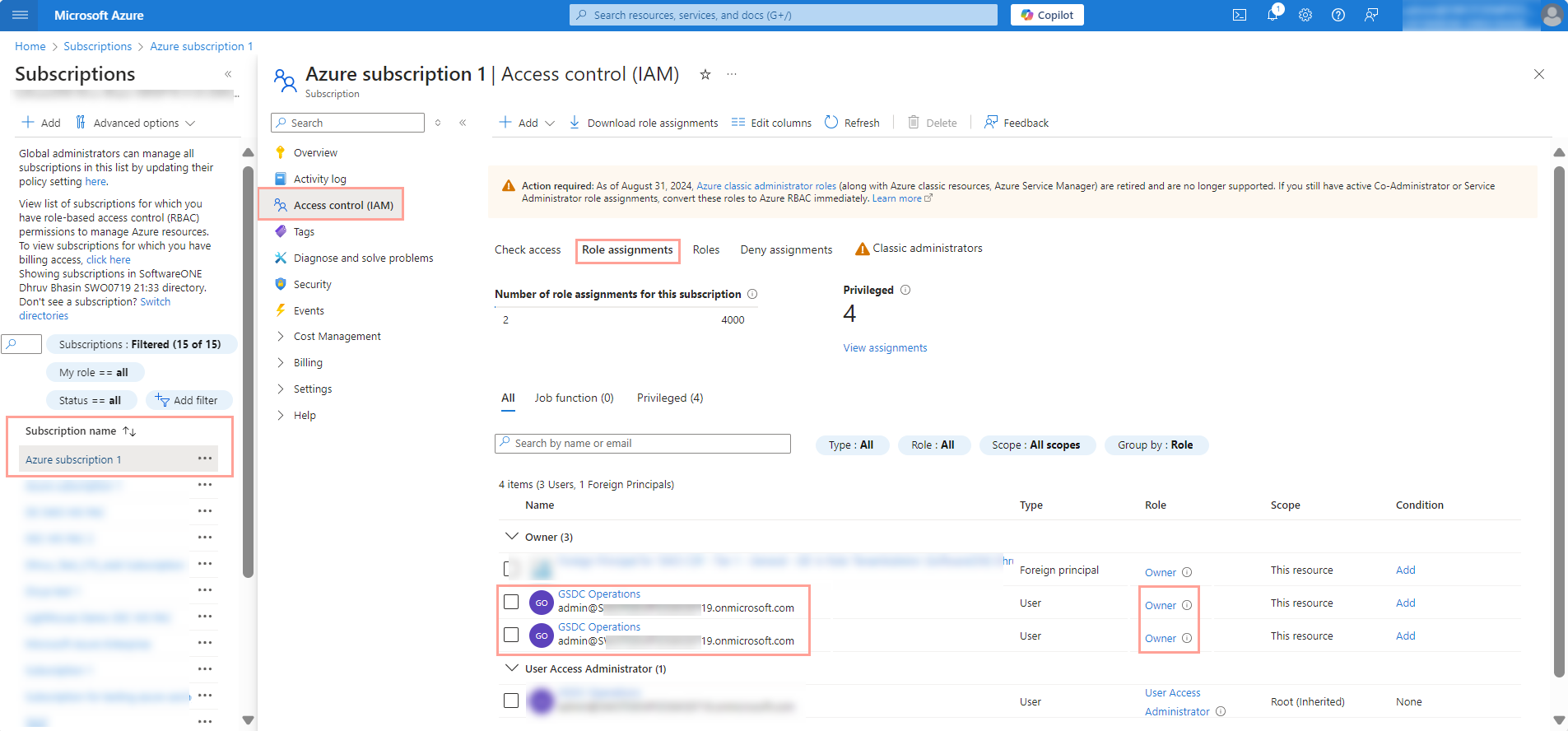
Create agreement – Select Create new cloud account to create a new organization tenant with Microsoft, then select Next.
Microsoft details – Provide the following information:
Enter the tenant name you want to use on the onmicrosoft.com domain, then select Next. Make sure the name doesn't include punctuation marks or spaces. Use the Access tenant name availability tool to check the name availability.
Provide the following details:
Company name.
Company registration ID or tax number.
Company address, including city and zip/postal code.
Complete the Primary Contact form, providing the contact details for the person managing your account, then select Next.
Special qualifications – Select the checkbox if your organization is a state-owned entity. Otherwise, leave it clear. A company is classified as state-owned if it is either controlled by the government or performs functions that the government considers its own.
Support contacts – Enter your support administrator's contact details and choose your preferred support language. Select Next.
Adjust the item quantity as needed, then select Next.
Details – Add reference details and your comments, then select Next.
Review order – Read the terms and conditions of the order and the privacy statement. Select Place order.
Summary – Select View details to open the order details page or select Close.


Create agreement – Select Create new cloud account to create a new organization tenant with Microsoft. Then, select Next.
Microsoft details – Enter your Microsoft account details:
Enter the tenant name you want to use on the onmicrosoft.com domain. Ensure that the name doesn't include punctuation marks or spaces. You can check whether the tenant name is available using the Access tenant name availability tool.
(Optional) Select the I would like to align subscription end dates within this agreement checkbox. When selected, all future subscriptions created within this agreement are cotermed and aligned with the subscriptions created during the initial purchase. To learn more, see Subscription Coterminosity.
Select Next.
Provide the following details, then select Next:
Company name.
Company registration ID or tax number.
Company address, including city and zip/postal code.
Special qualifications – Select the checkbox if your organization is a state-owned entity. Otherwise, leave it clear. A company is classified as state-owned if it is either controlled by the government or performs functions that the government considers its own.
Support contacts – Enter contact details of your support administrator and choose your preferred support language. Select Next.
If applicable, read the offer attestation. The offer attestation is only displayed for Windows 365 Business with the Windows Hybrid Benefit.
Select Next.
Details – Add reference details and your comments, then select Next.
Review order – Read the terms and conditions and the privacy statement. When done, select Place order to submit your order.
Summary – Select View details to open the order details page or select Close.
Create agreement – Select Create new cloud account to create a new organization tenant with Microsoft. Select Next.
Microsoft details – Provide the following information:
Enter the tenant name you want to use on the onmicrosoft.com domain and select Next. Make sure that the name doesn't include punctuation marks or spaces. To check the tenant name availability, see the Access tenant name availability tool.
Provide the following details:
Company name.
Company registration ID or tax number.
Company address, including city and zip/postal code.
Fill out the Primary Contact form with the contact details of the person managing your account. Select Next.
Additional information – Follow these steps:
If your organization is a state-owned entity, select the checkbox. Otherwise, leave it clear. A company is classified as state-owned if it is either controlled by the government or performs functions that the government considers its own.
Enter the contact details for your support administrator and choose your preferred support language. Select Next.
Review order – Read the terms and conditions and the privacy statement. When done, select Place order to submit your order.
Summary – Select View order to open the order details page or select Close.
Create agreement – Select Connect existing cloud account.
Microsoft details – Do the following:
In Primary domain name, enter your existing domain name.
In Azure subscription name, provide a name for your Azure subscription. Make sure the name meets Microsoft's naming requirements. If you leave the field empty or provide a name that isn't accepted, the platform assigns a default name to the subscription.
In Primary contact, complete the required fields, then select Next.
Additional information – Do the following:
If your organization is a state-owned entity, select the checkbox. Otherwise, leave it clear. A company is classified as state-owned if it is either controlled by the government or performs functions that the government considers its own.
Enter the contact details for your support administrator and choose your preferred support language. Select Next.
Review order – Read the terms and conditions and the privacy statement. When done, select Place order to submit your order.
Summary – Select View order to open the order details page or select Close.
Close the filter box.

Enter any required reference details and select Next.
Review the order and select Place order.
View the order details or close the summary page.


This topic describes the subscription states for license-based New Commerce and Legacy subscriptions. It also describes how these subscription states are represented within the Marketplace Platform.
NCE subscriptions can be in one of these states: Active, Suspended, Expired, Disabled, or Deleted.
Active is the default state for an NCE subscription. When the subscription is active, you can access and use the services. Additionally:
Administrators can access service data and properties.

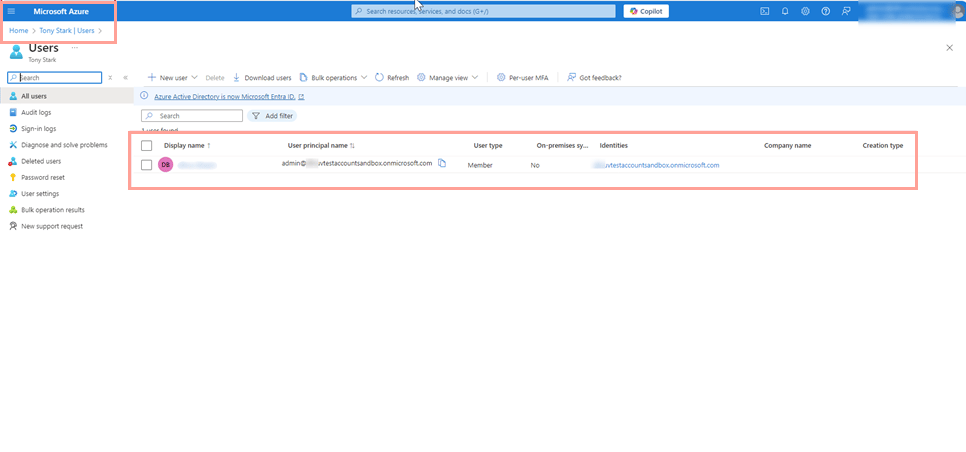
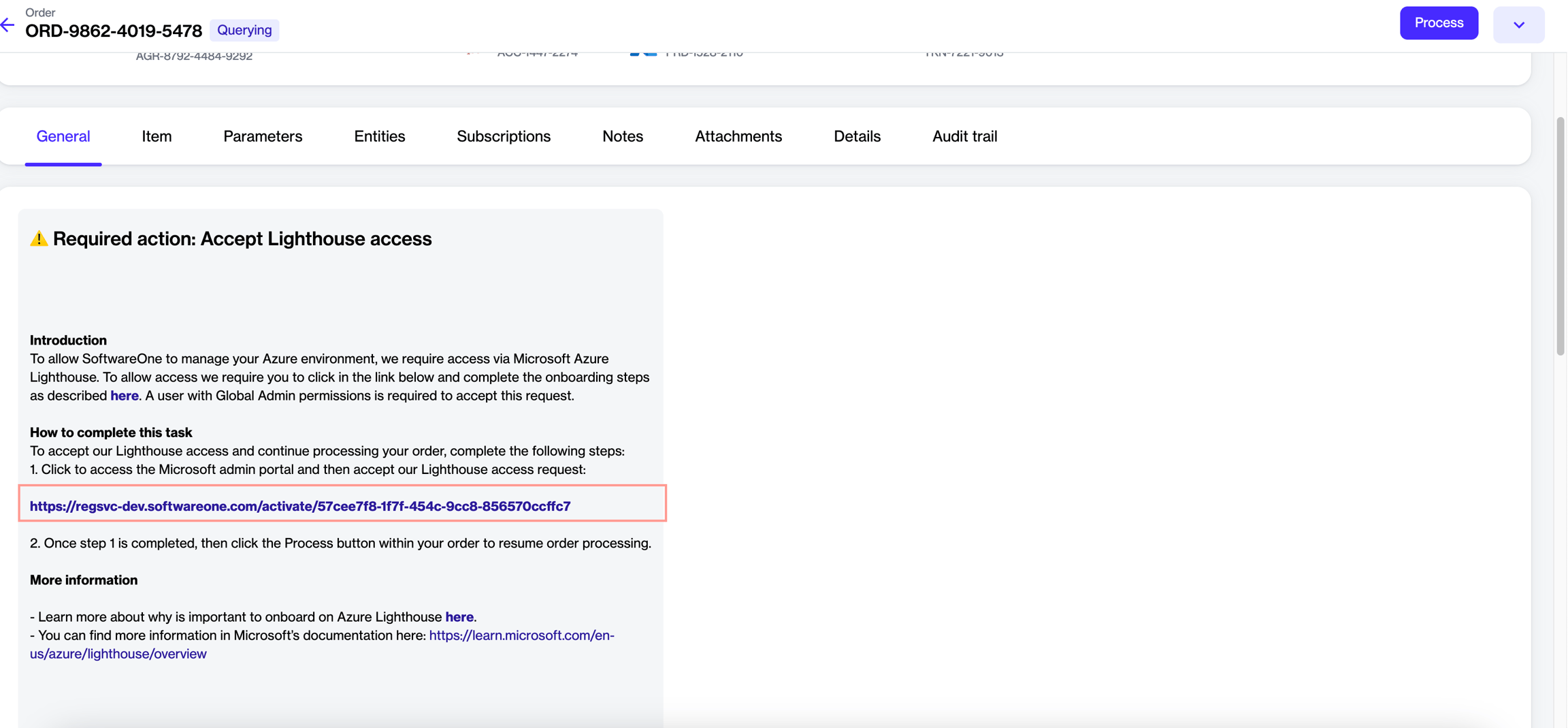
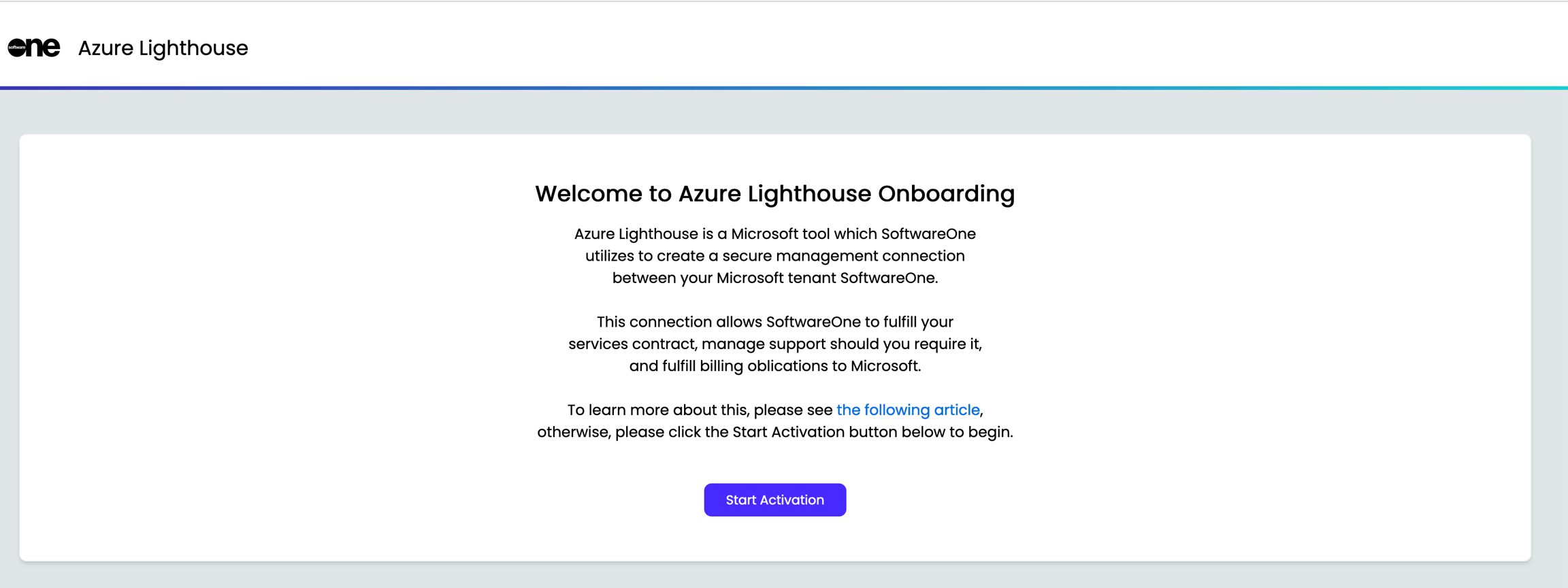


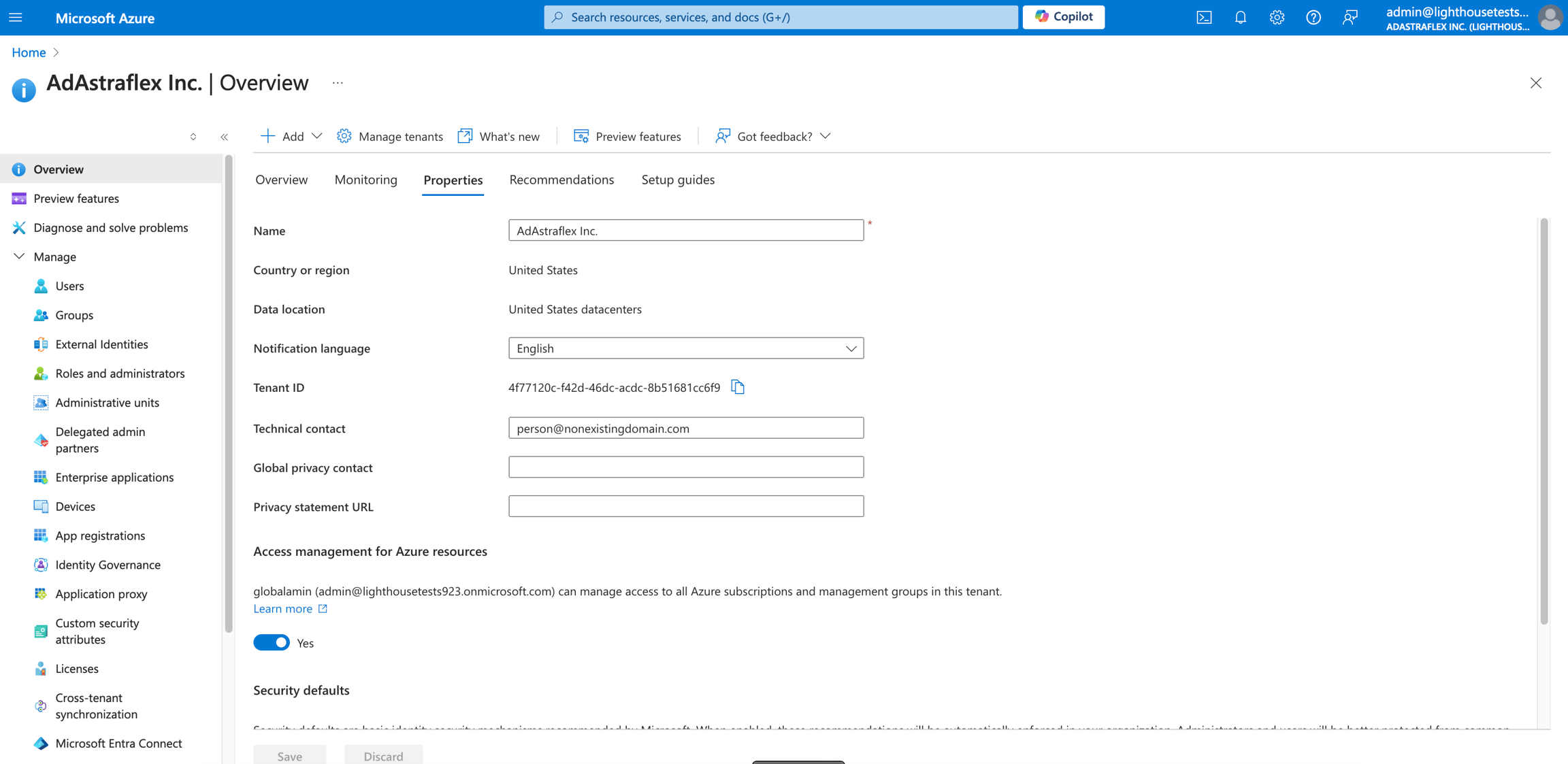
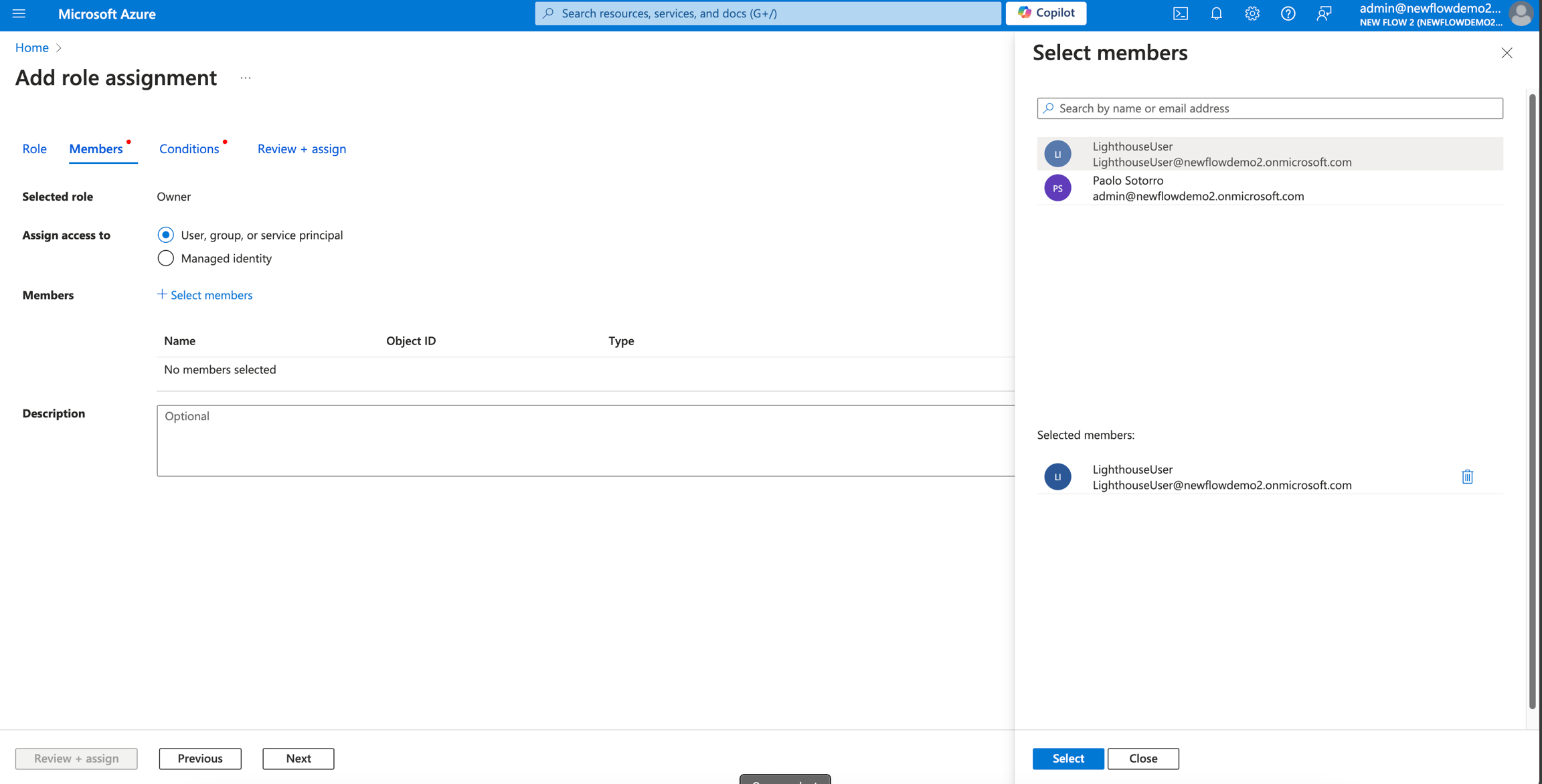
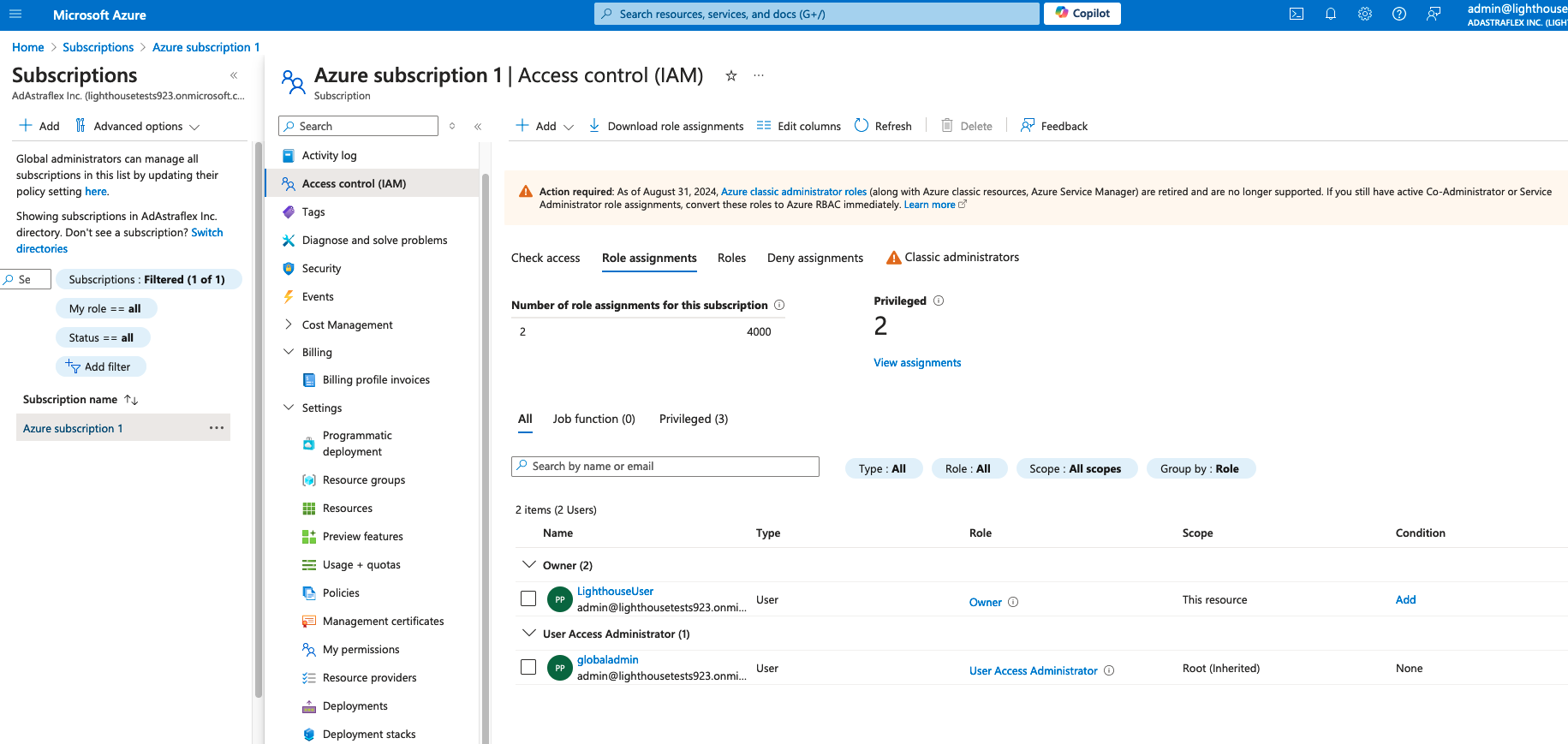
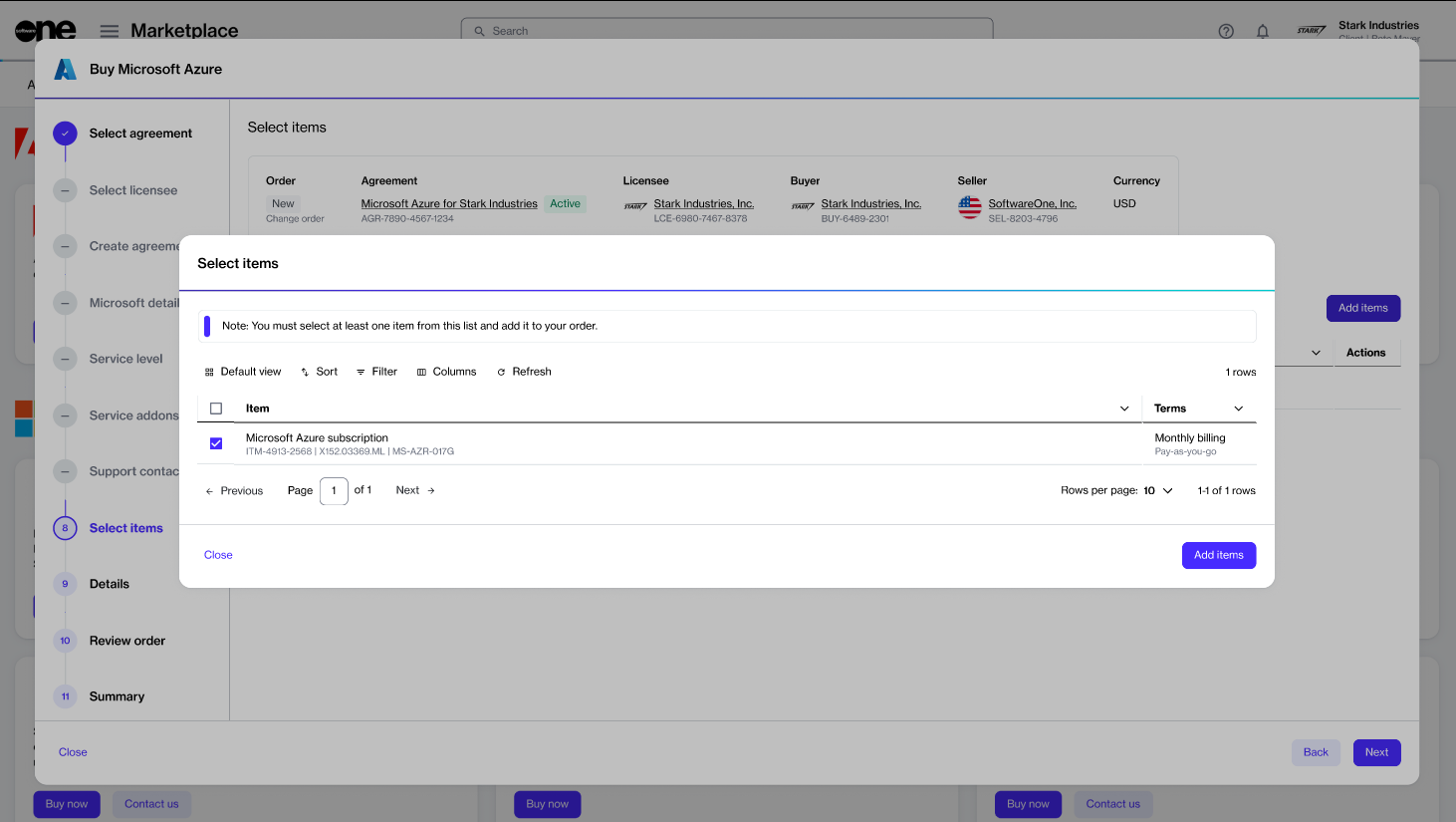
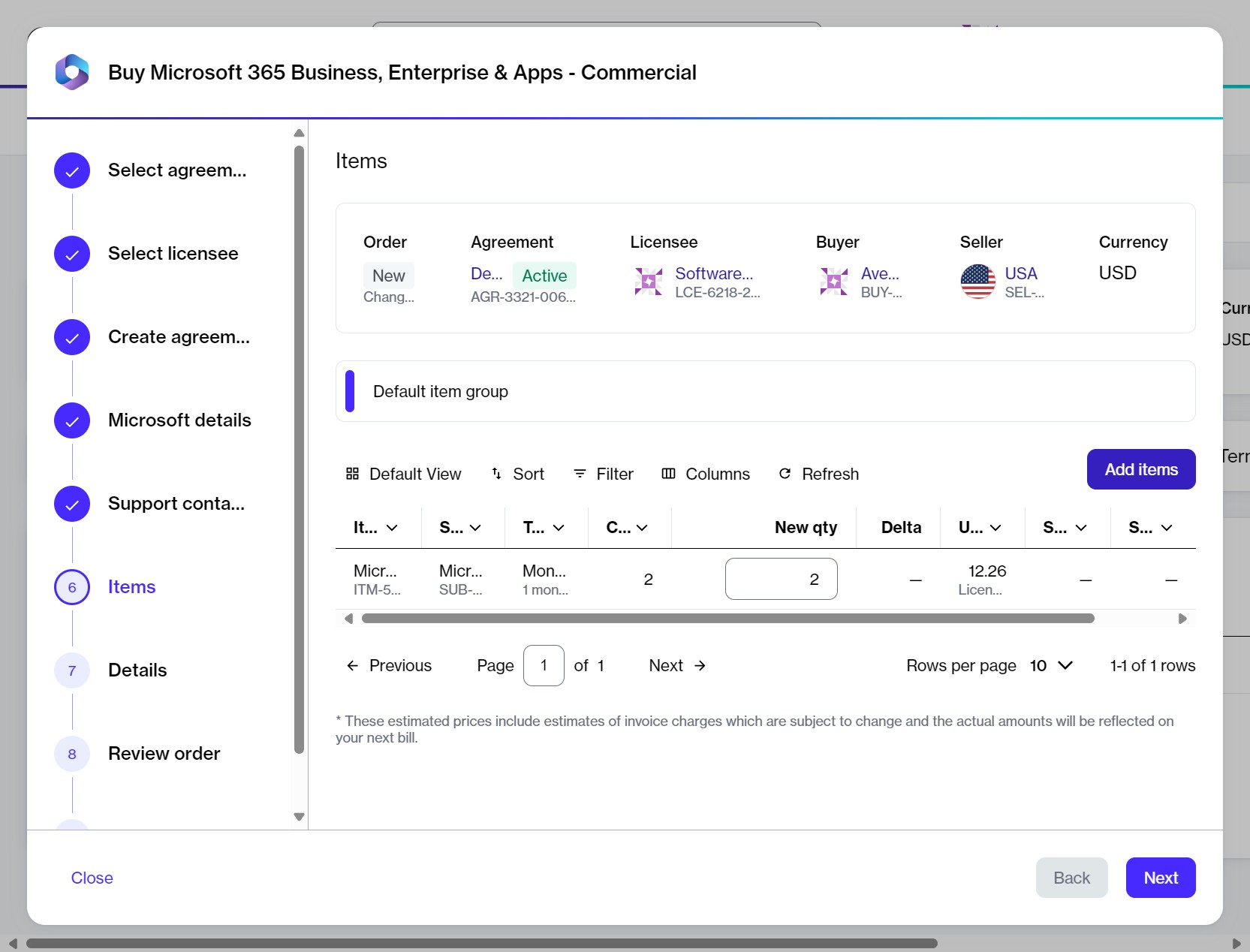


Contact details of the person who manages your account.
Transacting partners continue to be billed.
Partners can suspend (previously known as ‘Pause’) a subscription to temporarily make the services unavailable to customers. When the subscription is suspended:
Customers can no longer access and use services.
Administrators can access service data and properties.
Transacting partners continue to be billed.
Partners can reactivate the subscription before the end of its commitment term.
Partners can cancel the subscription if it's still within the 7-day transaction window.
If the suspended subscription reaches its end date while still in the suspended state, it moves to a 30-day disabled state.
The 30-day expired state follows the end of an Active subscription. A previously active subscription will enter this state if auto-renewal is turned off and the terms end. In these 30 days:
Users can access files and services.
Administrators can access data.
Transacting partners aren't billed.
Subscriptions can’t be reactivated.
After 30 days in the expired state, the subscription moves to a 90-day disabled state.
A 30-day disabled state follows the end of a suspended subscription. In this state:
Partners that suspend their subscription leading to the term end will find their suspended subscription moved to this 30-day disabled state.
After 30 days in the disabled state, the subscription moves to a 90-day disabled state (120 days disabled in total).
Users can't access files and services, and only administrators can access the data.
Transacting partners aren't billed.
Subscriptions can't be reactivated.
The 90-day disabled state follows the 30-day Expired or a 30-day Disabled state:
90-day disabled state - Data is retained for 90 days after the end of the previous state.
Users can't access files and services, and only administrators can access the data.
Transacting partners aren't billed.
Subscriptions can't be reactivated.
After the subscription passes through the 90-day disabled state, it stays deleted. However:
The subscription is non-recoverable.
All customer data associated with the subscription is handled per applicable data retention policies.
After a subscription is canceled, there's a 90-day post-canceled window where:
If the partner purchases the same product/SKU equivalent to the one canceled, customer data and user license assignment settings are automatically restored.
If a new purchase is made with a lower number of licenses, customer data and user license assignment settings are still retained. The partner should manage them appropriately.
After the 90 days, these actions are no longer allowed. The data is removed.
Transacting partners aren't billed.
Deleted subscriptions can't be reactivated.
Legacy subscriptions can be in one of these states: Active, Suspended, or Deleted.
Active is the default state for a legacy subscription. In this state:
Partners can access and make changes to subscription properties.
Customers can access and use services.
Administrators can also access service data and properties.
Transacting partners continue to be billed.
In the Suspended state:
Partners suspend a subscription to temporarily make the services unusable to customers.
Partners can reactivate the subscription before the end of the term.
If the subscription is still suspended by the term's end, the subscription is deleted.
Partners can only reactivate the subscription.
Customers can no longer access and use services.
Administrators can access service data and properties.
Transacting partners aren't billed.
After 90 days in the suspended state, the subscription is deleted and non-recoverable.
The following table shows how various Microsoft subscription states are represented in the Marketplace Platform:
License-based NCE
(example: Microsoft 365 / Dynamics 365)
Active
Suspended
Expired
Disabled
Active
Terminated
Expired
Terminated
License-based Legacy
(example: Microsoft 365 / Dynamics 365)
Active
Suspended
Deleted
When ordering CSP products for your own use through the Marketplace, SoftwareOne requires specific Granular Delegated Admin Privileges (GDAP) to effectively provision or manage these products in your Microsoft tenant.
The following table outlines the GDAP roles that SoftwareOne requires to establish a relationship. It also describes what each role enables.
Service – Microsoft Azure
Directory reader
Service – Microsoft 365 Business, Enterprise, & Apps (Charity, Commercial, and Education)
Service – Microsoft Dynamics 365 (Charity, Commercial, and Education)
If you are a SoftwareOne Partner purchasing , your customers must approve a GDAP relationship request that includes the roles listed in the following table:
To learn more about GDAP and its importance, see .
The GDAP admin relationship is established with the following configuration:
Once the GDAP relationship is in place, its duration is set to 2 years by default. When the relationship is about to expire, it's automatically extended for an additional 180 days.


Deleted
Terminated
Active
Terminated
Terminated
Usage-based
(example: Microsoft Azure)
Active/Enabled
Deleted
Disabled
Active
Terminated
Terminated
Terminated
Perpetual
(example: Perpetual Excel license)
Active
Cancelled
Active
Terminated
Software subscription
(example: Windows Server CAL 1yr)
Active
Suspended
Expired
Disabled
Deleted
Active
Terminated
Expired
Terminated
Terminated
Performs common billing-related tasks like updating payment information.
Compliance administrator
Can read and manage compliance configuration and reports in Microsoft Entra ID and Microsoft 365.
Directory readers
Can read basic directory information. Commonly used to grant directory read access to applications and guests.
Domain name administrator
Manages domain names in cloud and on-premises.
Exchange administrator
Manages all aspects of the Exchange product.
Global reader
Can read everything that a Global Administrator can, but not update anything.
Groups administrator
Can create and manage groups, create and manage group settings like naming and expiration policies. Can also view group activity and audit reports.
Hybrid identity administrator
Manages Active Directory to Microsoft Entra cloud provisioning, Microsoft Entra Connect, pass-through authentication (PTA), password hash synchronization (PHS), seamless single sign-on (seamless SSO), and federation settings. Does not have access to manage Microsoft Entra Connect Health.
Intune administrator
Manages all aspects of the Intune product.
License administrator
Manages product licenses on users and groups.
Network administrator
Manages network locations and reviews enterprise network design insights for Microsoft 365 Software as a Service applications.
Fabric administrator (PowerBI)
Manages all aspects of the Fabric and Power BI products.
Power platform administrator
Can create and manage all aspects of Microsoft Dynamics 365, Power Apps and Power Automate.
Security administrator
Can read security information and reports, and manage configuration in Microsoft Entra ID and Office 365.
Service support administrator
Can read service health information and manage support tickets.
SharePoint administrator
Manages all aspects of the SharePoint service.
Skype for business administrator
Manages all aspects of the Skype for Business product.
Teams administrator
Manages the Microsoft Teams service.
User administrator
Manages all aspects of users and groups, including resetting passwords for limited admins.
Windows 365 administrator
Can create and manage security groups but does not have administrator rights over Microsoft 365 groups.
Cloud application administrator
Creates and manages all aspects of enterprise applications and application registrations.
Conditional access administrator
Manages Conditional Access capabilities.
Global reader
Can read everything that a Global Administrator can, but not update anything.
Groups administrator
Creates and manages groups and creates and manages group settings like naming and expiration policies. Can also view group activity and audit reports.
License administrator
Manages product licenses on users and groups.
Fabric administrator (PowerBI)
Manages all aspects of the Fabric and Power BI products.
Power platform administrator
Can create and manage all aspects of Microsoft Dynamics 365, Power Apps and Power Automate.
Service support administrator
Can read service health information and manage support tickets.
User administrator
Manages all aspects of users and groups, including resetting passwords for limited admins.
Cloud application administrator
Grants the ability to create and manage all aspects of enterprise applications and application registrations.
Dynamics 365 administrator
Manages all aspects of the Dynamics 365 product.
Cloud application administrator
Can create and manage all aspects of enterprise applications and application registrations.
License administrator
Manages product licenses for users and groups.
Service support administrator
Can read service health information and manage support tickets.
Can read basic directory information.
Global reader
Can read everything that a Global Administrator can, but cannot update anything.
Service support administrator
Can read service health information and manage support tickets.
Billing administrator
Performs common billing-related tasks, like updating payment information.
Cloud application administrator
Creates and manages all aspects of enterprise applications and application registrations.
Attack simulation administrator
Can create and manage all aspects of attack simulation campaigns.
Authentication administrator
Can access to view, set and reset authentication method information for any non-admin user.
Authentication administrator
Can access to view, set and reset authentication method information for any non-admin user.
Billing administrator
Performs common billing-related tasks like updating payment information.
Directory readers
Global reader
Can read everything that a Global Administrator can, but cannot update anything.
Billing administrator
Can perform billing-related tasks, such as updating payment information.
Directory writers
displayName
Microsoft Tenant Name + 'admin relationship'
duration
P2Y
autoExtendDuration
Billing administrator
Can read basic directory information. Commonly used to grant directory read access to applications and guests.
Can read basic directory information. Commonly used to grant directory read access to applications and guests.
180 days


This page includes the latest enhancements, fixes, and new features in the Microsoft CSP extension.
SoftwareOne Marketplace now supports CSP subscription upgrades, allowing you to move licenses from an existing subscription to an eligible higher plan.
Two upgrade options are available:
Full upgrade – Upgrade all licenses in a subscription. All licenses, including any additional licenses, are upgraded together.
Partial upgrade – Upgrade a selected number of licenses.
To support subscription upgrades, Marketplace now includes an Upgrade subscription workflow that guides you through selecting an eligible higher plan, reviewing available terms and billing cycles, and specifying the licenses to upgrade.
For more information, see .
SoftwareOne Marketplace now includes a Microsoft Accounts page in the main menu for clients with Microsoft agreements.
The Microsoft Accounts page provides a centralized view of your Microsoft CSP tenants, grouped by market. From a single location, you can:
View the number of agreements and subscriptions.
See subscriptions by category, including License-based, Azure, Azure Reservations, Software, and Perpetual.
Review and manage GDAP relationship status.
Access Microsoft contact information and special qualification information, including State-Owned Entities status.
For more information, see .
To help you manage your subscription renewals more effectively, we've introduced a Renewal information tab within subscription details.
This new tab displays:
The current renewal policy for the subscription.
Any changes that will take effect at renewal, including the SKU, commitment term, billing cycle, and quantity.
The updated commitment end date, if the subscription's end date has been adjusted to align with other subscriptions or a calendar month.
This enhancement helps you understand what will happen when the subscription renews, review upcoming subscription changes before they take effect, and see the subscription terms that will apply after renewal.
For more information, see
The Marketplace now displays Microsoft NCE promotion details directly within the price lists, allowing you to easily identify available promotions.
When a promotion is available, eligible items display an info icon () that showing:
Discount percentage
Promotion validity dates
Minimum and maximum seat requirements
Microsoft‑defined eligibility rules and criteria
Promotion details are available at the item level within price lists and during order creation. You can access price lists in the Marketplace under Catalog > Price lists.
Discounted prices are not shown in the price list. Instead, eligible discounts are automatically applied during order creation, based on eligibility. When a discount is applied, the platform displays a message indicating that the item qualifies for a promotional offer and that prices have been adjusted accordingly.
SoftwareOne Marketplace now supports one-time purchase items within the Software Subscriptions product. This allows you to place and manage one-time orders for selected products directly through the Marketplace.
With this update, several products are now available as one-time purchases, including:
SQL Server 2014 Extended Security Updates (Year 2 EOS)
ESU for SQL Server 2014 Enterprise, Per Server (Coverage: July 9, 2025 - July 14, 2026)
ESU for SQL Server 2014 Standard, Per Server (Coverage: July 9, 2025 - July 14, 2026)
ESU for SQL Server 2014 Enterprise, 2-Core Pack (Coverage: July 9, 2025 - July 14, 2026)
ESU for SQL Server 2014 Standard, 2-Core Pack (Coverage: July 9, 2025 - July 14, 2026)
Windows Server 2012 Extended Security Updates (Year 3)
Windows Server 2012 Datacenter, 8-Core Pack (Coverage: October 2025 - 2026)
Windows Server 2012 Datacenter, 2-Core Pack (Coverage: October 2025 - 2026)
Windows Server 2012 Standard, 8-Core Pack (Coverage: October 2025 - 2026)
Windows Server 2012 Standard, 2-Core Pack (Coverage: October 2025 - 2026)
You can find and order these ESUs by navigating to Catalog > Products and selecting Microsoft Software Subscriptions. This update simplifies procurement by making it easier to order and manage one-time items, while expanding the range of products available directly through the Marketplace.
Starting 8 April 2026, you can convert your existing subscriptions to Extended Service Terms (EST) through self-service in the SoftwareOne Marketplace. Previously, this conversion could only be done by contacting Marketplace Platform Support.
With this update, you have greater flexibility and control over your subscriptions, as you can manage them independently without contacting support.
For details on EST subscriptions and how to manage them, see .
Starting 16 February 2026, Microsoft will offer three options for renewing CSP subscriptions: Renew, Cancel at expiration, or move to Extended Service Terms (EST):
Renew the subscription – This works like it always has, supporting scheduled changes or renewing as is.
Cancel at expiration – This stops the services at the end of the term. Data retention is preserved, but the subscription can't be recovered or reactivated.
Move to EST – This new option converts your subscription into a monthly term that continues until you decide to cancel or convert it to a regular subscription. Licenses can't be modified under EST. Additionally, the extended service term bills monthly at the current monthly term rate plus a 3% uplift (or 23% if no monthly plan exists).
EST applies only to eligible subscriptions that are renewed or expire after 4 May 2026. If you want to move your subscriptions to EST, contact .
For information on the eligibility criteria for EST, see
In this release, we are introducing subscription transfer capabilities, allowing you to transfer your existing Microsoft subscriptions across different models and partners to SoftwareOne.
Subscription transfers are available for both user-based subscriptions (such as Microsoft 365 and Dynamics) and pay-as-you-go subscriptions (such as Azure).
The SoftwareOne Marketplace supports the following subscription transfer scenarios:
CSP to CSP - Transfer subscriptions between different CSP partners.
EA to CSP - Transfer subscriptions from an Enterprise Agreement to CSP (direct or indirect Microsoft business agreements).
Microsoft Direct (MCA) to CSP - Transfer subscriptions from Microsoft Direct (MCA) to the CSP model.
To learn about the transfer process, see .
In this release, we have updated the CSP extension to comply with the updated Microsoft Customer Agreement (MCA) requirements, which take effect in January 2026. These new requirements aim to ensure that all end customers read and understand the terms and conditions associated with Microsoft subscriptions and services.
To align with Microsoft’s requirements, the Marketplace Platform now automatically verifies whether the MCA has been accepted. If the acceptance is pending, the order details page provides instructions on how to complete the process. Once the MCA is accepted, the platform automatically detects the acceptance and resumes order processing.
To learn more, see and .
The Marketplace Platform performs a POR validation when you are creating a certificate, or submitting a purchase or change order.
If there’s an issue with your Microsoft tenant or MPN ID, the platform displays an error message, which comes directly from Microsoft. This error must be resolved before you can continue; otherwise, you will be unable to create the certificate or submit your order for processing.
For detailed information on Microsoft's POR validation requirements, see the official . For guidance on preventing order failures and certificate issues in the Marketplace Platform, see .
For all CSP orders created by SoftwareOne Partners reselling license-based and software subscription products, the platform no longer waits for GDAP to be signed or for the 4-day signing period to end before completing the order.
While GDAP is still requested, the order now moves directly to the Completed state, allowing partners to continue transacting under that agreement without any delays.
Azure orders continue to follow the existing process. For these orders, GDAP is still requested, and the order either completes once GDAP is approved or automatically after 4 days if no approval is received.
Microsoft trial subscriptions are now available through the Marketplace Platform.
This update allows you to order a free trial subscription and try it out for 30 days before committing to a paid version. At the end of your trial period, the subscription will automatically expire and will not be renewed.
If you choose to purchase the paid version at the end of your trial period, you must place a new order for the corresponding paid product. To learn more about trials, see .
Microsoft has recently updated the Microsoft Customer Agreement (MCA). This update affects all customers whose CSP partner attested to the MCA on their behalf before 1 April 2023.
To remain compliant, these customers must review and accept the updated MCA to make new purchases or manage existing subscriptions, including seat increases or decreases, upgrades, and changes to billing plans. Existing online services will remain uninterrupted. For detailed information on these changes, see the official .
To support this compliance requirement, we have introduced a new feature that automatically checks if the MCA has been accepted during the ordering process. This verification is based on the type of tenant and the individual placing the order. For details, see
In this release, we have added a new field called Azure subscription name. You can use this field to specify a name for your Azure subscription when ordering it through the Marketplace. For instructions, see .
Additionally, if you change the subscription name directly in the Azure Portal, it automatically syncs with the Marketplace during the daily synchronization process. This synchronization ensures that both systems remain aligned.
Termination orders for NCE subscriptions will only be successful if they fall within the cancellation window. Otherwise, the order fails.
If you want to disable auto-renewal and allow the subscription to expire at the end of the commitment period, you can place a configuration order. For details, see .
Clients with partner capabilities can now enroll in the CSP Partner Program through the Marketplace Platform.
By enrolling in this program, you can order a range of Microsoft products and services for reselling through SoftwareOne while maintaining your relationship with Microsoft. You also receive support and services, including tools to help you grow your business, simplify go-to-market costs, and reduce complexity.
You can enroll in the program by providing details, like your Microsoft Partner Network ID and email address, and completing all necessary steps. For details, see . When the enrollment completes, you receive a certificate, which can be used to associate your reseller information with new Marketplace agreements.
Starting 20 May 2025, you can easily manage the automatic renewal settings for your subscriptions. This can be done by placing a configuration order through the platform.
Auto-renewal can be disabled to ensure that a subscription remains active only until the end of the current commitment period, after which it will expire without incurring further charges. If you disabled auto-renewal previously for a subscription, you can re-enable it at any time before the subscription expires.
Note that only NCE products support auto-renewal. Legacy subscriptions do not support this. For instructions on disabling auto-renewal, see .
Starting 19 May 2025, we will no longer use PyraCloud Cloud Spend Management for setting up new subscriptions for Microsoft products. Instead, our new solution, , will be used.
To start using FinOps for Cloud, you must place a purchase order for the FinOps tool through the Marketplace Platform. For instructions on the ordering process, see the help page.
Note that Azure subscriptions purchased through SoftwareOne are included at no extra cost within the FinOps tool. However, if you have Azure subscriptions that were not purchased through SoftwareOne, they can still be connected to FinOps for Cloud, but additional charges will apply.
We are excited to announce the launch of a new product called 'Microsoft 365 Business, Enterprise & Apps - Government' in the Marketplace Platform. This product includes a range of offerings designed to meet the specific needs of US government organizations. See to learn more.
With this launch, you can seamlessly create new agreements in the platform and purchase nearly the full suite of Microsoft 365 GCC products through the CSP program. You can also submit different types of orders, such as change orders to increase or decrease the number of licenses, termination orders, and configuration orders.
To order GCC products through the Marketplace, you must already be GCC qualified. If your account isn't qualified, the platform displays a message. You must complete the tenant qualification in the Partner Center, as qualification can't be done through the Marketplace.
Note that this release doesn't include the Microsoft Dynamics catalog for government.
In this release, we are introducing a new feature that allows you to purchase Azure reservations and savings plans directly through the Azure Portal. Reservations and savings plans help you save money by reducing your overall cloud spending.
The new feature is only available for Azure subscriptions ordered through SoftwareOne. When you purchase these two cost-saving options, the charges for these are billed on the date associated with your Azure plan.
Note that to buy reservations and savings plans from the Azure portal, you must have the Owner role on the subscription. To learn more, see .
The Marketplace Platform now supports coterminosity for NCE subscriptions, allowing you to align the end date of a new subscription with that of an existing subscription. When enabled, new subscriptions will automatically synchronize their end dates with the existing subscriptions within the agreement.
You can enable coterminosity when ordering subscriptions under a new agreement. For existing subscriptions, can assist you in updating the end date in the system. To learn more about aligning the subscription end dates, see and .
The onboarding process for has been enhanced to include the following changes:
An order no longer remains in a Querying status while the onboarding is being completed. Instead, the activation link for Azure Lighthouse is generated during order processing, and the order is completed thereafter.
You receive an onboarding email when activating Azure Lighthouse is required. This email includes a link to begin onboarding.
The onboarding process can be started directly from Marketplace using the Link to Lighthouse Approval Page link. This link is available on the Parameters tab within the agreement details page.
The Marketplace Platform now supports Windows 365 products with Windows Hybrid Benefit.
As part of this update, a mandatory attestation for Microsoft is now required when ordering a subscription for Windows 365 Business with the Windows Hybrid Benefit. Users of the Client Portal will see the following text on the Items page within the purchase wizard:
"By proceeding with this order, I acknowledge that each person using Windows 365 Business with Windows Hybrid Benefit must have a valid copy of Windows 10/11 Pro installed on their primary work device."
To learn about offer attestation and how it works, see .
We are excited to announce the launch of Microsoft Software Subscriptions in the Marketplace Platform.
With this update, you can create agreements and purchase nearly the entire suite of Microsoft Server Subscriptions directly through the Microsoft CSP program using our platform.
You can also place change orders to add more software subscriptions to your existing agreements. For more details, see .
The creation of new agreements for CSP products using the same CSP domain across multiple clients is now restricted.
Additionally, creating additional agreements using the same CSP tenant, product, and licensee is also prohibited. If an agreement already exists, you must update the existing agreement to request new subscriptions instead of creating a new one.
Marketplace clients who have an existing CSP tenant can check their eligibility for an automatically applicable NCE promotion.
If eligible, the updated price is shown in the order. However, if you qualify but don't meet the minimum or maximum license requirements, a message will inform you of the necessary criteria.
If an order remains pending for more than 15 days due to an unresolved CSP reselling relationship, it will now be marked as Failed.
We are pleased to announce the release of three new products in the Marketplace Platform: Microsoft Perpetual Software for Commercial, Microsoft Perpetual Software for Education, and Microsoft Perpetual Software for Education for Charity.
With this release, you can effortlessly create agreements and purchase the full suite of Microsoft Perpetual Software directly through the CSP program in the Marketplace Platform. You can also place change orders to add more perpetual software products to your existing agreements.
This release further expands our product offerings, reinforcing our commitment to delivering comprehensive software solutions through the Marketplace. To learn more, see and .
allows authorized SoftwareOne associates to access your Azure resources seamlessly and securely.
As a client, you can authorize SoftwareOne to manage your Azure environment by accepting our Lighthouse access request and completing the necessary onboarding steps. Requests can be accepted by navigating to the General tab of a purchase order and following the onboarding instructions. For details, see .
Note that until the onboarding process is complete, any purchase orders for newly provisioned Azure subscriptions will display a Querying status on the platform. After completing the Lighthouse access request, be sure to update your order's status to Processing. For instructions, see .
Global regulatory oversight is increasing, and companies may be required to demonstrate that they have robust policies and processes in place to mitigate the risks of corruption and bribery. A critical first step in this process is the accurate identification of government entities, government-affiliated organizations, and their employees.
To streamline this, Marketplace clients will now have the option to specify whether a company is state-owned in new agreements. A company qualifies as state-owned if it's either directly controlled by the government or performs functions that are considered to be inherently governmental.
To learn about the eligibility criteria for state-owned entities, see.
We've updated the provisioning flow for Microsoft product purchase orders. Previously, the process was delayed by Granular Delegated Admin Privileges (GDAP) management, which could take up to 21 days. Now, the provisioning process will no longer wait for GDAP approval to complete the order. A time limit has been set, counting from the order creation in the Microsoft Partner Center, after which the order will be completed regardless of GDAP status.
Note that this does not remove the need for GDAP approval. For cases where approval is delayed or pending, services dependent on GDAP will remain inactive until approval is obtained. The sync process will be updated to handle such cases accordingly.
To enhance the efficiency and accuracy of purchase and change order fulfillment, updates have been made to the key validation processes. These improvements are designed to streamline the purchasing experience by reducing unnecessary delays and simplifying the workflow for existing users and accounts. The updates include:
Cart validation for existing users - Ensuring that the items in the cart meet the requirements for processing, providing a smoother purchasing and fulfillment experience.
Billing profile validation for existing accounts - Verifying that the Microsoft account billing profile is complete, reducing the risk of fulfillment delays.
Microsoft client agreement (MCA) validation - Ensuring compliance with the Microsoft client Agreement, allowing for a more efficient order-handling process.
These updates aim to improve the fulfillment process by minimizing manual interventions and enhancing the overall client journey for CSP orders in the Marketplace.
We have introduced an enhancement for existing CSP clients, creating new agreements. Clients can now use their vanity domain (like, <http://mybusiness.com>) as the principal domain, instead of the default mybusiness.onmicrosoft.com.
This enhancement allows the SoftwareOne Marketplace to support Microsoft’s effort to create a more customized and professional experience by enabling businesses to represent themselves using their branded domain throughout the agreement creation process. This enhances brand consistency but also simplifies domain management for clients with established vanity domains.
We are introducing new parameters to enhance the subscription fulfillment process, improving tracking, accuracy, and transparency in subscription management. The new parameters are as follows:
Last successful sync - This parameter stores the timestamp of the most recent successful synchronization, making it easier to monitor and resolve any sync-related issues.
Current seat quantities - This parameter tracks the current number of active seats in a subscription, providing real-time visibility into the active usage.
Scheduled seat quantities - This parameter stores the number of seats scheduled for future changes, ensuring that planned adjustments are properly documented and aligned with client expectations.
These updates will streamline subscription management, offering better control and oversight of active and scheduled seat quantities during the fulfillment process.
The CSP program allows you to purchase Microsoft subscriptions through the Marketplace Platform and self-manage those subscriptions.
To learn about the CSP program, see .


