To complete Azure Lighthouse onboarding, you must have the Owner role in Azure.
A Global Administrator can assign the owner role to the user who will complete the onboarding.
To assign the role:
Sign in to the Microsoft Azure portal as a Global Administrator.
Verify that you have permission to add role assignments. To verify permissions:
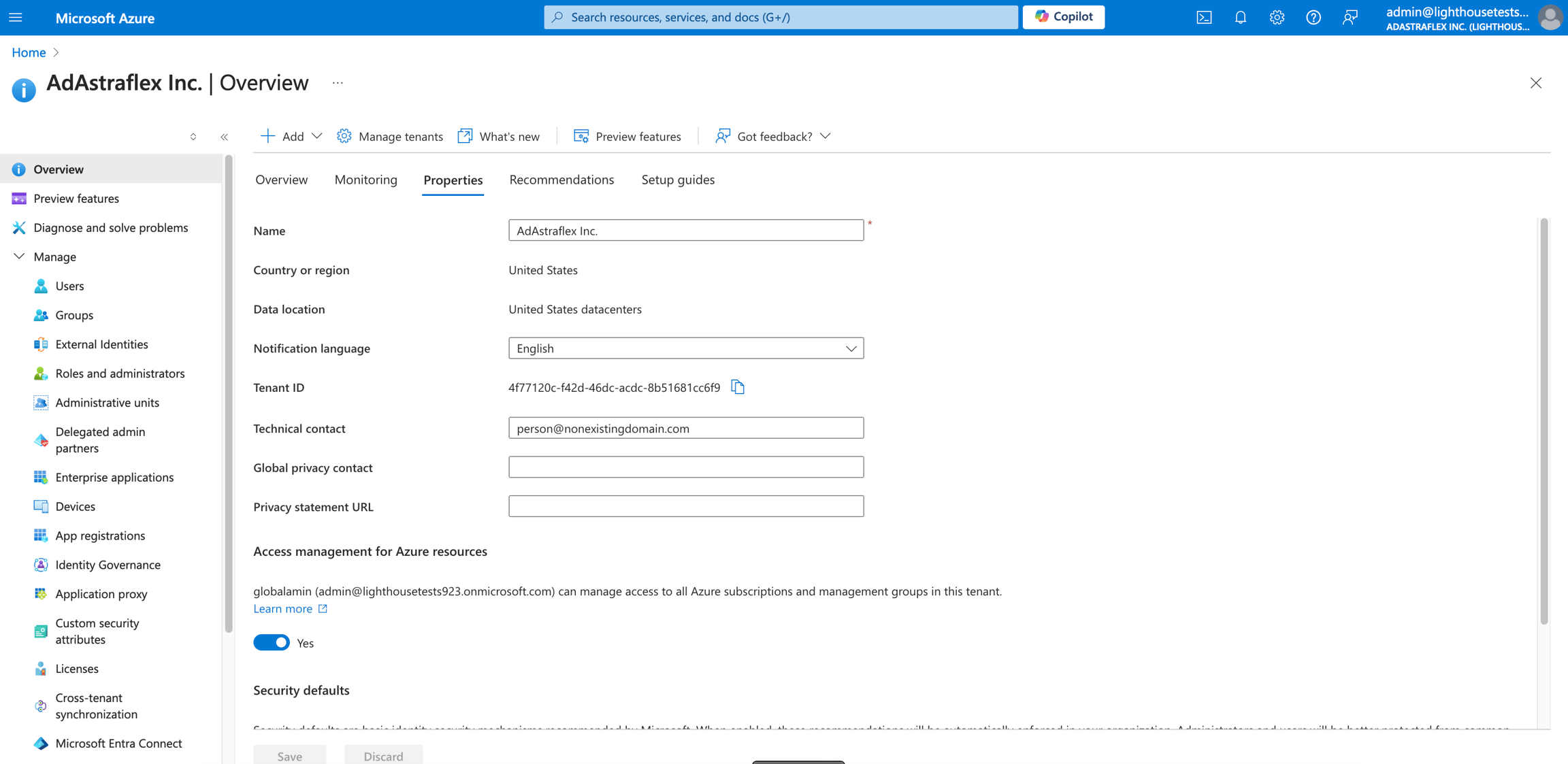
In the Search bar, type Microsoft Entra ID.
Go to the Properties tab.
Under Access management for Azure resources, set the toggle to Yes. Your global admin username should be visible.
Select Save.
In the Search bar, type Subscriptions. Then, on the Subscriptions page, select the required subscription.
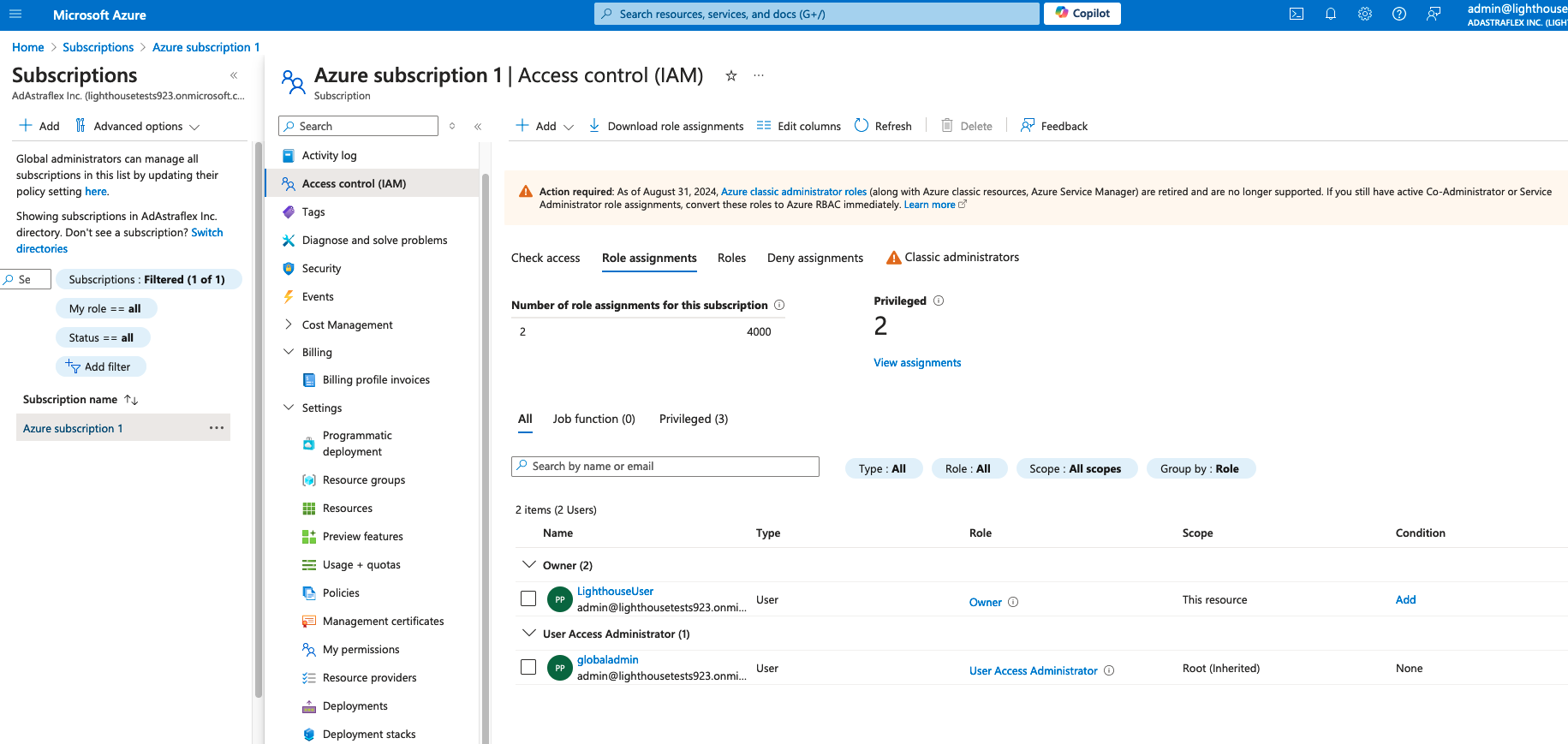
In the left pane, select Access control (IAM).
Select the Role assignments tab to view the role assignments at this scope. Then, select Add > Add role assignment.
On the Conditions tab, select Allow user to assign all roles (highly privileged) and then select Next.
On the Review + assign tab, select Review + assign.
The Owner role is assigned to the user and displayed on the Role assignments tab in Azure:
After assigning the role in Azure, open the Orders page in the Marketplace to complete the onboarding steps. For details, see .
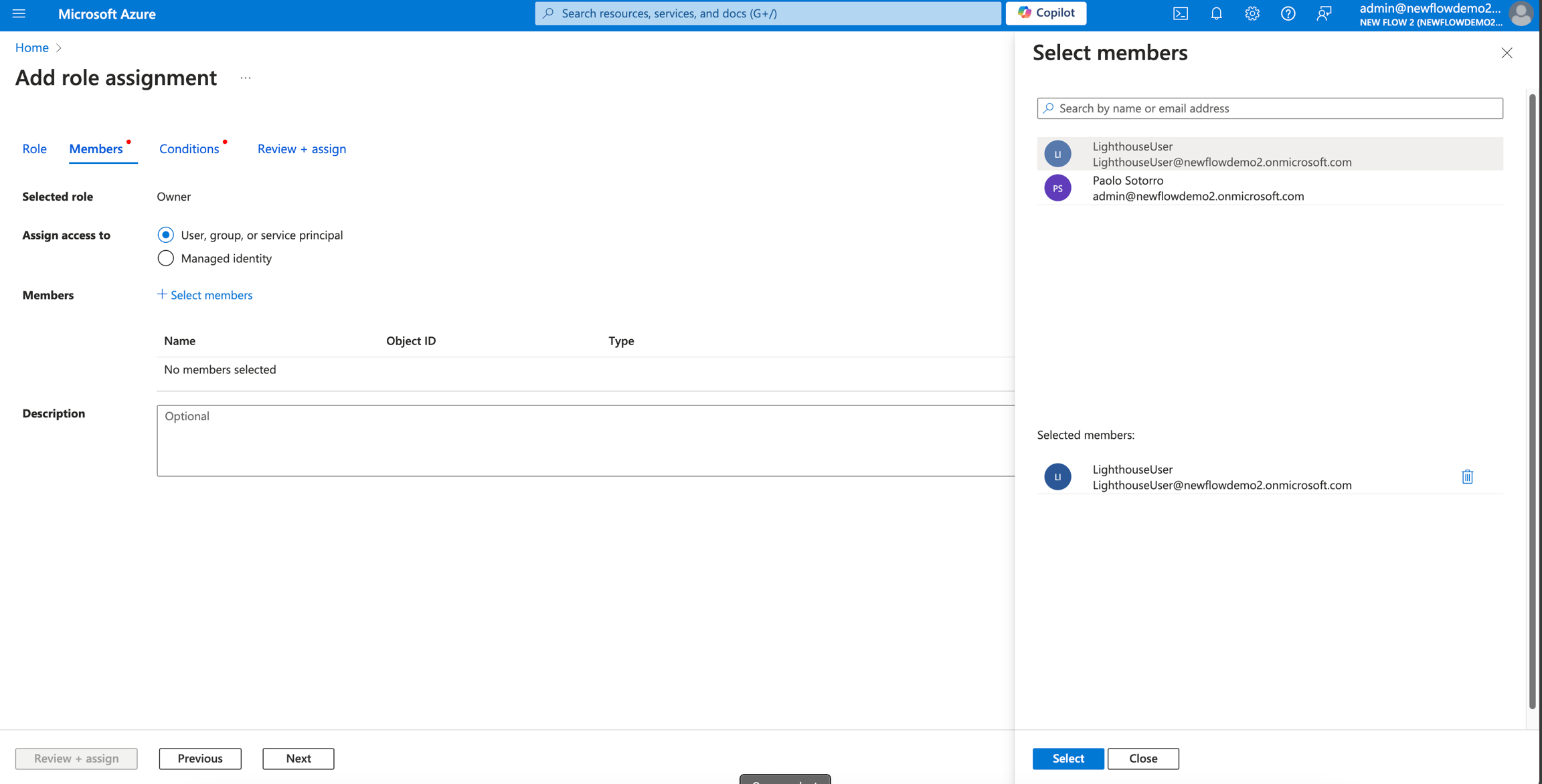
On the Privileged administrator roles tab, select the Owner role and select Next.
On the Members tab, select the user to whom you want to assign the Owner role and select Next. You must select the user you want to use for the Azure Lighthouse onboarding.
Azure Lighthouse is a Microsoft solution that enables seamless multi-tenant management. It lets service providers, such as SoftwareOne, manage multiple environments in one place without switching accounts.
SoftwareOne uses Azure Lighthouse to provide management and support services across customer Azure environments while maintaining customer control, visibility, and security.
Azure Lighthouse helps you maintain control of your Azure environment while enabling SoftwareOne to deliver management and support services efficiently.
Access control – You control which users can access your environment, which resources they can manage, and which actions they can perform.
Transparency – Actions performed by SoftwareOne are logged in the Azure Activity Log, providing visibility into changes made within your environment.
Security and governance – SoftwareOne has read-only access by default, unless elevated permissions are granted through your explicit approval.
Azure Lighthouse enables SoftwareOne to manage customer Azure environments through a centralized management model.
This approach helps SoftwareOne:
Manage multiple Azure environments efficiently.
Apply standardized operational processes.
Follow role-based access protocols.
Deliver support while maintaining customer-defined access controls.
Without Azure Lighthouse, SoftwareOne may have limited ability to manage and support your Azure environment efficiently.
For customers
Reduced visibility into delegated access and management activities.
Increased administrative effort for managing service provider access.
Less streamlined support and operational management.
For SoftwareOne
More complex management of customer Azure environments.
Reduced operational efficiency.
Additional administrative overhead when providing support and managed services.
If you have any questions about the Azure Lighthouse activation process, contact the SoftwareOne Services Support team. For details, see .
Completing the Azure Lighthouse onboarding enables SoftwareOne to fulfill your Microsoft transactions, helping you streamline procurement and support.
To complete the onboarding, you must have the Owner role on the Azure subscriptions being onboarded. For details, see Assign subscription owner role.
To complete the onboarding:
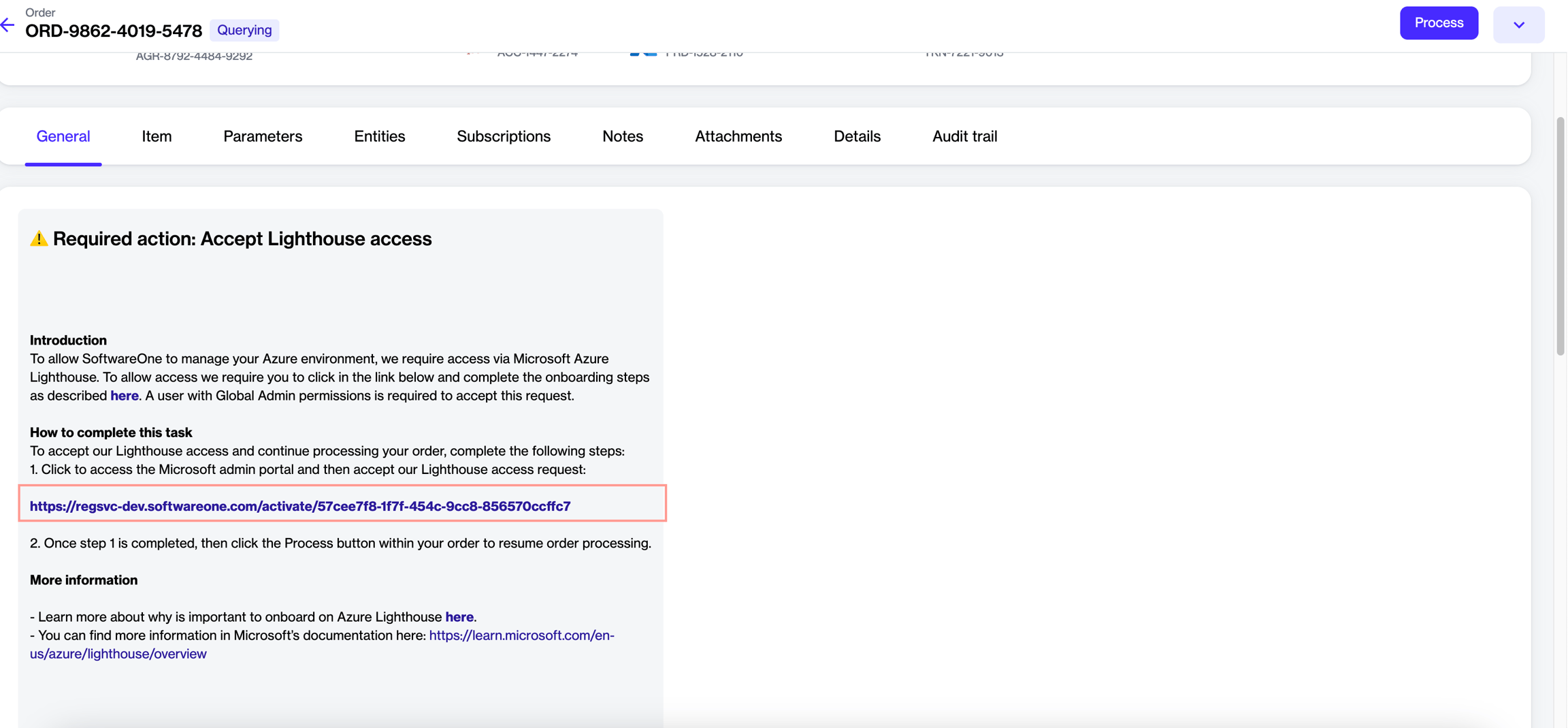
Go to Marketplace > Orders.
Select the required purchase order.
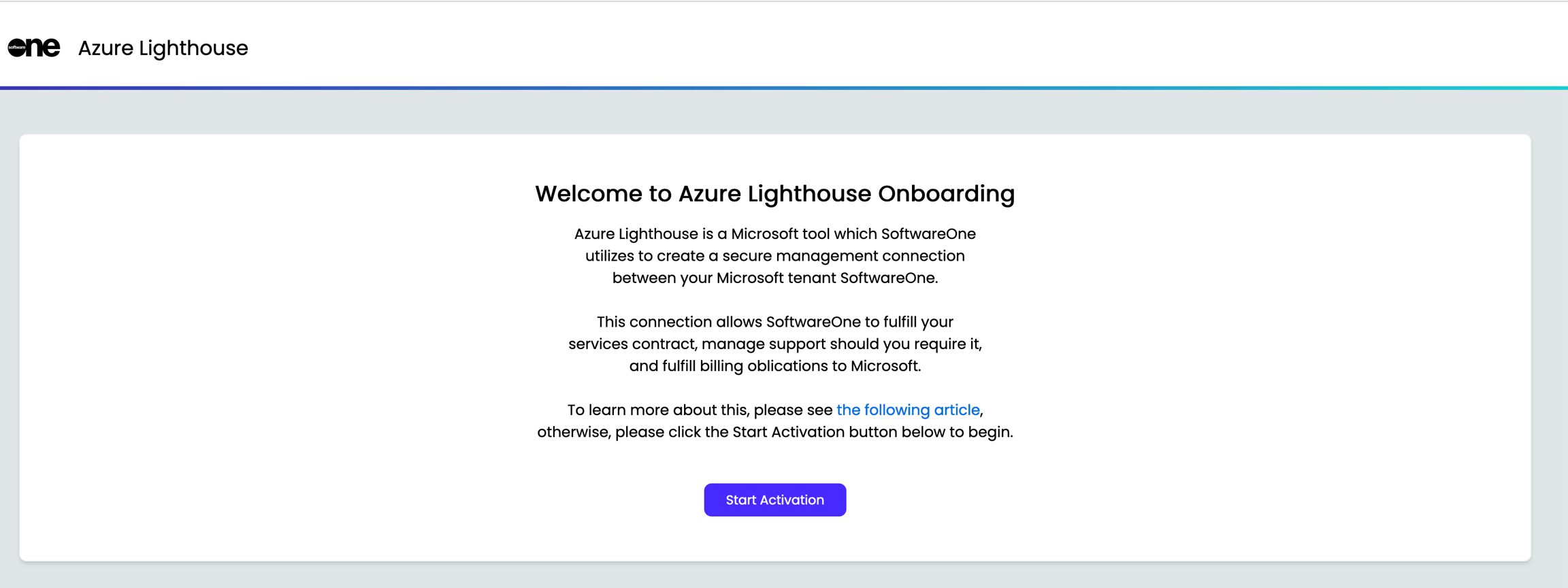
On the General tab, select the Lighthouse activation link.
On the Azure Lighthouse Onboarding page, select Start activation.
On the Microsoft sign-in page, enter your Azure Subscription Owner credentials.
Review the requested permissions, then select Accept.
In the guided Azure Lighthouse flow, do the following:
Review the onboarding details, then select
After completing the activation, return to the order details page in the Marketplace and select Process.
This updates the order status from Querying to Processing, allowing SoftwareOne to process it further.
Select the subscriptions to onboard. Subscriptions that are already onboarded are considered ineligible and ignored in the next step.
Review the summary, then select Confirm. The onboarding process begins, and the progress is displayed.
When all tasks are complete, select Finish.