Terminate agreement

Cancel an active Marketplace agreement.

You can terminate an agreement by creating a termination order for the agreement.

When you terminate an agreement, all subscriptions with the agreement are terminated. Once terminated, the agreement can't be restored or used when ordering new subscriptions. However, you can still access and view the terminated agreement.

Before you begin

Before terminating an agreement, note the following points:

  • You can only terminate agreements in the Active state. Agreements in any other state (such as Processing or Updating) can't be terminated. For a description of these states, see Agreement states.

  • Creating a termination order doesn't immediately cancel your agreement. An agreement is terminated only after the vendor approves it.

Terminating an agreement

To terminate an agreement:

  1. Go to Marketplace > Agreements.

  2. (Optional) Use filters to find the agreement you want to terminate.

  3. Select the agreement.

  4. On the agreement details page, select the down arrow , then choose Terminate. The Items step in the Terminate agreement wizard is displayed.
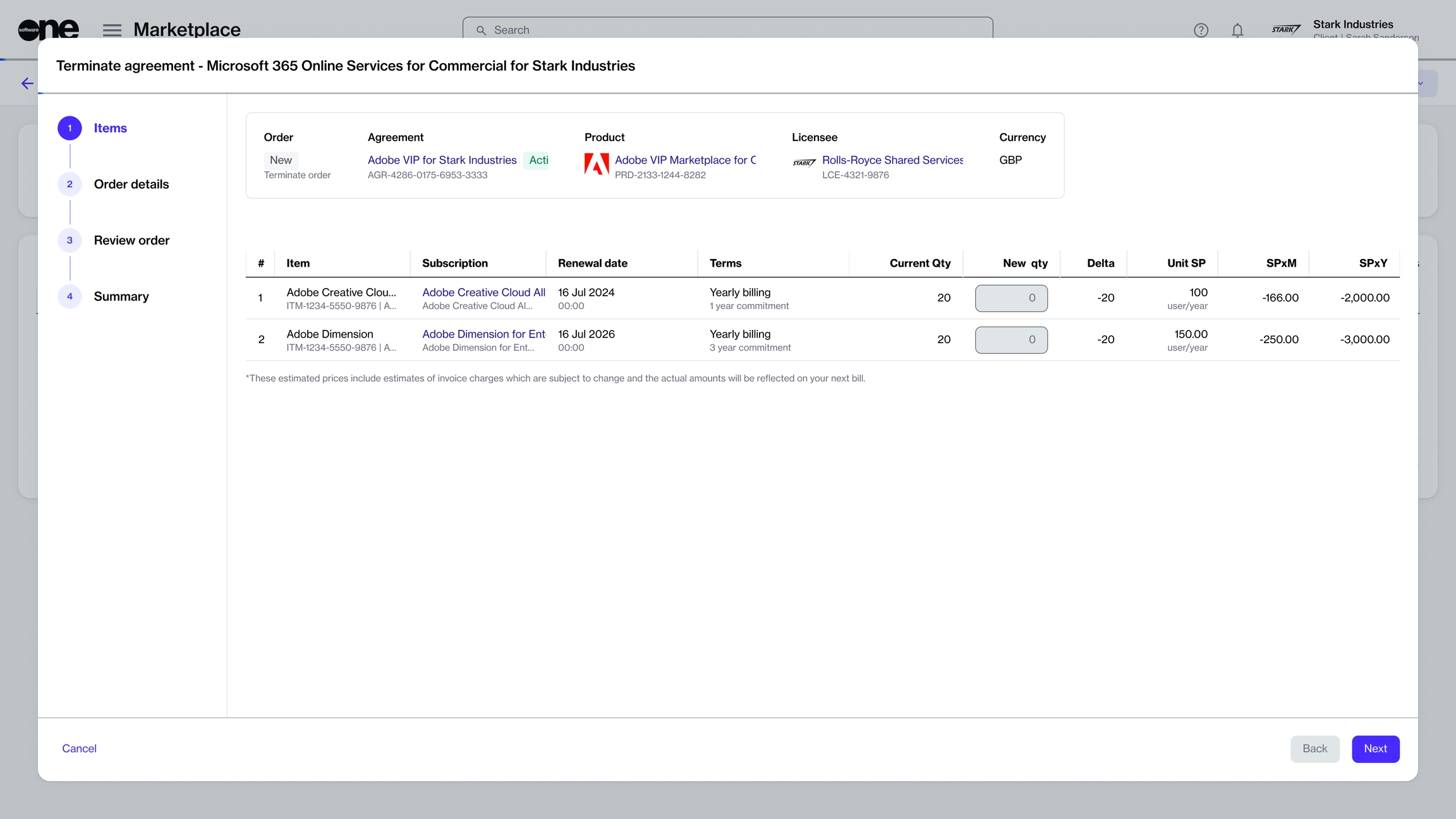
The Items step in the Terminate Agreement wizard.
  1. In the Terminate agreement wizard, do the following:

    1. Items - Make sure the new item quantity is displayed as 0. Then, select Next.

    2. Order details - Add or update the additional ID and notes as needed. When done, select Next.

    3. Review order - Check the order details, then select Place order to submit your order.

    4. Select View order to open the details page of the termination order. Otherwise, select Close.

When the order is placed, the status of the agreement changes from Active to Updating. Once the order has been processed and all subscriptions within the agreement are canceled, the status changes to Terminated.

Last updated

Was this helpful?