Groups

Learn about groups in the Marketplace Platform.

A group in the Marketplace Platform represents a set of users who share the same roles and permissions, allowing admins to manage permissions of multiple users at once, instead of configuring each user individually.

Users can belong to multiple groups within the same account; for example, a user can be a member of both the Administrator and Finance groups. They can also have different roles across different accounts, such as being an Operations user in one account and an Administrator in another. Before a user can be added to a group, they must already belong to the account; otherwise, their access to the Marketplace Platform is restricted. Permissions in each account are determined by the user’s group memberships.

Accessing groups

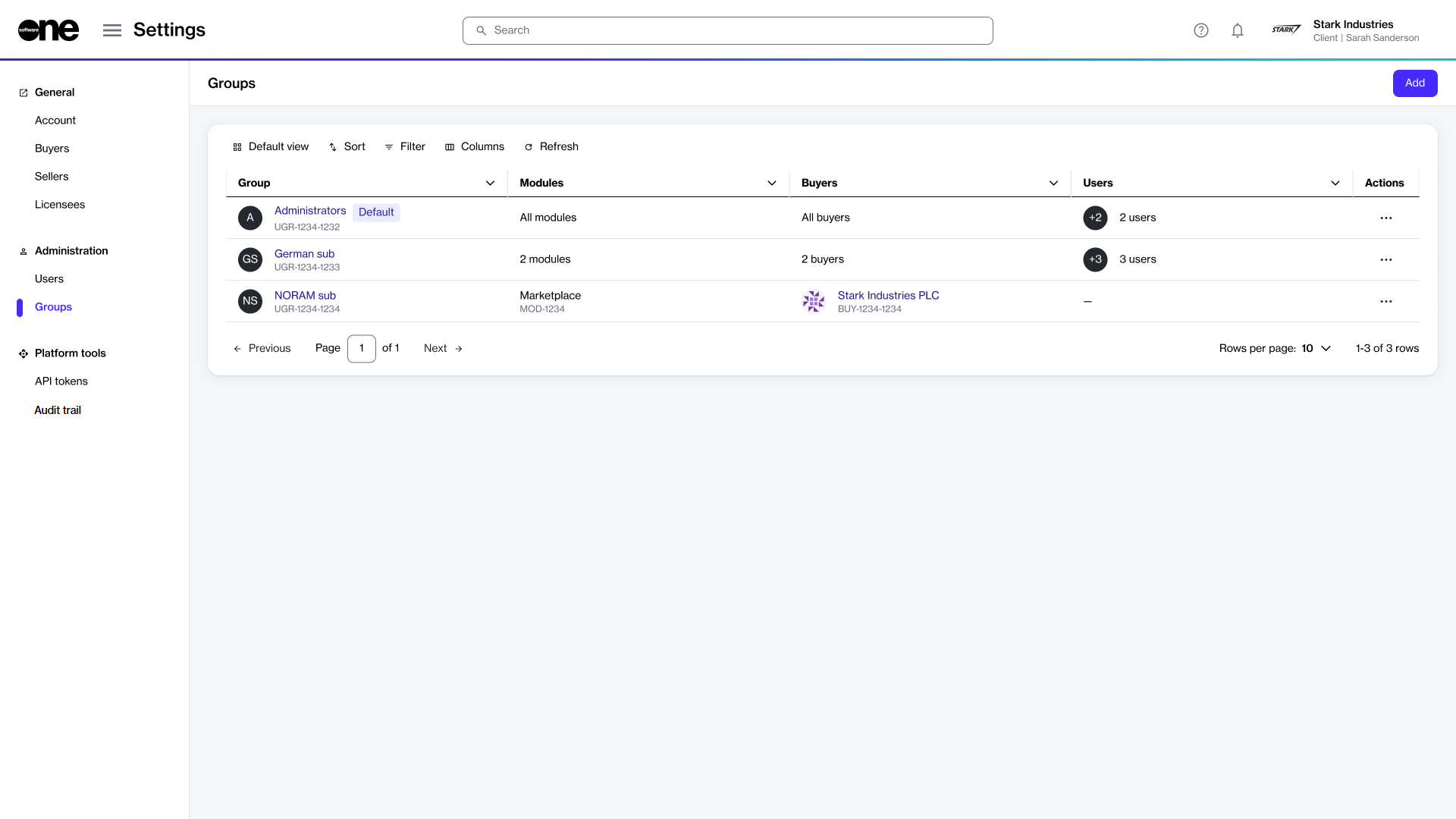
The Groups page allows account administrators to perform tasks, such as adding new groups and managing existing groups. Administrators can also modify or delete a group permanently if it's no longer needed.

To navigate to the Groups page, select the main menu, then choose Settings > Groups. The list of groups is displayed as shown in the following image:

The Groups page in the platform.

On the Groups page, you can use the sort and filter options and show or hide specific columns to customize the list.

You can view a group's details by selecting the group name, and you can manage a group by using the options in the Actions column.

Group statuschevron-rightCreate groupschevron-rightView groupschevron-rightEdit groupschevron-rightDelete groupschevron-rightRestrict groups to certain buyerschevron-right

Last updated

Was this helpful?