Terminate a subscription

Cancel your subscription.

You can terminate a subscription if you no longer need it or don't want it to renew.

Subscriptions are linked to agreements, therefore, the termination process depends on the number of active subscriptions in the agreement.

  • If an agreement contains several active subscriptions and you want to cancel some, but not all of them, you must place a termination order for the specific subscription. For details, see Terminating a subscription.

  • If the agreement contains several subscriptions and you want to cancel all subscriptions, you must terminate the entire agreement. You can do this by placing a termination order. For details, see Terminate an agreement.

Before you begin

Before terminating your subscriptions, note the following points:

  • You can only terminate active subscriptions. Subscriptions in any other state cannot be terminated.

  • Creating a termination order doesn't guarantee the subscription cancellation. Termination orders are sent to vendors for approval.

Terminating a subscription

To terminate a subscription:

  1. Go to Marketplace > Subscriptions.

  2. Select the subscription you want to terminate.

  3. On the subscription's details page, select the arrow , then choose Terminate to start the Terminate subscription wizard.
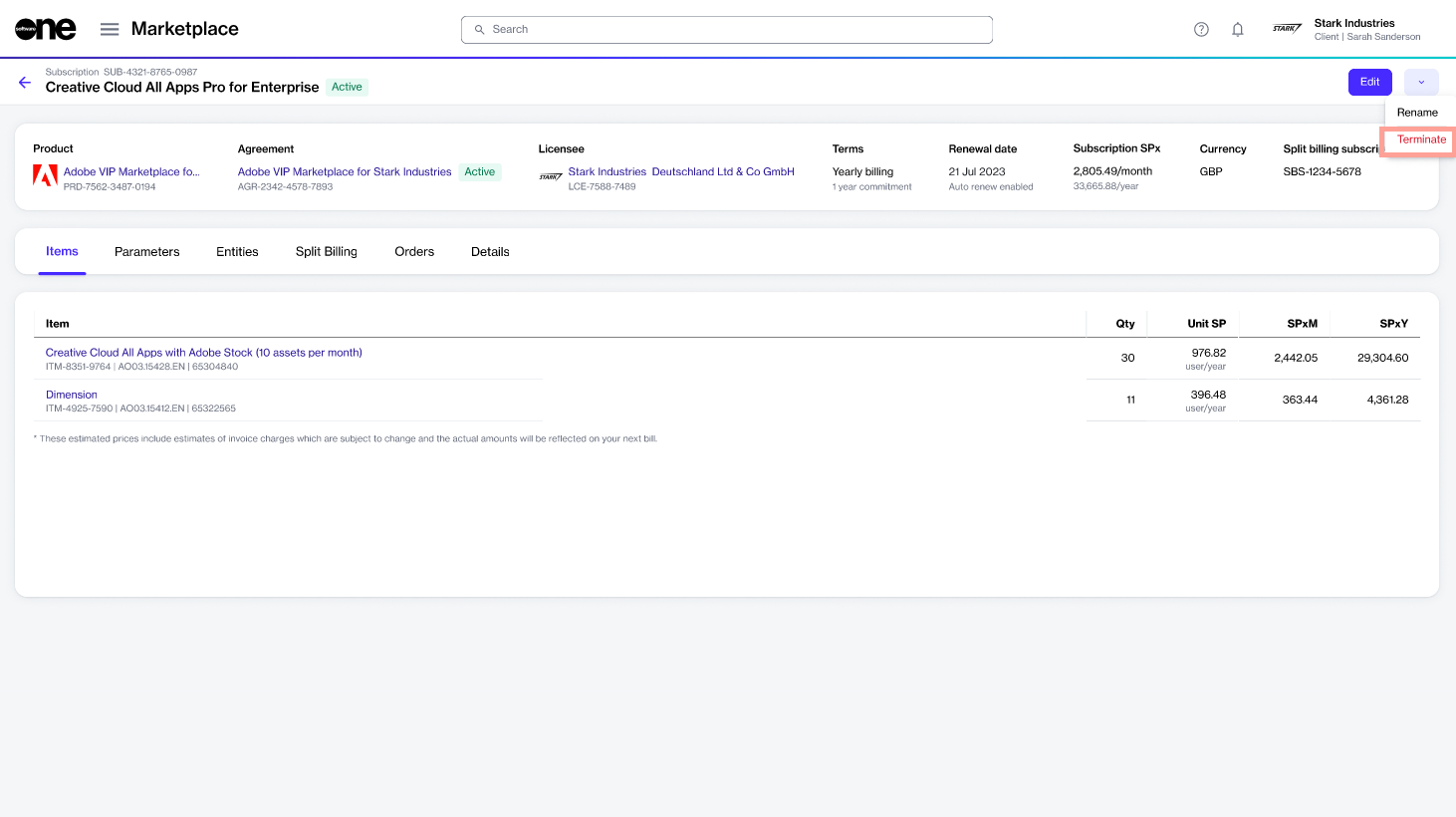
The Terminate option on the details page.
  1. In the Items step, select Next. Note that the quantity is displayed as zero.

  2. In the Order details step, enter the reference details and your order notes. Then, select Next.

  3. In the Review order step, verify the details. When done, select Place order to submit your order.

  4. Select View order to go to the order details page. Otherwise, select Close.

You can keep track of your order's status on the order details page in the platform.

Last updated

Was this helpful?