
Loading...
Loading...
Loading...
Loading...
Loading...
Loading...
Loading...
Loading...
Loading...
Loading...
Loading...
Loading...
Loading...
Loading...
Loading...
Loading...
Loading...
Loading...
Loading...
Loading...
Loading...
Loading...
Migrate from Adobe VIP to Adobe VIP Marketplace.
If you are currently ordering subscriptions through the Adobe Value Incentive Plan (VIP) buying program, we recommend you familiarize yourself with the differences between the Adobe VIP and VIP Marketplace programs.
These differences will help you understand some changes when you are migrated to the VIP Marketplace. The following table shows the differences:
Adding licenses
Yes
SoftwareOne Marketplace (recommended) or Adobe Admin Console (see Purchase Authorisations)
SoftwareOne Order or Adobe Admin Console
Pay for licenses added through Admin Console
Yes
7 days
30 days
Returns
Yes
14 days after order date. No partial returns, no return exceptions
14 days after order date. Some partial returns, Some return exceptions
Renewal
Yes
Auto-renewal at anniversary date. You may opt-out of auto-renewal.
Manual renewal
Proration
Yes
Daily for added licenses against anniversary date
Monthly
Invoicing
Yes
Single, consolidated invoice per month
Single invoice per order
Market segment
No
Commercial, Government, and Education
Commercial, Government, and Education
Products
No
All VIP products including Enterprise
All VIP products including Enterprise
Commitment
No
1 year, 3 year, or Extended Terms
1 year, 3 year, or Extended Terms
Payment term
No
Paid upfront
Paid upfront
Pricing levels
No
Price levels 1 - 4 (Annual term). Price levels 12 - 14 (3 Year Commit).
Price levels 1 - 4 (Annual term). Price levels 12 - 14 (3 Year Commit).
License management
No
Adobe Admin Console
Adobe Admin Console
Learn about Adobe VIP Marketplace and how it benefits you.
Adobe VIP Marketplace is Adobe’s new licensing program that replaces Adobe VIP.
VIP Marketplace is designed to make purchasing and managing Adobe software licenses easier. It provides streamlined automated purchasing, provisioning, and billing, and allows SoftwareOne to resell Adobe licenses through the Marketplace Platform.
Various term-length options, volume discounts, and product offerings enable clients (VIP Marketplace members) and organizations of all sizes to meet their needs by purchasing as many licenses as needed in one flexible transaction.
After your initial order has been set up with SoftwareOne, you can manage your licenses through the Marketplace Platform, which works seamlessly with the Adobe Admin Console.
As the next evolution of the VIP buying program, the Adobe VIP Marketplace delivers a more customized and streamlined system. It enables SoftwareOne to sell Adobe products in the SoftwareOne Marketplace to provide a simpler, automated, and efficient experience.
The flexibility and breadth of the program allow SoftwareOne to put together desirable proposals, with software as a key element, and execute plans seamlessly on an ongoing basis.
Adobe is included with many other vendors in the SoftwareOne Marketplace for a one-stop shop experience.
Bundles and services are easily available.
Better overall experience from quicker purchasing to easier license management, with no disruption due to missed or delayed renewals.
VIP Marketplace is the primary Adobe buying program for SoftwareOne clients, except for VIP members in China.
After you place an order with your reseller, you will receive an invitation to accept the terms and conditions for VIP Marketplace. Once you’ve accepted the terms and conditions, you can manage your licenses and begin deploying them to users immediately in the Adobe Admin Console.
If you are currently a member of the Value Incentive Plan, you can move seamlessly to the VIP Marketplace to benefit from features like automatic renewal.
Contact SoftwareOne for details on transitioning to VIP Marketplace.
To add licenses to your VIP Marketplace account, the following options are available:
Add the license to the Marketplace Platform.
Add the license in the Admin Console (also known as Purchase Authorization), then place a corresponding order in the Marketplace Platform within 7 days. If no order is placed in the Marketplace Platform, Adobe automatically removes the license after 7 days.
To reduce the effort associated with adding licenses, we recommend using the first option. Fulfillment is simple and quick in the Marketplace Platform.
The Adobe Admin Console is an online tool that allows organizations to manage their users as well as the assignment and reassignment of Adobe licenses. The member of your organization who received the welcome email and accepted the VIP Marketplace terms and conditions is the first person who will have access to your organization’s Admin Console.
Once this person accesses the Admin Console, they can begin managing licenses and users, along with granting administration rights to other members of their organization.
You can save more as a VIP Marketplace Member when your organization qualifies for volume discounts. Purchase 10 or more licenses during a subscription term to qualify.
Your discount increases as you purchase more licenses.
As a VIP Member with fewer than 10 licenses, you can automatically qualify for volume discounts with a single order of 10 or more licenses. Place an order for the minimum license quantity for your preferred discount level, and your membership will automatically receive the respective volume discount.
You can qualify for volume discounts with your renewal order. Your volume discount is automatically calculated based on the licenses renewed in your auto-renewal order.
If your renewal total is 10 licenses or more, then that renewal order and subsequent orders of any size qualify for the volume discount earned at renewal. You can add more licenses to achieve the 50- and 100-license thresholds for higher discounts.
Your VIP ID is a unique number that identifies your organization as a member of VIP Marketplace. Keep track of this number so you can provide it to your reseller when placing orders or asking questions about your account. This number is confidential information for your organization and will remain effective while you are a VIP Marketplace Member.
Your VIP Marketplace anniversary date is set to be 12 months from the date of your initial order. If you are migrating from Adobe VIP, your anniversary date will be the same as it was under VIP.
Additional licenses may be added at any time after your initial order. The anniversary date for your additional licenses will be listed on the order confirmation email and in the Account tab in the Adobe Admin Console. Add-on licenses are prorated for the length of time they will be used until your next anniversary date. Your licenses will be renewed on the anniversary date, and changes to your Adobe subscriptions must be made before this date.
Licenses purchased through VIP Marketplace automatically renew for the following year. Your annual subscription will automatically renew with Adobe on your anniversary date at the current sales price in effect for your qualifying discount level (prices subject to change), unless SoftwareOne cancels with Adobe at least 3 days before your anniversary date.
If you opt out of automatic renewal by terminating a subscription or agreement, your licenses will be deactivated at your next anniversary date. A reminder notification will be sent before any licenses are deactivated, and you may update your renewal settings by placing an order in the SoftwareOne Marketplace at least 3 days before the anniversary date.
For example, if in your current term, you are at discount level 2 (10-49 licenses) and in your renewal term, your auto-renewal order is for 50-99 licenses, you would receive the level 3 discount. Also, if in your current term, your Adobe product offer is based on promotional pricing, then in your renewal term, your Adobe product offer will be based on standard pricing because the promotional pricing has expired.
Returns are accepted if the entire order is returned and if the licenses are not currently in use. You must make the return request with SoftwareOne within 14 days of placing the order.
If the VIP Member has any VIP orders that are eligible for return, then such orders may no longer be returned after migration to the VIP Marketplace. Upon migration to VIP Marketplace, the VIP Member waives any rights to return for such orders.
Once you are enrolled in VIP Marketplace, your membership remains effective until any of the following conditions occur:
You choose to leave the program by giving a 30-day notice of cancellation to SoftwareOne.
Adobe terminates the program.
Your membership is terminated due to a breach of the program terms and conditions.
The program terms and conditions are subject to change at any time. You will be presented with updated terms and conditions the next time you log in to the Adobe Admin Console if there are any changes.
VIP Members must purchase for the country where their team members reside. For team members residing in Europe, “country” shall mean Europe. In this case, “Europe” means EU Member countries Iceland, Liechtenstein, Norway, Switzerland, and the UK. To the extent there is inconsistency between this restriction and terms stated in an applicable end-user license agreement, this restriction shall govern.
1
1 Year
1 - 9
No
2
1 Year
10 - 49
Yes
3
1 Year
50 - 99
Yes
4
1 Year
100+
Yes
12
3 Year
10 - 49
Yes
13
3 Year
50 - 99
Yes
14
3 Year
100+
Yes
Find the common error messages on the UI.
This topic describes some error messages you might encounter when adjusting the quantity of your Adobe licenses.
Error Message - "Cannot reduce the quantity by {delta}. Please reduce the quantity by {x}, {y}, or wait until the return window expires."
Cause - This error can occur for several reasons. Primarily, it happens when the platform doesn't recognize the requested change to the license quantity. For instance, if you ordered 15 licenses of Photoshop for Teams, but want to downsize to 10 within the 14-day return period.
Resolution - To resolve this issue, adjust the quantity of your licenses to match the valid quantity for the returnable orders or wait until the return window closes to modify your renewal quantity. To learn more, see Downsize, termination, and return policies.
Error Message - "Cannot reduce the quantity to zero. Consider placing a termination order instead."
Cause - This error occurs when lowering the quantity of licenses would result in zero licenses.
Resolution - To resolve this issue, you must terminate the subscription completely by placing a termination order. For termination steps, see .
Add items to an existing agreement.
This tutorial explains how to add new items to your existing Adobe VIP Marketplace agreement with SoftwareOne by placing a change order.
Make sure the agreement you want to use is active.
Start the ordering process
To start the order:
Go to Catalog > Products.
Increase the number of licenses for your existing Adobe subscription.
This tutorial describes how to increase the number of licenses for a subscription by placing a change order.
Before increasing the number of licenses, ensure that both the agreement and subscription are active.
Open the required subscription
To open the subscription:
Go to Marketplace > Subscriptions.
Reduce the number of licenses in your Adobe subscription.
This tutorial describes how to reduce the quantity of your licenses by submitting a change order.
Downsizing a subscription means reducing the number of licenses while keeping at least one license active. When you downsize a subscription, the result depends on whether the licenses are within the allowed 14-day return window.
If the licenses are within the return window, Adobe processes a return for the affected licenses, and those licenses immediately become unavailable to users.
If the licenses are outside the return window, the current licenses remain active until the renewal date, and only the renewal quantity is reduced.
Activate your VIP Marketplace agreement.
If your Adobe VIP subscriptions have been migrated to the Adobe VIP Marketplace program, and your SoftwareOne representative has created a draft purchase order, you’ll need to accept the terms of the new buying program by completing your draft order.
After completing the order, your VIP Marketplace agreement will become active. You’ll then be able to view your agreement, make new purchases, and self-manage your subscriptions in the Marketplace Platform.
To complete your draft purchase order, follow these steps:
Do one of the following:
Select the link you received in the email from SoftwareOne. If you are signed in to your account, you'll be redirected to the details page of your draft order.
When SoftwareOne sends you an invitation for your 3-year commitment (3YC), you will receive an email from Adobe as well as a notification in your Adobe Admin Console.
This invitation includes information about the 3YC program.
To receive and accept the invitation, you must have access to the Adobe Admin Console. Additionally:
You must be an active administrator. If you are not an active administrator when the 3YC invitation is sent, you will not receive it.
If there are multiple administrators in the Adobe Admin Console, all of them will receive the invitation and can take action on it.
Learn about the impact of terminating your Adobe subscription.
Adobe subscriptions can be terminated both within and outside the 14-day return period.
Within the 14-day return period
If you terminate a subscription within the 14-day return period (from the date your order is placed):
In the Marketplace Platform, the items within the subscription will show the quantity as zero, and the subscription will move to a Terminated status with auto-renewal disabled. In the Adobe Admin Console, you'll see that your subscriptions have been removed.
If you order a subscription and terminate it in the same month, there's no charge.
If you order a subscription and terminate it the next month within the 14-day return period, you'll be charged for the order at the end of the first month and receive a credit of the same amount at the end of the following month. For example, if you order a subscription on June 28 and then terminate it on July 4, you'll be charged for the order in July and then credited the same amount in August.
Outside the 14-day return period
If you terminate a subscription outside the 14-day return period:
In the Marketplace Platform, the items in the subscription will show zero quantity, and the subscription will move to a Terminated status with auto-renewal disabled. In the Adobe Admin Console, you'll see an active subscription that terminates on the renewal date.
There's no refund for the terminated subscriptions.
Select the required Adobe product, for example, Adobe VIP Marketplace for Commercial.
Review the product details.
Select Buy now.
Add the items to your order
In the guided purchase flow, complete the following steps:
Select agreement – Select the required active agreement, then select Next.
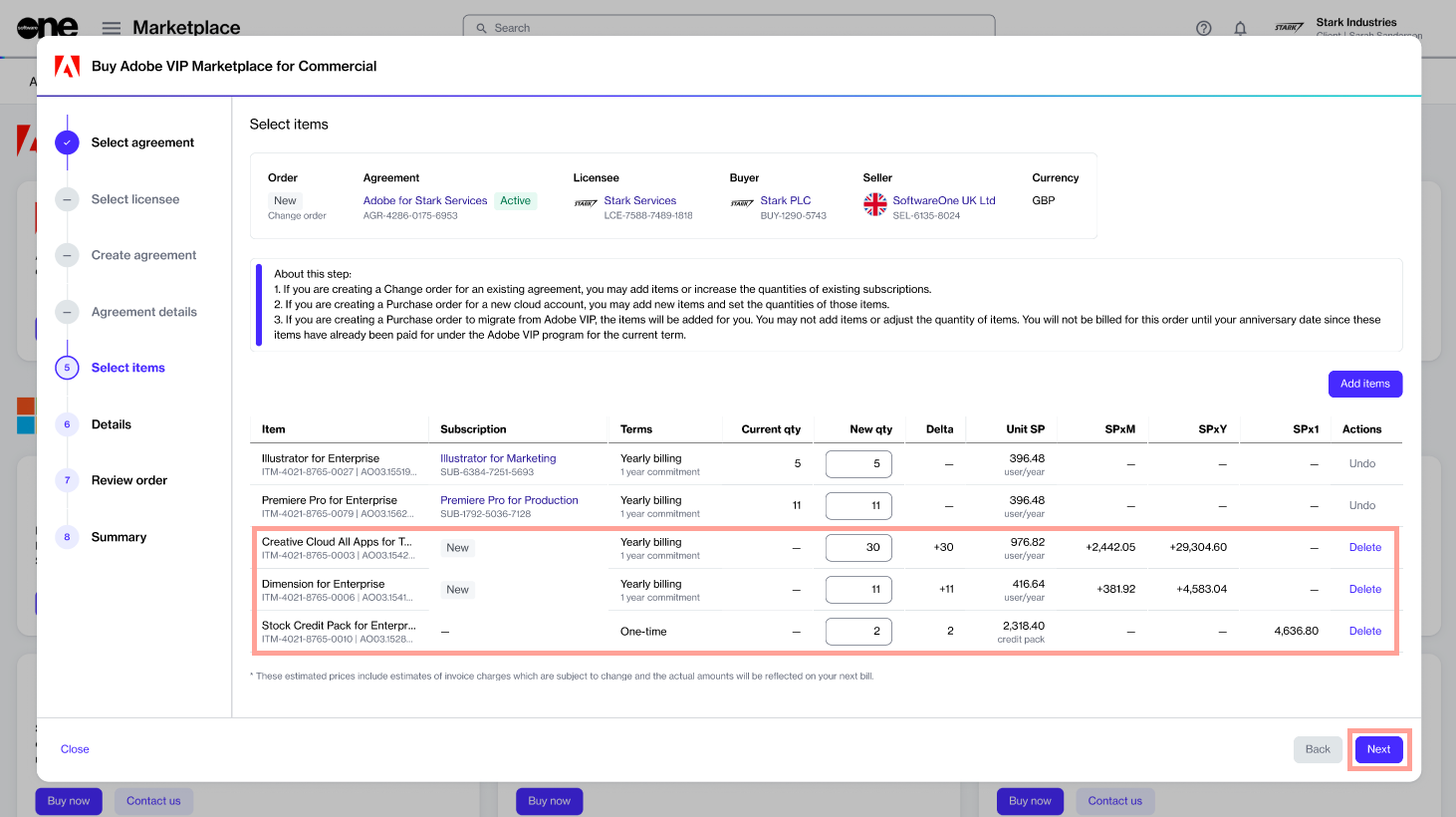
Select Items – Do the following:
Select Add items.
Add the required items to your order.
Update the quantity in the New qty field.
Select Next.
Review and submit the change order
Details – Add or update the reference ID and order notes. Select Next.
Review order – Review the order details, go through the terms and conditions, then select Place order.
Summary – Review your order summary, then select View details to open the order details page, or select Close.
After you place the order, a change order is created for the agreement.
The agreement status also changes from Active to Updating. While the agreement is updating, you cannot place more orders under that agreement.
You can track the order on the Orders page or in the Orders tab on the agreement details page.
Select the required subscription.
On the subscription details page, select Edit.
Increase the quantity and submit the change order
In the guided Edit subscription flow, complete the following steps:
Items – Under New qty, increase the quantity, then select Next.
Details – Add or update the reference details for the order, then select Next.
Review – Review the order details, go through the terms and conditions, then select Place order.
Summary – Review your order summary, then select View details to open the order details page, or select Close.
After you place the order, a change order is created for the agreement.
The agreement status also changes from Active to Updating. While the agreement is updating, you cannot place more orders under that agreement.
You can track the order on the Orders page or in the Orders tab on the agreement details page.
You can only return quantities that match eligible returnable orders. If the quantity doesn't match, the Marketplace Platform suggests a valid quantity that you can return.
For more information, see Downsize, termination, and return policies.
Ensure that both the agreement and the subscription you want to downsize are currently active.
Open the subscription
To open the subscription:
Go to Marketplace > Subscriptions.
Select the required subscription.
On the subscription details page, select Edit.
Decrease the quantity and submit the order
In the guided Edit subscription flow, complete the following steps:
Items – Under New qty, update the quantity, then select Next.
Details – Add or update the reference details, then select Next.
Your change order is submitted to SoftwareOne for processing. The status of your subscription and the agreement changes from Active to Updating. While the order is being processed, you cannot make any further changes until it is complete.
You can view the most up-to-date information about your order on its details page.
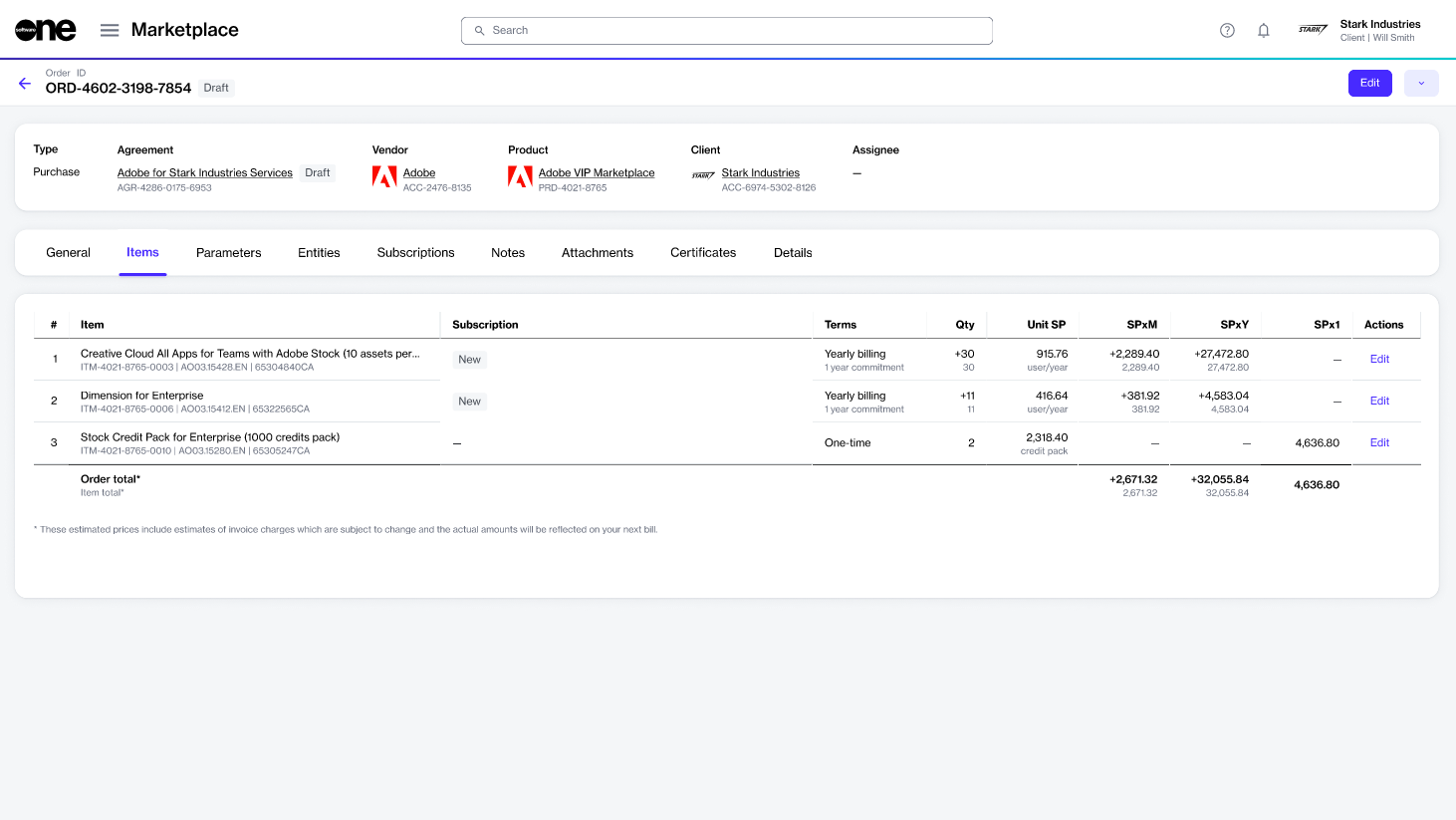
Navigate to the Orders page and select the Adobe order in the Draft status. The details page of the draft order opens.
Select the Items tab. Then, select Edit in the upper-right to start the purchase wizard.
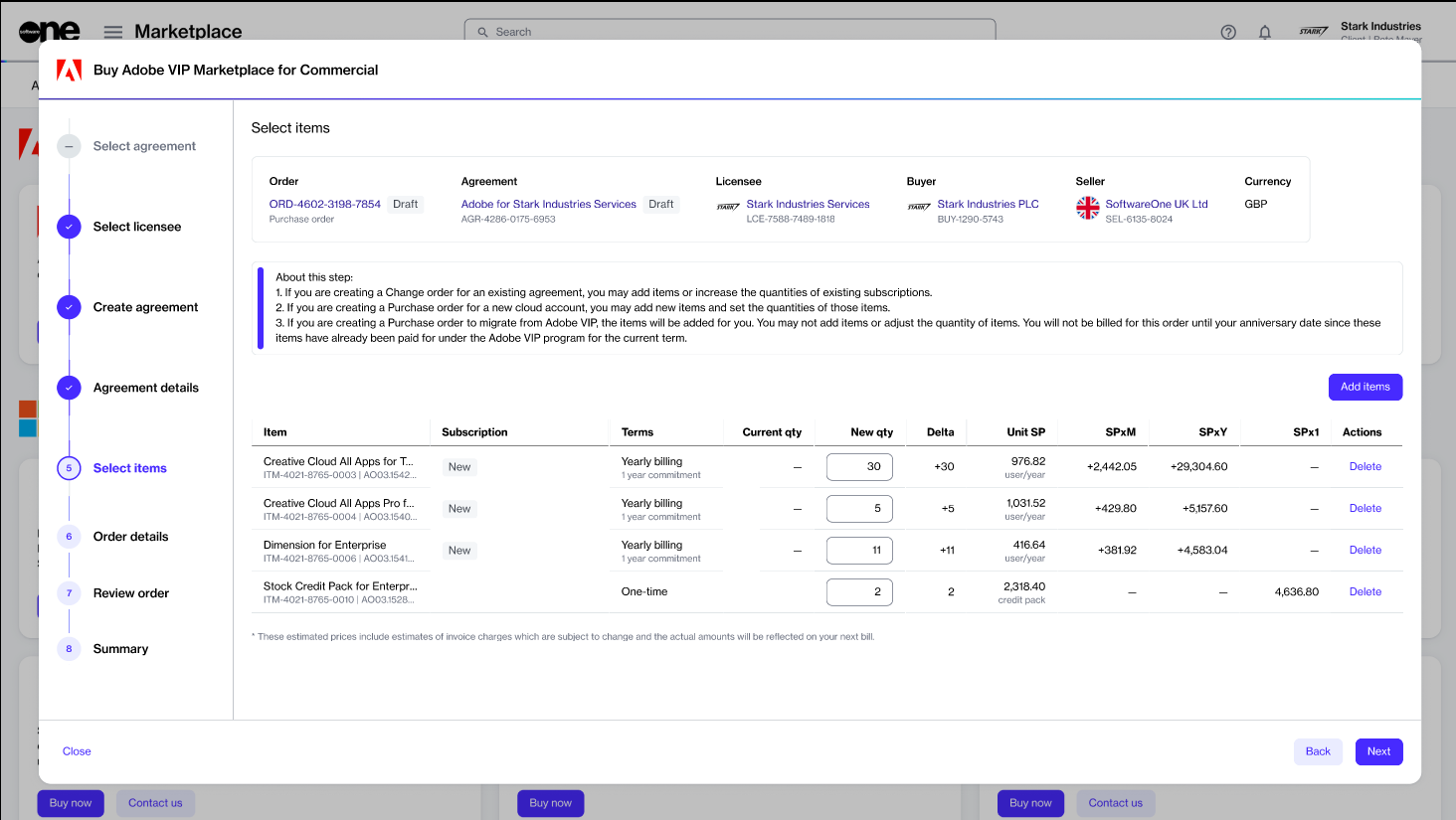
In the Select items step, review the item details, including quantity and prices. When done, select Next.
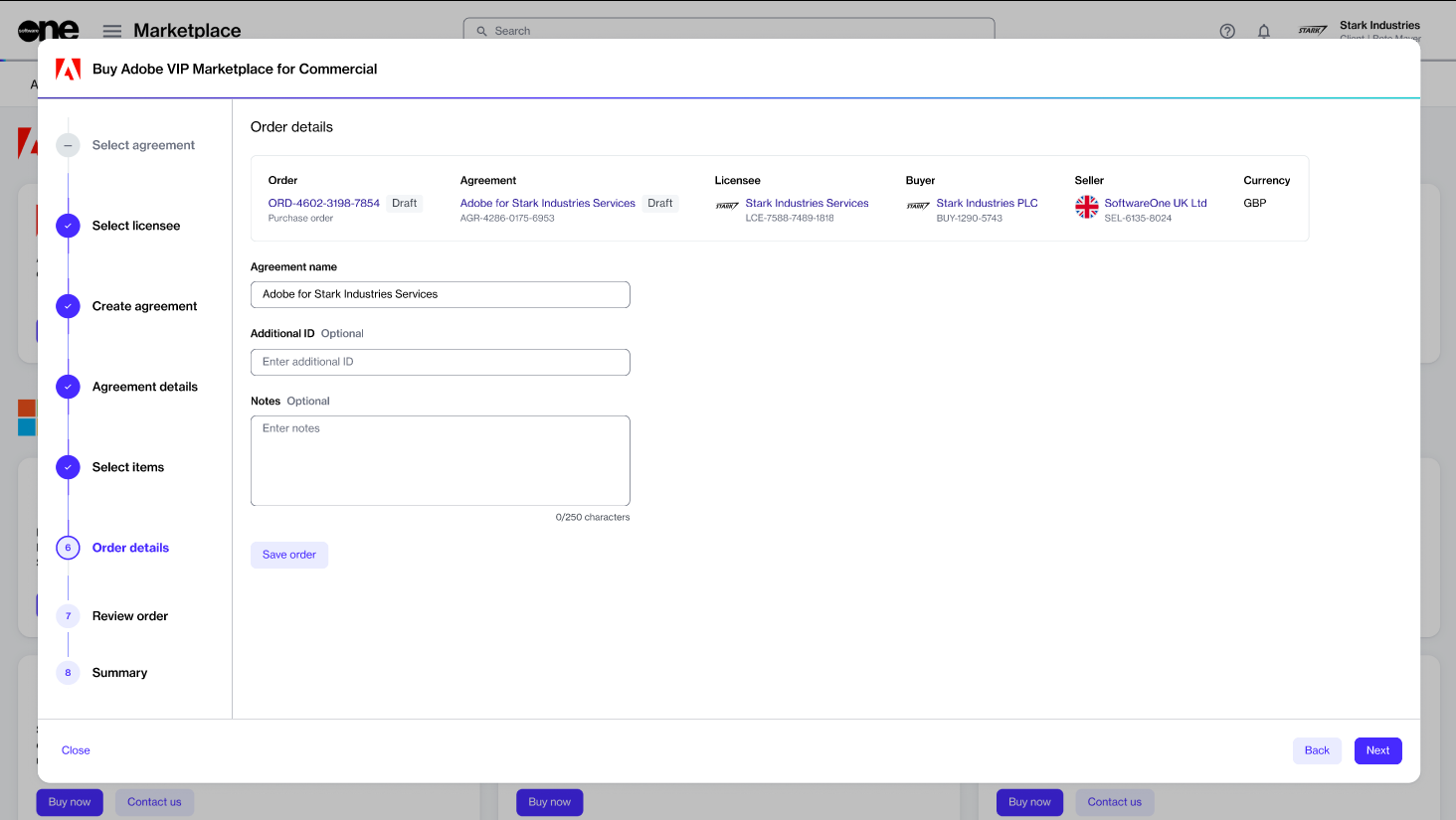
In the Order details step, update the agreement name and provide other details as necessary. Select Next.
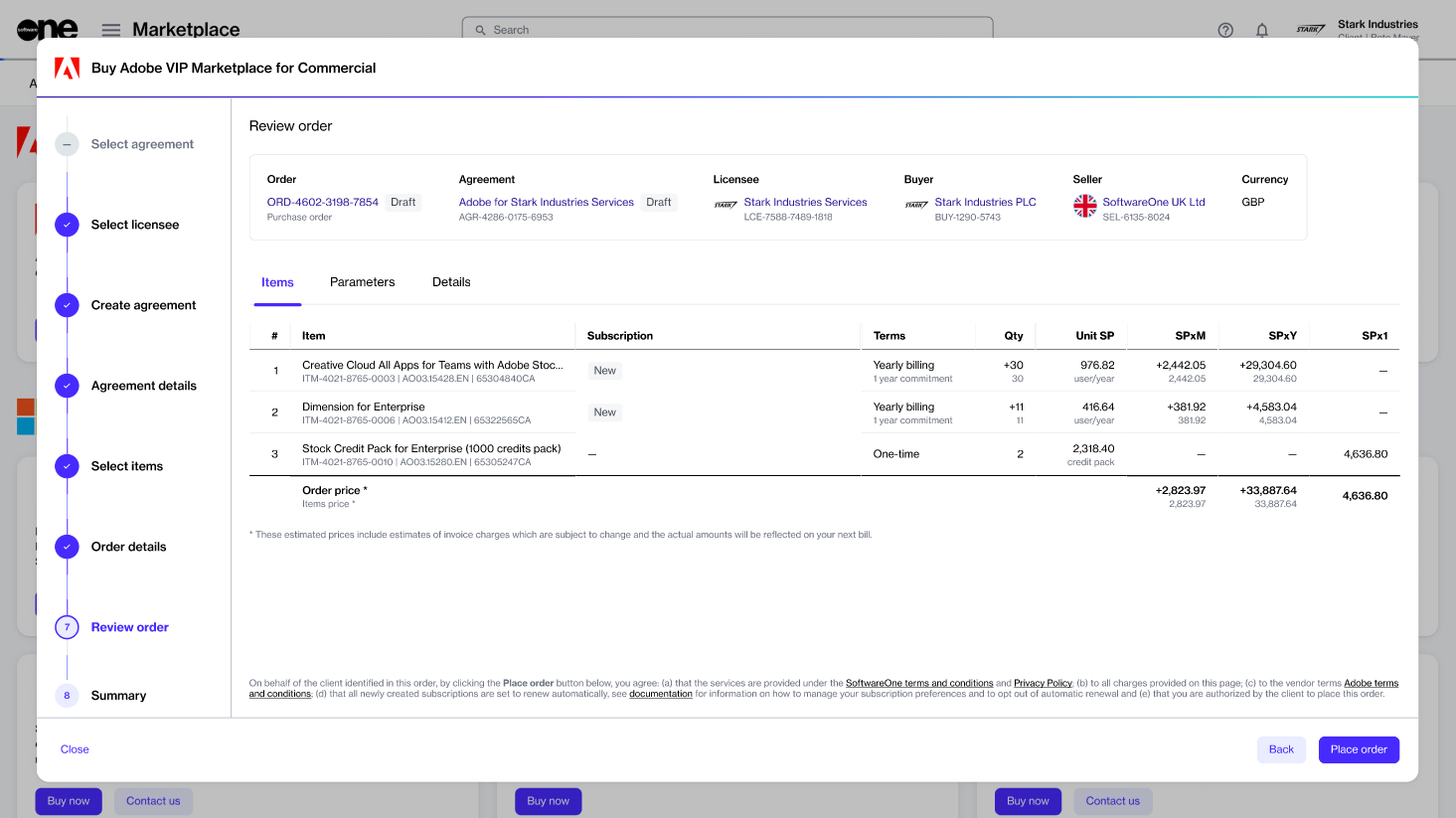
In the Review order step, read the terms. When done, select Place order to submit your order.
Your order is submitted for processing. Upon completion, your Adobe VIP Marketplace account is activated in the Marketplace Platform.
3YC invitations are sent to administrators based on their roles. Therefore, it is not possible to include or exclude specific individuals from receiving the invitation.
Accepting the invitation involves reviewing the program details, including terms and conditions, and confirming the acceptance.
To accept the invitation
Open the 3-year commitment email from Adobe, usually sent from message@adobe.com.
Select Review offer. You'll be directed to the Adobe Admin Console.
Sign in to the console. Then, do one of the following:
In the 3-year commit message at the top, select View details.
Go to Account overview and select Join now.
On the Accept 3 Year Commit page:
Under Accept Terms and Conditions, select the checkbox to confirm that you have read the terms and conditions.
Select Accept 3 Year Commit. Note that the option is enabled only after selecting the checkbox.
After you have accepted the invitation, we'll update your 3YC details in the Marketplace Platform.
Once the details are updated, the product prices are adjusted according to your qualified discount level.
Order an Adobe subscription by creating a new agreement.
This tutorial explains how to order an Adobe subscription by creating a new agreement and setting up a new Adobe account.
Before starting this tutorial, make sure you have the following:
An active licensee or permission to create a new licensee. Licensee selection is required when setting up a new agreement.
Your company's legal address and primary admin contact.
If choosing a 3-year commitment, the minimum committed quantity.
Start the ordering process
To start the order:
Go to Catalog > Products.
Select the required Adobe product. For example, Adobe VIP Marketplace for Commercial.
After placing the order, you'll receive an invitation from Adobe to accept the terms and conditions for Adobe VIP Marketplace.
After accepting the terms, you can manage your licenses and deploy them to users immediately through the .
Cancel your Adobe agreement and return all subscriptions.
This tutorial describes how to cancel your Adobe agreement by placing a termination order.
An agreement can be terminated if you want to cancel all subscriptions within the specific agreement and end it entirely.
The cancellation outcome depends on whether you are inside or outside the return period. For information on the policies, see Downsize, termination, and return policies.
Make sure that the agreement you want to terminate is currently active. Agreements in any other state cannot be terminated.
Open the agreement to cancel
To open the agreement:
Go to Marketplace > Agreements.
Select the agreement you want to cancel.
On the agreement details page, select the dropdown arrow , then choose Terminate.
Place a termination order for the agreement
In the guided Terminate agreement flow, complete the following steps:
Items – Check that all subscriptions show the new quantity as 0, then select Next.
Order details – Enter the reference information for the agreement and the termination order. Select Next.
Your termination order will be reviewed and processed by SoftwareOne.
You can view the most up-to-date information on your order and its status on the order details page.
In SoftwareOne Marketplace, you can track the progress of your 3-year commitment (3YC) request directly from the agreement details page.
You can also use this page to view essential details related to your 3YC. The key details available include the enrollment status, start and end dates, and more.
To view the 3YC details in Marketplace:
Sign in to your Marketplace account.
Navigate to the Agreements page, then select the required Adobe VIP Marketplace agreement.
On the agreement's details page, select the Parameters tab. All essential information related to the 3YC is displayed under the Fulfillment section.
Use this section to view the following details:
Terminate and return licenses within the 14-day return window.
This tutorial describes how to cancel your Adobe subscription within the 14-day return window by placing a termination order.
Terminating a subscription means canceling it entirely and returning the full quantity of licenses for a refund. Terminating is only possible if the subscription is within the allowed period and is eligible for a return.
For terminations outside the return window, only auto-renewal can be turned off, meaning the respective subscriptions will expire on the renewal date. For more details, see Disable auto-renewal.
Make sure that the required subscription is eligible for a return and is currently active.
Open the subscription to terminate
To open the subscription:
Go to Marketplace > Subscriptions.
Select the subscription you want to terminate.
On the subscription details page, select the dropdown arrow and choose Terminate.
Submit a termination order for the subscription
In the guided Terminate subscription flow, complete the following steps:
Items – Verify that the new quantity field displays a 0, then select Next.
Details – Add or update the reference ID and your comments. Select
SoftwareOne will review your termination order.
If the order meets the criteria, it will be processed. You can keep track of your order on the order details page.
Stop your Adobe subscription from renewing automatically.
This tutorial explains how to disable automatic renewal for your Adobe subscription by submitting a configuration order.
Automatic renewal can be disabled if you are outside the 14-day return window or don't want the subscription to renew on the anniversary date.
Open the required subscription
Go to Marketplace > Subscriptions.
Select the required subscription.
On the subscription details page, select the dropdown arrow , then choose Configure.
Submit the configuration order
In the guided Configuration order flow, complete the following steps:
Auto-renewal – Choose Disable, then select Next.
Order details – Enter the order reference information, then select Next.
Your configuration order is reviewed and processed by SoftwareOne.
If the order meets all conditions, your subscription expires at the end of the commitment period or renewal date, and you are not billed further.
Adobe requires all customers with VIP Marketplace accounts in the Education segment to select their education sub-segments.
When setting up a new education-segment account or when placing orders against an existing one, you must choose your Education sub-segments in the Adobe Admin Console. This task only needs to be completed once.
Adobe enforces a mutually exclusive relationship between the sub-segment groups:
You can select K-12, Higher Education, or both.
You can select Non-Profit, but not in combination with K-12 or Higher Education.
To select your sub-segments:
Sign in to the Adobe Admin Console.
On the Required action: Confirm type of organization page:
Select the sub-segments applicable to your organization.
Select Confirm and continue.
If you have an order with a Querying status in the Marketplace, open the order, then select Process. For instructions, see .
Return your renewal order for a refund within 14 days.
This tutorial explains how to return a renewal order within the 14-day return window.
Returns are accepted if the entire order is returned and if the licenses are not currently in use. In the SoftwareOne Marketplace, returns are processed through a termination order. For policy details, see .
Make sure the renewal order is within the allowed return period. If the renewal order is older than 14 days, Adobe will not accept a return.
Open the required subscription
To open the subscription:
Review – Review the order details, go through the terms and conditions, then select Place order.
Summary – Review your order summary, then select View details to open the order details page, or select Close.
Order a new Adobe VIP Marketplace agreement and subscription.
Add additional items to your existing active agreement.
Switch from your current reseller to SoftwareOne.
Increase the number licenses for an active subscription.
Reduce the number licenses for an active subscription.
Change the auto-renewal settings for your Adobe subscription.
Cancel a recently purchased subscription.
Cancel your agreement and all associated subscriptions.
Return your recent subscription renewal to receive a refund.


Review the product details.
Select Buy now.
Create a new agreement and choose items
Complete the following steps:
Select agreement – Select Create agreement.
Select licensee – Select a licensee, then select Next. You can also create a new licensee.
Adobe account setup – Choose Create new Adobe account, then select Next.
Additional information – Do the following:
Enter your company name, company address, and primary Adobe administrator contact.
Choose whether to join the .
If required, enter the minimum licenses you want to commit to for the 3-year term.
Select items – Do the following:
Select the items you want to buy. You can select multiple items.
Select Add items.
Review and adjust the quantity of each item.
Review and submit your purchase order
Details – Provide reference details for the order, then select Next.
Review order – Review the order details, go through the terms and conditions, then select Place order.
Summary – Review your order summary, then select View details to open the order details page, or select Close.
Review order – Review the order details, go through the terms and conditions, then select Place order.
Summary – Review your order summary, then select View details to open the order details page, or select Close.
3YC commitment request status
Tracks the status of the 3YC invitation and acceptance phase for the initial 3YC:
A Requested status indicates that the invitation has been sent, but it hasn't been accepted yet.
An Accepted status indicates that the invitation has been accepted, but you don't have enough licenses to meet the minimum commitment requirement.
A dash (–) means that the invitation has been accepted, and the minimum quantity criteria have been met. As a result, your 3YC is now active.
3YC recommitment request status
Tracks the current status of the recommitment notification and acceptance process for an existing 3YC nearing its end date. It applies only if you have an active 3YC nearing expiration.
3YC enroll status
Indicates the current status of your 3YC:
A dash (–) means that your 3YC is not yet active. This happens if you have not accepted the 3YC invitation or met the minimum commitment quantity. This field displays a dash (–) until you accept the invitation and fulfill the minimum commitment requirement.
A Committed status means that your 3YC is now active. You have accepted the 3YC invitation and met the minimum commitment quantity. Once the status changes to Committed, your 3YC takes effect immediately, and your billing switches to the 3YC discount level.
3YC start date
Indicates the date on which 3YC officially begins.
This date is populated once you reach the minimum commitment quantity and your 3YC status becomes Committed.
The 3-year commitment period is calculated starting from this date.
3YC end date
Indicates the date on which your 3-year commitment period ends. This date is calculated automatically based on your 3YC start date.
Review – Review the order details, go through the terms and conditions, then select Place order to submit your order.
Summary – Review your order summary, then select View details to open the order details page, or select Close.
Review order – Review the details, then select Place order.
Summary – Review your order summary, then select View details to open the order details page, or select Close.

Go to Marketplace > Subscriptions.
Select the required subscription to open its details page.
Select the dropdown arrow and choose Terminate.
Place a termination order for the subscription
In the guided Terminate subscription flow, complete the following steps:
Items – Verify that the new quantity field displays 0, then select Next.
Details – Provide reference details for the order, then select Next.
Review order – Review the order details, go through the terms and conditions, then select Place order.
Summary – Review your order summary, then select View details to open the order details page, or select Close.
Your termination order will be reviewed and processed by SoftwareOne.
If the renewal order is within the 14-day return window and meets all conditions, the licenses will be removed from the subscription.
Transfer your account to SoftwareOne.
This tutorial explains how to transfer your account to SoftwareOne if you are currently buying Adobe product licenses through a non-SoftwareOne reseller.
Adobe allows its VIP Marketplace customers to switch from their current reseller to a new one. This process is known as reseller transfer.
Once the transfer is complete, SoftwareOne becomes your new reseller, managing your Adobe subscriptions and orders.
Before starting the reseller change process, make sure you have the following details from your Adobe Admin Console:
Your system administrator's email address.
Your reseller change code.
All reseller transfers require a new agreement and a new purchase order in the Marketplace.
To start the process:
Sign in to the Marketplace Platform.
Go to Catalog > Products.
Select Adobe VIP Marketplace. Then, on the product details page, review the information, and select Buy now.
In the guided purchase flow, complete the following steps:
Once we process the order and change the reseller, we will notify you. You can check the status of your order on the order details page.
Learn about our returns, downsizing, and termination policies.
The SoftwareOne Marketplace allows you to manage your Adobe VIP subscriptions, including adjusting license quantities, disabling auto-renewal, or terminating subscriptions.
This article explains how downsizing, termination, auto-renewal, and returns work, and the key rules you must follow when making changes.
The following are some of the key terms related to Adobe VIPM subscriptions in the Marketplace:
Downsize – Downsizing a subscription involves reducing the number of licenses while keeping at least one license active. A downsize reduces active licenses immediately if returnable orders are available and reduces the renewal quantity for the next term.
Auto-renewal – Auto-renewal controls whether a subscription automatically renews at the end of its term.
If auto-renewal is enabled, the subscription renews automatically.
If auto-renewal is disabled, the licenses remain active until the next anniversary date and then expire. After expiry, licenses are no longer available to users. Any users with licenses assigned after the anniversary date lose access.
Termination – Terminating a subscription means canceling it entirely and returning its entire license quantity. Termination is only available if the subscription's full license quantity is eligible for return within the 14-day return window.
Returnable order – A returnable order is any new or renewal order placed within the 14-day return window. You can return such orders without a charge during the 14-day return window after the order is completed.
Returns for Adobe VIP Marketplace subscriptions are only allowed within 14 days of purchase or renewal. This means that a subscription that has just been ordered or renewed can still be returned in full if it's within the 14-day return window.
Full subscription returns are done by terminating the subscription or agreement.
Partial returns are done by downsizing.
After this period, returns are not allowed. Only auto-renewal settings can be changed by placing a configuration order in the SoftwareOne Marketplace.
You can return a full subscription within the 14-day return window by submitting a termination order for the full subscription quantity.
When the termination order is processed, the subscription's quantity is reduced to zero (0) and its status changes to Terminated. Auto-renewal is also disabled. In the Adobe Admin Console, the subscription is removed, and any affected licenses immediately become unavailable to users.
For more details, see and .
You can return eligible subscription quantities within the 14-day return window by submitting a change order.
Partial returns are only allowed if the total number of licenses matches the full quantity of the order line item. For example, if an order contains 5 Photoshop for Teams licenses, you must return all 5 licenses from that line item. When the change order is processed, the affected licenses immediately become unavailable to users.
For more details, see .
If a subscription has been renewed, you can return it within the 14-day return window.
You can return the full renewed subscription by submitting a termination order. To return a partial quantity, submit a change order to downsize the subscription in the SoftwareOne Marketplace.
When the order is processed, all affected licenses are removed immediately. For more details, see .
You can downsize a subscription by placing a change order in the SoftwareOne Marketplace.
A downsize adjusts your current licenses (if a return is processed) and updates the renewal quantity for the next term. To view current and renewal quantities, check the General tab of the subscription.
If your subscription includes returnable orders, you can only downsize by quantities that match the sum of orders within the return window.
When you perform a downsize in this scenario, Adobe processes a return for the affected licenses, and they immediately become unavailable to your users.
Additionally, the subscription's renewal quantity is reduced to match the new license quantity after the return is processed.
If your requested reduction quantity doesn't match the quantity of one or more returnable orders, the system prevents the reduction from being processed and suggests a valid returnable quantity.
If a subscription doesn't contain returnable orders, only the renewal quantity is reduced. This ensures that at the next renewal, only the reduced quantity of licenses is renewed.
The following example illustrates how downsizing works in the platform. Assume the following:
You own 10 Photoshop for Teams licenses, which were ordered 30 days ago and are therefore outside the return window.
You ordered an additional 4 Photoshop for Teams licenses 10 days ago, which are within the return window.
You ordered another 3 Photoshop for Teams licenses 3 days ago, which are also within the return window.
Based on this information, you currently own a total of 17 licenses.
If you want to return the 4 additional licenses and downsize by 4, the system will process the return.
If you want to downsize by 7, the orders for the 4 additional licenses and the 3 additional licenses will be returned.
If you want to downsize by 6, no single order (or combination of orders) matches the required quantity of 6, and the platform blocks the change and suggests a valid returnable quantity.
You can change auto-renewal settings by placing a configuration order in the SoftwareOne Marketplace.
If auto-renewal is enabled, the subscription renews automatically. If disabled, the subscription remains active until the next anniversary date and then expires. For details on turning off auto-renewal, see .
For step-by-step instructions on performing returns, downsizing, or termination actions, see the .

Select Next.
Select Create agreement.
Choose a licensee or create a new one. Then, select Next.
Choose Transfer account and select Next.
Provide your system administrator's email address and the approval code from the Admin Console. Make sure that the approval code is valid. If the code has expired, you must generate a new one from the Admin Console. Select Next.
Select Next to continue to the Details step. This current step is view-only.
Provide reference details for the order, then select Next.
Read the terms and conditions and the privacy statement. Select Place order.
Review your order summary, then select View details to open the order details page, or select Close.
Specific Terms: Adobe Value Incentive Plan Marketplace Program ("VIP Marketplace") Product Subscriptions from SoftwareOne
1.1 SoftwareOne is a VIP Marketplace Direct Partner authorized to resell Adobe software products and services licensed under the VIP Marketplace (“Adobe Products” or “Products”) to members of the VIP Marketplace (“Members") through the SoftwareOne Marketplace.d
1.2 Please read these specific terms (“Specific Terms” or “Contract”) carefully. The terms of this Contract (as may be updated from time to time) govern Your purchase of Adobe Products from SoftwareOne as part of the VIP Marketplace via the SoftwareOne Marketplace and Your access and use of them.
1.3 By clicking “Place Order” on placing an order for the Products on the SoftwareOne Marketplace or by accessing or using the Adobe Products, You are agreeing to be bound by the terms of this Contract and, You represent to SoftwareOne that You are a Member of VIP Marketplace, that You are an active business, that You are lawfully able to enter into this Contract, and if You are entering into this Contract on behalf of a firm or entity, such as the company or organization You work for, You are representing to SoftwareOne that You have the legal authority to bind that firm or entity.
1.4 This Contract is made between You individually if You are agreeing to it in Your own capacity as an active business, or if You are authorized to enter into this Contract on behalf of a firm or entity, between the firm or entity for whose benefit You act (in either case, “
1.5 This Contract is entered into under and is governed by SoftwareOne’s standard terms and conditions, a copy of which is available here: (“Standard Terms”), as may be updated from time to time. In the event of any conflict or inconsistency between the terms of this Contract and the Standard Terms, the terms of this Contract shall take precedence.
2.1 By agreeing to be bound by the terms of this Contract, Customer agrees that:
(i) its access and use of the Adobe VIP Marketplace is subject to Customer’s acceptance of the Adobe Value Incentive Plan Terms and Conditions (a direct agreement between Adobe and Customer), as may be amended by Adobe from time to time, and which are available here: , or any successor website (the “Adobe VIP Terms”);
(ii) in addition to (i) above, its access and use of each Adobe Product is subject to Customer’s acceptance of the General Terms of Use (a direct agreement between Adobe and Customer), as may be amended by Adobe from time to time, which are available here: (and also referenced within the Adobe VIP Terms), or any successor website, including the Additional Terms and any other terms referenced therein that are applicable to the Adobe Product (collectively, the “TOU”);
(iii) it shall accept the Adobe VIP Terms and the TOU prior to accessing and/or using the VIP Marketplace or any Adobe Product. By accessing and/or using the VIP Marketplace and/or any Adobe Product, Customer: (i) acknowledges that it has read and understood the content of the Adobe VIP Terms and the TOU; and (iii) agrees to be bound by and comply with their terms;
(iv) it may have to re-accept the Adobe VIP Terms and TOU in connection with purchasing Adobe Products under the VIP Marketplace through the SoftwareOne Marketplace.
3.1 Adobe Products provided under the VIP Marketplace through the SoftwareOne Marketplace are licensed to Customer for Customer’s access and use for a committed term (a “Subscription”) and are not sold. Customer may only use the Adobe Products for its internal business use, and not for sale (or for free) to a third party.
3.2 Subscriptions are available for the following commitment terms (“Subscription Term”):
(i) Annual Plan (one (1) year) Paid Yearly in Advance (“Annual Plan”): Customer commits to a one (1) year Subscription Term and is charged yearly in advance at the price prevailing at the time the order status is set to “completed” on the SoftwareOne Marketplace (“Completed”) based on the quantity of Units that Customer chooses for its Subscription(s). Any additional Units that Customer adds during the Subscription Term will be charged yearly in advance on a prorated basis at the price prevailing at the time the order for such additional Units is Completed;
(ii) Three (3) Year Commit (thirty-six (36) months) Paid Yearly in Advance (“Three Year Commit”): Customer commits to purchase a minimum quantity of Units for a three (3) year Subscription Term (the “Committed Quantity”). Each year of the three (3) year Subscription Term, Customer will be charged yearly in advance for the Committed Quantity at the price prevailing at the time the Three Year Commit order was Completed. Any additional Units that Customer adds during any year of the Subscription Term will be charged in advance on a prorated basis for that year at the price prevailing for those additional Units at the time the Three Year Commit order was Completed and renewed and charged yearly in advance for each remaining year of the Subscription Term at such price.
4.1 Adobe Products included in the VIP Marketplace are auto-renewing Subscriptions and will automatically renew unless otherwise set forth herein or notified by SoftwareOne. For the:
(i) Annual Plan: Subscriptions will automatically renew for additional successive one (1) year terms. For each automatically renewing Subscription SoftwareOne will charge Customer, at the price prevailing at the time of such renewal, for the Subscription and for any additional Units added during the then current Subscription Term, yearly in advance on or following the last day of Customer’s then current Subscription Term. Any additional Units that Customer adds during a renewed Subscription Term will be charged yearly in advance on a prorated basis at the price prevailing for such additional Units at the time the order is Completed;
(ii) Three Year Commit: Subscriptions (including any additional Units beyond the Committed Quantity) will automatically default to the Annual Plan (and renew for additional successive one (1) year terms in accordance with Clauses 3.2(i) and 4.1(i) above) unless Customer accepts a recommitment request within the thirty (30) days, but not later than seven (7) Business Days, before the end of the current Subscription Term committing to renewing the Three Year Commit Subscription for a successive three (3) year Subscription Term (“Recommitment Request”). For each renewed Three Year Commit Subscription:
Each year of the three (3) year renewed Subscription Term, Customer will be charged yearly in advance for the Committed Quantity at the price prevailing at the time of the acceptance of the Recommitment Request;
Any additional Units beyond the Committed Quantity will be renewed and charged yearly in advance for each year of the renewed Subscription Term at the price prevailing for such additional Units at the time of the acceptance of the Recommitment Request; and
Any additional Units that Customer adds during any year of the renewed Subscription Term will be charged in advance on a prorated basis for that year at the price prevailing for those additional Units at the time of the acceptance of the Recommitment Request and renewed and charged yearly in advance for each remaining year of the renewed Subscription Term at the price prevailing for such additional Units at the time of the acceptance of the Recommitment Request.
4.2 In addition, and without prejudice, to the above, if the Adobe Product Subscription is an automatically-renewing Subscription Customer expressly agrees and consents to the following Auto-Renewal Terms:
AUTO-RENEWAL TERMS mean: (i) that the Subscription will continue until Customer cancels; (ii) SoftwareOne’s cancellation policy (including any option for online cancellation provided, if Customer accepts the licensing terms online); (iii) the price of the recurring charges for each Adobe Product and the amount of the charge may change; (iv) the length of the automatic renewal term or that the service is continuous; and (v) if a free trial is offered, the price that will be charged after the trial ends.
5.1 Customer may elect to opt out of auto-renewal for an automatically renewing Adobe Product Subscription at any time but no later than seven (7) Business Days before the renewal date by following the procedure for this on the SoftwareOne Marketplace. By doing so, Customer’s Subscription will automatically terminate at the end of the then-current Subscription Term.
6.1 Customer may change:
(i) the quantity of Units for an Annual Plan in advance of the end of the then current Subscription Term by providing notice of the revised quantity through the SoftwareOne Marketplace at least seven (7) Business Days prior to the end of the then current Subscription Term; or
(ii) the quantity of additional Units added beyond the Committed Quantity of a Three Year Commit Subscription at the end of each year of the Subscription Term by providing notice of the revised quantity through the SoftwareOne Marketplace at least seven (7) Business Days prior to the end of the then current year of the Subscription Term.
(iii) without prejudice to Clause 4.1(iii), the Committed Quantity of a Three Year Commit Subscription at the end of the three year Subscription Term by providing notice of the revised minimum quantity through the SoftwareOne Marketplace prior to the acceptance of the Recommitment Request.
6.2 Customer acknowledges and agrees that changes in quantities may effect price.
6.3 Reducing the number of any committed quantities below the committed quantities is not allowed.
6.4 A “Unit” means a credit pack, named license, workstation, subscription, user, server, transaction or other units of measure specified by Adobe as consumables, licenses, or otherwise in the VIP Marketplace in connection with an Adobe Product Subscription.
6.5 Customer may add additional Units to its Adobe Product Subscriptions via Adobe’s admin console (“Admin Console”) and should then be able to use the additional Units added. When Customer adds additional Units SoftwareOne will receive notice of this however, Adobe will automatically terminate the added Units unless SoftwareOne places a corresponding order with Adobe within seven (7) days of Customer adding the Units. To enable SoftwareOne to do this, Customer must place a corresponding order with SoftwareOne through the SoftwareOne Marketplace and the order must be Completed within seven (7) days of Customer adding the Units via the Admin Console. The order date for any such orders will be the date the order status is Completed, and not the date Customer added the additional Units in the Admin Console.
6.6 To avoid additional steps, SoftwareOne recommends Customer following the procedure for this on the SoftwareOne Marketplace or calling or emailing its SoftwareOne Account Manager.
6.7 Customer has ten (10) days from the date an order is Completed to submit and have the return order status Completed for the Adobe Product ordered. Customer must follow the procedure for this on the SoftwareOne Marketplace or call or email its SoftwareOne Account Manager. No extended return periods will apply, and no returns will be accepted after that ten (10) day window has lapsed. Notwithstanding the foregoing, any Adobe Product will not be accepted as a return if any portion of such Adobe Product has been used.
6.8 In order to return an order, an entire order must be returned. No partial returns are permitted.
6.9 If Customer has migrated from VIP to Adobe VIP Marketplace, Customer acknowledges and agrees that VIP orders cannot be returned within VIP Marketplace. After migration to VIP Marketplace, any orders placed in VIP may no longer be returned. Even if such prior VIP orders would have been eligible for return in VIP, such orders may no longer be returned once Customer has migrated to VIP Marketplace. Upon migration to VIP Marketplace, Customer waives any rights to return such orders.
7.1 Prices shown on the SoftwareOne Marketplace are estimates only and are subject to change (including as a result of the fluctuation of currency values). Changes in the quantity of any order may effect price.
7.2 Unless otherwise stated herein, Customer’s Subscription price (including the price of any Units added during the Subscription Term) may change at the time of each relevant renewal period. Customer may contact its SoftwareOne Account Manager at any time for pricing information.
7.3 SoftwareOne reserves the right to cancel orders as a result of pricing or other errors.
7.4 SoftwareOne will not refund or credit Customer for any amounts paid for Adobe Products ordered unless a refund or credit is provided by Adobe to SoftwareOne.
7.5 Unless otherwise stated herein or on the relevant SoftwareOne Marketplace site page for the Adobe Product ordered, SoftwareOne shall issue invoices for all charges prorated yearly in advance.
7.6 Unless otherwise agreed with SoftwareOne, invoices shall be payable by Customer within seven (7) days of the date of the invoice.
7.7 All fees and other charges are stated exclusive of all taxes and expenses which shall be payable by Customer in addition thereto.
7.8 If Customer is required by applicable law to deduct or withhold any taxes from any amount payable, the amount payable shall be increased so that after making all required deductions and withholdings, SoftwareOne receives an amount equal to the amount it would have received had no such deductions or withholdings been made.
7.9 SoftwareOne shall be entitled to vary prices, fees, expenses, Taxes or other charges (including any minimum charges, percentages or discounts applied) and/or the billing model related thereto at any time.
7.10 For the avoidance of doubt, “year” or “yearly” means any successive period of one (1) year measured from: (i) the date an order is Completed; or (ii) in relation to the renewal of a Three Year Commit Subscription, the time of the acceptance of the Recommitment Request.
8.1 Customer acknowledges and agrees that SoftwareOne will provide Adobe with Customer data for Adobe’s use, including in connection with the performance by Adobe of the Adobe VIP Terms and TOU.
8.2 Customer will collect and transfer Personal Data to SoftwareOne, so that SoftwareOne can transfer such data to Adobe. Therefore, Customer confirms that it collects and transfers such Personal Data to SoftwareOne in accordance with lawful legal bases and that is has informed the respective individuals of the processing that SoftwareOne undertakes and their right to object to the processing.
8.3 SoftwareOne, Adobe and Customer are independent contractors with respect to the purchase, access and use of the Adobe Product Subscription(s).
8.4 Customer agrees to SoftwareOne providing Adobe with a copy of this Contract as Adobe may reasonably request.
9.1 For information on the Adobe VIP Marketplace, please also see SoftwareOne’s information page available here: . Customer agrees that the information page is provided for information only.


This page outlines the latest updates, improvements, and fixes to the integration between the SoftwareOne Marketplace and Adobe VIP Marketplace.
We have updated how price lists are assigned to Global Customer agreements in the SoftwareOne Marketplace.
Previously, these agreements used worldwide price lists, which showed items across all regions regardless of where the deployment was located. Deployments now use local price lists matched to the deployment location's region and subscription currency.
What this means for you:
When adding items to a deployment, you will now see only the products available in that deployment's region. This makes it faster to find and order the right items, and avoids items being offered that cannot be fulfilled in that location.
Pricing and currency continue to follow the deployment location, as before.
Your existing agreements and subscriptions are unaffected, and there is no change to billing.
We’ve refined how Adobe products are presented throughout the SoftwareOne Marketplace:
Clearer product descriptions
Improved on-screen guidance during ordering
Better structured product and item selection
These updates make it easier to understand what you’re ordering and provide the right information when you need it.
You can now see exactly what is being transferred:
Previously, a reseller transfer order would contain a single item, "Reseller Transfer"
Now, all incoming subscriptions are displayed individually in your order
This gives you full visibility of your subscriptions and pricing during reseller transfers.
If you have a 3-year commitment (3YC), we’ll now keep you informed with timely reminders as your commitment comes to an end:
Notifications at 30, 14, 7, and 1 day before expiry
A reminder shortly after expiry
This helps you take action at the right time and avoid disruption.
Your linked membership details are now easier to access:
Linked memberships are visible directly within your agreement. Navigation to the Parameters tab of your Agreement to see your linked membership details.
This makes it simpler to track and manage your Adobe linked membership without needing to switch to the Adobe Admin Console.
We’ve improved how late renewals are processed to avoid confusion:
Reduced risk of duplicate quantities appearing in the Adobe Admin Console
This ensures your subscriptions remain accurate and easier to manage.
We’ve enhanced how Adobe is presented in the SoftwareOne Marketplace:
Clearer product information
Improved navigation across Adobe offerings
This makes it easier to find and understand the products that are right for you.
Starting February 2026, Adobe VIP Marketplace billing is moving from monthly to weekly invoicing.
As a result, billing will occur every Monday, starting February 2. This change aligns with Adobe’s updated invoicing model. There are no changes to pricing; only the billing frequency will change.
If you have questions or need more information, contact your SoftwareOne account team.
Adobe requires all customers with VIP Marketplace accounts in the Education segment to select their education sub-segments.
When setting up a new Education-segment account or when placing orders against an existing one, customers must choose their Education sub-segments in the Adobe Admin Console.
This release provides clear instructions during order processing and pauses the order in the Querying status, allowing you to select your sub-segments. This results in a more reliable ordering process, especially when placing orders for new Education accounts with items that require the sub-segments to be chosen before the final order is placed with Adobe. For more information, see .
When placing orders for net new Adobe VIP Marketplace accounts with a 3-year commitment, order processing is paused in Querying status after the account is created, but before the final order is placed.
This allows you to accept the 3-year commitment invitation in your Adobe Admin Console before the order is placed with Adobe, ensuring that your first order is placed at the higher discount level.
When the order is in Querying status, clear instructions on how to accept your 3-year commitment invitation will be displayed on the General tab of the order. For more information, see .
With this improvement, notifications sent during order processing include not just the final quantity of each subscription in the order, but also the individual increase or decrease amounts for each line.
Today, we release an entirely new Adobe VIP Marketplace product specifically for large government agencies in the United States and Canada.
Large Government Agencies must order a minimum of 100 licenses and must be a State or Federal entity.
With this release, it is now possible to:
Create a new Large Government Agency account.
Migrate a Large Government Agency account from VIP to VIP Marketplace.
Transfer your Large Government Agency account from another reseller to SoftwareOne.
Note that this product is only listed in the United States and Canada.
With the introduction of Assets in the SoftwareOne Marketplace, Adobe VIP Marketplace purchases of one-time items such as Stock Credit Packs now provide a richer experience.
Combined with Asset templates, it is now possible to see your usage of your assets as they are used.
Orders for Adobe VIP Marketplace now utilize Adobe's built-in functionality to calculate the price of each item in the order. This makes our pricing more accurate and allows us to show the correct prices for our High Volume Discount customers.
In addition, SoftwareOne can now extend Adobe discounts to customers during promotional events such as Black Friday and Cyber Monday.
Adobe VIP Marketplace subscriptions now include subscription templates, providing clear, plain-language descriptions of each subscription’s current state and what occurs at renewal.
This enhancement provides visibility into renewal outcomes, including whether a subscription renews automatically (with the quantity that will be renewed) or expires at the anniversary date.
By adopting subscription templates, Adobe VIP Marketplace delivers a more transparent and predictable subscription experience.
With this release, reseller transfers can now be completed directly in the Purchase Wizard, eliminating the need for a support ticket.
You can change your reseller through the Marketplace Platform by providing your administrator's email address and the reseller code from the Adobe Admin Console. For detailed instructions, see .
The Agreement Sync process is more behind-the-scenes, but no less important to the day-to-day quality of life for users. The Agreement sync keeps our Marketplace up to date with changes that may occur at Adobe, but that we may not be aware of in the SoftwareOne Marketplace.
With this release, we improve this sync to include the following:
Automatically update Agreements when a 3-year commitment starts or ends.
Automatically update pricing in Subscriptions when a customer starts or finishes a 3-year commitment or renews their Agreement (goes past their anniversary date).
Automatically updates the quantities of Subscriptions after changes are made outside of the SoftwareOne Marketplace.
Automatically terminate Subscriptions that are expired or inactive at Adobe.
Lastly, in the Parameters tab of Agreements and Subscriptions, the "Last Sync Date" parameter indicates when the Agreement or Subscription was last synced with Adobe.
In this release, we have resolved an issue that occurred when increasing the quantity of end-of-sale items in a change order. These orders would fail in the SoftwareOne Marketplace, even if the order itself succeeded at Adobe.
This issue occurred because once the order completes at Adobe, our Adobe extension attempts to update the renewal quantity of the subscription to reflect the new quantity. As end-of-sale items at Adobe cannot have their renewal quantities modified, this attempt failed. As a result, the Marketplace order failed.
This issue has now been resolved. If the Adobe extension is unable to update the renewal quantity, the order completes successfully. The quantity of the subscription item in the SoftwareOne Marketplace remains the same as it was before the order was placed.
You can view the current quantity of the subscription by checking the Current quantity parameter of the subscription in the SoftwareOne Marketplace.
When terminating a subscription that has already expired at Adobe, orders would get stuck in the Processing status.
This issue is now resolved, and termination orders placed against already expired subscriptions will now complete successfully, resulting in the termination of the subscription in the SoftwareOne Marketplace.
Delayed orders have been removed from the Adobe extension. Previously, when a change or termination order was placed within 4 days of the customer's anniversary date, the order would be delayed until after the anniversary date.
This has now changed. Change, configuration, and termination orders can now be placed up to 24 hours before the anniversary date. Attempting to place an order within 24 hours of the anniversary date will result in an error in the Purchase Wizard. If the order is placed directly through the SoftwareOne Marketplace API, the order will be marked as failed.
Since the introduction of configuration orders to turn auto-renewal on or off, termination orders can now be used for a single purpose: to return the entire quantity of a subscription.
A termination order can now only be placed against a subscription or agreement if the entire quantity of the affected subscriptions can be returned to Adobe. If a subscription has licenses that are outside of the return window, then that subscription cannot be terminated. Instead, use a configuration order to disable auto-renewal.
When creating a new account with a 3-year commitment, the Adobe extension will now wait until the customer has accepted the 3-year commitment invitation before placing the order with Adobe. This ensures that the initial order is placed at the higher discount level provided by the commitment.
In addition, when preparing an order for a new account, the Adobe extension will validate the items in the order to ensure they all contribute to the 3-year commitment minimum quantities to avoid the order being placed at a lower (non-3yc) discount level.
When a customer has a 3-year commitment, it is important when processing an order to ensure that the customer's quantities remain above the minimum quantities required for their 3-year commitment.
To this end, we have introduced two additional capabilities:
When an order is placed against a 3-year commitment, the order is validated to ensure that the combined changes that the order will make will still satisfy the minimum quantities.
When an order is fulfilled against a 3-year commitment, subscriptions with quantity increases are processed first, and then decreases are processed second. This ensures that the total quantities never go below the minimum quantities, which would cause order failure.
A small number of customers have subscriptions in more than one currency in a single location. We now handle this as follows:
Subscriptions in the same currency as the Agreement are activated during fulfilment of the Purchase Order. These subscriptions have auto-renewal enabled and are added to the Agreement.
Subscriptions in a different currency from the Agreement are ignored. They are not added to the Agreement, and auto-renewal is switched off.
With this process, customers with multiple currencies in a single location will consolidate to a single currency at renewal.
Adobe VIP Marketplace notifications are now sent through the new Notifications module in the SoftwareOne Marketplace. This allows you to manage your notification settings for Adobe VIP Marketplace using the Notifications module.
To manage your notification preferences, use this link:
In this release, we have improved the creation of agreements and subscriptions for global customers:
Agreement parameters now reflect the correct details of each deployment location.
Inactive subscriptions at Adobe are ignored when creating the SoftwareOne Marketplace Subscriptions for each deployment location
One-time purchases are now excluded from Purchase Orders in the SoftwareOne Marketplace. These items were causing issues when completing those orders.
Global Customers are now supported by the SoftwareOne Marketplace:
Global customers can now be migrated from VIP to VIP Marketplace.
Global customers can be activated in the SoftwareOne Marketplace. The main account and each deployment location will have its own Agreement.
You can now place orders against the main account or any deployment location.
Billing update to support global customers.
In this release, we added functionality for "delayed orders". In the few days leading up to renewal, changes made to subscriptions at Adobe may not be reflected after renewal.
To ensure a predictable outcome for these orders, we will now delay them until after the renewal has taken place.
In this release, we improved quantity decreases of subscriptions to ensure any returnable orders are returned where possible.
Attempts to reduce the quantity of subscriptions prior to the final two weeks before renewal require returnable orders in order to be processed.
Attempts to reduce the quantity of subscriptions within the final two weeks before renewal only set the renewal quantity for the next renewal.
Improved setting of autorenewal for subscriptions when a customer account is activated in the SoftwareOne Marketplace.
Improved handling of customer accounts that are marked as inactive by Adobe. We now show an appropriate error message when trying to activate an Adobe VIP Marketplace account that has been disabled by Adobe.
Other various minor improvements
With VIP Marketplace Program, you can purchase Adobe subscriptions via self-service on the Marketplace Platform, and take advantage of volume discounts and automated renewals.
To learn about the VIP Marketplace program, see .
Automatically Terminate Agreements for customers who have performed a reseller transfer away from SoftwareOne.


